HP OfficeJet Pro 9015e Troubleshooting: Quick Fixes Guide
Most HP OfficeJet Pro 9015e problems come from paper paths, network issues, ink, or firmware glitches.
If you use this printer often, you already know it can be a workhorse when it is healthy and a headache when it is not. I have spent enough time with HP OfficeJet Pro 9015e troubleshooting to see the same issues come up again and again, and the good news is that most of them are fixable without panic. In this guide, I will walk you through the real causes, the fastest fixes, and the smart habits that keep this model running smoothly.

Common causes of HP OfficeJet Pro 9015e problems
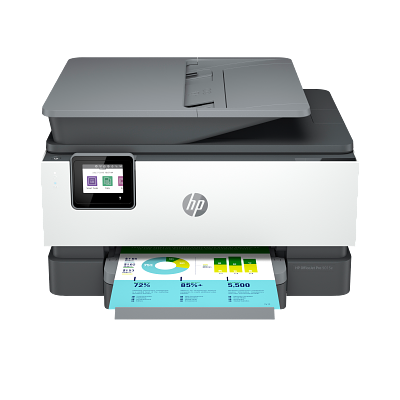
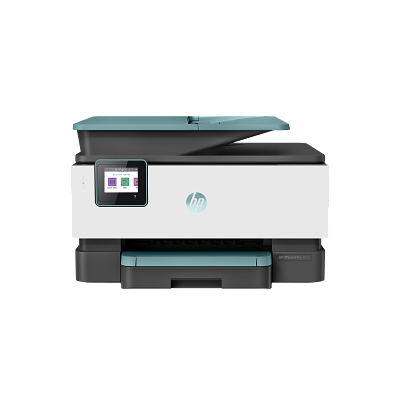
The HP OfficeJet Pro 9015e is a solid all-in-one printer, but like any connected device, it can run into a few predictable issues. Most problems are tied to paper handling, wireless setup, ink detection, or outdated firmware. In my experience, people often assume the printer is “broken” when it is really reacting to a small setup issue.
Here are the most common causes of HP OfficeJet Pro 9015e troubleshooting:
- Paper jams from curled, damp, or overloaded paper
- Weak Wi-Fi signals or router changes
- Empty, low, or improperly installed ink cartridges
- Dirty printheads or clogged nozzles
- Outdated firmware or old printer drivers
- App or mobile printing sync issues
- Power-cycle glitches after sleep mode or updates
A useful way to think about it is this: the printer is like a busy office assistant. If one small thing is off, it slows down the whole workflow. The good news is that these issues usually have simple fixes.
HP OfficeJet Pro 9015e troubleshooting steps that fix most issues
When people ask me where to start, I always suggest the same order: basics first, advanced steps second. That saves time and keeps you from changing settings you may not need to touch. The goal is to eliminate the easy problems before digging deeper.
1. Restart the printer and your network
A full restart solves more problems than most users expect. Turn off the printer, unplug it for at least 60 seconds, restart your router, and then power everything back on. This clears temporary errors and reconnects the printer to a fresh network session.
If the printer has been sleeping or disconnected for a while, this step often restores normal behavior. I have seen wireless issues vanish after nothing more than a clean restart.
2. Check the paper path
Paper jams can be obvious, but sometimes the printer has a tiny scrap stuck inside. Open every access door, remove the paper tray, and look carefully for torn pieces or bent sheets. Use both hands to pull paper slowly in the direction of the paper path if you find a jam.
Also check the paper itself:
- Keep paper dry and flat
- Do not overfill the tray
- Fan the stack before loading
- Use the correct paper type for your task
A warped sheet can trigger repeated jam errors even when the tray looks fine.
3. Re-seat the ink cartridges
If the printer shows ink errors or refuses to print, remove the cartridges and reinstall them firmly. Make sure the protective tape is fully removed and the contacts are clean. A cartridge that looks fine on the outside can still fail if it is slightly out of place.
If you use non-genuine ink, compatibility can become a factor. HP devices often work best with cartridges made for that model and region.
4. Run a printhead cleaning cycle
Faded prints, missing lines, or streaks usually point to clogged nozzles. Use the printer’s built-in cleaning or alignment tools from the control panel or HP app. Start with one cleaning cycle and test a page before running more.
From experience, it is easy to overdo this. Too many cleanings waste ink, so use them only when the print quality actually shows signs of clogging.

Fixing wireless and connectivity problems
Wireless trouble is one of the biggest reasons people search for HP OfficeJet Pro 9015e troubleshooting. The printer may show offline, disappear from the app, or refuse to reconnect after a router update. These issues can feel random, but they usually trace back to signal strength, saved network data, or IP conflicts.
Here is how to narrow it down:
- Move the printer closer to the router if the signal is weak
- Reconnect the printer to Wi-Fi from the setup menu
- Confirm the printer and phone or computer are on the same network
- Restart the router if the printer keeps dropping offline
- Remove old printer entries from your device and re-add the printer
If your router recently changed names, passwords, or security settings, the printer may still be trying to connect to the old network. That is a very common miss.
A stable wireless connection matters because the HP OfficeJet Pro 9015e is designed for cloud printing, mobile printing, and app-based control. If the network is shaky, the whole experience starts to break down.
Solving print quality problems
Print quality problems can make a good printer look bad fast. Blurry text, faded colors, streaks, and uneven lines all point to different causes, but they often begin with the same basic checks. I always tell people to print a test page before changing a bunch of settings.
Try these steps:
- Check ink levels in the HP app or printer display
- Run printhead cleaning and alignment tools
- Use plain, fresh paper for testing
- Set the correct paper type in print settings
- Make sure draft mode is not turned on by accident
If text looks smeared, the paper may be too thin or too glossy for the job. If colors are off, the printhead may need alignment. If some colors are missing completely, the cartridge or nozzle is likely the problem.
One lesson I learned the hard way: do not judge print quality from a single bad page. Print two or three test pages after cleaning, because the first one may still reflect old debris in the system.
Fixing scanner and copier issues
The scanner on the HP OfficeJet Pro 9015e is useful, but it can stop working for simple reasons. Sometimes the app cannot find the scanner, sometimes the glass is dirty, and sometimes software permissions block access. This is where patience helps.
Try this checklist:
- Clean the scanner glass with a soft lint-free cloth
- Remove fingerprints, dust, or smudges from the lid area
- Restart the printer and the device you are scanning from
- Reinstall or update the HP software or mobile app
- Check that your computer allows scanner access
If scans come out crooked or cut off, place the original flat and aligned to the corner guides. Even a small tilt can distort the final scan. For document stacks, make sure the automatic document feeder is clean and free of staples, labels, or paper clips.
HP OfficeJet Pro 9015e troubleshooting for error messages
Error messages are useful because they point you toward the problem, but they can also be frustrating if you do not know what they mean. The key is to treat the message as a clue, not a verdict. Most of these warnings lead to basic fixes.
Common message categories include:
- Paper jam alerts
- Cartridge errors
- Printer offline messages
- Connection failed notices
- Scan or copy unavailable warnings
When you see an error, do not rush to reset everything. Write down the message, check the printer screen carefully, and match the message to the related system. If the issue repeats after a restart, update firmware and drivers next.
I have found that many “mystery errors” disappear once the printer receives a clean firmware update. It is one of the most overlooked parts of HP OfficeJet Pro 9015e troubleshooting.
Updating firmware and drivers the right way
Firmware and driver updates are not just maintenance. They often solve bugs, improve wireless stability, and help the printer communicate better with modern devices. HP regularly updates software to improve performance and fix known issues.
Best practices include:
- Check for firmware updates from the printer menu or app
- Update printer drivers on Windows or macOS
- Keep the HP Smart app current on mobile devices
- Restart the printer after updates finish
- Avoid interrupting the update process
If an update fails, do not pull the power immediately unless the printer is frozen for a long time. A forced shutdown during firmware installation can create bigger problems. Let the update complete if possible, then restart normally.
When the HP Smart app is part of the problem
The HP Smart app is handy, but it can also be part of the trouble. Users often blame the printer when the app is actually holding stale data, old permissions, or a failed login. That is especially true after phone updates or router changes.
If the app is not working, try this:
- Sign out and sign back in
- Remove the printer from the app and add it again
- Update the app from the app store
- Make sure Bluetooth and Wi-Fi permissions are enabled
- Reinstall the app if it keeps freezing or crashing
If your phone can print but cannot scan, the app permissions are often the culprit. Mobile printing should feel smooth, but like any bridge between devices, it needs both ends to behave.
Preventive maintenance for fewer future issues
The best HP OfficeJet Pro 9015e troubleshooting is the kind you barely need to do. A few good habits can prevent many problems before they start. I have seen printers last much longer when people treat them like regular office tools instead of forgotten appliances.
Use this simple maintenance routine:
- Print something at least once a week
- Keep paper sealed until use
- Clean the scanner glass regularly
- Update firmware when prompted
- Replace cartridges before they run completely dry
- Keep the printer in a cool, dust-free area
Regular use helps prevent ink from drying in the printhead. Dust control matters too, since tiny particles can affect rollers, sensors, and paper feeding over time. Think of maintenance as cheap insurance for better uptime.
When to contact HP support or get service
Some problems are bigger than home fixes. If the printer has hardware damage, repeated false error messages, or a failure that returns after every reset, professional help may be the best path. That is especially true if you have already tried the major HP OfficeJet Pro 9015e troubleshooting steps.
Consider support if:
- The printer will not power on
- The control panel stays frozen
- You hear grinding or unusual noises
- Paper keeps jamming after basic cleaning
- A cartridge error never clears
- The scanner or ADF stops working completely
Being honest about limitations is important here. Not every issue is worth hours of trial and error. If the printer is under warranty, it is often smarter to use that coverage than to keep guessing.
Frequently Asked Questions of HP OfficeJet Pro 9015e Troubleshooting
Why is my HP OfficeJet Pro 9015e offline?
It is usually caused by a Wi-Fi drop, router change, or a stale printer connection on your computer or phone. Restart the printer and router, then reconnect the printer to the correct network.
Why does my HP OfficeJet Pro 9015e keep showing a paper jam when there is no paper stuck?
A tiny torn piece of paper, dust, or a misfed sheet can trigger the sensor. Open all access points and check the full paper path carefully, including rollers and tray areas.
Why are my prints faded or streaky?
Low ink, clogged nozzles, or misaligned printheads are the most common causes. Run a cleaning cycle, check cartridge levels, and print a test page to confirm improvement.
Why won’t my HP OfficeJet Pro 9015e scan to my computer?
This often happens when the software is outdated, permissions are blocked, or the scanner connection is not set up correctly. Update the HP software, restart both devices, and confirm the scanner is selected in your app or system settings.
How do I reset my HP OfficeJet Pro 9015e?
A simple reset usually means turning the printer off, unplugging it for about 60 seconds, and powering it back on. If problems continue, you may need to remove and re-add the printer in the app or on your computer.
Do I need genuine HP ink for the HP OfficeJet Pro 9015e?
The printer is designed to work best with compatible HP cartridges, and using the recommended supply can reduce errors. Some third-party cartridges may work, but compatibility and print quality can vary.
Conclusion
HP OfficeJet Pro 9015e troubleshooting becomes much easier when you break it down into the basics: paper, ink, wireless, software, and maintenance. Most problems are not serious, and many can be fixed with a restart, a cleaning cycle, or a fresh network connection. The key is to stay calm, work step by step, and avoid making big changes too quickly.
If you keep your printer updated and give it a little regular care, it will usually return the favor with steady, reliable performance. Try the fixes in this guide the next time your printer acts up, and you will likely save time, money, and stress. If this helped, save it for later, share it with someone who needs it, or leave a comment with the issue you are facing.