Hp Officejet Pro 9025E Troubleshooting: Quick Fixes Guide
HP OfficeJet Pro 9025e troubleshooting usually comes down to paper, ink, network, driver, or firmware issues.
If you use the HP OfficeJet Pro 9025e often, you already know it is a fast, capable all in one printer that can still act stubborn at the worst time. I have seen this model behave like a champ for months, then suddenly freeze on a print job, drop off Wi Fi, or show a scanner error that makes no sense at first glance. The good news is that most HP OfficeJet Pro 9025e troubleshooting fixes are simple once you know where to look, and this guide walks you through the same steps I use when I want a printer back up fast.
Common HP OfficeJet Pro 9025e problems and what they usually mean
The first step in HP OfficeJet Pro 9025e troubleshooting is to match the symptom to the likely cause. That saves time and keeps you from changing the wrong setting.
Here are the problems people run into most often:
- Printer will not print: This usually points to a stalled queue, a connection issue, or a driver problem.
- Wireless printer offline: This often happens when the Wi Fi signal is weak, the router changed settings, or the printer needs a fresh network setup.
- Paper jam or paper feed error: This can come from damaged paper, dusty rollers, or a tray that is not seated correctly.
- Poor print quality: Faded text, streaks, or missing colors often mean clogged printheads, low ink, or the wrong paper setting.
- Scanner not working: This may be caused by software permissions, an outdated app, or a network scan setup issue.
- Display or touch screen issues: A frozen panel is often fixed with a restart or power reset.
- Firmware or setup trouble: New updates, app conflicts, or incomplete installation can create strange behavior.
In my experience, the fastest win is to start with the basics. Power, paper, ink, and Wi Fi solve more HP OfficeJet Pro 9025e troubleshooting cases than people expect.

Start with the simple fixes first
A lot of printer problems look serious but are really small glitches. I have lost count of how many times a full power cycle fixed what felt like a major failure.
Try these steps before moving into deeper HP OfficeJet Pro 9025e troubleshooting:
- Turn the printer off.
- Unplug the power cord from the wall.
- Wait 60 seconds.
- Plug the printer back in.
- Turn it on and test again.
Also check the basics:
- Make sure paper is loaded correctly.
- Remove any crumpled or bent sheets.
- Confirm the ink cartridges are seated properly.
- Check the printer screen for any error message.
- Make sure the printer is not in sleep mode when you send a job.
This matters because printers often hold onto a fault until they fully reset. Think of it like clearing a traffic jam before blaming the road.
Fix HP OfficeJet Pro 9025e not printing
If the printer shows ready but nothing prints, the issue is often in the print queue or driver. This is one of the most common HP OfficeJet Pro 9025e troubleshooting calls I see.
Try this order:
- Cancel all pending print jobs.
- Restart both the computer and the printer.
- Check that the printer is selected as the default printer.
- Open the printer queue and remove stuck documents.
- Reinstall or update the printer driver if the problem stays.
- Print a test page from the printer itself.
On Windows, I have seen a stuck spooler cause repeat failures. On Mac, the printer can look connected but still fail if the print system needs to be reset. If the printer works from another device, that is a strong sign the issue is on the computer side.
Helpful signs the problem is driver related:
- The printer shows offline even when it is on
- Jobs disappear without printing
- Documents print with odd formatting
- The computer stops seeing the printer after a reboot
If that happens, remove the printer and add it again. It is simple, but it works more often than people think.

Solve wireless and network connection problems
Wireless problems are a huge part of HP OfficeJet Pro 9025e troubleshooting because the printer depends on a stable network. A printer can be perfectly healthy and still seem broken if the Wi Fi link is weak.
Check these items:
- Make sure the printer is connected to the same Wi Fi network as your computer or phone.
- Restart the router if the printer keeps dropping off.
- Place the printer closer to the router if possible.
- Avoid thick walls, metal cabinets, and cordless phone interference.
- Reconnect the printer using the wireless setup wizard if the network changed.
If the printer was working before but suddenly went offline, your router may have changed the band or password. I once spent too long chasing a “printer issue” that turned out to be a router update that silently bumped devices off the network.
You can also try:
- Printing a network configuration page
- Checking the printer’s IP address
- Reserving a fixed IP address in your router settings
- Turning off VPN temporarily during setup
For many users, a stable 2.4 GHz connection works better than a crowded 5 GHz band, especially in larger homes or small offices. That small change can make HP OfficeJet Pro 9025e troubleshooting much easier.
Fix paper jams and paper feed errors
Paper jams are annoying because they often happen right when you need the printer most. Still, they are usually easy to clear if you do not rush.
Use this approach:
- Turn off the printer.
- Open the access doors slowly.
- Remove any jammed paper with both hands.
- Check for tiny scraps left inside.
- Inspect the paper tray and rollers.
- Reload clean, flat paper.
Do not yank paper hard. I have seen torn pieces stay hidden inside the printer and cause repeated jams later. That turns a small issue into a full afternoon problem.
To reduce future jams:
- Use plain, clean paper that is not curled.
- Fan the stack before loading it.
- Do not overfill the tray.
- Store paper in a dry place.
- Clean the feed rollers if they look dusty.
If your HP OfficeJet Pro 9025e keeps jamming with the same paper, the paper itself may be the problem. Cheap or damp paper can behave like it has a mind of its own.

Improve print quality
When text looks faded or colors look wrong, print quality troubleshooting is the next step. The HP OfficeJet Pro 9025e is usually capable of sharp output, so quality issues often point to maintenance needs.
Check these areas:
- Ink levels
- Printhead condition
- Paper type settings
- Draft mode or economy settings
- Nozzle clogging
Start with a nozzle or print quality report from the printer menu. If lines are missing, run a printhead cleaning cycle. One cleaning may not be enough, but do not overdo it. Too many cleanings can waste ink fast.
Also confirm:
- The paper type matches the job
- The print quality setting is not set to draft
- The cartridges are genuine or reliable replacements
- The printer has been used regularly enough to keep ink flowing
A practical tip from real-world use: printers that sit idle for weeks often develop more quality issues than printers used every few days. Regular use helps keep ink moving and reduces clogs.
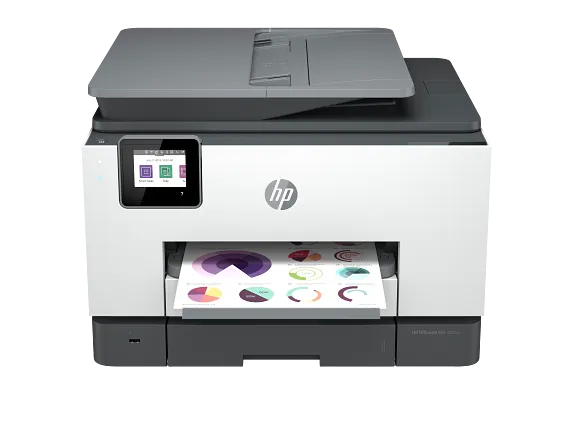
Fix scanner and copy problems
The scanner in the HP OfficeJet Pro 9025e is useful, but it can fail even when printing works fine. That usually means the problem is in software, permissions, or network discovery.
Try these steps:
- Restart the printer and the computer.
- Make sure the scanner software is installed correctly.
- Check app permissions for camera, files, or scanner access.
- Reconnect the printer if scanning over Wi Fi.
- Test scanning from another app or device.
- Update the HP software or scanning app.
If you can print but cannot scan, the printer hardware may be fine. The issue may sit in the scan path between the device and the app. That is why testing from both the printer panel and the computer helps narrow things down.
For best results:
- Use the correct scan source
- Keep the printer and computer on the same network
- Update the operating system if scanning stopped after a recent change
- Reinstall the scanning software if it no longer opens
This part of HP OfficeJet Pro 9025e troubleshooting often feels confusing, but it is usually a software handshake problem, not a broken scanner.

Handle firmware and software updates carefully
Updates can help, but they can also create temporary issues if something goes wrong during installation. That is why firmware is both a fix and a possible cause in HP OfficeJet Pro 9025e troubleshooting.
Why updates matter:
- They can improve stability
- They may fix bugs
- They can improve wireless reliability
- They may patch security issues
But there are limits:
- A bad update can cause new glitches
- An interrupted update can freeze features
- Old drivers may not work well with newer systems
My advice is simple: update only when needed, and do it with a stable internet connection and enough power. Do not start a firmware update during a flaky Wi Fi moment. That is like trying to cook on a stove that keeps turning off.
If the printer misbehaves after an update:
- Restart the printer
- Reinstall the latest driver
- Remove and re-add the printer
- Check for a newer firmware version
- Roll back software changes on the computer if needed

Reset the printer when nothing else works
A reset can clear deeper glitches that basic restarts do not fix. It is not the first step, but it is a useful one in serious HP OfficeJet Pro 9025e troubleshooting.
Common reset paths include:
- Soft reset: Turn the printer off and on
- Network reset: Clear saved Wi Fi settings and reconnect
- Factory reset: Return the printer to default settings
Use caution with a full reset because it can erase stored network details and preferences. I usually recommend trying the least disruptive reset first, then moving up only if the issue keeps coming back.
Before resetting, note:
- Wi Fi password
- Custom paper settings
- Any saved shortcuts
- Static IP details if you use them
A reset is like clearing a messy desk. It can help a lot, but you should know where your important things are before you start.

Prevent future problems
Good HP OfficeJet Pro 9025e troubleshooting is not just about fixing problems. It is also about stopping them from coming back.
A few habits make a big difference:
- Print something at least once in a while to keep ink flowing
- Keep firmware and drivers current
- Use quality paper
- Clean the glass and rollers occasionally
- Place the printer in a clean, dry spot
- Reboot the router now and then if the printer uses Wi Fi often
I have found that printers last longer and act better when they are treated like part of the system, not a machine you ignore until it breaks. A little care goes a long way.
Frequently Asked Questions of HP OfficeJet Pro 9025e Troubleshooting
Why does my HP OfficeJet Pro 9025e keep going offline?
This usually happens when the Wi Fi signal drops, the router changes settings, or the printer gets a new IP address. Restarting the printer and router often helps, and reconnecting the printer to the network can fix the issue.
How do I clear a stuck print job on the HP OfficeJet Pro 9025e?
Open the print queue on your computer and cancel all pending jobs. Then restart both the printer and the computer so the queue fully clears.
Why is my HP OfficeJet Pro 9025e printing blank pages?
Blank pages often point to low ink, clogged printheads, or empty cartridges. Run a printhead cleaning cycle and check that the cartridges are installed correctly.
Can I fix scanner problems without replacing the printer?
Yes, most scanner issues are caused by software, permissions, or network setup rather than hardware failure. Reinstalling the scanning app or reconnecting the printer often solves it.
Should I reset my HP OfficeJet Pro 9025e if nothing works?
Yes, but use it as a later step after checking ink, paper, Wi Fi, and drivers. A network reset or factory reset can clear deeper errors, but it will also remove custom settings.
Conclusion
HP OfficeJet Pro 9025e troubleshooting becomes much easier when you work from the simplest fix to the more advanced ones. Most issues come down to paper, ink, Wi Fi, drivers, or a stuck queue, and a steady step by step approach usually solves the problem without stress.
If your printer is acting up right now, start with a restart, check the network, and print a test page. Then move through the deeper fixes only if you need them. Keep this guide handy, and if you want, explore more printer setup and repair tips so you can handle the next issue even faster.

Similar Posts
































