Epson EcoTank ET-2800 Troubleshooting: Quick Fixes Guide
Most Epson EcoTank ET-2800 problems come from setup, ink flow, paper handling, or connection issues.
The Epson EcoTank ET-2800 is a solid home printer, but like any machine, it can act up when one small thing is off. I’ve seen this model frustrate people with blank pages, paper jams, Wi-Fi drops, and print quality issues that look worse than they really are. The good news is that Epson EcoTank ET-2800 troubleshooting is usually simple once you know where to look, and this guide walks you through the fixes in a clear, practical way.

Common Epson EcoTank ET-2800 Problems and What They Usually Mean
Most Epson EcoTank ET-2800 troubleshooting starts with understanding the symptom. A printer that won’t print is not always “broken.” Often, it is just signaling a clogged nozzle, a weak connection, a paper feed issue, or a driver problem.
Here are the most common issues people run into:
• Printer not printing at all
• Blank pages or faded prints
• Paper jams or multiple sheets feeding
• Wi-Fi connection problems
• Ink not flowing after refilling
• Error lights flashing on the control panel
In my experience, the ET-2800 is a lot like a garden hose. If one part is bent, blocked, or loose, the water does not come out right. The same goes for ink, paper, and data.

Start with the Basics Before You Dig Deeper
Before you try advanced Epson EcoTank ET-2800 troubleshooting, check the simple stuff first. This saves time and often fixes the issue in minutes.
Check power and restart the printer
A full power reset can clear minor glitches.
- Turn off the printer.
- Unplug it from the wall.
- Wait at least 60 seconds.
- Plug it back in and turn it on.
This is one of the most useful things I learned early on. It sounds too simple, but many printer errors vanish after a clean restart.
Confirm the ink tanks are filled correctly
The EcoTank system depends on steady ink flow. If the ink level is low, the tank caps are not sealed well, or the ink was not filled properly, print quality can suffer.
• Make sure each ink bottle matches the correct color tank
• Fill only to the top line, not past it
• Close the caps tightly after refilling
• Keep the printer level so ink can flow evenly
Make sure paper is loaded the right way
Paper problems cause more trouble than most people expect. If the stack is curled, too thick, or loaded unevenly, the ET-2800 may grab more than one sheet or jam.
• Use plain letter-size paper for testing
• Fan the stack before loading it
• Do not overload the tray
• Adjust the side guides snugly but not too tightly
Fixing Epson EcoTank ET-2800 Print Quality Problems
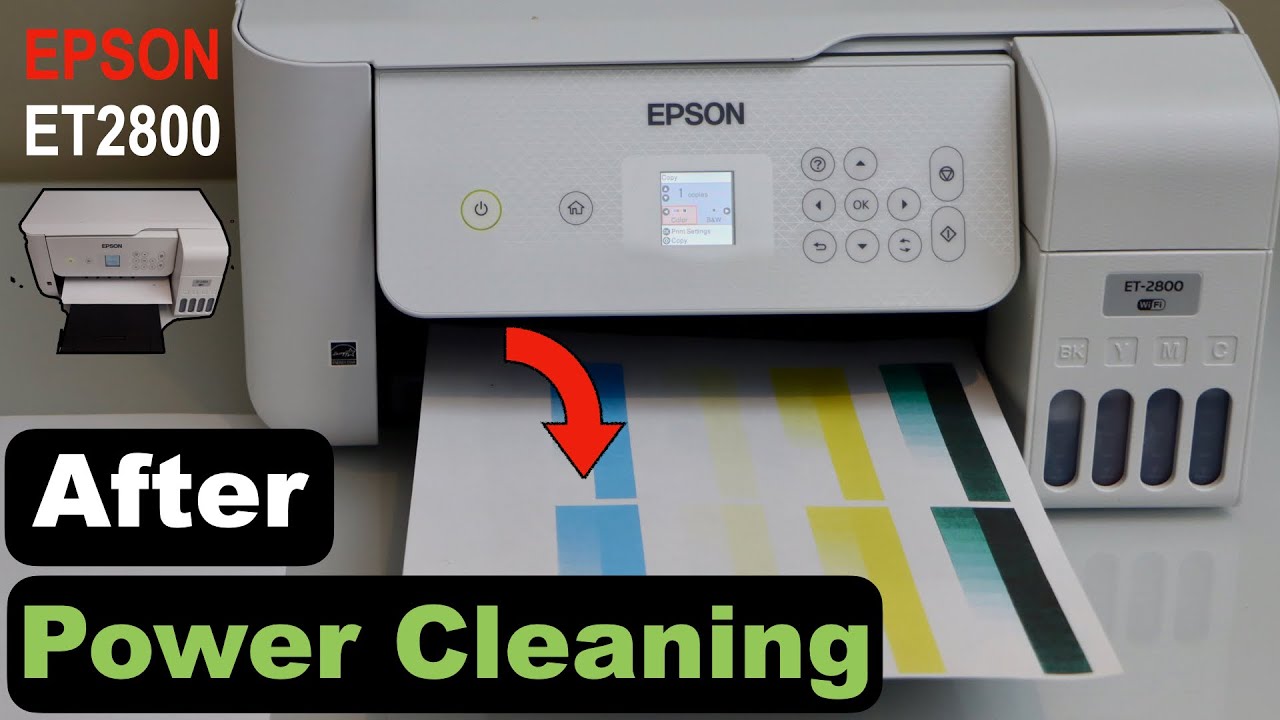
Poor print quality is one of the most common reasons people search for Epson EcoTank ET-2800 troubleshooting. The printer may produce streaks, gaps, fuzzy text, or pale colors. These symptoms usually point to clogged nozzles, air in the ink line, or dirty print heads.
Run a nozzle check
A nozzle check helps you see which colors are missing or broken.
If the pattern shows gaps, the printer likely needs head cleaning. If the pattern looks good but prints still look bad, the issue may be in the document file, driver settings, or paper type.
Run print head cleaning
The ET-2800 has built-in cleaning functions that can help restore ink flow.
• Open the printer utility from your computer or app
• Choose print head cleaning
• Print another nozzle check afterward
• Repeat only if needed
A mistake I have seen people make is running cleaning cycles too many times in a row. That can waste ink fast. Use one cleaning cycle, then test again. If the issue stays, give the printer time and try a second pass later.
Align the print head
If text looks blurry or lines appear off, print head alignment can help. This is especially useful after transport, long storage, or frequent refills.
• Go to maintenance tools
• Choose print head alignment
• Follow the on-screen test pattern
• Select the best match when prompted
Use the right paper and settings
Wrong settings can make good prints look bad.
• Match paper type in the printer settings
• Use the best quality setting for photos
• Use plain paper mode for everyday text
• Avoid printing photos on low-grade copy paper

How to Solve Ink Flow and Refilling Issues
Ink flow problems are a key part of Epson EcoTank ET-2800 troubleshooting because this printer uses a tank system instead of cartridges. That design is efficient, but it also means air bubbles or poor refilling habits can interrupt printing.
Check for air in the ink lines
If you recently refilled the printer and one color is missing, air may be trapped in the line. This can happen after improper filling or if the printer sat unused for too long.
• Print a nozzle check first
• Run a cleaning cycle if needed
• Print a few test pages to help move ink through the lines
Use genuine or compatible ink carefully
Not all third-party ink performs the same way. Low-quality ink can clog nozzles, affect color accuracy, or even damage the print system over time.
I always tell people to treat ink like engine oil. If it is the wrong type or poor quality, the machine may still run, but not well for long.
Keep the printer in regular use
EcoTank printers do best when used often. Long gaps between prints can allow ink to settle or dry inside the nozzles.
• Print a small page once a week
• Run a test print if the printer has been idle for a while
• Keep the room at a stable temperature and humidity
Fixing Paper Jams and Feeding Problems
Paper jams can feel annoying, but they are usually easy to solve. The ET-2800 paper path is simple, so Epson EcoTank ET-2800 troubleshooting for jams often comes down to paper quality, loading style, or debris inside the feed area.
Remove jammed paper the right way
Do not yank paper hard. That can tear it and leave bits behind.
- Turn off the printer.
- Open the cover and look for the jam.
- Pull the paper slowly in the direction of the paper path.
- Check inside for small torn pieces.
- Close everything and test again.
Prevent repeated jams
• Use fresh, dry paper
• Store paper in a cool, dry place
• Avoid bent or curled sheets
• Clean the paper feed rollers if they look dusty
Watch for double feeding
If the printer grabs more than one sheet, the stack may be too thick or the paper may be sticking together.
• Fan the paper before loading
• Reduce the paper stack size
• Make sure the side guides touch the paper lightly

How to Troubleshoot Wi-Fi and Connection Issues
Wireless problems are another big part of Epson EcoTank ET-2800 troubleshooting. A printer can be fully functional and still seem broken if it loses its network connection.
Check the Wi-Fi signal
Weak signal strength can stop print jobs or cause delays.
• Move the printer closer to the router if possible
• Avoid thick walls and large metal objects nearby
• Restart the router and printer
Reconnect the printer to Wi-Fi
If the printer no longer appears on your devices, it may need to be rejoined to the network.
• Use the printer’s wireless setup option
• Select the correct Wi-Fi name
• Enter the password carefully
• Print a network status sheet if available
Update drivers and software
Old drivers can cause connection and print issues. This is especially true after a computer update.
• Remove old printer software if needed
• Install the latest driver for your operating system
• Re-add the printer to your device
I have seen people blame the printer when the real issue was an outdated laptop driver. That kind of mismatch is common, and it is worth checking before you replace anything.

Understanding Error Lights and On-Screen Messages
The Epson EcoTank ET-2800 uses lights and alerts to point you toward the problem. These signals are part of smart Epson EcoTank ET-2800 troubleshooting because they narrow down the cause quickly.
What flashing lights often mean
• Power light flashing can mean the printer is starting, processing, or recovering from an issue
• Ink light often points to low ink, tank issues, or refill concerns
• Paper light usually suggests a jam or feed problem
Read the error message carefully
If the screen or app gives you a code or message, write it down. That small detail can tell you whether the issue is hardware, paper, ink, or communication related.
Do not ignore repeated alerts
If the same warning keeps coming back after a reset, there may be a deeper problem.
• Check for stuck paper
• Confirm the ink tanks are seated correctly
• Inspect for dirt or damage near the rollers
• Contact support if the printer shows the same fault again and again
Advanced Epson EcoTank ET-2800 Troubleshooting Tips
If basic fixes do not help, move into deeper checks. These steps take a little more patience, but they often solve stubborn issues.
Clean the scanner glass and rollers
Dust and smudges can affect scanning and copying. Dirty rollers can also worsen paper feed problems.
• Use a soft, lint-free cloth
• Avoid harsh cleaners
• Let surfaces dry fully before printing again
Check printer settings in your computer
Sometimes the printer is fine, but the software is sending the wrong command.
• Make sure the ET-2800 is selected as the default printer
• Check that it is not paused or offline
• Review print quality and paper size settings
• Cancel stuck print jobs in the queue
Perform a factory reset only if needed
A reset can help if the printer has repeated software or network problems. Still, use this as a later step because it clears custom settings.
• Back up Wi-Fi details if needed
• Follow the printer menu for reset options
• Set up the printer again after the reset
A reset is like a hard reboot for your routine. It can help a lot, but it should not be the first move unless the printer is completely stuck.
Smart Maintenance to Prevent Future Problems
Good maintenance makes Epson EcoTank ET-2800 troubleshooting much less frequent. A little care now saves a lot of stress later.
• Print regularly so ink keeps moving
• Keep the printer covered when not in use
• Use quality paper and ink
• Check for software updates every few months
• Store ink bottles upright and sealed
I have found that printers behave best when they are treated like a kitchen appliance you actually use, not something you forget in a corner. Regular use keeps the system healthy and reduces clogs.
When to Contact Epson Support or Get Professional Help
Some problems are bigger than normal home fixes. If you have tried the main Epson EcoTank ET-2800 troubleshooting steps and the printer still fails, it may need service.
You may need help if:
• The printer shows repeated hardware errors
• Print heads stay clogged after cleaning cycles
• The printer will not power on
• Ink leaks inside the unit
• Rollers or internal parts seem damaged
If the printer is still under warranty, avoid opening internal parts yourself. That can create more trouble and may affect coverage.
Frequently Asked Questions of Epson EcoTank ET-2800 Troubleshooting
Why is my Epson EcoTank ET-2800 printing blank pages?
Blank pages usually mean clogged nozzles, trapped air in the ink line, or incorrect ink settings. Run a nozzle check first, then use print head cleaning if needed.
How do I fix my Epson EcoTank ET-2800 not connecting to Wi-Fi?
Restart the printer and router, then reconnect the printer to your wireless network. If that does not help, update the printer driver and make sure the network name and password are correct.
Why is my ET-2800 printing faded or streaky pages?
Faded or streaky prints often come from low ink flow, clogged nozzles, or the wrong paper settings. A nozzle check and print head cleaning usually help, along with confirming the correct paper type in settings.
How do I clear a paper jam in the Epson EcoTank ET-2800?
Turn off the printer, open the covers, and remove the paper slowly in the direction of the paper path. Check for torn scraps inside before turning it back on.
What should I do if the Epson EcoTank ET-2800 keeps flashing lights?
Flashing lights usually point to ink, paper, or internal status issues. Check the printer’s message or light pattern, then inspect for jams, low ink, or connection problems.
How often should I clean the print head?
Only clean the print head when print quality drops or the nozzle check shows missing lines. Cleaning too often wastes ink, so it is best to test first and repeat only when needed.
Conclusion
Epson EcoTank ET-2800 troubleshooting becomes much easier when you break the problem into simple parts: ink, paper, settings, connection, and maintenance. Most issues are not serious, and many can be fixed with a restart, a nozzle check, or a careful look at the paper path.
If you use the printer regularly, keep the ink flowing, and stay on top of driver updates, you will avoid a lot of common headaches. Try the steps in this guide the next time your printer acts up, and you will likely save time, ink, and frustration. If you found this helpful, keep exploring more printer tips and share your own fix in the comments.