Why Is Arlo Pro 5S Camera Not Recording: Easy Fixes
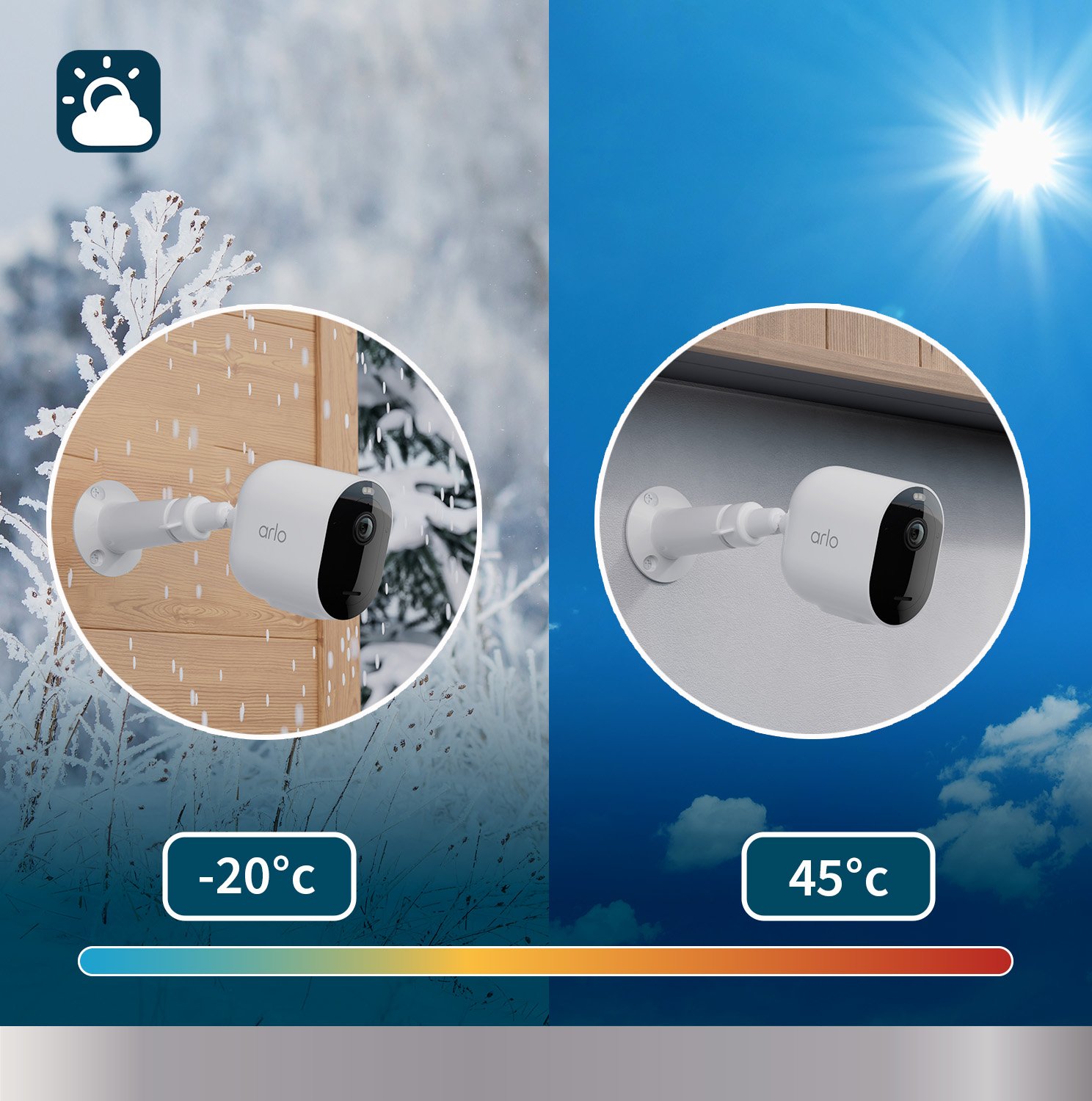
The Arlo Pro 5S usually stops recording because of power, settings, Wi Fi, storage, or subscription issues.
If your Arlo Pro 5S Camera is not recording, the fix is often simpler than it looks. In my experience, most recording problems come down to a missed setting, a weak connection, or a power issue that hides in plain sight. Let’s walk through the real causes, the checks that matter most, and the exact steps that usually get an Arlo Pro 5S Camera not recording back on track.
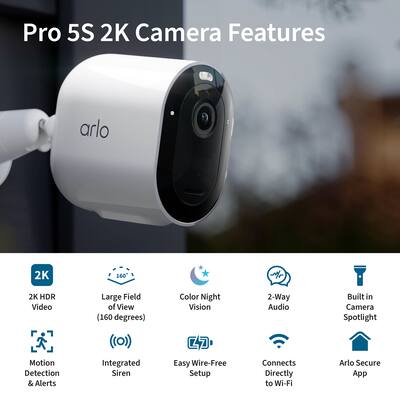
Why Your Arlo Pro 5S Camera Is Not Recording
When an Arlo Pro 5S Camera is not recording, the first thing to understand is that the camera rarely fails for just one reason. It is usually a chain of small issues, like motion detection turned off, battery too low, a bad Wi Fi link, or the cloud plan not being active. That is why the problem can feel random, even when the real cause is easy to miss.
I have seen this happen many times with smart cameras. A user thinks the device is broken, but the camera is actually doing exactly what the settings tell it to do. The key is to check the system step by step, not just the camera itself.
Common Reasons the Arlo Pro 5S Camera Is Not Recording
There are several common reasons the Arlo Pro 5S Camera is not recording. The good news is that most of them are fixable without special tools or advanced tech skills.
Motion detection is turned off
If motion detection is off, the camera may still live stream, but it will not save clips. This is one of the most common mistakes I have seen during setup, especially after app updates or changed routines.
Check the activity zones, motion sensitivity, and automation rules in the Arlo app. If the camera is only recording when you manually start it, motion-triggered recording is likely disabled somewhere in the settings.
The battery is too low
A low battery can cause the Arlo Pro 5S Camera not recording issue, especially if the battery cannot support full operation. The camera may appear online, but recording can become unstable when power drops too far.
I always recommend charging the battery fully and testing again. In real use, low battery problems can look like software bugs, but they are often just power limits showing up at the worst time.
Wi Fi connection is weak or unstable
The Arlo Pro 5S depends on a strong wireless connection to send clips and alerts. If the signal is weak, the camera may miss motion events or fail to upload recordings.
This is especially common if the camera is far from the router, blocked by walls, or placed near interference like microwaves or thick metal surfaces. A camera that seems “fine” in the app can still have poor signal quality behind the scenes.
The subscription or trial has expired
If your cloud recording plan expired, the Arlo Pro 5S Camera may still detect motion, but it may not save recordings the way you expect. Many users only notice this after checking the app and seeing that recent clips are missing.
Make sure your Arlo Secure or recording plan is active. If you rely on cloud storage, this one issue alone can explain why your Arlo Pro 5S Camera is not recording.
Storage or recording permissions are misconfigured
Sometimes the issue is not the camera, but where the footage is supposed to go. If local storage is used, the storage device may be full, disconnected, or not formatted correctly.
For cloud recording, make sure the camera is assigned to the correct mode and rule. A small permissions error can make it look like the camera is broken when it is really just not allowed to save clips.
Firmware or app software is outdated
Outdated firmware can cause recording glitches, missed triggers, and unstable behavior. The same is true for the mobile app if it is behind on updates.
I have personally seen cameras start acting normal again after a simple firmware update. It is not the most exciting fix, but it is one of the most effective.
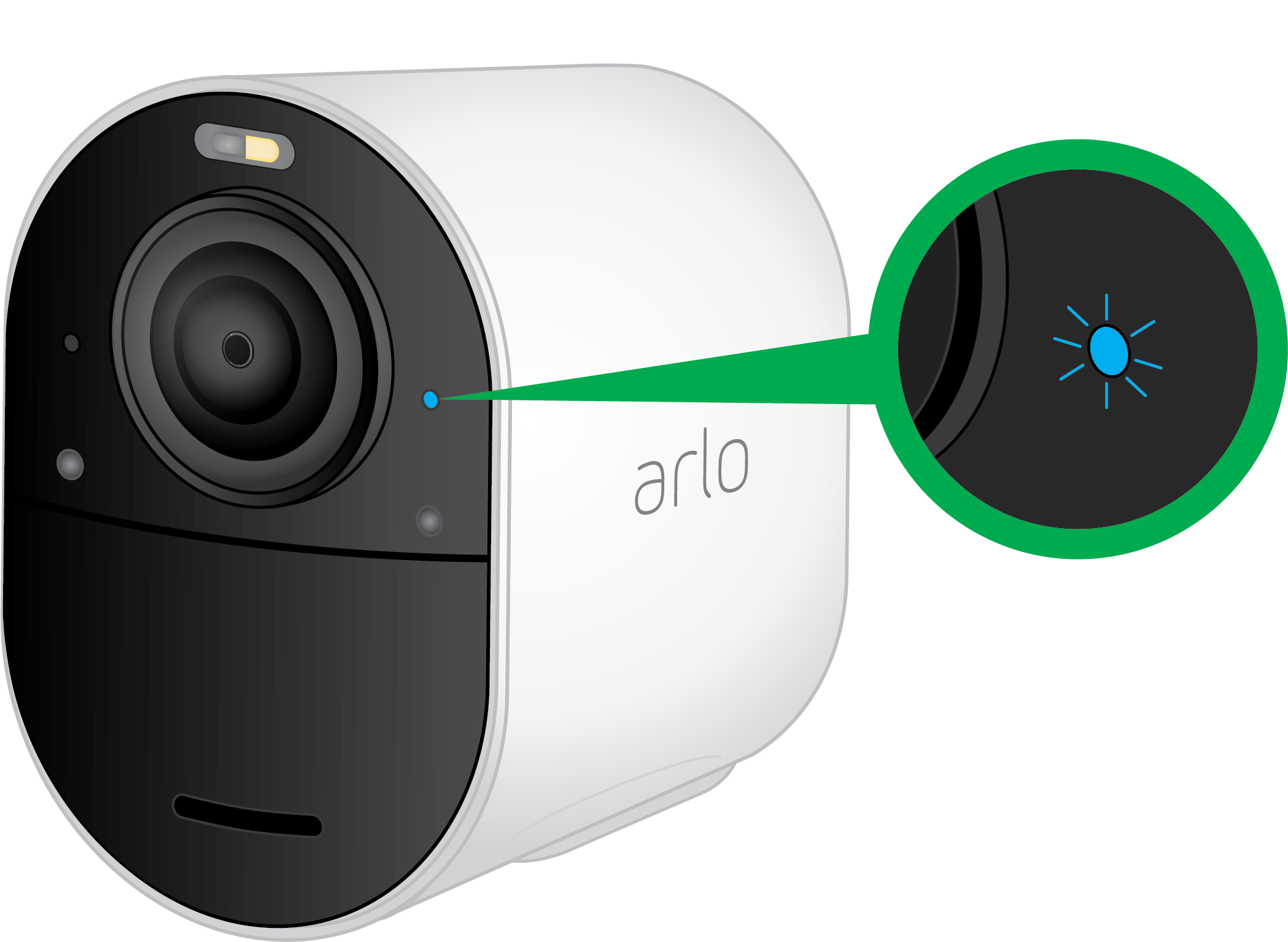
How to Fix an Arlo Pro 5S Camera Not Recording
If your Arlo Pro 5S Camera is not recording, follow these steps in order. Start with the simplest checks first, because that saves time and avoids unnecessary resets.
1. Check the camera status in the Arlo app
Open the app and confirm that the camera shows as online. If it is offline, the camera cannot record or upload clips correctly.
Look for alerts about low battery, weak signal, or disabled motion detection. These small status messages often point straight to the problem.
2. Confirm motion detection settings
Go into your camera settings and make sure motion detection is enabled. Then check the motion sensitivity and activity zones.
If the sensitivity is too low, the camera may only catch large movement. That can make it seem like the Arlo Pro 5S Camera is not recording at all.
3. Test battery level and charging
Remove the battery and charge it fully if needed. Then reinstall it and test the camera again.
If the battery drains quickly after charging, there may be a deeper power issue. In that case, try a different charging cable or power source before assuming the camera is faulty.
4. Improve the Wi Fi signal
Move the camera closer to the router or reposition the router if possible. You can also reduce interference by keeping the camera away from dense walls, appliances, and other wireless devices.
A stronger signal often fixes recording delays and missed clips. In my experience, this is one of the most overlooked reasons the Arlo Pro 5S Camera is not recording.
5. Verify your subscription and recording plan
Check whether your recording plan is active and linked to the correct account. If the trial ended or the plan lapsed, recordings may stop saving.
This step matters more than people think. A camera can seem completely normal while quietly losing the ability to store events.
6. Restart the camera and base station or hub
Power cycling clears temporary glitches. Remove power from the camera if possible, or restart the base station if your setup uses one.
Wait at least 30 seconds before turning things back on. This simple reset often fixes temporary sync problems that affect recording.
7. Update the app and firmware
Make sure both the Arlo app and camera firmware are current. Updates often include bug fixes for motion detection, live view, and clip storage.
If an update is available, install it and test again. This is a low effort step that can solve a surprisingly large number of issues.
8. Re-add the camera if needed
If nothing else works, remove the camera from the app and add it again. This can repair corrupted device settings or a broken sync.
I usually recommend this only after you have checked the basics. But when a camera keeps refusing to record, a clean re-pair can be the reset it needs.
Advanced Troubleshooting for Persistent Recording Problems
If the Arlo Pro 5S Camera is not recording after the usual checks, go deeper. At this point, the issue may be tied to setup structure rather than a single setting.
Check activity zones and automation rules
Activity zones help reduce false alerts, but they can also block motion if configured too narrowly. If the moving object is outside the zone, the camera may ignore it.
Also review any automation, schedules, or smart modes. Sometimes the camera is working, but the mode tells it not to record during certain hours.
Review detection placement and camera angle
Camera angle matters more than many users realize. If the lens points too high, too low, or at a busy background, motion may not be captured cleanly.
Try adjusting the angle so the camera faces the likely path of movement. A small shift can make a big difference in whether the camera triggers recording.
Check local storage if you use it
If your setup uses a hub or local storage, inspect the USB drive or storage device. Make sure it is properly inserted, has space available, and is recognized by the system.
A damaged or full storage device can stop clips from being saved. This is easy to miss because the camera may still appear to function normally in the app.
Test with a manual motion event
Walk in front of the camera and watch the app in real time. Check whether it detects motion, sends a notification, and begins recording.
This simple test helps separate a detection problem from a storage problem. It is one of the fastest ways to narrow down why the Arlo Pro 5S Camera is not recording.
What I Learned From Real-World Setup Issues
One thing I have learned from working with smart cameras is that users often chase the wrong problem first. They blame the camera hardware when the real issue is usually configuration, signal, or account status. That is why a calm step-by-step check works better than random resets.
I also learned not to overlook the boring stuff. A weak battery, a loose storage connection, or a forgotten subscription can cause more frustration than a damaged camera ever would. The best fix is usually the one that feels too simple to matter.
How to Prevent Recording Problems in the Future
Preventing the Arlo Pro 5S Camera not recording problem is mostly about routine maintenance. A few small habits can save you from a lot of stress later.
Keep these habits in place:
- Check battery levels every few weeks
- Keep the camera firmware updated
- Review motion settings after app changes
- Test recording after moving the camera
- Make sure your subscription stays active
- Keep the camera within a strong Wi Fi range
- Clean the lens so motion is not missed by dirt or glare
A smart camera works best when it is treated like a system, not a one-time install. Think of it like a house alarm: it only helps if every part is armed and connected.
When the Problem May Be Hardware-Related
Sometimes the Arlo Pro 5S Camera is not recording because the device itself has a fault. This is less common than settings or connection issues, but it can happen.
Hardware trouble may include:
- A battery that no longer holds charge
- A damaged charging port
- A failing sensor
- Water or weather damage
- Internal connection problems
If the camera fails after multiple resets, updates, and network checks, hardware may be the final answer. At that point, contacting support or checking warranty coverage makes sense.
Frequently Asked Questions
Why is my Arlo Pro 5S Camera not recording motion?
It usually comes down to motion detection settings, weak Wi Fi, low battery, or an inactive recording plan. Start by checking the app to confirm that motion alerts and recording are enabled.
Why does my Arlo Pro 5S Camera live stream but not record?
That often means the camera is online, but recording permissions or motion rules are not set correctly. It can also happen if the cloud plan expired or local storage is not working.
Can low battery stop the Arlo Pro 5S Camera from recording?
Yes, low battery can reduce performance and cause missed recordings. Charge the camera fully and test it again before moving on to deeper troubleshooting.
Does Arlo Pro 5S need Wi Fi to record?
Yes, a stable Wi Fi connection is important for recording and uploading clips. If the signal is weak, the camera may fail to save or sync events properly.
What should I do if my Arlo Pro 5S Camera still is not recording after a reset?
If a reset does not help, review your subscription, firmware, motion settings, and storage setup. If the problem continues, the issue may be hardware-related and you may need support or replacement help.
Conclusion
When an Arlo Pro 5S Camera is not recording, the cause is usually something practical, not mysterious. In most cases, the fix is tied to motion settings, battery life, Wi Fi strength, subscription status, or storage setup. Once you work through those areas one by one, the problem usually becomes clear fast.
The best approach is simple: check the app, confirm power and signal, verify your recording plan, and test motion manually. If you take that methodical path, you will solve most recording issues without guesswork.
If this guide helped you, try the steps on your own camera today and see which one makes the difference. You can also explore more Arlo troubleshooting tips, subscribe for updates, or leave a comment with your setup and symptoms if you want more help.

Similar Posts
































