Epson EcoTank ET-4850 Troubleshooting: Fast Fixes Guide
Epson EcoTank ET-4850 troubleshooting usually means fixing ink, paper, Wi-Fi, or software issues with simple checks.
If your Epson EcoTank ET-4850 is acting up, you are not alone. I have seen this model handle long print runs well, but like any all-in-one printer, it can slow down when a small setting, clogged nozzle, or network hiccup gets in the way. In this guide to Epson EcoTank ET-4850 troubleshooting, I will walk you through the most common problems and the practical fixes that actually save time.
Understanding Epson EcoTank ET-4850 Problems
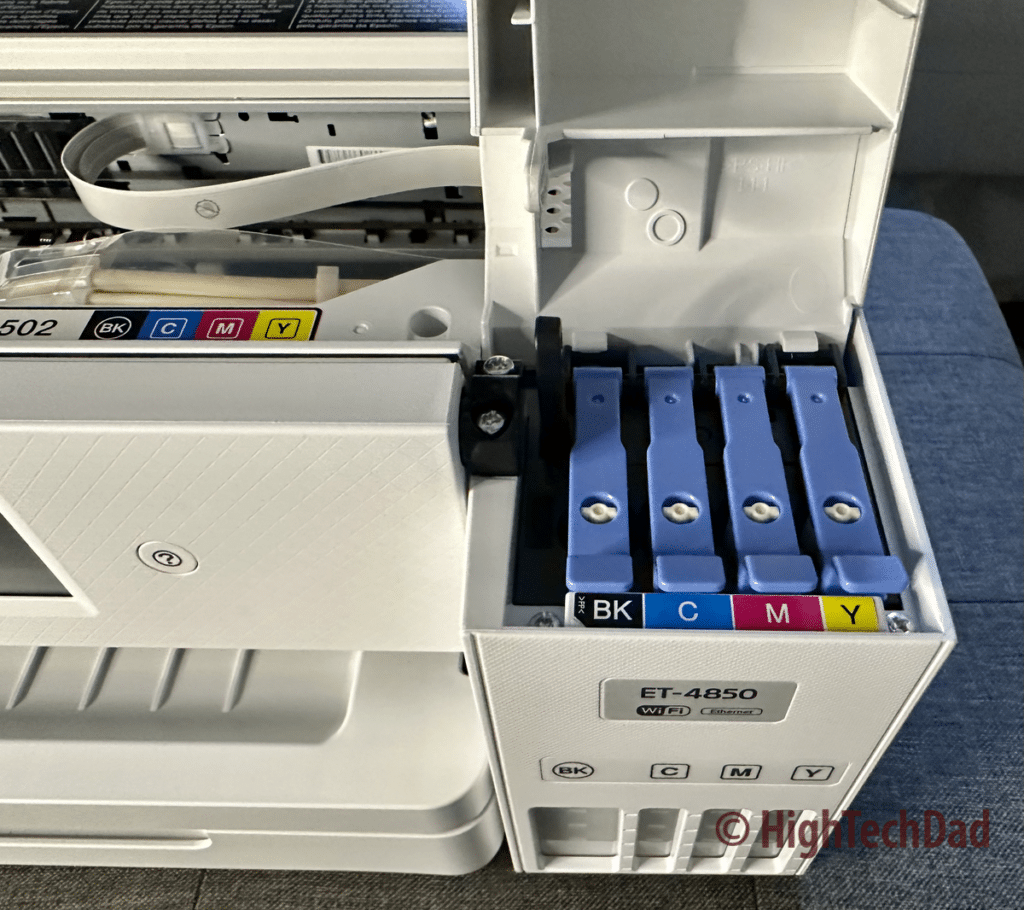
The Epson EcoTank ET-4850 is a refillable ink tank printer made for home offices and small businesses. It is known for low ink costs, wireless printing, scanning, and copying. But when something goes wrong, the issue is often tied to one of a few areas: ink flow, paper handling, Wi-Fi, drivers, or maintenance.
From my experience, the best way to approach Epson EcoTank ET-4850 troubleshooting is to stay calm and check the basics first. Many people rush to reset the printer when the real issue is much simpler, like a loose cable, an empty tank, or a dirty paper path. That small habit can save a lot of frustration.
Common Epson EcoTank ET-4850 Troubleshooting Issues
Most ET-4850 problems fall into a few familiar categories. Knowing these helps you narrow things down faster and avoid random guesswork.
Common symptoms include:
- Printer not turning on
- Wi-Fi connection failures
- Blank pages or faded prints
- Paper jams or paper feed errors
- Scanner not working
- Printer not detected on a computer
- Ink not flowing after refill
The good news is that the ET-4850 is built with maintenance tools that can fix many of these issues without a service visit. The challenge is that the printer may look fine on the outside while the problem sits inside the software, nozzles, or connection settings.
Epson EcoTank ET-4850 Troubleshooting for Power and Startup Issues
If the printer will not power on, start with the simple stuff. Check the power cord, outlet, and power button. If the outlet works for another device, unplug the printer for about 60 seconds, then plug it back in and try again.
If the printer turns on but freezes or shows no response, do this:
- Turn it off.
- Unplug the power cord from the wall.
- Wait one full minute.
- Plug it back in directly to the wall outlet.
- Turn it on again.
I have seen printers recover after this kind of power cycle more times than I can count. It is like giving the machine a fresh start after too many tabs are open in its head.
If the screen is dim or blank, check for:
- A loose power connection
- A tripped surge protector
- A damaged power cable
- A wall outlet that is not supplying steady power
If none of that helps, the issue may be internal and may need professional service.
Epson EcoTank ET-4850 Troubleshooting for Wi-Fi and Network Problems
Wireless problems are one of the most common reasons people search for Epson EcoTank ET-4850 troubleshooting. If the printer keeps disconnecting, is not found on the network, or refuses to print from your phone or laptop, the problem is often with the router, signal, or saved network settings.
Try these steps:
- Make sure the printer is connected to the same Wi-Fi network as your device.
- Restart the router, printer, and computer.
- Move the printer closer to the router if possible.
- Re-enter the Wi-Fi password if the printer was recently moved or reset.
- Remove the printer from your device and add it again.
For best results, use the 2.4 GHz band if your router offers both 2.4 GHz and 5 GHz. Many home printers, including the ET-4850, work more reliably on 2.4 GHz because it has better range and wall penetration.
If the printer still fails to connect, print a network status sheet if available through the control panel. That can help you see whether the printer is actually joining the network or just looking connected on the screen.
Epson EcoTank ET-4850 Troubleshooting for Print Quality Issues
Poor print quality can be frustrating, especially when the page looks fine on screen but comes out streaky, faded, or missing colors. In many cases, the printer is telling you that one or more nozzles need cleaning.
Common print quality issues include:
- Blank lines in text or photos
- Faded prints
- Wrong colors
- Streaks or banding
- Smudges or blurry output
Here is the order I recommend:
- Check the ink levels in the tanks.
- Make sure the ink tank caps are closed properly.
- Run a nozzle check from the printer menu.
- Run one standard head cleaning cycle.
- Print a test page again.
If the problem remains, run a second cleaning only if needed. Repeating cleanings too often can waste ink, so I always tell people to test between each step instead of pushing the same button over and over.
Also check your paper type setting. If you print on plain paper but the driver is set to photo paper, the output can look wrong. It is a small setting with a big effect.
Epson EcoTank ET-4850 Troubleshooting for Paper Jams and Feeding Errors
Paper jams are common, but they are often preventable. The ET-4850 uses a rear paper feed and a paper path that works best with clean, flat, properly loaded paper.
To clear a jam safely:
- Turn off the printer.
- Open the covers carefully.
- Pull jammed paper out slowly in the direction of the paper path.
- Remove torn pieces.
- Reload paper neatly.
- Turn the printer back on and test again.
Do not yank paper hard. That can tear small bits inside the printer and make the problem worse. I have learned that patience here is worth it, because one tiny scrap can cause repeated errors that feel bigger than they are.
To reduce future jams:
- Use clean, dry paper
- Fan the paper stack before loading
- Do not overfill the tray
- Keep paper stored away from moisture
- Match the paper type to the print job
If the printer keeps feeding multiple sheets at once, the rollers may be dirty or worn. A gentle cleaning with a lint-free cloth may help, but if the issue continues, the rollers may need service.
Epson EcoTank ET-4850 Troubleshooting After Ink Refills
Refillable ink tanks are one of the biggest benefits of the EcoTank line, but they can also confuse first-time users. If printing is faded or missing after a refill, the issue is usually air in the ink line, a low ink flow, or a missed step during refilling.
What to check after refilling:
- Make sure you used the correct ink bottles
- Confirm the tank caps are sealed
- Check that ink levels are visible in the tanks
- Wait a few minutes after refilling before printing
- Run a nozzle check and cleaning cycle
One mistake I have seen many times is users refilling too fast and not letting the ink settle. That can cause uneven flow at first. Give it a little time, then test with a simple black-and-white page before printing a full document.
If the printer still prints poorly after several clean checks, the issue may be a more stubborn air gap in the ink system. At that point, the internal maintenance tools are the best next step.
Epson EcoTank ET-4850 Troubleshooting for Scanner and Copier Issues
The scanner can fail even when printing works fine. That usually points to a software issue, cable problem, or scan settings error rather than a mechanical failure.
Try these fixes:
- Reboot the printer and the computer.
- Check that the scanning software is installed correctly.
- Make sure the printer is selected as the scan source.
- Update the scanner driver if needed.
- Test scanning from the printer panel instead of the computer.
If the scanner glass is dirty, clean it with a soft, dry microfiber cloth. Dust, fingerprints, and smudges can affect scan clarity more than people expect.
If the page scans but the file is blank, check the file save location and scan format settings. Sometimes the scan works fine, but the file ends up in a folder the user does not check.
Epson EcoTank ET-4850 Troubleshooting for Driver and Software Errors
Software problems can make a healthy printer look broken. This happens when the driver is outdated, corrupted, or mismatched with the operating system.
Signs of driver trouble:
- Printer not showing up on the computer
- Print jobs stuck in the queue
- Random error messages
- Scanning app not opening
- Delayed or failed print commands
Best fixes:
- Remove the printer from the device list and add it again
- Update the printer driver
- Restart the print spooler on Windows if jobs are stuck
- Check for operating system updates
- Use the official Epson utility tools if available
In my experience, driver problems often appear right after a system update. That is why I like to reinstall the printer software before assuming the printer itself is faulty. It is a bit like checking whether the road changed before blaming the car.
Epson EcoTank ET-4850 Troubleshooting for Error Messages
Error messages can look alarming, but they are often specific clues. Common alerts may point to paper jams, ink problems, open covers, or service needs.
When you see an error message:
- Write down the exact message
- Check the printer display for any open cover or warning symbol
- Restart the printer
- Look for obvious paper or ink issues
- Run a basic test after clearing the alert
If the message keeps coming back, do not ignore it. Repeated errors usually mean the printer is detecting a real hardware or maintenance issue, not just a random glitch.
A good rule I follow is this: if the printer shows the same alert three times after basic checks, it is time to stop guessing and inspect the specific part more closely.
Preventive Maintenance for Better Epson EcoTank ET-4850 Troubleshooting
The easiest troubleshooting is the kind you never need. A little routine care goes a long way with the ET-4850.
Simple maintenance habits:
- Print a page at least once a week
- Keep ink tanks at a healthy level
- Use the printer in a dust-free area
- Update drivers every so often
- Clean the scanner glass and paper path as needed
Printing regularly helps keep ink moving through the system. That matters because long periods of inactivity can lead to clogged nozzles, which are among the most common reasons people need Epson EcoTank ET-4850 troubleshooting help.
Think of it like a bicycle chain. If it sits too long without use, it gets stiff. A small amount of movement helps everything stay smooth.
When to Reset the Epson EcoTank ET-4850
A reset can help, but it should not be your first move. I usually recommend it only after you have checked power, ink, paper, Wi-Fi, and drivers. Otherwise, you may erase useful settings without solving the root problem.
A reset may help when:
- The printer is stuck and unresponsive
- Network settings are corrupted
- The device keeps showing old errors
- You are setting it up for a new router or new computer
Before resetting, note down:
- Wi-Fi name and password
- Paper size settings
- Any custom scan or print settings
A reset is a bit like restarting a phone that froze. It can help a lot, but only if the issue is temporary or software-related.
Frequently Asked Questions of Epson EcoTank ET-4850 Troubleshooting
Why is my Epson EcoTank ET-4850 printing blank pages?
Blank pages usually mean the ink is not reaching the print head or the nozzles are clogged. Check the ink tanks first, then run a nozzle check and cleaning cycle.
How do I fix Epson EcoTank ET-4850 Wi-Fi connection problems?
Start by restarting the printer, router, and computer. Make sure the printer and your device are on the same Wi-Fi network, preferably the 2.4 GHz band.
Why does my Epson EcoTank ET-4850 keep jamming paper?
Paper jams often happen when paper is curled, damp, or loaded too tightly. Use clean, flat paper and avoid overfilling the tray.
What should I do if the scanner is not working?
Restart both the printer and the computer, then check the scanner driver and software. Also make sure the scanner glass is clean and the printer is selected as the scan source.
How often should I clean the print head on the ET-4850?
Only clean the print head when print quality drops or a nozzle check shows missing lines. Too many cleanings can waste ink, so use them carefully and test after each one.
Conclusion
Epson EcoTank ET-4850 troubleshooting gets much easier when you work through the basics in the right order. Power, Wi-Fi, ink flow, paper loading, and drivers solve most issues without stress or guesswork. The key is to test one thing at a time so you can spot the real cause.
If your printer is acting up, start with the simplest fix and build from there. That approach saves time, reduces ink waste, and helps you keep the ET-4850 running like it should. If this guide helped, take the next step by applying the tips today, and feel free to explore more printer maintenance advice or leave a comment with the problem you are trying to solve.