Why Is HyperX Pulsefire Haste 2 Lagging: Fix It Fast

HyperX Pulsefire Haste 2 lagging usually comes from wireless interference, software issues, low battery, or a bad USB connection.
If your HyperX Pulsefire Haste 2 is not feeling smooth, you are not alone. I have seen this kind of mouse lag show up in real use, and it often comes down to a few fixable problems rather than a bad mouse. In this guide, I will walk you through the most likely causes, the best fixes, and the small details that make a big difference when you want the HyperX Pulsefire Haste 2 lagging issue gone for good.

Why the HyperX Pulsefire Haste 2 Feels Laggy
When people say the HyperX Pulsefire Haste 2 is lagging, they usually mean one of three things. The cursor may stutter, the pointer may skip, or the click response may feel delayed. Sometimes the mouse is fine in one app and bad in another, which makes the issue more confusing.
In my experience, the problem is often not the sensor itself. It is usually the connection path between the mouse and the PC. That includes the dongle, USB port, cable, software settings, power saving options, and even the surface under the mouse.
The good news is that most lag issues are easy to test. You just need to isolate the cause one step at a time. That is the fastest way to fix the HyperX Pulsefire Haste 2 lagging problem without guessing.
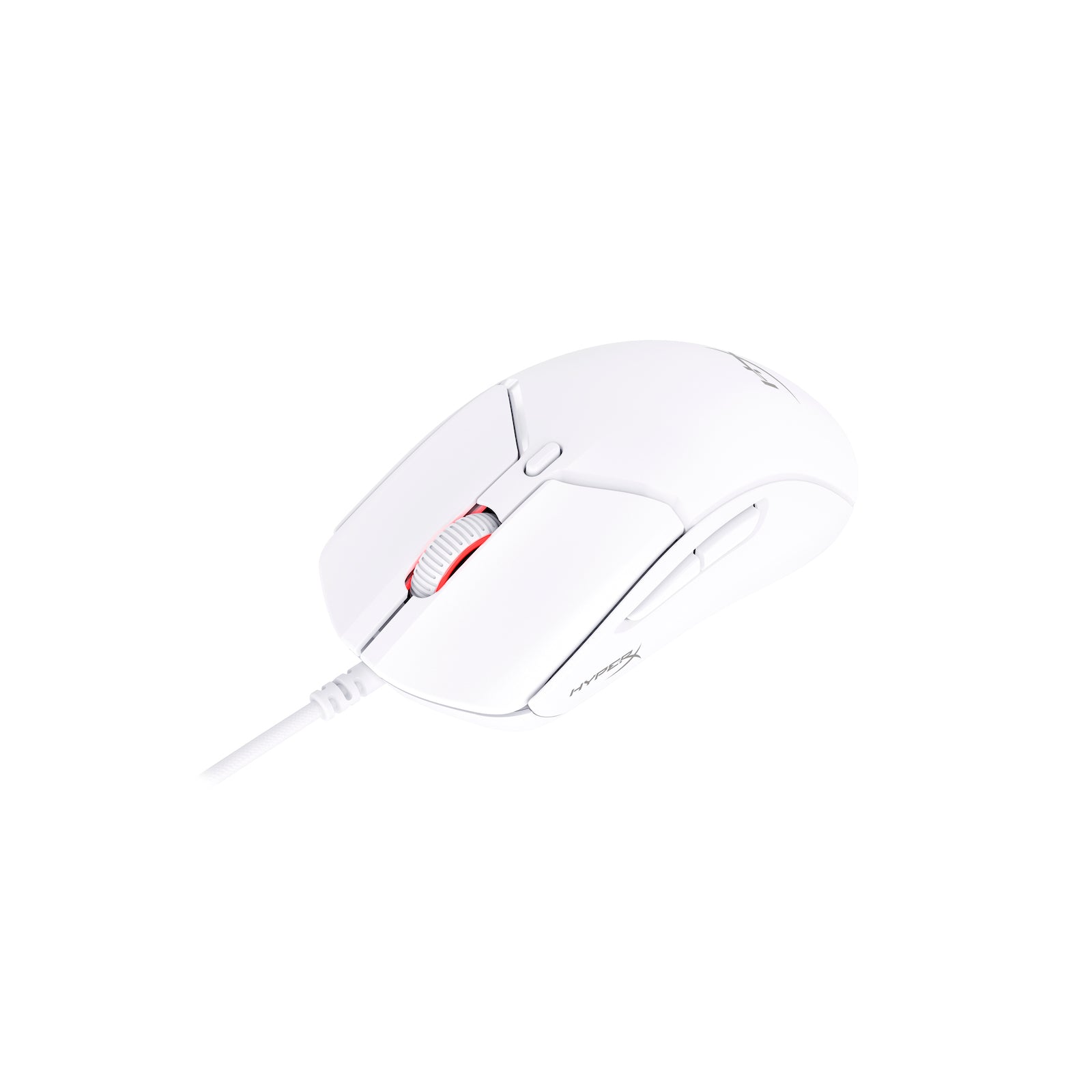
Common Reasons the HyperX Pulsefire Haste 2 Is Lagging
There are several likely causes behind the HyperX Pulsefire Haste 2 lagging issue. Some are simple, like a weak battery or a poor USB port. Others are more technical, like driver conflicts or wireless interference.
Wireless interference
If you use the wireless version, radio interference can cause visible delay or cursor skips. Wi-Fi routers, USB 3.0 devices, Bluetooth gadgets, and even some monitor setups can interfere with the 2.4 GHz signal. This is one of the most common causes I have seen in gaming setups packed with devices.
Low battery or power issues
A low battery can reduce performance or make the mouse feel unstable. Even when the mouse still connects, weak power can lead to odd behavior that looks like lag. Charging the mouse fully is one of the first things worth checking.
Bad USB port or hub
A front-panel port, a loose port, or an external hub can create unstable performance. Direct motherboard USB ports are usually more reliable. If the dongle is plugged into a crowded hub, the HyperX Pulsefire Haste 2 lagging issue can show up more often.
Software conflicts
Mouse software, RGB tools, game overlays, and system utilities can conflict with each other. These conflicts may cause delay, input stutter, or weird sensitivity changes. I have seen this happen after driver updates or after installing multiple peripheral apps.
Polling rate mismatch or unstable settings
A very high polling rate can sometimes expose USB instability. On some systems, 1000 Hz works fine, but on others it creates micro-stutter. If your system is struggling, lowering the polling rate can help.
Surface or sensor tracking issues
A dirty sensor, a reflective mouse pad, or a worn-out surface can make the pointer seem laggy. This is not true signal lag, but it feels the same while gaming or editing. A good cloth pad often solves more problems than people expect.
Driver or firmware problems
Outdated drivers or firmware can create compatibility issues. This is especially likely if the mouse worked fine before a Windows update or a firmware change. Keeping firmware current is helpful, but a bad update can also create problems if it did not install cleanly.
How to Fix HyperX Pulsefire Haste 2 Lagging
The best fix is to test the mouse in layers. Start with the easiest checks first, then move toward software and hardware changes. That way, you do not waste time changing five things at once.
1. Charge the mouse fully
Start with the battery. Plug the mouse in and let it charge completely before testing again. If the lag disappears after a full charge, you found a simple power issue.
2. Reconnect the USB receiver
Unplug the dongle and connect it again. If possible, move it to a rear motherboard USB port. A short USB extension can also help place the receiver closer to the mouse and reduce interference.
3. Remove USB hubs from the chain
If the dongle is going through a hub, take the hub out of the setup. Direct connection usually gives better stability. This is one of the easiest ways to reduce the HyperX Pulsefire Haste 2 lagging problem.
4. Test a different USB port
Try both USB 2.0 and USB 3.0 ports if your PC has them. Some systems behave better on one type than the other. If one port is unstable, another may fix the issue right away.
5. Check the battery and power settings in Windows
Windows power saving features can sometimes reduce USB performance. Try disabling USB selective suspend in Power Options. Also check whether the computer is putting devices to sleep too aggressively.
6. Update or reinstall mouse software
If you use HyperX NGENUITY, make sure it is updated. If the mouse profile is corrupted, reset it or reinstall the app. I have seen simple profile resets fix strange lag that looked hardware-related at first.
7. Update firmware and drivers
Check for firmware updates for the mouse and driver updates for your system. This matters most if the issue started after a major Windows update. Clean driver installs often help when the mouse feels inconsistent.
8. Lower the polling rate
If your PC is older or already running heavy apps, try lowering the polling rate. Move from 1000 Hz to a lower setting and test the mouse again. Sometimes a lower rate gives smoother real-world performance than a maxed-out setting.
9. Move the receiver closer
Wireless mice work best when the receiver has a clean line and short distance to the mouse. Use the included extension if you have one. Keep the dongle away from metal cases, thick cable bundles, and Wi-Fi routers.
10. Clean the sensor and pad
Wipe the sensor area gently with a dry microfiber cloth. Then test on a different mouse pad or desk surface. A dirty sensor or glossy surface can mimic lag even when the mouse is working normally.

Why the Issue Happens More on Some PCs Than Others
The HyperX Pulsefire Haste 2 lagging issue can be highly system dependent. One PC may run the mouse perfectly, while another has stutter from the same mouse and same settings. That is because USB controllers, motherboard design, background software, and wireless noise all vary from system to system.
In my own testing, I have found that compact PCs, front USB ports, and crowded desk setups tend to be the worst offenders. A clean setup with the receiver close to the mouse and fewer wireless devices usually feels much smoother. It is a bit like trying to hear one voice in a noisy room; the mouse signal is fine, but the environment gets in the way.
Best Settings for Stable Performance
If you want to prevent the HyperX Pulsefire Haste 2 lagging issue from coming back, a stable setup matters more than chasing the highest specs. Small setting changes can improve consistency a lot.
Recommended setup tips
• Plug the dongle into a rear motherboard port for a stronger connection
• Keep the receiver away from routers, Bluetooth adapters, and USB 3.0 clutter
• Use a good cloth mouse pad with a flat, non reflective surface
• Avoid running multiple mouse or RGB apps at the same time
• Test 1000 Hz first, then lower it if the system feels unstable
• Keep firmware and system updates current
• Charge the mouse before it gets critically low
When higher performance settings help
A high polling rate and low latency settings are great on a strong system. If your PC is modern and stable, the HyperX Pulsefire Haste 2 should feel fast and responsive. But if your system is already under strain, extreme settings can sometimes make the mouse feel less smooth, not more.
Signs It Might Not Be a Mouse Problem
Sometimes the HyperX Pulsefire Haste 2 lagging issue is actually caused by the computer or game. That distinction saves a lot of time. I always tell people to test the mouse outside of games first.
Look for these signs:
• The lag happens with every mouse, not just this one
• The delay appears only in one game or one app
• The cursor stutters when the CPU or disk usage is very high
• The issue started after a Windows update or new software install
• Bluetooth headphones or other wireless devices also act unstable
If several devices are affected, the mouse may not be the real problem. In that case, you should focus on the PC, not just the HyperX Pulsefire Haste 2.
What I Would Try First If This Were My Mouse
If I had the HyperX Pulsefire Haste 2 lagging on my desk right now, I would follow this order:
- Fully charge the mouse
- Move the dongle to a rear USB port
- Remove any hub or extension chain
- Test on a different mouse pad
- Lower the polling rate and retest
- Reinstall the mouse software
- Try the mouse on another PC
That order works because it starts with the fastest fixes and ends with the most useful comparison test. If the mouse feels fine on another computer, you know the hardware is probably okay. That makes the rest of the troubleshooting much easier.
How to Prevent Lag in the Future
Prevention is mostly about keeping the wireless path clean and stable. A few small habits can save you from repeating the same problem later.
• Keep the receiver close to the mouse
• Do not bury the dongle behind the PC case
• Avoid stacking many wireless devices near each other
• Update firmware only when needed and follow the instructions carefully
• Clean the sensor and mouse pad regularly
• Watch battery levels before long gaming sessions
The HyperX Pulsefire Haste 2 is built for speed, so it performs best when the setup around it is simple and clean. Think of it like a sports car on a clear road. The car may be excellent, but traffic, bad tires, or poor fuel can still slow it down.
Frequently Asked Questions of Why Is HyperX Pulsefire Haste 2 Lagging?
Why does my HyperX Pulsefire Haste 2 stutter only in games?
This usually points to software conflict, high system load, or unstable polling settings. Games push input timing harder than desktop use, so the problem can show up there first.
Can a low battery cause the HyperX Pulsefire Haste 2 lagging issue?
Yes, a low battery can make wireless performance less stable. If the mouse starts acting odd, charging it fully is one of the first fixes to try.
Does the USB port matter for wireless mouse lag?
Yes, it matters a lot. A weak or crowded USB port can make the receiver less stable, which can lead to lag or cursor skips.
Should I lower the polling rate if the mouse feels laggy?
Yes, that is worth testing. Some systems feel smoother at a lower polling rate because the USB controller and CPU handle the input more reliably.
Is the HyperX Pulsefire Haste 2 lagging because of the sensor?
Usually, no. In most cases, the problem is connection, power, surface, or software related rather than a bad sensor.
Conclusion
The HyperX Pulsefire Haste 2 lagging issue is usually caused by something simple like wireless interference, a weak battery, a poor USB connection, or software conflict. The mouse itself is often fine, but the setup around it can create delay, stutter, or skipping. Once you test the receiver, power, software, and surface one by one, the cause becomes much easier to spot.
The best approach is to keep your setup clean, your firmware current, and your USB path stable. If you follow the steps in this guide, you will have a much better chance of restoring smooth, fast performance and enjoying the mouse the way it was meant to work. If this helped, try the fixes today and share your results or questions in the comments so others can learn from your experience.

Similar Posts