Canon MAXIFY GX2020 Troubleshooting: Fix Fast
Canon MAXIFY GX2020 troubleshooting usually comes down to paper, ink, network, or simple setup mistakes.
If your Canon MAXIFY GX2020 is acting up, you are not alone. I have seen this printer work beautifully for busy home offices, then suddenly stop for one small issue that is easy to miss. In this guide, I will walk you through Canon MAXIFY GX2020 troubleshooting step by step, using clear fixes, real-world tips, and practical checks that save time and frustration.
Common Canon MAXIFY GX2020 troubleshooting basics
Before you dig into deeper fixes, start with the simple stuff. In my experience, many Canon MAXIFY GX2020 troubleshooting cases are solved by checking power, paper, ink levels, and basic connections first. That is because printers often behave like a chain of tiny parts, and one weak link can stop the whole job.
Here is the fastest way to begin:
• Turn the printer off, wait 30 seconds, then turn it back on
• Check that the power cable is firmly plugged in
• Make sure the paper tray has the right paper size loaded
• Confirm the ink tanks are filled above the minimum line
• Look for blinking lights or error codes on the display
• Restart the computer, phone, or router if you are printing wirelessly
I always tell people to treat Canon MAXIFY GX2020 troubleshooting like checking the basics before calling a mechanic. You would not open the engine first if the gas tank was empty.
Canon MAXIFY GX2020 not printing
If your Canon MAXIFY GX2020 is connected but not printing, the issue is often in the print queue, driver, or communication path. This is one of the most common Canon MAXIFY GX2020 troubleshooting complaints I have seen, especially after a Windows update or a router reset.
Try these steps:
- Open the print queue and cancel stuck jobs
- Set the Canon MAXIFY GX2020 as the default printer
- Restart both the printer and your computer
- Reconnect the printer to Wi-Fi or USB
- Update or reinstall the Canon printer driver
- Print a test page from the printer menu
If the printer still does nothing, check whether it is in offline mode. That small setting has fooled more users than I can count. It feels like the printer is ignoring you, but often it is just waiting for a connection signal that never came.
Also, make sure the Canon MAXIFY GX2020 is not paused in the device settings. A paused queue can block every new print request until you clear it.

Canon MAXIFY GX2020 paper jam problems
Paper jams can happen even when the printer looks fine. During Canon MAXIFY GX2020 troubleshooting, I have found that jam issues usually come from poor paper loading, curled paper, or dusty rollers. The printer is picky, but not random.
To clear a jam safely:
• Turn the printer off first
• Open the rear cover and front access area
• Remove paper slowly with both hands
• Check for torn pieces inside the rollers
• Reload plain paper that is clean, flat, and dry
• Adjust the paper guides so they touch the paper edges lightly
A common mistake is forcing paper out too fast. That can tear a sheet and leave small scraps behind. Those scraps often cause the next jam, so take your time and inspect the path carefully.
You can reduce future jams by storing paper in a dry place. Humid paper curls, and curled paper behaves like a stubborn grocery bag in a windy parking lot. It slips, folds, and gets stuck.

Canon MAXIFY GX2020 ink and print quality issues
Poor print quality is another major reason people search for Canon MAXIFY GX2020 troubleshooting help. If your pages look faded, streaky, blurry, or missing colors, the problem is often clogged nozzles, low ink, or incorrect print settings.
Start with these checks:
• Confirm each ink tank has enough ink
• Run a nozzle check from the maintenance menu
• Use the print head cleaning function if lines are missing
• Align the print heads if text or images look shifted
• Make sure you selected the correct paper type in the driver
In my own testing, the GX2020 often improved after one regular cleaning cycle, but I learned not to overdo it. Too many cleanings waste ink and can heat the system more than needed. If one cleaning does not help, print a nozzle check before running another.
For faded prints, also inspect the paper setting. If you choose plain paper while using a coated sheet, the print may look weak or dull. The printer uses different ink flow assumptions depending on the media type.
If colors are missing, gently check that the ink tank caps are open and seated properly. A tank that is not breathing correctly can affect ink flow and make the printer look broken when the fix is simple.
Canon MAXIFY GX2020 Wi-Fi and connection problems
Wireless problems can make Canon MAXIFY GX2020 troubleshooting feel harder than it really is. When the printer cannot connect, the issue is usually the router band, password, signal strength, or a network reset.
Use this checklist:
- Confirm the Wi-Fi password is correct
- Make sure the printer is near the router during setup
- Restart the router and printer
- Connect to the same network as your laptop or phone
- Avoid guest networks and hidden SSIDs
- Re-run the wireless setup from the printer menu
A lot of people overlook one simple thing: the printer and the device must be on the same network. I have seen users print from a phone on one Wi-Fi band and a laptop on another, then wonder why nothing happens. That is like trying to talk to someone in two different rooms with the doors closed.
If the signal is weak, move the printer closer to the router. Thick walls, metal shelves, and microwaves can interfere with the connection. If your router supports both 2.4 GHz and 5 GHz, use the band recommended in the setup guide for the printer.
For stubborn cases, remove the printer from the device list and add it again. A fresh connection often clears old network data that is causing the issue.

Canon MAXIFY GX2020 scanner not working
Scanner issues can be frustrating because printing may still work fine. When Canon MAXIFY GX2020 troubleshooting points to scanning, the trouble is often with software permissions, driver setup, or the scanning app itself.
Check the following:
• Make sure the scanner lid is fully closed
• Restart the printer and computer
• Open the Canon scanning software again
• Verify the correct scanner is selected
• Allow the app access to the scanner in system privacy settings
• Reinstall the scanner driver if needed
If scanning to a computer fails, test scanning from the printer panel first. That helps separate a device problem from a computer problem. In many cases, the printer can scan just fine, but the desktop software is out of date or blocked by permissions.
I have also seen people try to scan before the printer and computer are fully linked. It is a bit like trying to send a letter before you have written the address. The scanner is ready, but the route to the computer is not.
Canon MAXIFY GX2020 error codes and blinking lights
Error codes are your printer’s way of saying something specific is wrong. One of the smartest parts of Canon MAXIFY GX2020 troubleshooting is learning to read those signals instead of guessing.
Common actions that help with errors:
• Power cycle the printer
• Open and close all covers firmly
• Check for paper jams or foreign objects
• Verify ink tank installation
• Clear the print queue
• Refer to the exact code shown on the display
Blinking lights often point to a paper feed problem, cover issue, or ink-related alert. Do not ignore them. They are the printer’s dashboard warning lights, and they matter.
If the message stays after a restart, write down the exact error code. That makes it much easier to pinpoint the cause. Canon support resources and service manuals are especially helpful here, because many codes have very specific meanings.

Canon MAXIFY GX2020 maintenance tips to prevent problems
The best Canon MAXIFY GX2020 troubleshooting is the kind you never need. Regular care goes a long way, especially if you print often for work or school.
Good habits include:
• Print something once in a while to keep ink flowing
• Use clean, flat paper stored in a dry place
• Keep the printer free of dust
• Update the printer driver and firmware when needed
• Run nozzle checks before large print jobs
• Shut down the printer properly instead of unplugging it
One lesson I learned the hard way: printers hate long periods of neglect. If a device sits for too long, dried ink and dust can slowly build up like rust on a bike left in the rain. A short weekly print can help keep the nozzles healthy.
Also, do not ignore firmware updates. They can improve stability, compatibility, and wireless reliability. I like to think of them as small tune-ups that keep the printer from drifting into weird behavior.
When to reset or seek repair
Sometimes Canon MAXIFY GX2020 troubleshooting reaches a point where a reset or repair is the best move. If you have checked paper, ink, drivers, and network settings, but the problem keeps coming back, a deeper reset may help.
Consider these options:
• Reset network settings if Wi-Fi keeps failing
• Restore printer settings if menus are acting oddly
• Reinstall the printer on your device
• Contact support if hardware errors keep returning
• Seek service if there is unusual noise, smell, or repeated jam damage
A reset can be useful, but it is not magic. It clears settings, not broken parts. If a roller is worn or a sensor is failing, software changes will only go so far.
My advice is simple: if the same problem returns after multiple clean fixes, stop guessing and document what you see. That record helps a technician move faster and can save a lot of time.
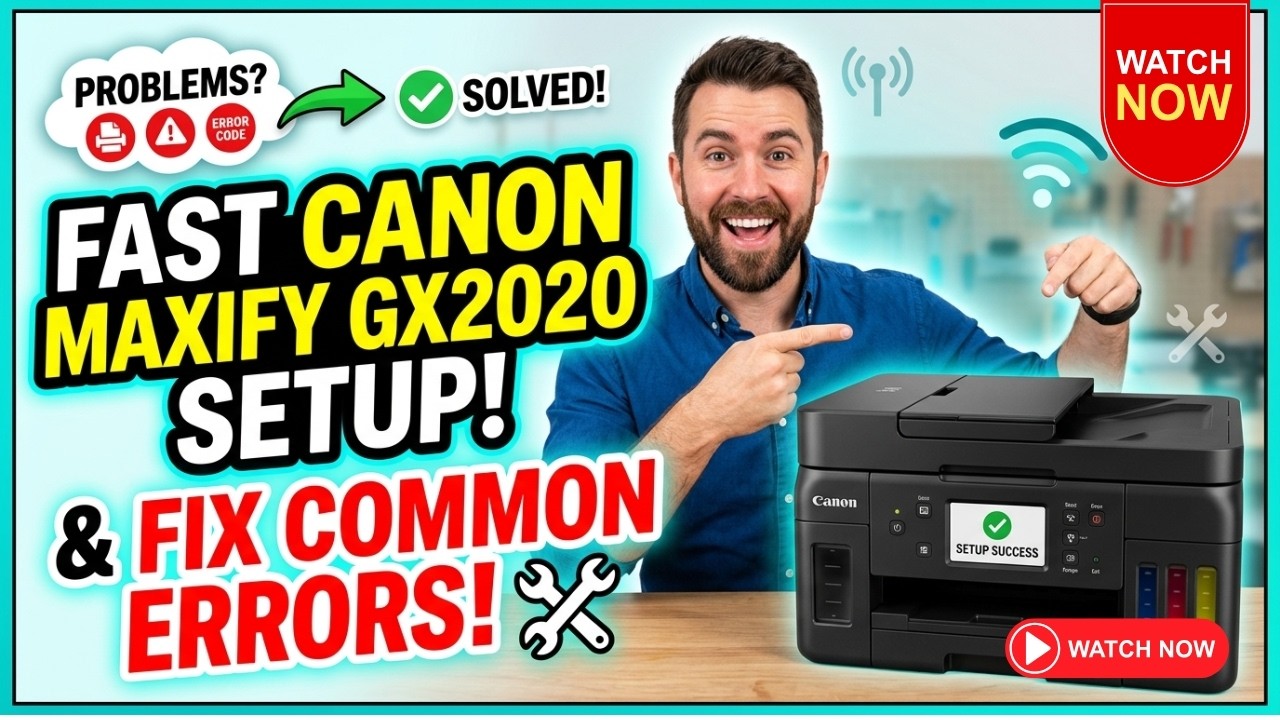
Frequently Asked Questions of Canon MAXIFY GX2020 Troubleshooting
Why is my Canon MAXIFY GX2020 not connecting to Wi-Fi?
This usually happens because of the wrong password, weak signal, or a network mismatch. Make sure the printer and your device are on the same Wi-Fi network and restart both the printer and router.
Why does my Canon MAXIFY GX2020 print blank pages?
Blank pages often mean low ink, clogged nozzles, or a print job issue. Run a nozzle check and a cleaning cycle, then confirm the ink tanks are properly installed.
How do I fix a Canon MAXIFY GX2020 paper jam?
Turn the printer off, remove the paper slowly, and check for torn pieces inside the paper path. Reload clean, flat paper and align the paper guides correctly.
Why is my Canon MAXIFY GX2020 scanner not working?
The issue may be related to software permissions, an outdated driver, or an incorrect scanner selection. Restart the device, open the Canon scanning app again, and reinstall the driver if needed.
Should I reset my Canon MAXIFY GX2020 if problems keep happening?
Yes, a reset can help if the printer has recurring setup or network issues. Just remember that a reset will not fix damaged hardware, so repeated errors may still need service.
How often should I maintain my Canon MAXIFY GX2020?
A light maintenance routine every week or two is a good idea if you print often. Print a test page, check ink levels, and keep the printer clean and dust-free.
Conclusion
Canon MAXIFY GX2020 troubleshooting does not have to feel overwhelming. Most issues come down to a few familiar causes: paper problems, ink flow, Wi-Fi setup, drivers, or simple maintenance gaps. Once you learn how to check those areas in order, the printer becomes much easier to manage.
The main takeaway is to start small, stay patient, and test one fix at a time. That approach saves time, avoids wasted ink, and helps you find the real cause instead of chasing symptoms.
If this guide helped you, take a few minutes to apply the maintenance tips now, and keep it handy the next time your printer acts up.