Canon Pixma G3270 Troubleshooting: Quick Fix Guide
Canon PIXMA G3270 troubleshooting is usually about fixing setup, ink, Wi-Fi, paper, or driver issues fast.
If you own a Canon PIXMA G3270, you already know it is a solid MegaTank printer when it works well. But like any home or office printer, it can act up at the worst time, usually right before a deadline. This guide walks you through Canon PIXMA G3270 troubleshooting with clear steps, real-world tips, and the most common fixes I have seen work again and again.

Common Canon PIXMA G3270 Troubleshooting Issues
The Canon PIXMA G3270 is designed to be simple, but a few problems come up more often than others. Most of them are tied to basic setup, ink flow, paper handling, or wireless connection trouble. The good news is that many Canon PIXMA G3270 troubleshooting problems can be fixed without a service visit.
Here are the issues users run into most often:
- Printer not turning on or responding
- Wi-Fi connection problems
- Print jobs stuck in the queue
- Blank pages or faded prints
- Paper jams or paper feeding errors
- Driver or software problems
- Ink tank recognition issues
- Slow printing or poor print quality
From my experience, the fastest way to solve a printer issue is to start simple. Check the power, restart the printer, and make sure the ink tanks and paper are loaded correctly before you dig into anything more advanced.
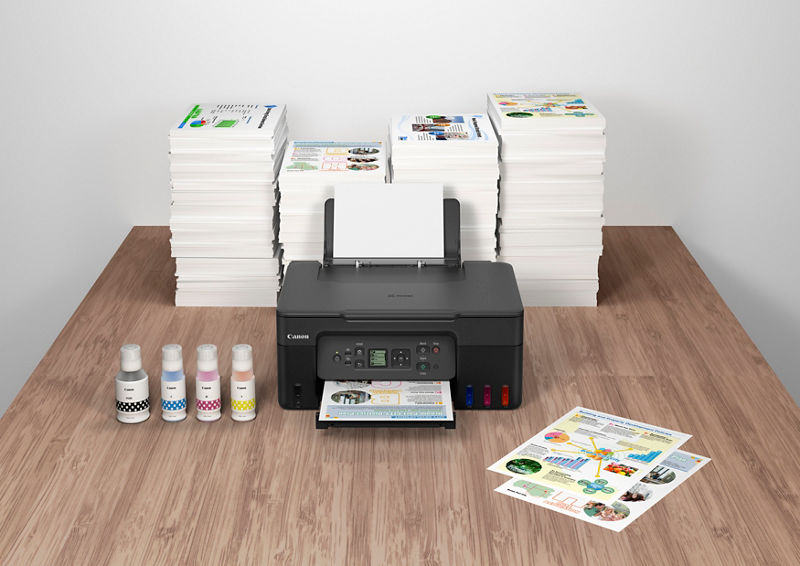
How to Fix Canon PIXMA G3270 Not Turning On
If your Canon PIXMA G3270 will not power on, do not panic. In many cases, the issue is something basic like the power cord, outlet, or button press timing. I have seen people think a printer is dead when it was just unplugged slightly at the back.
Try these steps:
- Make sure the power cord is firmly connected to both the printer and the wall outlet.
- Try a different outlet to rule out a power strip or surge protector issue.
- Press and hold the power button for a few seconds.
- Check for any signs of life, such as lights or startup sounds.
- Disconnect the printer for one minute, then reconnect it and try again.
If the printer still does not power on, there may be a hardware issue. At that point, it is worth checking the warranty status or contacting Canon support.
Canon PIXMA G3270 Troubleshooting for Wi-Fi Connection Problems
Wireless issues are among the most common Canon PIXMA G3270 troubleshooting complaints. A printer may show as offline, fail to connect, or disappear from the network after working fine the day before. This usually happens because of router changes, weak signal, or incorrect network setup.
Try this approach:
- Confirm your Wi-Fi network is working on another device
- Move the printer closer to the router if possible
- Restart the router, printer, and computer or phone
- Reconnect the printer to the correct Wi-Fi network
- Make sure you are using the same network band if your router has 2.4 GHz and 5 GHz options
One thing I learned the hard way is that printers often behave better on a stable 2.4 GHz network. Many home printers, including the Canon PIXMA G3270, rely on simple wireless settings, so router changes can confuse them fast.
If needed, remove the printer from your device and add it again. That small reset often clears up offline errors.
Fixing Paper Jams and Paper Feeding Issues
Paper jams can make any printer feel stubborn. With Canon PIXMA G3270 troubleshooting, paper feed problems are often caused by misaligned paper, too much paper in the tray, or damp sheets sticking together. Even a small curl in the paper can throw off the feed path.
Here is how to handle it safely:
- Turn off the printer before removing jammed paper
- Pull paper out slowly and in the direction of the feed path
- Check the rear tray and inside access area for scraps
- Fan the paper stack before loading it
- Make sure the paper guides are snug but not tight
For best results, use clean, dry paper that matches Canon’s recommended paper types. In my experience, cheap paper is one of the sneakiest causes of feed trouble because it curls, sticks, and sheds dust more easily.
If the printer keeps jamming, inspect the rollers for dust or buildup. A gentle cleaning can sometimes make a big difference.
Canon PIXMA G3270 Troubleshooting for Blank Pages or Faded Prints
Blank pages, streaks, or washed-out printouts usually point to ink flow or printhead problems. Since the PIXMA G3270 uses refillable ink tanks, it is important to confirm that the tanks are filled correctly and the ink is flowing into the system. Air in the ink path can cause trouble after setup or after a tank refill.
Try these fixes:
- Check that all ink tanks have enough ink.
- Make sure the tank caps and covers are closed properly.
- Run a nozzle check from the printer settings.
- Use the built-in printhead cleaning function.
- If print quality stays poor, run a deep cleaning cycle once.
I always tell people not to run repeated cleanings too quickly. It wastes ink and can sometimes make the problem worse. Give the printer time between cycles, then test again with a nozzle check or a sample page.
If only one color is missing, the issue may be limited to that tank or printhead channel. If all colors look weak, the problem may be with ink delivery or the printer settings.
Driver and Software Problems
Sometimes the printer is fine, but the computer is the problem. Driver issues can cause failed prints, missing printer features, or error messages. This is especially common after a Windows or macOS update.
Try the following:
- Remove the printer from your device list
- Download and install the latest Canon printer driver
- Restart your computer after installation
- Check that your print settings match your paper size and type
- Print a test page from the system settings
A lot of Canon PIXMA G3270 troubleshooting comes down to software mismatch. I have seen printers look “broken” when the real issue was an outdated driver that no longer matched the operating system.
If you use a mobile device, make sure the Canon printing app or built-in print service is current. Even a small update can restore printing.
Resolving Ink Tank and Ink Supply Issues
The Canon PIXMA G3270 is a MegaTank printer, so ink handling matters more than on standard cartridge models. If the printer shows poor print quality, error lights, or missing colors, the tanks may not be seated or filled properly. This is one of the first things I check during Canon PIXMA G3270 troubleshooting.
Check for these signs:
- Ink levels are very low
- A tank was refilled recently
- The tank cap was not closed tightly
- Air bubbles may be present in the ink line
- The printer has sat unused for a long time
Helpful steps:
- Confirm each tank has the right ink color
- Make sure you use compatible ink
- Close the tank cover securely
- Print a few test pages after refilling
- Run a nozzle check if colors are missing
One mistake I have seen often is overfilling or rushing a refill. Slow, careful refilling helps prevent mess and keeps the ink system working as it should. Think of it like filling a water bottle with a narrow opening. Patience saves trouble.
Improving Slow Printing and General Performance
If the printer is working but feels slow, the issue may not be a failure at all. Canon PIXMA G3270 troubleshooting for speed often involves print settings, file size, or wireless delays. Large images and high-quality settings can make a simple job take much longer.
Here are a few ways to speed things up:
- Use standard print quality for everyday documents
- Avoid high-resolution settings unless needed
- Print over USB if Wi-Fi is unstable
- Close other large print jobs in the queue
- Restart the printer and device if performance drops suddenly
This printer is not built for racing, and that is okay. If you want the best balance of speed and quality, use draft or standard mode for routine documents and reserve high quality for photos or special pages.
Preventive Tips to Reduce Future Problems
Good maintenance prevents most printer headaches. A little care now can save a lot of frustration later. This is one reason Canon PIXMA G3270 troubleshooting gets easier over time if you build simple habits.
Use these habits:
- Keep the printer on a flat, stable surface
- Print something at least once every couple of weeks
- Use good-quality paper
- Keep the firmware and drivers updated
- Store ink properly and use the correct refill type
- Clean the printhead only when needed, not constantly
From experience, unused printers are more likely to clog than well-used ones. Even a quick test page every now and then helps keep ink moving and reduces drying inside the system.
When to Reset the Canon PIXMA G3270
A reset can help when the printer is stuck in a weird state. This is useful if the printer keeps showing an error, refuses to connect, or behaves unpredictably after several fixes. A reset should not be your first move, but it can be a smart last step in Canon PIXMA G3270 troubleshooting.
Consider resetting when:
- Wi-Fi setup keeps failing
- The printer remains offline after reconnecting
- Error messages do not clear
- Settings seem corrupted
- You have tried basic troubleshooting with no success
Before resetting, save any important network details. After the reset, you may need to set up Wi-Fi and printer preferences again.
Frequently Asked Questions of Canon PIXMA G3270 Troubleshooting
Why is my Canon PIXMA G3270 printing blank pages?
Blank pages usually mean the ink is not flowing properly, the nozzles are clogged, or the tanks were not filled correctly. Run a nozzle check first, then use printhead cleaning if needed.
Why does my Canon PIXMA G3270 keep going offline?
This often happens because of Wi-Fi signal issues, router changes, or a device connection mismatch. Restart the printer and router, then reconnect the printer to the correct network.
How do I fix poor print quality on the Canon PIXMA G3270?
Start with a nozzle check and cleaning cycle. Also confirm that the ink tanks are full, the paper is correct, and the print settings match the job.
What should I do if my Canon PIXMA G3270 has a paper jam?
Turn the printer off, remove the paper slowly, and check for small scraps inside the paper path. Reload fresh paper and make sure the stack is aligned and not overfilled.
How often should I clean the printhead?
Only clean the printhead when print quality problems appear. Running too many cleanings can waste ink, so test the output after each cleaning before doing another.
Conclusion
Canon PIXMA G3270 troubleshooting becomes much easier when you break the problem into simple parts: power, connection, ink, paper, and software. Most issues are caused by small things, and those are usually the easiest to fix once you know where to look.
If your printer is acting up, start with the basics and work step by step. That calm, methodical approach saves time, saves ink, and often gets you back to printing without stress. If this guide helped, try the tips on your own printer, explore more printer maintenance resources, or leave a comment with the issue you are facing.

Similar Posts
































