Canon Maxify Gx7021 Troubleshooting: Fast Fixes Guide
Most Canon MAXIFY GX7021 issues come from paper jams, clogged nozzles, Wi-Fi glitches, or ink system errors.
If you are dealing with Canon MAXIFY GX7021 Troubleshooting, you are probably looking for fast, clear fixes that actually work. I’ve spent enough time around Canon MegaTank printers to know the same problems keep showing up, and the good news is that most of them are simple once you know where to look.
Common Canon MAXIFY GX7021 Problems and What They Usually Mean
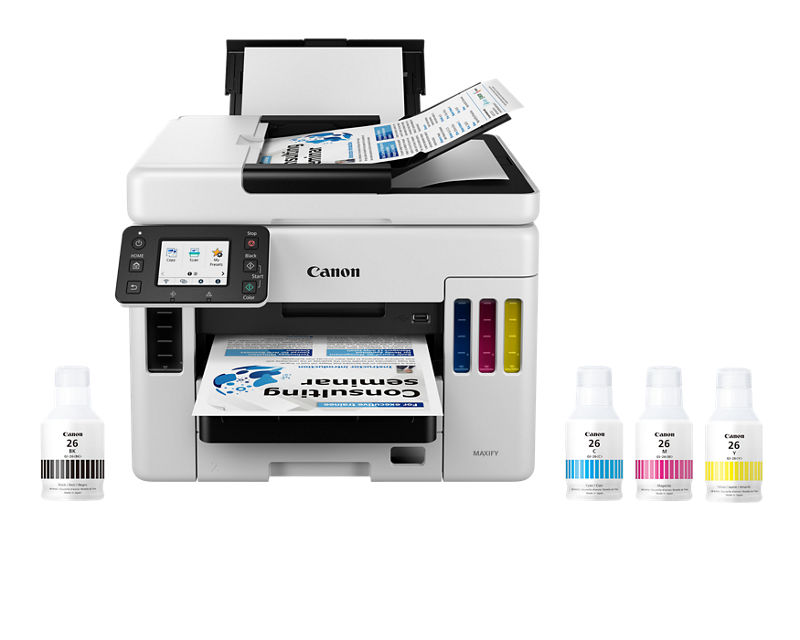
The Canon MAXIFY GX7021 is a reliable printer, but like any inkjet model, it can run into a few familiar issues. Most problems point to one of four areas: paper handling, print quality, connectivity, or maintenance.
When I troubleshoot this model, I always start with the basics. A surprising number of “major” printer problems end up being caused by a loose cable, an empty tank, or a small paper jam hiding near the rollers.
Common symptoms include:
- Paper jams or misfeeds
- Blank pages or faded prints
- Wi-Fi connection drops
- Scanner not responding
- Ink not flowing properly
- Error codes on the display
- Slow printing or delayed jobs
If you can match the symptom to the cause, you can save a lot of time. That is why Canon MAXIFY GX7021 Troubleshooting works best when you follow a step-by-step path instead of guessing.
Canon MAXIFY GX7021 Troubleshooting for Paper Jams and Paper Feeding Issues
Paper jams are one of the most common issues with the Canon MAXIFY GX7021. They usually happen when paper is damp, curled, overfilled, or not aligned correctly in the cassette or rear tray.
I once saw this exact problem on a GX series printer where the user kept loading glossy paper into the wrong tray. The printer was not broken at all. It was just asking for the right paper type and a cleaner stack.
Try these steps:
- Turn off the printer and unplug it before checking inside
- Remove all visible paper gently, without pulling hard
- Check the rear tray and cassette for small torn pieces
- Fan the paper stack before reloading it
- Make sure the paper guides are snug, not tight
- Use plain, dry paper that matches Canon’s recommended size and weight
Other things to check:
- Do not overload the tray
- Avoid bent or wrinkled sheets
- Store paper in a dry place
- Clean the rollers if feeding gets uneven
If jams keep happening, the rollers may be dusty or worn. In that case, a cleaning cycle or service visit may be needed.

Fixing Print Quality Problems on the Canon MAXIFY GX7021
Poor print quality can be frustrating, especially when text looks faint or colors come out wrong. With Canon MAXIFY GX7021Troubleshooting, print quality issues often point to clogged nozzles, low ink levels, or incorrect print settings.
The first thing I check is the nozzle pattern. If the pattern has gaps, the printhead likely needs cleaning. If the lines are straight but the page still looks weak, the issue may be with the settings or the paper type.
Try these fixes:
- Run a nozzle check from the printer menu
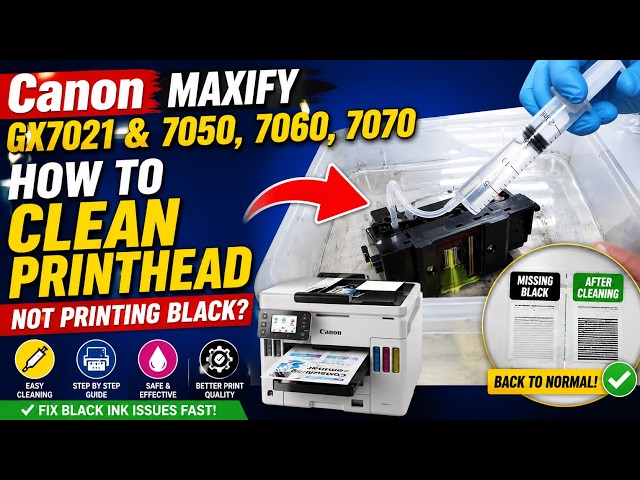
- Use printhead cleaning if the nozzle check shows missing lines
- Make sure all ink tanks have enough ink
- Confirm that the correct paper type is selected
- Use high-quality paper for photos or color documents
- Disable draft mode if you want sharper text
A few practical tips:
- Do not leave the printer unused for long periods
- Print a test page every week if possible
- Use genuine Canon ink to reduce compatibility issues
- Keep the printer in a room with stable temperature and humidity
In my experience, print quality gets better fast when the printer is used regularly. Inkjet systems do not love long silence. They are a bit like a car engine that runs smoother when you drive it often.
How to Resolve Wi-Fi and Network Connection Issues
Wireless problems are another frequent part of Canon MAXIFY GX7021 Troubleshooting. The printer may disconnect from Wi-Fi, fail to appear in the app, or stop responding after a router change.
This usually happens because of signal strength, network mismatch, or router settings. The GX7021 works best on a stable home or office network with a solid 2.4 GHz connection, since many printers struggle with crowded Wi-Fi bands.
Here is what to do:
- Restart the printer, router, and computer or phone
- Move the printer closer to the router if possible
- Reconnect the printer using the wireless setup menu
- Check that the correct Wi-Fi password was entered
- Make sure your device and printer are on the same network
- Remove old printer profiles and reconnect if needed
If the connection keeps dropping:
- Avoid placing the printer near microwaves or cordless phones
- Update your router firmware if available
- Use the Canon app or setup utility to redo the network setup
- Consider a USB connection for temporary testing
A lot of users blame the printer when the router is really the problem. I’ve seen a “broken printer” turn into a simple router reboot more times than I can count.
Solving Scanner and Copy Problems
When the scanner or copier stops working, the issue is often related to software, connection, or glass surface problems. Canon MAXIFY GX7021 Troubleshooting for scanning should begin with a simple check of the lid, glass, and scanning app.
If scans come out blank or distorted, inspect the scanner glass for dust, fingerprints, or smudges. Even a tiny mark can show up clearly on a scanned document.
Use these steps:
- Clean the scanner glass with a soft, lint-free cloth
- Make sure the document is placed face down and aligned correctly
- Restart the printer and the scanning device
- Check whether the scan driver is installed properly
- Try another scanning method, such as the Canon software or the printer touchscreen
If copies are light or skewed:
- Check the original document for folds or dark shadows
- Confirm the lid is closing all the way
- Reset copy settings to default
- Recalibrate if available through the menu
One lesson I learned the hard way: a scanner issue is often not a scanner failure. It can be a driver problem, a dirty glass plate, or even a document placed a little too far off center.
What to Do When the Printer Shows an Error Code
Error codes can look scary, but they are usually the printer’s way of pointing you in the right direction. In Canon MAXIFY GX7021 Troubleshooting, the code itself matters because it tells you whether the issue is ink, paper, hardware, or maintenance.
Before anything else, write down the exact code. Then check the display, restart the machine, and see if the code clears. Many temporary errors go away after a power cycle.
General steps that help:
- Turn the printer off
- Wait 30 seconds
- Unplug it from power
- Plug it back in and restart
- Check for jams, open covers, or empty tanks
- Review the on-screen message carefully
If the code returns:
- Look for trapped paper or foreign objects
- Verify that all covers are fully closed
- Make sure ink tanks are seated properly
- Try a firmware update if the printer is connected
Some error codes may require service, especially if they point to hardware faults or internal sensor problems. If the printer keeps showing the same code after basic checks, do not force it.
Ink System and Tank Problems on the Canon MAXIFY GX7021
The GX7021 uses a refillable MegaTank design, which is great for low-cost printing. But the ink system still needs careful handling. Canon MAXIFY GX7021 Troubleshooting often involves ink flow, tank levels, or air in the ink path.
If you see weak printing, missing colors, or a message about ink, check the tanks first. Make sure each tank is filled to the correct level and the caps are sealed tightly.
Useful checks:
- Confirm the tank is filled with the correct color
- Do not mix inks
- Check for air bubbles if you recently refilled
- Make sure the ink tank covers are closed
- Print a nozzle check after refilling
Good habits that help:
- Refill ink before it gets too low
- Store ink bottles upright in a cool place
- Wipe spills right away
- Use only supported Canon ink bottles
I have seen users accidentally overfill or cross-fill tanks, then wonder why the print quality turned strange. The tank system is efficient, but it rewards patience and accuracy.
Printer Not Responding? Try These Reset and Maintenance Steps
If the GX7021 freezes, becomes sluggish, or stops accepting print jobs, the issue may be temporary. A careful reset is often part of Canon MAXIFY GX7021 Troubleshooting, especially after a network change or a stalled print queue.
Start simple before doing anything more advanced.
Try this sequence:
- Cancel stuck print jobs from the computer or phone
- Restart the printer
- Restart the router if Wi-Fi is involved
- Power cycle the device sending the job
- Check for firmware updates
- Clear the printer queue completely
You can also try:
- Switching between USB and wireless to isolate the issue
- Reinstalling the printer driver
- Setting the printer as default again
- Running a maintenance check from the display
If the printer is still unresponsive, it may be dealing with a deeper system fault or memory issue. At that point, a factory reset can help, but only after you back up network settings and confirm you really need it.
Preventive Care to Reduce Future Problems
The best Canon MAXIFY GX7021 Troubleshooting is the kind you never need to do. A little care goes a long way with this printer, and routine maintenance can prevent many headaches.
Simple habits that make a difference:
- Print at least once a week
- Keep the printer clean and dust free
- Use the right paper for the job
- Store paper in a dry area
- Update firmware when needed
- Use the printer within its normal temperature range
A few maintenance wins I recommend:
- Run a nozzle check every few weeks
- Clean the scanner glass regularly
- Keep the rear tray clear of debris
- Avoid switching paper types too often without adjusting settings
Think of the GX7021 like a kitchen appliance you use often. It works best when it stays clean, fed properly, and not ignored for months.
When to Contact Canon Support or a Technician
Some problems are bigger than basic troubleshooting. If you have already tried the common fixes and the printer still fails, it may be time to get help.
Reach out for support if:
- The printer shows the same error repeatedly
- The printhead cleaning does not help
- The scanner hardware does not respond
- The printer makes unusual noises
- There is physical damage or visible leakage
- A firmware or board problem seems likely
Before contacting support, gather:
- The exact model name
- The error code
- What steps you already tried
- Whether the problem happens on USB, Wi-Fi, or both
That information saves time and helps the support team narrow things down faster. It also keeps the process less stressful, which matters when a printer is already testing your patience.
Frequently Asked Questions of Canon MAXIFY GX7021 Troubleshooting
Why is my Canon MAXIFY GX7021 printing blank pages?
Blank pages often mean clogged nozzles, empty tanks, or incorrect print settings. Run a nozzle check first, then clean the printhead if needed.
How do I fix Canon MAXIFY GX7021 Wi-Fi connection problems?
Restart the printer and router, then reconnect the printer to the correct network. If the signal is weak, move the printer closer to the router or try setup again through the Canon utility.
Why does my Canon MAXIFY GX7021 keep showing a paper jam message?
The printer may still detect a tiny scrap of paper or misaligned paper in the tray. Open all access areas, remove any leftover pieces, and reload the paper neatly.
What should I do if the Canon MAXIFY GX7021 scanner is not working?
Check the scanner glass, restart the printer, and confirm the scan driver is installed. If the glass is dirty or the document is misaligned, scans can fail or come out blank.
How often should I clean the Canon MAXIFY GX7021 printhead?
There is no fixed schedule, but a cleaning is useful when print quality drops or nozzle gaps appear. If the printer sits unused for long periods, regular test prints can help prevent clogs.
Can I use third-party ink in the Canon MAXIFY GX7021?
It may be possible, but genuine Canon ink is usually the safer choice for print quality and reliability. Third-party ink can sometimes lead to color issues, clogs, or recognition problems.
Conclusion
Canon MAXIFY GX7021 Troubleshooting becomes much easier once you know the common causes and the right order to check them. Most issues come down to paper handling, ink flow, wireless setup, or simple maintenance, and many of them can be fixed at home without much stress.
The key is to stay patient, test one thing at a time, and avoid random guesswork. If you keep up with routine care and use the printer the way it was designed to be used, the GX7021 can stay dependable for a long time.
If this guide helped, put the steps into practice the next time your printer acts up, and keep learning how to maintain it well. If you have a stubborn issue of your own, leave a comment or explore more printer tips to keep your setup running smoothly.

Similar Posts