Why Is Razer Blackwidow V4 Pro Not Lighting Up: Easy Fixes
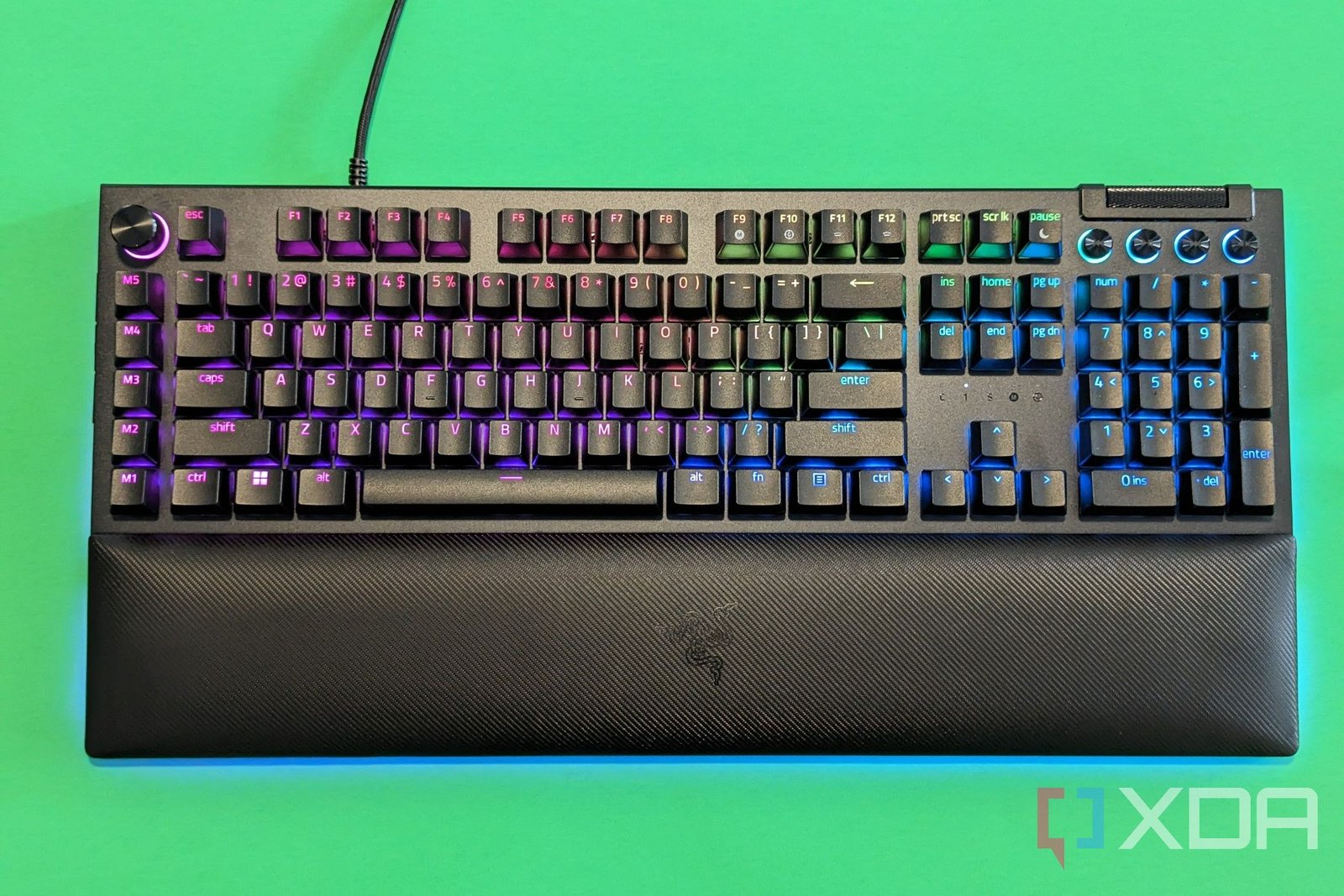
Most Razer BlackWidow V4 Pro lighting issues come from power, software, or profile settings.
The Razer BlackWidow V4 Pro is built to look bold, bright, and fully customizable, so when the RGB suddenly stops working, it feels frustrating fast. I have seen this happen on gaming keyboards more than once, and the cause is often simpler than it seems: a loose USB connection, a Synapse profile issue, disabled lighting settings, or a firmware glitch. If your Razer BlackWidow V4 Pro is not lighting up, this guide walks you through the most likely causes and the safest fixes, so you can get the keyboard back to normal without guessing.
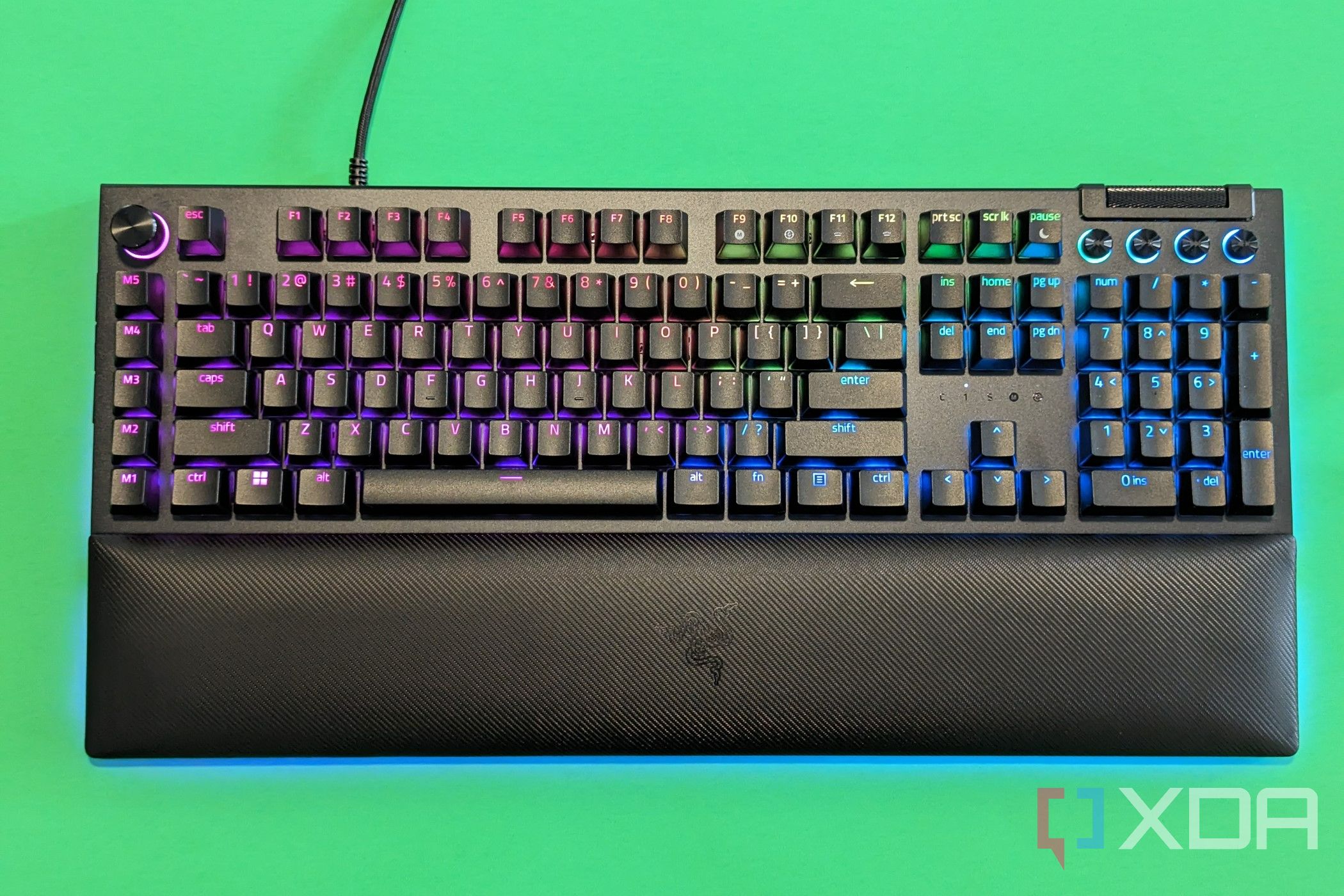
Why the Razer BlackWidow V4 Pro Not Lighting Up Happens
When the Razer BlackWidow V4 Pro not lighting up, the keyboard is usually still working for typing, but the lighting layer is not receiving power, software control, or the correct profile data. That is an important clue. It means the issue is often not a dead keyboard, but a lighting communication problem.
From experience, RGB problems usually fall into a few buckets:
- Power delivery problems from the USB port or cable
- Razer Synapse not loading the right lighting profile
- Chroma lighting being turned off in software
- Firmware or driver bugs after an update
- A reset or hardware fault inside the board
The good news is that most of these are fixable at home. The trick is to test one layer at a time instead of changing everything at once.
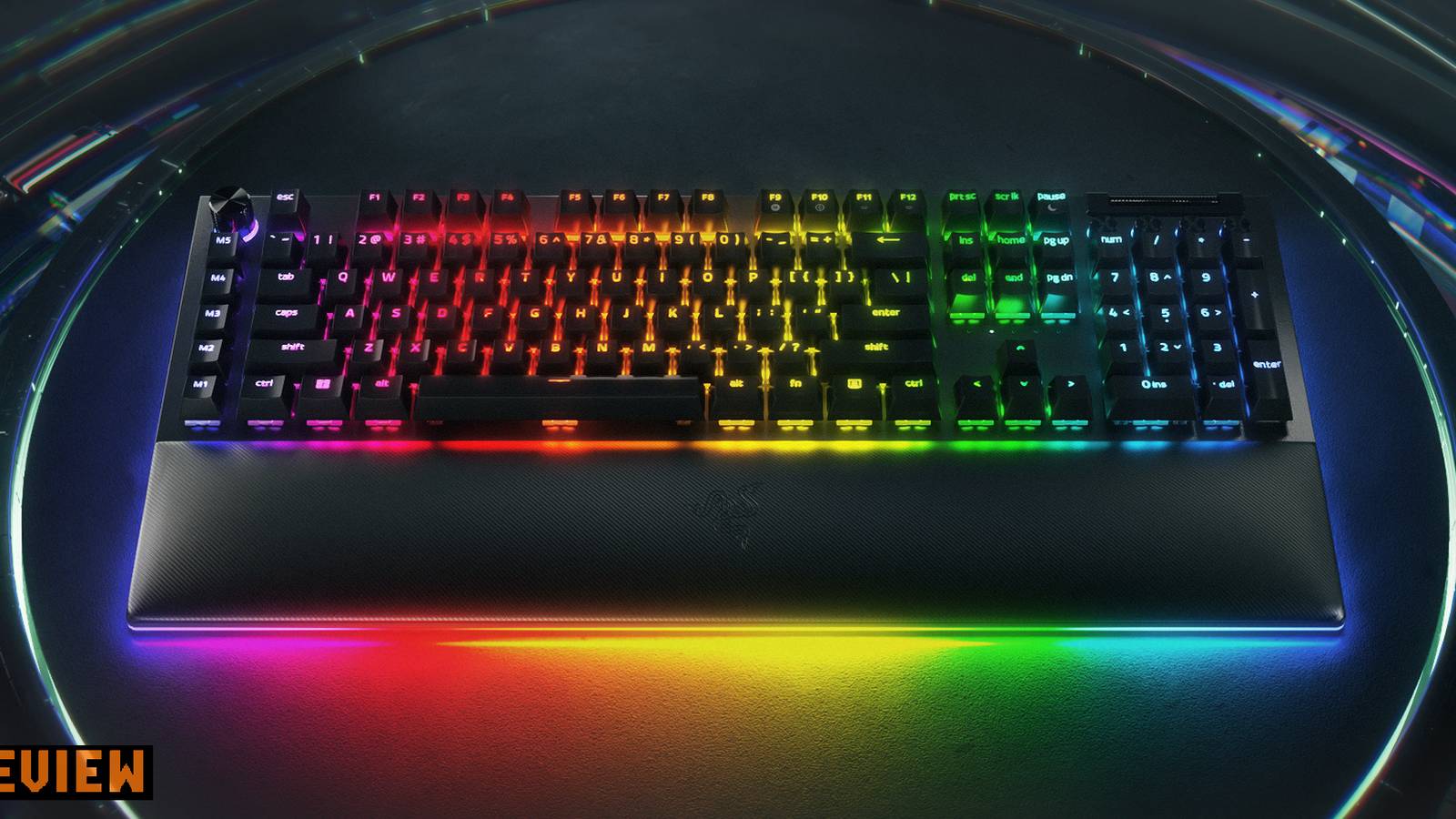
Common Reasons the Razer BlackWidow V4 Pro Not Lighting Up
The Razer BlackWidow V4 Pro not lighting up can feel random, but the causes are usually consistent. Knowing the most common ones saves time and keeps you from replacing parts too early.
1. The keyboard is not getting enough power
RGB lighting needs steady power. If the keyboard is plugged into a weak USB port, a front panel hub, or a loose connection, the LEDs may not light properly.
This is one of the first things I check. I have seen keyboards work for input but show no lighting because the port could not provide stable power under load.
2. Razer Synapse is not applying the lighting profile
Razer Synapse controls Chroma lighting on many Razer devices. If the app is closed, corrupted, outdated, or signed into the wrong profile, the lighting may stay off.
This can happen after:
- A Windows update
- A Synapse update
- A profile import
- A new device sync conflict
3. Windows or Synapse power settings are changing behavior
Some power-saving settings can affect USB behavior. If USB selective suspend or sleep settings cut power to the device, the keyboard may wake up without lighting.
That can make the Razer BlackWidow V4 Pro not lighting up after sleep or restart.
4. The lighting effect is disabled inside the app
It sounds obvious, but it happens often. The keyboard may still be working while the lighting effect is set to “off,” very dim, or a static black profile.
I have seen users think the keyboard failed when the real issue was just a profile with no active effect.
5. Firmware or driver issues are blocking Chroma
If firmware is outdated or partially broken, the keyboard can lose lighting control. The same thing can happen if Windows installs a bad device driver.
This is more common after an interrupted update or a system crash.
6. A hardware fault is affecting the LEDs
If software fixes do nothing, the issue may be hardware-based. A damaged LED circuit, internal connector issue, or manufacturing defect can stop lighting on part or all of the board.
This is less common, but it is important to consider if the keyboard never lights up, even on another PC.

Step-by-Step Fixes for the Razer BlackWidow V4 Pro Not Lighting Up
The best way to solve the Razer BlackWidow V4 Pro not lighting up problem is to start simple and move in order. That keeps you from missing the obvious.
1. Check the USB connection first
Unplug the keyboard and plug it back in firmly. If possible, connect it directly to a rear motherboard USB port instead of a hub or monitor port.
Try these tips:
- Use a different USB port
- Avoid USB hubs for testing
- Make sure the cable is fully seated
- Check for bent pins or visible cable damage
If the keyboard has multiple connection options or accessories attached, remove extras first and test the keyboard alone.
2. Restart the PC and test before opening other apps
A clean reboot can clear temporary lighting glitches. After restarting, check whether the keyboard lights up before launching games or background apps.
This matters because some software conflicts appear only after startup programs load.
3. Open Razer Synapse and verify the lighting profile
Go into Synapse and check the following:
- The keyboard is detected
- Chroma or lighting is enabled
- The brightness is not set too low
- The active profile is the one you want
- No “turn off lighting” setting is selected
If you have multiple profiles, switch between them. Sometimes the Razer BlackWidow V4 Pro not lighting up is just a profile mismatch.
4. Update or reinstall Razer Synapse
If Synapse seems buggy, update it first. If the problem remains, uninstall it completely and reinstall the latest version.
A clean reinstall can fix:
- Corrupted lighting data
- Broken device sync
- Missing app components
- Profile sync errors
If you use other RGB software, close it during testing. Multiple lighting apps can fight over the same device.
5. Update the keyboard firmware
Firmware updates can fix lighting bugs and USB communication issues. Check the keyboard’s support page for the latest firmware tool or updater.
Before updating:
- Close background apps
- Keep the keyboard plugged directly into the PC
- Do not disconnect it during the process
- Restart after the update finishes
I always recommend patience here. Firmware problems can look like hardware failure, but they often clear up after a proper update.
6. Reset the keyboard
A reset can clear odd behavior and restore the lighting layer. The exact reset method may vary by model, so follow the device instructions for the BlackWidow V4 Pro.
A reset is worth trying when:
- Lighting stopped after a software change
- Only some keys light up
- RGB behaves strangely after sleep
- Profiles no longer load correctly
7. Check Windows USB power settings
Power management can shut down USB devices too aggressively. Look in Device Manager and power settings for options that may turn off the device to save power.
Also review:
- USB selective suspend
- Sleep mode behavior
- Fast Startup
- Power plan settings
This is a common hidden cause when the Razer BlackWidow V4 Pro not lighting up after waking from sleep.
8. Test the keyboard on another computer
This is one of the best tests. If the keyboard lights up on another PC, the issue is likely software or settings on the original computer.
If it still does not light up, the problem is more likely the keyboard itself.
9. Remove conflicting RGB software
Apps from other brands can interfere with Razer Chroma. This includes motherboard RGB tools, fan software, and third-party lighting managers.
Common conflicts happen with:
- ASUS Aura Sync
- MSI Mystic Light
- Gigabyte RGB Fusion
- Corsair iCUE
- Open-source RGB tools
You do not always need to uninstall them forever. For testing, close them fully and see whether the Razer BlackWidow V4 Pro lights up again.
10. Contact support if the issue looks hardware-related
If you have tried power, software, firmware, and another PC, the issue may be internal. At that point, support or warranty service is the safest next step.

How to Tell Whether the Problem Is Software or Hardware
A simple test can save a lot of time. The Razer BlackWidow V4 Pro not lighting up does not always mean the same thing.
Here is how I separate software from hardware in real-world troubleshooting:
- If typing works but RGB does not, start with Synapse and power settings
- If lighting fails only on one computer, suspect software
- If lighting fails on every computer, suspect hardware
- If some keys light up but others do not, suspect a partial LED or circuit issue
- If RGB comes back after a reboot, it is likely software or profile related
That last one is especially common. A temporary sync issue can make the keyboard look “dead” even when it is not.
Best Practices to Prevent the Razer BlackWidow V4 Pro Not Lighting Up
Once the keyboard is fixed, a few habits can help keep the issue from returning. Think of it like keeping your car battery healthy. Small care now prevents bigger trouble later.
Keep Synapse and firmware current
Updated software tends to have fewer lighting bugs. Check for updates after major Windows changes or device updates.
Use a direct USB port
A rear motherboard port usually gives cleaner power than a hub. That can make RGB behavior more stable.
Avoid running multiple RGB apps at once
One lighting app is usually enough. Too many can create conflicts that confuse the keyboard.
Save one known-good lighting profile
Keep a simple backup profile with a static color or a basic effect. If your custom profile breaks, you can switch back fast.
Reboot after big system changes
After driver installs, Windows updates, or firmware updates, restart the PC. That helps the keyboard and software sync properly.
From my own troubleshooting work, the easiest fixes often come from clean habits, not complicated repairs.

What Not to Do When the Razer BlackWidow V4 Pro Not Lighting Up
When the keyboard stops lighting, it is tempting to try everything at once. That usually makes diagnosis harder.
Avoid these mistakes:
- Randomly unplugging and reconnecting the keyboard many times
- Updating several RGB apps at once
- Changing five settings before testing each one
- Using a weak USB hub for final testing
- Assuming the keyboard is broken without testing another PC
A calm, step-by-step check is usually faster and more accurate.
Frequently Asked Questions About Why Is Razer BlackWidow V4 Pro Not Lighting Up?
Why is my Razer BlackWidow V4 Pro not lighting up but still typing?
That usually means the keyboard has power for input, but the RGB layer is not being controlled properly. The most common causes are Synapse profile issues, USB power problems, or a disabled lighting effect.
Does Razer Synapse need to be open for lighting to work?
In many cases, yes, at least during setup and profile control. If Synapse is closed, broken, or not synced correctly, the keyboard may keep the last saved effect or appear to lose lighting.
Can a bad USB port stop the RGB on the BlackWidow V4 Pro?
Yes, a weak or unstable USB port can stop the lighting from turning on. Try a rear motherboard port first, since it usually gives more reliable power than a hub or front panel port.
Will resetting the keyboard fix the lighting issue?
Sometimes it will, especially if the problem started after a software change or sleep cycle. A reset can clear stuck settings, but it will not fix hardware damage.
What if only some keys on the keyboard light up?
That often points to a partial hardware issue or a corrupted lighting profile. Try another profile, test on another PC, and update the firmware before assuming the board needs repair.
Should I reinstall Synapse if the Razer BlackWidow V4 Pro not lighting up?
Yes, a clean reinstall is a smart next step if basic checks fail. It can fix corrupted lighting data, broken device detection, and profile sync problems.
Conclusion
The Razer BlackWidow V4 Pro not lighting up is usually caused by something fixable, not a total failure. In most cases, the issue comes down to USB power, Synapse settings, a bad profile, software conflict, or firmware trouble.
If you work through the checks in order, you can usually find the cause without stress. Start with the cable and port, then move to Synapse, firmware, and another PC test if needed.
If your keyboard is still dark after all that, it may be time for support or warranty help. Try the steps above, keep notes on what changed, and if this guide helped, share it or leave a comment with the fix that worked for you.

Similar Posts