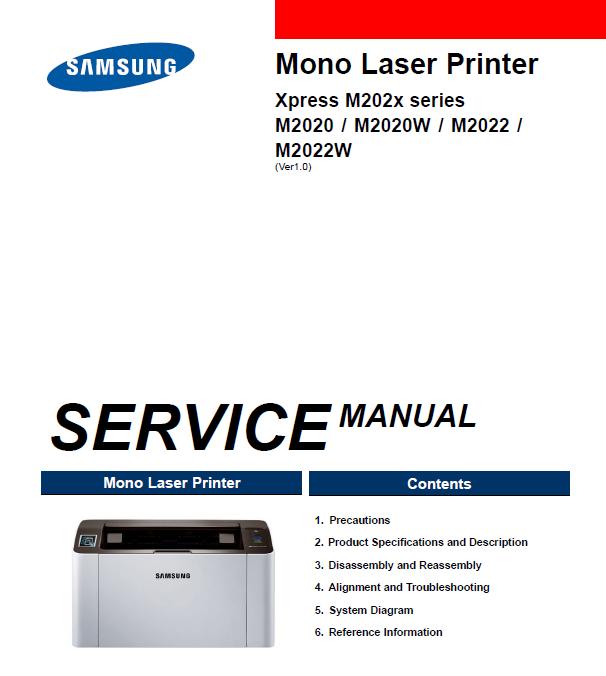
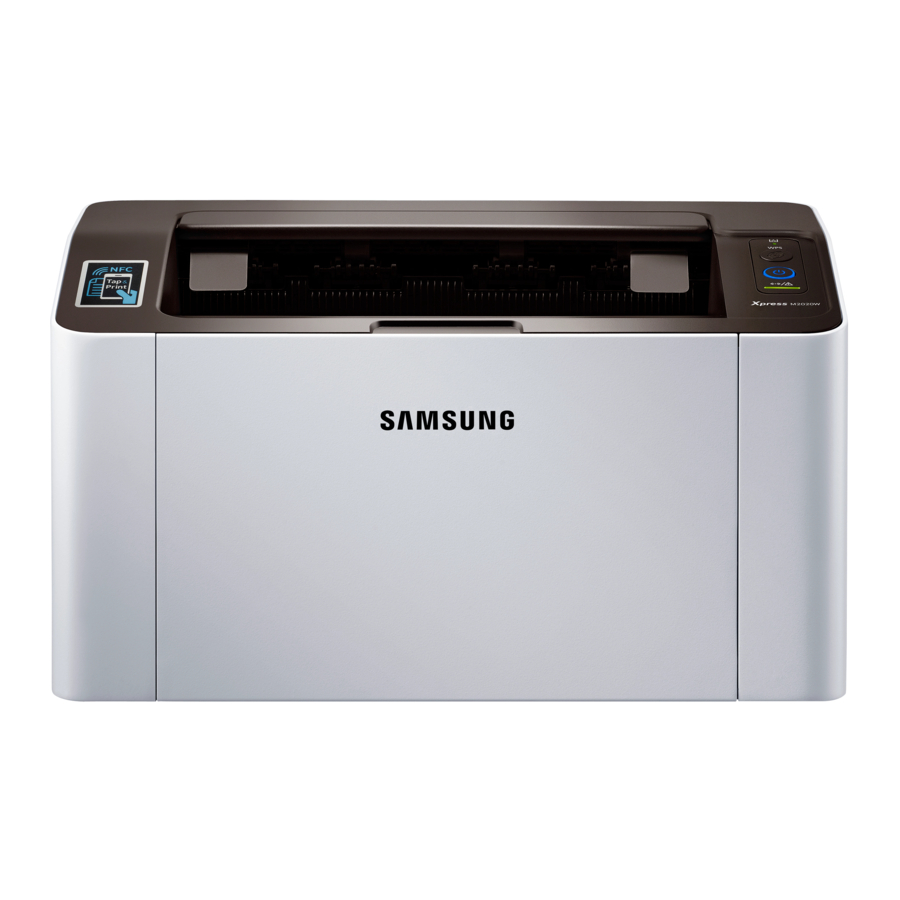
Samsung Xpress M2020W Troubleshooting: Quick Fixes
Most Samsung Xpress M2020W problems come from Wi-Fi setup, outdated drivers, paper jams, or toner issues.
Samsung Xpress M2020W troubleshooting is often simple when you check the connection, printer status, paper path, and software in the right order. This guide uses practical printer support methods to fix common wireless, printing, driver, toner, and setup problems without wasting time or replacing working parts.
Start with These Basic Checks
Before trying advanced Samsung Xpress M2020W troubleshooting, check the simple causes first. A loose power cable, sleeping computer, or wrong printer choice can look like a serious hardware fault.
Follow these steps:
- Turn off the printer.
- Unplug the power cable for 60 seconds.
- Plug it directly into a wall outlet.
- Turn on the printer and wait for it to become quiet.
- Check that paper is loaded correctly.
- Make sure the toner cartridge is installed fully.
- Confirm that the printer shows as ready on your computer.
Look at the printer lights. A steady blue Wi-Fi light usually means the wireless connection is active. A blinking light may mean the printer is trying to connect. A red or orange warning light often points to a paper, toner, cover, or hardware issue.
Also check whether the printer is set as the default printer. On Windows, open Settings, select Bluetooth & devices, choose Printers & scanners, and select the Samsung printer. On macOS, open System Settings, choose Printers & Scanners, and select the correct device.
A useful lesson from hands-on printer support is to avoid changing many settings at once. Test one change, print a page, and then move to the next step. This method shows which action solved the problem.
Samsung Xpress M2020W Not Connecting to Wi-Fi
Wireless connection problems are among the most common reasons people search for Samsung Xpress M2020W troubleshooting help. The printer may work by USB but fail over Wi-Fi, or it may disappear from the computer after a router change.
The Samsung Xpress M2020W usually connects to a 2.4 GHz wireless network. Many modern routers combine 2.4 GHz and 5 GHz bands under one network name. In some homes, this can make setup harder.
Try the following:
- Move the printer closer to the router during setup.
- Restart the router and printer.
- Connect your computer or phone to the same Wi-Fi network.
- Avoid guest Wi-Fi networks.
- Turn off a VPN during printer setup.
- Check that the router is not blocking new devices.
- Reinstall the printer using the current wireless setup tool or driver.
If you changed your Wi-Fi name or password, the printer may still remember the old network. In that case, remove the printer from your computer and run wireless setup again. Enter the new password carefully because one wrong character can stop the connection.
The printer may also fail to connect when the router uses unusual security settings. WPA2-Personal is generally more compatible with older wireless printers than newer security modes. Check your router settings or ask your internet provider before changing network security.
Avoid placing the printer behind a metal cabinet, beside a microwave, or far from the router. Wi-Fi signals are like a conversation. Thick walls and electrical noise make it harder for the printer and router to hear each other.
How to Reconnect the Printer to a New Router
When you replace your router, Samsung Xpress M2020W troubleshooting normally requires a new wireless setup. The printer does not automatically learn the new network details.
Use this general process:
- Connect the printer to your computer with a USB cable if wireless setup asks for one.
- Download the correct Samsung Xpress M2020W software for your operating system.
- Start the wireless setup utility.
- Select the printer model.
- Choose the new Wi-Fi network.
- Type the wireless password.
- Finish the setup and remove the USB cable when instructed.
- Print a test page.
Some versions of the printer include a WPS button method. If your router supports WPS, press the WPS button on the router and then use the printer’s WPS or Wi-Fi control. The exact button sequence can vary by model and firmware, so follow the instructions for your printer version.
If setup fails, reset the printer’s network settings and start again. A network reset removes stored Wi-Fi details but does not normally fix mechanical problems or toner errors.
After reconnection, check the printer’s IP address. If the computer finds the printer one day but not the next, the router may be assigning a new address. Adding the printer by its current IP address can help, although a fixed address may be better for a permanent home or office setup.

Samsung Xpress M2020W Prints Nothing
A print job may appear in the queue but never reach the printer. This issue often results from an offline status, paused queue, wrong printer selection, or a damaged driver.
Start with the print queue:
- Open the printer list on your computer.
- Select Samsung Xpress M2020W.
- Open the print queue.
- Cancel old or stuck jobs.
- Make sure “Pause printing” is turned off.
- Make sure “Use printer offline” is turned off.
- Send a new one-page test document.
If several jobs are stuck, restart the print spooler on Windows. Open the Services app, find Print Spooler, stop it, wait a few seconds, and start it again. Then restart the printer and computer.
On macOS, remove the printer and add it again from Printers & Scanners. Select the correct Samsung driver or AirPrint option if available. A wrong driver can send a job that the printer cannot understand.
Check whether another printer is selected in the application. This mistake is common when a computer has several printers, virtual PDF printers, or an old Samsung entry. Choose Samsung Xpress M2020W before pressing Print.
If the printer prints a self-test or configuration page but not documents from the computer, the printer hardware is likely working. Focus on the driver, queue, connection, and application settings.

Fix Samsung Xpress M2020W Driver Problems
A damaged or outdated driver can cause missing text, frozen print jobs, wrong paper sizes, or a printer that appears offline. Driver repair is an important part of Samsung Xpress M2020W troubleshooting.
Remove old printer software before installing a fresh copy:
- Disconnect the USB cable if one is connected.
- Remove the printer from your operating system.
- Uninstall old Samsung or HP printer software linked to the device.
- Restart the computer.
- Download the driver made for your operating system.
- Install the driver.
- Add the printer again.
- Print a test page.
Use a driver that matches your operating system. A driver made for an older Windows version may work, but it may also cause installation errors or limited features. Choose a 32-bit or 64-bit version that matches your computer when both are available.
Do not install random driver packages from unknown websites. They may contain unwanted software or may not support the M2020W correctly. Use the printer maker’s support page or a trusted operating system update.
Windows users can also try the built-in printer troubleshooter. It may detect a paused queue, unavailable port, or spooler problem. However, automated tools cannot repair every driver issue, so a clean reinstall may still be needed.

Fix USB Connection Problems
A USB connection can be more stable than Wi-Fi, especially during setup. Still, a damaged cable, faulty port, or incorrect driver can prevent the Samsung Xpress M2020W from printing.
Try these checks:
• Use a USB cable designed for data, not a charge-only cable.
• Connect the printer directly to the computer instead of a USB hub.
• Test another USB port.
• Restart both devices.
• Install the printer driver before connecting the cable if the setup guide recommends it.
• Check whether the computer detects a new printer.
A USB cable can fail even when it looks perfect. If the printer works with another cable, replace the old one. Also inspect the printer’s USB port for dust or physical damage.
If Windows shows an unknown device, remove it from Device Manager and reinstall the printer software. If macOS does not detect the printer, restart the Mac and reconnect the cable after the driver installation.
When USB works but Wi-Fi does not, keep using USB while repairing the wireless setup. This gives you a reliable way to print and confirms that the printer engine is functioning.

Fix Paper Jams and Paper Feed Errors
Paper jams are a major part of Samsung Xpress M2020W troubleshooting. Most jams happen because of damp paper, an overloaded tray, a wrong paper size, or small scraps left inside the printer.
Turn off the printer and let it cool before reaching near the fuser area. The inside can become hot during printing.
Then follow these steps:
- Remove paper from the tray.
- Pull out the toner cartridge if the manual allows it.
- Look along the paper path.
- Remove paper slowly in the direction of normal movement.
- Check for torn scraps.
- Reinstall the toner cartridge.
- Load a small stack of fresh paper.
- Adjust the paper guides so they touch the edges without squeezing the paper.
Never yank a stuck sheet. Torn paper can leave a small piece behind, which causes repeated jams. A flashlight can help you see paper fragments inside the path.
Store paper in a dry room. Moist paper can stick together and feed two sheets at once. Do not mix different paper sizes or types in the same tray.
Make sure the paper size in the document matches the paper in the tray. For example, selecting Letter on the computer while loading A4 paper can create feed or layout problems.

Fix Slow Printing or Repeated Pauses
The Samsung Xpress M2020W is a compact monochrome laser printer. It is designed for regular home and small-office documents, not large batches of high-resolution graphics.
Slow printing may occur because of:
• A large PDF file.
• High-quality print settings.
• A weak wireless signal.
• A busy print queue.
• Low computer memory.
• A damaged document.
• A driver or spooler issue.
Try printing a simple text page. If the text page prints quickly, the original file may be complex or damaged. Re-save the file as a new PDF or print from another application.
Changing print quality from high to normal can reduce processing time. Using USB instead of Wi-Fi can also help when the wireless signal is weak.
If every document prints slowly, restart the printer, computer, and router. Then clear the queue and reinstall the driver if the issue continues.
Fix Blank Pages and Faded Prints
Blank or faded pages usually relate to toner, print settings, paper, or the imaging system. Samsung Xpress M2020W troubleshooting should begin with the toner cartridge because it is the most common cause.
Check the following:
- Confirm that the toner cartridge is installed.
- Remove any protective shipping strip from a new cartridge.
- Gently rock the cartridge from side to side.
- Reinstall it firmly.
- Print a configuration or test page.
- Check the toner level in the printer software.
Rocking a nearly empty cartridge can spread toner for a short time. It is not a permanent fix. Replace the cartridge when pages remain pale or show repeated blank areas.
Faded printing can also result from the wrong paper type setting. Use plain paper settings for normal copy paper. Specialty paper may need a different setting because the printer adjusts heat and feed speed.
If a new cartridge still produces blank pages, inspect the cartridge for damage and confirm that it matches the M2020W model. A defective or incompatible cartridge can create poor results.
Fix Lines, Spots, Ghosting, and Repeating Marks
Vertical lines, black spots, gray backgrounds, and ghost images can point to toner contamination or a worn cartridge. Repeating marks at equal distances often suggest a rotating part inside the print system.
Try these safe steps:
• Print several internal test pages.
• Remove and reinstall the toner cartridge.
• Check for loose toner inside the printer.
• Clean visible dust with a soft, dry, lint-free cloth.
• Avoid touching the imaging surface.
• Replace the cartridge if the problem follows the cartridge.
Do not use water, household cleaners, or compressed air inside the printer. Liquids can damage electronics, while strong air pressure can spread toner deeper into the machine.
A gray background may come from poor-quality toner, paper moisture, or a worn imaging component. If the same defect appears on every page with a known-good cartridge, the printer may need professional service.
A practical rule is to compare a computer document with an internal printer page. If both show the same defect, suspect the printer or cartridge. If only computer documents show it, check the driver and document settings.
Samsung Xpress M2020W Not Detected by a Phone
Mobile printing requires the phone and printer to use compatible software and the same network. A phone on cellular data or guest Wi-Fi may not see the Samsung Xpress M2020W.
Check these items:
- Connect the phone to the same main Wi-Fi network as the printer.
- Turn off cellular data for a moment.
- Disable a VPN during testing.
- Restart the printer and phone.
- Update the mobile printing app or system.
- Confirm that the printer is visible on the network.
- Try printing a small PDF or photo.
Older Samsung printer models may depend on a mobile print application, a system printing service, or a compatible third-party app. Support can vary by Android and iOS version.
If mobile printing is unreliable, use a computer with the official printer driver. This can help identify whether the problem is the phone, the network, or the printer itself.
Reset the Samsung Xpress M2020W Safely
A reset can clear stored network data and temporary errors, but it should not be the first step for every problem. Samsung Xpress M2020W troubleshooting works best when you reset only the setting that is causing trouble.
A network reset may help when:
• The router or Wi-Fi password changed.
• The printer connects to the wrong network.
• The printer appears offline after setup.
• The computer cannot find the printer.
Before resetting, write down the current network name and password. You may also need to remove the old printer entry from the computer.
Avoid repeated factory resets. A reset will not repair a broken USB port, worn roller, defective toner cartridge, or damaged circuit board. It can also remove settings that were working correctly.
Use the printer’s official user guide for the exact button sequence. Different firmware versions may use different control combinations, and forcing an incorrect reset may create more setup work.
When to Clean or Replace Printer Parts
Basic cleaning can improve paper feeding and print quality. It cannot restore every worn part.
Clean the outside and accessible paper path with a dry, lint-free cloth. Remove loose paper dust from the tray area. Keep toner sealed until you are ready to install it.
Parts that may need replacement include:
• Toner cartridge.
• Pickup roller.
• Separation pad.
• Paper tray components.
• Internal imaging parts.
If the printer makes grinding, clicking, or scraping sounds, stop using it. Unusual sounds can signal a gear, roller, or motor problem. Continuing to print may make the repair more expensive.
The M2020W is an older compact printer. Replacement parts and support may be limited in some regions. Compare repair costs with the price of a newer monochrome laser printer before approving major service.
A Reliable Samsung Xpress M2020W Troubleshooting Order
Following a fixed order prevents confusion. Use this sequence whenever the printer stops working:
- Check power and warning lights.
- Check paper, toner, and the paper path.
- Print an internal test or configuration page.
- Check USB or Wi-Fi connection.
- Clear the print queue.
- Confirm the correct printer is selected.
- Restart the printer, computer, and router.
- Update or reinstall the driver.
- Reset network settings if the connection remains broken.
- Contact qualified service if mechanical symptoms continue.
This process separates simple software problems from hardware problems. It also prevents a common mistake: buying a new toner cartridge when the real issue is a blocked queue or disconnected Wi-Fi network.
Keep notes during the repair. Write down the error light, the last change you made, and the result of each test. Clear notes can save time if you later contact support.
Mistakes to Avoid
Poor troubleshooting can turn a small issue into a larger one. Avoid these common mistakes:
• Do not force paper out of the printer.
• Do not touch the imaging surface with your fingers.
• Do not use household spray inside the printer.
• Do not install drivers from suspicious websites.
• Do not reset the printer before recording network details.
• Do not assume a blinking Wi-Fi light means the printer is broken.
• Do not replace several parts without testing each one.
• Do not overload the paper tray.
• Do not ignore repeated grinding or burning smells.
One of the best lessons in Samsung Xpress M2020W troubleshooting is to test the cheapest and safest cause first. Check power, paper, toner, queue, and connection before investigating internal parts.
Frequently Asked Questions About Samsung Xpress M2020W Troubleshooting
Why is my Samsung Xpress M2020W offline?
The printer may be disconnected from Wi-Fi, assigned a new IP address, or paused in the computer’s print settings. Restart the printer and router, clear the queue, and make sure “Use printer offline” is disabled.
How do I connect the Samsung Xpress M2020W to Wi-Fi?
Use the printer’s wireless setup utility with a USB cable if required. Select your 2.4 GHz Wi-Fi network, enter the correct password, complete setup, and then print a test page.
Why does my Samsung Xpress M2020W print blank pages?
A missing, empty, incompatible, or incorrectly installed toner cartridge is the most likely cause. Remove and reinstall the cartridge, check for its protective strip, and replace it if the test page remains blank.
How do I clear a paper jam in the Samsung Xpress M2020W?
Turn off the printer and remove paper slowly in the normal feed direction. Check the tray, toner area, and exit path for small scraps before loading fresh paper.
Why is my Samsung Xpress M2020W printing faded text?
Low toner, damp paper, incorrect print settings, or a worn cartridge can cause faded text. Gently rock the cartridge for a temporary improvement, then replace it if the problem continues.
Can I use the Samsung Xpress M2020W with a new computer?
Yes. Install a compatible printer driver, connect the printer by USB or Wi-Fi, and add it through the computer’s printer settings. Remove old printer entries if the new computer detects duplicate devices.
Why does my Samsung Xpress M2020W print from USB but not Wi-Fi?
The printer may have old network details, a weak signal, or an incompatible router setting. Re-run wireless setup, use the same network on the computer and printer, and test with the printer near the router.
Conclusion
Samsung Xpress M2020W troubleshooting becomes much easier when you use a clear order. Start with power, paper, toner, warning lights, and the print queue. Then check Wi-Fi, USB, drivers, mobile printing, and network settings.
Most problems do not require a new printer. A clean driver installation, fresh wireless setup, careful paper removal, or correct toner installation can often restore normal printing.
Work through the steps patiently, test after each change, and stop if you notice heat damage, burning smells, or grinding sounds. Save this guide for the next printer problem, and explore your printer’s official manual for model-specific reset and maintenance instructions.