Canon Imageclass Mf264dw Ii Troubleshooting Guide
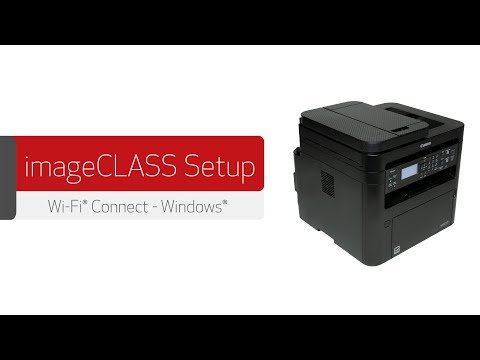
Canon imageCLASS MF264dw II Troubleshooting usually comes down to paper, network, toner, or driver issues.
If you use the Canon imageCLASS MF264dw II every day, you already know how dependable it can be until something small throws it off. From paper jams and Wi-Fi drops to print quality problems and scanning errors, Canon imageCLASS MF264dw II Troubleshooting is usually straightforward once you know where to look. I’ve worked through many of these printer issues in real offices and home setups, and the pattern is almost always the same: a simple cause hiding behind an annoying symptom.
Common Canon imageCLASS MF264dw II Troubleshooting Basics
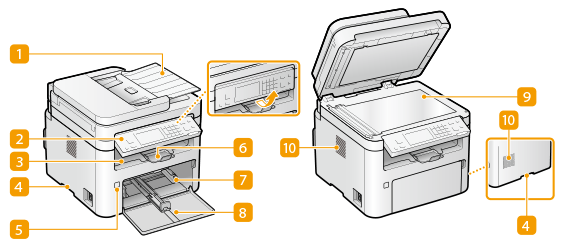
Before diving into specific problems, it helps to understand how this printer behaves when something is wrong. The Canon imageCLASS MF264dw II is a compact laser multifunction printer, so many issues come from paper handling, network setup, or worn consumables rather than major hardware failure.
In my experience, the fastest fix is usually not the most technical one. I have seen users spend an hour reinstalling drivers when the real issue was a curled sheet stuck near the feed path or a weak Wi-Fi signal across the room. That is why Canon imageCLASS MF264dw II Troubleshooting works best when you start simple and move step by step.
Common things to check first include:
- Power and cabling, to make sure the printer is fully on and connected
- Paper type and paper load, because wrong media often causes jams or smudges
- Toner level and drum condition, since low supplies can affect print quality
- Wireless connection, especially if the printer stops showing up on the network
- Driver and software status, which can break printing or scanning after updates
If you want a smooth repair process, think of the printer like a car dashboard. A warning light tells you something is off, but the cause is not always the part you first suspect.
Canon imageCLASS MF264dw II Not Printing
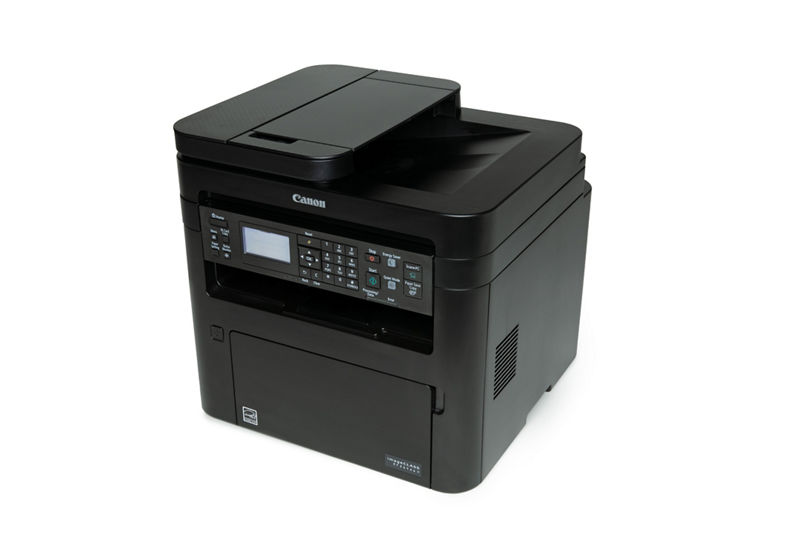
One of the most common complaints is that the printer looks ready, but nothing comes out. This can happen for several reasons, and the good news is that most are easy to fix.
Start with the basics:
- Check that the printer is powered on and not in sleep mode.
- Make sure it is selected as the default printer on your computer.
- Confirm that there are no stuck jobs in the print queue.
- Verify the USB cable or network connection.
- Restart both the printer and the computer.
A print queue jam is one of the most overlooked issues. I once saw a small office blame the printer for two days when the real problem was a single paused document sitting in the queue like a traffic jam at rush hour.
If the Canon imageCLASS MF264dw II still does not print, try these deeper checks:
- Reinstall the printer driver
- Update the operating system print service
- Test with a different file type
- Print a test page from the printer menu
- Try a direct USB connection if wireless printing fails
Sometimes the issue is not the printer itself. A bad driver update or a corrupted spooler service can block jobs even when the machine seems fine.

Canon imageCLASS MF264dw II Paper Jam Problems
Paper jams are frustrating, but they are usually caused by a small physical issue rather than a serious fault. The Canon imageCLASS MF264dw II can jam if the paper is damp, folded, overfilled, or loaded incorrectly.
To reduce jams, follow these steps:
- Remove the paper tray and reload the paper neatly
- Fan the paper stack before inserting it
- Use clean, dry paper stored in a cool place
- Avoid mixing different paper sizes or weights
- Do not exceed the tray capacity
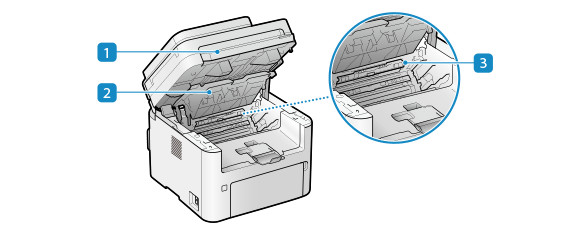
If a jam happens, open the access points slowly and remove the paper with both hands. Pulling too hard can tear the sheet and leave bits inside the path. That is where many people make the mistake of forcing the paper out and creating a second problem.
Look carefully for:
- Small scraps near the rollers
- Wrinkled paper in the feed area
- Bits of labels or envelopes that may have peeled off
- Misfed pages stuck deeper inside the path
A good habit I picked up over time is checking the paper stack before loading it. It saves more time than any repair tool ever has.
Canon imageCLASS MF264dw II Print Quality Issues
If your prints look faded, streaked, blotchy, or uneven, the issue may be related to toner, drum condition, or the paper itself. Print quality problems can be subtle at first, then get worse over time.
Common signs include:
- Light text that is hard to read
- Black lines or spots on the page
- Faded areas on one side of the print
- Smearing or ghosting
- Toner not bonding well to the paper
Try this checklist:
- Remove and gently shake the toner cartridge if the print is fading.
- Inspect the paper for moisture or damage.
- Run a cleaning or maintenance page, if available.
- Check whether the toner cartridge is near empty.
- Replace the cartridge if the output stays poor.
In laser printers, toner issues often look worse than they are. A low cartridge may still print for a while, but the output quality can drop fast. That is why I always advise testing a known good cartridge before assuming a larger hardware issue.
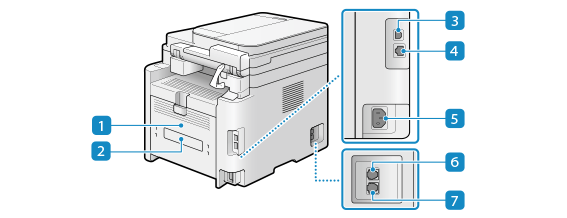
If streaks or repeating marks appear in the same place on every page, the drum or internal rollers may need attention. That kind of pattern usually points to a mechanical wear issue rather than a software problem.
Canon imageCLASS MF264dw II Wi-Fi and Network Troubleshooting
Wireless problems are a big part of Canon imageCLASS MF264dw II Troubleshooting because many users connect it to laptops, phones, and office networks. When the printer disappears from the network or refuses to respond, the cause is often signal-related or settings-related.
Start here:
- Confirm the printer is connected to the correct Wi-Fi network
- Check that the router is on and working
- Move the printer closer to the router for testing
- Restart the printer, router, and computer
- Reconnect the printer using the wireless setup menu
A lot of network issues come from a simple mismatch. The printer may be connected, but not to the same network band or router name your computer is using. I have seen this happen in homes with multiple extenders, where the printer joined one network and the laptop sat on another.
Helpful network checks include:
- Printing a network configuration page
- Confirming the IP address has not changed
- Removing and re-adding the printer in your operating system
- Temporarily disabling VPN software during setup
- Updating router firmware if the connection drops often
If the printer works on USB but not on Wi-Fi, the printer is usually fine. That points the finger at the network path, not the device itself.
Canon imageCLASS MF264dw II Scanner Problems
Since the Canon imageCLASS MF264dw II is a multifunction device, scanning problems can be just as frustrating as printing issues. The scanner may fail to start, save files in the wrong place, or produce blank pages.
Common causes include:
- Scanner driver problems
- Incorrect scan settings
- Network interruptions
- Document feeder issues
- Software permissions on your computer
Try these practical steps:
- Restart the printer and the computer.
- Reinstall the Canon scanning software or driver package.
- Check that the destination folder still exists.
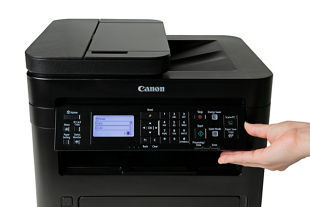
- Test scanning from the printer control panel.
- Try a different file format, such as PDF or JPEG.
If the document feeder scans blank pages, check the original pages first. Light pencil marks, very thin paper, or pages loaded face up instead of face down can all cause confusion. A scanner can only capture what it can see, so the paper setup matters more than people expect.
From experience, scan problems are often caused by permissions after a system update. The app may still open, but it no longer has access to save files. That is a small fix with a big payoff.
Canon imageCLASS MF264dw II Error Messages and What They Mean
Error messages can look scary, but they are often clues. The printer is usually trying to tell you which area needs attention, such as paper, toner, or memory.
When you see an error message, do not rush to reset everything at once. Read the message carefully and note the exact code or wording. That tiny detail can save a lot of time.
Useful response steps include:
- Power cycle the printer
- Clear any paper path obstruction
- Reseat the toner cartridge
- Check for pending jobs in the queue
- Review the user manual or the printer display for the code meaning
If the message comes back after a restart, that usually means the printer has detected a real issue rather than a temporary glitch. In that case, the next step is to isolate the affected part instead of guessing.
The safest path is always methodical. Treat the error message like a symptom in a clinic visit: the note matters, but the full pattern matters even more.
How to Reset the Canon imageCLASS MF264dw II Safely
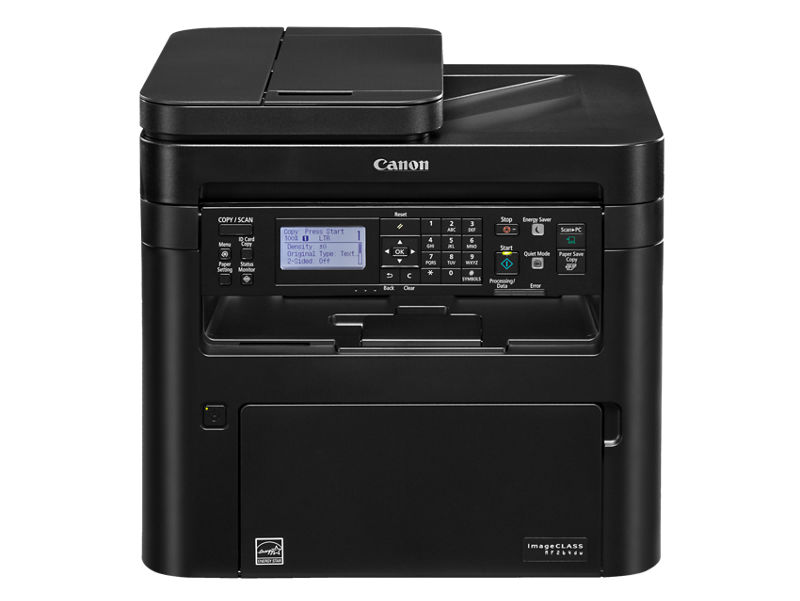
A reset can help when the printer is frozen, unresponsive, or stuck in a bad state. But a reset should not be the first step unless the printer is clearly locked up.
Before resetting, try a simple restart:
- Turn off the printer
- Unplug it for about 30 seconds
- Plug it back in
- Turn it on again
- Test printing or scanning once more
If that does not help, a settings reset may be useful. Be careful, because some resets can erase network settings or custom preferences. That means you may need to reconnect Wi-Fi or reinstall the printer afterward.
My advice is to save a few details before resetting:
- Wi-Fi network name
- Password
- Static IP settings, if used
- Custom paper size settings
- Saved scan destinations
That way, if the reset works, you can get back to normal faster. A reset is like a restart for the printer’s memory, not a magic wand. It helps most when the problem is software confusion rather than damaged hardware.
Preventive Maintenance for Better Performance
The best Canon imageCLASS MF264dw II Troubleshooting is the kind you never need to do. Regular care prevents many of the problems that frustrate users later.
Simple maintenance habits make a big difference:
- Keep the printer in a dry, dust-free place
- Use good-quality paper that matches the printer specs
- Clean the paper path and rollers when needed
- Replace toner before it runs completely empty
- Keep the firmware and drivers updated
I have found that printers often fail in the same few ways because they are treated like static devices. They are not. They are machines with moving parts, sensors, and software, so they need a little attention now and then.
Good maintenance also improves trust in the device. When a printer works consistently, people stop second-guessing every error. That alone saves time in busy homes and offices.
When to Contact Support or Replace Parts
Sometimes troubleshooting reaches its limit. If the printer keeps showing the same issue after basic and advanced checks, the problem may be tied to a worn part or internal fault.
Consider support or replacement if you notice:
- Repeated jams in the same area
- Persistent print defects after new toner is installed
- Scanner failures that survive software reinstall
- Strange noises from inside the printer
- Error codes that return after resets
In my view, the best time to ask for help is before a small problem becomes a bigger one. If a roller is worn out or a sensor is failing, continuing to force the printer can make the repair more expensive.
If the machine is under warranty, contact support before opening the device or replacing parts on your own. That protects both your coverage and your sanity.
Frequently Asked Questions of Canon imageCLASS MF264dw II Troubleshooting
Why is my Canon imageCLASS MF264dw II not connecting to Wi-Fi?
The printer may be on the wrong network, too far from the router, or affected by a temporary router issue. Restart both devices, then reconnect the printer through the wireless setup menu.
How do I fix a paper jam in the Canon imageCLASS MF264dw II?
Open the access area slowly and remove the jammed paper without tearing it. Then reload clean, dry paper and make sure the tray is not overfilled or misaligned.
Why are my prints faded or streaked?
This usually points to low toner, a worn cartridge, or paper that is not suitable for laser printing. Try a new toner cartridge and check the paper condition before assuming a bigger issue.
Why does my Canon imageCLASS MF264dw II scan but not save files?
The scan software may not have permission to save in the selected folder, or the destination folder may no longer exist. Recheck the save path and reinstall the scan driver if needed.
Can I reset the printer without losing everything?
Yes, a basic power reset usually does not erase your settings. But a full settings reset may clear Wi-Fi and custom options, so write those details down first.
Why does the printer show online but still not print?
This often means the print queue is stuck, the wrong printer is selected, or the driver has a problem. Clear the queue, confirm the default printer, and reinstall the driver if the issue continues.
Conclusion
Canon imageCLASS MF264dw II Troubleshooting becomes much easier when you break it into simple parts: paper, power, network, toner, drivers, and scanner settings. Most problems are not random at all. They are small, fixable issues that just need a calm, step-by-step approach.
If you remember one thing, make it this: start with the simplest cause first. That habit saves time, reduces frustration, and often gets the printer working again without a service call. Try the checks in this guide, keep up with basic maintenance, and your Canon imageCLASS MF264dw II will usually stay reliable for the long run.
If this guide helped, save it for later, share it with someone who uses the same printer, or leave a comment with the issue you are seeing.

Similar Posts
































