Pantum M6552NW Troubleshooting: Quick Fix Guide
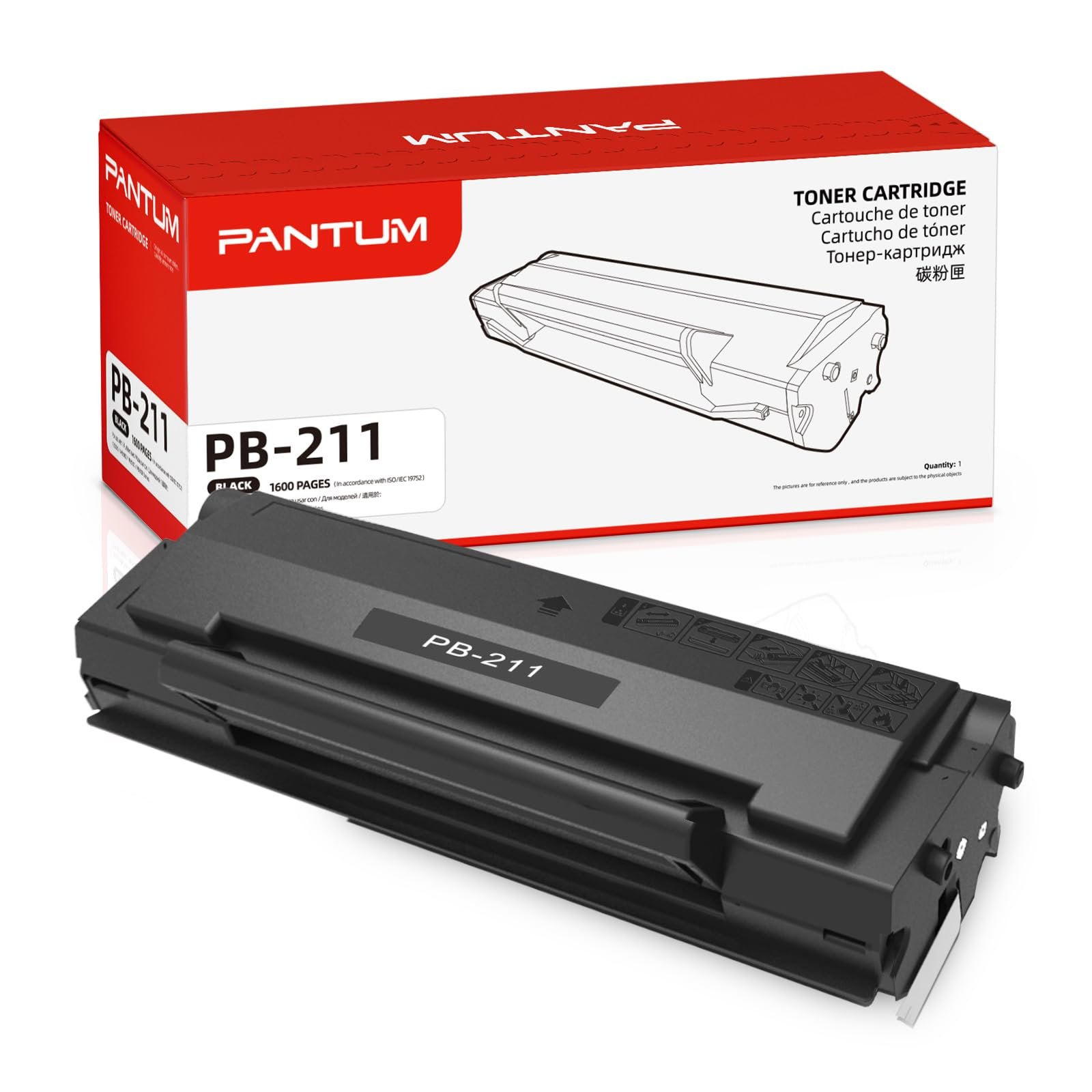
Most Pantum M6552NW problems come from simple network, driver, paper, toner, or settings issues.
Pantum M6552NW troubleshooting is much easier when you check the printer in the right order. This guide uses practical printer support methods to help you fix connection errors, paper jams, print quality faults, scanning issues, and wireless setup problems without wasting time or replacing parts too soon.
Start With Basic Pantum M6552NW Troubleshooting
Before changing drivers or opening the printer, check the simple causes first. Many Pantum M6552NW problems come from a loose cable, a sleeping computer, an empty toner cartridge, or a printer that is connected to the wrong Wi-Fi network.
Use this quick check:
- Make sure the printer has power.
- Check the screen for an error message.
- Confirm that paper is loaded correctly.
- Check the toner level.
- Restart the printer and computer.
- Confirm the printer name in your print settings.
- Remove any stuck print jobs.
- Check the USB or Wi-Fi connection.
Turn the printer off. Wait about 30 seconds, then turn it on again. This clears many small memory and communication faults.
If the printer shows a serious hardware error, grinding sound, smoke, or a burning smell, unplug it and seek qualified service. Do not keep using a damaged power cord or force a jammed part.
png.png)
Pantum M6552NW Not Printing
A Pantum M6552NW that does not print may still appear ready. The computer may have sent the job to the wrong printer, or the print queue may be paused.
First, open your computer’s printer settings. Select the Pantum M6552NW and confirm that it is the default printer. Then open the print queue and cancel old jobs that may be blocking new ones.
Try these steps:
- Check that the printer status says “Ready” or “Online.”
- Cancel all pending documents.
- Restart the print spooler on Windows.
- Select the correct paper size.
- Print a test page.
- Try a simple document with one page.
- Restart both the computer and printer.
On Windows, a paused or offline printer can often be fixed by opening the printer queue and clearing the “Use Printer Offline” option. On macOS, remove the printer from Printers & Scanners and add it again if the system cannot communicate with it.
A print job can also fail when the application uses a paper size that does not match the tray. For example, a document set to legal paper may not print if the tray contains letter-size paper.

Pantum M6552NW Offline or Not Connected
The Pantum M6552NW may appear offline when the computer and printer are on different networks. This often happens after changing a router, Wi-Fi password, or internet provider.
Check the following:
• Confirm that your computer and printer use the same Wi-Fi network.
• Avoid guest Wi-Fi networks because they may block device communication.
• Move the printer closer to the router during setup.
• Restart the router, printer, and computer.
• Check whether the printer received a new IP address.
• Remove duplicate Pantum printer entries from your computer.
If you use a USB connection, connect the cable directly to the computer. Avoid a damaged cable or an unpowered USB hub. Try another USB port if the printer is not detected.
For wireless printing, reinstall the Pantum software and select the wireless setup option. Enter the Wi-Fi password carefully. A single wrong character can prevent the printer from joining the network.
In my printer support experience, users often spend time reinstalling software when the real issue is a changed Wi-Fi password. Always test the network first. It is the fastest way to narrow the problem.
How to Set Up Pantum M6552NW Wi-Fi
Wireless setup works best when the printer, router, and computer are close together. Keep the printer away from thick walls, metal cabinets, and devices that may create radio interference.
Follow these general steps:
- Turn on the Pantum M6552NW.
- Open the printer’s network or Wi-Fi settings.
- Select your home or office network.
- Enter the wireless password.
- Wait for the connection confirmation.
- Install the current Pantum printer software.
- Add the printer to your computer.
- Print a test page.
Use the correct wireless band when required by your network. Some printers work best with a 2.4 GHz network during setup, while modern routers may combine 2.4 GHz and 5 GHz bands under one name.
If setup fails, temporarily move the printer near the router. After the connection works, move it back to its normal location. A strong signal during setup removes one common cause of Pantum M6552NW troubleshooting problems.
Avoid pressing random network reset options unless you are ready to set up the connection again. A network reset removes stored Wi-Fi details.

Pantum M6552NW Paper Jam Fix
A paper jam can occur in the tray, rear cover, paper path, or output area. Pulling paper too hard may tear it and leave small pieces inside the machine.
Use this safe method:
- Turn off the printer.
- Unplug the power cord.
- Remove loose paper from the tray.
- Open the access covers.
- Pull the sheet slowly in the direction of normal paper travel.
- Check for small scraps.
- Close every cover firmly.
- Reload clean, flat paper.
- Plug in and restart the printer.
Do not use sharp tools to remove paper. A screwdriver can damage rollers, sensors, or the paper path.
Paper may jam more often when sheets are damp, curled, mixed in size, or packed too tightly. Store paper in a dry place. Fan the stack before loading it, and adjust the paper guides so they touch the edges without pressing hard.
If the printer reports a jam after you remove the paper, check that each cover is fully closed. A cover sensor may still detect an open path. Repeated jams in the same location can point to worn rollers or a damaged sensor.
.png)
Pantum M6552NW Printing Blank Pages
Blank pages usually indicate a toner problem, a cartridge seating problem, or incorrect print settings. Check the toner cartridge before changing software.
Remove the cartridge and gently move it from side to side. Do not shake it hard. Reinstall it firmly, then print a test page.
Also check these settings:
• Make sure the document contains visible text or images.
• Disable blank-page removal or unusual booklet settings.
• Select the Pantum M6552NW driver, not a generic text-only driver.
• Print a printer test page from the device menu if available.
• Replace the cartridge if it is empty or damaged.
A new cartridge may still produce blank pages if protective packaging remains attached. Follow the cartridge installation instructions and remove all seals before use.
If printer test pages are blank but the computer document looks correct, the issue is likely inside the printer or cartridge. If test pages print normally, check the application, driver, or document file.

Pantum M6552NW Poor Print Quality
Faded text, gray backgrounds, streaks, and repeated marks are common print quality complaints. The correct fix depends on the pattern you see on the page.
Faded printing
Faded output may result from low toner, an old cartridge, an unsuitable paper type, or an economy print mode. Check toner first, then select the correct paper type in the driver.
Black lines or streaks
Vertical lines can indicate toner buildup, a dirty internal area, or a damaged cartridge. Remove and reinstall the cartridge. If the line repeats at the same distance on every page, the cartridge or drum area may need replacement.
Gray background
A gray page background may come from an aging cartridge, unsuitable paper, or excessive toner spread. Use clean, dry paper and test with a known-good cartridge if possible.
Repeated marks
Repeated spots often match the size of a roller or drum defect. Note the distance between marks. This information helps a technician identify the affected part.
Clean only the areas recommended in the user guide. Never touch the drum surface with your fingers. Finger oils can damage print performance.
.png)
Pantum M6552NW Scanning Problems
The Pantum M6552NW includes scan functions, but scanning depends on both the printer connection and the scanning software. A printer may print correctly while scanning fails because the scan driver is missing.
If the computer cannot find the scanner:
- Restart the printer and computer.
- Confirm the printer is connected by USB or Wi-Fi.
- Install the full Pantum software package.
- Check that the correct scanner appears in the scan application.
- Test from another scanning program.
- Check firewall permissions.
- Try a direct USB connection.
Place the document face down on the scanner glass unless the instructions specify another position. Align it with the marked corner. Remove clips, staples, and folded edges before scanning.
For poor scan quality, clean the glass with a soft, lint-free cloth. Use a small amount of glass cleaner on the cloth, not directly on the scanner. Select a suitable resolution. Text documents often need less resolution than photos.
If scanning works over USB but not Wi-Fi, the issue is likely network discovery or firewall access. This difference is useful because it helps separate a hardware fault from a network fault.
Pantum M6552NW Copying Issues
Copy problems can look like scanning problems because copying uses the scanner and print system together. First, check the original document and scanner glass.
If copies are too dark, too light, or unclear:
• Clean the scanner glass.
• Check the copy density setting.
• Use the correct paper type.
• Remove toner-saving settings.
• Confirm that the original lies flat.
• Test with a plain black-and-white page.
A copy that looks poor but scans well may indicate a printer or toner issue. A scan that looks poor before printing points more strongly to the glass, document placement, or scanner settings.
Do not place wet ink, thick glue, or dirty documents on the glass. These can leave marks that appear on every future copy.
Pantum M6552NW Driver and Software Errors
The printer driver acts like a translator between your computer and printer. If the driver is wrong or damaged, the printer may print strange symbols, wrong page sizes, blank pages, or nothing at all.
For reliable Pantum M6552NW troubleshooting, install the driver made for the exact model and operating system. Avoid random third-party driver websites. They may contain outdated files or unwanted software.
A clean reinstall usually follows this pattern:
- Remove the Pantum M6552NW from printer settings.
- Uninstall old Pantum software.
- Restart the computer.
- Download the current package from the official support page.
- Install the driver.
- Add the printer again.
- Print a test page.
Use a standard driver when advanced features are not needed. Use the full package when you need scanning, device status, or maintenance tools.
After a major operating system update, a previously working driver may stop functioning. Reinstalling the current compatible package is often safer than changing many settings at once.
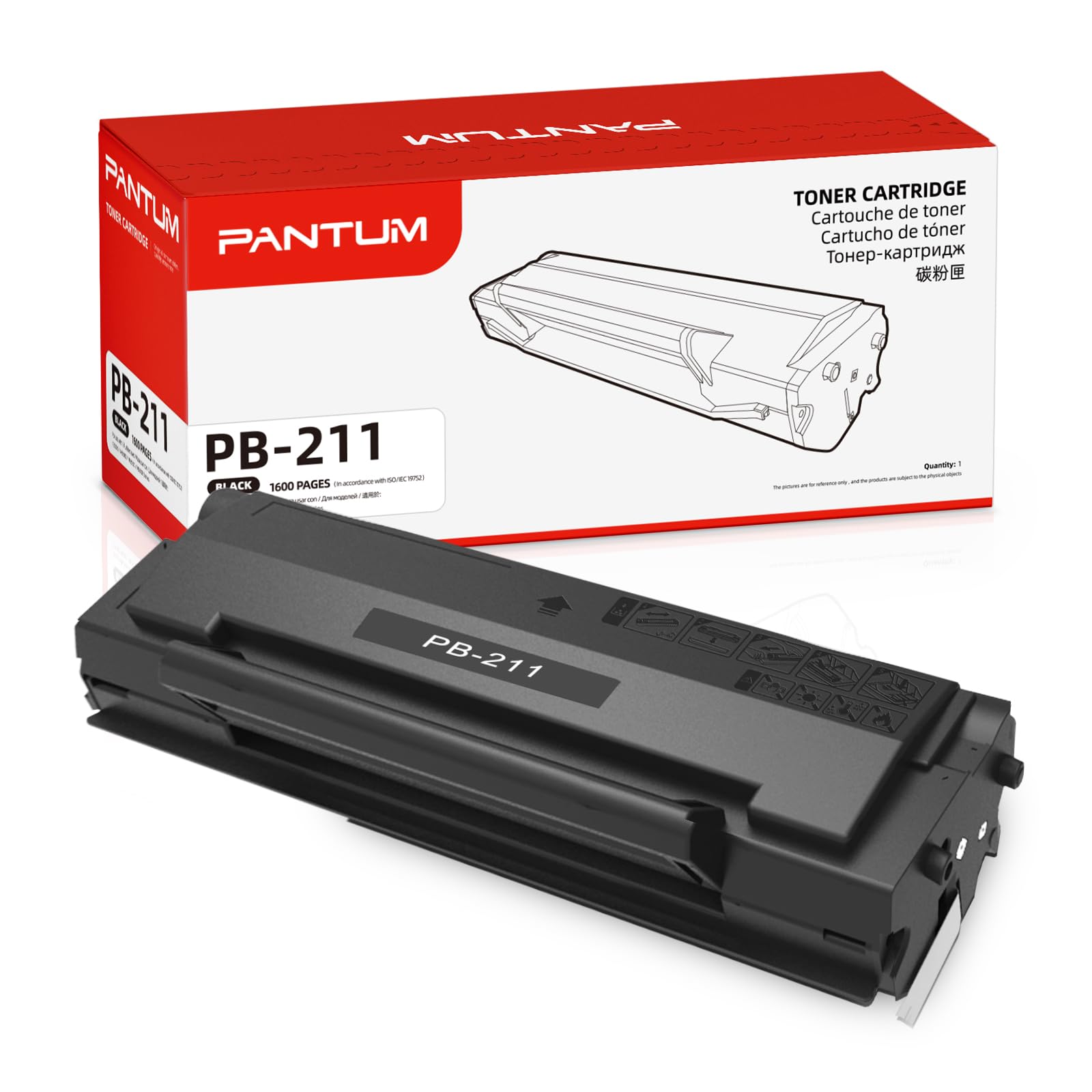
Pantum M6552NW Toner and Cartridge Problems
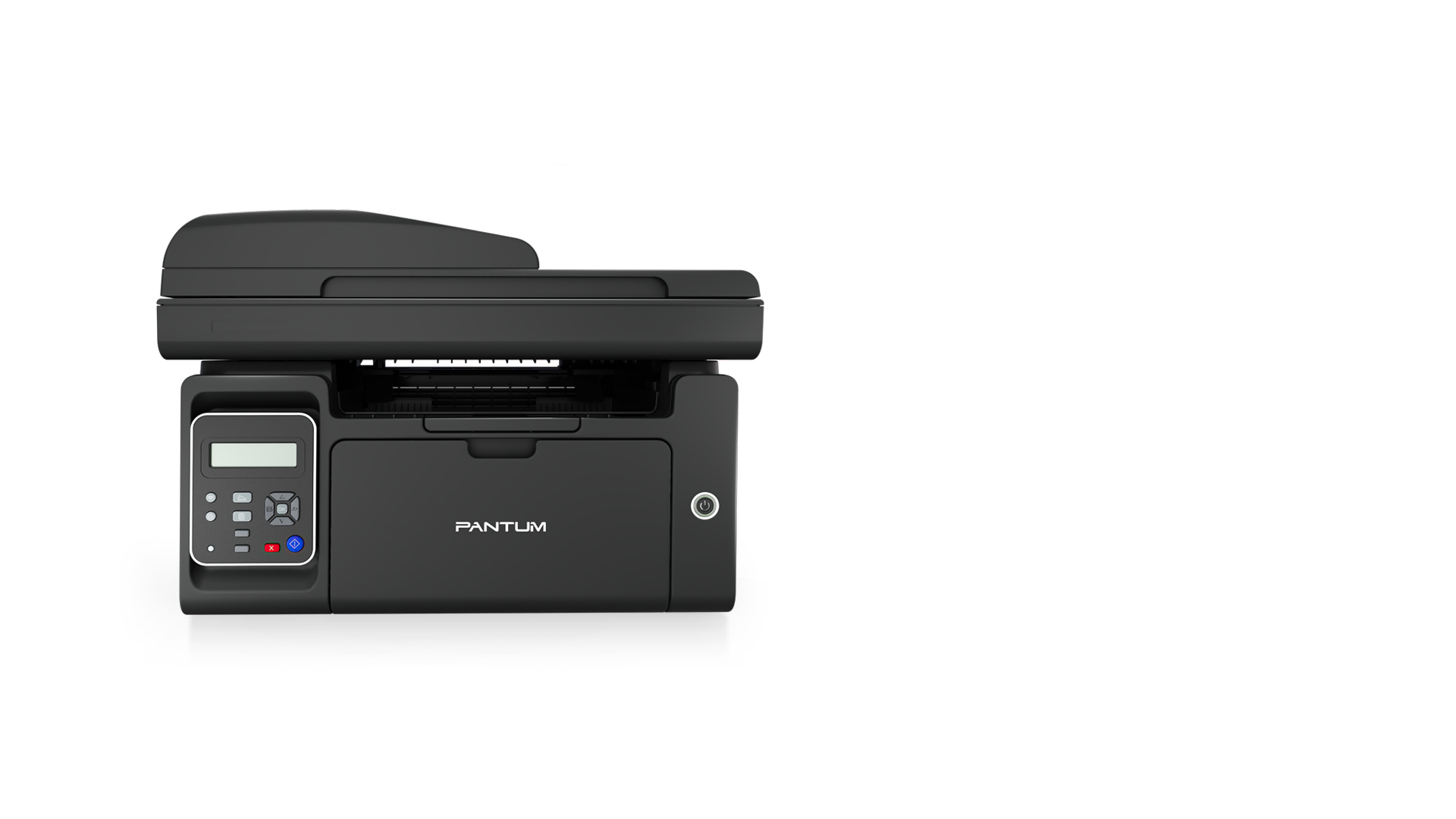
The Pantum M6552NW needs a compatible toner cartridge that matches the model and regional product version. A poorly fitted or incorrect cartridge can cause faded pages, error messages, leaks, and uneven output.
Check the cartridge when you notice:
• “Toner low” or “replace toner” messages.
• Pale or uneven text.
• Black marks on the page.
• Toner inside the paper tray.
• A cartridge that does not lock into place.
Keep toner away from heat and direct sunlight. If toner spills, avoid using a vacuum that is not designed for fine toner particles. Follow the cartridge maker’s cleaning instructions.
Some compatible cartridges work well, but quality can vary by supplier. For important office records, use a cartridge from a trusted source. If a problem begins immediately after replacement, reinstall the old cartridge for comparison when it is safe to do so.
Never open a toner cartridge or expose the internal drum to strong light. Handle it by the plastic sides.
Pantum M6552NW Printing Slow or Making Noise
Slow printing may be normal for complex documents, high-resolution images, or the first page after a long idle period. It can also happen when the computer sends large files over a weak Wi-Fi connection.
To improve performance:
- Use a USB connection for large jobs.
- Reduce image resolution when practical.
- Close unused programs.
- Print one test page before sending a large batch.
- Use standard quality instead of the highest setting.
- Keep the printer firmware and driver current.
A soft startup sound is normal. Grinding, clicking, scraping, or repeated knocking is not. Stop the printer and check for loose paper, a badly installed cartridge, or an object inside the paper path.
Do not lubricate internal parts unless the manufacturer specifically permits it. The wrong lubricant can damage plastic gears and attract dust.
Pantum M6552NW Error Messages
Error messages are useful clues, not complete diagnoses. Write down the exact message before restarting the printer. A photo of the display can also help when contacting support.
Common actions include:
• Open and close all covers.
• Remove and reinstall the toner cartridge.
• Check for paper scraps.
• Confirm that the tray is loaded correctly.
• Restart the printer.
• Update or reinstall the driver.
• Check the network connection.
If the same error returns after these steps, avoid repeated resets. A recurring message may indicate a sensor, roller, cartridge, or circuit fault. Continuing to operate the printer can make a mechanical problem worse.
The model name and exact error code matter. The M6552NW may share features with other Pantum models, but instructions for a different model may not fit its internal parts.
Best Preventive Maintenance Tips
Good maintenance prevents many Pantum M6552NW troubleshooting calls. Think of the printer like a small car: clean paper, careful use, and regular checks help it run smoothly.
Follow these habits:
• Use clean, dry paper that matches the tray size.
• Keep the printer level and away from heat.
• Remove unused paper during long periods of high humidity.
• Clean the scanner glass often.
• Keep the air vents clear.
• Avoid overfilling the paper tray.
• Install cartridges carefully.
• Update printer software when needed.
• Print a test page after major changes.
• Keep the user guide nearby.
Do not open electrical covers or attempt repairs while the printer is plugged in. A trained technician should handle electrical faults and complex mechanical repairs.
When to Contact Pantum Support
You can solve many Pantum M6552NW issues at home or in a small office. Contact support when basic steps do not work or when the problem suggests internal damage.
Professional help is wise when:
• The printer shows the same hardware error after a restart.
• Paper jams return in the same place.
• The printer makes loud mechanical sounds.
• Toner leaks inside the machine.
• The printer smells hot or burned.
• The display does not respond.
• Wireless setup fails after a complete reset and reinstall.
Before contacting support, collect the model number, serial number, operating system, connection type, error code, and steps you already tried. This gives the technician a clear picture and can shorten the repair process.
If repair costs approach the price of a replacement printer, compare both options. Consider toner cost, printing volume, warranty status, and the value of scanning and copying features.
Frequently Asked Questions About Pantum M6552NW Troubleshooting
Why is my Pantum M6552NW showing offline?
The printer may be on a different Wi-Fi network, have a changed IP address, or have a paused print queue. Restart the printer and router, confirm the network name, and remove duplicate printer entries from your computer.
How do I fix a Pantum M6552NW paper jam?
Turn off and unplug the printer, then remove the paper slowly through the normal paper path. Check for small scraps, reload flat paper, and close every cover firmly before restarting.
Why does my Pantum M6552NW print blank pages?
Blank pages often result from an empty or poorly seated toner cartridge, protective cartridge packaging, or an incorrect driver. Reinstall the cartridge, check the seals, and print a built-in test page.
How can I reconnect the Pantum M6552NW to Wi-Fi?
Open the printer’s network settings, select the correct Wi-Fi network, and enter its password carefully. If setup fails, move the printer near the router and reinstall the current Pantum software.
Why is my Pantum M6552NW printing faded text?
Low toner, an aging cartridge, damp paper, or economy mode can cause faded output. Check the toner, use dry paper, select the correct paper type, and test with a trusted compatible cartridge.
Why can I print but not scan with the Pantum M6552NW?
Printing and scanning may use different drivers or firewall permissions. Install the full Pantum software package, confirm the scanner is selected, and test with a USB connection.
When should I replace the Pantum M6552NW toner cartridge?
Replace the cartridge when pages remain faded after reseating it, the printer reports that toner is empty, or output contains serious repeated defects. Use a cartridge made for the exact printer model.
Conclusion
Pantum M6552NW troubleshooting starts with simple checks: power, paper, toner, print queues, drivers, and network settings. From there, test one change at a time so you can identify the real cause instead of guessing.
Clean paper, careful cartridge handling, correct software, and regular restarts prevent many common faults. Try the steps in this guide, record any exact error message, and contact qualified support when the issue points to internal hardware. Share your result or explore more printer maintenance guides for continued help.

Similar Posts