Pantum CP2100DW Troubleshooting: Fix Common Issues
Pantum CP2100DW Troubleshooting starts with checking power, connections, paper, toner, drivers, and printer settings.
The Pantum CP2100DW is a compact color laser printer, but even a reliable office printer can show errors, print blank pages, lose its network connection, or produce poor color. This guide explains Pantum CP2100DW Troubleshooting in a clear, practical way, using proven checks that help identify the cause before you spend money on repairs or replacement parts.
Pantum CP2100DW Troubleshooting: Start With the Basics
Before trying advanced fixes, check the simple things first. Many printer problems come from a loose cable, a stalled print queue, low toner, or an incorrect printer selected on the computer.
Use this quick starting process:
- Make sure the printer is switched on.
- Check that the power cable is firmly connected.
- Look for error messages on the printer or computer.
- Confirm that paper is loaded correctly.
- Check the toner cartridges.
- Restart the printer and the computer.
- Send a small test document.
A restart can clear temporary memory errors. Turn off the printer, unplug it for about 30 seconds, and then reconnect it. This is a simple step, but it often restores communication between the printer, computer, and wireless router.
If the printer makes unusual sounds, smells hot, or shows signs of electrical damage, stop using it. Do not open the power supply or attempt electrical repairs. A qualified technician should handle those problems.
Pantum CP2100DW Not Printing
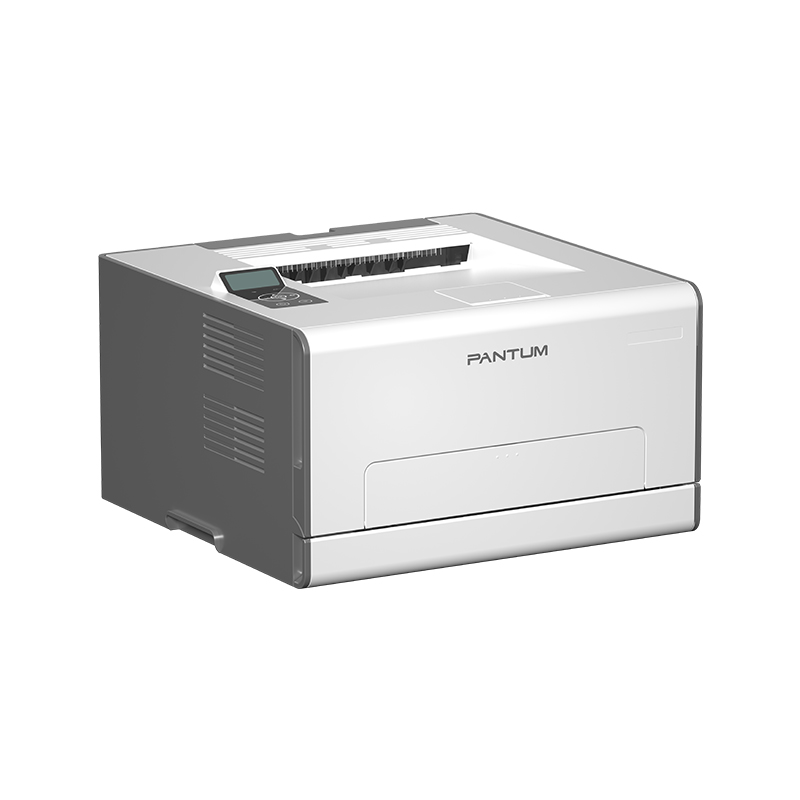
When the Pantum CP2100DW does not print, first check whether the job is stuck in the print queue. A frozen queue can make the printer appear broken even when the hardware is working normally.
On Windows, open Settings, select Bluetooth & devices, choose Printers & scanners, and open the Pantum CP2100DW queue. Cancel old jobs, then send a new test page. On macOS, open System Settings, select Printers & Scanners, and remove paused or failed jobs.
Also check these common causes:
• The printer is set to Offline mode.
• Another printer is selected as the default printer.
• The printer driver is missing or damaged.
• The USB cable is loose or defective.
• The printer and computer are connected to different networks.
• The document is being sent to an old printer profile.
If the printer is connected by USB, try another USB port. Avoid using a damaged hub during testing. For Wi-Fi printing, move the printer closer to the router and confirm that your computer is on the same network.
One useful test is printing an internal configuration or test page from the printer menu, if available. If the internal page prints correctly, the printer hardware is likely fine. The problem is more likely related to the driver, network, software, or print settings.
Pantum CP2100DW Offline or Disconnected
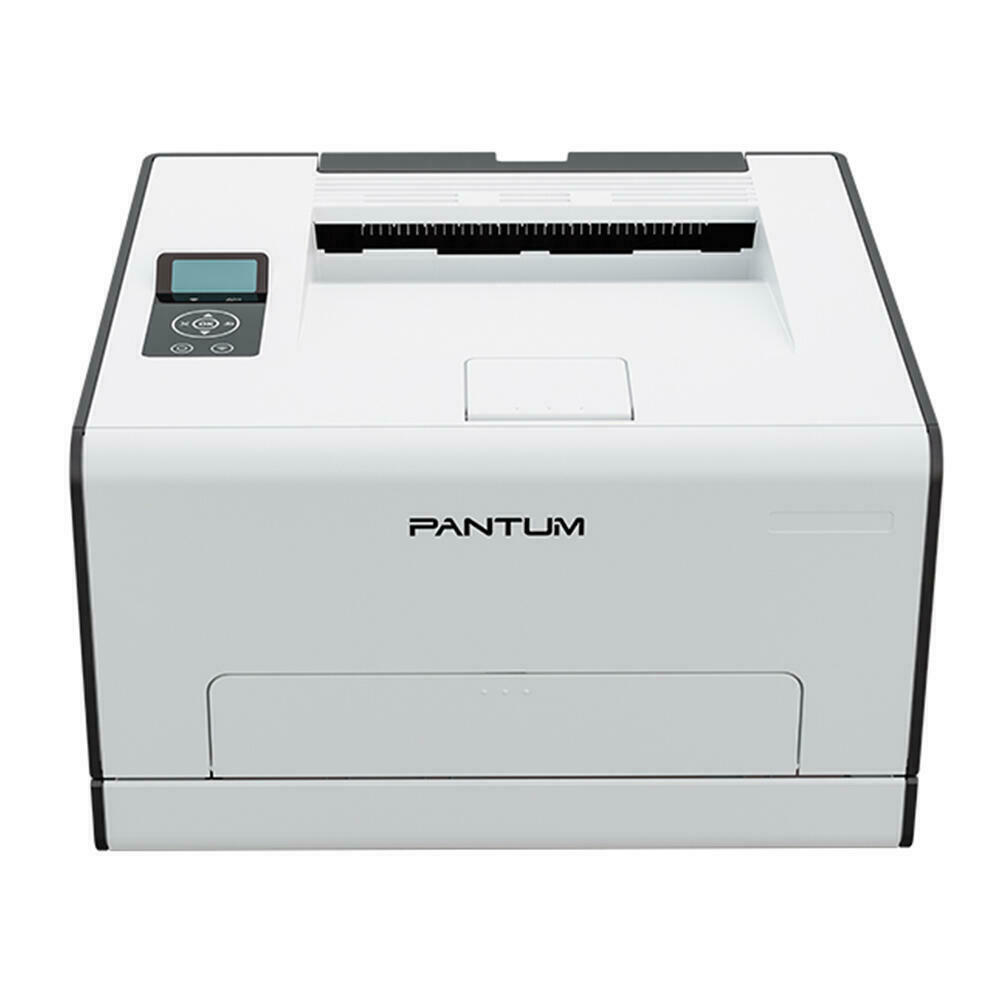
A printer may show as offline when it has lost its network address or when the computer cannot reach it. This often happens after a router restart, Wi-Fi password change, or network equipment replacement.
Follow these steps:
- Restart the printer and wireless router.
- Confirm that Wi-Fi is enabled on the printer.
- Check the network name shown in the printer settings.
- Make sure the computer uses the same network.
- Remove the printer from the computer.
- Add it again using the current connection.
- Print a network configuration page if the printer supports it.
Do not assume that a visible Wi-Fi icon means the printer has full network access. The printer may be connected to the router but still have an incorrect IP address or a blocked connection.
For a small office, a wired Ethernet connection can be more stable than Wi-Fi. If the printer changes its IP address often, your computer may keep trying to use the old address. Adding the printer again or assigning a consistent address through the router can help.
In my printer support work, I have found that users often reinstall the driver several times when the real issue is the router. Always test the network before replacing software. It saves time and prevents unnecessary changes.
Pantum CP2100DW Driver and Software Problems
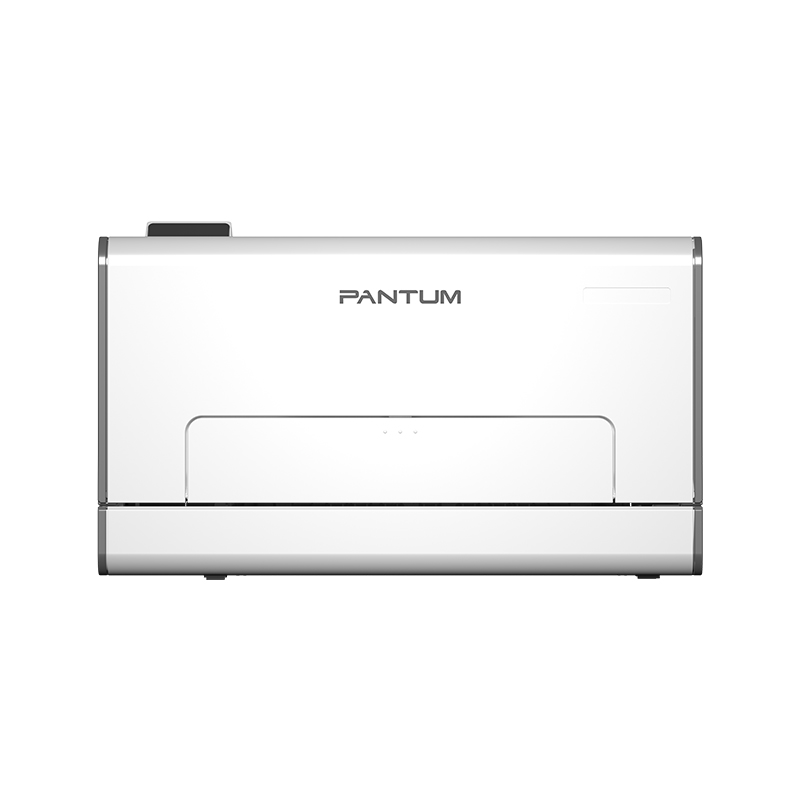
The printer driver allows your computer to communicate with the Pantum CP2100DW. If the driver is outdated, incomplete, or designed for another model, the printer may not print correctly or may offer limited features.
Download the correct driver from the official Pantum support page for your operating system. Check the exact model name before installing. A similar-looking Pantum model may use different software.
For a clean driver installation:
- Remove the existing Pantum printer from your computer.
- Uninstall old Pantum software if it is listed.
- Restart the computer.
- Download the current driver for the CP2100DW.
- Install the driver with the printer disconnected if the installer requests it.
- Connect the printer when prompted.
- Print a test page.
Windows users should also check the printer’s advanced settings. Make sure the correct paper size, color mode, and print quality are selected. Mac users should remove duplicate printer entries, especially after changing from USB to Wi-Fi.
Avoid downloading printer drivers from unknown websites. Unofficial files may be outdated, incomplete, or unsafe. The manufacturer’s support page is the safest place to obtain firmware and drivers.
Pantum CP2100DW Paper Jam Fix
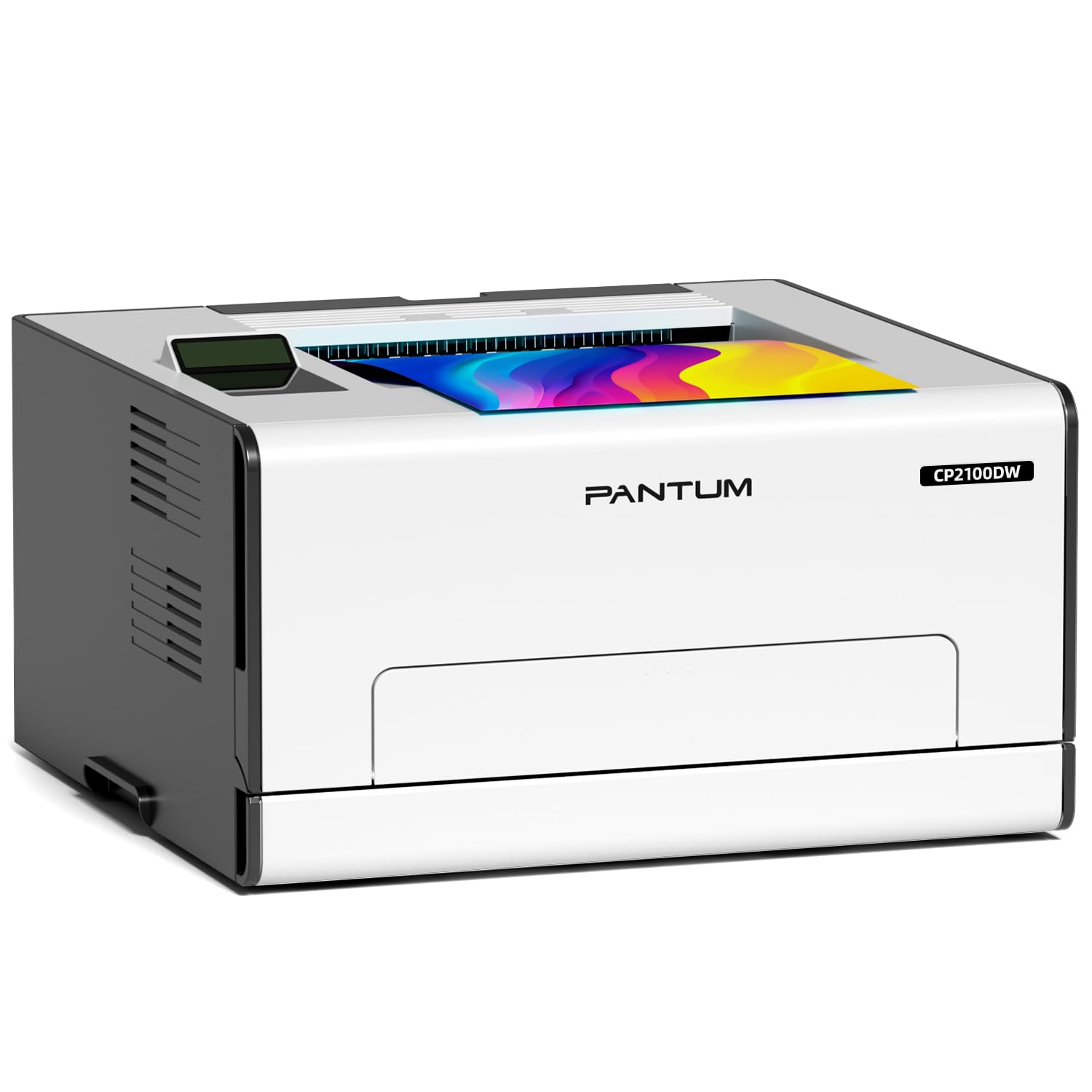
Paper jams are among the most common Pantum CP2100DW problems. A jam may occur at the paper tray, inside the printer, near the output area, or in the rear access path.
Turn off the printer and allow hot parts to cool before removing paper. Laser printers can contain areas that become very warm during use.
Use this safe removal method:
• Open the access cover shown in the printer manual.
• Pull the paper slowly in the direction of normal paper travel.
• Remove small torn pieces, not just the main sheet.
• Check the tray and rear path for hidden scraps.
• Close every cover firmly.
• Reload fresh paper below the tray limit.
Do not yank paper upward. A sudden pull can tear the sheet and leave fibers inside the printer. Do not use knives, screwdrivers, or metal tools to reach a jam.
Paper quality also matters. Damp, curled, very thin, or damaged paper can cause repeated jams. Store paper flat in a dry room, and fan the stack lightly before loading it. Keep the side guides close to the paper without pressing tightly against it.
If jams continue with clean, correctly loaded paper, inspect the rollers for dust or wear. A worn roller may need professional service rather than repeated cleaning.
Pantum CP2100DW Printing Blank Pages
Blank pages often point to a toner problem, an incorrect cartridge installation, a blocked print path, or a software setting. Start by printing a built-in test page or a simple black text document.
Check the toner cartridges carefully. Confirm that each cartridge is installed in the correct slot and that all protective packaging has been removed. A new cartridge can still produce blank pages if its sealing strip remains in place.
Try these steps:
- Remove and reseat the toner cartridge.
- Gently shake the cartridge from side to side if the manual allows it.
- Check the toner level shown in the printer software.
- Print a page with large black text.
- Try another cartridge from a reliable source.
- Check whether the printer is set to a special paper or transfer mode.
If only documents from one application print blank, the issue may be the application or file. Print a test page from another program, such as a basic text editor. If that page works, update or repair the original application.
A blank internal test page is more serious. It may indicate a cartridge problem, imaging unit issue, transfer problem, or internal electrical fault. At that point, avoid repeatedly printing large jobs and arrange service.

Pantum CP2100DW Faded, Light, or Uneven Prints
Faded printing usually means the printer is not transferring enough toner to the paper. Low toner is the most obvious cause, but the problem may also result from the wrong media setting, poor paper, or a worn imaging component.
Check the following:
• Replace a cartridge that is empty or nearly empty.
• Confirm that the paper type matches the loaded paper.
• Disable draft or economy mode for important documents.
• Use fresh, dry paper.
• Print a color test page to identify the affected color.
• Clean the printer only as described in the user manual.
If one color is missing, inspect that specific cartridge first. A single weak color can make the whole page look strange. For example, a low cyan cartridge may cause blue areas to look green or gray.
Vertical bands, repeated marks, or pale areas in the same place on every page can suggest a drum, roller, or transfer problem. These parts are not always user-serviceable. Replacing parts without confirming the cause can cost more than professional diagnosis.
For office reports, choose standard or normal quality first. High-quality mode uses more toner and takes longer. Draft mode may be fine for internal notes but can make charts and small text look weak.
Pantum CP2100DW Color and Print Quality Issues
Color problems can come from toner, print settings, calibration, paper, or the document itself. Before changing hardware, print a color test page and compare the result with the file on screen.
Remember that screens use light, while printers use toner on paper. The colors will not always match perfectly. However, a missing color, strong color cast, or repeated stripe is not normal.
Try these practical checks:
- Set the document to color printing.
- Confirm that the printer is not using grayscale mode.
- Select the correct paper type.
- Check each color cartridge.
- Print a test page from the printer software.
- Update the printer driver.
- Restart the printer after changing cartridges.
If colors appear too dark, reduce print density through the printer settings. If colors look dull, check whether economy mode is active. Some paper types also absorb toner differently, so compare standard office paper with a recommended laser paper.
Avoid using inkjet paper in a color laser printer unless the packaging clearly states that it is laser-safe. Paper made for inkjet printers can have coatings that do not work well with laser heat.

Pantum CP2100DW Slow Printing
The Pantum CP2100DW may print slowly when producing high-resolution images, complex PDF files, or large color pages. This does not always mean the printer has a fault.
Large files require more processing. A page with a full-color photograph is much heavier than a page with simple black text. Network traffic, low computer memory, and wireless interference can also increase the delay.
To improve performance:
• Use normal print quality for everyday documents.
• Reduce image size before placing it in a document.
• Print through USB to test network speed.
• Close unused applications during large print jobs.
• Clear old jobs from the queue.
• Update the printer driver and firmware when appropriate.
• Avoid sending many large files at the same time.
If the printer pauses between every page, check whether the computer is processing the file. If the printer itself makes long pauses with simple text, restart it and test another connection.
For a busy office, a wired network connection and smaller PDF files often provide a smoother workflow. It is similar to sending a small package instead of several oversized boxes: the destination is the same, but delivery is easier.
Pantum CP2100DW Toner and Cartridge Problems
The printer may show a toner warning even when some toner remains. Toner estimates are based on usage and cartridge data, so the displayed level is not always a precise measurement.
Use cartridges made for the exact CP2100DW model and regional version. Check the cartridge label and packaging before installation. Do not force a cartridge into place. If it does not slide in smoothly, remove it and check for packing material or an incorrect position.
Common cartridge symptoms include:
• “No toner” after installing a new cartridge.
• One color missing from all pages.
• Toner leaking inside the printer.
• Repeated dark marks.
• Faded output after a short period.
• A cartridge warning that does not clear.
If toner leaks, stop printing and remove the cartridge carefully. Loose toner can spread through the printer and affect rollers, sensors, and paper. Use the cleaning method recommended in the manual, and do not use a household vacuum unless it is designed for toner particles.
Third-party cartridges can cost less, but quality varies. A low-cost cartridge may create streaks, inaccurate color, or recognition errors. For documents that matter, a reliable compatible cartridge or genuine replacement is usually the safer choice.
How to Reset the Pantum CP2100DW
A reset can clear temporary settings and communication errors, but it will not repair a damaged part or fix an empty cartridge. Use the reset option carefully because some resets may remove network settings.
Start with a basic power reset:
- Cancel all print jobs.
- Turn off the printer.
- Unplug it for 30 seconds.
- Reconnect the power cable.
- Turn on the printer.
- Wait until it becomes ready.
- Send a one-page test job.
If you need to restore network settings, follow the exact instructions in the CP2100DW user guide. Write down the Wi-Fi name and password first. You may need to reconnect every computer after the reset.
Do not perform firmware updates during a power interruption. A failed update can make the printer unusable. Use a stable connection and follow the manufacturer’s instructions from beginning to end.
When to Contact Pantum Support or a Printer Technician
Some problems are safe to solve at home. Others need trained service. Contact support when the printer repeatedly jams with good paper, shows a persistent hardware error, produces heavy toner leaks, or makes grinding sounds.
Professional help is also wise when:
• The printer will not power on.
• The same error returns after a full restart.
• Internal parts appear damaged.
• The printer overheats.
• Print defects remain after cartridge replacement.
• Firmware installation fails.
Before contacting support, collect useful details. Note the exact error message, operating system, connection type, paper size, cartridge condition, and steps already tried. A photo of the printed defect can also help.
Avoid opening covers that expose high-heat or high-voltage areas. Printer repairs can be dangerous, and incorrect cleaning may void warranty coverage. Good troubleshooting knows when to stop.
A Practical Pantum CP2100DW Troubleshooting Checklist
Use this checklist when you need a fast, logical solution:
- Check power and error messages.
- Confirm paper is loaded correctly.
- Clear the print queue.
- Restart the printer, computer, and router.
- Test USB or wired connection if possible.
- Check toner installation and levels.
- Print an internal test page.
- Update or reinstall the correct driver.
- Inspect paper paths for scraps.
- Contact support if the fault continues.
The test page is especially useful because it separates printer problems from computer problems. If the test page is clear but your document is not, focus on the driver, application, file, or print settings.
Keep a short record of recurring errors. If the same fault appears every few weeks, the pattern may point to a worn roller, poor paper storage, unstable Wi-Fi, or a specific software conflict.
Frequently Asked Questions About Pantum CP2100DW Troubleshooting
Why is my Pantum CP2100DW not printing?
Check the print queue, printer status, paper supply, toner, and connection first. If the printer is online but still does not print, remove and reinstall the correct driver.
How do I fix a Pantum CP2100DW paper jam?
Turn off the printer, let hot parts cool, and remove the paper slowly in the normal paper path. Check for torn pieces, reload flat paper, and avoid using sharp tools inside the printer.
Why is my Pantum CP2100DW printing blank pages?
A blank page may result from an incorrectly installed cartridge, leftover cartridge packaging, empty toner, or an internal imaging problem. Reseat the cartridge and print an internal test page to narrow down the cause.
How do I reconnect the Pantum CP2100DW to Wi-Fi?
Restart the printer and router, then confirm that the printer and computer use the same Wi-Fi network. If the network settings changed, reset or reconfigure the printer’s wireless connection using the user guide.
Why are my Pantum CP2100DW colors wrong?
Check color mode, grayscale settings, toner levels, paper type, and cartridge placement. If one color is missing from a printer test page, that color cartridge or its related print component may be the cause.
Can I use third-party toner in the Pantum CP2100DW?
Compatible toner may work, but quality and printer recognition can vary. Choose a reputable supplier and use the exact cartridge model intended for the CP2100DW.
How often should I clean the Pantum CP2100DW?
Clean the printer when you see dust, repeated marks, or paper-feed problems, following the manufacturer’s cleaning instructions. Avoid liquid cleaners, sharp tools, and household vacuums that are not designed for toner.
Conclusion
Effective Pantum CP2100DW Troubleshooting begins with simple checks and moves toward advanced repairs only when needed. Power, paper, toner, print queues, drivers, and network settings cause many common problems, while repeated jams, leaks, strange noises, and hardware errors may require professional service.
Work through one change at a time, test the printer after each step, and use an internal test page whenever possible. That method turns a frustrating printer problem into a clear process. Save this guide for future repairs, explore the official user resources, and share your experience if a particular Pantum CP2100DW fix helped you.