Pantum BM5100ADW Troubleshooting: Quick Fixes Guide
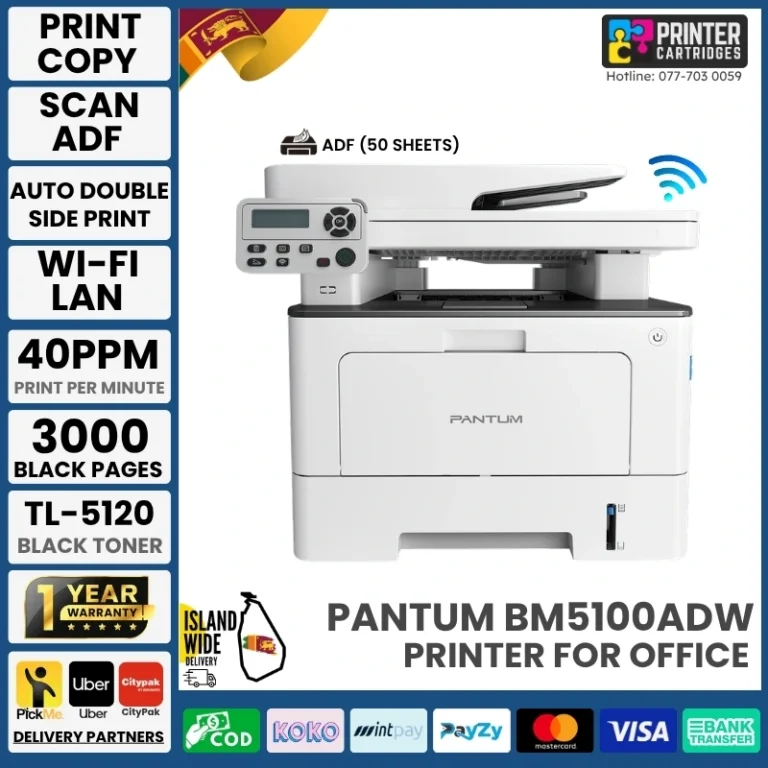
Most Pantum BM5100ADW problems come from paper, toner, connection, driver, or settings issues.
Pantum BM5100ADW troubleshooting is much easier when you check the problem in the right order. This guide explains common print, scan, copy, fax, Wi-Fi, paper jam, toner, and driver issues with clear steps. The advice follows standard laser printer service methods and practical checks that help avoid wasted time, damaged parts, and unnecessary support calls.
Start With These Basic Checks
Before testing a specific feature, check the printer as a whole. Many issues that look serious come from a loose cable, an open cover, or an incorrect paper setting.
Use this quick inspection:
- Make sure the printer is turned on and the display is active.
- Check that the power cable is firmly connected to the printer and wall outlet.
- Confirm that all covers are fully closed.
- Remove paper from the tray and reload it neatly.
- Check the display for a warning or error message.
- Confirm that the toner cartridge and drum unit are seated correctly.
- Restart the printer and the computer or mobile device.
- Print a test page from the printer menu or driver.
If the printer shows no power, test another wall outlet. Avoid using a loose extension cord during testing. A stable power source helps prevent false faults and interrupted print jobs.
In my experience, restarting both devices solves many communication problems. However, it will not fix a paper path blockage, a worn drum, or a bad network setup. Treat a restart as the first step, not the complete repair.

Pantum BM5100ADW Not Printing
When the Pantum BM5100ADW does not print, first find out where the problem starts. The printer may be offline, the computer may send the job to the wrong printer, or a previous stuck job may block the queue.
Try these steps:
• Check the printer screen for a paper, toner, cover, or service warning.
• Open the print queue and cancel old or frozen jobs.
• Confirm that the Pantum BM5100ADW is selected as the default printer.
• Print a test page from the printer driver.
• Turn off the printer, wait about 30 seconds, and turn it on again.
• Check whether the computer shows the printer as offline.
• Try printing from another program.
If a test page prints but a document does not, the issue may be the application, file, font, or page setup. If no test page prints, focus on the printer, toner, paper, or driver.
A common mistake is repeatedly clicking Print. This can create a long queue and make the printer appear frozen. Clear the queue first, then send one small test page.
Check the Print Spooler
Windows can hold a damaged print job in its spooler. Open the printer queue and remove every pending job. If the queue will not clear, restart the Print Spooler service, then restart the printer.
On macOS, open the printer list and remove paused or failed jobs. You can also remove and add the printer again if the system cannot communicate with it.
Pantum BM5100ADW Paper Jam Solutions
A paper jam can happen in the input tray, rear path, duplex path, or output area. Do not pull paper with force. Torn pieces can remain inside and cause repeated jams.
Follow this safe process:
- Turn off the printer and let hot areas cool.
- Remove paper from the input tray.
- Open the front cover and remove the toner and drum assembly if the manual allows it.
- Check the visible paper path with a flashlight.
- Open the rear cover and duplex area.
- Pull paper slowly in the direction of normal movement.
- Remove every small scrap.
- Reinstall the cartridge assembly.
- Reload fresh, flat paper.
- Turn the printer on and test it.
Use paper that matches the printer’s supported size and weight range. Damp, curled, folded, or mixed paper can cause repeated jams. Store paper in a dry room and keep it in its sealed package until needed.
If jams happen only during two-sided printing, inspect the duplex path first. If they happen from one tray only, check that tray’s guides and pickup area. Do not push the side guides tightly against the paper. They should touch the stack without bending it.
A printer that reports a jam after you remove all paper may still have a small scrap near a sensor. It may also have a sensor flag that cannot move freely. If the message remains after a careful inspection, service may be needed.

Pantum BM5100ADW Printing Blank or Faded Pages
Blank pages usually point to an empty, unrecognized, or poorly installed toner cartridge. Faded pages may come from low toner, unsuitable paper, a dirty optical path, or a worn drum.
Check the following:
• Remove the toner and drum assembly.
• Gently move the cartridge from side to side if the cartridge instructions allow it.
• Reinstall the assembly until it sits firmly.
• Check that all protective packing has been removed from a new cartridge.
• Confirm that the cartridge is designed for the BM5100ADW.
• Print several test pages.
Do not touch the drum surface with your fingers. Oil from skin can damage print quality. Keep the assembly away from bright light for longer than necessary.
If only one side of the page is faded, inspect the cartridge and drum for uneven contact. If the entire page is light, check toner level, print density, and the selected print mode. Draft or toner-save modes may reduce darkness.
Vertical black lines, gray backgrounds, repeated spots, or repeating marks often suggest a drum, toner, or cleaning problem. The distance between repeated marks can help a technician identify the damaged roller. Record a sample page before replacing parts.
In one office case, a user replaced the toner twice because pages looked pale. The real issue was a driver setting that reduced print density. Checking software settings before buying supplies can save money.

Pantum BM5100ADW Wi-Fi and Network Problems
Wireless printing depends on both the printer and the network. The printer may connect to Wi-Fi but still fail to print if the computer uses a different network, a guest network, or an outdated printer address.
For Pantum BM5100ADW troubleshooting over Wi-Fi, work through these steps:
- Confirm that the printer is connected to the correct wireless network.
- Check that the computer or phone uses the same network.
- Move the printer closer to the wireless router for testing.
- Restart the router, printer, and computer.
- Avoid guest Wi-Fi during setup.
- Remove the printer from the device list and add it again.
- Print a network configuration page if available.
- Check whether the printer has a valid IP address.
- Temporarily test with a USB or Ethernet connection.
A printer may lose its IP address after a router restart. This can make the old printer entry appear offline. Re-adding the printer often restores communication.
For a stable office setup, Ethernet can be more reliable than Wi-Fi. Wi-Fi is convenient, but walls, crowded channels, security settings, and router changes can affect performance.
Mobile Printing Checks
For mobile printing, confirm that the phone and printer are on the same network. Disable mobile data for a moment if the phone keeps switching away from Wi-Fi. Also check whether the mobile app has permission to find local devices.
Do not assume that a successful Wi-Fi connection means every device can print. Network isolation can allow internet access while blocking communication between local devices.
Pantum BM5100ADW USB and Driver Errors
A USB connection can fail because of a damaged cable, a faulty port, or an incorrect driver. Use a short, good-quality USB cable and connect it directly to the computer. Avoid testing through a hub until the printer works directly.
For driver-related Pantum BM5100ADW troubleshooting:
• Remove duplicate printer entries.
• Download the correct driver for your operating system and printer model.
• Install the driver with the printer disconnected if the instructions require it.
• Connect the printer when the installer asks.
• Restart the computer after installation.
• Print a test page from printer properties.
Do not install a driver for a similar but different Pantum model. Similar model names can use different features and software. A mismatched driver may print basic pages but fail with scanning, duplex printing, or device settings.
If printing worked after an operating system update and then stopped, reinstalling the current driver may help. Also check whether the update changed the default printer or removed a scanner component.
On Windows, check the printer port and status. On macOS, remove the old printer and add it again through system printer settings. Use the manufacturer’s current software when available.

Pantum BM5100ADW Scanning Problems
Scanning problems often come from selecting the wrong source, using an incorrect driver, or failing to complete network setup. The scanner may work from the printer panel but not from a computer, or the reverse.
Start with this checklist:
- Confirm that the document is placed correctly on the glass or automatic document feeder.
- Remove clips, staples, and folded corners.
- Check that the ADF cover is closed.
- Select the BM5100ADW scanner in the scan application.
- Confirm the document source: glass or ADF.
- Lower the resolution for a basic test.
- Check the save folder and file format.
- Restart the scanning software.
- Reinstall the scanner driver if the device is not detected.
A blank scan can happen when the page is placed on the wrong side in the ADF. It can also happen when the selected scan source does not match the document location.
If scans have lines or dark marks, clean the glass and the narrow ADF scanning strip with a soft, lint-free cloth. Do not spray cleaner directly onto the glass or inside the printer.
Large color scans can take more memory and time. For text documents, 200 to 300 dpi is usually enough. Higher resolution is useful for photos or fine detail but creates larger files.
Pantum BM5100ADW Copy and Fax Issues
Copy quality depends on both the scanner and print engine. If a copy is blank, test a direct print page first. A good print page with a bad copy usually points to the scanner side.
For copy problems:
• Clean the scanner glass and ADF strip.
• Confirm the page is face down on the glass when required.
• Check copy density and size settings.
• Remove paper dust from the document path.
• Test one page through the glass and one through the ADF.
If the ADF pulls several sheets at once, use clean, dry paper and avoid overfilling the feeder. Fan the pages lightly and align them before loading. Repeated double-feeds may indicate worn pickup rollers or a separation pad.
Fax problems may involve the phone line, wall jack, filters, or dialing settings. Connect the fax line directly for testing. Remove splitters and other devices temporarily. Confirm that the line has a dial tone and that the destination number is correct.
A fax can fail even when printing and scanning work normally. Fax communication uses a separate phone connection and has its own signal and dialing requirements.
Pantum BM5100ADW Slow Printing and Noise
Laser printers can take extra time when they warm up, process complex pages, or switch between print tasks. Slow printing is not always a fault.
Check these causes:
• High-resolution images or large PDF files.
• Many pages waiting in the queue.
• Printing through a weak wireless signal.
• A busy computer or low system memory.
• A driver set to high-quality mode.
• Duplex printing on heavy paper.
• A printer firmware or driver issue.
Print a simple text page. If text prints at a normal speed but images are slow, the file is likely the cause. If every job is slow, test with USB or Ethernet and review the driver settings.
New or unusual sounds deserve attention. Clicking may point to a foreign object or gear problem. Grinding can indicate a damaged drive part. Repeated squealing may come from a roller or internal assembly.
Turn the printer off if the noise is loud, sudden, or paired with a jam. Do not open sealed areas or force gears by hand. Laser printers contain hot parts and high-voltage components that should be serviced by a qualified technician.
Pantum BM5100ADW Error Messages and Maintenance
The display message is the best starting point because it narrows the fault. Write down the exact wording before restarting the printer. A vague note such as “printer error” is less useful than the full message.
Use this approach:
- Read the complete message.
- Check the related cover, tray, cartridge, or connection.
- Follow the on-screen instruction.
- Remove the cause, if it is safe to do so.
- Restart the printer.
- Print a test page.
- Contact support if the message returns.
Keep the printer clean and dry. Wipe the outside with a soft cloth. Use approved cleaning steps for the glass, ADF strip, and accessible paper areas. Avoid household sprays, alcohol on plastic parts, and compressed air that can spread toner dust.
Do not reset the printer repeatedly without recording the error. A reset can remove useful diagnostic information. It may also hide a fault for a short time without repairing it.
Replace consumables with compatible supplies from a trustworthy source. Very cheap or incorrect cartridges can cause poor density, leaks, recognition problems, and repeated marks. The printer manual and cartridge label should guide the correct replacement.
When to Contact Pantum Support
Some problems are safe to solve at home. Others need trained service. Contact support when the printer shows a persistent internal error, overheats, smells of burning, makes loud grinding sounds, or repeatedly jams after careful cleaning.
Prepare this information before contacting support:
• Exact model name and operating system.
• Error message or code.
• Connection type: USB, Ethernet, or Wi-Fi.
• Steps already completed.
• A sample print or scan, if safe to provide.
• Cartridge and paper details.
Avoid opening areas marked for service unless the instructions specifically allow it. Laser printers use heat and high voltage. Safety is more important than a quick repair.
A useful lesson from field troubleshooting is to change one thing at a time. If you replace the toner, reinstall the driver, change the router, and clean the printer together, you may not know which step solved the issue. Small, controlled tests produce better answers.
Frequently Asked Questions About Pantum BM5100ADW Troubleshooting
Why is my Pantum BM5100ADW offline?
The printer may be on a different Wi-Fi network, using an old IP address, or paused in the computer’s printer settings. Restart the printer and router, confirm the same network, then remove and add the printer again if needed.
How do I clear a paper jam in the Pantum BM5100ADW?
Turn off the printer, remove the tray paper, and inspect the front, rear, duplex, and output paths. Pull paper slowly, remove every scrap, and never force a sheet through the rollers.
Why does the Pantum BM5100ADW print blank pages?
Blank pages commonly result from an empty, incorrect, or poorly seated toner cartridge. Check the cartridge installation, remove any protective packaging, and test with a suitable replacement if the problem continues.
How can I fix faded printing on the Pantum BM5100ADW?
Check toner level, print density, toner-save mode, paper quality, and cartridge seating. If the page remains pale after these checks, the toner cartridge or drum may need replacement.
Why will the Pantum BM5100ADW scan but not print?
Scanning and printing use different drivers and communication paths. Check the print queue, default printer, printer port, and print driver, then print a system test page.
Can I troubleshoot the Pantum BM5100ADW with a USB cable?
Yes. USB is a useful test because it bypasses many Wi-Fi and network problems. Connect the printer directly to the computer with a known-good cable and install the correct model driver.
Why does my Pantum BM5100ADW keep jamming?
Common causes include curled paper, overfilled trays, tight guides, damp sheets, scraps inside the paper path, or worn rollers. Use fresh supported paper and inspect the full path, including the duplex area.
Conclusion
Pantum BM5100ADW troubleshooting works best when you follow a simple order: read the error, check paper and covers, inspect toner, test the connection, and review the driver. Small checks often solve printing, scanning, copying, Wi-Fi, and paper feed problems without costly parts.
Use one test at a time and keep notes on what changes. If the printer overheats, makes a harsh sound, or shows a persistent internal error, stop testing and seek qualified support. Save this guide for the next issue, share your experience in the comments, and explore the printer manual for model-specific service steps.

Similar Posts