Zebra ZD220 Troubleshooting: Easy Fixes And Setup Tips
Most Zebra ZD220 problems come from power, media loading, calibration, driver, or print setting errors.
Zebra ZD220 troubleshooting is usually simple when you check the printer in the right order. The ZD220 is a dependable desktop label printer, but small issues such as a dirty sensor, wrong label size, loose USB cable, or poor thermal media can stop a print job. This guide explains the likely causes, clear fixes, and practical checks that help restore reliable printing without guesswork.

Start with Basic Zebra ZD220 Troubleshooting
Before changing drivers or resetting the printer, check the simple items first. Many Zebra ZD220 issues are caused by a blocked label path, an open cover, or a cable that is not fully seated.
Use this quick checklist:
- Make sure the power adapter is connected to the printer and wall outlet.
- Confirm that the power light is on.
- Check that the top cover is fully closed.
- Load the labels in the correct direction.
- Confirm that the labels match the printer type.
- Remove any torn label pieces from inside the printer.
- Check the USB cable and computer connection.
- Send a small test print instead of a large batch.
- Restart both the printer and the computer.
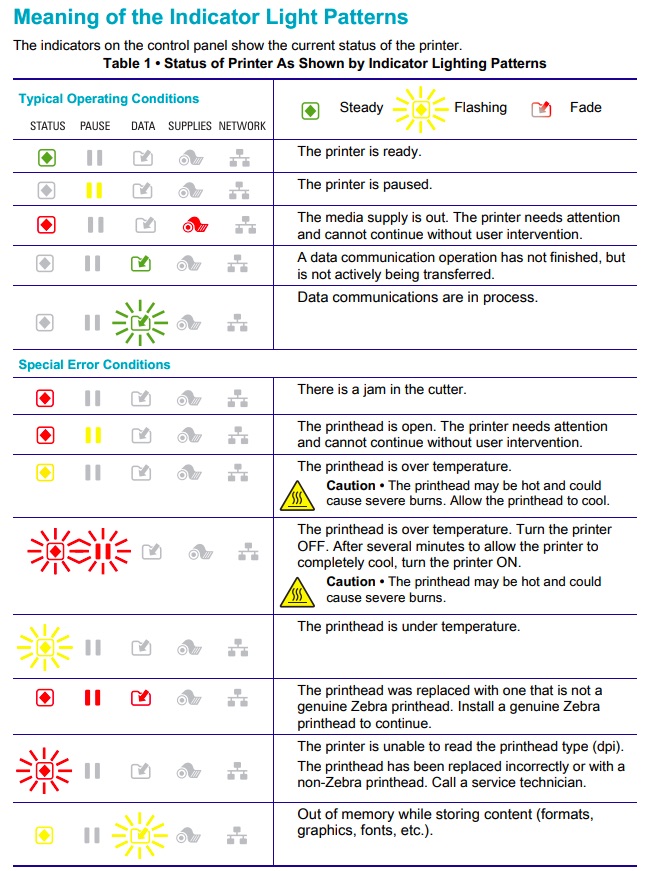
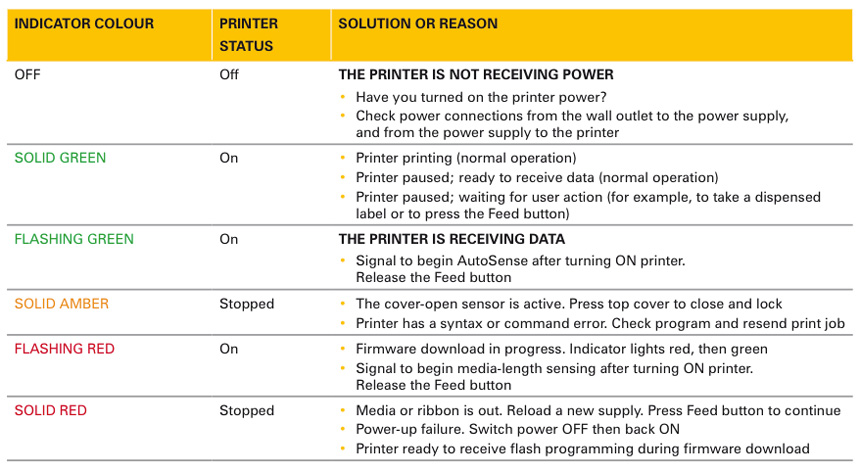
The ZD220 has a simple control panel, so the status light gives useful clues. A steady green light usually means the printer is ready. Amber or red behavior may point to a paused printer, open cover, media problem, or hardware fault.
In printer setups I have worked on, users often skip the label path check and go straight to reinstalling software. That wastes time. A five-second visual inspection can solve what appears to be a serious Zebra ZD220 troubleshooting problem.

Understand the Zebra ZD220 Status Light
The status indicator is the printer’s first warning system. It does not always identify the exact fault, but it helps separate a media issue from a power or communication issue.
Green light
A green light normally indicates that the printer is ready. If the light is green but no label prints, focus on the computer, print queue, driver, label format, or USB connection.
Amber or flashing light
An amber light may indicate that the printer is paused or needs attention. Press the feed button once and check whether the printer advances a label.
If the light continues to flash, inspect these areas:
- The top cover
- The label roll
- The media sensor
- The label gap
- The printhead area
- The printer queue
Red light
A red light often signals a more serious condition. The printer may have a cover error, media error, printhead problem, or internal fault.
Turn the printer off, wait about 30 seconds, and turn it on again. If the red light returns with no media inside, remove the printer from service and inspect the power adapter, printhead, and internal parts. Do not open electrical sections unless you are trained to do so.
Zebra ZD220 Is Not Turning On
When the Zebra ZD220 has no light and makes no sound, begin with the power system. The printer cannot communicate with a computer until it receives stable power.
Check the following:
- Connect the correct Zebra power adapter.
- Test another wall outlet.
- Push the adapter plug firmly into the printer.
- Look for damage to the cable or connector.
- Disconnect USB and other cables.
- Try turning the printer on again.
Avoid using an adapter with the wrong voltage or plug size. A similar-looking adapter may damage the printer or cause unstable operation.
If the power light remains off, the problem may involve the adapter, power socket, or internal power board. At that stage, professional service is safer than repeated power cycling.
A useful lesson from field support is to test the outlet before blaming the printer. A switched outlet, loose power strip, or failed surge protector can look exactly like a dead printer.
Zebra ZD220 Prints Blank Labels
Blank labels are frustrating, but the cause is often easy to identify. First, determine whether the printer is using direct thermal labels or thermal transfer supplies.
A direct thermal ZD220 prints through heat-sensitive labels. A thermal transfer model uses a ribbon. Using the wrong media can result in blank or very faint labels.
Check these points:
- Confirm that the label side is facing upward under the printhead.
- Use media designed for the ZD220.
- Check whether the thermal coating is on the correct side.
- Install a ribbon if your model requires one.
- Confirm that the print darkness is not set too low.
- Make sure the printhead is closing fully.
You can test direct thermal media by gently scratching the label surface with a fingernail. A dark mark usually shows that the heat-sensitive side is facing you. This is only a quick test, not a replacement for proper media specifications.
If the printer advances labels but prints nothing, print a printer configuration label. This helps show whether the issue comes from the printer itself or from the computer software.
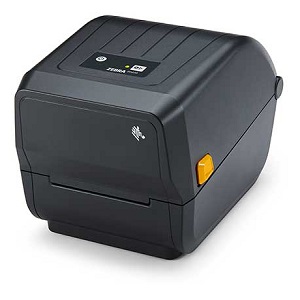
Zebra ZD220 Prints Faint, Light, or Uneven Labels
Light printing can come from low darkness, fast print speed, poor media, or a dirty printhead. It can also occur when the printhead does not make even contact with the label.
Try these steps:
- Increase print darkness slightly in the printer driver.
- Reduce print speed if the label design allows it.
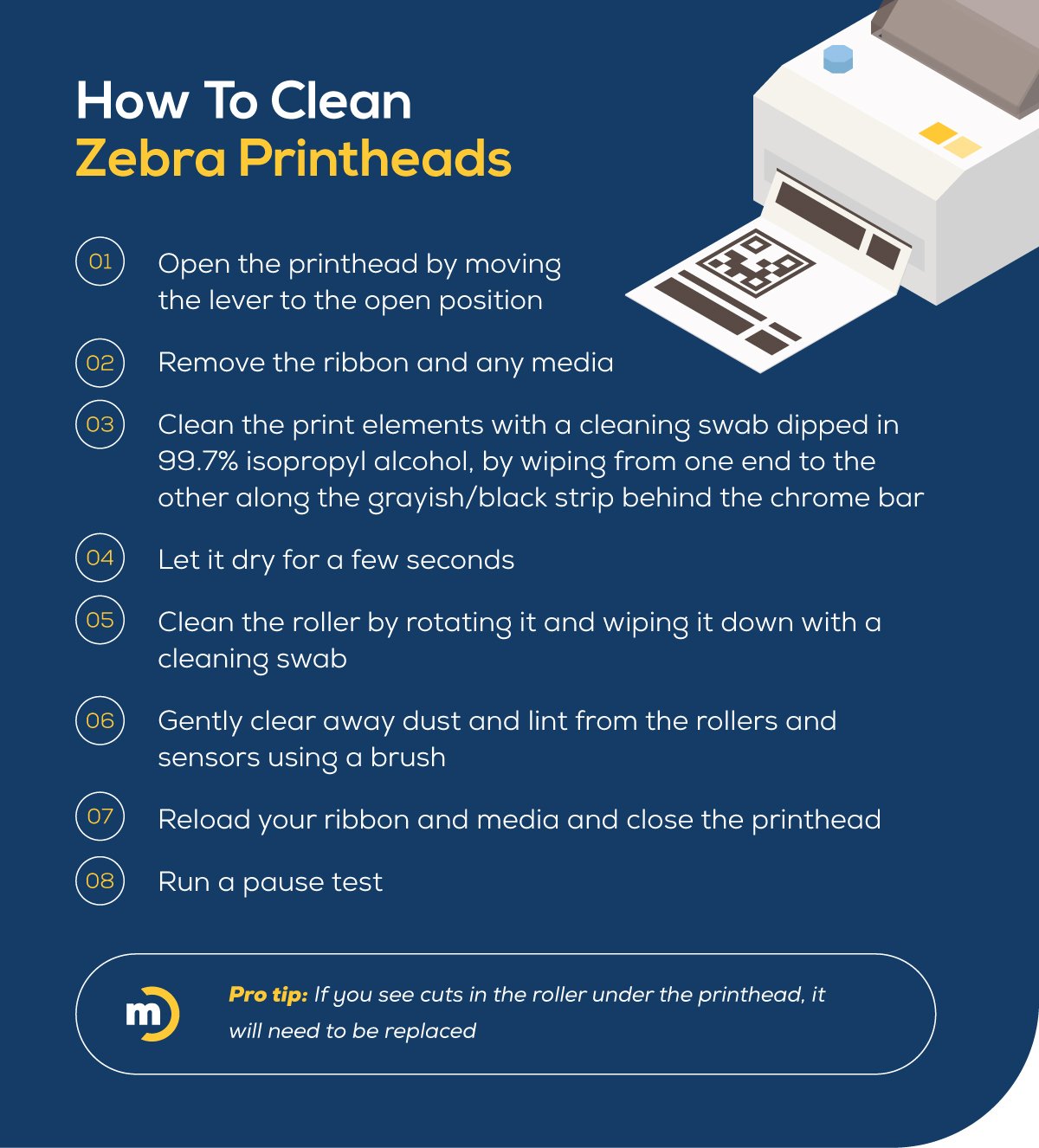
- Clean the printhead with an approved cleaning pen.
- Clean the platen roller.
- Replace old or poor-quality media.
- Check that the printhead latch is closed.
- Print a test label after each change.
Do not scrape the printhead with a knife, metal tool, or rough material. The printhead is delicate, and a small scratch can create a permanent vertical line.
Too much darkness is not always better. It can cause smearing, shorten printhead life, and make small text less clear. Adjust the setting in small steps until the barcode and text look sharp.
Zebra ZD220 Labels Are Misaligned
Misaligned labels often mean that the printer does not know where one label ends and the next begins. This is a media calibration issue.
First, check the label type:
- Gap labels have space between each label.
- Black mark labels use a dark mark on the backing.
- Continuous media has no fixed label gap.
The printer settings must match the physical media. For example, gap media should not be configured as continuous media.
To improve alignment:
- Load the roll straight and center it.
- Move the media guides close to the label edges.
- Make sure the sensor sits over the gap or mark.
- Close the cover firmly.
- Run a media calibration.
- Print a test label.
Calibration allows the ZD220 to measure label length and gap position. If the printer feeds several labels during calibration, that can be normal. The printer is learning the media pattern.
A common mistake is calibrating with the wrong labels installed. Always load the actual media used for the job before calibration.
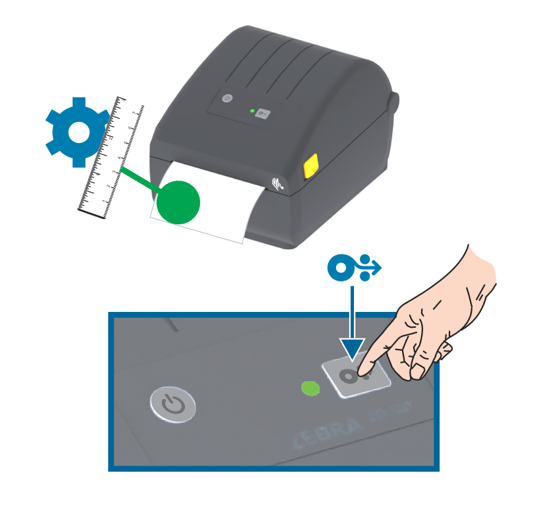
How to Calibrate the Zebra ZD220
Calibration is one of the most useful Zebra ZD220 troubleshooting steps. It helps the printer detect label length, gap size, and media position.
A basic calibration process is:
- Turn the printer on.
- Load the correct media.
- Close the cover.
- Press and hold the feed button.
- Release the button when the indicator flashes according to the printer’s calibration sequence.
- Allow the printer to feed several labels.
- Test the print alignment.
The exact button timing can vary by firmware and model configuration. If the automatic procedure does not work, use the printer driver or Zebra setup utility to start calibration.
Do not interrupt calibration. Stopping the process early can leave the printer with incorrect media values, which may cause skipped labels or repeated feeding.
If calibration keeps failing, inspect the sensor and label backing. Heavy adhesive, torn labels, transparent media, or unusual gaps may prevent reliable detection.
Zebra ZD220 Keeps Feeding Labels
A printer that continuously feeds labels may have incorrect media settings or may be unable to detect the gap. This is one of the most common Zebra ZD220 troubleshooting complaints.
Try these checks:
- Confirm the label format matches the physical label.
- Run media calibration.
- Clean the media sensor area.
- Check for labels stuck to the platen roller.
- Make sure the label roll is not loose.
- Verify that the sensor is positioned correctly.
- Test a standard gap label roll.
If the printer feeds one full label at a time but the image is misplaced, the label size in the driver may be wrong. If it feeds several labels without stopping, the sensor may not detect the gap or black mark.
Transparent labels can be difficult for some sensors. In that case, use media with a suitable black mark or follow the printer’s media setup instructions for the specific supply.
Zebra ZD220 Is Not Printing From Windows
When the printer works from its feed button but not from Windows, the hardware may be fine. The problem is more likely related to the driver, print queue, application, or port.
Work through this order:
- Open the printer settings in Windows.
- Confirm that the Zebra ZD220 is the selected printer.
- Check that the printer is not paused or set to offline.
- Clear stuck documents from the print queue.
- Print a Windows test page.
- Confirm the selected USB port.
- Reinstall the correct printer driver if needed.
Use a driver that supports the ZD220 and the language used by your labels. Many label systems use ZPL, while some older systems use EPL. A mismatch can produce strange output, blank labels, or printed programming text.
If several printers are installed, rename them clearly. Names such as “ZD220 Shipping” and “ZD220 Returns” reduce the chance of sending a job to the wrong device.
Zebra ZD220 USB Connection Problems
The ZD220 commonly connects through USB. If Windows does not detect it, start with the physical connection.
Check the following:
- Try another USB port.
- Use a short, reliable USB cable.
- Connect directly to the computer instead of through a hub.
- Restart the computer.
- Remove duplicate printer entries.
- Check Device Manager for an unknown device.
- Install or repair the printer driver.
Some USB hubs do not provide a stable connection, especially when several devices share the hub. A direct connection is better for testing.
Do not assume a failed print means a failed USB connection. A job can reach the printer but still fail because of a wrong label size, unsupported command, or incorrect printer language.
Fix Zebra ZD220 Barcode and Label Quality Problems
A barcode may look acceptable to the eye but still fail to scan. Barcode quality depends on darkness, contrast, size, quiet zones, and print resolution.
For reliable barcodes:
- Use suitable thermal media.
- Avoid printing barcodes too small.
- Keep clear space around the barcode.
- Print at the correct orientation when possible.
- Do not stretch a barcode unevenly.
- Test the printed code with the same scanner used in daily work.
- Replace labels that are scratched, wrinkled, or faded.
A 203 dpi ZD220 model may not reproduce very small text or dense barcodes as well as a higher-resolution printer. This is a hardware limitation, not always a software fault.
If only one label design scans poorly, inspect the design. If every label scans poorly, check darkness, speed, media, and printhead cleanliness.
Clean and Maintain the Zebra ZD220
Regular cleaning prevents many print defects. Dust and adhesive can act like a thin blanket between the printhead and label.
Clean these parts:
- Printhead
- Platen roller
- Media sensor
- Label guides
- Interior media path
Turn the printer off and let the printhead cool before cleaning. Use an approved cleaning pen or lint-free material recommended for thermal printers.
Avoid liquid cleaners that can leave residue. Never touch the printhead with bare fingers more than necessary, because skin oils can affect heat transfer.
A practical maintenance plan is simple:
- Clean the printhead whenever you change a large number of rolls.
- Inspect the platen roller during routine cleaning.
- Remove label scraps as soon as they appear.
- Store media in a cool, dry place.
- Keep the printer covered in dusty areas.
Reset Zebra ZD220 Settings
A reset can help when stored settings conflict with the current media or driver. However, resetting also removes useful custom settings, so record the current configuration first.
A reset may restore values such as:
- Label width
- Print darkness
- Print speed
- Media type
- Print mode
- Network settings, if supported by the model
- Printer language preferences
Use the reset method listed for your specific ZD220 model and firmware. The button sequence can differ, so avoid relying on instructions for another Zebra printer.
After a reset, reload the media settings and run calibration. Then print a configuration label and a small test label.
Resetting should not be the first response to every fault. It is more like clearing a tangled drawer: useful when settings are confused, but not helpful when the cable, sensor, or printhead has a physical problem.
Advanced Zebra ZD220 Troubleshooting
If basic checks fail, collect evidence before changing several settings at once. A clear test process makes the fault easier to isolate.
Follow this sequence:
- Print a configuration label from the printer.
- Print a test page from the operating system.
- Send a simple label from the normal application.
- Compare the three results.
- Note whether the problem affects text, graphics, barcodes, alignment, or communication.
- Change one setting at a time.
This method separates printer hardware from software. For example, a clean configuration label suggests that the print mechanism may work correctly. A failed computer test page points more toward the driver, port, queue, or operating system.
Record the printer model, serial number, firmware version, media type, and exact error behavior. These details help a technician solve the problem faster.
Do not continue printing if the printer smells hot, makes grinding sounds, shows exposed wiring, or repeatedly jams. Shut it down and arrange service.
When to Contact Zebra Support or Replace a Part
Some faults need trained service. Contact qualified support when the ZD220 has a repeated red fault, damaged power connector, broken cover latch, worn platen roller, or damaged printhead.
A printhead may need replacement when:
- A permanent vertical white line appears.
- Cleaning does not improve the same defect.
- Labels show repeated missing dots.
- The head has visible damage.
- Print quality remains poor with known-good media.
A platen roller may need attention when labels slip, wrinkle, or show repeating marks. Replacing parts can be more cost-effective than replacing the whole printer, especially when the printer has low usage and the main board still works well.
Keep in mind that third-party parts and media vary in quality. Cheap labels may save money at purchase but create more waste, poor scans, and extra cleaning.
Zebra ZD220 Troubleshooting Tips That Prevent Repeat Failures
The best troubleshooting result is the one you do not need to repeat. Simple habits protect the printer and reduce downtime.
Use these preventive steps:
- Keep one approved media type for each label job.
- Save the correct driver and label settings.
- Mark the printer’s model and media type.
- Train users to remove labels without tearing them inside the printer.
- Clean the printhead on a regular schedule.
- Keep spare rolls sealed and dry.
- Test barcodes before a large production run.
- Keep a short record of common fixes.
In a busy shipping area, I have seen one wrong label roll cause hours of confusion. The printer was not broken; the media type and label size had changed. A small label sample taped near the printer would have prevented the mistake.
Good records also help identify patterns. If the same error appears every Monday, the cause may be a software workflow or scheduled computer update rather than the printer itself.
Frequently Asked Questions About Zebra ZD220 Troubleshooting
Why is my Zebra ZD220 not printing?
Check power, media loading, the cover latch, the USB cable, and the print queue. If the printer feeds labels but produces no image, inspect the media type, printhead, ribbon requirement, and print darkness.
How do I fix Zebra ZD220 label alignment?
Load the labels straight, set the correct media type, position the guides, and run a media calibration. Also confirm that the label size in the printer driver matches the actual label size.
Why does my Zebra ZD220 keep feeding labels?
The printer may not be detecting the gap or black mark. Check the sensor position, clean the media path, confirm the media setting, and calibrate the printer with the correct labels installed.
How do I clean a Zebra ZD220 printhead?
Turn off the printer and allow the printhead to cool. Use an approved thermal-printer cleaning pen or suitable lint-free material, and avoid touching the printhead with oily fingers or sharp tools.
Can the Zebra ZD220 print without a ribbon?
A direct thermal ZD220 can print without a ribbon when used with heat-sensitive direct thermal labels. A thermal transfer version requires a compatible ribbon and thermal transfer media.
Why does my Zebra ZD220 print from the button but not from my computer?
This usually points to the driver, print queue, USB port, label software, or printer language settings. Print a system test page, clear paused jobs, and verify that the correct ZD220 driver and port are selected.
Conclusion
Zebra ZD220 troubleshooting becomes much easier when you move from simple checks to advanced tests. Start with power, media, cover position, calibration, printhead cleanliness, USB connection, driver settings, and label size. Most problems can be isolated without replacing the printer.
Treat the ZD220 like a reliable tool that needs the right supplies and a little care. Test one change at a time, record what works, and stop using the printer if you notice heat, electrical damage, or repeated mechanical faults. Apply these steps during your next printer issue, then explore the correct driver and media guidance for your exact ZD220 model or share your experience in the comments.