Pantum M7102DW Troubleshooting: Quick Fixes That Work
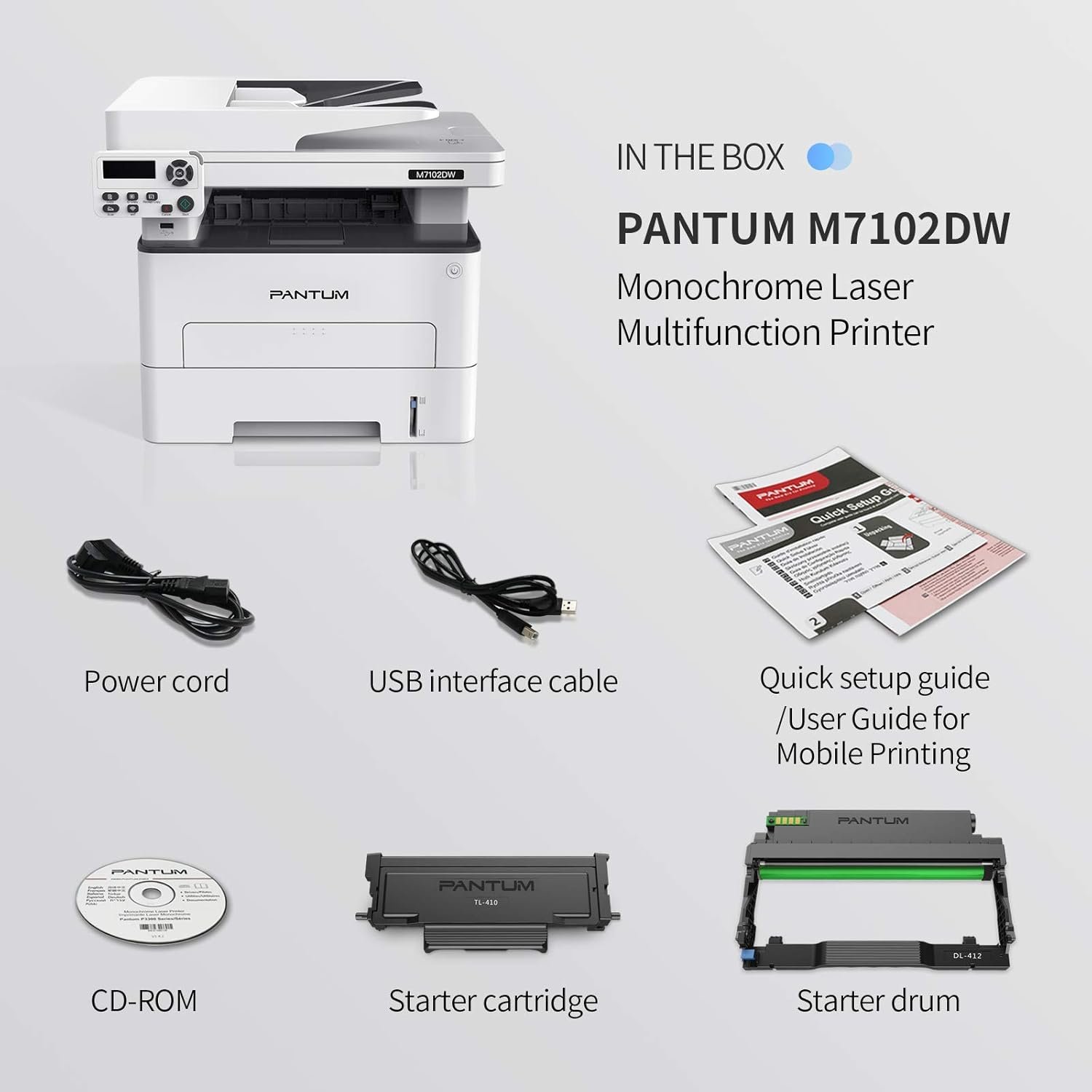
Most Pantum M7102DW problems come from paper, toner, network settings, drivers, or a simple jam.
Pantum M7102DW Troubleshooting is much easier when you check the problem in the right order. This monochrome multifunction printer can print, scan, copy, and fax, but each feature has its own common faults. This guide explains the likely causes, safe fixes, and simple tests that help you restore normal operation without wasting time or replacing parts too soon.
Start With These Basic Checks
Before trying advanced Pantum M7102DW troubleshooting, check the printer’s basic condition. Many faults come from a loose cable, a sleeping computer, an empty tray, or a printer that is connected to a different network.
Follow these steps:
- Make sure the printer is plugged into a working wall outlet.
- Press the power button and wait for the printer to finish starting.
- Check the display for an error message.
- Confirm that paper is loaded correctly.
- Check the toner cartridge level or toner warning.
- Remove any visible scraps of paper from the tray and output area.
- Restart the printer, computer, and network router.
- Check that the printer is selected as the default printer.
If the printer is frozen, turn it off. Unplug it for about 60 seconds, then reconnect it and power it on. This clears many temporary errors, much like restarting a phone after an app stops responding.
A useful first test is a copy. Place a page on the scanner glass and make a black-and-white copy. If the copy works, the printer engine is likely fine. The problem may be with the computer, driver, print queue, or network.

Pantum M7102DW Not Printing
When the Pantum M7102DW does not print, the cause is often a stuck print queue or an incorrect printer connection. The printer may appear ready while the computer is still sending the job to an old or offline printer.
Try these fixes:
• Cancel all waiting documents from the computer’s print queue.
• Turn the printer off and back on.
• Restart the Print Spooler service on Windows.
• Remove duplicate Pantum printer entries from your device list.
• Select the Pantum M7102DW as the default printer.
• Print a test page from the printer settings or driver software.
• Connect the printer by USB to test whether the wireless connection is the cause.
On Windows, open the printer queue and remove paused or failed jobs. Make sure “Use Printer Offline” is not selected. On macOS, open the printer settings and confirm that the printer status shows as ready.
If a document remains stuck, restart the computer after clearing the queue. A damaged print job can sometimes return after a simple restart if the spooler has not fully closed.
If the printer prints a test page but not a document, check the document itself. A large file, unusual font, or unsupported page setting may be causing the failure. Try printing a short text document to separate a file problem from a printer problem.

Pantum M7102DW Offline or Not Found
A printer can show as offline even when it has power. This usually means the computer cannot communicate with the printer over Wi-Fi, USB, or the local network.
For wireless Pantum M7102DW troubleshooting, check the following:
- Confirm that the printer is connected to the same Wi-Fi network as the computer.
- Avoid guest Wi-Fi networks, which may block communication between devices.
- Move the printer closer to the router for testing.
- Restart the router and printer.
- Check whether the router has separate 2.4 GHz and 5 GHz network names.
- Re-add the printer using its current network address.
- Print a network configuration page if the printer menu provides one.
Many printers work best on a standard home or office network. Public Wi-Fi, hotel networks, and some mesh systems may use isolation features that prevent the printer from being found.
A USB test is helpful. If printing works through USB, the printer hardware and driver are probably working. Focus on the wireless setup instead of reinstalling every component.
If the printer’s IP address changes often, the computer may lose contact with it. A reserved address in the router can help. This setting keeps the same local address assigned to the printer, but it should be configured carefully. If you are unsure, ask your network administrator or internet service provider for help.
Pantum M7102DW Wi-Fi Setup Problems
Wireless setup is one of the most common areas for Pantum M7102DW troubleshooting. The printer must receive the correct network name and password. A single incorrect character can prevent the connection.
Use this setup method:
- Place the printer near the router during setup.
- Open the printer’s network or wireless settings.
- Select the correct Wi-Fi name.
- Enter the password carefully.
- Wait for the connection confirmation.
- Print a network report or check the wireless icon.
- Add the printer again on the computer if needed.
Avoid typing the network password from memory. Check uppercase letters, numbers, spaces, and special characters. Wi-Fi passwords are case-sensitive.
If the printer cannot see your network, restart the router and check that wireless broadcasting is enabled. Some advanced routers hide the network name or use security modes that older printer firmware may not support.
Do not reset the network settings as the first step. A network reset removes saved information and creates more work. Use it only when the current connection is corrupted or when you are moving the printer to a new network.
After changing the router, password, or Wi-Fi name, you may need to remove and reinstall the printer on each computer. This is normal because the computer may still be looking for the old network address.

Pantum M7102DW Paper Jam Fix
A paper jam can happen in the input tray, rear cover, toner area, or output path. Never pull paper with force. Torn paper can leave small pieces inside the printer and cause repeated jams.
For safe paper jam removal:
- Cancel the print job.
- Turn off the printer and allow hot areas to cool.
- Open the cover shown by the error message.
- Pull the paper slowly in the direction of normal paper travel.
- Check for small scraps near rollers.
- Close every cover firmly.
- Reload fresh, flat paper.
- Turn the printer on and try a test page.
Use paper that matches the recommended size and type. Damp, curled, folded, or heavily worn paper can feed poorly. Do not fill the tray above its limit line.
Adjust the paper guides so they touch the paper without squeezing it. Guides that are too loose may allow skewed feeding. Guides that are too tight can create friction and cause a jam.
If jams continue with good paper, inspect the rollers for dust or wear. Clean accessible rollers with a dry, lint-free cloth. Avoid spraying cleaner inside the printer. A damaged roller, sensor, or fuser may require professional service.

Pantum M7102DW Paper Feed and Double-Feed Issues
The Pantum M7102DW may pull several sheets at once when paper has absorbed moisture or the stack is pressed together. This can create blank pages, crooked printing, or repeated paper errors.
Try these practical steps:
• Remove the entire paper stack from the tray.
• Fan the sheets gently without bending them.
• Tap the stack on a flat surface.
• Load fewer sheets for testing.
• Adjust the paper guides.
• Try a new, dry pack of printer paper.
• Confirm the selected paper size matches the loaded paper.
Store unused paper in a dry room and keep it sealed when possible. Paper stored near a kitchen, basement, or open window may collect moisture.
Do not mix paper sizes or types in the same tray. Also avoid loading paper with torn edges, adhesive residue, or heavy curl. These small issues can confuse the feed system.
If the printer feeds correctly with a small stack but fails with a full tray, the issue may involve tray pressure or worn pickup parts. That is a sign to contact a qualified technician rather than forcing the tray.

Pantum M7102DW Prints Blank Pages
Blank pages can result from an empty toner cartridge, a cartridge that is not seated correctly, or a print setting that uses white text on a white background. A protective strip left on a new cartridge can also block toner delivery.
Start with these checks:
- Confirm that the cartridge is installed correctly.
- Remove and inspect the cartridge for remaining packing material.
- Gently move the cartridge from side to side if the instructions allow it.
- Reinstall it firmly.
- Print a configuration or test page.
- Check the document’s text color and print settings.
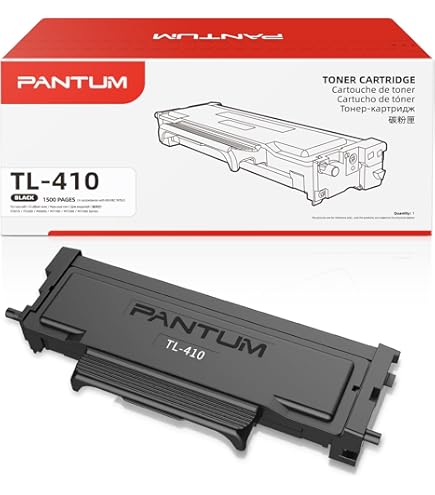
Use a cartridge designed for the exact printer model and region. Some third-party cartridges may work well, but quality can vary. A poor cartridge can cause blank pages, faded output, streaks, or recognition errors.
If the printer produces blank copies as well as blank computer prints, the toner system is more likely to be involved. If copies look normal but computer documents are blank, inspect the document and driver settings.
Avoid touching the imaging surface inside the cartridge. Fingerprints and bright light can damage sensitive parts. Follow the cartridge maker’s handling instructions.

Pantum M7102DW Faded, Gray, or Uneven Printing
Faded output is another frequent reason people search for Pantum M7102DW troubleshooting. The toner may be low, the paper may be unsuitable, or the print density setting may be too light.
Check these points:
• Replace the toner cartridge if the printer reports low toner.
• Confirm that the toner cartridge is seated correctly.
• Try standard, dry laser printer paper.
• Increase print density in the driver if that option is available.
• Print several pages to see whether the output improves.
• Check for a repeating mark, which may indicate a drum or roller issue.
A page that fades from one side to the other can point to toner distribution or cartridge wear. Repeating marks at equal distances may suggest a damaged drum or roller. Random gray areas may result from paper dust, loose toner, or a failing cartridge.
Do not shake a leaking cartridge. Toner can spread inside the printer and create a larger problem. Replace it carefully and clean only the areas recommended in the user guide.
Print quality can also change when the printer has been stored in a cold or humid place. Let the machine reach room temperature before testing. Keep it away from heaters, direct sunlight, and damp areas.
Pantum M7102DW Scanner and Copier Troubleshooting
If the Pantum M7102DW prints normally but will not scan or copy, focus on the scanner glass, document placement, software, and connection.
For a clean copy:
- Place the original face down on the marked scanner area.
- Align it with the guides.
- Close the scanner cover.
- Select black-and-white or color mode as needed.
- Press the copy button.
- Check whether the page feeds or scans correctly.
Clean the scanner glass with a soft, lint-free cloth. A small fingerprint can create a gray line on every scan. Do not pour liquid onto the glass or spray cleaner directly on the machine.
For computer scanning, install the correct Pantum scan software or use the operating system’s supported scan tool. Select the Pantum M7102DW as the source. If several scanners appear, choose the entry that matches the active USB or network connection.
If scanning works by USB but not over Wi-Fi, check firewall and network permissions. Security software may allow printing while blocking scanning traffic. Business networks may also restrict device discovery.
If the automatic document feeder is used, check for staples, folded corners, and multiple pages stuck together. Feed one clean page to test the mechanism before loading a large stack.

Pantum M7102DW Driver and Software Errors
The printer driver acts as a translator between your computer and the printer. If the driver is incorrect, old, or damaged, the printer may print with the wrong size, stop halfway, or show limited features.
Good driver troubleshooting includes:
- Download the driver that matches the Pantum M7102DW.
- Choose the correct operating system version.
- Remove the old printer entry if it is corrupted.
- Install the driver with administrator permission.
- Restart the computer.
- Add the printer again.
- Print a test page.
Download printer software only from a trusted source. Avoid random driver websites because they may provide unsafe or incorrect files.
Check the driver’s paper size, orientation, duplex setting, resolution, and print quality. A mismatch between the document and driver can cause cropped pages or unexpected blank sheets.
On Windows, check whether the device is using a generic driver. Generic drivers may support basic printing but not scanning, duplex printing, or device status features. On macOS, remove old entries if the system keeps sending jobs to an unavailable printer.
A clean reinstall is useful, but it should not be the first response to every error. If the issue happens during copying, a driver cannot be the cause because copying does not require a computer driver.
Pantum M7102DW Duplex Printing Problems
The M7102DW supports automatic two-sided printing, but duplex errors can occur because of paper settings, driver options, or a jam in the return path.
Try the following:
• Select the correct paper size in both the document and printer driver.
• Confirm that two-sided or duplex printing is enabled.
• Use paper recommended for laser printing.
• Avoid very thin, damp, or curled paper.
• Check the rear and internal paper paths.
• Test duplex printing with a short, simple document.
If the second side prints upside down, change the binding or flip setting. “Long-edge” binding is common for normal books and reports. “Short-edge” binding is often used for calendars or pages that flip upward.
Some applications have their own duplex settings. Check both the application and printer driver so that one setting does not override the other.
When a duplex job fails but single-sided printing works, inspect the paper return path. Repeated failures with different paper may indicate a sensor or mechanical problem.
Pantum M7102DW Error Messages and Warning Lights
Error messages should guide your next step, not cause panic. Read the full message and note whether it refers to paper, toner, a cover, a network connection, or a service fault.
Common actions include:
- Open and close the indicated cover.
- Remove paper from the stated area.
- Check the toner cartridge.
- Confirm that the tray is loaded.
- Restart the printer.
- Look for a second message after startup.
If the message returns immediately after a restart, do not keep cycling the power. Repeated warnings can point to a sensor, cartridge chip, fuser, or other hardware fault.
Record the exact error code and the action that caused it. This information helps technical support diagnose the printer faster. A photo of the display can also be useful.
Never bypass a safety cover or touch hot internal parts. The fuser area can remain hot after the printer is turned off. Wait for the machine to cool before removing paper near that area.
When to Reset the Pantum M7102DW
A reset can clear damaged settings, but it also removes useful configuration details. Network names, passwords, address settings, and custom preferences may need to be entered again.
Consider a reset when:
• The printer was moved to a new Wi-Fi network.
• Network settings are corrupted.
• The printer remains stuck after normal restarts.
• You are preparing the device for another user.
Before resetting, write down the current network details and print a configuration page if possible. Try a normal power cycle first. Then use the reset option listed in the printer’s official instructions.
Do not reset the printer to fix a low toner warning, a physical paper jam, or a worn roller. A reset cannot repair mechanical damage.
After the reset, connect the printer to the network and reinstall it on each computer. Test printing, scanning, and copying separately. This makes it easier to identify any remaining problem.
Practical Pantum M7102DW Troubleshooting Workflow
The fastest approach is to test one part at a time. Changing many settings at once can hide the real cause.
Use this workflow:
- Check power and the display.
- Test a copy from the scanner glass.
- Print an internal test or configuration page.
- Test the printer by USB.
- Test the wireless connection.
- Check the driver and print queue.
- Inspect paper and toner.
- Reset only when necessary.
- Contact support if the fault remains.
This process separates printer hardware from software and network issues. For example, a successful copy and failed wireless print usually point to the computer or network. A failed copy and failed internal test suggest a printer-side problem.
In hands-on printer support, one common mistake is replacing toner before testing the print path. Another is reinstalling drivers when the printer is simply connected to a guest network. Start with simple tests before spending money.
Keep a short record of what you tried. Note the paper type, connection method, error message, and result. Clear notes often save more time than repeated troubleshooting.
Maintenance Tips for Reliable Printing
Regular care reduces the need for Pantum M7102DW troubleshooting. The printer does not need complicated maintenance, but it does need a clean, dry, stable environment.
Use these habits:
• Keep the printer on a level surface.
• Store paper in a dry place.
• Remove unused paper from the tray when the printer will sit unused for a long time.
• Clean the scanner glass often.
• Keep vents clear.
• Replace toner with the correct model.
• Avoid forcing covers, trays, or cartridges.
• Install firmware or driver updates from trusted sources when appropriate.
Do not use compressed air inside the printer unless the manufacturer specifically permits it. Air can push toner and dust deeper into sensors and moving parts.
For office use, place the printer where users can reach the tray and rear cover. Crowded spaces make jam removal harder and increase the chance of broken covers or poor ventilation.
A small amount of routine care works like changing the oil in a car. It does not prevent every fault, but it lowers wear and helps you notice problems early.
Frequently Asked Questions About Pantum M7102DW Troubleshooting
Why is my Pantum M7102DW not printing?
Check the printer status, paper, toner, print queue, and connection first. If a test page prints but a computer document does not, clear the queue and reinstall or re-add the printer.
How do I fix a Pantum M7102DW paper jam?
Turn off the printer, let hot parts cool, open the indicated cover, and remove the paper slowly. Check for torn scraps, reload flat paper, and avoid forcing the sheet.
Why does my Pantum M7102DW show offline?
The computer may be using the wrong printer entry, or the printer may be on a different Wi-Fi network. Restart both devices, confirm the network, and re-add the printer if its network address has changed.
Why is my Pantum M7102DW printing blank pages?
Check the toner cartridge and remove any remaining protective packaging. If copies are also blank, reseat or replace the cartridge; if only computer documents are blank, inspect the document and driver settings.
How can I fix faded Pantum M7102DW prints?
Install a suitable toner cartridge, use dry laser paper, and check the print density setting. Repeating marks or severe uneven output may indicate a worn cartridge, drum, roller, or other internal part.
Can I use USB to test the Pantum M7102DW?
Yes. A USB test can show whether the problem is wireless or printer-related. If USB printing works, focus on Wi-Fi settings, firewall rules, and the network printer entry.
Should I reset the Pantum M7102DW?
Reset the printer only after basic checks and only when settings appear corrupted or the printer is moving to a new network. A reset will not fix damaged hardware, poor paper, or an empty toner cartridge.
Conclusion
Pantum M7102DW troubleshooting starts with simple checks: power, paper, toner, error messages, and the print queue. Next, separate hardware issues from driver and network problems by testing a copy, an internal page, USB, and Wi-Fi. Safe paper handling, correct software, and regular cleaning can prevent many repeat faults.
Work through one change at a time, and record what happens. If the printer still shows the same hardware error after safe cleaning and a correct cartridge check, stop forcing it and seek qualified service. Use this guide whenever a problem appears, and share your result or question in the comments so other M7102DW users can benefit.

Similar Posts