Zebra ZT411 Troubleshooting: Quick Fix Guide
Zebra ZT411 troubleshooting starts by checking media, sensors, print settings, connections, and error messages in order.
The Zebra ZT411 is a fast industrial printer, but even a small sensor shift or wrong label setting can stop production. This guide explains Zebra ZT411 troubleshooting with clear steps for print quality, calibration, network faults, media errors, ribbon problems, and common warning messages.
Zebra ZT411 Troubleshooting: Start With Basic Checks
A simple check often solves the issue faster than changing advanced settings. Before opening the printer or replacing parts, inspect the media path, power supply, control panel, and cable connections.
Use this quick process:
- Turn the printer off.
- Check that the power cable is fully inserted.
- Open the printhead and remove loose labels or torn media.
- Confirm that the roll sits straight on the media hanger.
- Make sure the media guides touch the edges without squeezing the roll.
- Close the printhead until both sides lock.
- Turn the printer on and read the display message.
- Print a configuration label if the printer reaches Ready status.
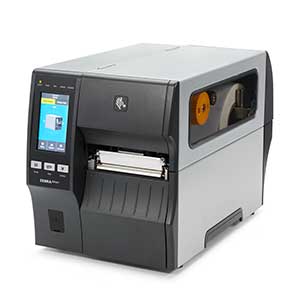
The ZT411 uses a thermal printhead, media sensors, platen roller, ribbon system, and control electronics. A fault in any one of these parts can look similar to another problem. For example, a dirty sensor may appear to be a media loading problem, while the real cause is dust blocking the sensor beam.
In my experience with industrial label printers, the biggest mistake is changing several settings at once. Make one change, print a test label, and note the result. This turns troubleshooting into a clear process instead of guesswork.

Zebra ZT411 Media Loading and Calibration
Incorrect media loading is one of the most common causes of Zebra ZT411 problems. The printer must know where one label ends and the next label begins. If the media sensor cannot detect that gap, the printer may feed labels continuously, stop with a warning, or print in the wrong position.
Check these loading points:
• The label roll should sit firmly on the media hanger.
• The media should pass under the media guide and through the correct sensor path.
• The media guide should touch the edge of the media without bending it.
• The printhead should close evenly across its full width.
• The media should remain straight as it moves through the printer.
After loading media, run a calibration. On the printer menu, look for the media or sensor calibration option. The exact menu path can vary by firmware version, so use the control panel display or the current ZT411 user guide for the precise steps.
A manual calibration usually teaches the printer the media length, gap, label web, and liner conditions. During calibration, the printer may feed several labels. Do not interrupt this process unless the printer clearly reports an error.
When Automatic Calibration Does Not Work
If calibration fails, inspect the sensor area. Dust, adhesive, label scraps, or a damaged liner can block accurate readings. Clean the sensor with a soft, lint-free cloth and use an approved cleaning method.
Also check the media type:
• Gap or web media has spaces between labels.
• Black mark media uses dark marks on the back of the liner.
• Continuous media has no gaps or black marks.
The selected sensor mode must match the media. A printer set for black mark media may not detect ordinary gap labels correctly. This is a key Zebra ZT411 troubleshooting step that many users miss.
Zebra ZT411 Print Quality Problems
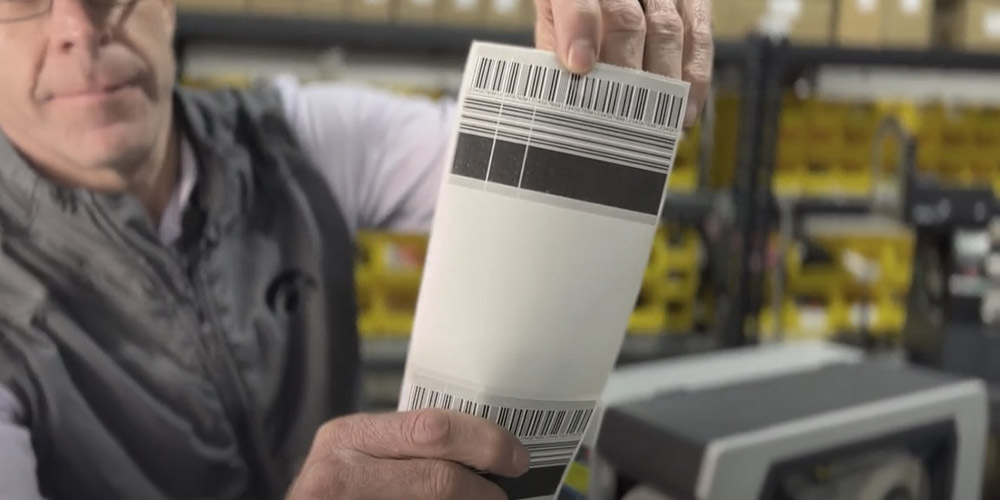
Poor print quality can appear as light text, dark bands, missing dots, blurred edges, or uneven barcodes. The most likely causes are incorrect darkness, excessive print speed, a dirty printhead, poor media, or a worn platen roller.
Follow these steps:
- Pause printing.
- Clean the printhead with the recommended cleaning solution or cleaning pen.
- Clean the platen roller and remove adhesive buildup.
- Lower the print speed.
- Adjust print darkness in small steps.
- Print a test label.
- Inspect the result under normal lighting.
Avoid setting darkness too high. More heat does not always create a better label. Excess heat can cause smearing, shorten printhead life, and create dark backgrounds around small text.
For thermal transfer printing, verify the ribbon direction and width. The ribbon must cover the printed area. It should also match the media surface. A ribbon made for coated labels may not perform well on rough paper.
For direct thermal printing, confirm that the labels are heat-sensitive. A standard paper label will not produce a proper image without ribbon transfer.
Fixing Light or Missing Areas
If one side of the label is light, check printhead pressure and alignment. The printhead must apply even pressure across the media. A worn platen roller can also create a repeating light line.
If missing dots appear in the same place on every label, the printhead may have damaged elements. A printhead test label can help confirm this. Do not press hard on the printhead or scrape it with a sharp tool.
Improving Barcode Readability
A barcode can look acceptable to the eye but still fail a scanner. Use the correct label size, print at a suitable speed, and avoid excessive scaling. The barcode must have clear spaces around it, known as the quiet zones.
Test important barcodes with the same scanner used in daily operations. This practical step is more useful than checking appearance alone. Barcode quality can also be verified with proper inspection equipment when labels support shipping, health care, or regulated processes.

Zebra ZT411 Labels Feed Incorrectly
A printer that skips labels, feeds too far, or stops between labels often has a sensor, media, or format problem. Begin with the physical media path before changing software settings.
Check the following:
• Confirm the correct label size in the printer driver.
• Compare the programmed label length with the real label length.
• Check for gaps, notches, or black marks.
• Make sure the sensor is positioned over the detection area.
• Look for labels stuck to the liner or platen roller.
• Confirm that the media is not curled or damaged.
If the printer prints one label and then advances several blank labels, the sensor may not detect the gap. If it prints part of a label and then stops, the label length in the print job may be wrong.
A label design created for a 4-inch label will not work correctly on a 3-inch label unless the format is adjusted. This issue often occurs after a media change, even when the new roll looks similar to the old one.
Correcting Print Position
Use the printer’s label home, vertical offset, and horizontal offset settings carefully. Change one value at a time and use small increments. Large changes can move the print beyond the label or cause clipping.
If every label is shifted by the same amount, the problem is usually a setting or format issue. If the shift changes from label to label, suspect media tracking, sensor placement, loose guides, or a mechanical problem.

Zebra ZT411 Ribbon and Thermal Transfer Issues
The ZT411 can use direct thermal or thermal transfer media. In thermal transfer mode, the ribbon must move smoothly between the supply spindle, printhead, and take-up spindle. A loose, wrinkled, or incorrectly loaded ribbon can cause poor print quality and ribbon warnings.
For Zebra ZT411 troubleshooting involving ribbon problems, inspect these areas:
- Check that the ribbon is installed in the correct direction.
- Confirm that the ribbon is wider than the printed image.
- Remove wrinkles before closing the printhead.
- Attach the ribbon leader securely to the take-up core.
- Confirm that the printer is set to thermal transfer mode.
- Make sure the ribbon sensor path is clear.
- Replace ribbon that is torn, folded, or heavily creased.
Ribbon wrinkles often start at the edge of the printhead. They may result from uneven printhead pressure, incorrect ribbon alignment, or a ribbon that does not match the media width.
Do not use a ribbon with direct thermal media unless the application requires it. The ribbon setting, media type, and printer configuration must agree. A mismatch can create faint images, smudges, or wasted supplies.
Zebra ZT411 Connectivity and Printing Errors
Connection problems can prevent a computer, warehouse system, or label application from reaching the printer. The ZT411 may use USB, Ethernet, Wi-Fi, Bluetooth, or a serial connection, depending on the installed options.
Start by identifying where the failure occurs:
• If the printer does not power on, inspect power and hardware.
• If the printer is Ready but the computer cannot see it, check the cable, port, driver, or network.
• If the job reaches the printer but prints incorrectly, check the driver and label format.
• If the printer pauses, review the display for media, ribbon, or pause conditions.
For Ethernet problems, print a network configuration label if possible. Review the IP address, subnet, gateway, and connection status. A duplicate IP address can cause an intermittent connection that is difficult to diagnose.
For Wi-Fi problems, check signal strength, security settings, wireless bands, and access point rules. Industrial areas may have metal racks and machinery that weaken signals. Test the printer near a known stable connection when practical.
For USB problems, try a different port and cable. Avoid unpowered hubs during testing. Also confirm that the correct ZT411 driver and printer language settings are used by the operating system and label software.
Clearing Stalled Print Jobs
A damaged or oversized print job can remain in the computer queue and repeatedly resend the same fault. Clear the queue, restart the print service if needed, and send a small test label.
If the printer receives raw printer commands, verify that the application sends the correct language, such as ZPL. A file designed for another printer language may produce strange output or no visible label.

Zebra ZT411 Error Messages and Warning Lights
The control panel message is often the best starting point for Zebra ZT411 troubleshooting. Read the full message before pressing buttons. Some alerts are warnings, while others stop printing to prevent damage or waste.
Common message types include:
• Media out: The printer cannot detect media or the roll is empty.
• Ribbon out: The ribbon is missing, incorrectly loaded, or not detected.
• Head open: The printhead is not fully closed or the latch is not engaged.
• Pause: Printing is paused through the control panel, software, or a configured input.
• Over-temperature: The printhead needs time to cool or the environment is too hot.
• Sensor error: The printer cannot read the selected media type correctly.
Clear the physical cause first. Resetting the message without fixing the cause may make the printer run briefly and fail again.
If the printhead is hot, allow it to cool. Do not touch it immediately after a long print run. The printer’s thermal protection helps prevent damage, but repeated overheating may point to high darkness, excessive speed, poor ventilation, or a failing component.
Record the error message, time, media type, job details, and recent changes. This information helps technical support identify patterns. It also prevents repeated trial and error.
Zebra ZT411 Maintenance and Cleaning
Regular cleaning prevents many failures. Label adhesive, dust, ribbon coating, and paper fibers can collect around the printhead, sensor, and platen roller. A clean printer tracks media better and produces more consistent labels.
Create a routine based on print volume and media condition. High-volume sites may need daily inspection, while lighter use may require weekly or roll-change cleaning.
A basic maintenance routine includes:
- Turn off the printer and let hot parts cool.
- Open the printhead.
- Remove loose media and debris.
- Clean the printhead using the approved method.
- Clean the platen roller while rotating it by hand.
- Clean the media sensors.
- Inspect the rollers and guides.
- Close the printer and run a test label.
Do not use sharp tools on the printhead, sensor, or platen roller. Do not flood the inside of the printer with liquid. Follow the maintenance instructions for the exact ZT411 configuration.
Replace worn parts when cleaning no longer restores performance. A damaged platen roller can create repeated defects, while a worn printhead can cause missing dots. Using genuine or approved replacement parts helps protect print quality and fit.
Advanced Zebra ZT411 Troubleshooting
When basic steps do not solve the issue, check configuration and hardware in a controlled way. Print a configuration label to review settings such as darkness, speed, media type, sensor mode, print method, and communication details.
Compare those settings with the label software. The printer, driver, and application should agree on:
• Label width
• Label height
• Print method
• Media type
• Print speed
• Darkness
• Rotation
• Sensor mode
A mismatch can create problems that look like hardware failure. For example, a wrong label height may cause skipped labels, while an incorrect print method may create a blank output.
Firmware updates can improve compatibility and fix known issues, but update with care. Confirm the exact printer model, installed options, and approved firmware file. Keep a record of the previous configuration before making changes.
A factory reset may help after a corrupted configuration, but it also removes network and print settings. Use it only after documenting the current setup. Restore settings one group at a time and test after each change.
Contact qualified service support when the printer has repeated electrical faults, damaged wiring, a failed printhead, mechanical wear, or an error that returns after proper calibration. Opening internal areas without training can create safety risks and may affect warranty coverage.
Common Zebra ZT411 Troubleshooting Mistakes
Many printer problems become harder because of rushed repairs. Avoid these common errors:
• Increasing darkness to hide a dirty printhead.
• Moving the media sensor without marking its original position.
• Changing speed, darkness, offsets, and label size at the same time.
• Using the wrong ribbon or media setting.
• Cleaning the printhead with a sharp object.
• Ignoring the printer’s configuration label.
• Repeating calibration without checking the physical media path.
• Replacing expensive parts before testing cables, media, and settings.
One lesson stands out from real production support: the cheapest fix is often better observation. A label that fails once may indicate a loose guide. A defect that repeats at the same location may indicate a platen or printhead issue. The pattern matters.
Keep a small troubleshooting log near the printer. Record the media brand, ribbon type, error message, calibration result, and final fix. Over time, this log becomes a valuable local knowledge base for operators and technicians.
Frequently Asked Questions About Zebra ZT411 Troubleshooting
Why is my Zebra ZT411 not printing?
Check whether the printer shows Ready, Pause, Media Out, Ribbon Out, or Head Open. Then inspect the media path, printhead latch, print queue, cable, and selected print method.
How do I calibrate a Zebra ZT411?
Load the correct media, confirm the sensor mode, and run the media calibration option from the control panel. Let the printer feed the required labels without interruption, then print a test label.
Why does my ZT411 skip labels?
The usual causes are incorrect label length, dirty or misplaced sensors, wrong media type, or gaps that the sensor cannot detect. Check the physical media path before changing label software settings.
Why are my Zebra ZT411 labels too light?
Clean the printhead and platen roller first. If the problem remains, reduce print speed, adjust darkness gradually, check ribbon compatibility, and inspect the printhead for damaged elements.
Why does my Zebra ZT411 keep saying Ribbon Out?
Confirm that the ribbon is loaded correctly, attached to the take-up core, and wide enough for the printed area. Also check that thermal transfer mode is selected and the ribbon sensor is clean.
How do I fix a Zebra ZT411 that prints blank labels?
Check whether the printer is set to direct thermal or thermal transfer mode correctly. Verify that direct thermal labels are heat-sensitive, or load a compatible ribbon for thermal transfer printing.
When should I replace the ZT411 printhead?
Replace the printhead when it has damaged dots, repeated permanent lines, or poor output after proper cleaning and setting adjustments. Use the correct replacement part and follow the service instructions.
Conclusion
Effective Zebra ZT411 troubleshooting follows a simple order: inspect the media, check the sensors, clean the print path, verify settings, test the connection, and review the error message. Small changes made one at a time help reveal the real cause.
Keep the printer clean, use matching media and ribbon, calibrate after media changes, and record recurring faults. Apply these steps during your next ZT411 issue, then explore the printer’s current user guide or share your results with your maintenance team.