DYMO LabelWriter 550 Troubleshooting: Easy Fixes
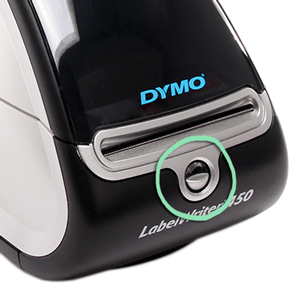
DYMO LabelWriter 550 troubleshooting usually starts with checking labels, connections, software, and the printer’s RFID label recognition.
The DYMO LabelWriter 550 is fast and simple when everything works, but a small setup error can stop printing completely. This guide explains the most common DYMO LabelWriter 550 troubleshooting steps, including blank labels, offline status, poor print quality, connection problems, and label recognition errors. The advice below combines manufacturer-style support practices with lessons learned from real desktop label printer setups.
Understanding the DYMO LabelWriter 550
The DYMO LabelWriter 550 is a direct thermal printer. It creates text and graphics by heating special labels, so it does not use ink or toner. This design makes the printer clean and low-cost to run, but it also means the label type, roll position, software, and sensors must work together.
One important feature is automatic label recognition. The LabelWriter 550 uses an electronic identification system in compatible DYMO labels. If the printer cannot detect an approved label roll, it may show an error or refuse to print.
Before starting DYMO LabelWriter 550 troubleshooting, check these basic points:
• The printer is connected to power.
• The USB cable or network connection is secure.
• The roll contains compatible DYMO labels.
• The labels are loaded in the correct direction.
• DYMO software or the correct printer driver is installed.
• The printer appears in your computer’s printer list.
The LabelWriter 550 is not the same as older LabelWriter models. Some older or third-party labels may fit physically but still fail because the printer cannot verify them electronically.
DYMO LabelWriter 550 troubleshooting checklist
Use this quick checklist before trying more advanced fixes:
- Turn off the printer and unplug it for about 30 seconds.
- Remove the label roll.
- Check for loose labels, torn paper, or adhesive inside the feed path.
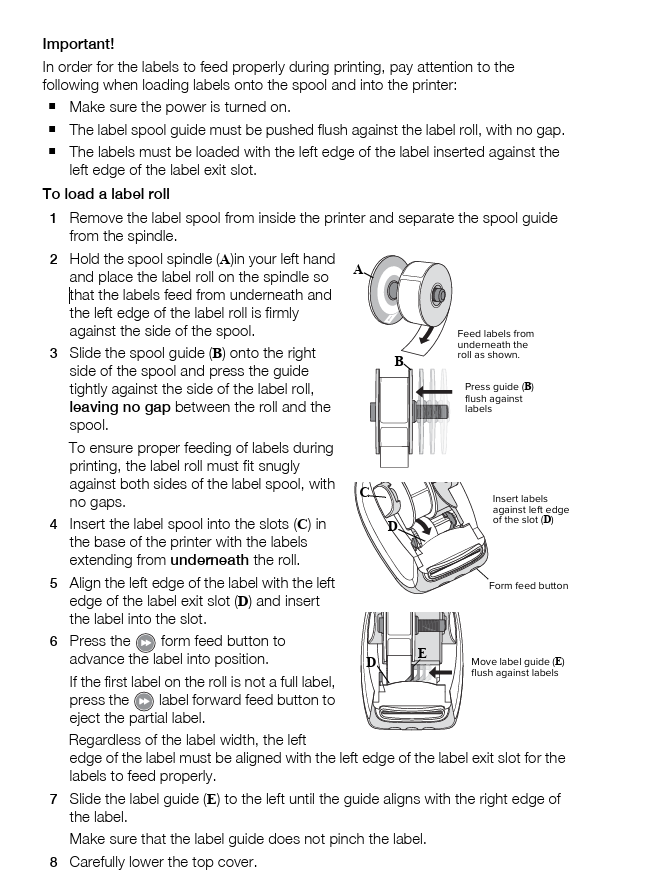
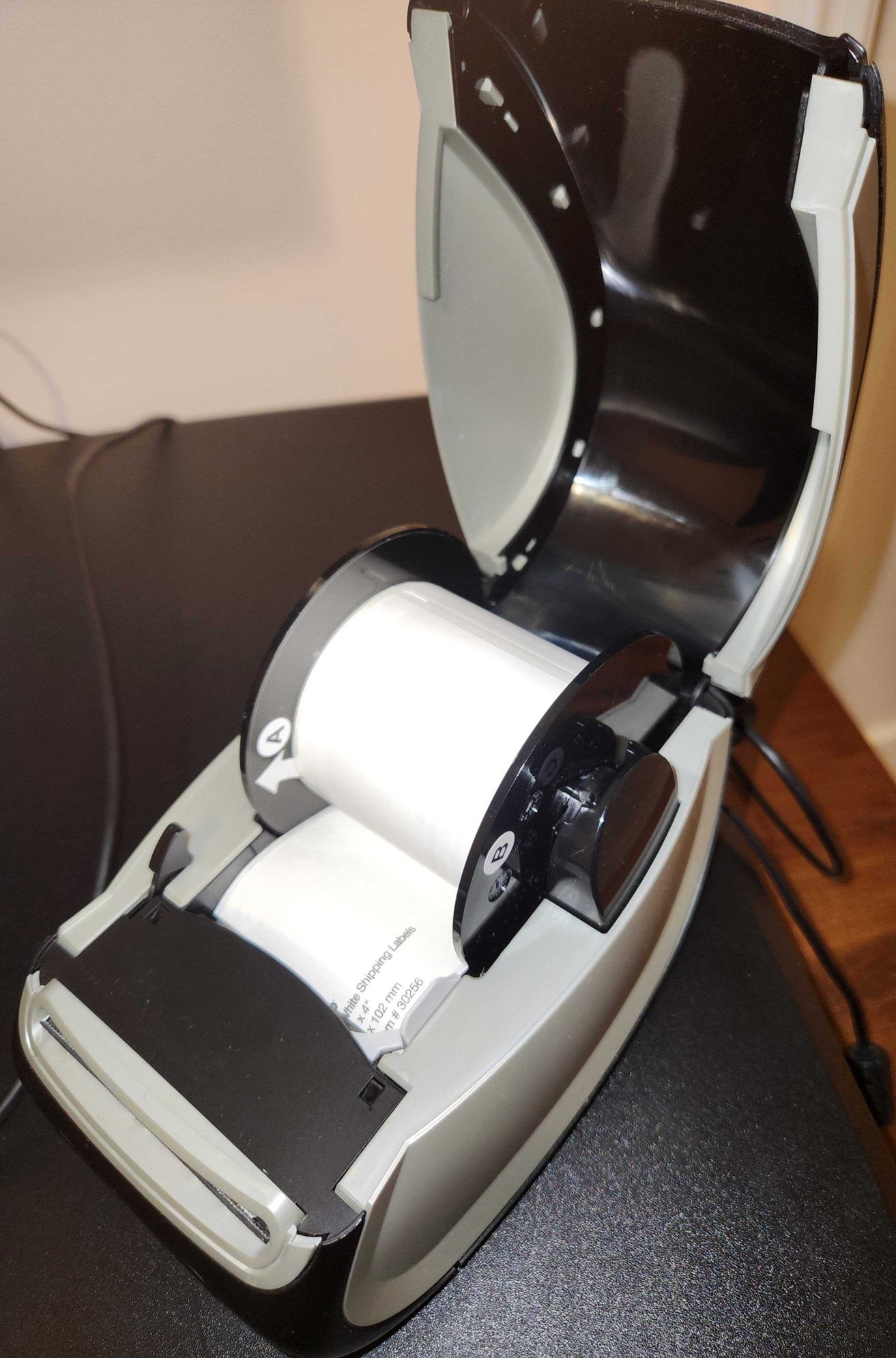
- Reload the roll with the label coming from the underside or according to the guide inside the printer.
- Make sure the label guide touches the roll without squeezing it.
- Reconnect the power cable.
- Reconnect the USB cable directly to the computer.
- Open DYMO software and select the LabelWriter 550.
- Print a small test label.
- Restart the computer if the printer remains offline.
This reset often fixes temporary sensor, driver, and communication problems. In my experience, many “serious” printer faults are simply caused by a roll loaded slightly off-center or a USB cable connected through an unreliable hub.
Avoid pulling labels backward through the printer. That can leave adhesive on the roller and make future feeding problems worse.
DYMO LabelWriter 550 not printing
When the DYMO LabelWriter 550 does not print, first determine whether the problem is physical or software-based. If the printer has no light, no sound, and no response, begin with power. If it feeds labels but does not print, inspect the labels and print settings.
Try these steps in order:
• Confirm that the power adapter is firmly connected to both the printer and the wall outlet.
• Test a different wall outlet.
• Check whether the status light is on.
• Disconnect the USB cable, restart the printer, and reconnect it directly to the computer.
• Remove paused or failed jobs from the print queue.
• Select the LabelWriter 550 as the default printer.
• Print from DYMO software instead of a web browser or another application.
• Restart the computer and the printer.
A blocked print queue can make the printer appear broken. On Windows, open printer settings and cancel documents that are stuck. On macOS, open the printer list, select the LabelWriter 550, and review the queue.
If the printer works in DYMO software but not in another application, the printer itself is probably fine. The issue may be the application’s page size, printer selection, or label template.
DYMO LabelWriter 550 says labels are not recognized
A label recognition error is one of the most common issues with this model. The printer may accept the roll physically but reject it electronically.
Start with the following checks:
• Confirm that the roll is designed for the LabelWriter 550 series.
• Look for the electronic identification area on the label roll.
• Remove and reload the roll.
• Make sure the roll is not upside down.
• Check that the label guide is positioned close to the roll.
• Test a new, sealed roll of compatible labels.
• Update DYMO software and the printer firmware when updates are available.
The printer may reject refilled, copied, or third-party rolls. This is a product limitation, not always a hardware failure. A compatible-looking roll can still lack the identification feature the printer expects.
Do not force the roll into place. If the printer still rejects a known compatible roll, clean the label sensor area with care and test another roll. If several genuine rolls fail, the sensor or internal reader may need professional service.
DYMO LabelWriter 550 feeds blank labels
Blank labels usually point to one of four causes: the wrong label type, incorrect loading, a damaged label surface, or a printing problem.
Use this process:
- Remove the roll from the printer.
- Check whether the labels are direct thermal labels.
- Scratch the surface of one label lightly with a fingernail.
- If the surface turns dark, the label is likely thermal.
- Reload the roll and print again.
- Test with a known compatible DYMO roll.
Direct thermal labels darken when heated. Regular paper labels will not print correctly because they need ink, toner, or a ribbon.
Blank output can also happen when the wrong printer is selected. Check the print preview and confirm that the job is going to the LabelWriter 550 rather than a laser or inkjet printer.
If only part of the label is blank, inspect the print head and label path. Dust or adhesive can prevent even contact. Unplug the printer before cleaning, and follow the care instructions for the device.
DYMO LabelWriter 550 prints faded or poor-quality labels
Faded labels are often linked to old labels, heat, dirt, or incorrect print settings. Thermal labels can lose contrast when stored in a hot car, near a window, or in a damp room.
For better print quality:
• Use fresh labels stored in a cool, dry place.
• Clean the print head with the recommended cleaning material.
• Remove adhesive or paper dust from the feed path.
• Check the print density setting in DYMO software.
• Avoid using labels that were exposed to strong sunlight.
• Make sure the label passes smoothly over the print head.
A label that looks clear at first may fade over time if it is exposed to heat, sunlight, or friction. This matters for shipping labels, barcode labels, and warehouse records.
I once traced a “failing printer” complaint to labels stored beside a sunny office window. The printer was fine. Replacing the roll solved the problem immediately. Label storage is a small detail, but it has a large effect on thermal print quality.
DYMO LabelWriter 550 prints misaligned labels
Misalignment can mean the printer starts too high, too low, or across the wrong section of the label. The main causes are incorrect label dimensions, a loaded roll that is not seated properly, or a sensor that cannot detect the gap.
Try these steps:
• Confirm the exact label size in the software.
• Select the correct template before printing.
• Remove and reload the roll.
• Place the roll against the side guide.
• Feed two or three labels after loading.
• Check that labels are not stuck together.
• Use the printer’s label calibration option if available.
The selected label size must match the physical roll. For example, a two-up address label template will not align correctly on a single continuous label roll.
If the printer advances several labels at once, the sensor may be dirty or the gaps may be hard to detect. Test with a fresh roll. If the problem occurs with every compatible roll, the feed sensor may require service.

DYMO LabelWriter 550 is offline
An offline message means the computer cannot communicate with the printer or believes the printer is unavailable. It does not always mean the printer has a hardware fault.
Work through these steps:
- Make sure the printer is powered on.
- Disconnect the USB cable from the computer.
- Restart the printer.
- Restart the computer.
- Connect the USB cable directly to a working port.
- Open printer settings.
- Remove duplicate LabelWriter entries.
- Set the correct LabelWriter 550 as the default printer.
- Clear the print queue.
- Print a test page or label.
USB hubs, docking stations, and monitor ports can cause unstable connections. For troubleshooting, connect the printer directly to the computer. Once it works, you can test the hub again.
If the printer appears twice, the computer may send jobs to an old or inactive entry. Remove unused entries and install the current driver or DYMO software package.
DYMO LabelWriter 550 USB connection problems
A USB connection problem can look like a driver problem, a power issue, or a dead printer. Start with the simplest test: replace the USB cable if you have a suitable spare.
Check these items:
• Use a data-capable USB cable, not a charge-only cable.
• Connect directly to the computer.
• Try another USB port.
• Avoid damaged or very long cables.
• Test the printer on another computer if possible.
• Install current software that supports the LabelWriter 550.
If another computer detects the printer, the original computer may have a driver, port, security, or operating system issue. If no computer detects it, inspect the printer’s USB port and cable more closely.
Some business computers restrict driver installation. In that case, an administrator may need to approve the software. Avoid downloading drivers from unknown websites because unofficial files can contain malware or may not support the LabelWriter 550 correctly.
DYMO LabelWriter 550 software and driver issues
The printer depends on software to create labels, manage templates, and communicate with the operating system. An outdated or damaged installation can cause missing printers, wrong sizes, failed jobs, or repeated offline errors.
For reliable DYMO LabelWriter 550 troubleshooting, update the software from a trusted DYMO support channel. Then restart the computer and check whether the printer is listed correctly.
If updating does not help, reinstall the software:
- Disconnect the printer.
- Remove the existing DYMO software.
- Restart the computer.
- Install the current supported version.
- Restart again if requested.
- Reconnect the printer.
- Select the LabelWriter 550 during setup.
- Print a test label.
Keep your operating system updated too. Major Windows and macOS updates can change printer permissions or driver behavior. After an operating system upgrade, reinstalling the supported DYMO software is often more effective than repeatedly changing printer settings.
DYMO LabelWriter 550 does not cut labels correctly
The standard LabelWriter 550 prints labels but does not include a built-in automatic cutter in the same way some commercial label systems do. If you expect automatic cutting, check the exact model and accessory setup.
For clean separation:
• Use the tear edge gently.
• Do not pull the roll sideways.
• Keep the label path free of scraps.
• Use the correct label material.
• Replace rolls with damaged edges.
Pulling too hard can shift the roll or cause labels to peel inside the printer. Tear the label upward and across the edge with steady pressure.
If your device is a different LabelWriter model with a cutter, check its cutter settings and inspect the cutter area for adhesive. Never insert sharp tools into the printer while it is powered on.
How to clean and maintain the LabelWriter 550
Routine cleaning prevents many print and feed problems. Unplug the printer before cleaning, and never spray liquid directly into the unit.
A basic maintenance routine includes:
• Remove the label roll.
• Use a recommended cleaning card or approved cleaning method.
• Wipe the outside with a soft, dry cloth.
• Remove visible paper dust from the roll area.
• Inspect for adhesive buildup.
• Store unused labels in their original packaging.
• Keep the printer away from heat, moisture, and direct sunlight.
Do not use alcohol, household cleaners, metal tools, or abrasive pads unless the product instructions specifically allow them. The print head is delicate, and a small scratch can create repeated blank lines.
Clean more often in dusty offices, stockrooms, workshops, or areas where labels are frequently changed. A clean printer is like a clean camera lens: small maintenance improves every result.
Advanced DYMO LabelWriter 550 troubleshooting
If the basic steps fail, isolate the problem by changing one factor at a time. This prevents guesswork.
Use this diagnostic pattern:
• Test a new compatible label roll.
• Test a different USB cable.
• Test another USB port.
• Test another computer.
• Test printing from DYMO software.
• Check the printer on the operating system’s device list.
• Watch for status light patterns or on-screen error messages.
This process helps identify the failing part. For example, if a new roll works, the old roll is the likely cause. If the printer works on another computer, the first computer has a software or permissions issue.
Stop troubleshooting and seek support if the printer smells hot, shows signs of liquid damage, makes grinding sounds, or repeatedly disconnects. Opening the printer can create further damage and may affect warranty coverage.
Common mistakes to avoid
Many LabelWriter problems become harder to fix because of rushed repairs. Avoid these mistakes:
• Forcing an incompatible roll into the printer.
• Pulling labels backward through the feed path.
• Cleaning the print head with a sharp object.
• Installing drivers from random download sites.
• Sending large print jobs before testing one label.
• Ignoring the selected label size.
• Using a USB hub during initial setup.
• Repeatedly reinstalling software without clearing old printer entries.
The best troubleshooting method is controlled and simple. Change one thing, print one test label, and record what happened. This approach saves time and gives support staff useful information if you need professional help.
When to contact DYMO support or request repair
Professional help is appropriate when the printer fails with known compatible labels, multiple cables, and more than one computer. It is also wise to seek service when the printer has physical damage, overheats, or produces unusual mechanical noise.
Before contacting support, collect:
• The exact model name and serial information.
• Your operating system version.
• The software version.
• The label type and size.
• The error message.
• Steps you already tried.
• Photos of damaged labels or the printer condition, if useful.
This information helps separate a label supply issue from a hardware fault. It also reduces repeated troubleshooting steps.
Remember that the LabelWriter 550 has limitations. It is designed for compatible thermal labels and normal desktop use. It is not intended to replace industrial barcode printers in harsh warehouses or high-volume production lines.
Frequently Asked Questions About DYMO LabelWriter 550 Troubleshooting
Why is my DYMO LabelWriter 550 not printing?
Check power, the print queue, the selected printer, the USB connection, and the label roll. Then restart the printer and computer before testing with DYMO software.
Why does my DYMO LabelWriter 550 say the labels are not recognized?
The roll may not contain the electronic identification required by the printer, or it may be loaded incorrectly. Try a new compatible DYMO roll and reload it with the label guide positioned correctly.
Can I use third-party labels in a DYMO LabelWriter 550?
The LabelWriter 550 is designed to recognize compatible DYMO labels with the required identification feature. Some third-party or refilled rolls may fit but still fail to print.
How do I fix blank labels from my DYMO LabelWriter 550?
Confirm that the labels are direct thermal labels and that the correct printer is selected. Test a fresh compatible roll, then clean the label path if only part of the label remains blank.
Why is my DYMO LabelWriter 550 printing labels out of alignment?
The selected template may not match the physical label size, or the roll may not be seated correctly. Reload the roll, choose the correct template, and run label calibration if the software provides that option.
How do I fix an offline DYMO LabelWriter 550?
Reconnect the printer directly to the computer, remove stuck print jobs, and delete duplicate printer entries. If the issue continues, reinstall the current supported DYMO software and driver.
Does the DYMO LabelWriter 550 need ink?
No. It uses direct thermal printing, so it does not need ink, toner, or a ribbon. It requires heat-sensitive labels designed for thermal printing.
Conclusion
Most DYMO LabelWriter 550 troubleshooting problems come from four areas: label compatibility, roll loading, software setup, and USB communication. Start with simple checks, test one change at a time, and use a fresh compatible label roll before assuming the printer has failed.
Keep the printer clean, store labels properly, and use updated software. If the same error appears with different rolls and computers, contact qualified support instead of forcing the device or opening its case. Try these steps today, and share your results or questions in the comments.

Similar Posts