Fujifilm Instax Mini Link 3 Troubleshooting: Quick Fixes
Most Fujifilm Instax Mini Link 3 problems come from Bluetooth, app permissions, charging, film loading, or printer settings.
Fujifilm Instax Mini Link 3 troubleshooting is usually simple once you check the connection in the right order. This guide explains the most common faults, safe fixes, print quality tips, app settings, and signs that your printer may need service.
Start With These Basic Checks
Before trying advanced Fujifilm Instax Mini Link 3 troubleshooting, check the simple things first. Many printer problems are caused by a low battery, an outdated app, or film that is not loaded correctly.
Use this short checklist:
• Charge the printer with a working USB-C cable.
• Turn on Bluetooth on your phone.
• Keep the phone within a few feet of the printer.
• Install or update the Instax Mini Link app.
• Confirm that the printer is paired through the app, not only through the phone’s Bluetooth menu.
• Check that the printer has Instax Mini instant film.
• Remove any thick phone case that may block a stable connection.
The Mini Link 3 uses a rechargeable battery. A flashing or weak status light may mean the battery needs more charge. For the most reliable test, charge the printer fully before checking the connection.
Do not open the printer body or try to remove a stuck film pack with sharp tools. The film contains light-sensitive material, and forcing the cartridge can damage the rollers.
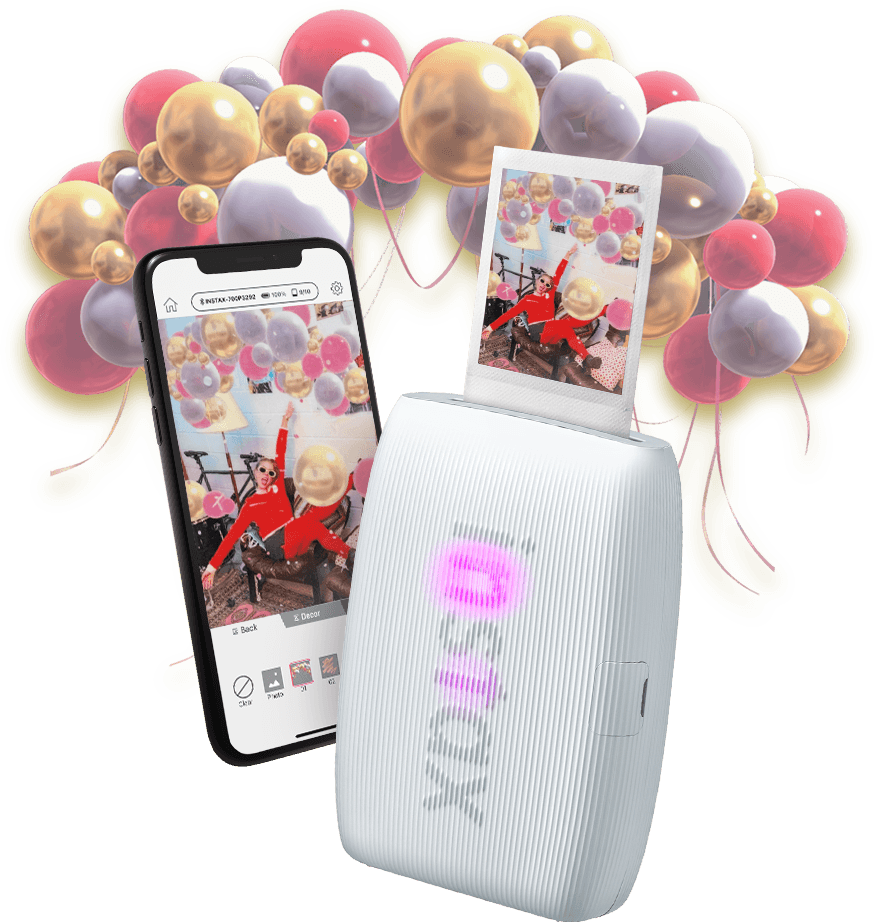
Fujifilm Instax Mini Link 3 Will Not Turn On
If the printer does not respond, press and hold the power button for several seconds. A quick tap may not be enough if the battery is fully drained.
Try these steps:
-
Connect the printer to power with a known-good USB-C cable.
-
Leave it charging for at least 30 minutes.
-
Try a different wall adapter or USB power source.
-
Check the charging port for dust or lint.
-
Disconnect the cable and hold the power button again.
A damaged cable is a common cause. Some low-quality cables provide poor power, even when they appear to work with other devices. If the printer still shows no light after charging with another cable and adapter, the battery or charging circuit may need professional inspection.
One mistake people often make is testing the printer for only a few minutes after a long period of storage. A deeply discharged battery may need more time before the power light appears.

Fujifilm Instax Mini Link 3 Bluetooth Connection Problems
Bluetooth trouble is one of the most searched Fujifilm Instax Mini Link 3 troubleshooting issues. The printer normally works through the Instax Mini Link app, so pairing from the phone’s system settings alone may not complete the setup.
Follow this order:
-
Turn on the printer.
-
Open the Instax Mini Link app.
-
Allow Bluetooth access when the app asks for it.
-
Allow nearby-device access on Android if requested.
-
Choose the Mini Link 3 inside the app.
-
Wait for the connection message before sending a photo.
If the printer was paired with another phone, turn off Bluetooth on that phone for a moment. The Mini Link 3 may try to reconnect to the last device it used.
For a clean reset, remove the printer from your phone’s saved Bluetooth devices. Then close the app, restart the phone, turn the printer off and on, and pair again inside the app.
Also check these phone settings:
• Bluetooth is enabled.
• Location or nearby-device permission is allowed when required by the operating system.
• Battery saver is not restricting the Instax app.
• The app has permission to access photos.
• The phone uses a supported version of Android or iOS.
The exact menu names vary by phone model. Apple and Android also change permission rules from time to time, so the app’s current permission request is more useful than an old setup guide.

The Instax App Cannot Find the Printer
If the app says “no printer found,” begin with distance. Keep the phone close to the Mini Link 3 and remove other active Bluetooth connections if possible.
Next, force close the app and open it again. If this does not help, restart both devices. This small step often clears a temporary Bluetooth error.
On Android, clearing the app cache may help. On iPhone, deleting and reinstalling the app can refresh permissions, but make sure important photos are saved before removing the app.
Avoid pairing the printer with several phones during testing. Use one phone at a time. After the connection works, you can switch devices as needed.
The app also needs access to the image you want to print. If you can connect but cannot select photos, review photo permissions in the phone’s settings.
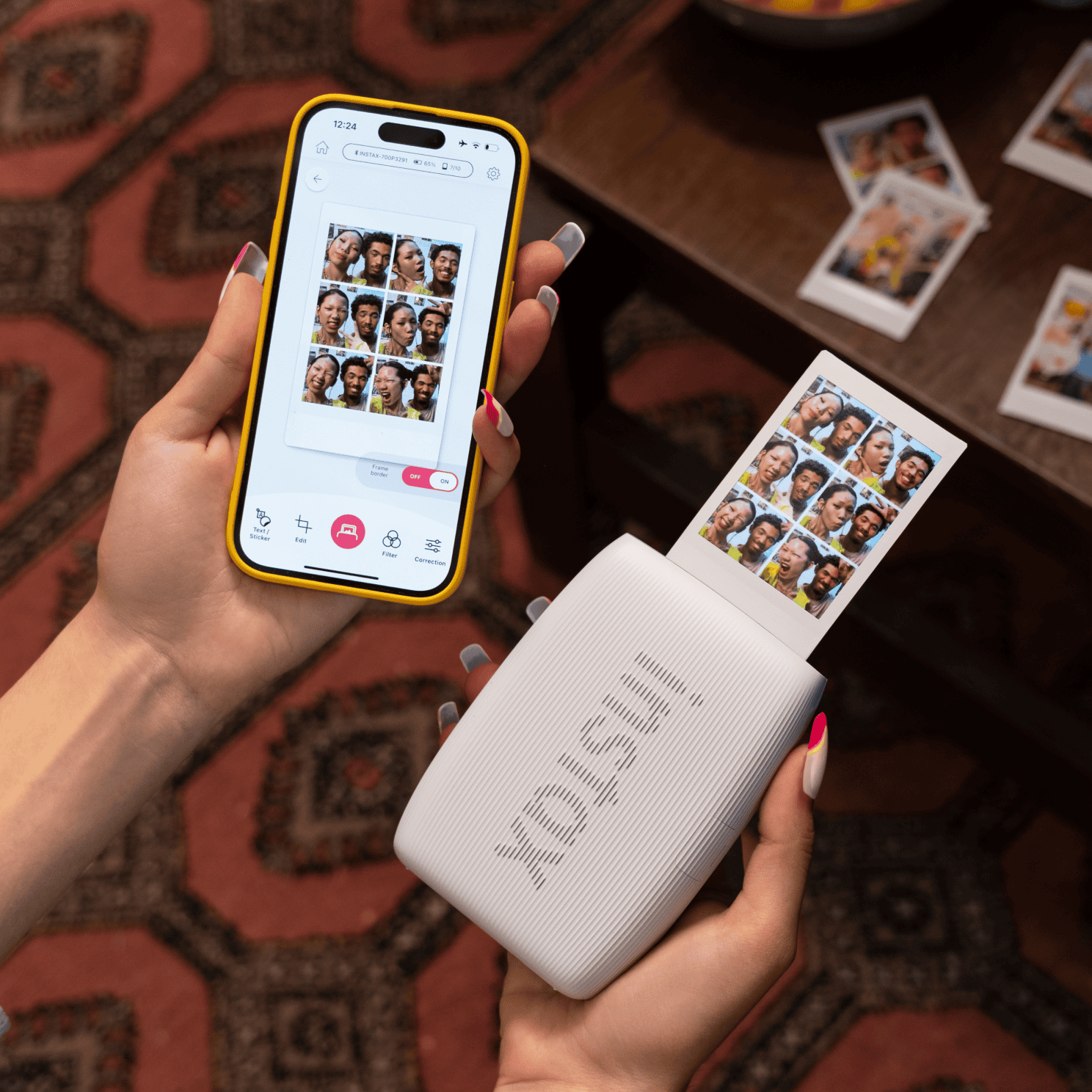
Fujifilm Instax Mini Link 3 Prints Slowly or Stops Midway
A Mini Link 3 print moves through several stages. The printer exposes the film, pushes the print out, and the image develops over time. The picture may look pale at first, so do not judge it immediately.
If the print stops, check the status light and wait briefly. Do not pull the photo while the rollers are moving. Pulling it can bend the film or leave part of the image inside the printer.
Try these steps:
• Keep the printer on a flat surface.
• Make sure the film slot is not blocked.
• Check the battery level.
• Do not send many print jobs at once.
• Restart the app if the print queue appears frozen.
• Allow the current print to finish before sending another image.
A very low battery can cause slow operation or an incomplete ejection. Charge the printer before trying again.
If the printer makes a repeated clicking sound, stop sending print jobs. A film pack may be misaligned, or a photo may be caught in the rollers. Follow the official manual for your region before opening the film door.

Film Will Not Eject or the Printer Shows an Error
Film should be loaded with the yellow marks on the cartridge aligned with the matching marks inside the printer. Do not remove the cartridge in bright light after the film has been exposed.
For safe Fujifilm Instax Mini Link 3 troubleshooting, remember these rules:
• Do not force the film.
• Do not shake the film pack.
• Do not open the film door after loading unless the pack is empty.
• Do not insert loose film sheets.
• Do not use expired or damaged film if you want dependable results.
If the black protective cover does not eject after a new cartridge is installed, turn the printer off and on. Check that the cartridge is seated flat. If the cover remains stuck, avoid inserting a pen, knife, or card into the film path.
An empty cartridge may look like a fault. After the final exposure, replace the cartridge with a new Instax Mini pack. The Mini Link 3 uses Instax Mini film, not Instax Square or Instax Wide film.
Blank, White, Dark, or Faded Prints
A blank white print often means the film was exposed to light before use. This can happen when someone opens the film door after installing a cartridge. The remaining sheets may then produce white images.
A very dark image can result from poor lighting, an image edit that is too dark, or a camera photo with heavy shadows. The printer itself may not be the cause.
For better print exposure:
• Use a clear, well-lit photo.
• Avoid large areas of black or deep shadow.
• Check brightness and contrast in the app.
• Avoid placing a bright window behind the subject.
• Let the image develop at room temperature.
Temperature matters. Instant film can react poorly to extreme heat or cold. Fujifilm guidance commonly recommends storing film in a cool, dry place and allowing chilled film to return to room temperature before use.
Do not bend, fold, cut, or shake a fresh Instax print. Shaking does not speed development and may harm the image. Place it on a clean surface and let it develop naturally.

Fixing Poor Color and Image Quality
The Mini Link 3 prints small instant photos, so image quality depends heavily on the original photo. A picture that looks sharp on a phone may lose detail when printed.
For a cleaner result, use:
• A photo with good natural light.
• A subject that fills much of the frame.
• Moderate contrast.
• Simple backgrounds.
• The correct crop for the Instax Mini format.
Very fine text may be hard to read. This is a limitation of the small print size, not always a printer defect.
The app’s frame, filter, and collage tools can also change the final appearance. Make one test print before producing several copies. This saves film and helps you learn how the app handles brightness and color.
In practical testing, the most common “bad printer” diagnosis is really a source-photo problem. A dark phone photo, an aggressive filter, or a bright backlight can make a working printer look faulty.
Printer Disconnects During a Print
A disconnect does not always mean the print failed. First, check whether the photo came out. If it did, do not resend the image immediately, or you may create a duplicate.
To reduce disconnects:
-
Keep the phone close to the printer.
-
Avoid switching to another Bluetooth device during printing.
-
Keep the app open until the print finishes.
-
Disable aggressive battery saving for the app.
-
Restart the phone if several jobs fail in a row.
-
Update the app and phone software when updates are available.
Bluetooth can become unstable in crowded places with many wireless devices. A busy party, concert, or trade show may create more interference than a quiet room.
If one phone fails but another works, the printer may be fine. The issue may be related to permissions, software, or Bluetooth settings on the first phone.
The Printer Does Not Respond to Motion Controls
The Mini Link 3 includes motion-based features that can use printer movement for certain functions. These features may not work if motion permissions are disabled or if the phone and printer are not connected correctly.
Check the following:
• The printer is connected in the Instax app.
• Motion or sensor permissions are allowed.
• The app is updated.
• The printer is held as the app instructs.
• You are using a supported feature within the app.
Motion functions can also feel inconsistent if the printer is moved too quickly or if the phone loses its connection. Test the feature with a single photo in a calm setting before using it at an event.
If standard printing works but motion control does not, focus on app permissions and feature settings. There is no need to reset the entire printer first.
How to Reset Your Troubleshooting Process
The Mini Link 3 may not have a simple “factory reset” button in the same way as a phone. A practical reset means clearing the connection and starting the setup again.
Use this sequence:
-
Finish or cancel the current print job.
-
Turn off the printer.
-
Close the Instax Mini Link app.
-
Remove the printer from saved Bluetooth devices.
-
Restart the phone.
-
Turn the printer back on.
-
Open the app and pair the printer again.
-
Send one test photo.
This process is safer than repeatedly pressing buttons or opening the film door. It also helps separate a software problem from a film or hardware problem.
If the problem returns after every reset, write down the exact behavior. Note the light pattern, battery level, film type, phone model, operating system, and app version. Those details can help customer support diagnose the issue faster.
When to Contact Fujifilm Support
Contact official support or an authorized service center when basic Fujifilm Instax Mini Link 3 troubleshooting does not solve the problem.
Ask for help if:
• The printer will not charge with multiple known-good cables.
• The power button does not respond after charging.
• The rollers repeatedly jam.
• The printer smells hot or shows signs of damage.
• The same error appears with different film packs.
• The app and printer fail on more than one compatible phone.
• The printer was dropped or exposed to water.
Keep your receipt, serial number, purchase date, and photos of any damaged film. Do not continue using a device that becomes unusually hot.
Warranty coverage varies by country and seller. Avoid unofficial repairs if the printer is still under warranty, since opening the unit may affect service eligibility.
Practical Tips to Prevent Future Problems
Good care prevents many Fujifilm Instax Mini Link 3 troubleshooting issues. Store the printer in a dry place and protect it from drops, moisture, and extreme temperatures.
Use these habits:
• Charge the printer before important events.
• Carry a spare USB-C cable.
• Keep film in its sealed package until needed.
• Check the film count before leaving home.
• Test one print before a wedding, trip, or party.
• Keep the film door closed after loading.
• Clean the outside with a soft, dry cloth.
• Update the app before an important printing session.
A simple test print is like checking your camera battery before a long day. It takes less than a minute and can prevent a great deal of stress.
Another useful habit is to print from the original image rather than a screenshot of a social media post. Screenshots may have lower quality, extra cropping, or compression that reduces detail.
Fujifilm Instax Mini Link 3 Troubleshooting Questions
Why is my Fujifilm Instax Mini Link 3 not connecting?
Make sure Bluetooth and required app permissions are enabled, then pair the printer inside the Instax Mini Link app. If it still fails, remove the saved Bluetooth connection, restart the phone, and pair again.
Why is my Instax Mini Link 3 printing blank photos?
The film may have been exposed to light, especially if the film door was opened after loading. Replace the pack and keep the door closed until all film has been used.
Can I use Instax Square film in the Mini Link 3?
No. The Mini Link 3 is designed for Instax Mini instant film. Instax Square and Instax Wide cartridges are different sizes and are not compatible.
Why does my Instax Mini Link 3 print dark pictures?
The original photo may be too dark, backlit, or heavily shadowed. Try a brighter image, adjust brightness in the app, and use even lighting.
How long does an Instax Mini Link 3 print take to develop?
The image usually appears gradually after it leaves the printer. Let it develop naturally at room temperature, and do not shake, bend, or cut the print.
What should I do if the film is stuck?
Turn off the printer and do not force the film with tools. Check the official instructions for your region, and contact Fujifilm support if the film cannot be removed safely.
Conclusion
Most Fujifilm Instax Mini Link 3 troubleshooting starts with four checks: battery power, Bluetooth pairing, app permissions, and correct film loading. From there, print quality often improves with brighter photos, proper storage, and careful handling.
Work through one fix at a time. Avoid forcing film, opening the cartridge door, or repeatedly resending a print before checking whether the first one finished. Try these steps before your next photo session, and share your own Mini Link 3 tips or questions in the comments.