Munbyn ITPP941 Troubleshooting: Quick Fixes That Work

Most Munbyn ITPP941 problems come from driver errors, poor calibration, wrong paper settings, or a weak USB connection.
Munbyn ITPP941 Troubleshooting is usually simple when you check the printer, label stock, software, and connection in the right order. This guide explains the most common faults, what causes them, and how to fix them safely without wasting labels or time.
Start Here: A Fast Munbyn ITPP941 Troubleshooting Checklist
Before changing advanced settings, follow this quick check. Small issues, such as a loose cable or the wrong label size, often cause the biggest problems.
- Turn off the Munbyn ITPP941.
- Unplug the USB cable from the printer and computer.
- Check that the label roll is the correct type and size.
- Reload the labels with the print side facing up.
- Remove any torn label pieces from inside the printer.
- Restart the computer.
- Connect the printer directly to the computer.
- Open the correct printer settings.
- Select the actual label size.
- Print a test page.
Avoid using a USB hub during testing. Some hubs do not provide a stable data connection. A direct USB port gives you a cleaner way to identify the problem.
If the printer makes noise but does not print, check the driver and paper sensor next. If nothing happens at all, begin with power, cable, and printer detection.

Munbyn ITPP941 Troubleshooting for Power and Connection Problems
The printer needs a steady power supply and a reliable USB data connection. A power light does not always mean the computer can communicate with the printer.
The printer does not turn on
Check the following items:
• Make sure the power adapter is fully inserted into the printer.
• Plug the adapter into a different wall outlet.
• Check the cable for cuts, bent pins, or loose ends.
• Disconnect the USB cable, then try turning on the printer again.
• Allow the printer to cool for several minutes if it feels hot.
Do not use an adapter with a different voltage unless it matches the printer’s required specifications. An incorrect adapter can damage the device and may create a safety risk.
The computer does not detect the printer
Try these steps:
- Disconnect the printer.
- Restart the computer.
- Connect the printer to another USB port.
- Use a different USB cable if possible.
- Open the printer list in Windows or macOS.
- Remove old or duplicate Munbyn printer entries.
- Install the current driver for your operating system.
- Add the printer again.
A cable can provide power but fail to carry data. This is a common reason the printer appears active while the computer does not find it.
A practical lesson from printer setup work is to change one item at a time. If you replace the cable, reinstall the driver, and change the label settings together, you may fix the issue but still not know what caused it.
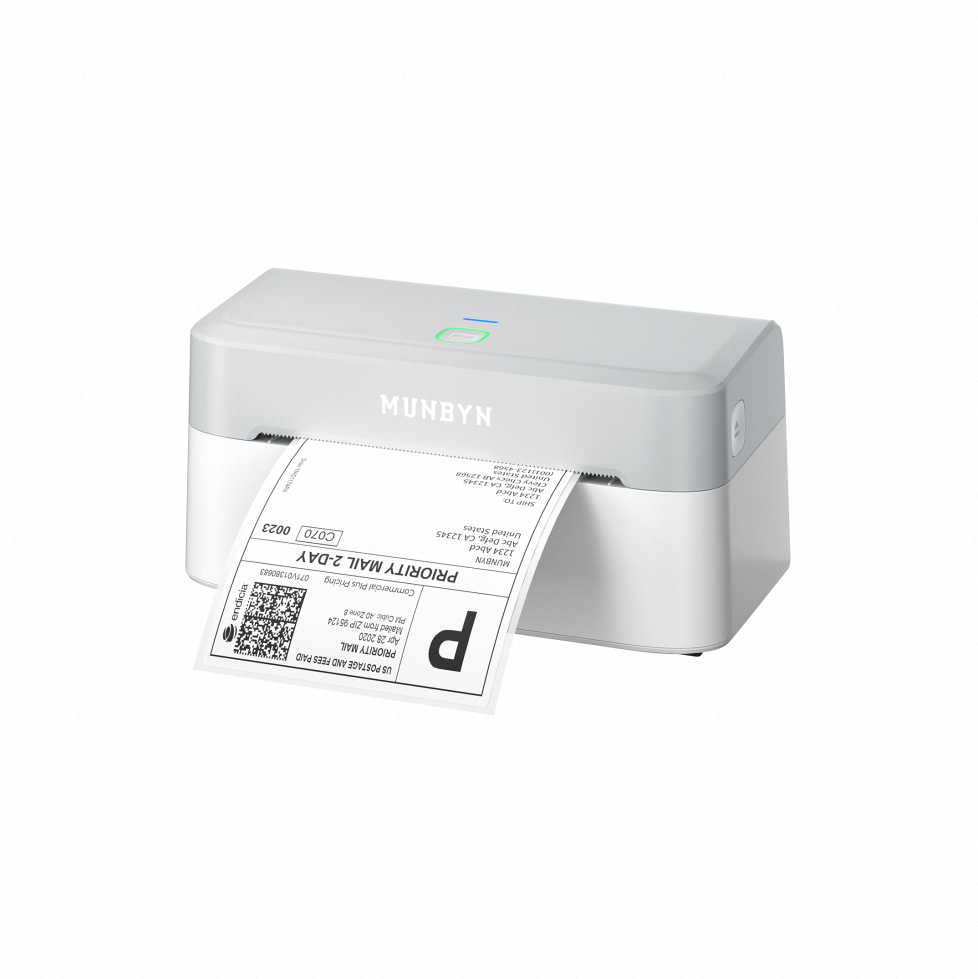
How to Install or Reinstall the Munbyn ITPP941 Driver
The driver allows your computer and the Munbyn ITPP941 to understand each other. Without the correct driver, the printer may appear offline, print blank pages, or use the wrong paper settings.
Windows driver steps
- Disconnect the printer from the computer.
- Remove the existing Munbyn printer from Windows settings.
- Open the installed apps list and remove an old Munbyn driver if one is present.
- Restart the computer.
- Download the driver made for your exact ITPP941 model and Windows version.
- Install the driver with administrator access.
- Connect the printer only when the setup asks you to do so.
- Print a Windows test page.
Use the manufacturer’s official support page for the driver. Avoid random driver websites because they may contain outdated files or unwanted software.
macOS driver steps
macOS support can vary by model, operating system version, and printing method. Check whether your ITPP941 package includes a macOS driver or setup utility.
After installation:
• Open System Settings.
• Select Printers & Scanners.
• Remove old Munbyn entries.
• Add the printer again.
• Choose the correct Munbyn driver if macOS offers more than one option.
• Print a small test document.
If the model uses a standard thermal printing system, macOS may show a generic option. That option can work for basic jobs, but it may not expose all calibration or paper controls.
Correct driver selection is one of the most important steps in Munbyn ITPP941 Troubleshooting. A printer can be mechanically perfect and still fail because the computer sends it the wrong print language or paper command.
Munbyn ITPP941 Troubleshooting for Labels That Feed Incorrectly
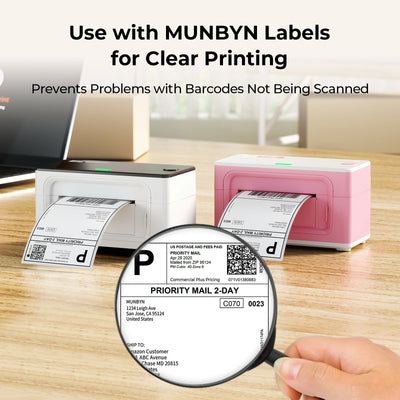
Incorrect feeding is one of the most common ITPP941 complaints. The printer must detect the gap, mark, or edge between labels before it can position each print correctly.
Reload the label roll
Follow this process:
- Open the printer cover.
- Remove the roll and straighten any loose labels.
- Place the roll in the center of the holder.
- Feed the labels through the guides.
- Keep the paper path straight.
- Close the cover firmly.
- Leave the label edge aligned with the feed path.
The labels should not press tightly against the side guides. Guides that are too tight can cause friction. Guides that are too loose can let the roll drift.
Calibrate the paper sensor
Calibration teaches the printer where one label ends and the next begins.
A common calibration method is:
- Turn off the printer.
- Load the labels correctly.
- Press and hold the feed button.
- Turn the printer on while continuing to hold the button.
- Release the button after the printer begins feeding.
The exact button timing can vary by firmware and model revision. If this method does not work, use the calibration instructions in the current ITPP941 manual.
Let the printer feed several labels during calibration. Do not pull the labels by hand. After calibration, press the feed button once. The printer should advance one label and stop near the next print position.
If the printer feeds a continuous stream, it may have the wrong media type selected. Confirm that the software uses gap labels, black mark labels, or continuous paper as appropriate.

Fixing Blank, Faded, or Light Prints
Thermal printers create images with heat. They do not use ink cartridges. A blank print usually points to label orientation, paper type, driver settings, or a dirty print head.
Blank labels
Check these causes:
• The roll is upside down.
• The labels are not direct thermal labels.
• The driver is sending a blank document.
• The print darkness is too low.
• The print head is not closing against the label.
To test the labels, gently scratch the surface with a fingernail. Direct thermal material often creates a dark mark when heated by friction. Do not use this test on a valuable label.
Faded or uneven printing
Clean the print head with a lint-free cloth and approved isopropyl alcohol. Turn off and unplug the printer first, then let the print head dry completely.
Also check:
• Print density or darkness.
• Print speed.
• Label quality.
• Dust on the print head.
• Wrinkled or damaged labels.
• A loose cover.
Lowering the print speed and slightly increasing darkness may improve a weak image. However, very high darkness can create excess heat and shorten print head life. Use the lowest setting that produces a clear barcode.
Thermal labels also fade when stored near heat, sunlight, or moisture. Keep unused rolls in their original packaging and store them in a cool, dry place.
Solving Misaligned, Rotated, or Cut-Off Labels
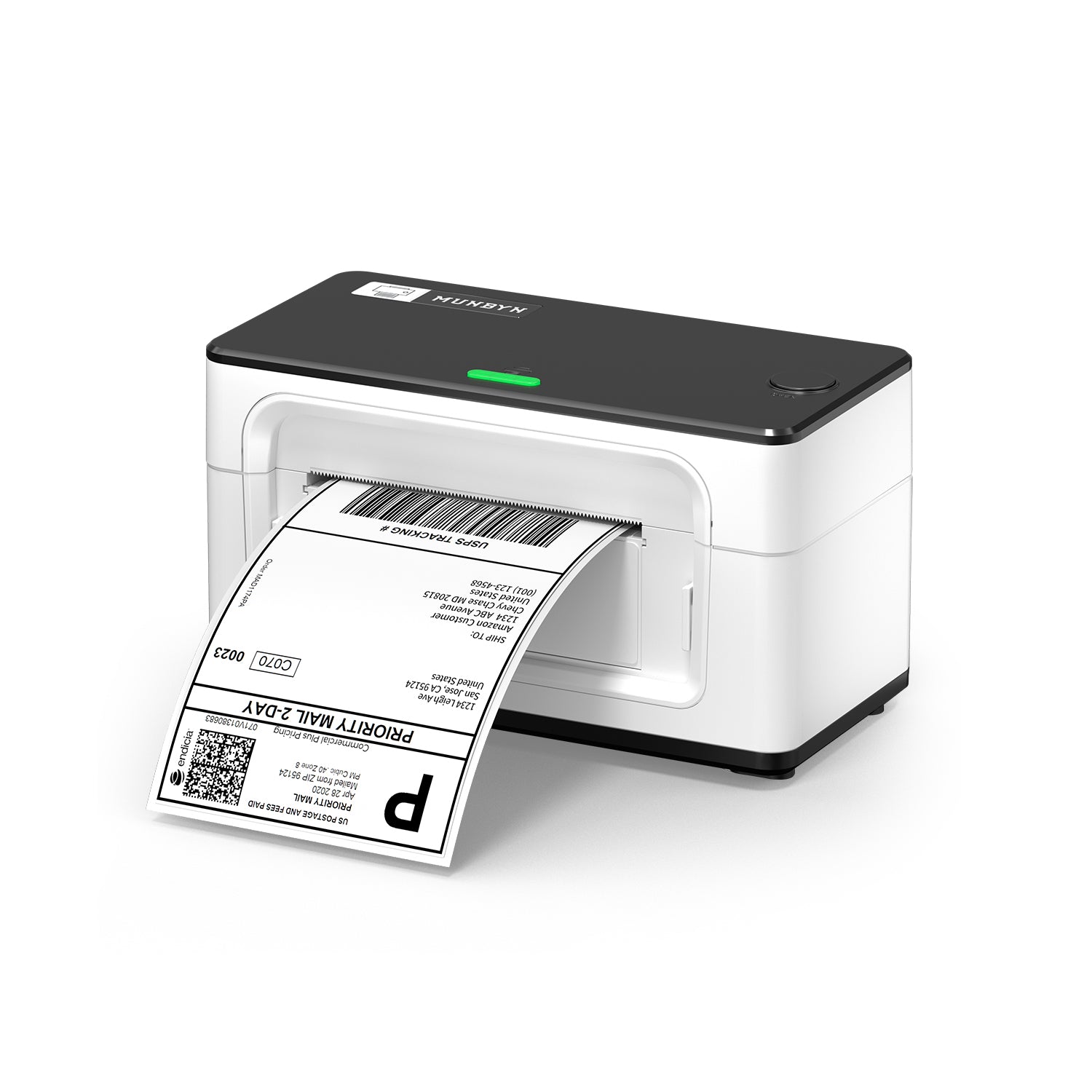
A label may print correctly but appear too high, too low, sideways, or partly missing. This usually means the document size does not match the physical label.
Set the correct label size
In the printer preferences, confirm:
• Label width.
• Label height.
• Paper orientation.
• Margins.
• Scale.
• Media type.
For a common 4-by-6 shipping label, set the document to 4 inches wide and 6 inches high. Do not rely on “Fit to Page” unless the application specifically supports the correct label format.
In shipping software, select the printer’s label profile rather than a standard letter-page profile. In a browser, check the print preview before printing. Browser scaling can shrink or enlarge the label.
Correct a shifted print
If every label is shifted by the same amount:
- Check the document size.
- Confirm the label roll size.
- Turn off extra margins.
- Disable automatic scaling.
- Calibrate the printer.
- Check the label guide position.
If the print begins correctly but slowly moves out of place, the labels may be slipping. Inspect the roll, guides, and platen roller for dust or adhesive.
Misalignment is a key part of Munbyn ITPP941 Troubleshooting because the problem may come from the app, not the printer. Test the printer with a simple label from the manufacturer’s utility or your operating system before changing hardware.
Munbyn ITPP941 Troubleshooting for Smudges, Lines, and Missing Areas
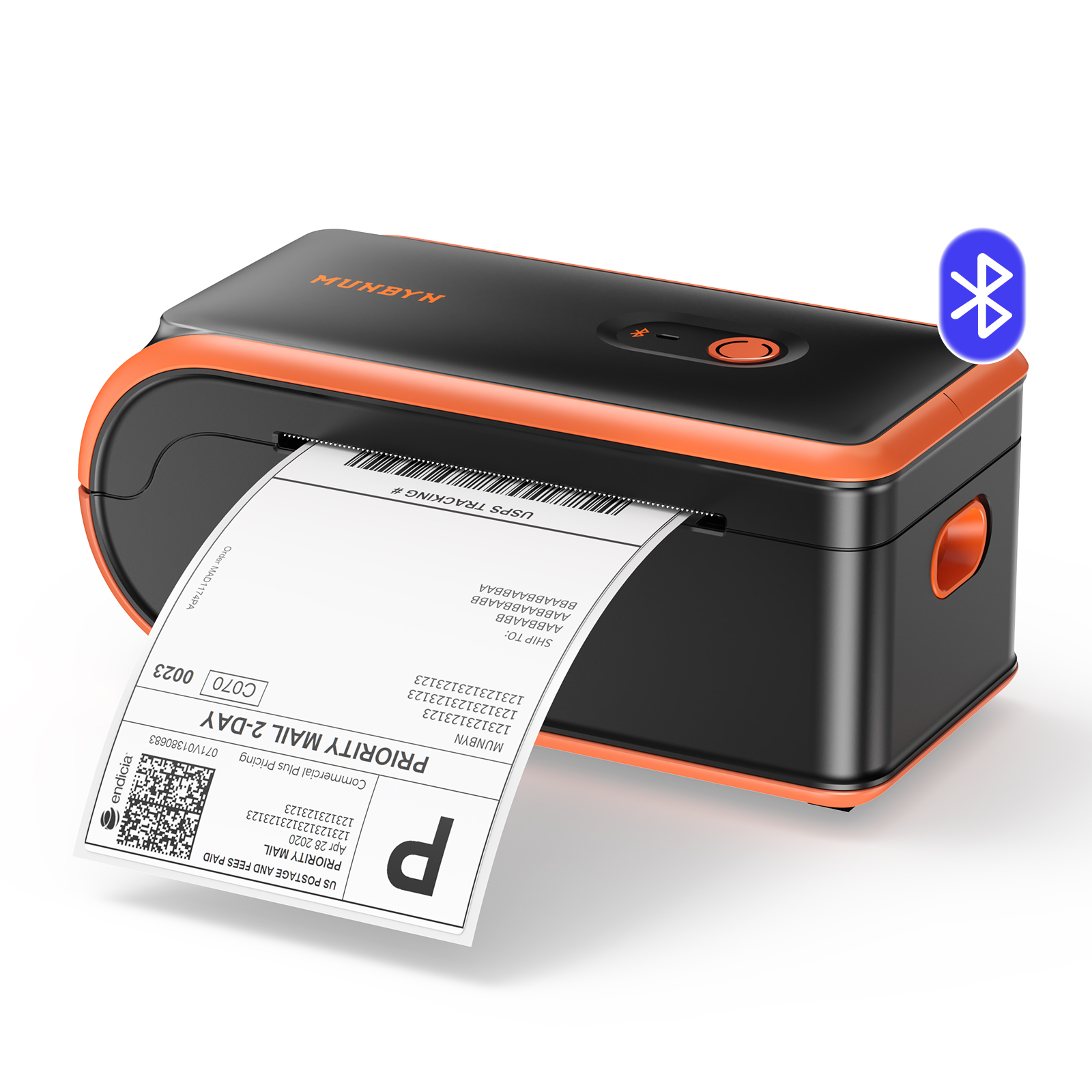
Thermal printing should look sharp and even. White lines, dark streaks, or missing sections often show where the print head or roller needs attention.
White vertical lines
A white line can indicate:
• Dust on the print head.
• Adhesive residue.
• A damaged section of the thermal print head.
• Poor contact between the head and label.
Clean the print head carefully. Never scrape it with a knife, metal tool, or rough material. If the same line appears after cleaning with several new label rolls, the print head may need service.
Dark lines or repeated marks
Dark marks may come from dirt on the platen roller. Turn off the printer, open the cover, and inspect the roller. Clean it with a suitable lint-free cloth and allow it to dry before printing.
Do not pour liquid into the printer. Use only a small amount of cleaning solution on the cloth.
Smudged barcodes
Smudging can result from excessive darkness, poor label stock, or a dirty roller. Reduce darkness, slow the print speed if needed, and test with fresh labels.
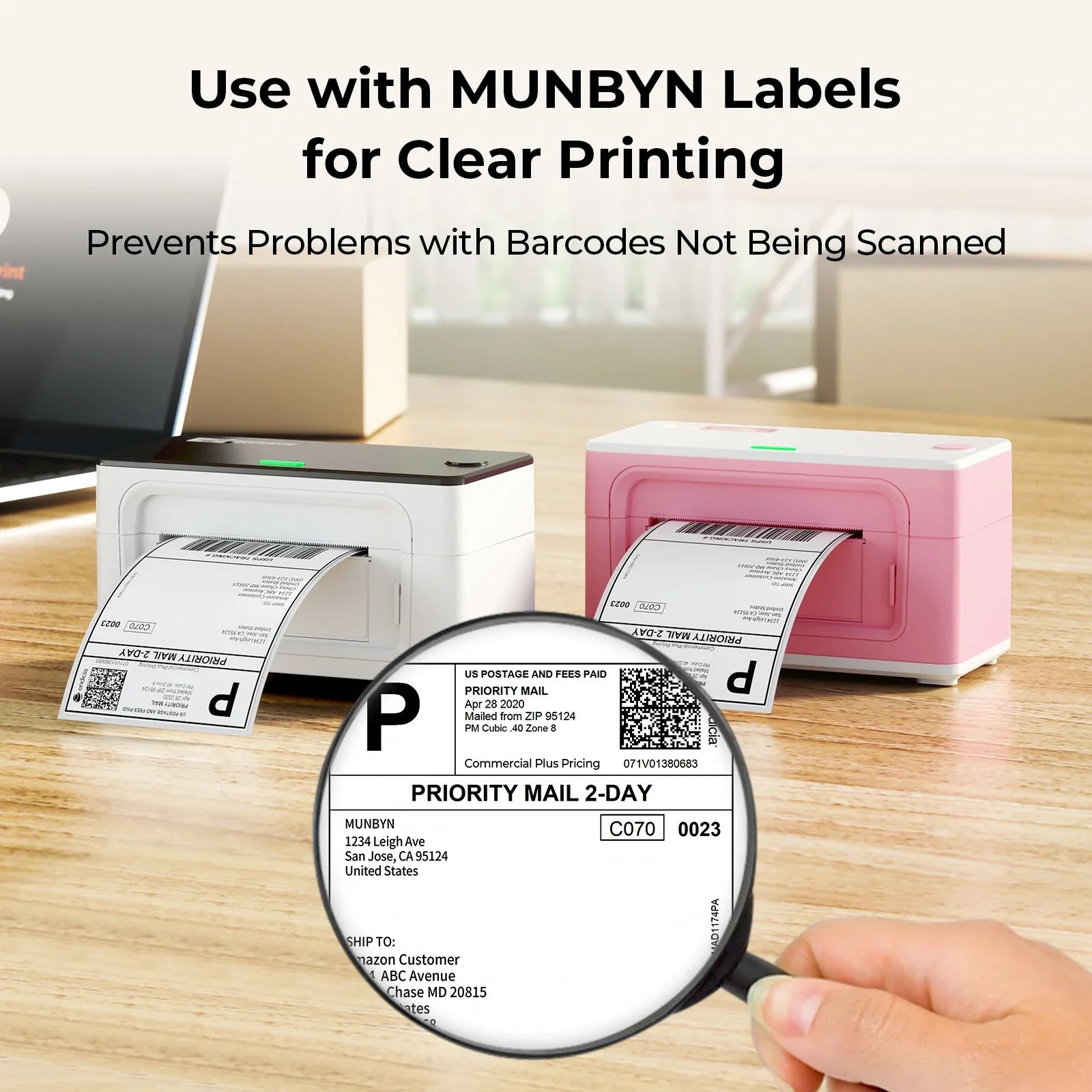
A barcode should be tested with the same scanner used in daily work. A label that looks clear to your eyes may still fail to scan if the bars are too narrow or the contrast is poor.

Fixing Offline, Paused, or Stuck Print Jobs
A stuck queue can make the Munbyn ITPP941 appear broken even when the printer works.
Clear the print queue
On Windows:
- Open Printers & Scanners.
- Select the Munbyn ITPP941.
- Open the print queue.
- Cancel pending jobs.
- Restart the printer.
- Send one small test job.
On macOS, open Printers & Scanners, select the printer, and remove paused or failed jobs from the queue.
If a document will not cancel, restart the computer and printer. In more persistent cases, restart the operating system’s print spooler service or remove and reinstall the printer.
Avoid sending many copies while troubleshooting. One failed job can create a long queue, making it harder to see whether the latest fix worked.
The printer keeps going offline
Check whether:
• The USB cable is loose.
• The computer is asleep.
• Another printer has become the default.
• The driver is damaged.
• The printer is connected through a hub.
• The operating system recently updated.
Set the ITPP941 as the default printer if you use it most often. Then print one test page from the system settings.
Advanced Checks When Basic Fixes Fail
Most Munbyn ITPP941 troubleshooting ends with the steps above. If the issue remains, use a controlled test instead of changing many settings at once.
Test with a simple document
Create a small black rectangle or a short line of text in a basic document. Print it on one label.
This test removes shipping software, browser settings, barcode tools, and image files from the problem. If the simple test works, the issue is likely inside the original application.
Check the operating system
After a major Windows or macOS update, older drivers may stop working correctly. Install the current driver and check whether the printer appears more than once.
Remove duplicate entries with names such as “Copy 1” or “USB Printer.” Duplicate entries can send jobs to the wrong port.
Restore normal printer settings
If you changed many options, return the printer preferences to their default values. Then set only the label size, orientation, and media type.
This is similar to resetting a recipe after adding too much salt. Start with a clean base, then change one ingredient at a time.
When to contact support
Contact Munbyn support when:
• The printer will not power on with a verified adapter.
• The printer shows a physical error after cleaning and reloading.
• The print head has visible damage.
• Calibration fails with several known-good label rolls.
• The computer detects the printer but every test page fails.
Have the model number, operating system, driver version, label size, and a sample photo ready. Clear details help support staff identify the fault faster.
Preventive Care for the Munbyn ITPP941
Good care reduces repeat errors and extends the useful life of the printer.
• Clean the print head and roller when print quality drops.
• Keep labels in a dry, cool place.
• Use labels made for direct thermal printers.
• Avoid pulling labels backward through the feed path.
• Keep the printer covered when it is not in use.
• Do not overload the print queue.
• Use the correct driver for the operating system.
• Calibrate after changing to a different label size.
• Keep the USB cable away from areas where it can be bent or pulled.
A short monthly check can prevent many problems. Print one test label, inspect the roll path, and remove dust before it affects a busy shipping day.
One mistake I often see is replacing the printer too soon. Users may blame the hardware when the real cause is a 4-by-6 document printed on a letter-page setting. Always test the physical printer with a basic label before buying replacement parts.
Frequently Asked Questions About Munbyn ITPP941 Troubleshooting
Why is my Munbyn ITPP941 printing blank labels?
The labels may be loaded upside down, or they may not be direct thermal labels. Check the roll orientation, test the label surface, and confirm that print darkness is not set too low.
How do I calibrate the Munbyn ITPP941?
Load the labels, turn off the printer, then use the feed-button calibration method described in the current manual. The printer should feed several labels and stop at the correct starting position.
Why does my Munbyn ITPP941 keep feeding labels?
The printer may not detect the label gaps because of incorrect loading, the wrong media setting, or poor calibration. Reload the roll, select the correct media type, and calibrate again.
Why is my Munbyn ITPP941 not detected by my computer?
Try another USB port and cable, connect directly instead of through a hub, and reinstall the correct driver. Also remove duplicate printer entries from the operating system.
How do I fix misaligned labels on the Munbyn ITPP941?
Match the document size to the physical label, turn off scaling, set the correct orientation, and calibrate the printer. For a 4-by-6 label, use a 4-inch by 6-inch document.
Can I use any thermal paper with the Munbyn ITPP941?
Use media made for direct thermal printing and sized for the printer. Ordinary paper needs ink or toner and will not produce a normal image in a direct thermal printer.
Why are my Munbyn ITPP941 barcodes not scanning?
The barcode may be too light, distorted, scaled, or printed on poor-quality labels. Increase clarity through correct sizing and contrast, then test the barcode with the scanner used in your workplace.
Conclusion
Munbyn ITPP941 Troubleshooting works best when you follow a fixed order: check power, inspect the labels, confirm the USB connection, install the right driver, set the correct label size, and calibrate the sensor. Most printing faults are caused by setup or media issues rather than serious hardware failure.
Clean the print head and roller with care, make one change at a time, and test with a simple label before returning to your shipping or design software. Use these steps to restore reliable printing, reduce wasted labels, and keep your Munbyn ITPP941 ready for daily work.

Similar Posts