Fujifilm Instax Link Wide Troubleshooting: Fixes That Work
Most Instax Link Wide problems come from low power, poor Bluetooth pairing, wrong film loading, or app settings.
The Fujifilm Instax Link Wide Troubleshooting process is usually simple once you check the basics in the right order. This guide explains the most common printer errors, connection problems, blank prints, charging issues, and image-quality faults with clear steps you can use at home.
Fujifilm Instax Link Wide Troubleshooting: Start With the Basics
Before changing phone settings or removing the film pack, check the printer itself. Many issues take less than a minute to fix.
Use this quick checklist:
- Charge the printer fully.
- Turn the printer off, then on again.
- Confirm that the Instax Link WIDE app is updated.
- Keep your phone close to the printer.
- Check that Bluetooth is turned on.
- Make sure the film pack is installed correctly.
- Confirm that the printer has enough film.
- Close other apps that may use Bluetooth.
- Check that the printer is selected inside the official app.
- Try one test print before changing advanced settings.
A short restart often clears a temporary software error. Think of it like restarting a small computer. The printer needs power, a stable connection, and correct film alignment to work well.

Instax Link Wide Won’t Turn On
If the printer does not respond, the battery is the first thing to check. A nearly empty battery may not provide enough power for startup or printing.
Connect the Fujifilm Instax Link Wide to a suitable USB power source. Leave it charging for a reasonable period, then try turning it on again. Use a reliable charging cable, because a damaged cable may show a connection without charging the battery properly.
Try these steps:
• Check the cable for cuts, bends, or loose ends.
• Test another compatible USB power adapter.
• Make sure the charging port is clean and dry.
• Press and hold the power button as described in the user manual.
• Let the printer cool if it feels warm.
If the printer still shows no light or response, the issue may involve the battery, charging port, or internal electronics. Do not open the printer yourself. Small rechargeable batteries can be unsafe when damaged or handled incorrectly.
One useful lesson from printer support is simple: do not keep pressing the power button again and again. Give the device time to charge first. Repeated presses do not fix a battery that has reached a very low charge.
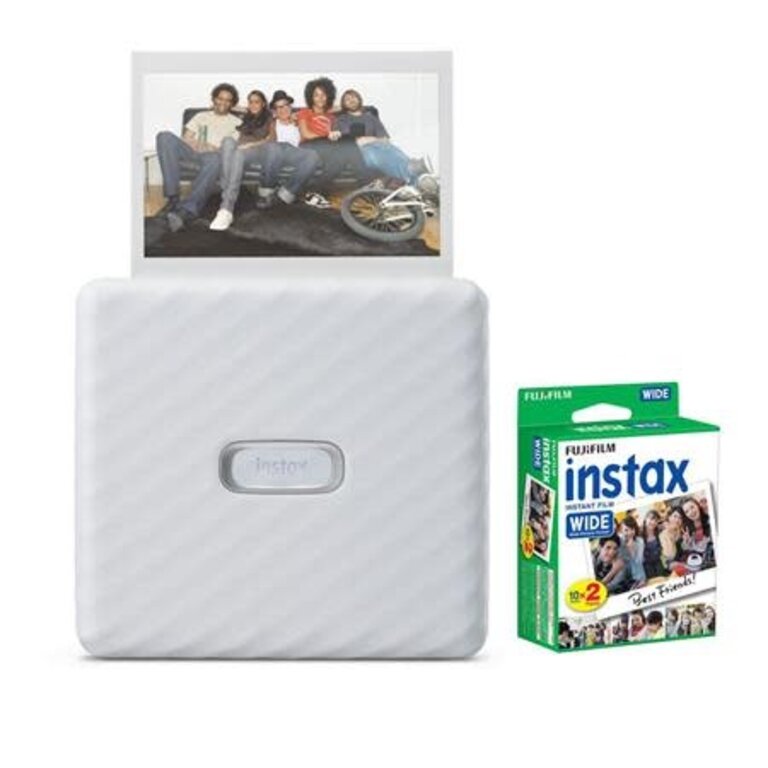
Fujifilm Instax Link Wide Troubleshooting for Bluetooth Pairing
Bluetooth pairing is one of the most common problems with the Instax Link Wide. The printer works through the Link WIDE app, so pairing it only from the phone’s Bluetooth menu may not complete the setup.
Follow this order:
- Turn on Bluetooth in your phone’s settings.
- Open the Instax Link WIDE app.
- Turn on the printer.
- Keep the phone within a few feet of the printer.
- Select the printer inside the app.
- Approve Bluetooth and nearby-device permissions.
- Wait for the connection to finish.
If the app cannot find the printer, close the app completely and reopen it. Then turn the printer off and back on.
For a stubborn connection, remove the old printer entry from the phone’s Bluetooth settings. Restart the phone, open the app, and pair again through the app. On some phones, the printer may appear as connected in system settings but still fail inside the app. Pairing through the correct app usually solves this mismatch.
Also check these possible causes:
• Another phone is already connected to the printer.
• Your phone has Bluetooth turned off after an operating system update.
• The app lacks permission to use Bluetooth or nearby devices.
• Battery-saving mode is limiting the app.
• The phone is too far away or separated by walls.
• The app version does not support the current phone software.
Do not pair the printer with several phones at the same time. Disconnect it from other nearby devices before starting a new connection.
The Instax Link Wide App Cannot Find the Printer
When the app does not detect the printer, the problem may be permission-related rather than a hardware fault. Modern phones often control Bluetooth access through privacy settings.
On an iPhone, check Bluetooth access for the Instax app in the Privacy & Security settings. On Android, review nearby-device permissions, Bluetooth access, and location-related permissions if the phone requests them.
Then check the app itself:
• Install the latest available version.
• Sign out and reopen the app if it has an account feature.
• Clear the app cache on Android.
• Reinstall the app only after saving any important designs or images.
• Turn off battery optimization for the app if Android keeps closing it.
The phone’s operating system also matters. A new iOS or Android update can change how apps request Bluetooth access. If the printer worked before a phone update, reinstalling or updating the Link WIDE app may restore compatibility.
A practical mistake to avoid is deleting the app before checking saved projects. Some unfinished designs may be stored only on the phone or inside the app. Save important photos before reinstalling anything.

Instax Link Wide Prints Slowly or Gets Stuck
A print may take longer when the battery is low, the connection is weak, or the printer is processing a large image. Keep the printer on a flat surface and do not pull the photo while it is coming out.
If the photo stops during ejection, turn the printer off and wait. Do not force the film through the slot. Pulling the sheet can damage the film or the internal rollers.
Check the following:
- Confirm that the printer is not overheating.
- Wait until the current print finishes.
- Do not send several print commands at once.
- Keep the output slot clear.
- Restart the app if the print job remains frozen.
- Restart the printer before sending another image.
If the same film sheet remains stuck, contact Fujifilm support instead of inserting tools into the film path. A small object can damage the rollers and make later prints worse.
The printer should be handled gently. Instant film is not like paper from a normal office printer. It contains light-sensitive material and needs a clear, controlled path as it leaves the device.
Blank, White, or Dark Instax Prints
A blank print often points to a film problem. First, check whether the film pack is empty or loaded incorrectly.
Open the film door only when necessary. If a pack is inside, avoid opening the door in bright light because unused instant film can be exposed. Confirm that the yellow marks on the film pack and printer match, as shown in the setup instructions.
Common causes include:
• The film pack was installed backward.
• The protective dark slide did not eject correctly.
• The film was exposed to strong light.
• The pack is expired or damaged.
• The film was stored in extreme heat or cold.
• The printer has a roller or ejection fault.
A dark or very pale image can also result from poor storage. Instax film performs best when stored in a cool, dry place and used within its recommended date. Avoid leaving film in a hot car, direct sun, or a freezing area.
Do not shake the print. Shaking is an old instant-film habit, but it does not improve modern Instax development. Lay the photo flat and allow it to develop naturally.

Fujifilm Instax Link Wide Troubleshooting for Poor Image Quality
If prints look blurry, dull, too dark, or too bright, check both the original image and the app’s editing tools. The printer cannot add detail that is missing from a low-resolution or heavily cropped photo.
For sharper results:
• Use a well-lit image with clear detail.
• Avoid extreme digital zoom.
• Check the crop before printing.
• Keep faces away from the edge of the frame.
• Use the app’s brightness and contrast tools with care.
• Clean the phone camera lens before taking the image.
• Compare the print with the preview image.
The Instax Link Wide uses instant film, so its result will not look exactly like a phone screen. Colors may appear softer, warmer, or less precise. This is part of the film’s character, not always a printer defect.
For a very dark photo, raise brightness slightly before printing. For a washed-out photo, reduce exposure or contrast. Make one small change at a time. Large edits can create unnatural skin tones and lost detail.
I have found that users often blame the printer when the real problem is the image crop. The wide format can make a photo look different from a standard phone frame. Always inspect the preview before pressing print.

Colors Look Wrong on Instax Wide Prints
Color differences are normal with instant film. The print develops over time, and its final appearance can change during the first several minutes.
For more consistent color:
- Keep film at a stable room temperature before use.
- Avoid printing in very hot or cold conditions.
- Store unused film in its sealed package.
- Keep developing prints away from direct sunlight.
- Use the same editing style for test images.
- Do not compare a print directly with a bright phone display.
A phone screen creates light, while an Instax print reflects room light. This means the screen will often look brighter and more vivid. Viewing conditions can make the same image seem to have different colors.
If every print has a strong color cast, test a fresh film pack. If the issue continues with different packs, inspect the printer and contact official support.

Instax Link Wide Film Won’t Eject
When film does not eject, the pack may be empty, misaligned, or blocked. Turn the printer off before checking the situation.
Do not pull the film from the slot. Do not use tweezers, cards, or metal objects. These actions may tear the film or damage the ejection rollers.
Instead:
• Check the remaining film count in the app or on the pack.
• Confirm that the film door is fully closed.
• Restart the printer.
• Check for visible damage around the film opening.
• Stop using the pack if several sheets fail to eject.
If the dark protective sheet does not come out when a new pack is installed, the film may not be seated correctly. Follow the loading diagram in the manual and keep the film door closed after installation.
Never open the film door repeatedly to “reset” the pack. This can expose the remaining sheets and ruin them.

Fujifilm Instax Link Wide Troubleshooting for Charging Problems
Charging issues can come from the cable, power source, port, battery, or charging conditions. Use the cable supplied with the printer when possible, or use a known-good compatible cable.
Check these points:
• Try a different power outlet or USB adapter.
• Remove dust from around the charging port without pushing debris inside.
• Charge at room temperature.
• Avoid using the printer while it charges if it becomes warm.
• Look for a charging indicator.
• Give the battery enough time to recover from a fully drained state.
If the charging light behaves differently than expected, check the official indicator guide for your model and firmware. LED patterns can vary by device state, and guessing from a single light is unreliable.
A battery that drains very quickly may be aging or damaged. Stop charging if the printer swells, smells unusual, becomes extremely hot, or shows visible damage. Seek help from Fujifilm or an approved service provider.
Resetting the Instax Link Wide Safely
A reset can help after failed pairing or an app error, but it should not be the first step. Restart the printer and phone before trying a full reset.
A safe recovery order is:
- Finish or cancel any active print job.
- Turn off the printer.
- Restart the phone.
- Open the Link WIDE app again.
- Remove the old Bluetooth connection if needed.
- Pair the printer through the app.
- Test with one simple photo.
The exact reset method depends on the printer’s instructions and firmware. Use the official manual for button combinations rather than holding random buttons. A reset may remove connection data, but it will not repair damaged film or a failed battery.
This part of Fujifilm Instax Link Wide Troubleshooting is important because many people reset too soon. A simple app restart often fixes the problem without removing useful settings.
How to Prevent Instax Link Wide Problems
Good care prevents many printing errors. Treat the printer like a small camera accessory, not a rugged office machine.
Follow these habits:
• Keep the printer in a dry case when not in use.
• Avoid extreme heat, cold, moisture, and direct sun.
• Charge it before important events.
• Keep the app updated.
• Store film in its sealed package.
• Check film dates before a special project.
• Do not block the film exit.
• Clean the outside with a soft, dry cloth.
• Avoid dropping or squeezing the printer.
Carry a spare film pack for weddings, parties, travel, and school projects. Test the printer before leaving home. A one-minute test can prevent a stressful search for a solution when the celebration has already started.
When to Contact Fujifilm Support
You should contact Fujifilm support when basic steps do not solve the issue or when the printer shows signs of physical damage.
Ask for help if:
• The printer will not charge with more than one working cable.
• Film repeatedly jams.
• The device overheats.
• The power button does not respond after charging.
• Prints show the same defect with several fresh film packs.
• The app crashes every time you try to print.
• The printer was dropped or exposed to liquid.
Before contacting support, note the printer model, phone model, operating system, app version, film type, and exact error behavior. A short video or photo can also help explain the problem.
Keep your purchase information if the device may be under warranty. Do not attempt an internal repair, because it may create a safety risk and affect warranty service.
Frequently Asked Questions About Fujifilm Instax Link Wide Troubleshooting
Why is my Instax Link Wide not connecting to my phone?
Turn on Bluetooth, open the Link WIDE app, and pair the printer inside the app. If it still fails, restart both devices, remove the old Bluetooth entry, check app permissions, and try again.
Why does my Instax Link Wide print a blank photo?
A blank print may result from incorrect film loading, exposed film, an empty pack, or damaged film. Check the pack alignment and try a fresh pack without opening the film door in bright light.
Can I use the Instax Link Wide while it is charging?
The printer may have limited operation while charging, but performance can vary by power level and conditions. For reliable printing, charge it first and avoid using it if the device becomes hot.
Why are my Instax Wide photos too dark?
The original image may be underexposed, or the print may have been made in poor light. Increase brightness slightly in the app, use a brighter source, and compare the result with a fresh film pack.
How do I fix an Instax Link Wide film jam?
Turn the printer off and do not pull or push the film with tools. Check whether the pack is empty or misaligned, then contact Fujifilm support if the sheet remains stuck.
Does the Instax Link Wide need a special app?
Yes, it is designed to work with Fujifilm’s Instax Link WIDE app. Install the current version from your phone’s official app store and allow the requested Bluetooth or nearby-device permissions.
How should I store Instax Wide film?
Keep film sealed in a cool, dry place away from direct sunlight and extreme temperatures. Let very cold film return to room temperature before printing, and follow the expiration guidance on the package.
Conclusion
Fujifilm Instax Link Wide Troubleshooting becomes much easier when you follow a calm, logical order: check power, restart the printer, confirm app permissions, pair through the correct app, inspect the film, and test one image at a time.
Most connection and print problems are small setup issues, while repeated jams, overheating, charging failure, and physical damage need professional support. Use fresh film, protect the printer from harsh conditions, and test it before important events. For more practical camera and instant-printing tips, explore the official support resources and share your own troubleshooting experience in the comments.