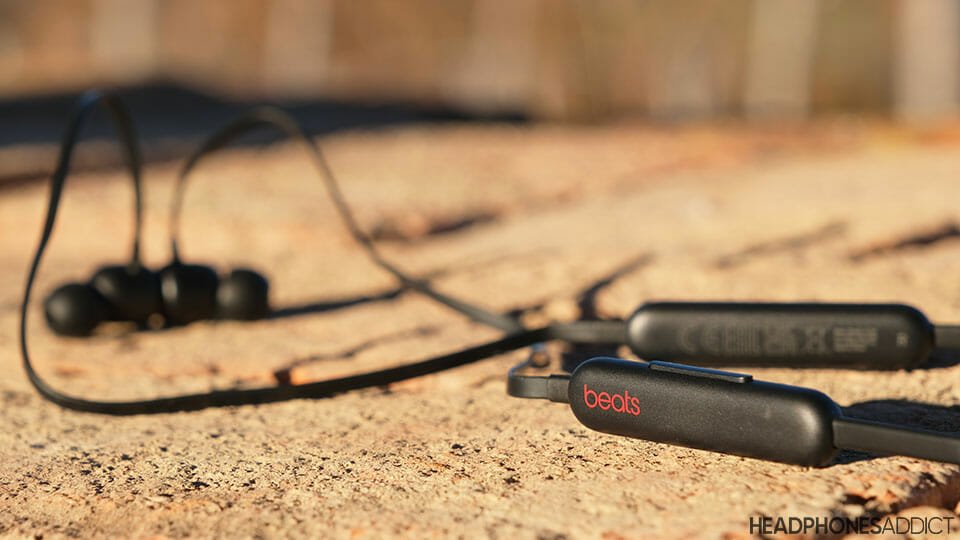
How To Pair Wireless Earbuds: Easy Step-By-Step Guide
How to pair wireless earbuds: turn on Bluetooth, open the case, select the earbuds, and confirm the connection.
Learning how to pair wireless earbuds is usually simple, but each brand uses slightly different buttons, lights, and menus. This guide explains the process for iPhone, Android, Windows, and Mac, plus clear fixes for pairing errors. I have tested many earbud pairing setups, and the same small mistakes appear again and again. You can avoid them with the steps below.
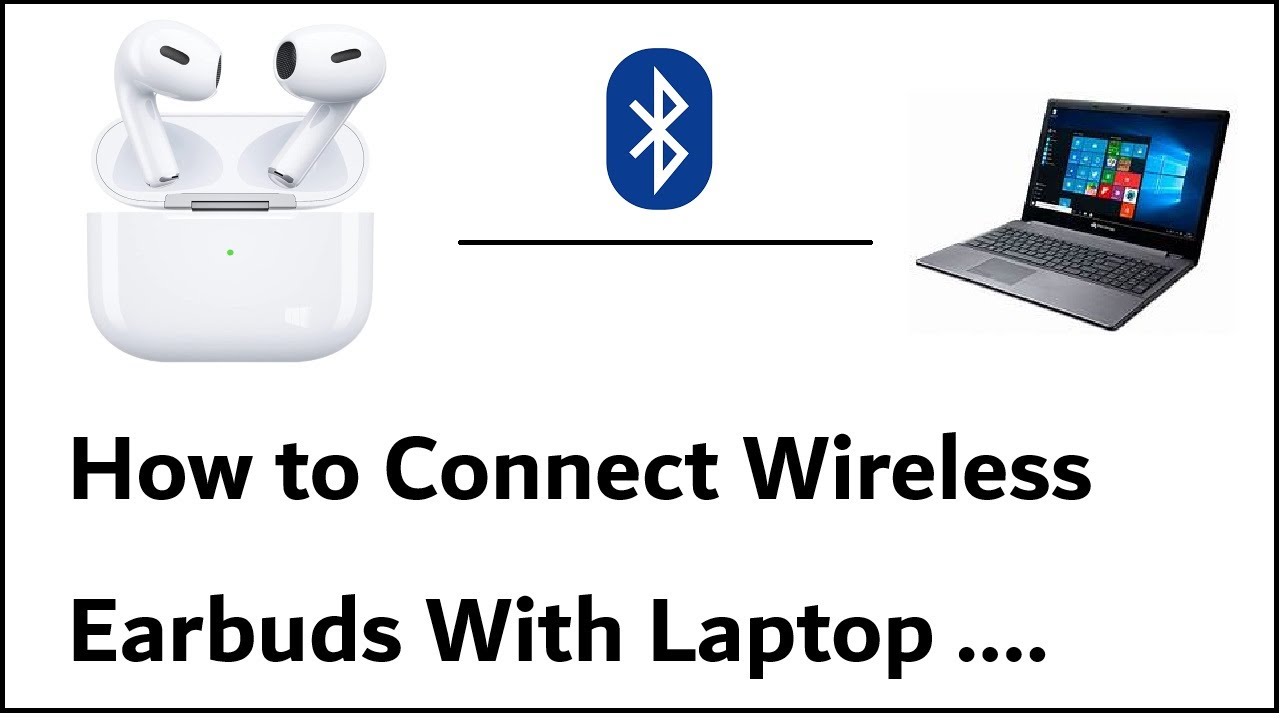
What Does Pairing Wireless Earbuds Mean?
Pairing creates a trusted link between your earbuds and a device. The earbuds use Bluetooth to send sound from your phone, tablet, computer, or TV. After the first connection, the devices often connect again on their own.
Pairing is different from simply turning on Bluetooth. Bluetooth must be active on both devices, but pairing also lets them recognize and remember each other.
When learning how to pair wireless earbuds, remember these three terms:
• Pairing mode means the earbuds are ready to connect to a new device.
• Connected means the earbuds are linked and ready to play sound.
• Paired means the device remembers the earbuds, even when they are not connected.
Most earbuds enter pairing mode when you open the charging case for the first time. If they do not, you may need to press and hold the case button or touch both earbuds.
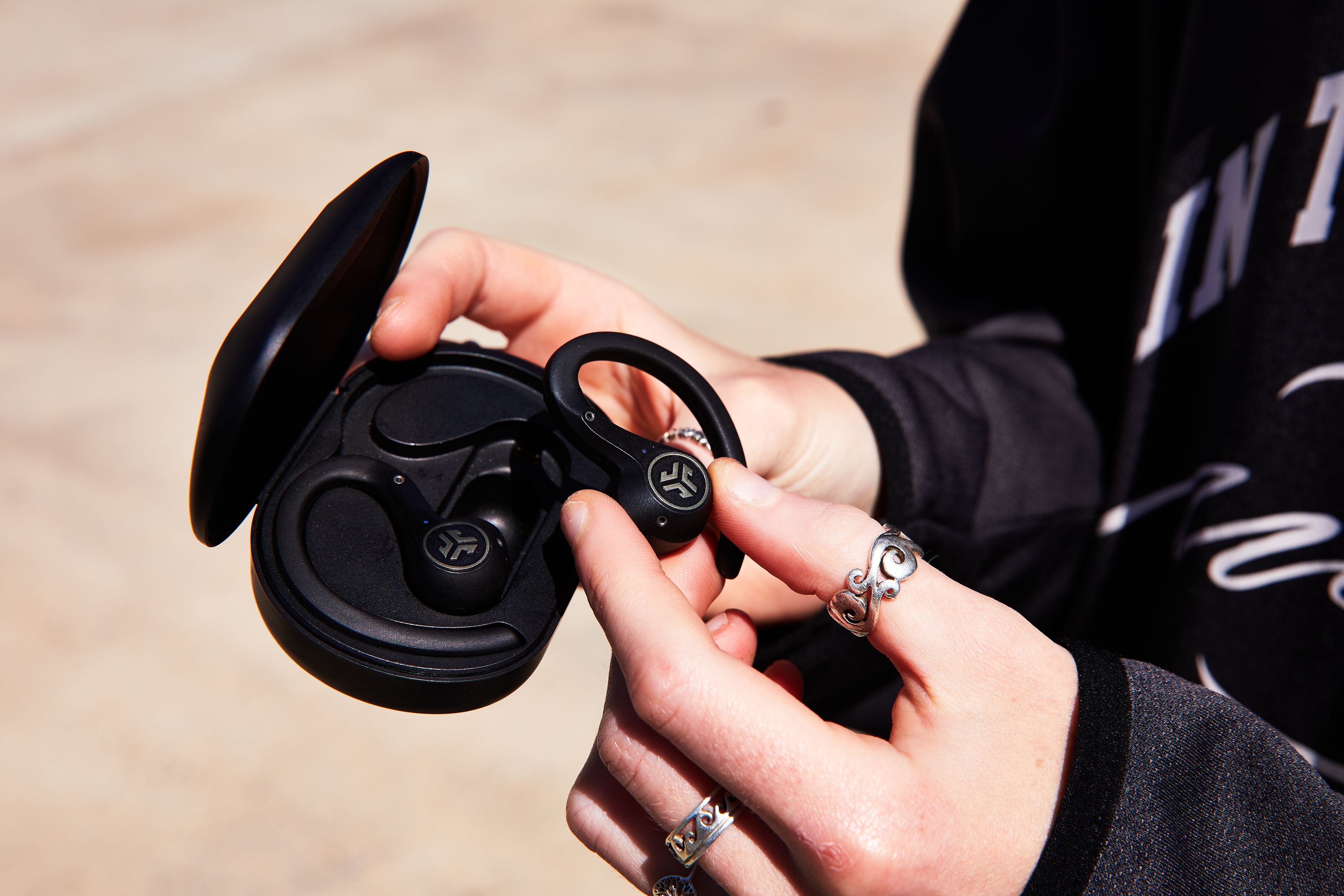
Prepare Your Earbuds Before Pairing
A few quick checks can prevent most connection problems. Think of this step as clearing the path before two devices try to meet.
• Charge the earbuds and charging case. A low battery can stop pairing or cause repeated disconnections.
• Keep the earbuds close to the device. Place them within 3 feet during the first setup.
• Turn off Bluetooth on nearby devices that have used the earbuds before. The earbuds may connect to the wrong phone or laptop.
• Remove any protective film from the charging contacts.
• Update your phone, tablet, or computer if it has pending system updates.
• Place both earbuds in the case, close the lid, wait a few seconds, and open it again.
Many earbuds have a small LED. A flashing white, blue, or red-and-blue light often means pairing mode is active. The exact color depends on the brand, so check the product guide if the light pattern seems unclear.
From my own testing, the most common mistake is searching for earbuds while they are still connected to an old phone. Turning off Bluetooth on that old device often solves the issue in seconds.

How to Pair Wireless Earbuds With an iPhone
Apple devices make Bluetooth pairing fairly easy. These steps work for most Bluetooth earbuds, including models made for Android phones.
-
Put both earbuds in the charging case.
-
Open the case lid and keep the earbuds inside.
-
Press and hold the case pairing button until the status light flashes.
-
Unlock your iPhone.
-
Open Settings.
-
Tap Bluetooth.
-
Turn Bluetooth on if it is off.
-
Look under Other Devices.
-
Tap the name of your earbuds.
-
Wait until the earbuds appear under My Devices and show Connected.
Some earbuds display a pop-up card on the iPhone. If it appears, tap Connect and follow the instructions on the screen.
If the earbuds do not appear, close the case and repeat the process. You may also need to press and hold the pairing button for 5 to 10 seconds. Do not release it as soon as the light turns on. A steady light may show power, while a flashing light may show pairing mode.
To disconnect the earbuds, open Control Center, tap the audio output icon, and choose your iPhone or another device. To reconnect them later, open the case near the iPhone and select the earbuds if they do not connect automatically.

How to Pair Wireless Earbuds With an Android Phone
Android menus can vary by brand, but the basic process is nearly the same on Samsung Galaxy, Google Pixel, Motorola, OnePlus, and other phones.
-
Charge the earbuds and place them in pairing mode.
-
Open Settings on your Android phone.
-
Tap Connected devices, Connections, or Bluetooth.
-
Choose Pair new device if that option appears.
-
Find your earbuds in the list.
-
Tap the earbud name.
-
Select Pair or Confirm.
-
Wait for the status to change to Connected.
Some Android phones show a Fast Pair notification. If you see it, tap Connect. This can save time and may install the brand’s companion app.
If Android asks for a passcode, try 0000 or 1234. Most modern earbuds do not need a code, but some older Bluetooth products still use one.
After learning how to pair wireless earbuds with Android, test both sides. Play music and check whether sound comes from the left and right earbuds. If only one side works, place both earbuds in the case, close the lid, and try pairing again.
How to Pair Wireless Earbuds With a Windows PC
Wireless earbuds can work well for music, video calls, and gaming on a Windows computer. The first connection may take a little longer than it does on a phone.
-
Put the earbuds into pairing mode.
-
Open the Windows Start menu.
-
Select Settings.
-
Choose Bluetooth & devices.
-
Turn Bluetooth on.
-
Click Add device.
-
Select Bluetooth.
-
Click the name of your earbuds.
-
Select Done when Windows confirms the connection.
Windows may show separate options for audio and calls. For music, choose the earbuds as the output device. For calls, select the earbuds as both the speaker and microphone in the meeting app.
If your computer does not show Bluetooth, it may not have built-in Bluetooth hardware. A small USB Bluetooth adapter can add this feature. Driver problems can also prevent pairing, so check Windows Update and the computer maker’s support page.
When explaining how to pair wireless earbuds with a computer, I always suggest testing the microphone before a meeting. Some earbuds connect for sound but leave the computer’s built-in microphone selected.
:max_bytes(150000):strip_icc()/daniel-romero-K63lOA4Ijyk-unsplash-6af16d68e2854c9780289b40759969f0.jpg)
How to Pair Wireless Earbuds With a Mac
Mac computers use a simple Bluetooth menu for wireless audio.
-
Put the earbuds in pairing mode.
-
Click the Apple menu.
-
Open System Settings.
-
Select Bluetooth.
-
Turn Bluetooth on.
-
Find your earbuds under Nearby Devices.
-
Click Connect.
-
Open the sound menu and select the earbuds if audio does not switch automatically.
Older macOS versions may use System Preferences instead of System Settings. The names are different, but the Bluetooth steps remain similar.
If your earbuds connect but sound comes from the Mac speakers, click Control Center in the menu bar. Choose Sound, then select the earbuds. Also check the volume level on both the Mac and the earbuds.

How to Pair Earbuds With a Tablet, Smart TV, or Game Device
The same Bluetooth method works on many tablets, smart TVs, and game devices. The menu location may change, but you usually need to open the device’s sound or accessory settings.
Use this general process:
-
Activate pairing mode on the earbuds.
-
Open Bluetooth settings on the device.
-
Select Add device, Pair device, or Scan.
-
Choose the earbuds from the list.
-
Confirm the connection.
Some smart TVs support Bluetooth headphones, while others only support Bluetooth keyboards or remotes. Read the TV manual if your earbuds do not appear.
Game consoles can be more limited. Some consoles do not support ordinary Bluetooth audio because of sound delay and microphone limits. In that case, you may need a compatible USB transmitter or a console-approved wireless headset.
This is an important limitation when learning how to pair wireless earbuds. Bluetooth support does not always mean Bluetooth audio support.

How to Pair Wireless Earbuds When They Do Not Connect
Pairing problems are common, but most have a simple cause. Work through these fixes in order.
Check the Bluetooth connection
Turn Bluetooth off, wait 10 seconds, and turn it on again. Then place the earbuds back into pairing mode and search again.
Forget the old connection
Your phone may remember a damaged or outdated connection.
• Open Bluetooth settings.
• Tap the gear or information icon beside the earbuds.
• Choose Forget, Unpair, or Remove device.
• Restart Bluetooth.
• Pair the earbuds again.
Restart both devices
Restart the phone, computer, or tablet. Then place the earbuds in their case for at least 10 seconds. This clears many temporary software errors.
Move away from interference
Wi-Fi routers, USB 3.0 devices, microwaves, and crowded public spaces can create wireless interference. Move closer to the device and try again.
Reset the earbuds
A factory reset is useful when the earbuds connect to another device but refuse to connect to yours. The reset method varies by brand. Many models require holding the case button for 10 to 15 seconds, but you should confirm the exact method in the manual.
A reset removes stored connections. You will need to repeat how to pair wireless earbuds after the reset.
Check left and right earbud contact
If one earbud stays dead, clean the charging contacts with a dry cotton swab. Do not use water or metal tools. Make sure both earbuds sit correctly in the case.
How to Pair Wireless Earbuds With Two Devices
Some earbuds support multipoint Bluetooth. This feature lets the earbuds stay connected to two devices, such as a phone and a laptop. You can listen to music on the laptop and answer a phone call without manually pairing again.
To set up multipoint:
-
Pair the earbuds with the first device.
-
Turn off Bluetooth on that device temporarily.
-
Put the earbuds into pairing mode.
-
Pair them with the second device.
-
Turn Bluetooth back on for the first device.
-
Open the earbud brand’s app if multipoint must be enabled there.
Not every model supports multipoint. Some earbuds remember several devices but connect to only one at a time. That feature is called device memory, not true multipoint.
In daily use, multipoint can feel like having one pair of earbuds with two doors. It is convenient, but automatic switching may sometimes behave unpredictably. If sound stops, check which device currently has audio control.
Tips for a Stronger Wireless Earbud Connection
Good habits can make wireless audio more stable and extend battery life.
• Keep your phone or computer nearby, especially in crowded areas.
• Wear the earbuds on the correct sides. A poor fit can make sound seem weak or unbalanced.
• Keep the charging contacts clean.
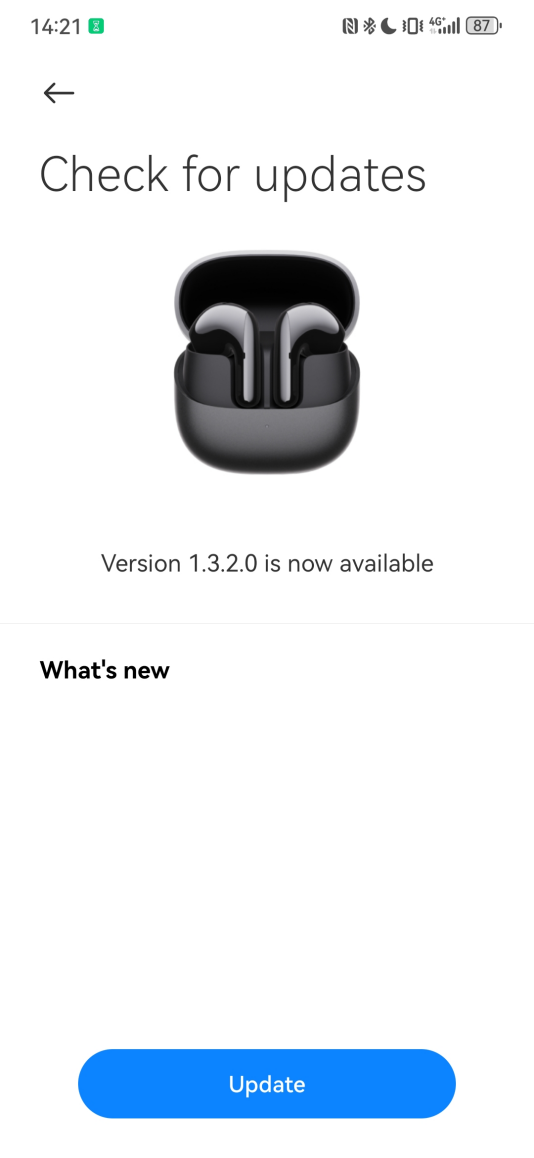
• Install firmware updates through the manufacturer’s app.
• Avoid storing wet earbuds in the charging case.
• Turn off unused Bluetooth connections when troubleshooting.
• Keep the case charged, not just the earbuds.
Bluetooth range depends on the device, walls, furniture, and wireless interference. Many products advertise a range of about 30 feet or more in open space, but real rooms can reduce that distance.
Bluetooth audio may also have a small delay. This is usually fine for music and podcasts, but it can be noticeable during gaming or video editing. Low-latency modes can help, although they may reduce range or battery life.
How to Pair Wireless Earbuds Safely
Wireless earbuds are safe for normal use when handled properly. Keep the volume at a comfortable level and take breaks during long listening sessions. Health experts commonly recommend avoiding prolonged exposure to very loud sound.
Do not charge damaged earbuds or a swollen case. Stop using the product if it becomes unusually hot, smells strange, or shows physical damage.
Use the correct charging cable and power adapter. Avoid using damaged cables, and keep the case away from water unless the product has a suitable water-resistance rating.
Pairing also has a privacy side. Bluetooth connections use device authentication, but avoid pairing on a public device you do not trust. Remove old pairings from shared computers and public tablets.
Frequently Asked Questions About How to Pair Wireless Earbuds
Why are my wireless earbuds not showing up in Bluetooth?
The earbuds may not be in pairing mode, or they may already be connected to another device. Charge them, turn off Bluetooth on nearby devices, and hold the case button until the status light flashes.
How do I put wireless earbuds into pairing mode?
Place the earbuds in the case and open the lid. Then press and hold the case button, or touch both earbuds, until the indicator light flashes; the exact method depends on the brand.
Can I pair wireless earbuds with an iPhone and Android phone?
Yes, most Bluetooth earbuds work with both systems. You may need to disconnect the earbuds from one phone before pairing them with the other.
Why do my earbuds connect but have no sound?
The wrong audio output may be selected. Open the sound or media output menu on your device and choose the connected earbuds.
How do I reset wireless earbuds?
The reset process varies by model, but many earbuds reset when you hold the case button for several seconds. Check the product manual before resetting because this removes saved device connections.
Can wireless earbuds connect to a laptop?
Yes, if the laptop supports Bluetooth audio. Turn on pairing mode, open the laptop’s Bluetooth settings, and select the earbuds from the available device list.
Why does only one earbud work?
One earbud may not be charging, or the two earbuds may have lost their internal link. Charge both, clean the case contacts, place them in the case, and pair them again after a reset if needed.
Conclusion
How to pair wireless earbuds usually takes only a few steps: charge the earbuds, activate pairing mode, open Bluetooth settings, and select the correct device name. If the connection fails, forgetting the old pairing, restarting both devices, and resetting the earbuds can usually solve it.
Start with your phone, then test the earbuds on a computer or tablet if needed. Once you understand pairing mode, Bluetooth menus, multipoint connections, and common fixes, wireless audio becomes much less frustrating. Try these steps today, and share your experience or questions in the comments.