How To Update Earbud Firmware: Easy Step-By-Step Guide
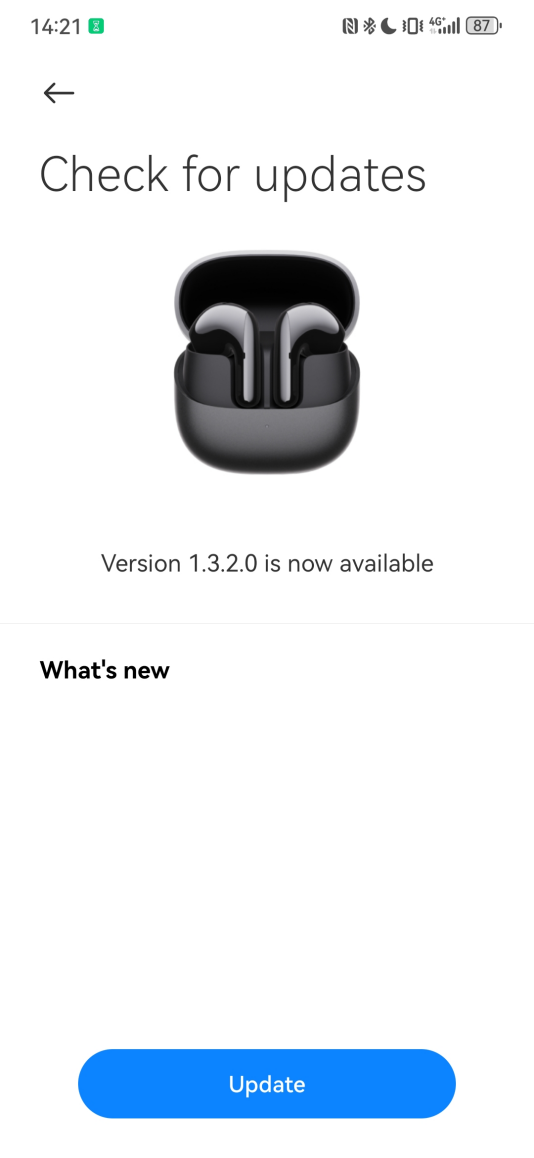
Earbud firmware updates usually happen through a companion app, Bluetooth, or a computer-based updater.
Keeping your earbuds updated can fix bugs, improve sound, boost battery life, and make connections more stable. If you have ever dealt with one earbud dropping out, odd touch controls, or a pairing issue that came out of nowhere, firmware may be the hidden fix. In this guide, I’ll walk you through how to update earbud firmware the right way, what to expect, and the mistakes I have seen people make most often.
What earbud firmware is and why it matters
Firmware is the small software built into your earbuds. It helps control things like Bluetooth pairing, touch controls, noise canceling, mic performance, and power use. Think of it like the operating instructions that keep the hardware behaving properly.
When manufacturers release a firmware update, they are often fixing bugs or improving performance. In my own testing over the years, I have seen updates smooth out connection drops, improve latency, and even change how responsive the controls feel. That is why learning how to update earbud firmware is worth your time.
Before you update earbud firmware
Before you start, it helps to set things up the right way. A rushed update can fail if the battery is low or the earbuds lose connection during the process. The good news is that a little prep prevents most problems.
Here is what I recommend checking first:
- Charge the earbuds to at least 50 percent, and charge the case too if it is used during updates.
- Make sure your phone, tablet, or computer has a stable internet connection.
- Keep the earbuds near the device they pair with.
- Close other Bluetooth devices if they might interfere.
- Read any notes in the app about the update, since some brands require both earbuds in the case.
I have made the mistake of starting an update with a nearly dead case battery. The update stalled halfway, and I had to reconnect everything from scratch. Ever since then, I always treat battery level as step one.
How to update earbud firmware through the manufacturer app
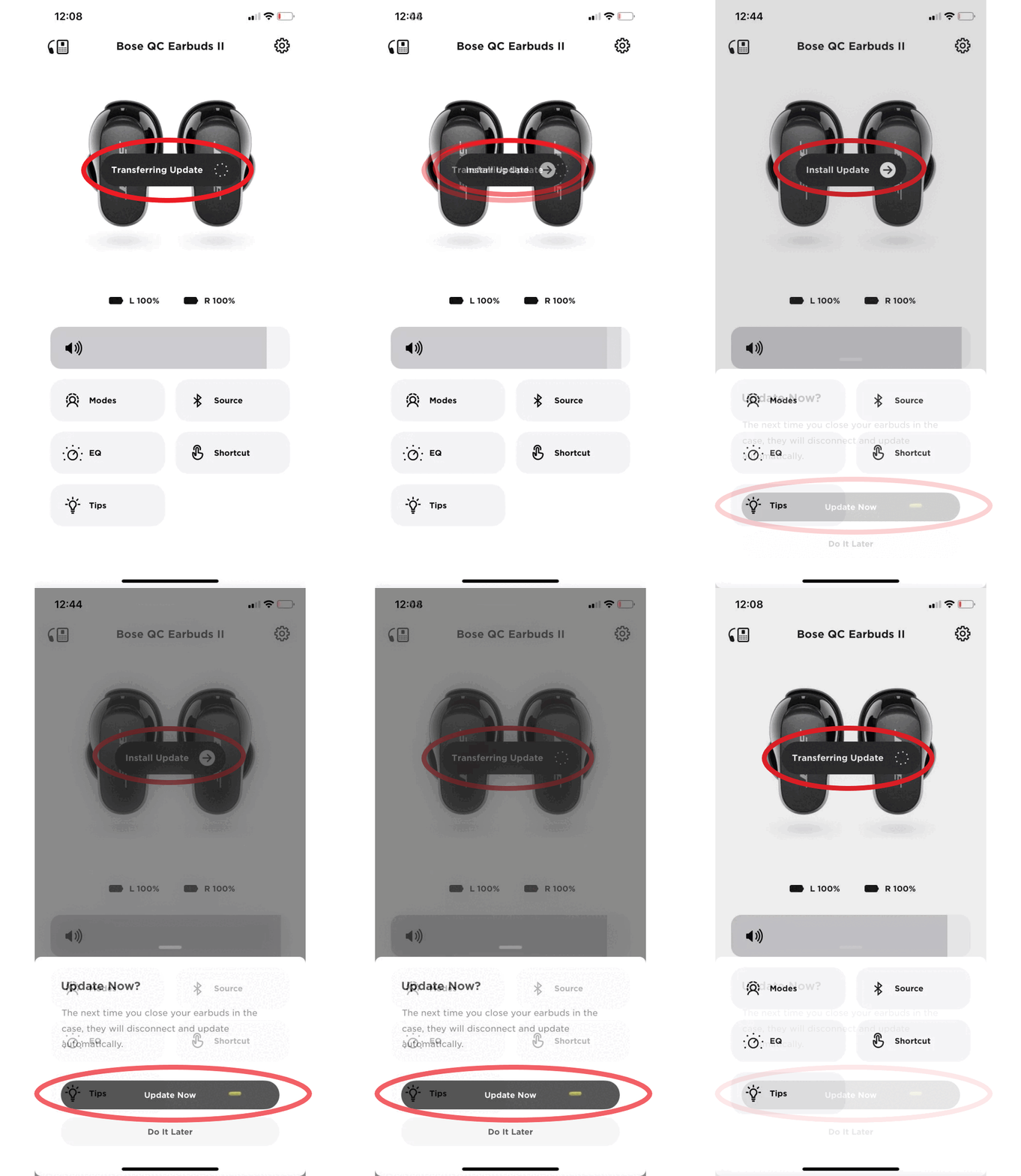
For most modern earbuds, this is the easiest method. Brands like Sony, Bose, JBL, Samsung, Apple, Beats, Soundcore, and many others use companion apps to push firmware updates. The exact steps vary, but the process is usually simple.
Follow these steps:
- Install the official app for your earbuds.
- Pair the earbuds with your phone if they are not already connected.
- Open the app and go to device settings, support, or about.
- Look for a firmware update notice or software update button.
- Keep the earbuds and phone close together while the update installs.
- Do not close the app or use heavy Bluetooth tasks until it finishes.
The best part of this method is that it is built for regular users. In most cases, the app will also show the current firmware version, release notes, and update progress. If the app says the earbuds must stay in the case, follow that instruction exactly.

How to update earbud firmware with a computer
Some earbuds use a desktop updater instead of, or in addition to, a phone app. This is common with certain premium models or products that need a more stable connection during installation. A computer update can be a good option if your phone app keeps failing.
Here is the typical process:
- Download the official updater from the brand’s support page.
- Connect the earbuds or charging case to the computer if the brand requires a cable.
- Install any driver or helper software the updater needs.
- Launch the updater and sign in if required.
- Start the update and avoid unplugging anything until it finishes.
This method often feels a bit more old school, but it can be more reliable for larger updates. I have used computer-based updaters when phone Bluetooth was acting flaky, and they usually recovered devices that would not cooperate over mobile apps.
How to update earbud firmware when no update shows up
Sometimes you know an update exists, but the app says everything is current. That can happen for a few reasons. The rollout may be staged, your app may be outdated, or the earbuds may not be sitting in the right state for detection.
Try these fixes:
- Update the companion app first.
- Disconnect and reconnect the earbuds.
- Put both earbuds in the case, then open the lid.
- Restart your phone or computer.
- Turn Bluetooth off and back on.
- Check if the brand has region-specific release timing.
I have seen updates appear hours or days later on one phone but not another. That usually means the manufacturer is pushing the firmware in batches. It is annoying, but it is normal.
Common problems during earbud firmware updates
Even when you follow the steps, firmware updates can still fail. The most common issues are battery drain, unstable Bluetooth, app crashes, and interrupted downloads. Most of these problems are fixable without sending the earbuds back.
Common update problems include:
- Update stuck at a percentage point
- Earbuds not detected by the app
- One earbud updating but not the other
- App saying the update failed
- Controls or audio acting strange after the update
What usually helps:
- Restart the phone and retry
- Re-seat the earbuds in the case
- Reset the earbuds using the brand’s reset method
- Clear the app cache if the app allows it
- Reinstall the app if it is bugging out
One lesson I learned the hard way is that patience matters. If an update seems frozen for a minute or two, it is not always dead. Some firmware files take longer near the end, especially if they are updating both earbuds and the charging case.
What to do after you update earbud firmware
Once the update finishes, do a quick check. Open the app again and confirm the new firmware version is listed. Then test the basic functions, because a good update should feel invisible, not messy.
After updating, test these items:
- Pairing and reconnection speed
- Left and right earbud balance
- Touch or button controls
- Mic quality on a test call
- Noise canceling or transparency mode
- Battery level reporting in the app
If anything feels off, restart the earbuds first. If that does not help, a reset often clears small glitches left over from the update. In my experience, the first five minutes after an update are the best time to catch issues early.
When you should update earbud firmware
Not every update is urgent, but some are worth doing right away. If your earbuds are dropping Bluetooth, losing sound in one ear, or acting weird with controls, firmware may be the fix. Updates can also improve compatibility with newer phones and tablets.
You should strongly consider updating if:
- The brand lists bug fixes for your exact issue
- The earbuds have connection drops or random shutdowns
- Audio lag is causing trouble with video or gaming
- The mic quality is worse than expected
- Battery reporting seems inaccurate
On the other hand, if your earbuds are working perfectly and the update notes mention only small changes, you can wait a bit. That is a fair choice, especially if the current firmware is stable. I usually update sooner for connection fixes and later for minor tweaks.
Benefits and limits of earbud firmware updates
Firmware updates can make a real difference, but they are not magic. They can improve performance, yet they cannot turn budget earbuds into studio monitors. It helps to know both the upside and the limits.
Benefits include:
- Better Bluetooth stability
- Fewer app and pairing bugs
- Improved battery management
- Refined touch controls
- Better mic tuning or noise canceling behavior
Limits to keep in mind:
- Not every update improves sound quality
- Some changes are small and hard to notice
- A bad update can introduce temporary bugs
- Older models may stop receiving updates over time
That balanced view matters. Trustworthy tech advice should never promise more than firmware can deliver. It is a useful tool, not a miracle button.
How to keep earbud firmware updates safe
A safe update is mostly about preparation and patience. The simplest rule is to avoid interruptions once the update starts. Do not move far from the device, and do not let the battery run low.
Use these safety tips:
- Update in a quiet place with no Bluetooth chaos around you
- Keep the earbuds and phone close together
- Do not answer calls or switch apps mid-update
- Use the official app or official updater only
- Avoid third-party firmware tools unless the brand specifically supports them
This is one area where being careful really pays off. It is like changing a tire while the car is still rolling. You want everything still and stable.
Frequently Asked Questions of How to Update Earbud Firmware
How do I know if my earbuds need a firmware update?
Open the official companion app and check the device info or settings section. If an update is available, the app usually shows a prompt or notification.
Can I update earbud firmware without an app?
Yes, some models support computer-based updates or firmware tools on the brand’s support site. But for most wireless earbuds, the companion app is the normal method.
Should both earbuds be charged before updating?
Yes, that is the safest approach. Low battery can cause the update to fail or stop halfway through.
What if the firmware update fails?
Restart the phone, place the earbuds back in the case, and try again. If it still fails, reset the earbuds and reinstall the companion app before retrying.
Will a firmware update improve sound quality?
Sometimes it can refine tuning, reduce glitches, or improve noise canceling behavior. But it usually does not create a dramatic sound upgrade unless the brand specifically says so.
Conclusion
Learning how to update earbud firmware is one of the easiest ways to keep your earbuds working well. A good update can improve stability, fix bugs, and make your daily listening smoother. The key is to prepare first, use the official app or updater, and let the process finish without interruption.
If your earbuds have been acting up, this is a smart place to start before replacing them or assuming the hardware is broken. Take a few minutes to check the firmware version, follow the steps carefully, and test the results afterward. If you found this guide helpful, keep exploring more device tips and share your experience in the comments.

Similar Posts