How To Reset Bluetooth Headphones: Easy Step-By-Step Guide
Press and hold your headphones’ power and volume buttons, then remove them from Bluetooth settings and pair again.
How to Reset Bluetooth Headphones depends on the brand and model, but the basic process is simple. A reset can fix pairing errors, audio drops, one-sided sound, charging problems, and connection issues between your headphones and phone. This guide explains the safest reset methods, what to do before and after a reset, and how to avoid common mistakes.
What a Bluetooth Headphone Reset Does
A reset returns your headphones to a clean connection state. It usually clears saved Bluetooth devices, pairing history, custom connection data, and some temporary software settings.
Think of it like clearing a cluttered desk. Your headphones can start fresh instead of trying to reconnect to an old phone, tablet, laptop, or smart TV.
A reset may help when:
- Your headphones do not appear in the Bluetooth menu.
- The headphones connect but produce no sound.
- Only one earbud or side works.
- The connection drops every few minutes.
- Your headphones connect to the wrong device.
- A phone shows an incorrect battery level.
- The headphones refuse to enter pairing mode.
- The headphones stop responding to normal button presses.
A reset does not usually repair broken speakers, damaged batteries, water damage, or faulty charging ports. It also does not upgrade the headphones’ firmware.

How to Reset Bluetooth Headphones
The exact button combination can vary. Still, most models use one of the methods below.
Before you begin, charge the headphones for at least 15 to 30 minutes. A low battery can interrupt the reset process or make the headphones appear unresponsive.
Method 1: Use the power and volume buttons
This is one of the most common reset methods for over-ear and on-ear headphones.
- Turn off the headphones.
- Press and hold the power button and volume-up button together.
- Continue holding both buttons for about 5 to 15 seconds.
- Watch for a flashing light, sound, or voice prompt.
- Release the buttons when the reset signal appears.
- Turn the headphones off and on again.
- Pair them with your device.
Some brands use the volume-down button instead of volume-up. If the first method does not work, check the product manual for the correct combination.
Method 2: Hold the power button
Some basic Bluetooth headphones reset through the power button alone.
- Turn off the headphones.
- Press and hold the power button for 10 to 20 seconds.
- Keep holding it even if the headphones turn on.
- Release it after the LED flashes in a new pattern.
- Place the headphones into pairing mode.
- Remove the old Bluetooth connection from your phone.
- Pair the headphones again.
This method is common on simple wireless headsets, but it is not universal.
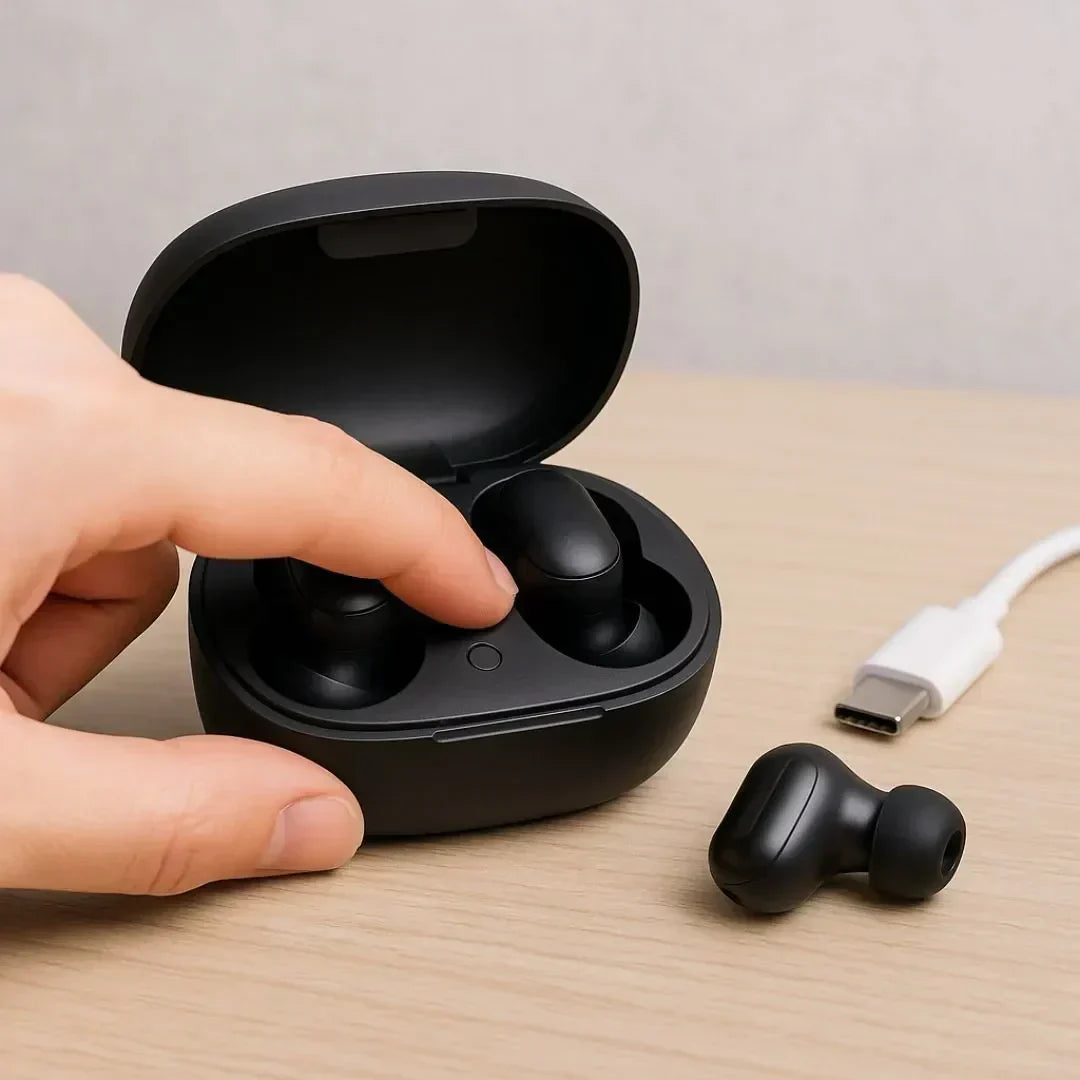
Method 3: Use the charging case
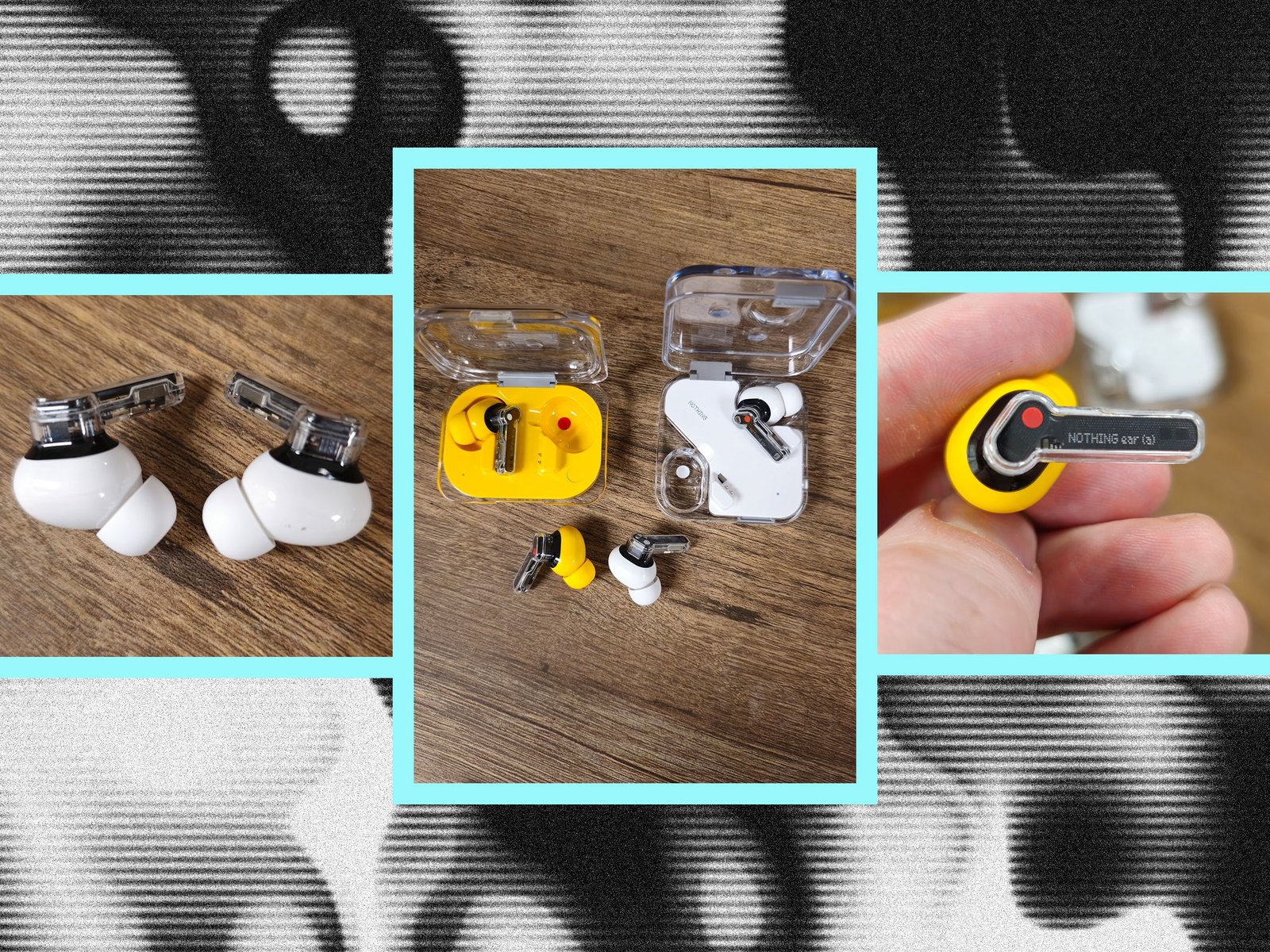
True wireless earbuds often reset through their charging case.
- Put both earbuds into the case.
- Leave the lid open.
- Press and hold the case button for 10 to 20 seconds.
- Wait for the case light to flash.
- Close the lid for a few seconds.
- Open the lid and start the pairing process again.
Some earbuds require you to touch and hold both earbuds while they are in the case. Others use a touch-control sequence. This is why the model’s manual matters more for earbuds than for many over-ear headphones.
Method 4: Reset through a companion app
Some modern headphones include a mobile app. The app may offer a factory reset option under settings, device information, or system controls.
Open the app and look for options such as:
- Reset device
- Factory reset
- Clear pairing history
- Restore default settings
- Remove all connections
A software reset can be easier than guessing a button combination. Keep the headphones near your phone during the process, and make sure both devices have enough battery.
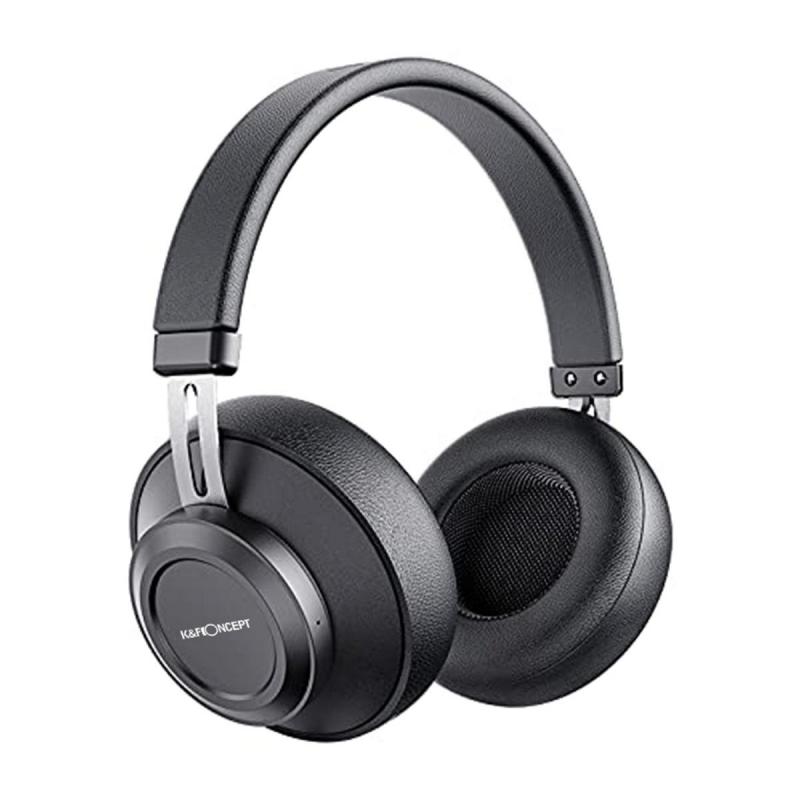
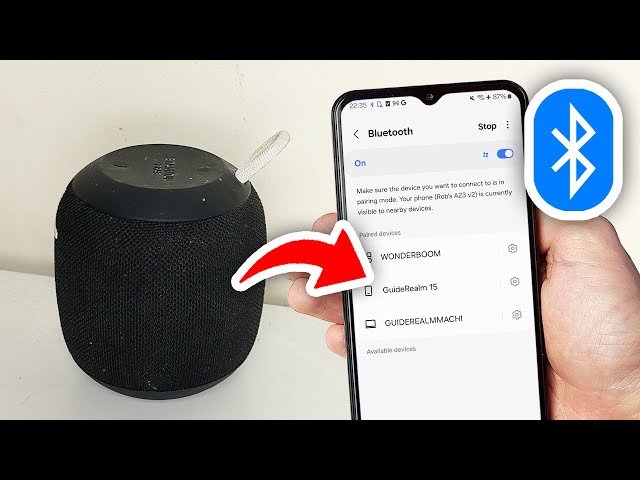
How to Reset Bluetooth Headphones on Android
Android phones can store old Bluetooth profiles that interfere with new connections. Resetting the headphones is only half the solution. You should also remove the old pairing from your phone.
Follow these steps:
- Open Settings.
- Select Connected devices or Connections.
- Tap Bluetooth.
- Find your headphones in the saved device list.
- Tap the settings icon beside the headphones.
- Select Forget, Unpair, or Remove.
- Turn Bluetooth off for about 10 seconds.
- Turn Bluetooth on again.
- Put the headphones into pairing mode.
- Select them from the available devices list.
If the headphones still fail to connect, restart the Android phone. You can also reset network settings, but use that option carefully. It may erase saved Wi-Fi networks and other connection data.
Android menus vary by phone maker and software version. A Samsung phone, Google Pixel, and Motorola phone may use different names for the same setting.
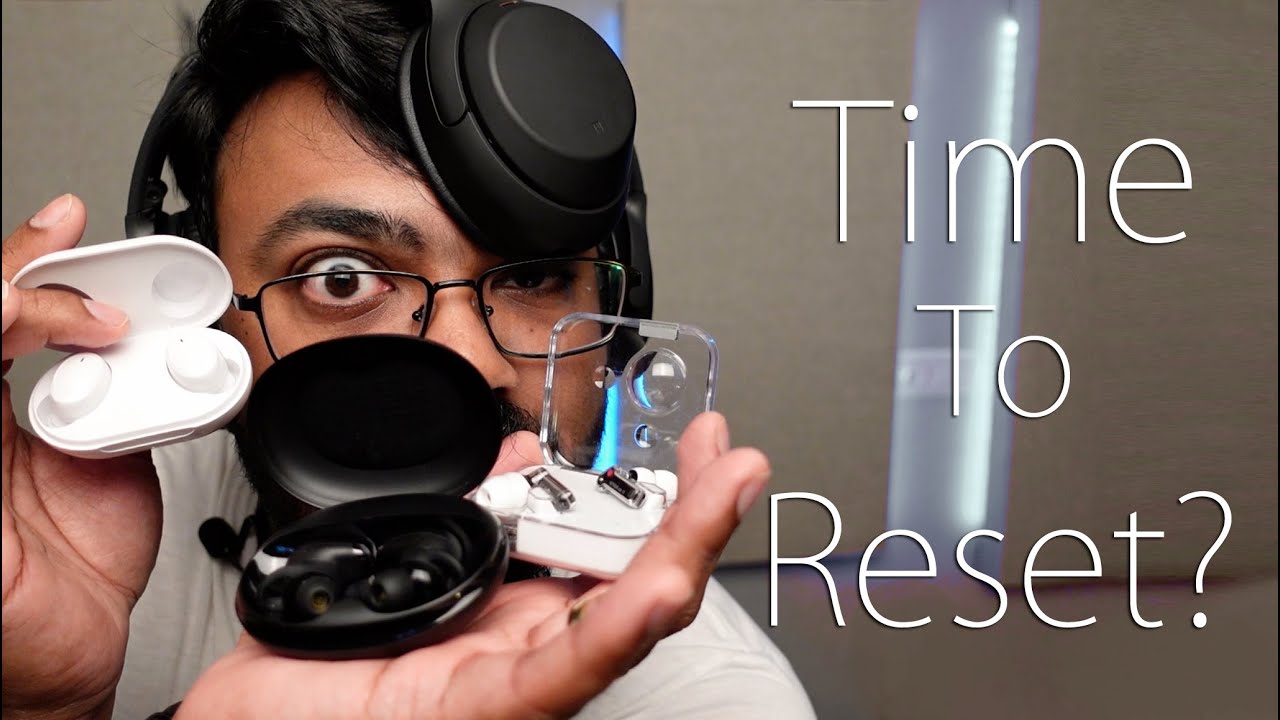
How to Reset Bluetooth Headphones on an iPhone
An iPhone also keeps a saved Bluetooth profile. Remove that profile after resetting the headphones.
- Open the Settings app.
- Tap Bluetooth.
- Find your headphones under My Devices.
- Tap the information icon.
- Choose Forget This Device.
- Confirm the choice.
- Turn Bluetooth off and back on.
- Put the headphones into pairing mode.
- Tap the headphones when they appear under Other Devices.
If the connection remains unstable, restart the iPhone. You can also try Settings, General, Transfer or Reset iPhone, Reset, and Reset Network Settings.
Use network reset only when needed. It removes saved Wi-Fi passwords, VPN settings, and other network information. It does not erase your photos, apps, or personal files.

How to Reset Bluetooth Headphones on Windows
Windows can keep an old Bluetooth driver or pairing record. Removing the device before pairing again often solves the problem.
- Open Settings.
- Select Bluetooth & devices.
- Find your headphones.
- Click the three-dot menu.
- Choose Remove device.
- Turn Bluetooth off and back on.
- Put the headphones into pairing mode.
- Select Add device.
- Choose Bluetooth.
- Select your headphones.
If Windows cannot find the headphones, open Device Manager and check the Bluetooth section. Updating the Bluetooth driver may help, especially after a Windows update.
Also check the sound output. Your headphones may be connected but not selected as the active speaker. Click the sound icon in the taskbar and choose the headphones from the output list.
How to Reset Bluetooth Headphones on a Mac
A Mac may connect to headphones but continue using its built-in speakers. Check both the Bluetooth connection and the sound output.
- Open the Apple menu.
- Select System Settings.
- Choose Bluetooth.
- Find your headphones.
- Click the information button.
- Select Forget This Device or Remove.
- Turn Bluetooth off and back on.
- Put the headphones into pairing mode.
- Connect them again.
- Open Sound settings and choose the headphones as the output device.
Older versions of macOS may place Bluetooth settings under System Preferences. The wording can change, but the process is much the same.
If the Mac shows two similar headphone entries, remove both before pairing again. Multiple saved entries can cause confusion, especially after a firmware update.

How to Reset Bluetooth Headphones When They Have No Buttons
Some earbuds use touch controls instead of physical buttons. Their reset process often requires a long touch on both earbuds.
Try this general process:
- Place both earbuds in the charging case.
- Make sure the case has power.
- Remove the earbuds.
- Touch and hold both earbuds for 10 to 20 seconds.
- Watch for a flashing light or reset tone.
- Put the earbuds back in the case.
- Remove the old Bluetooth profile from your phone.
- Take the earbuds out again.
- Pair them as a new device.
Do not tap randomly for too long. Touch controls may pause music, activate a voice assistant, or change noise-control modes instead of resetting the earbuds.
If the earbuds are from a lesser-known brand, search the manual using the model number printed inside the case or on the charging hinge.
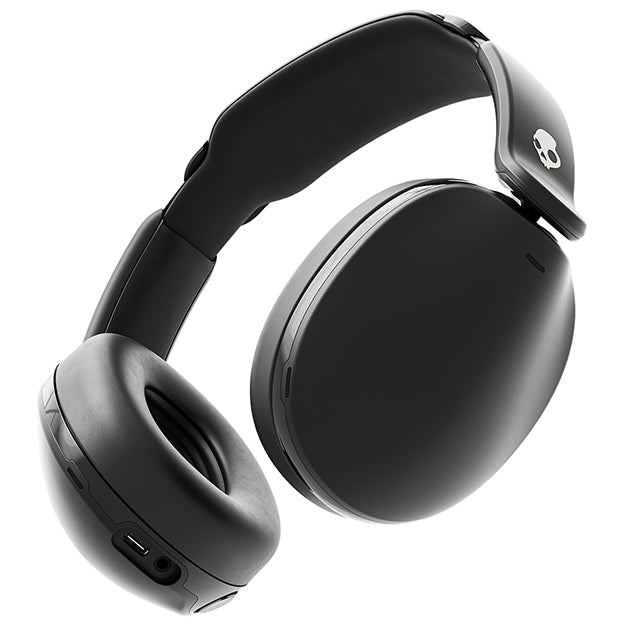
What to Do Before You Reset Bluetooth Headphones
A reset is useful, but it should not always be the first step. Try a few quick checks before clearing the device.
- Charge the headphones and case.
- Move within 3 feet of the phone or computer.
- Turn off Bluetooth on nearby devices.
- Restart the headphones.
- Restart the phone, tablet, or computer.
- Check whether the headphones are already connected to another device.
- Inspect the charging contacts for dirt.
- Update the companion app if one is available.
- Check for a firmware update.
- Test the headphones with a second device.
Bluetooth headphones can remember several devices, but they may connect to only one or two at a time. In my experience, a nearby laptop is often the hidden cause. The headphones appear faulty, but they are quietly reconnecting to the laptop across the room.
How to Pair Headphones After a Factory Reset
After you reset Bluetooth headphones, they should enter pairing mode. If they do not, press and hold the power button until the LED flashes blue, white, or red and blue.
Then follow these steps:
- Open Bluetooth settings on your device.
- Wait for the headphone name to appear.
- Tap or click the name once.
- Confirm any pairing request.
- Wait for the connected message.
- Play audio to test the connection.
- Adjust the volume on both devices.
Do not select a device labeled LE, BLE, or a second duplicate entry unless the manual tells you to. Those entries may be used for app features rather than normal audio.
Give the connection a few seconds after pairing. Some headphones connect first for calls and then activate the high-quality music profile.
Common Problems After Resetting Bluetooth Headphones
A reset can solve connection problems, but new issues may appear if the pairing process is incomplete.
The headphones do not appear
Make sure pairing mode is active. A simple power-on state is not always the same as pairing mode.
Turn Bluetooth off on devices that were previously connected. Then restart the headphones and search again.
The headphones connect but have no sound
Check the output setting on your phone or computer. Also raise the volume on both the device and the headphones.
On a computer, confirm that the headphones are selected for music playback, not only for microphone input.
Only one earbud works
Place both earbuds in the case and charge them. Clean the charging contacts gently with a dry cotton swab.
If one earbud still fails, reset both earbuds at the same time. Resetting only one side can leave the pair out of sync.
The headphones keep disconnecting
Keep the headphones within a reasonable range and avoid walls, crowded wireless areas, and large metal objects. Other wireless devices can add interference.
If the issue occurs with only one phone, update that phone and remove the old headphone profile before pairing again.
The battery drains quickly
A reset may fix an incorrect battery reading, but it cannot restore an aging battery. Features such as active noise cancellation, high volume, and constant calls can also reduce battery life.
Mistakes to Avoid When Resetting Bluetooth Headphones
Resetting headphones is safe when done correctly, but a few common mistakes waste time.
- Do not keep trying random button combinations while the headphones are charging.
- Do not remove the headphones from Bluetooth settings without also putting them into pairing mode.
- Do not assume every model uses the same reset sequence.
- Do not reset the phone before trying a simpler device removal.
- Do not install firmware from an unofficial website.
- Do not use water or sharp tools to clean charging contacts.
- Do not test only music if the real problem affects phone calls.
- Do not forget to reconnect the headphones to every device you use.
One mistake I often see is pairing the headphones to a phone before the reset has finished. The user then repeats the process several times. Wait for the reset light or voice prompt first, then remove the old Bluetooth profile and pair once.
When a Reset Does Not Fix the Problem
If How to Reset Bluetooth Headphones steps do not solve the issue, the problem may be hardware or software related.
Contact the manufacturer when:
- The headphones will not charge.
- No LED or sound appears after charging.
- The device resets but never enters pairing mode.
- The headphones disconnect from every device.
- One side has no sound after cleaning and resetting.
- The charging case becomes unusually hot.
- The headphones have visible swelling, cracks, or liquid damage.
Stop using headphones that become very hot or show battery swelling. Lithium-ion batteries can be dangerous when damaged.
Warranty support may ask for the model number, purchase date, phone type, firmware version, and steps you have already tried. Keep that information ready to speed up the process.
Does Resetting Erase Everything?
A factory reset usually erases Bluetooth pairing history and restores default settings. It may also remove equalizer settings, gesture controls, noise-control preferences, and custom device names.
Not every model erases app settings. Some preferences are stored in the companion app or user account and may return after you sign in again.
Before resetting premium headphones, take a screenshot of your equalizer and control settings. This makes it easy to restore your preferred setup later.
Frequently Asked Questions About How to Reset Bluetooth Headphones
How long does it take to reset Bluetooth headphones?
Most resets take less than one minute. Pairing the headphones again can take another minute or two.
Will resetting Bluetooth headphones delete my phone data?
No. Resetting the headphones does not delete photos, apps, messages, or files from your phone. It normally clears only the headphones’ stored connection data and settings.
Why will my headphones not reset?
The battery may be too low, or the button combination may be wrong for that model. Charge the headphones and check the official instructions for the exact reset sequence.
Do I need to reset my phone too?
Usually, no. First reset the headphones and choose Forget or Remove in the phone’s Bluetooth settings. Reset the phone’s network settings only if other troubleshooting steps fail.
Can I reset Bluetooth headphones without a charging case?
Many over-ear headphones can reset without a case. True wireless earbuds often need their charging case, but the exact method depends on the model.
Will a reset improve Bluetooth range?
A reset can fix connection errors caused by a corrupted pairing profile. It cannot increase the antenna strength or the official Bluetooth range of the headphones.
Conclusion
How to Reset Bluetooth Headphones usually involves turning them off, holding a model-specific button combination, removing the old Bluetooth profile, and pairing again. Charge the headphones first, use the correct instructions, and test them with more than one device.
A reset is a strong first step for pairing failures, audio drops, and one-sided sound. If the headphones still fail after a proper reset, check the battery, charging contacts, firmware, and warranty support. Try the steps today, and share your headphone model or troubleshooting result in the comments.

Similar Posts