How To Set Up A Smartwatch: Easy Setup Guide
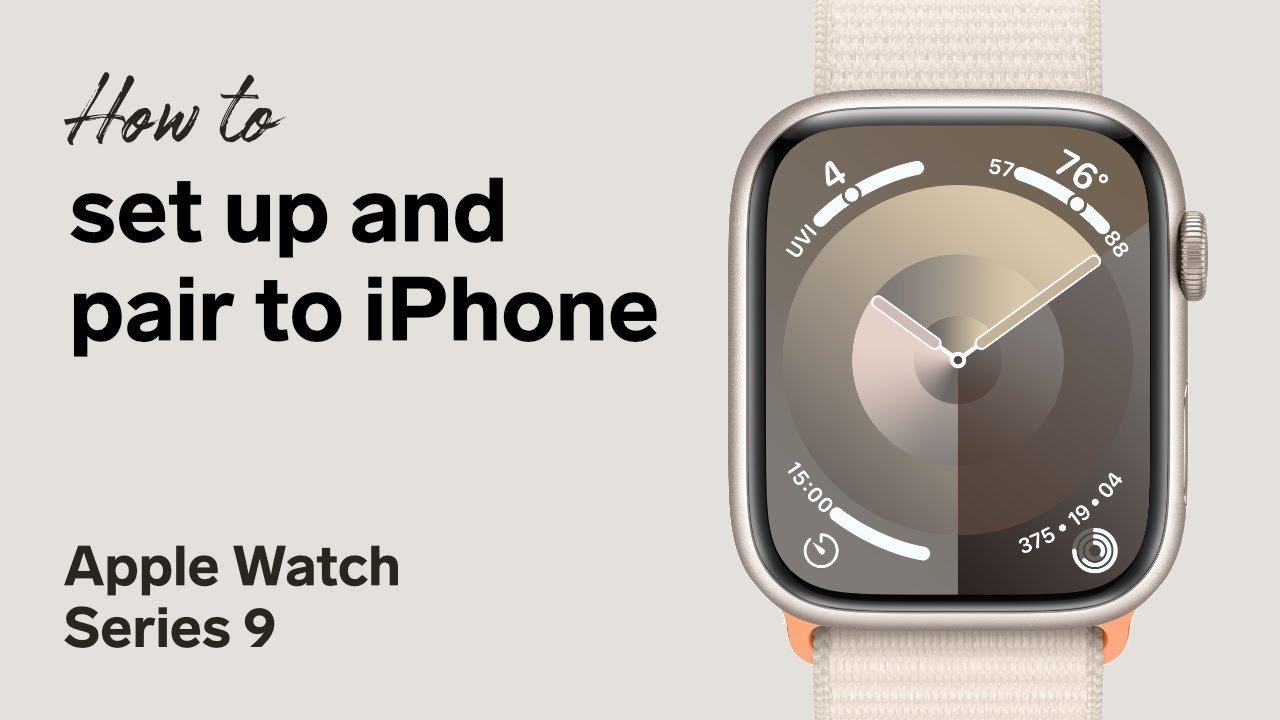
To set up a smartwatch, charge it, pair it with your phone, install its app, and follow the on-screen steps.
Learning how to set up a smartwatch takes only a few minutes when you follow the right order. This guide explains the full process, from checking phone compatibility to adjusting health features, notifications, privacy settings, and battery options. It also covers common setup mistakes so your watch feels useful from the first day.

What to Do Before Setting Up a Smartwatch
Before you begin, gather your smartwatch, charging cable, smartphone, and account login details. A smooth setup starts with basic preparation. It is much easier to fix small issues now than to restart the process later.
Check Phone Compatibility
Smartwatches do not work with every phone. Check the watch maker’s support page or product box for the required operating system and phone model.
Most watches work with Android phones, iPhones, or both. Some features may be limited when the watch and phone use different brands. For example, an Android watch may offer its best features with an Android phone, while an Apple Watch is designed mainly for iPhone users.
Check these points:
• Your phone uses a supported version of iOS or Android.
• Bluetooth is turned on.
• Your phone has a stable Wi-Fi or mobile data connection.
• You have enough storage for the watch app.
• Your phone has at least 30% battery.
• You know the password for your Apple, Google, Samsung, or other brand account.
Charge the Watch
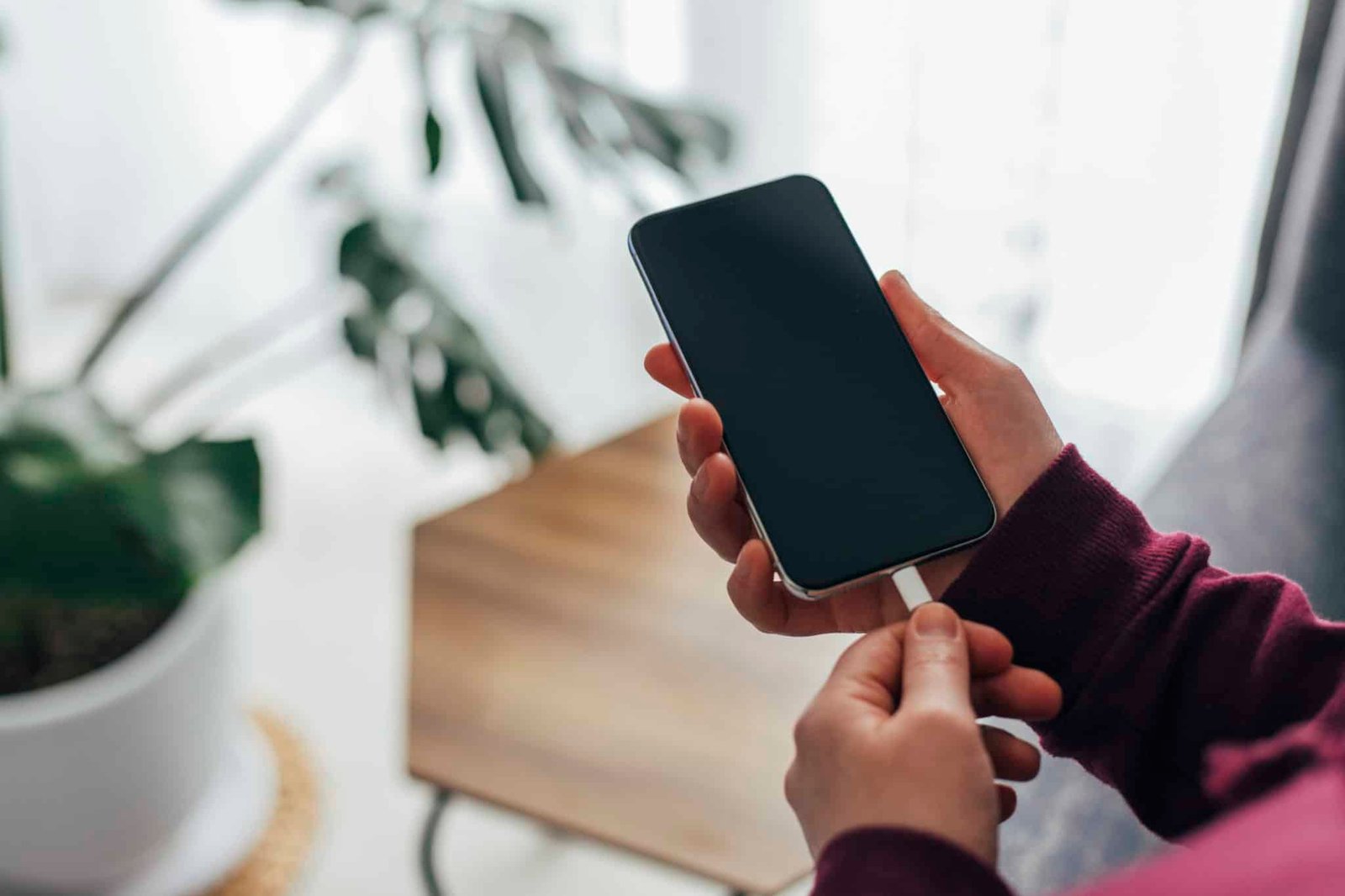
Place the smartwatch on its charger before setup. Many watches will not complete pairing if the battery is too low.
A charge of 50% or more is ideal. Keep the watch near your phone during the first setup because the watch may download software updates. These updates can take several minutes.
Find the Correct App
Each smartwatch uses a companion app. The app manages pairing, settings, watch faces, apps, health data, and updates.
Common examples include:
• Apple Watch app for Apple Watch
• Wear OS by Google for many Wear OS watches
• Galaxy Wearable for Samsung Galaxy Watches
• Fitbit app for Fitbit devices
• Garmin Connect for Garmin watches
Download the app from the official Apple App Store or Google Play Store. Avoid unknown third party app stores. They may provide outdated or unsafe software.
How to Set Up a Smartwatch Step by Step
The exact buttons may differ by model, but the basic process is almost the same. Follow these steps in order for a reliable setup.
1. Turn On the Smartwatch
Press and hold the side button or power button until the brand logo appears. The first start may take longer than usual.
Choose your language and region when asked. These choices affect the time format, date format, units, and some local services.
If the watch does not turn on, place it on the charger for at least 15 minutes. Check that the charging contacts are clean and aligned.
2. Open the Companion App
Open the watch app on your phone. Look for an option such as:
• Add device
• Pair new watch
• Start pairing
• Set up a new smartwatch
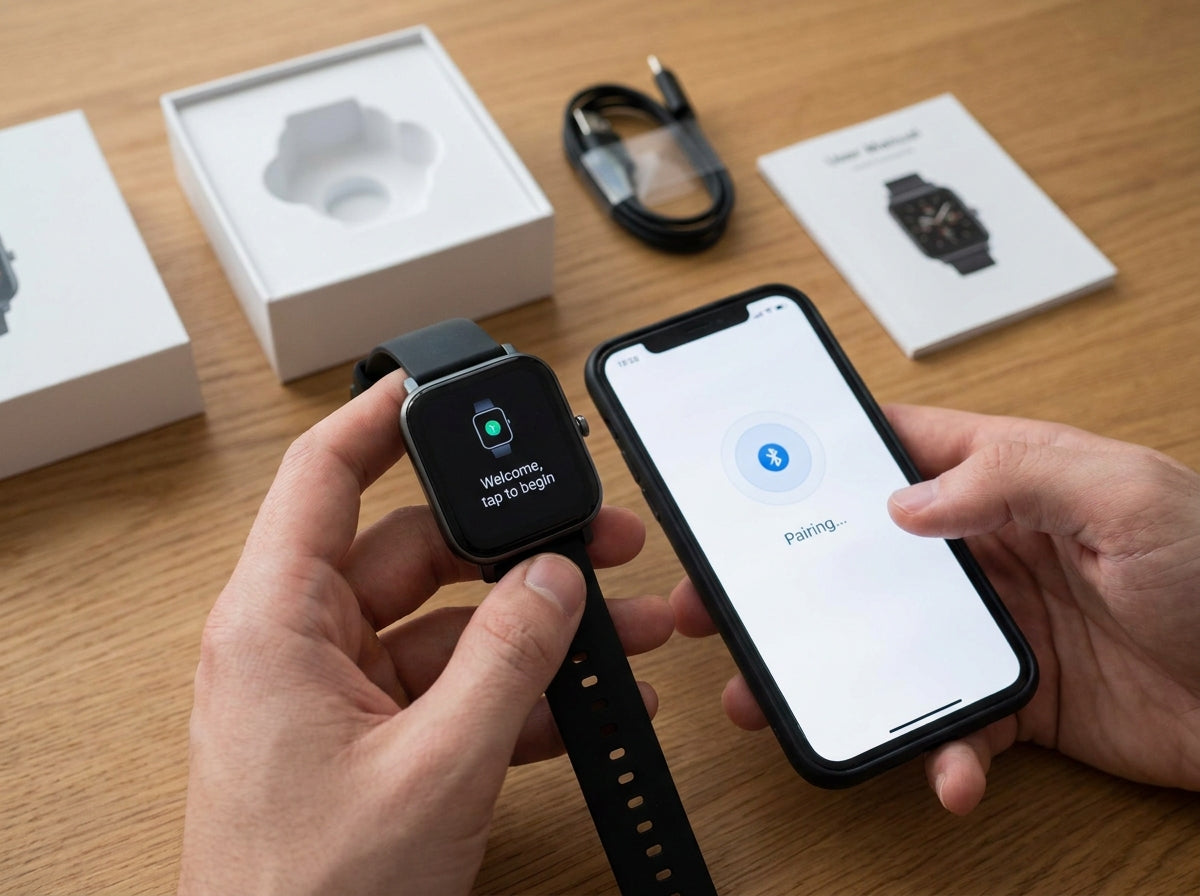
Tap the matching option. The app should search for nearby devices.
Keep Bluetooth on and place the watch within a few feet of your phone. Walls, laptops, and other Bluetooth devices can sometimes slow the connection.
3. Select the Correct Watch
Your phone may show the name or model number of the watch. Select the right device.
Some watches display a code on the screen. The same code should appear in the phone app. Confirm that both codes match. This step helps prevent pairing with the wrong device nearby.
If no code appears, cancel the process and try again. Restarting Bluetooth often solves this small problem.
4. Accept Pairing Requests
Your phone and watch may ask for permission to pair. Tap Pair, Connect, or Confirm on both devices.
Do not close the app during this step. The watch may also ask you to accept terms, enable location services, or allow notifications. These permissions support features such as weather, GPS, calls, and message alerts.
5. Sign In to Your Account
Sign in with the account linked to the watch brand. This account can store your settings, health history, apps, and watch backups.
Use a strong password and turn on two factor authentication when it is available. A smartwatch can hold personal information, so account security matters.
6. Install Software Updates
The app may ask you to update the watch. Accept the update if the battery is charged and your phone has a reliable connection.
Do not remove the watch from the charger during a firmware update unless the app tells you to do so. An interrupted update can cause the watch to freeze or require a reset.
7. Create or Restore a Backup
If you used the same brand of watch before, the app may offer a backup. A backup can restore:
• Watch faces
• App settings
• Alarms
• Workout preferences
• Notification choices
• Accessibility settings
If this is your first watch, choose the option to set up as new. This gives you a clean start and reduces unwanted settings.
8. Create a Passcode
A passcode protects your data and may enable payment features. Choose a code that is easy for you to remember but hard for others to guess.
Avoid simple codes such as 1234 or your birth year. Enable wrist detection if your watch supports it. This feature can lock the watch when you remove it.
9. Finish the Setup
The app may ask about your height, weight, age, activity level, sleep goals, and health goals. Enter accurate information where possible.
Health estimates are not medical diagnoses. Smartwatch sensors can support general tracking, but they may not be as accurate as clinical equipment. Contact a health professional if a reading concerns you.

Set Up Notifications, Calls, and Messages
Notifications are one of the main reasons people learn how to set up a smartwatch. They can save you from checking your phone every few minutes, but too many alerts can become annoying.
Open the companion app and find the notification menu. Choose which apps can send alerts to the watch.
Useful notifications may include:
• Phone calls
• Text messages
• Calendar reminders
• Navigation directions
• Package updates
• Family or work messages
Turn off low value alerts such as shopping promotions, game alerts, and social media likes. A smartwatch should reduce distractions, not move every phone distraction to your wrist.
Manage Calls
Some watches can answer calls through a built in speaker and microphone. Others only show the caller’s name and let you answer on the phone.
Check whether your watch supports:
• Bluetooth calling
• Wi-Fi calling
• Cellular service
• Emergency calling
A cellular smartwatch may need its own plan. Ask your carrier about monthly fees, compatible plans, and coverage before activating the feature.
Control Message Replies
Many watches offer quick replies, voice dictation, emojis, or an on-screen keyboard. Test these options before relying on them.
Voice dictation works best in a quiet place. It may misunderstand names, accents, or background noise. Review sensitive messages before sending them.
Protect Private Notifications
Notifications can show message previews on the watch face. People nearby may see private details.
For better privacy:
• Hide message previews.
• Use a passcode.
• Turn on wrist detection.
• Disable notifications in meetings.
• Use a quiet or theater mode in public places.
Set Up Health, Fitness, and Safety Features
Modern smartwatches can track steps, heart rate, workouts, sleep, blood oxygen, and more. The available features depend on the model, region, software, and local rules.
When learning how to set up a smartwatch for fitness, start with a few useful goals. You do not need to turn on every sensor at once.
Add Personal Health Details
Enter accurate information in the health profile. Height, weight, age, and sex can affect calorie estimates and other calculations.
Keep in mind that these numbers are estimates. Research has found that wearable devices can be helpful for tracking trends, but results vary by person, activity, skin contact, and device design.
Set Activity Goals
Start with a realistic goal. You might choose:
• A daily step target
• A weekly exercise target
• A standing reminder
• A short walking goal
• A sleep schedule
A goal that fits your life is more useful than a difficult goal that you stop using after a week. You can increase it later.
Add Workout Types
Most watches support common activities such as walking, running, cycling, swimming, and strength training. Add your favorite workouts to the quick start list.
For outdoor activities, allow location access if you want GPS maps, distance, pace, or route data. GPS can use more battery, especially during long workouts.
Configure Heart and Safety Alerts
Depending on the device, you may be able to enable alerts for high heart rate, low heart rate, irregular rhythm, falls, or emergency calls.
These features can be helpful, but they have limits. A smartwatch cannot identify every health problem, and an alert does not always mean an emergency. Treat unusual readings as a reason to pause and seek proper medical advice.
Set Up Sleep Tracking
Wear the watch comfortably at night if you want sleep data. Make sure the band is secure but not tight.
Sleep tracking works best when the watch has enough battery. Charge it before bed or use a short charging period during your morning routine. Some people find sleep tracking useful, while others dislike wearing a watch at night. Use the feature only if it helps you.

Customize the Watch Face and Controls
A good watch face shows the information you need without looking crowded. You can often choose a digital or analog style and add small data areas called complications or widgets.
Useful choices include:
• Battery level
• Date
• Weather
• Steps
• Heart rate
• Calendar
• Timer
• Sunrise and sunset
Avoid adding too many items. Small text can be hard to read, especially outdoors.
Adjust Display Settings
Change the screen brightness, text size, and screen timeout to suit your eyes. Automatic brightness can save battery and improve comfort.
Always on display is convenient, but it can reduce battery life. If your watch needs daily charging, turn it off and compare the difference.
Customize Buttons and Gestures
Some watches allow you to change what the side button, crown, double tap, or swipe gesture does. Set the controls you use most often.
For example, you might assign a button to workouts, alarms, payments, or a timer. Easy controls matter when your hands are wet, cold, or busy.
Choose Sound and Vibration
Vibration alerts are often more useful than loud sounds. Set a gentle vibration for routine alerts and a stronger pattern for calls or alarms.
Turn off sounds in quiet places such as offices, libraries, theaters, and places of worship. Most watches include a silent, focus, or do not disturb mode.

Add Apps, Music, Maps, and Payments
After the basic setup is complete, add only the apps you expect to use. Too many apps can make the watch harder to navigate and may use extra battery.
Useful smartwatch apps can include:
• Weather
• Maps
• Music controls
• Timers
• Shopping lists
• Public transit
• Meditation
• Password or authentication tools
Set Up Music
Some watches let you control music on your phone. Others can store music for offline listening.
Offline music is useful for walks and workouts without a phone. Download songs through the official app, connect Bluetooth headphones, and test playback before leaving home.
Set Up Maps and GPS
Allow location access if you want directions, route tracking, or local weather. Choose the least restrictive permission that still supports the feature you need.
GPS is not perfect in tunnels, tall buildings, dense forests, or areas with weak satellite signals. Download offline maps when the watch supports them and your route requires reliable navigation.
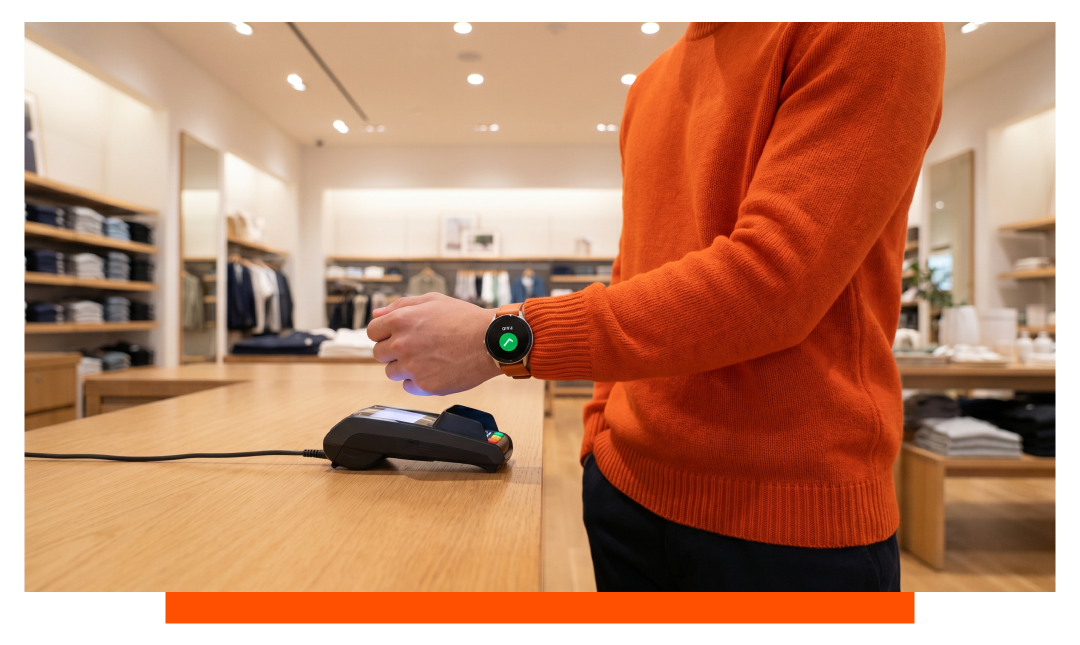
Set Up Mobile Payments
A compatible watch may support contactless payments. You will need a supported bank card, a screen lock, and sometimes bank verification.
Never share your passcode or payment verification code. If the watch is lost, use the brand’s device-finding service to lock or remove payment cards.

Improve Battery Life and Daily Comfort
Battery life depends on the model, screen settings, GPS use, cellular service, music playback, and health sensors. A watch that lasts two days in light use may last much less with GPS and calls.
Try these battery tips:
• Reduce screen brightness.
• Turn off always on display if you do not need it.
• Limit unnecessary notifications.
• Use GPS only during workouts or travel.
• Disable cellular service when you are near your phone.
• Remove apps you do not use.
• Keep the software updated.
• Use a battery saver mode during long days.
A smartwatch should fit your routine. If it needs charging at an inconvenient time, create a regular charging habit. Many people charge it while showering, getting dressed, or working at a desk.
Wear the Watch Correctly
Wear the watch above the wrist bone. The back sensor should touch your skin, but the band should not feel tight or numb.
A loose watch may produce poor heart rate and workout data. A band that is too tight can cause discomfort or skin irritation. Clean the watch and band often, especially after exercise.
Check the manufacturer’s water resistance guidance. Water resistance is not the same as being waterproof. Soap, salt water, hot tubs, and high pressure can damage some devices.
Troubleshoot Common Smartwatch Setup Problems
Even when you know how to set up a smartwatch, pairing problems can happen. Most are simple connection or permission issues.
The Watch Will Not Pair
Try these steps:
Charge the watch for at least 15 minutes.
Turn Bluetooth off and on again.
Restart both the phone and watch.
Keep the devices close together.
Close other watch apps.
Update the phone and companion app.
Remove an old pairing from the phone’s Bluetooth menu.
Reset the watch only as a final step.
Do not pair the watch from the phone’s Bluetooth menu first unless the manufacturer instructs you to do so. Many watches must be paired inside their companion app.
Notifications Do Not Appear
Check that notifications are allowed on both the phone and watch app. Also make sure the phone is not in a focus, battery saver, or do not disturb mode that blocks alerts.
Some apps only send alerts when the phone is locked. Test with a simple text message after changing the settings.
The Watch Keeps Disconnecting
Distance, low battery, outdated software, and background restrictions can cause disconnections. Android phones may restrict the watch app to save power, so allow the app to run in the background.
If the problem continues, unpair the watch, restart both devices, and pair them again through the official app.
Health Data Looks Wrong
Poor fit, tattoos, sweat, cold skin, movement, and loose bands can affect sensor readings. Clean the sensor, wear the watch correctly, and compare results over time rather than judging one reading.
Do not use a smartwatch as a replacement for medical testing. Seek professional care for symptoms or worrying readings.
The Watch Does Not Charge
Clean the charging contacts with a soft, dry cloth. Try another outlet or charging adapter if the model allows it.
Make sure the charger matches the watch. Wireless charging pads are not always interchangeable. Stop using the device if it becomes unusually hot, swells, or shows physical damage.

Smartwatch Privacy and Security Tips
A smartwatch can collect location data, health information, contacts, messages, and payment details. During setup, review privacy choices instead of accepting every permission without reading it.
Use these safeguards:
• Set a passcode.
• Enable two factor authentication.
• Install updates promptly.
• Download apps only from official stores.
• Review health data sharing settings.
• Limit location access when it is not needed.
• Turn on device finding.
• Remove payment cards if the watch is lost.
• Unpair and erase the watch before selling or giving it away.
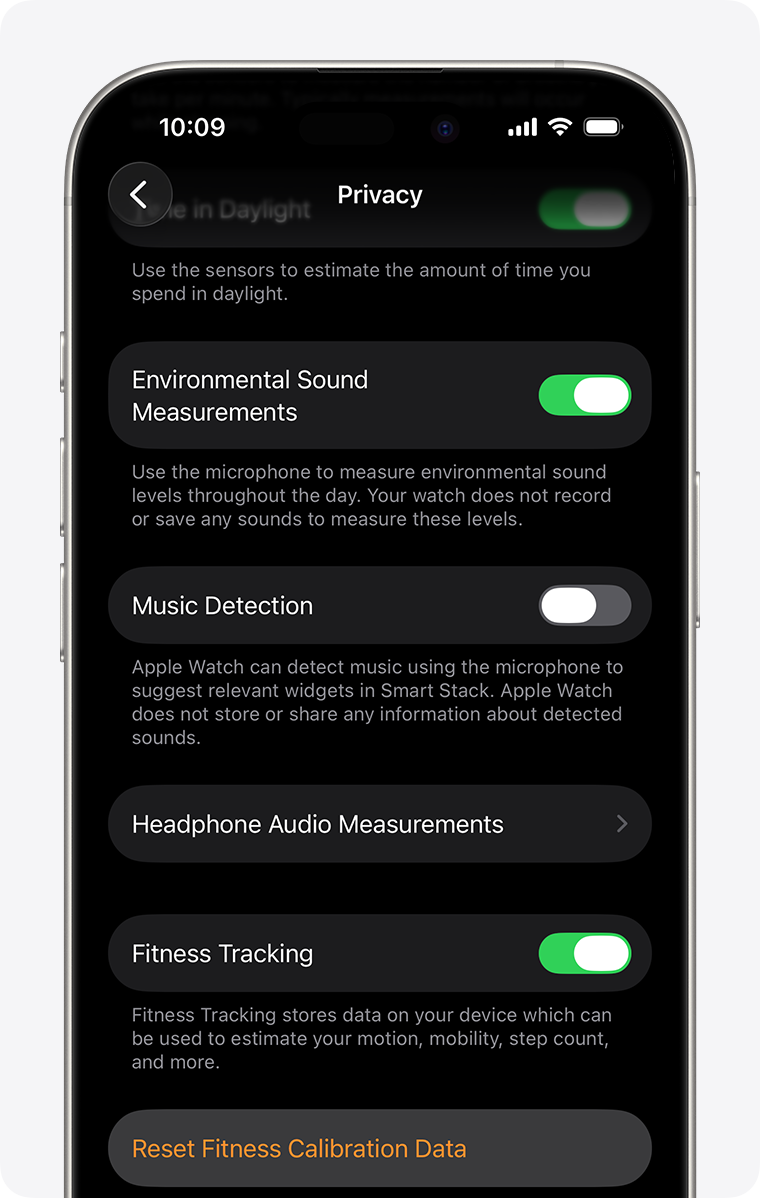
Health data deserves extra care. Check which apps can access it and whether data is shared with other services. If a feature is not useful to you, turning it off can reduce both privacy risks and battery use.
A Simple First-Day Smartwatch Setup Plan
If you want a simple setup, use this order:
Charge the watch.
Install the official companion app.
Pair the watch with your phone.
Sign in and update the software.
Create a passcode.
Select useful notifications.
Add health and fitness details.
Choose one watch face.
Set up emergency contacts if supported.
Test calls, messages, workouts, and charging.
This approach prevents information overload. You can explore advanced features later, after the basic functions work well.
A common mistake I see in smartwatch setup is enabling every alert and health feature on the first day. The watch then feels noisy, the battery drops quickly, and the owner assumes the device is difficult. Start small, learn what helps, and build your setup around your daily life.
Frequently Asked Questions About How to Set Up a Smartwatch
How long does it take to set up a smartwatch?
Most smartwatch setups take about 10 to 30 minutes. The process may take longer if the watch needs a software update, backup restore, or cellular activation.
Can I set up a smartwatch without a phone?
Some watches offer limited setup without a phone, but most need a compatible smartphone for full features. A phone is usually required for apps, updates, notifications, account access, and detailed health reports.
Why is my smartwatch not connecting to my phone?
Make sure Bluetooth and Wi-Fi are on, then restart both devices. Pair the watch through its official companion app rather than only through the phone’s Bluetooth settings.
Do I need Wi-Fi to set up a smartwatch?
You usually need an internet connection for app downloads, account login, software updates, and some backups. Bluetooth handles much of the local connection between the phone and watch.
Can I use a smartwatch with any Android phone?
No. Compatibility depends on the watch model, Android version, phone brand, and available app support. Check the manufacturer’s current compatibility list before buying or starting setup.
How do I reset a smartwatch?
Open the watch settings and look for System, General, or Reset. A reset erases personal data and may remove pairings, so back up the watch first when possible.
Should I wear my smartwatch to sleep?
You can wear it to track sleep if the fit is comfortable and the model supports sleep tracking. Charge it before bed or during another part of your routine so the battery does not run out overnight.
Conclusion
How to set up a smartwatch is easier when you follow a clear order: charge the device, install the official app, pair it with your phone, update the software, and adjust only the features you need. Then improve the experience with sensible notifications, accurate health details, privacy controls, and a comfortable fit.
Start with the basics today and test each important feature before relying on it. Explore your watch’s official support resources for model specific guidance, and share your setup tips or questions in the comments.

Similar Posts