How To Extend Smartphone Battery Life: Simple Tips That Work
Lower screen brightness, reduce heat, limit background activity, and charge your phone with care to extend battery life.
How to Extend Smartphone Battery Life is less about one hidden setting and more about daily habits. Screen use, weak signals, heat, charging patterns, and aging batteries all affect how long your phone lasts. This guide combines practical testing, battery science, and simple steps you can use on both iPhone and Android.
Why Smartphone Batteries Lose Power
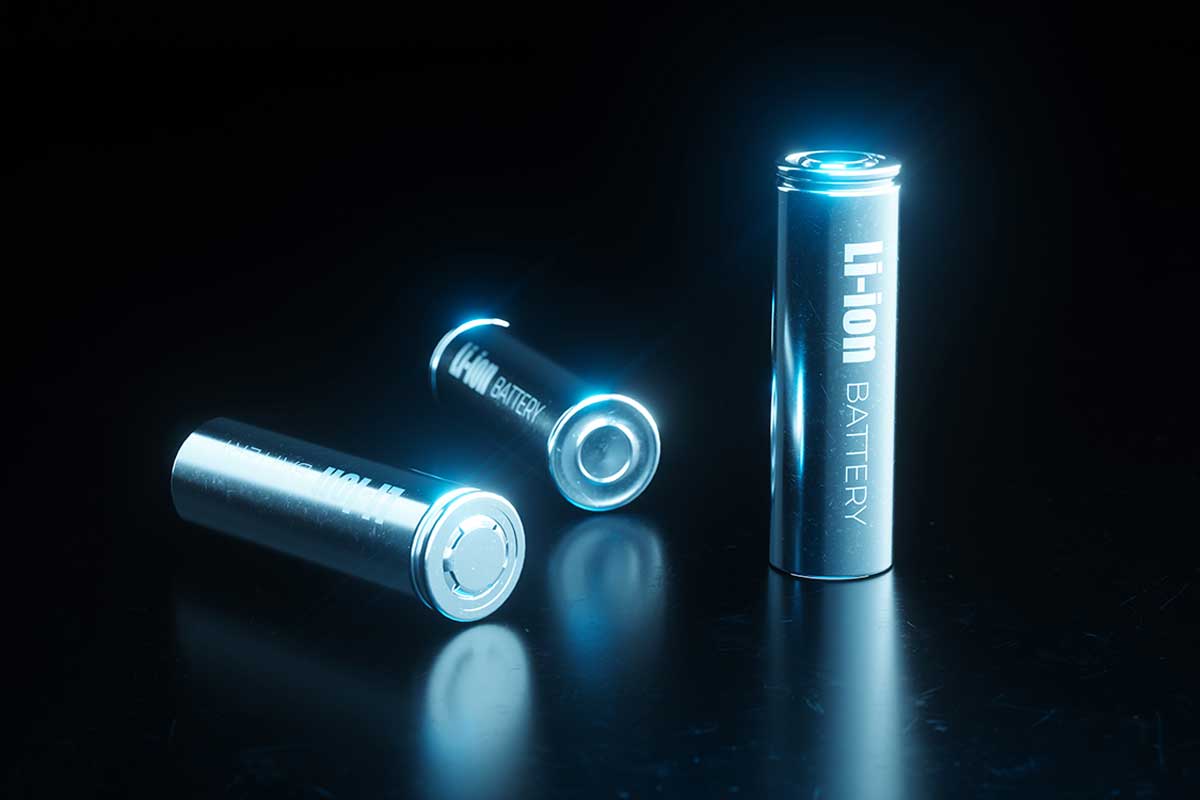
Modern smartphones use rechargeable lithium-ion batteries. These batteries store energy through chemical reactions, so their capacity slowly drops over time. Every full charge and discharge cycle adds some wear.
A charge cycle does not always mean plugging in from 0% to 100%. If you use 50% of your battery today and 50% tomorrow, that equals about one full cycle. Most phones can handle many cycles, but battery capacity eventually falls.
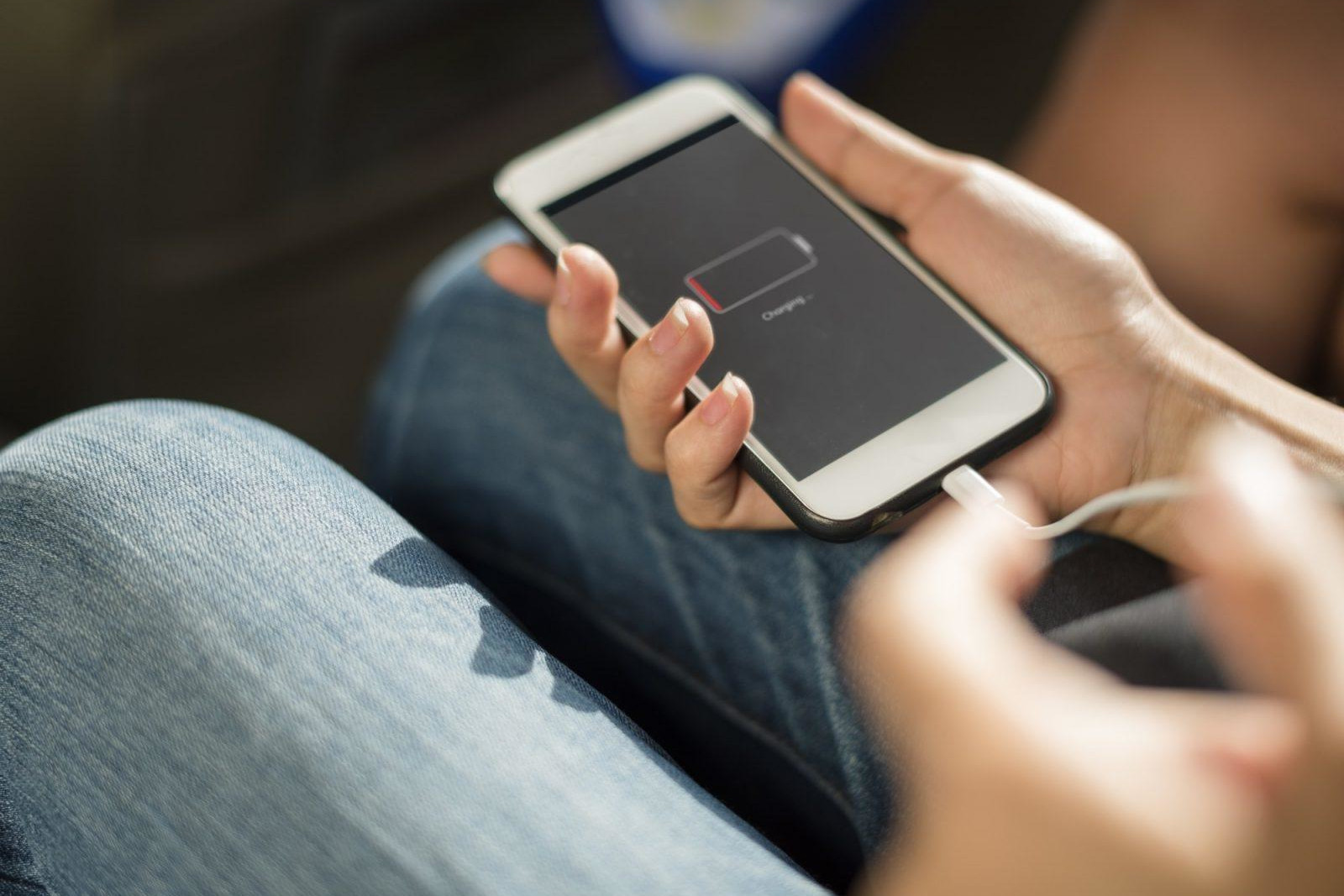
Heat is one of the biggest causes of battery wear. A phone that often becomes hot may lose capacity faster than one used at a cool temperature. Direct sun, hot cars, heavy games, and poor ventilation can all raise battery temperature.
Other common causes of fast battery drain include:
• A bright screen that stays on for long periods
• Apps that refresh or use location in the background
• Weak cellular or Wi-Fi signals
• High refresh rate settings
• Push notifications from many apps
• GPS, Bluetooth, or mobile hotspot use
• Old software or poorly optimized apps
How to Extend Smartphone Battery Life starts with finding the biggest source of drain. You do not need to disable every feature. You need to reduce the features that use the most power for your routine.
Check Which Features Use the Most Battery
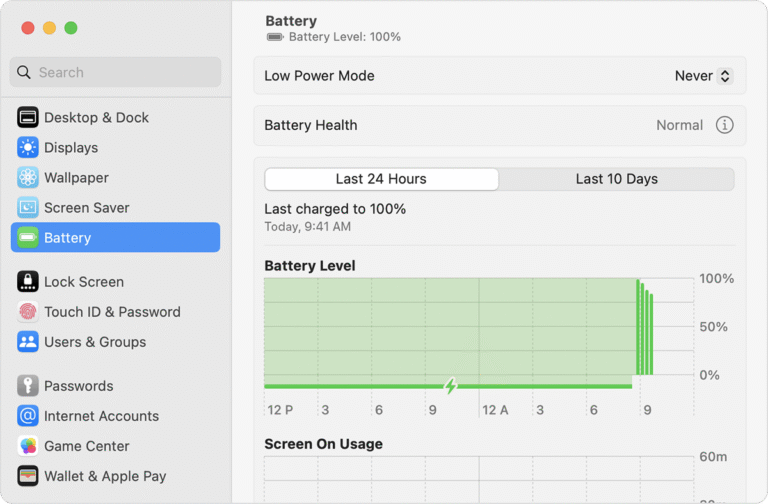
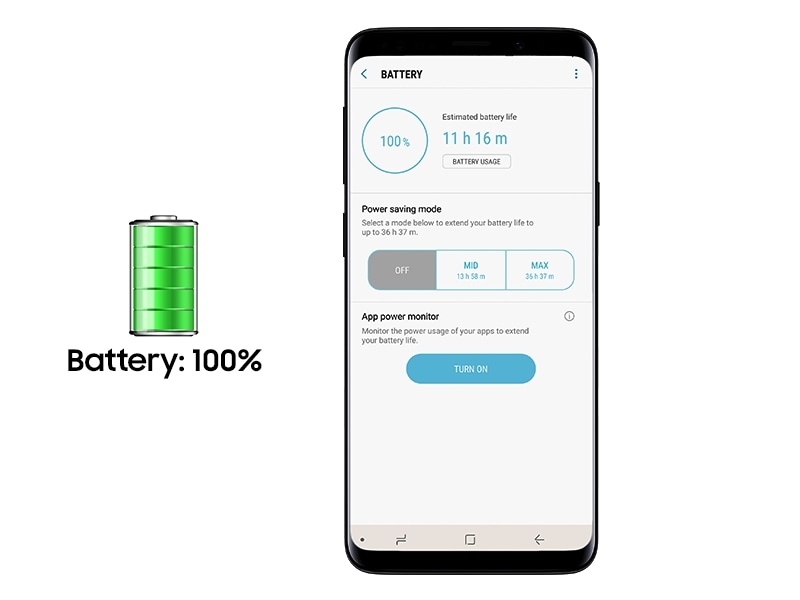
Before changing settings, check your battery usage report. Both major mobile platforms show which apps and features consume the most energy.
On an iPhone, open Settings, then Battery. You can view battery use by app and see whether the app used power on the screen or in the background. On Android, open Settings, then Battery, and look for Battery Usage. Menu names may differ by phone maker.
Look for patterns rather than one unusual day. A video app may use a lot of power because you watched videos for an hour. That does not mean the app is faulty.
Pay close attention to:
• Apps with high background use
• Screen-on time
• Mobile network activity
• Navigation and location services
• Apps that keep running after you stop using them
• Sudden changes after a software update
If one app drains power without a clear reason, update it first. If the issue continues, restrict its background use or uninstall it for a day. This simple test often reveals the real cause faster than changing ten settings at once.
How to Extend Smartphone Battery Life becomes much easier when you measure first. Battery reports turn a vague complaint into a clear problem.
Reduce Screen Power Use
The display is often the largest battery user, especially on phones with large, bright screens. A few screen changes can add hours to daily battery life.
Lower Brightness
Use automatic brightness if it works well for you. It adjusts the display to match the light around you. You can also lower brightness by hand when you are indoors.
Avoid using maximum brightness for long periods. It may help in direct sunlight, but it consumes more power and can create heat.
Shorten Screen Timeout
Set your phone to turn off after a short period of inactivity. Thirty seconds or one minute is enough for most people. A long timeout can waste power when you put the phone down without locking it.
Use Dark Mode When It Helps
Dark mode can reduce power use on OLED and AMOLED screens because dark pixels use less energy. The savings depend on brightness, app design, and how much of the screen is dark.
Dark mode offers little battery benefit on many LCD screens. It may still feel easier on your eyes at night, but do not expect the same power savings.
Reduce the Refresh Rate
Many newer phones use 90 Hz, 120 Hz, or higher refresh rates. These settings make scrolling look smooth, but they can use more power than a standard 60 Hz mode.
Use adaptive refresh rate if your phone offers it. Otherwise, choose a lower rate when battery life matters more than smooth motion.
A screen is like a lamp inside your pocket. The brighter and longer it runs, the faster your battery falls. Managing it is one of the most effective ways to learn How to Extend Smartphone Battery Life.
Manage Background Apps and Notifications
Apps may continue to sync, check location, download content, or send notifications after you close them. Some background work is useful, but too much can waste energy.
Review apps that you rarely use. Remove apps you no longer need, especially free apps that show many ads or track location. Poorly designed apps may wake the phone often and keep the processor active.
Use these steps:
• Turn off background refresh for apps that do not need instant updates
• Restrict background battery use for low-priority apps
• Disable notifications that do not matter
• Stop automatic video play in social media apps
• Limit email syncing if you do not need instant messages
• Uninstall duplicate tools, such as several cleaner or scanner apps
Do not force-close every app after use. On both iPhone and Android, repeatedly closing apps can sometimes use more power because the phone must reload them later. Close an app when it is frozen, misbehaving, or using unusual power.
Notifications also wake the screen and processor. A phone that lights up dozens of times each hour is spending energy on interruptions. Keep alerts for calls, messages, work, travel, and other important needs. Silence the rest.
This is a key part of How to Extend Smartphone Battery Life because background activity can drain power even when the phone sits on a table.

Use Wi-Fi and Cellular Settings Wisely
Your phone uses extra power when it searches for a strong signal. This is common in elevators, basements, rural areas, crowded events, and buildings with thick walls.
When Wi-Fi is available, connect to a trusted network. Wi-Fi often uses less power than mobile data for normal browsing and streaming. However, a weak Wi-Fi signal can also cause extra work, so move closer to the router when possible.
If you are in an area with no service, use Airplane Mode. This stops the phone from repeatedly searching for a cellular signal. You can turn Wi-Fi or Bluetooth back on while Airplane Mode remains active if you still need them.
Consider these network habits:
• Use 5G only when you need its speed
• Choose an automatic network mode when available
• Turn off mobile hotspot after use
• Download music, maps, or shows before a trip
• Use Airplane Mode during flights or in dead zones
• Turn off Bluetooth when you are not using connected devices
You do not need to disable mobile data all day. The goal is to avoid needless searching and heavy streaming. Network management is especially useful when traveling.
Control Location Services
GPS and location services can use significant power, particularly when an app checks your position often. Navigation apps need location while you travel, but a shopping or game app may not.
Review location permissions in your privacy settings. Choose “While Using” for apps that only need your location during active use. Choose “Never” for apps that have no clear reason to use it.
You can also disable precise location for apps that only need a general area. A weather app may work well with a rough location, while a navigation app needs more accuracy.
Location use may also continue through widgets, photo tools, fitness apps, and advertising services. Check these features if your battery report shows high location activity.
How to Extend Smartphone Battery Life does not mean giving up useful location tools. It means matching each permission to the app’s real purpose.

Avoid Heat and Cold
Temperature has a major effect on battery performance and long-term health. High heat can speed up chemical aging. Very cold conditions can make the battery appear to drain quickly, although some performance may return when the phone warms up.
Keep your phone away from:
• Direct sunlight
• A hot car dashboard
• Radiators and heaters
• Thick surfaces that block ventilation
• Gaming sessions while charging
• Cheap cases that trap heat during heavy use
If your phone becomes hot, stop demanding tasks for a while. Remove the case if it holds heat, move to a cool indoor place, and let the phone rest. Do not put it in a refrigerator or freezer. Sudden temperature changes can cause moisture problems.
It is normal for a phone to feel warm during charging, gaming, video recording, or navigation. It is not normal for it to remain very hot during light use. Persistent heat, swelling, a damaged battery, or a strong chemical smell requires professional service. Stop using a visibly swollen battery.
Heat management is one of the most important lessons in How to Extend Smartphone Battery Life. A cool battery is usually a happier battery.
Charge Your Phone in a Healthier Way
You do not need to drain a modern smartphone to 0% before charging it. Lithium-ion batteries do not have the old “memory effect” associated with some older battery types.
Small, regular charges are fine. Charging from 30% to 80% may reduce stress compared with frequent deep discharges, but it is not a strict rule. Convenience matters too. If you need 100% for a long day, charge to 100%.
Most phones now offer battery protection features. These may include:
• Optimized charging
• Adaptive charging
• Charge limits, such as 80%
• Overnight charging controls
These features may pause charging near a selected level and finish later based on your routine. Turn them on if your phone supports them.
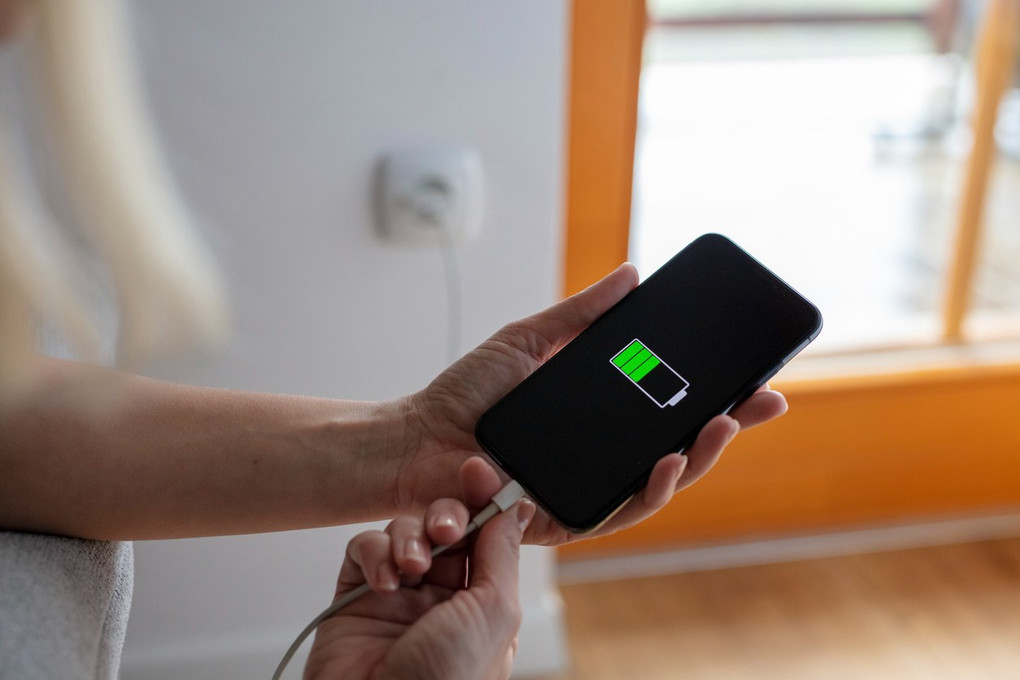
Use a safe, compatible charger and cable. Reputable chargers follow electrical safety standards and provide the correct power levels. Avoid damaged cables, loose plugs, and unknown accessories with poor build quality.
Fast charging is useful, but it can create more heat. Use it when you need a quick boost. For overnight charging, a slower approved charger may produce less heat.
Wireless charging is convenient, but it can also create extra warmth if the phone and charger do not align well. Remove thick cases if they cause heat or charging problems.
Use Battery Saver Mode
Battery Saver, Low Power Mode, and similar tools reduce power use by limiting background activity, visual effects, syncing, and sometimes performance.
Turn it on when you reach a low battery level or when you know you will be away from a charger. You can also schedule it to start automatically.
Battery Saver may delay email updates, reduce animation, or limit location checks. These are useful trade-offs during travel, emergencies, and long workdays.
Do not treat Battery Saver as a cure for a failing battery. If the phone loses power rapidly even in this mode, check battery health and recent app activity.
A useful routine is to keep normal settings during the day and enable power saving before a long trip. This gives you a smoother experience while still protecting your remaining charge.
Update Software and Replace Aging Batteries
Software updates can improve power management and fix bugs. They can also cause temporary drain while the phone indexes files, updates apps, or completes background tasks. Wait a day or two after a major update before judging battery performance.
Keep apps updated through the official app store. If drain begins after a particular app update, check for a later fix or contact the developer.
Battery health is another important factor. On an iPhone, Battery Health settings show maximum capacity and performance information. Android phones use different menus, and some models provide detailed battery health data while others do not.
A battery may need service when:
• It shuts down with plenty of charge shown
• It drops from a high percentage to a low percentage quickly
• It becomes hot during light use
• It swells or lifts the screen
• Battery health is significantly reduced
A replacement battery can make an older phone feel useful again. Use an authorized repair provider or a qualified technician. Cheap, poor-quality replacements can create safety and performance risks.
How to Extend Smartphone Battery Life includes knowing when settings are no longer enough. A worn battery cannot be restored by an app or a cleaning tool.
Habits That Make the Biggest Difference
You do not need to change everything at once. Start with the habits that match your daily routine.
For most people, the best plan is:
-
Check the battery usage report.
-
Lower brightness and shorten screen timeout.
-
Limit background activity for high-use apps.
-
Turn off unneeded notifications.
-
Use Wi-Fi when the cellular signal is weak.
-
Avoid heat during charging and heavy use.
-
Enable optimized charging or a charge limit.
-
Use Battery Saver before the battery becomes critically low.
-
Update apps and software.
-
Replace the battery if it is worn or damaged.
In my own phone testing, the biggest gains usually come from screen brightness, video use, weak signals, and heat. Tiny settings can help, but they rarely match the benefit of reducing long screen sessions or stopping a phone from overheating.
One mistake is chasing a perfect battery percentage. Battery life changes with weather, signal strength, camera use, games, streaming quality, and age. Focus on steady habits rather than worrying about every charge.
Another mistake is installing “battery booster” apps. Many of these apps add notifications, run in the background, or promise results they cannot deliver. Your phone’s built-in battery tools are usually safer and more useful.
What Battery-Saving Tips Cannot Do
Battery-saving settings can extend daily runtime, but they cannot defeat heavy use. Recording 4K video, playing advanced games, using navigation, and streaming over cellular will consume power quickly.
A phone with a small battery may also need more frequent charging than a larger model. Screen size, processor design, modem efficiency, software quality, and battery capacity all affect results.
Battery percentage readings are estimates. They can change after updates, temperature shifts, or recalibration. Do not assume that a sudden one-day drop proves permanent damage.
Extreme limits can also reduce convenience. Turning off every notification, using very low brightness, or disabling useful location tools may not suit your life. The best approach balances battery health, safety, privacy, and comfort.
The purpose of How to Extend Smartphone Battery Life is not to make your phone last forever. It is to reduce waste, protect the battery, and help you get through the day with less stress.
Frequently Asked Questions About How to Extend Smartphone Battery Life
How can I extend smartphone battery life quickly?
Lower screen brightness, enable Battery Saver or Low Power Mode, and close or restrict apps with unusual background use. Also switch to Wi-Fi or Airplane Mode in areas with a weak cellular signal.
Is it bad to charge my phone overnight?
Charging overnight is generally safe when you use a modern phone with a reliable charger and battery protection features. Enable optimized charging or an 80% charge limit if your device offers one.
Should I charge my phone to 100% every time?
No. Charging to 100% is fine when you need maximum runtime, but daily partial charging is also healthy for lithium-ion batteries. Avoid frequent deep discharges to 0% when practical.
Does dark mode save battery?
Dark mode can save power on OLED and AMOLED displays because dark pixels use less energy. Its effect is smaller or minimal on many LCD screens.
Does closing all apps improve battery life?
Not usually. Constantly closing and reopening apps can use more power, while some apps may need to reload data. Focus on apps with high background activity instead.
Why does my phone battery drain faster in cold weather?
Cold temperatures slow battery chemistry and can reduce available power for a short time. Keep the phone warm, but avoid direct heat; normal room temperature usually restores regular performance.
When should I replace my smartphone battery?
Consider replacement when the phone shuts down unexpectedly, loses power very quickly, becomes unusually hot, or shows a clearly reduced battery capacity. A swollen or damaged battery needs prompt professional service.
Conclusion
How to Extend Smartphone Battery Life comes down to managing screen use, background activity, network searching, heat, location access, and charging habits. Start by checking your battery report, then make a few changes that fit your routine.
Protect the phone from heat, use trusted charging accessories, and turn on built-in battery protection features. If the battery is worn or swollen, professional replacement is safer and more effective than another settings change.
Try these steps for one week and compare your screen time and battery usage. For more practical smartphone guides, explore related resources, subscribe for updates, or share the battery tip that works best for you.