How To Check Battery Health: Easy Guide For Any Device
Battery health shows how much charge your battery can hold compared with when it was new.
Learning how to check battery health helps you spot aging batteries, avoid sudden shutdowns, and decide when replacement makes sense. The exact steps vary by device, but the main idea stays the same: compare the battery’s current capacity, cycle count, temperature, and performance with its original specifications.

What Battery Health Means
Battery health is a measure of a rechargeable battery’s current condition. It is not the same as the battery percentage shown on your screen.
Battery percentage tells you how much power remains right now. Battery health tells you how much energy the battery can store after months or years of use.
For example, a new phone may have a design capacity of 5,000 mAh. If its maximum capacity falls to 4,000 mAh, the battery health is about 80%.
You can use this simple formula:
Battery health = Current maximum capacity ÷ Original design capacity × 100
A battery loses capacity because of normal chemical aging. Heat, frequent deep discharges, fast charging, heavy workloads, and time can speed up that process.
When learning how to check battery health, look at these key measures:
• Maximum capacity: The energy the battery can store now.
• Design capacity: The energy the battery could store when new.
• Charge cycles: The number of full charge equivalents completed.
• Battery temperature: Excess heat can shorten battery life.
• Voltage and stability: Sudden drops may point to battery wear or faults.
Battery health is an estimate, not a perfect medical report. Software reads data from the battery management system, and that data can sometimes be incomplete or inaccurate.

How to Check Battery Health on an iPhone
Apple provides a built-in battery health screen on most recent iPhone models. You do not need a third-party app for a basic check.
Follow these steps:
- Open the Settings app.
- Tap Battery.
- Select Battery Health & Charging.
- Review Maximum Capacity.
- Check the Peak Performance Capability message.
Maximum Capacity compares your battery with its condition when new. A reading of 100% means the battery is holding close to its original capacity. A lower number is normal on an older iPhone.
The peak performance message is also useful. It can tell you whether the battery supports normal performance or whether iOS has applied performance management after an unexpected shutdown.
Here is a general guide:
• 90% to 100%: Usually excellent for everyday use.
• 80% to 89%: Normal aging, but shorter battery life may be noticeable.
• Below 80%: Consider a replacement if you notice poor runtime, shutdowns, or slow performance.
The 80% point is a useful guideline, not a strict rule. Some people are happy with a battery below 80%, while others need a replacement sooner because they use navigation, games, cameras, or mobile data all day.
On newer iPhone models, you may also see cycle count, manufacture date, and first-use information under the battery settings. These details make how to check battery health more accurate because capacity alone does not tell the whole story.

How to Check Battery Health on Android
Android battery tools vary by phone maker. Samsung, Google Pixel, OnePlus, Motorola, and other brands may use different menus.
Start with these common steps:
- Open Settings.
- Tap Battery.
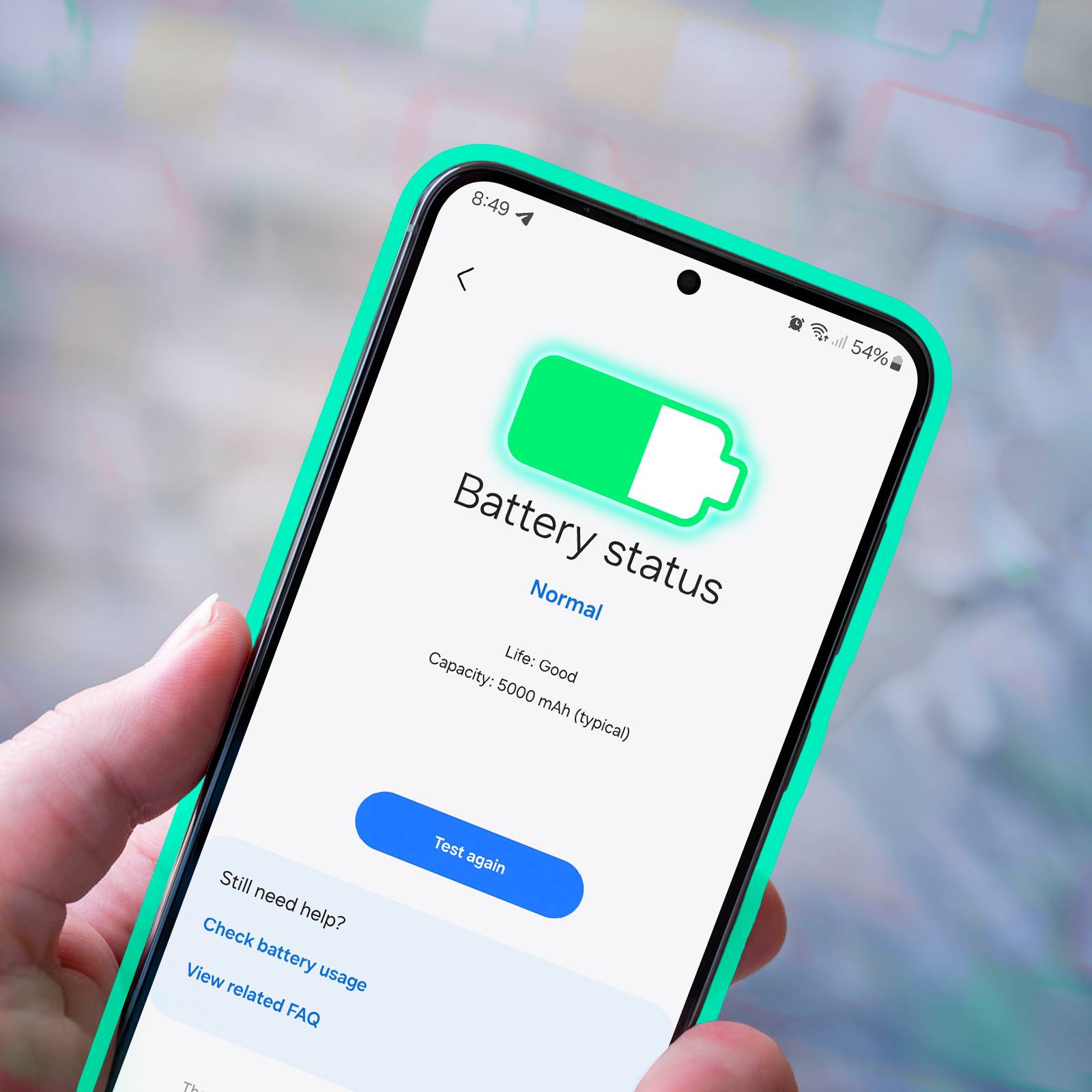
- Look for Battery Health, Battery Diagnostics, or Battery Information.
- Review the health rating, estimated capacity, or charging condition.
Some Android phones do not show a clear percentage. Instead, they may display messages such as “Normal,” “Good,” or “Needs attention.”
On a Google Pixel device, battery information may appear under Battery settings or a battery diagnostics area, depending on the Android version. Samsung Galaxy phones often provide diagnostics through the Samsung Members app.
If your phone does not offer a built-in battery health report, you can use a trusted battery monitoring app. These apps may estimate battery capacity by watching charge and discharge patterns over several cycles.
Use caution with third-party apps. Android limits access to some battery data, so an app may need several days to produce a useful estimate. A single reading is often too rough to trust.
When learning how to check battery health on Android, compare several signs:
• Does the phone lose power quickly during light use?
• Does the percentage jump from one number to another?
• Does the phone shut down with 10% or 20% remaining?
• Does it become unusually hot during charging?
• Does the battery swell or push against the screen or back cover?
A health label may say “Good” even when your daily runtime feels poor. Your real experience matters because software estimates cannot capture every factor, such as weak cell service or a bright display.

How to Check Battery Health on a Windows Laptop
Windows provides a detailed battery report through a built-in command. This is one of the best ways to check a laptop battery without installing extra software.
Follow these steps:
- Press the Windows key.
- Type Command Prompt.
- Right-click Command Prompt.
- Select Run as administrator.
- Type
powercfg /batteryreport. - Press Enter.
- Open the report location shown on the screen.
Windows usually saves the report as an HTML file in your user folder. Open it in a web browser.
Look for these values:
• Design capacity: The original battery capacity.
• Full charge capacity: The amount the battery can hold now.
• Cycle count: The number of completed charge cycles, if available.
You can estimate battery health with this formula:
Full charge capacity ÷ Design capacity × 100
For example, a laptop with a 60,000 mWh design capacity and a 45,000 mWh full charge capacity has about 75% capacity remaining.
The report also shows battery usage, recent activity, and estimated runtime. These details can reveal whether a sudden battery problem started after a software update, a new app, or a change in your work habits.
Knowing how to check battery health on Windows can help you avoid replacing a laptop too soon. A weak battery may be the only aging part, while the laptop itself may still work well for several more years.

How to Check Battery Health on a MacBook
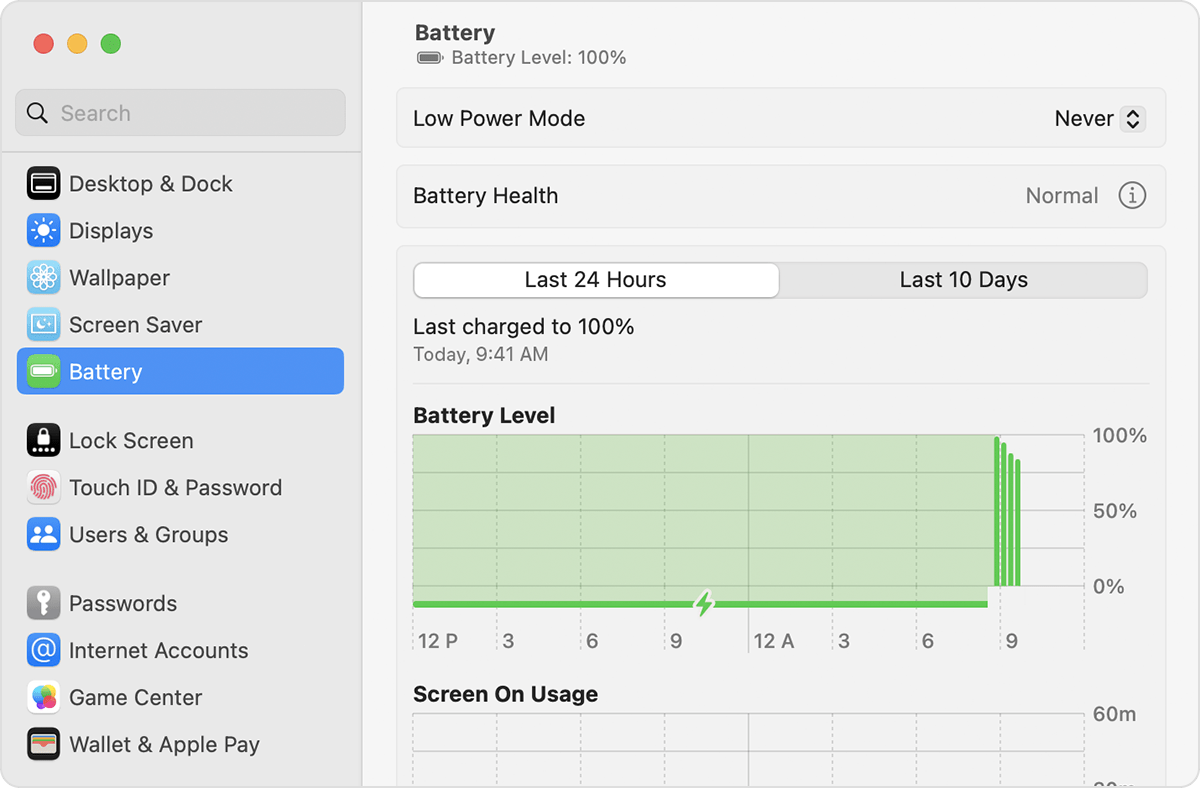
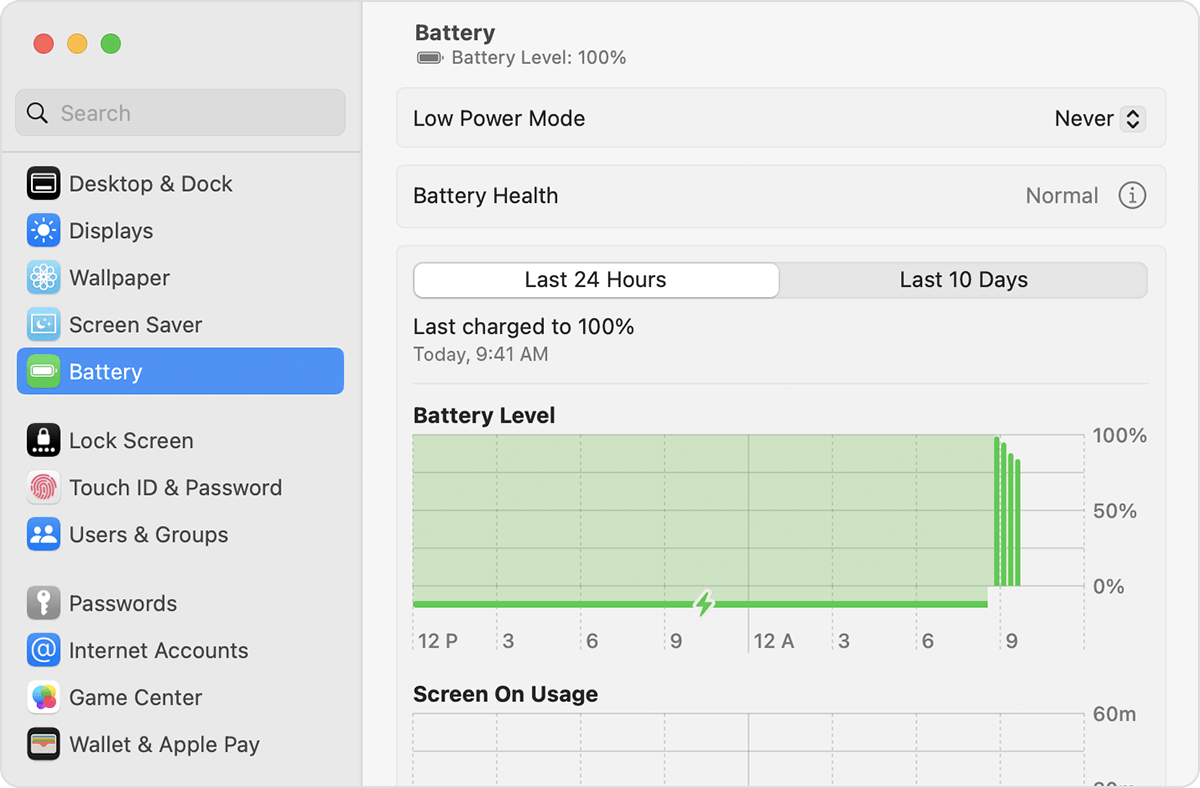
macOS includes battery condition information in System Settings. The exact labels may differ slightly between macOS versions.
Try these steps:
- Open the Apple menu.
- Select System Settings.
- Click Battery.
- Click the information button next to Battery Health.
- Review Maximum Capacity and Condition.
Older macOS versions may use System Preferences instead of System Settings. You can also hold the Option key, click the battery icon, and look for a condition message on some models.
MacBooks may show conditions such as:
• Normal: The battery is working as expected.
• Service Recommended: The battery holds less charge than before or may not work normally.
You can also check the cycle count:
- Open the Apple menu.
- Select About This Mac.
- Click More Info.
- Choose System Report.
- Select Power.
- Find Cycle Count and battery condition.
A cycle does not mean one plug-in. One cycle equals the total use of 100% of the battery’s capacity. Using 50% today and 50% tomorrow usually counts as one cycle.
When you check battery health on a MacBook, do not judge it by cycle count alone. Battery age, heat exposure, charging behavior, and the battery model all matter.
How to Check Battery Health on a Chromebook
Chromebooks include battery information through the ChromeOS diagnostics tool.
Follow these steps:
- Open the Launcher.
- Search for Diagnostics.
- Open the Diagnostics app.
- Select Battery.
- Review battery health, cycle count, current, and discharge rate.
Some devices may also support a Chrome browser command:
- Open Chrome.
- Type
chrome://diagnosticsin the address bar. - Press Enter.
- Open the Battery section.
Battery health may appear as a percentage. The tool can also show whether the battery is charging correctly and how fast it is losing power.
A Chromebook that loses charge quickly may not have a bad battery. Background tabs, weak Wi-Fi, a bright display, and video calls can use a lot of energy.
Use the battery health percentage with real-world testing. Charge the Chromebook fully, use it for normal work, and note how long it lasts. Repeat the test under similar conditions for a fair comparison.

How to Check Battery Health on a Car
A car battery is different from a phone or laptop battery. Its condition depends on starting power, voltage, age, temperature, and the vehicle’s charging system.
You can begin with a voltage check:
- Turn the car off for several hours.
- Set a multimeter to DC voltage.
- Touch the red probe to the positive terminal.
- Touch the black probe to the negative terminal.
- Read the voltage.
A healthy, fully charged 12-volt car battery often reads close to 12.6 volts when the engine is off. A reading near 12.2 volts suggests partial charge, while a much lower reading may indicate a discharged or weak battery.
You should also test the battery while the engine starts. A large voltage drop during cranking can suggest a weak battery, although the starter motor and cables can also cause problems.
With the engine running, many vehicles show roughly 13.7 to 14.7 volts at the battery. This tests the alternator and charging system, not just the battery.
The safest and most accurate method is a professional battery load test. It measures whether the battery can deliver enough current to start the engine.
Never touch both battery terminals with a metal tool. Wear eye protection, keep flames away, and ask a technician for help if the battery is swollen, leaking, cracked, or frozen.
How to Read Battery Health Results
Battery health numbers need context. A percentage can guide you, but it does not tell the full story.
A battery at 85% health may work well for light use. A battery at 95% may still cause shutdowns if it has an internal fault. Think of the number as a weather forecast: useful, but not the whole day.
Use these general guidelines:
• 90% to 100%: The battery is usually in strong condition.
• 80% to 89%: The battery has normal wear and may provide less runtime.
• 70% to 79%: Replacement may be worth considering, especially for mobile devices.
• Below 70%: The battery is likely to feel weak during everyday use.
These ranges are not universal standards. Manufacturers use different battery designs and testing methods. A laptop made for heavy work may feel limited at 80%, while a simple e-reader may remain comfortable at the same level.
Watch for warning signs beyond the percentage:
• Sudden shutdowns
• Battery swelling
• Very fast discharge
• Slow or interrupted charging
• Unexpected heat
• Battery percentage jumps
• Poor performance during demanding tasks
If you see swelling, stop using and charging the device. Do not press the swollen area or try to remove a built-in battery yourself. Lithium-ion batteries can become dangerous when damaged.
What Causes Battery Health to Decline?
Rechargeable batteries naturally age. Every charge cycle changes the battery’s chemistry a little, and those changes reduce its ability to store energy.
The most common causes include:
Heat
Heat is one of the biggest causes of battery wear. Leaving a phone in a hot car, using a laptop on a bed, or gaming while charging can raise battery temperature.
Keep vents clear and remove thick cases if a phone becomes hot during charging. Avoid direct sunlight and high-heat areas.
Deep discharges
Modern devices do not need to reach 0% before charging. Frequent deep discharges place more stress on the battery than smaller top-ups.
You do not need to panic when the battery reaches 10%. The goal is to avoid making very low charge levels a daily habit.
Long periods at full charge
Keeping a battery at 100% for hours may increase wear, especially when the device stays warm. Many phones and laptops now offer optimized charging features that pause charging near 80% and finish later.
Turn on optimized or adaptive charging when available. It is a simple way to reduce time spent at full charge.
Heavy workloads
Games, video editing, GPS navigation, and high screen brightness draw more power. Heavy use creates more heat, which can speed up aging.
High power use does not always mean the battery is defective. Check which apps consume the most energy before replacing the battery.
Age
Battery chemistry changes even when the device is not used often. A five-year-old battery may have reduced capacity simply because of its age.
This is why how to check battery health should include the battery’s age, not just its current percentage.
Ways to Extend Battery Life
Checking battery health tells you what is happening. Good charging habits can help slow further decline.
Try these practical steps:
- Keep the device away from extreme heat and cold.
- Use a certified charger and a suitable cable.
- Turn on optimized, adaptive, or smart charging.
- Lower screen brightness when practical.
- Remove apps that run heavily in the background.
- Keep your operating system updated.
- Avoid covering laptop vents.
- Charge before the battery reaches zero when possible.
- Store unused devices near a 50% charge.
- Do not use a damaged or swollen battery.
A common mistake is blaming the battery for every short-runtime problem. Poor cellular coverage, background syncing, an aging display, and a faulty charging cable can all look like battery failure.
I recommend checking the battery usage screen before buying a replacement. On one typical troubleshooting visit, a phone seemed to have a failing battery, but a navigation app had been running in the background for hours. Closing the app fixed the immediate drain, while the battery health reading showed that replacement was not yet needed.
When Should You Replace a Battery?
Replace a battery when its reduced capacity affects your normal routine or creates a safety concern.
A replacement may make sense when:
• The device lasts only a few hours during light use.
• It shuts down before reaching 0%.
• The health reading is below the manufacturer’s service range.
• The battery is swollen or physically damaged.
• Charging takes much longer than it used to.
• The device becomes hot during normal charging.
• A car battery fails a proper load test.
Battery replacement is often cheaper than buying a new device. A laptop with a good processor, screen, and storage may work well for years after a battery replacement.
Choose an authorized service center or a skilled repair shop. Ask whether the replacement battery is genuine or from a reliable supplier. Very cheap batteries may have lower capacity, poor safety controls, or inaccurate health readings.
Back up your data before repair. Built-in batteries can require special tools and may be glued in place. Do not attempt a repair if you are unsure how to disconnect the battery safely.
Common Mistakes When Checking Battery Health
Knowing how to check battery health is useful, but the wrong method can lead to a bad decision.
Avoid these mistakes:
• Confusing battery percentage with battery health. A phone at 100% charge can still have poor long-term health.
• Trusting one third-party app reading. Estimates become more useful after several charge cycles.
• Testing under different conditions. Compare battery runtime with similar brightness, apps, Wi-Fi, and temperature.
• Ignoring heat. A high temperature reading may explain fast drain.
• Replacing the battery before checking power-hungry apps.
• Using unsafe chargers or damaged cables.
• Treating an 80% reading as an emergency. It is a useful service guideline, not a universal failure point.
• Continuing to use a swollen battery.
The best approach combines software data, physical inspection, charging behavior, and real-world runtime. Each piece is like one part of a puzzle.
Frequently Asked Questions About How to Check Battery Health
How often should I check battery health?
Check battery health every few months or whenever your device begins losing power faster than usual. You should also check it before buying a used phone or laptop.
Is 80% battery health still good?
An 80% reading usually means the battery has experienced normal aging but may still work well. Consider replacement when the shorter runtime, shutdowns, or performance issues interfere with daily use.
Can battery health increase after charging?
The true physical capacity does not increase through normal charging. A software estimate may change slightly after calibration, an update, or several complete charge cycles.
Does fast charging damage battery health?
Fast charging can create more heat, and heat can increase battery wear over time. Modern devices manage charging safely, but keeping the device cool and using optimized charging can reduce stress.
How can I check battery health without an app?
Many devices include built-in tools. iPhones use Battery Health & Charging, Windows offers the battery report command, MacBooks show battery condition in System Settings, and many Android phones include battery diagnostics.
Should I replace a battery at 80% health?
Not always. Replace it when the reduced capacity affects your use, the device shuts down unexpectedly, or the manufacturer recommends service.
[CodeImg?] Wait no after FAQ per instruction. Don't include.
Conclusion
Battery health shows how much capacity remains, while battery percentage shows how much charge is available now. You can check battery health through built-in tools on iPhone, Android, Windows, MacBook, Chromebook, and some vehicles.
Look beyond the number. Heat, sudden shutdowns, swelling, fast drain, charge cycles, and real-world runtime all help you judge battery condition. Use safe charging habits, keep devices cool, and replace damaged batteries without delay.
Check your main device today and record its health reading. That small step can help you plan repairs, protect your data, and avoid an unexpected dead battery.

Similar Posts