How To Update A Smartwatch: Easy Step-By-Step Guide
Updating a smartwatch means checking compatibility, charging the device, installing the latest software, and restarting it safely.
How to Update a Smartwatch is simple once you know which phone app and settings to use. Updates can improve battery life, fix bugs, add health features, and protect your watch from security risks. This guide explains the process for Apple Watch, Wear OS, Samsung Galaxy Watch, Fitbit, and Garmin devices, with practical tips to avoid common problems.
Why Smartwatch Updates Matter
A smartwatch update is a new version of the software that runs your watch. It may also update the companion phone app, watch faces, fitness tools, or security settings.
Manufacturers release updates for several reasons:
• Fix software bugs and crashes
• Improve battery performance
• Add new health and fitness features
• Support newer phones
• Improve Bluetooth and Wi-Fi connections
• Strengthen privacy and security
• Make the watch easier to use
A smartwatch is like a small computer on your wrist. Just as a laptop needs system updates, a smartwatch needs fresh software to work well. Skipping updates may leave known bugs unresolved or prevent newer apps from working correctly.
In my experience helping people with wearable devices, most update problems come from low battery, weak Wi-Fi, or an outdated phone app. A few minutes of preparation can prevent a failed update and save much more time later.

Before You Update Your Smartwatch
Before learning How to Update a Smartwatch, prepare both the watch and the phone. The watch often needs the phone app to download and install the software.
Use this checklist:
• Charge the watch to at least 50 percent. Some brands require the watch to be connected to its charger.
• Charge your phone and keep it close to the watch.
• Connect your phone to a stable Wi-Fi network.
• Turn on Bluetooth.
• Update the companion app from the Apple App Store or Google Play Store.
• Check that your phone supports the new watch software.
• Keep the watch on its charger during installation.
• Make sure you remember your account password if the app requests it.
Do not start an update while traveling, exercising, or leaving home. The installation may take several minutes, and the watch can restart more than once.
It is also wise to sync your recent health and activity data first. Most modern watches sync automatically, but a manual sync gives you extra peace of mind.
How to Update an Apple Watch
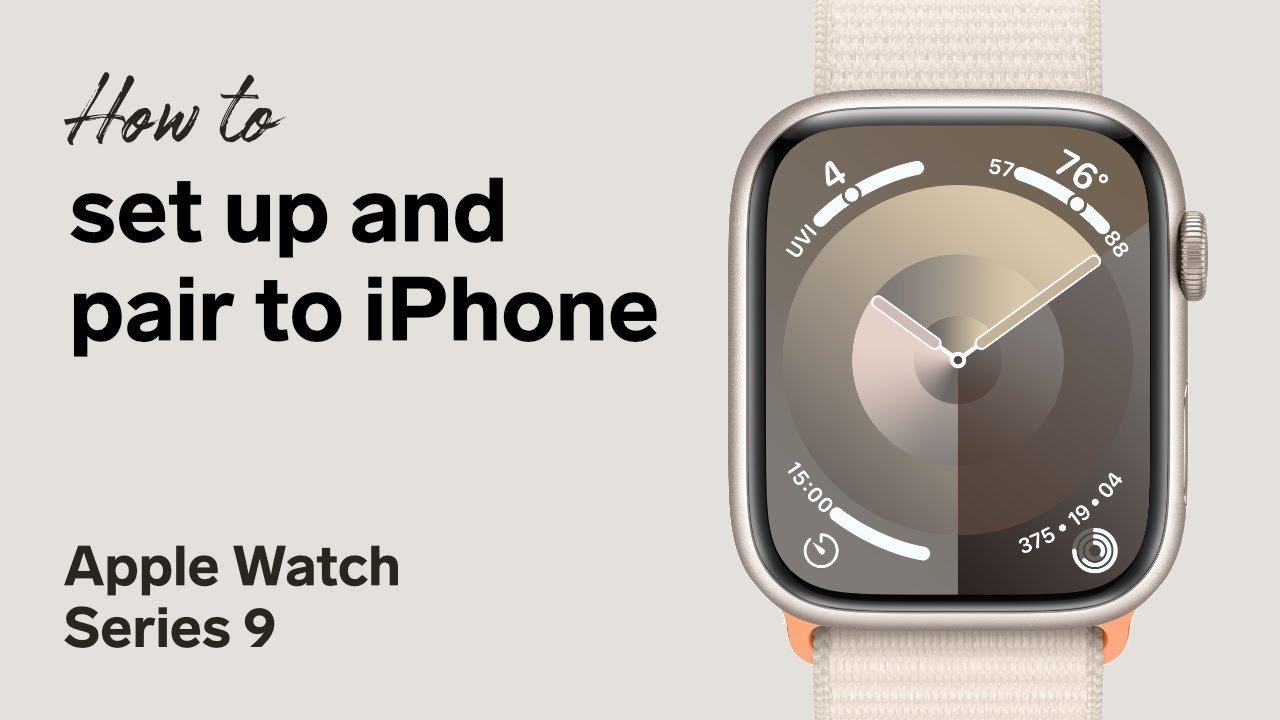
Apple Watch updates usually happen through the Watch app on an iPhone. The iPhone and watch must be compatible with the new watchOS version.
Follow these steps:
- Place the Apple Watch on its charger.
- Keep it within Bluetooth range of the iPhone.
- Open the Watch app on the iPhone.
- Tap General.
- Tap Software Update.
- Enter the iPhone passcode if asked.
- Tap Download and Install.
- Leave the watch on the charger until the update finishes.
The Apple Watch may show an Apple logo and a progress ring. Do not remove it from the charger or restart it during this stage.
If the update does not appear, update iOS first. An older iPhone version may not support the latest watchOS software. Also check your available storage under the Watch app’s General settings.
Apple Watch updates can take longer than expected. In my own testing, a watch that appears ready may spend several minutes preparing the update before installation begins. This is normal, so avoid canceling the process too soon.

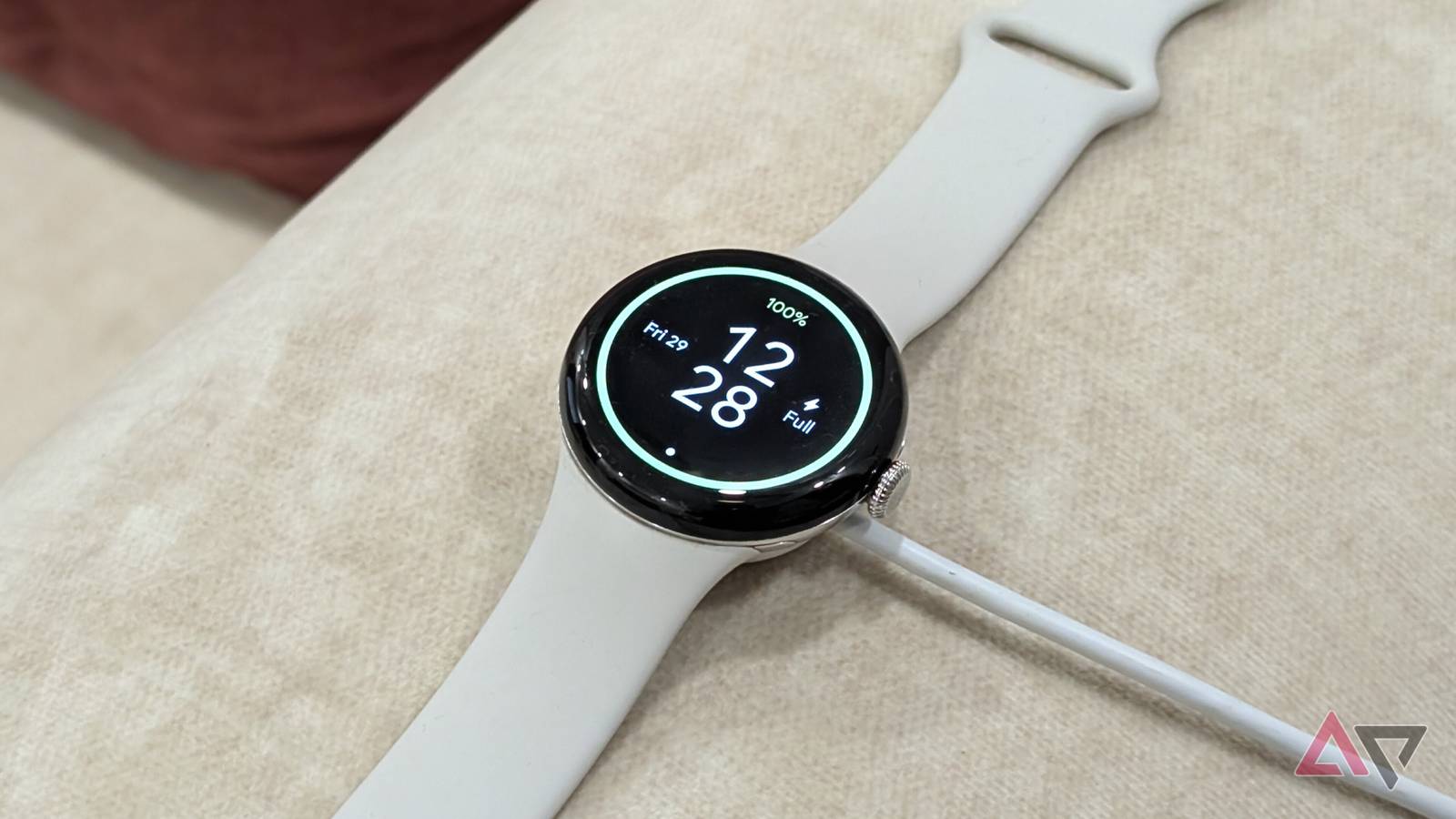
How to Update a Wear OS Smartwatch
Wear OS watches from brands such as Google, Fossil, Mobvoi, and other manufacturers may update through the watch itself or a phone app.
To check for an update on many Wear OS devices:
- Open Settings on the watch.
- Tap System.
- Tap System updates.
- Connect the watch to Wi-Fi if asked.
- Download and install the available update.
- Keep the watch charged during installation.
Some models use the Google Pixel Watch app or a brand-specific app. Open the phone app, select your watch, and look for a software update option.
The exact menu can differ by model and Wear OS version. If you do not see a system update, check the watch’s Settings menu and the manufacturer’s support instructions.
Wear OS updates may download faster over Wi-Fi than through a phone connection. A stable network is important because a weak signal can cause the download to pause or fail.
How to Update a Samsung Galaxy Watch
Samsung Galaxy Watch updates are commonly managed through the Galaxy Wearable app. The steps may vary slightly between Galaxy Watch models.
Use this process:
- Charge the watch and place it near your phone.
- Open the Galaxy Wearable app.
- Tap Watch settings.
- Tap Watch software update.
- Select Download and install.
- Follow the instructions on the screen.
- Keep the watch connected to its charger until the update is complete.
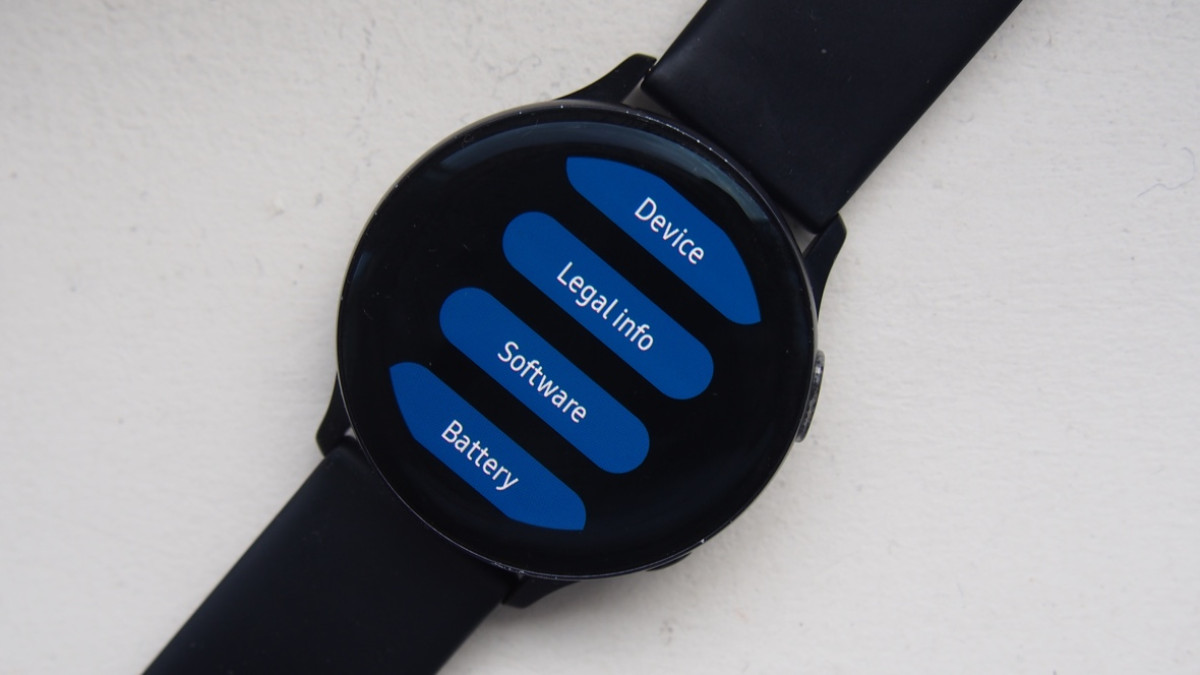
For some models, you can check directly on the watch by opening Settings, selecting Software update, and tapping Download and install.
Samsung may release updates in stages. This means one user may receive an update before another user with the same watch model. If the update is not available yet, wait and check again later.
Do not remove the Galaxy Watch from the charger during installation. A sudden power loss can interrupt the process and may require additional recovery steps.

How to Update Fitbit and Garmin Watches
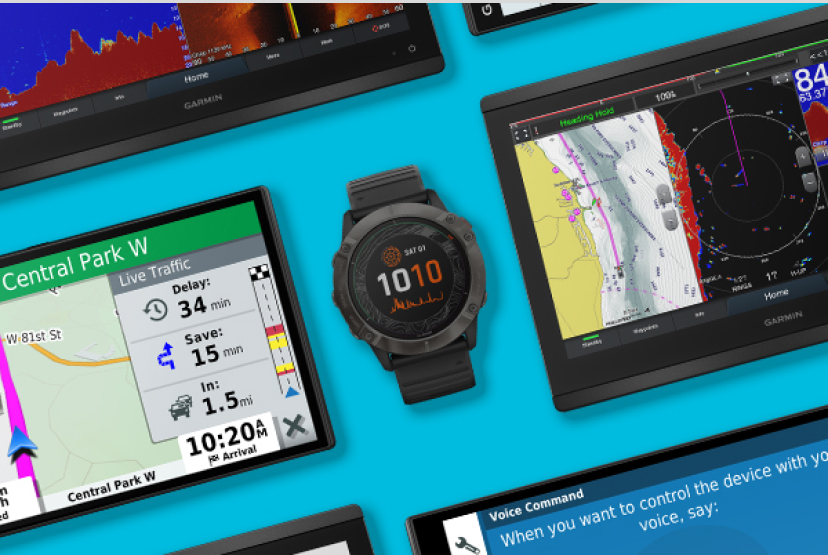
Fitbit and Garmin devices often update through their companion apps. Some updates install automatically after the watch syncs with your phone.
For Fitbit devices:
- Open the Fitbit app.
- Tap the device icon.
- Select your Fitbit device.
- Look for an update message or update option.
- Keep the device near the phone and charged.
- Follow the on-screen instructions.
For Garmin devices:
- Open the Garmin Connect app.
- Sync the watch with the app.
- Check for available software updates.
- Accept the update when prompted.
- Keep the watch charged and connected.
Garmin watches may also update through Wi-Fi or Garmin Express on a computer, depending on the model. Fitbit updates can roll out gradually, so the latest version may not appear immediately.
A common mistake is closing the app during the sync. Keep the phone awake and nearby until the update completes. This helps the watch receive the full software package.

How to Update a Smartwatch Without a Phone
Some newer smartwatches can update directly through Wi-Fi. This is useful when the phone is unavailable or the companion app is not working.
Try these steps:
- Connect the watch to a trusted Wi-Fi network.
- Open the watch’s Settings menu.
- Select System, General, or Software update.
- Tap Check for updates.
- Download and install the update.
- Keep the watch charged during the process.
Not every smartwatch supports direct updates. Older models may require the original phone, the companion app, or a computer.
If the watch uses cellular service, mobile data may not be enough for an update. Many manufacturers require Wi-Fi to reduce failed downloads and unexpected data charges.
What to Do If a Smartwatch Update Fails
A failed update does not always mean the watch is damaged. Most failures come from a temporary connection or power issue.
Try these fixes in order:
- Charge the watch above 50 percent.
- Restart the watch and phone.
- Turn Bluetooth off and on.
- Connect to a stronger Wi-Fi network.
- Update the companion app.
- Free storage on the phone and watch.
- Place the watch on its charger.
- Try the update again after a few minutes.
If the update is stuck on a logo or progress screen, give it time first. Some installations appear frozen while the watch verifies files. Interrupting the process too soon can make the problem worse.
If the watch remains unresponsive for a long time, check the manufacturer’s official recovery instructions. A factory reset may be required in serious cases, but use it only after confirming that your data has synced.
Never install unofficial firmware from an unknown website. It may contain harmful software, remove important safety features, or make the watch unusable.
Common Smartwatch Update Problems
Different symptoms can point to different causes.
The update is missing
The watch may not support the new software, or the update may still be rolling out. Check the model number and update the phone app before trying again.
The download is slow
A weak Wi-Fi signal, crowded network, or low phone storage can slow the process. Move closer to the router and close other apps that use large amounts of data.
The watch keeps restarting
A repeated restart may result from a failed installation or low battery. Place the watch on its charger, restart the phone, and follow the brand’s recovery steps.
Battery life is worse after the update
Temporary battery drain can happen while the watch rebuilds indexes and syncs data. Give it one or two charging cycles before judging the new battery performance.
Health features do not work
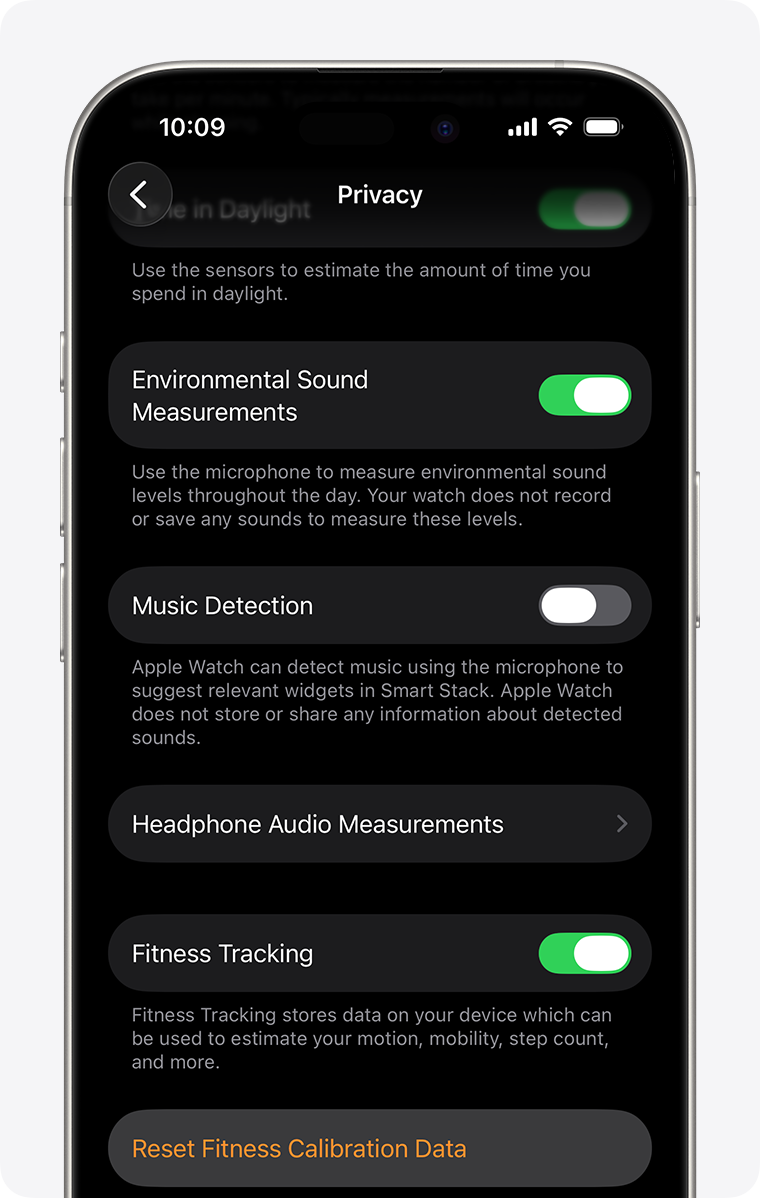
Check permissions in the phone app. The update may reset access to location, motion, heart rate, or notification data.
How to Update a Smartwatch Safely
Learning How to Update a Smartwatch also means knowing what not to do. A careful update protects your data and reduces the chance of interruption.
Follow these safety rules:
• Use the official watch app or the watch’s built-in settings.
• Download updates only from the manufacturer’s trusted channels.
• Keep the watch on its charger.
• Do not press random buttons during installation.
• Avoid public Wi-Fi when entering account details.
• Sync health and activity data before starting.
• Read the update notes when available.
• Do not remove the phone app while the update is running.
Software updates can change menus, permissions, battery behavior, and supported apps. Read the release notes so you know what to expect.
Privacy also matters. An update may add or change permission requests. Review access to location, contacts, notifications, microphones, and health information instead of accepting every request automatically.
What to Check After the Update
Once you finish How to Update a Smartwatch, check the main features before relying on the watch for a workout or trip.
Test these functions:
• Time and date
• Phone notifications
• Bluetooth connection
• Wi-Fi connection
• Step counting
• Heart rate tracking
• Sleep tracking
• GPS
• Calls and messages
• Payments
• Voice assistant
• Battery charging
Open the companion app and allow the watch to complete a full sync. Then check whether your recent activity, workouts, and health data appear correctly.
You may need to rearrange watch faces, restore notification settings, or sign in to an app again. This is especially common after a major operating system update.
One lesson I learned from testing several watches is to check notifications first. A watch can look normal while silently losing access to messages or calendar alerts. A quick test call and message can reveal that issue right away.
How Often Should You Update a Smartwatch?
You should install updates when the manufacturer offers them, especially when they include security fixes or important bug repairs. There is no single schedule for every brand.
Some watches receive small updates every few weeks. Others receive major updates once or twice a year. Automatic updates may install overnight, but many devices still need to be charged and connected to Wi-Fi.
Check for updates manually if:
• Your watch has frequent crashes.
• Battery life suddenly becomes poor.
• Notifications stop working.
• A health feature behaves incorrectly.
• The companion app asks for a newer watch version.
• A security update is available.
Older watches may stop receiving major updates even when they still work well. This is a normal product life-cycle limit, not always a sign of a fault.
Frequently Asked Questions About How to Update a Smartwatch
How do I know if my smartwatch needs an update?
Open the watch’s Settings menu or its companion phone app and look for Software Update or System Update. Many watches also show an alert when new software is ready.
Can I update my smartwatch without Wi-Fi?
Some watches can update through a phone connection or cellular service, but many require Wi-Fi. Wi-Fi is usually more stable and may be required by the manufacturer.
How long does a smartwatch update take?
A smartwatch update may take 10 to 60 minutes, depending on the file size, connection speed, and watch model. Keep the device charged and avoid interrupting it.
Will updating a smartwatch erase my data?
A normal software update should not erase your data. However, sync your watch before updating because a failed installation or factory reset can remove unsynced information.
Why will my smartwatch not update?
Low battery, weak Wi-Fi, limited storage, outdated phone software, and poor Bluetooth range are common causes. Restart both devices, charge the watch, and try again through the official app.
Can I use my smartwatch during an update?
No. The watch may restart or become unavailable during installation. Wait until the update finishes before using it.
Should I update an older smartwatch?
Install available official updates if your watch supports them. If the manufacturer no longer provides updates, keep using the watch carefully or consider a newer model for better security and app support.
Conclusion
How to Update a Smartwatch is usually a simple process: charge the watch, connect it to the right phone app or Wi-Fi network, install the official software, and check key features afterward. Apple Watch, Wear OS, Samsung Galaxy Watch, Fitbit, and Garmin devices use slightly different menus, but the safety rules remain much the same.
Keep your watch charged, sync your data first, and never interrupt an installation without a clear reason. Check for updates regularly so your device stays reliable, secure, and ready for your next workout or busy day. Explore your manufacturer’s support resources, and share your update experience in the comments.

Similar Posts