How To Format An External Hard Drive: Easy Steps
Formatting an external hard drive erases it, so back up files first and choose the right file system.
If you want your drive to work smoothly, the key is to format it the right way for your device, your files, and your daily use. I’ve formatted plenty of external drives for backups, video editing, cross-platform sharing, and storage cleanup, and the same rule always applies: a few careful choices now can save you from data loss, slow performance, and device headaches later. In this guide, I’ll walk you through how to format an external hard drive step by step, explain the file system choices that matter, and share practical tips from real-world use so you can do it with confidence.

What It Means to Format an External Hard Drive
Formatting an external hard drive means preparing it for use by creating a file system on it. Think of it like setting up a brand-new filing cabinet. The drive needs a structure so your computer knows how to store, find, and manage files.
When you format an external hard drive, everything on it is usually erased. That is why backing up your data first is so important. In most cases, formatting is used to:
- Fix a drive that is acting up
- Remove old files before reuse
- Change the file system for compatibility
- Prepare a drive for Windows, Mac, or both
- Improve organization before a fresh start
I have seen people skip this step and lose years of photos because they assumed formatting was harmless. It is not scary, but it is serious. If you treat it like a reset button with consequences, you are already on the right path.
When You Should Format an External Hard Drive
You do not need to format an external hard drive every time you plug it in. In fact, most drives come preformatted from the factory. But there are common situations where formatting makes sense.
You should consider formatting if:
- The drive is new and you want to choose a better file system
- You are switching between Windows and Mac
- The drive is corrupted or showing errors
- You want to erase all data before selling or giving it away
- The drive is being set up for backup, media, or transfer use
I once used a drive that had been passed between a Windows laptop and a Mac desktop for months. It worked, but only half the time. Reformatting it to a compatible format solved the problem immediately. Sometimes, the clean fix is the simple one.
Choose the Right File System Before You Format an External Hard Drive
Before you format an external hard drive, you need to pick the file system. This is one of the most important choices, because it affects compatibility, file size limits, and reliability.
Common file systems include:
- NTFS: Best for Windows-only use. It supports large files and strong permissions.
- exFAT: Great for Windows and Mac. It handles large files and works well for portable drives.
- FAT32: Very compatible, but it has a 4 GB file size limit. I rarely recommend it for modern external drives.
- APFS: Best for Mac systems, especially SSDs and newer Apple devices.
- Mac OS Extended: Older Mac format that still works well in some cases, especially with HDDs.
If you plan to format an external hard drive for both Windows and Mac, exFAT is usually the easiest choice. If the drive is only for backups on one system, choose the native format for that platform. This small decision can save a lot of frustration later.
How to Format an External Hard Drive on Windows
Windows makes it easy to format an external hard drive through File Explorer. The process is simple, but you should still double-check the drive letter before you click anything.
Follow these steps:
- Connect the external hard drive to your Windows computer.
- Open File Explorer.
- Right-click the drive under This PC.
- Select Format.
- Choose the file system.
- Pick a volume label if you want to name the drive.
- Leave Quick Format checked for a fast format, or uncheck it for a full format.
- Click Start.
A quick format removes file references fast. A full format takes longer and checks the drive more deeply. If the drive is old or has problems, a full format can be useful. If it is new and healthy, quick format is usually enough.
When I format an external hard drive on Windows, I always pause before hitting Start. That moment of double-checking saves more trouble than any tool ever could.
How to Format an External Hard Drive on Mac
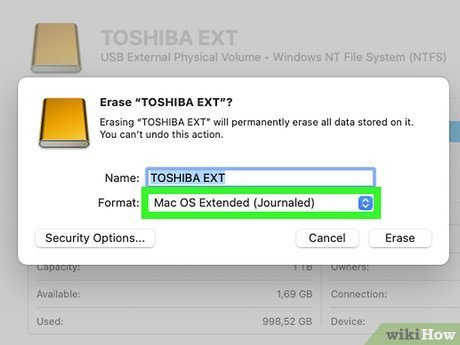
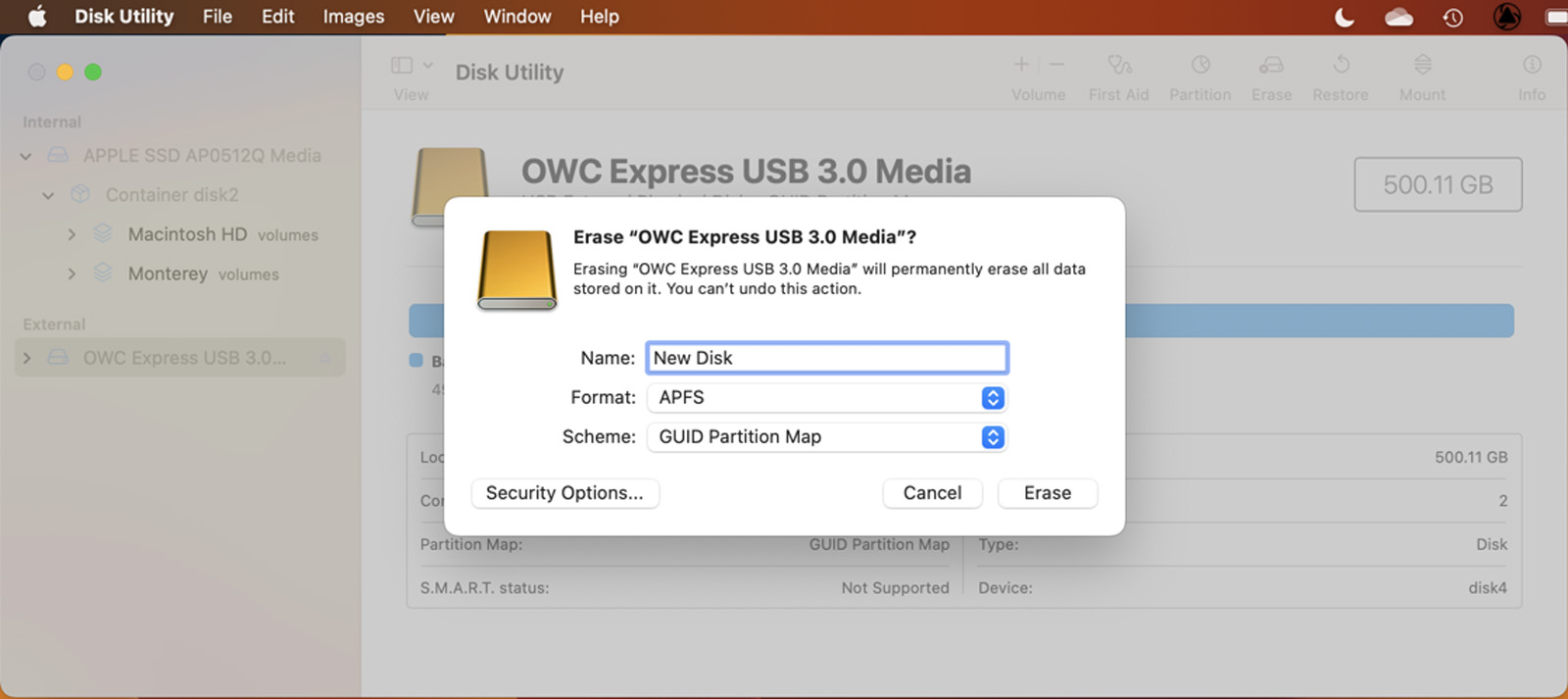
Mac users can format an external hard drive with Disk Utility. This built-in tool gives you control over the format and partition scheme.
Here is how to do it:
- Connect the external hard drive to your Mac.
- Open Disk Utility from Applications or Spotlight.
- Select the external drive in the sidebar.
- Click Erase.
- Choose a name for the drive.
- Select the format, such as APFS, Mac OS Extended, or exFAT.
- Choose the scheme, usually GUID Partition Map.
- Click Erase to begin.
If you want the drive to work with Windows too, choose exFAT instead of a Mac-only format. If it is for Time Machine or Mac storage, use the format that fits your macOS version and backup needs.
One mistake I have seen often is selecting the wrong level of the disk in Disk Utility. Make sure you choose the actual external drive, not a volume under it. That simple check protects you from wiping the wrong thing.
How to Format an External Hard Drive for Both Windows and Mac
If you need one drive for two systems, the best way to format an external hard drive is usually exFAT. It works on both Windows and macOS, and it supports large files. That makes it ideal for photos, videos, documents, and portable storage.
For cross-platform use:
- Use exFAT for broad compatibility
- Avoid FAT32 unless you need older device support
- Keep filenames simple when moving between systems
- Eject the drive safely after use on each computer
I have used exFAT drives for client file transfers, and they have been dependable as long as the drive is ejected properly. That part matters more than people think. A bad unplug can cause corruption even when the format is correct.
Important Things to Know Before You Format an External Hard Drive
Before you format an external hard drive, slow down and check a few things. This is the part that protects your files and your time.
Important checks include:
- Back up all important data
- Confirm you selected the correct drive
- Pick the right file system
- Decide whether you need a quick or full format
- Check whether the drive has hardware issues
If the drive is making clicking noises, disconnecting often, or failing to appear, formatting may not fix the root problem. In that case, the issue could be physical damage or bad sectors. A format is useful, but it is not magic.
I learned this the hard way with an older drive that kept dropping from the system. Formatting helped for a few days, then the problem returned. The lesson was clear: formatting can clean a drive, but it cannot repair worn-out hardware.
Quick Format vs Full Format
When you format an external hard drive, you may see options for quick format and full format. These are not the same.
Quick format:
- Deletes the file table fast
- Takes less time
- Is best for healthy drives
- Does not deeply scan the disk
Full format:
- Takes much longer
- Checks for bad sectors in many cases
- Is better for older or suspicious drives
- Gives you a more thorough reset
For a new drive, quick format is usually fine. For an older drive or one with minor errors, full format may be worth the wait. If your goal is just to start fresh, quick format is the practical choice.
Best Practices to Format an External Hard Drive Safely
A safe process is more important than a fast one. If you keep a few habits in mind, you can format an external hard drive with very little risk.
Best practices include:
- Back up before you begin
- Rename the drive clearly after formatting
- Use the right file system for your setup
- Safely eject the drive after use
- Avoid formatting during power instability
- Keep important drives on reliable hardware
I also suggest making a habit of labeling drives based on purpose, such as Backup, Media, or Transfer. It sounds small, but when you own more than one external drive, it saves time and avoids confusion. It is like giving each suitcase its own tag before a trip.
Common Problems When You Format an External Hard Drive
Sometimes formatting does not go as planned. Most issues are easy to solve once you know what to look for.
Common problems include:
- The drive does not appear in the system
- The format option is grayed out
- The drive is write-protected
- The drive keeps disconnecting
- The process fails partway through
If the drive is not showing up, try a different USB port or cable first. If the drive is write-protected, check for a physical switch or system permissions. If formatting keeps failing, the drive may have hardware trouble that needs more than a software fix.
In my experience, the cable is often the hidden culprit. I have seen people blame the drive when the real issue was a worn-out USB cable. It is worth testing the simple things first.
Benefits of Formatting an External Hard Drive
When you format an external hard drive the right way, you get a cleaner, more usable storage device.
Main benefits include:
- Better compatibility with your devices
- A fresh start with no leftover clutter
- Easier file organization
- Possible improvement in performance on troubled drives
- Correct setup for backups or media libraries
A well-formatted drive is like a freshly organized desk. Everything feels easier to find. You spend less time fighting the device and more time actually using it.
Frequently Asked Questions of How to Format an External Hard Drive
Will formatting an external hard drive delete everything?
Yes, in most cases formatting erases all files on the drive. That is why you should back up anything important before you start.
What is the best format for an external hard drive?
For Windows and Mac use, exFAT is usually the best choice. For Windows only, NTFS is a strong option, and for Mac only, APFS or Mac OS Extended may be better.
How long does it take to format an external hard drive?
A quick format may take only a few seconds or minutes. A full format can take much longer, especially on a large drive or an older hard disk.
Can I format an external hard drive without a computer?
Most of the time, you need a computer or a device that supports formatting tools. Some media players, game consoles, and routers can also format drives, but options are usually limited.
Why is my external hard drive not formatting?
The drive may be damaged, disconnected, write-protected, or using a bad cable or port. If the problem continues after basic checks, the drive may have a hardware issue.
Should I use quick format or full format?
Use quick format if the drive is healthy and you want a fast reset. Use full format if the drive is older, has errors, or you want a deeper scan.
Conclusion
Knowing how to format an external hard drive gives you more control over your storage and helps prevent compatibility problems. Once you choose the right file system, back up your data, and follow the right steps for Windows or Mac, the process becomes much easier than it first looks.
If you are setting up a new drive, cleaning up an old one, or getting ready to share files between systems, take your time and format it with purpose. That small bit of care can protect your files and make the drive far more useful. If this guide helped, explore more storage tips, subscribe for future how-to posts, or leave a comment with your own experience.