How To Set Up A Home Security Camera: Easy Guide
A home security camera works best when it’s placed well, powered reliably, connected securely, and tested fully.
Setting up a home security camera sounds simple at first. Plug it in, connect it to Wi-Fi, and done, right? In real life, the best setup takes a little more care. Over the years, I’ve seen how small choices like camera height, Wi-Fi strength, and motion settings can make the difference between a camera that just records and one that truly protects your home.
Why a Home Security Camera Setup Matters
A home security camera is only as good as its setup. If the angle is wrong, you miss faces. If the Wi-Fi is weak, you miss footage. If the settings are too sensitive, you get phone alerts every time a tree moves.
A smart setup helps you:
• Deter intruders before they act
• Capture clear evidence if something happens
• Keep an eye on doors, driveways, pets, or kids
• Reduce false alerts and wasted storage
• Make remote monitoring easy and dependable
I’ve found that people often spend more time comparing camera brands than planning placement. That’s a mistake. A midrange camera installed well can outperform a pricey one that was thrown up in a bad spot.

Choose the Right Home Security Camera
Before you install anything, pick the right camera for your home. The best choice depends on where you want to place it, how much area you need to cover, and whether you want indoor, outdoor, wired, or wireless protection.
Common camera types include:
• Indoor cameras, which are great for living rooms, hallways, and nurseries
• Outdoor cameras, which are built for weather and usually have stronger night vision
• Wired cameras, which offer steady power and are ideal for long-term use
• Wireless cameras, which are easier to install but may need battery charging
• Doorbell cameras, which watch the front door and package deliveries
• Pan-tilt-zoom cameras, which let you look around a larger area from the app
When I helped a neighbor set up cameras around his porch, he first bought an indoor model for outside use. It worked for about a week before the weather caused problems. That’s a common mistake. Always check the camera’s weather rating, power source, field of view, and storage options before buying.
You should also look for:
• Resolution, such as 1080p or 2K, for clearer video
• Night vision for low-light footage
• Motion detection and smart alerts
• Two-way audio if you want to speak through the camera
• Cloud storage or local storage, depending on your preference
• App support that is simple and reliable
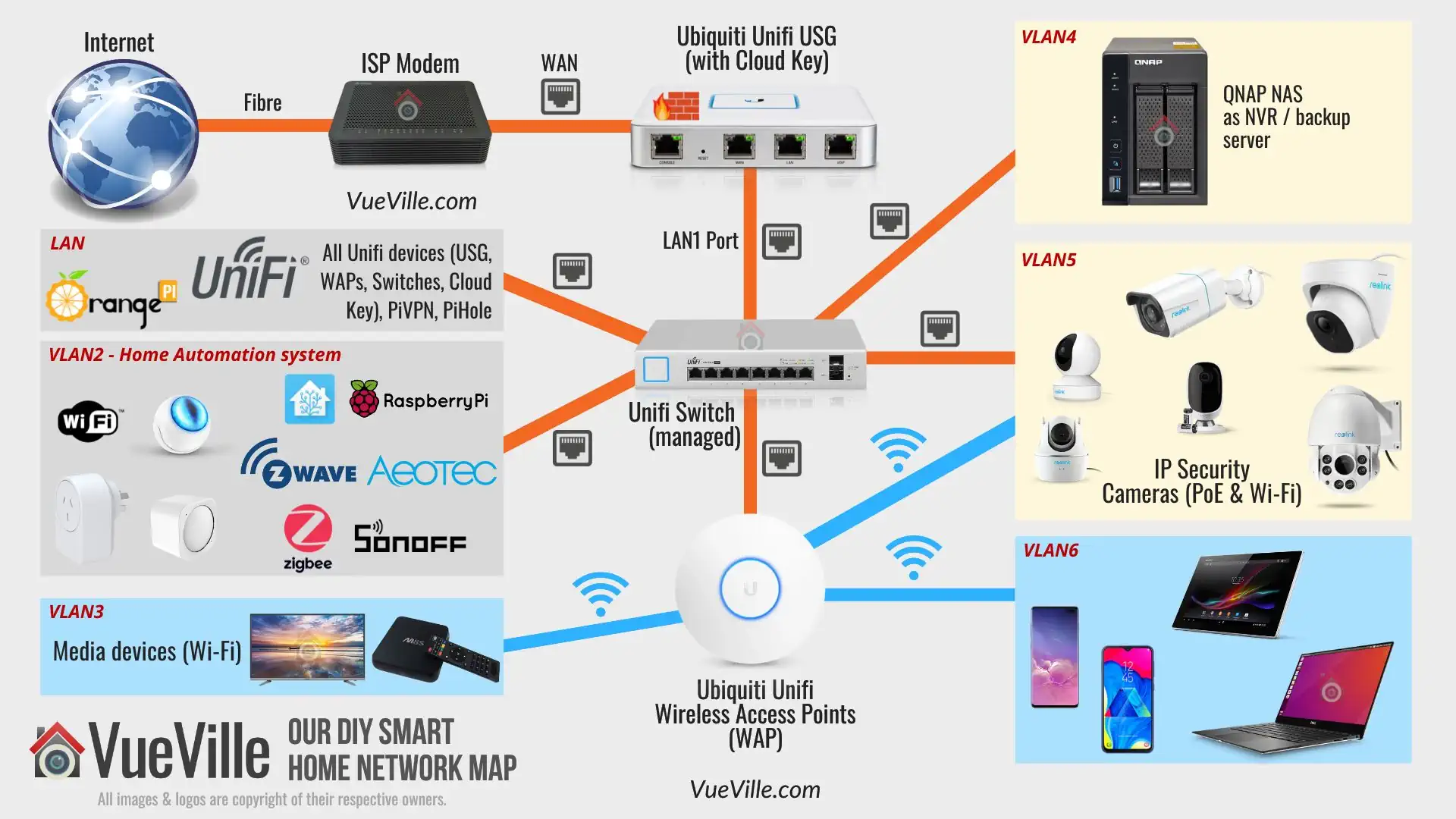
Plan the Best Camera Locations
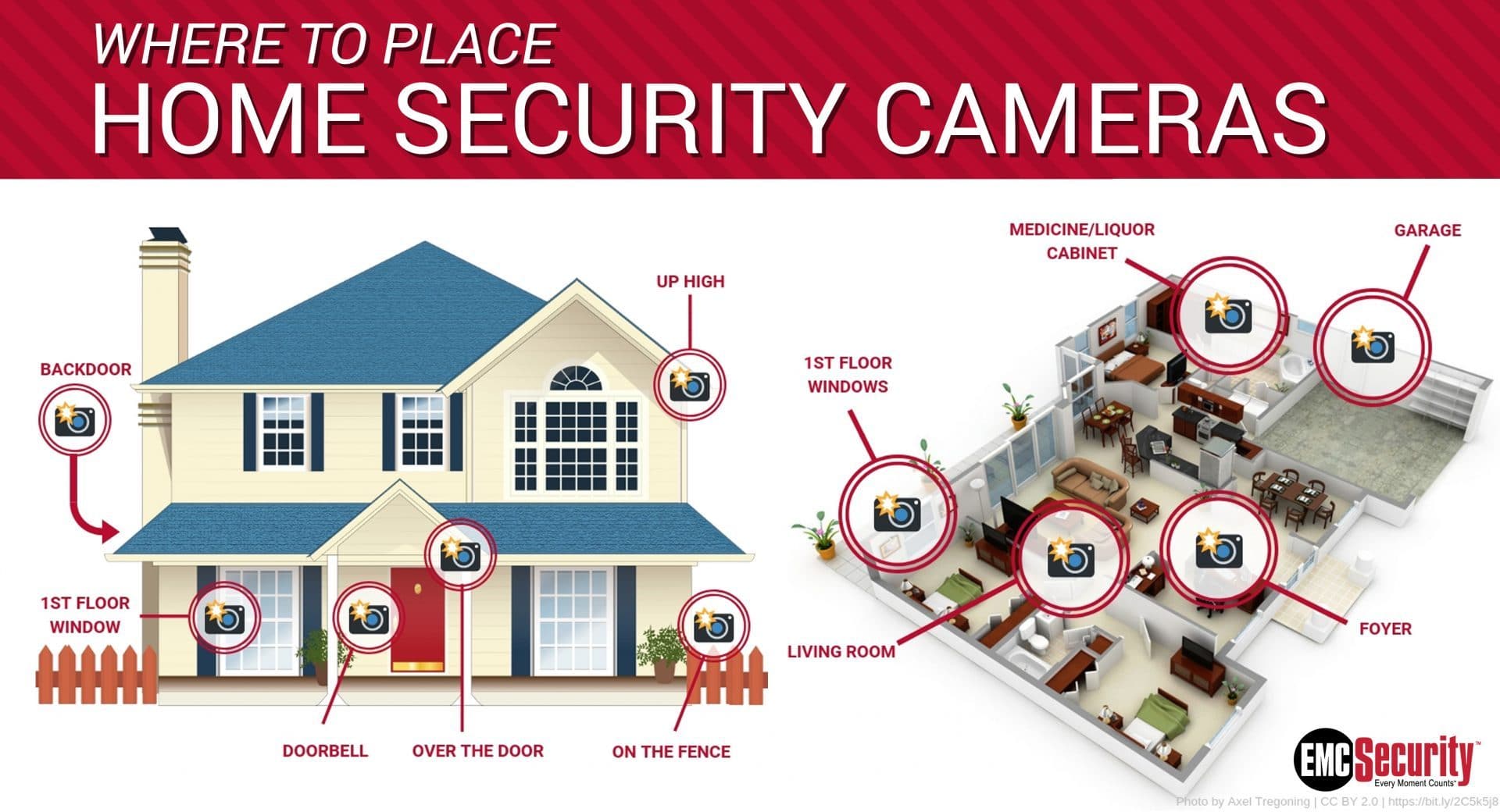
Good placement is the heart of setting up a home security camera. The goal is to cover entry points and high-risk areas without leaving blind spots.
Start by walking around your home and asking:
• Where would someone naturally enter?
• Which areas are hidden from the street?
• Where do packages get dropped off?
• Which windows or side doors are easiest to access?
The most common spots are:
• Front door
• Back door
• Garage
• Driveway
• Side gate
• First-floor windows
• Main indoor hallways
A few placement tips I always recommend:
• Mount outdoor cameras 8 to 10 feet high for a good balance of view and protection
• Angle the lens slightly downward to reduce sky glare
• Avoid pointing cameras directly at bright lights
• Don’t place cameras behind glass if you can help it, since reflections can hurt image quality
• Make sure your camera covers the approach, not just the doorway itself
One lesson I learned the hard way was about driveway cameras. I once placed one too low, and every passing car blocked the view. Raising it just a few feet fixed the problem completely. Tiny changes like that can make a huge difference.
Check Wi-Fi, Power, and Storage First
Before installation day, make sure your camera has what it needs to work well. A weak network or poor power setup can create lag, dropped recordings, and missed alerts.
For Wi-Fi cameras:
• Test signal strength where you plan to install the camera
• If the signal is weak, consider a mesh Wi-Fi system or extender
• Keep the camera within a stable range of your router when possible
For power:
• Plug-in cameras need nearby outlets or planned cable routes
• Battery cameras need a charging schedule or solar support if available
• Wired systems may need professional help if you are running new cable
For storage:
• Cloud storage lets you access clips from anywhere
• Local storage, like a microSD card or NVR, can lower monthly fees
• Some systems offer both, which is often the safest setup
Security and privacy matter too. Change the default password, turn on two-factor authentication if the app offers it, and update the firmware when prompted. According to common smart-home security guidance, weak passwords and skipped updates are two of the easiest ways users leave devices exposed.
How to Set Up a Home Security Camera Step by Step
Here’s the practical part. This is the basic process I use when setting up a home security camera for myself or helping someone else.
-
Unbox and inspect the camera
Check that you have the camera, mount, screws, power adapter, and any included cable. -
Charge or connect power
Fully charge battery models before mounting. For wired units, confirm the outlet or cable path is ready. -
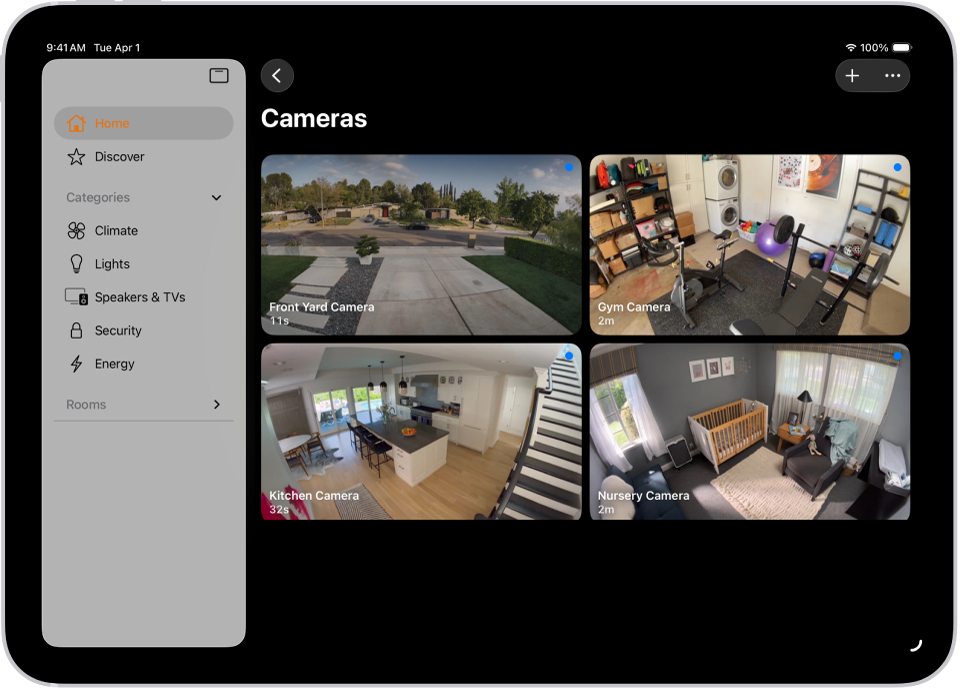
Download the app
Most modern cameras rely on a companion app for setup, live view, and alerts. -
Create or sign in to your account
Use a strong password and turn on extra security if available. -
Add the camera to the app
Usually this means scanning a QR code or entering the device into pairing mode. -
Connect to Wi-Fi
Use the correct network band if the camera supports both 2.4 GHz and 5 GHz. Many cameras still work best on 2.4 GHz because it reaches farther. -
Test the live feed
Confirm that the image is clear, the time is correct, and the camera responds in the app. -
Choose the camera position
Hold it up first before drilling. I always do a temporary test view because what looks good in your hand may look wrong on the wall. -
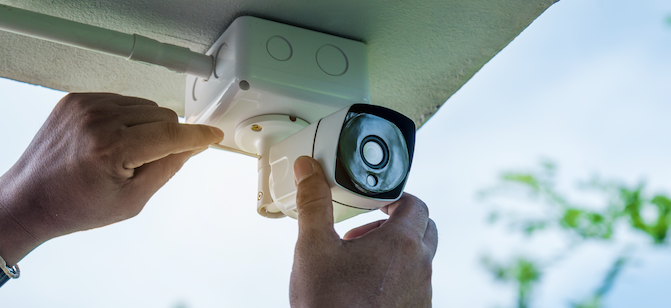
Mount the camera securely
Use anchors or brackets if you’re mounting on brick, stucco, or siding. -
Adjust the angle
Aim for faces, not just the tops of heads. Include enough of the walkway, door, or driveway. -
Set motion zones and alerts
This helps reduce false alarms from cars, pets, and moving branches. -
Test recording and playback
Walk through the area and make sure the camera records properly and sends alerts the way you want.
If your camera has a battery, set a reminder to check charge levels. If it’s wired, tidy the cable so it doesn’t become a tripping hazard or a target for tampering.

Fine-Tune Motion Settings and Notifications
A lot of frustration with home security cameras comes from bad motion settings. Too sensitive, and your phone buzzes all day. Too low, and you miss important activity.
To improve motion detection:
• Set activity zones so the camera only watches key areas
• Reduce sensitivity near roads, trees, or busy sidewalks
• Turn on person detection or package detection if your camera supports it
• Use schedules so alerts are quieter at certain times
I once tested a camera that sent alerts every time headlights passed on the street. It was useless at first. After narrowing the motion zone to the front walkway, the alerts became much more useful and far less annoying.
Notifications should feel helpful, not stressful. If the app lets you choose between instant alerts and summary alerts, test both and see what fits your routine best.
Test the Camera Before You Rely on It
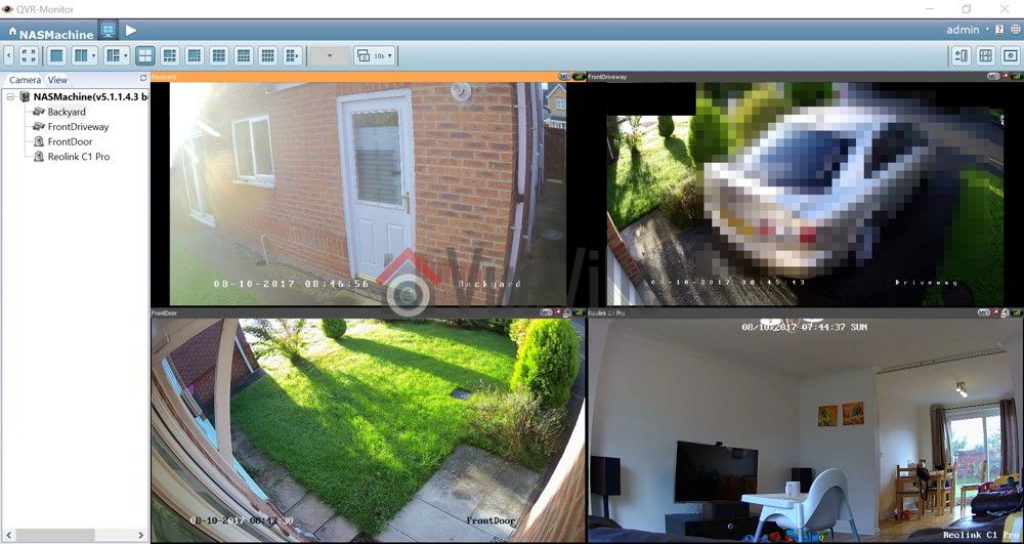
Never assume the camera is ready just because the app says it is connected. A full test is the only way to know whether the setup actually works.
Check these basics:
• Can you see the live feed clearly?
• Is the audio working?
• Do motion alerts come through quickly?
• Does the camera record at the right times?
• Can you review saved clips easily?
• Is night vision clear enough for your needs?
Test during the day and again at night. Lighting changes can affect performance more than people expect. Also, try viewing the feed from outside your home network so you know remote access works correctly.
Improve Security, Privacy, and Reliability
A home security camera should protect your home without creating new risks. That means thinking about cyber safety as well as physical placement.
Best practices include:
• Use a strong, unique password for the camera account
• Turn on two-factor authentication
• Keep firmware updated
• Use encrypted Wi-Fi with WPA2 or WPA3
• Review sharing settings so only trusted people have access
• Cover or disable indoor cameras when privacy is needed
If you use indoor cameras, be respectful about where they point. Avoid private spaces unless you truly need coverage there. Trust matters in a household, and good camera placement should support safety without making people feel watched all the time.
For outdoor cameras, check local laws and HOA rules if they apply. In general, you can record your property, but it’s smart to avoid aiming cameras into neighbors’ private areas when possible.
Common Mistakes to Avoid
I’ve seen the same setup mistakes over and over, and most are easy to prevent.
Avoid these:
• Mounting too low, which makes cameras easy to reach or block
• Pointing at bright lights or reflective surfaces
• Ignoring Wi-Fi strength before installation
• Using weak passwords or default login details
• Skipping motion zone setup
• Forgetting to test night vision
• Placing indoor cameras in the wrong rooms for your real needs
The biggest lesson? Don’t rush. A camera installed in 15 minutes can still fail you if the angle, network, or settings are off. Spending an extra half hour on setup can save you from a lot of trouble later.
Benefits and Limitations of Home Security Cameras
Home security cameras offer real value, but they are not magic.
Benefits:
• Better awareness of what’s happening around your home
• Evidence if theft, vandalism, or suspicious activity occurs
• Easier package monitoring
• Peace of mind when you are away
• Remote viewing from a phone or tablet
Limitations:
• Cameras cannot physically stop a crime
• Poor internet can limit live viewing and alerts
• Battery units need maintenance
• False alerts can be annoying if settings are not tuned
• Privacy concerns can arise if cameras are shared too broadly
The best setup combines cameras with strong locks, good lighting, and sensible habits. Think of cameras as a layer of protection, not the whole shield.
Frequently Asked Questions of How to Set Up a Home Security Camera
How high should I mount a home security camera?
Most outdoor cameras work well when mounted about 8 to 10 feet high. That height helps protect the camera from tampering while still giving a clear view of faces and activity.
Should I choose a wired or wireless home security camera?
Wired cameras are usually more stable, while wireless cameras are easier to install. If you want the simplest setup, wireless may be best, but if you want long-term reliability, wired often wins.
What is the best place to put a home security camera?
The best places are front doors, back doors, garages, driveways, and first-floor entry points. These areas usually give you the most useful coverage because they are the most common access points.
How do I reduce false alerts from my camera?
Use motion zones, lower sensitivity, and avoid pointing the camera at streets, trees, or bright lights. Smart detection features like person detection can also help cut down on unnecessary alerts.
Do home security cameras need Wi-Fi?
Many modern cameras need Wi-Fi for live viewing, alerts, and cloud storage. Some systems can still record locally without internet, but remote access usually depends on a stable connection.
How can I keep my home security camera private and secure?
Use a strong password, enable two-factor authentication, and update firmware regularly. It also helps to review who has access to the camera app and to avoid placing indoor cameras in private areas unless needed.
Conclusion
Setting up a home security camera is really about more than mounting a device. The best results come from choosing the right camera, placing it with care, checking power and Wi-Fi, and tuning the settings so the system fits your home.
If you take the time to plan the setup well, you’ll get clearer footage, fewer false alerts, and much more peace of mind. Start with one camera, test it carefully, and build from there if needed. If this guide helped, explore more home security tips, subscribe for future updates, or leave a comment with your setup questions.