How To Format A Dash Cam SD Card: Easy 2026 Guide

Formatting a dash cam SD card erases errors, clears clutter, and keeps recordings reliable.
If you want your dash cam to keep saving footage without freezing, corrupt files, or looping issues, learning how to format a dash cam SD card is one of the simplest and smartest things you can do. I’ve seen a fresh format fix everything from “card full” warnings to random recording stops, and the process is easier than most drivers expect.
Why formatting a dash cam SD card matters
A dash cam SD card does a hard job. It records, deletes, and rewrites video over and over again, often in hot cars and rough weather. That constant use can leave behind file errors, slow performance, or even broken clips.
Formatting gives the card a clean start. It removes old data, clears hidden file problems, and helps the dash cam store video the way it should. If you use your dash cam every day, formatting is not just helpful. It is part of normal maintenance.
I have found that many dash cam problems are not really camera problems at all. They are storage problems. A simple format often saves time, stress, and lost footage.
What formatting actually does to the SD card
Formatting prepares the SD card for new recordings. It rebuilds the file system so the dash cam can write files in the correct way. Think of it like cleaning a whiteboard before writing on it again.
There are two common types of formatting:
• Quick format: Removes file records fast, but does not fully scan the card for issues.
• Full format: Takes longer and checks the card more deeply for damage or bad sectors.
For most dash cams, the built-in format option is the best choice. It uses the file system the device expects, such as FAT32 or exFAT, depending on the model and card size. That matters because some cameras will not work well if the card is formatted on a computer with the wrong settings.
Before you format a dash cam SD card
Before you format a dash cam SD card, save anything important first. Formatting erases the files on the card, and recovery is not always possible.
Here is what I recommend before starting:
• Back up saved videos to your phone, computer, or cloud storage.
• Check the dash cam manual for the right card type and file system.
• Make sure the card is not locked with a write-protect switch.
• Remove the card only after the dash cam is powered off.
• If the card is old, consider replacing it instead of formatting again and again.
I learned this the hard way after losing a small but important clip from a road trip. The card had been acting odd for weeks, and I kept putting off the format. Once I finally cleaned it up, the camera worked better, but the missed file was gone for good. That mistake taught me to back up first, every time.
How to format a dash cam SD card in the dash cam
The safest way to format a dash cam SD card is usually through the camera itself. This helps avoid file system mismatches and makes sure the card is set up the way the device wants.
Follow these general steps:
- Insert the SD card into the dash cam.
- Turn on the camera.
- Open the settings or menu screen.
- Find the format option, often under storage or system settings.
- Select format and confirm the action.
- Wait until the process is done before removing power or the card.
Some cameras call this option “Format,” “Erase SD Card,” or “Initialize Card.” The wording changes, but the result is the same. The important part is to let the camera finish fully without interruption.
If the dash cam supports low-level storage tools or a “format on camera” feature, use that instead of a computer format. In my experience, that is usually the cleanest and least troublesome path.
How to format a dash cam SD card on a computer
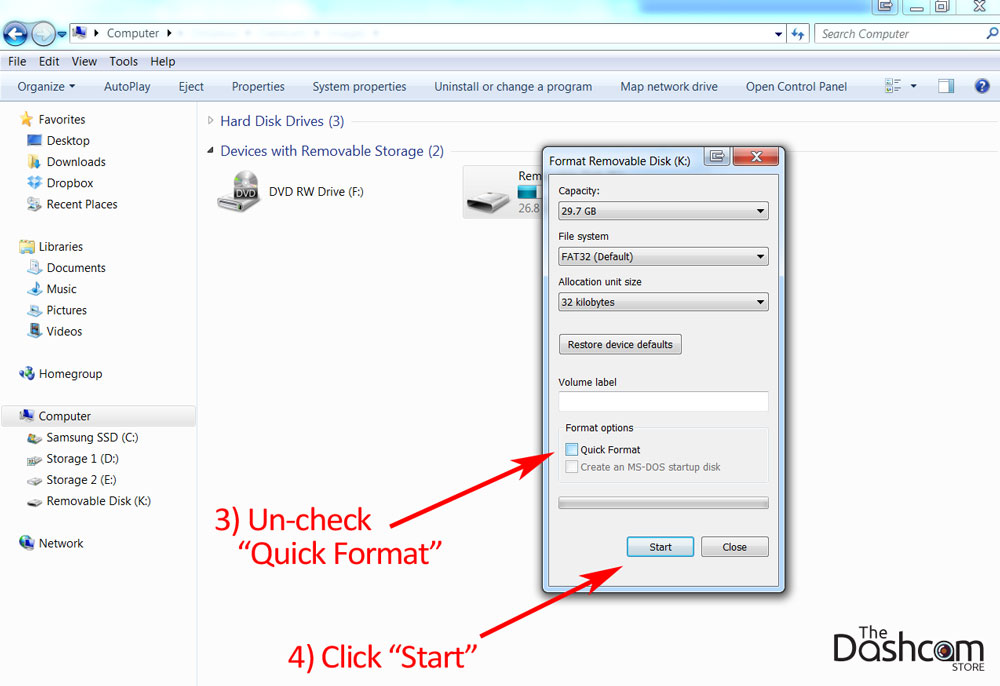
Sometimes the dash cam will not format the card, or the card may not be recognized. In that case, you can format the SD card on a computer first, then put it back in the camera.
Here is a simple method:
• Insert the card into a card reader.
• Open your computer’s disk management or file explorer tools.
• Choose the SD card carefully so you do not select the wrong drive.
• Pick the correct file system for your dash cam, often FAT32 for smaller cards or exFAT for larger ones if supported.
• Run the format and wait for it to complete.
After that, put the card back in the dash cam and, if possible, format it again in the camera. That final step helps the device set up the storage exactly as it needs.
One caution: not every dash cam likes computer-formatted cards. Some brands are picky, and I’ve seen cards work better after being formatted in the camera even when the computer format seemed fine. That is why the manual matters so much.
How often should you format a dash cam SD card
A dash cam SD card should be formatted regularly, not only when something goes wrong. Many drivers do it about once a month, while some prefer every two to four weeks if the camera runs nonstop.
You may need to format more often if:
• You drive every day.
• Your dash cam records in high resolution.
• The card is close to full most of the time.
• You notice lag, missing files, or file errors.
• The camera keeps saying the card needs formatting.
Frequent use wears out memory cards over time. That is normal. Regular formatting helps reduce file clutter, but it does not stop wear from happening forever. That is why good SD cards and timely replacement matter too.
Signs your dash cam SD card needs formatting
Sometimes the camera gives you clues before the card fails. Watch for these warning signs:
• “Card error” or “format card” messages
• Missing or broken video clips
• Recording stops for no clear reason
• Slow boot-up or freezing
• Loop recording not overwriting old files properly
• The dash cam says the card is full too soon
These signs usually point to file system trouble, card wear, or bad memory cells. Formatting may fix the issue if the card is still healthy. If the problem keeps coming back, the card may be near the end of its life.
Best practices to keep a dash cam SD card healthy
Formatting is only one part of good care. A dash cam SD card lasts longer when you treat it with a few simple habits.
• Use high-endurance microSD cards made for video recording.
• Buy from trusted brands and avoid fake cards.
• Format regularly before corruption builds up.
• Keep the card in the dash cam, not in your pocket or glove box.
• Replace cards that start failing often.
• Avoid pulling power while the camera is writing files.
• Update the dash cam firmware when the maker releases fixes.
High-endurance cards are designed for repeated recording and rewriting. In real use, they often hold up much better than standard cards. That does not make them invincible, but it does make them a smarter fit for dash cams.
Common mistakes to avoid when formatting
A few small mistakes can turn a simple task into a headache. I see these most often:
• Formatting the wrong drive on a computer
• Removing the card before the format is done
• Using the wrong file system
• Forgetting to back up footage first
• Reusing a worn-out card for too long
• Ignoring recurring card warnings
One of the most common errors is assuming all microSD cards are the same. They are not. A cheap card may look fine for weeks, then suddenly fail during an important drive. That is why reliability matters more than saving a few dollars upfront.
What to do if formatting does not work
If you cannot format the dash cam SD card, do not keep forcing it again and again. That can waste time and sometimes make things worse.
Try these steps:
• Power cycle the dash cam and try again.
• Test the card in a computer card reader.
• Use the correct format tool for the file system.
• Check whether the card is write-protected.
• Try another SD card to see if the issue is the camera or the card.
If the card still fails, it may be damaged. At that point, replacement is usually better than repeated repair attempts. In my experience, once a card starts failing frequently, it rarely becomes fully trustworthy again.
Frequently Asked Questions of How to Format a Dash Cam SD Card
Do I need to format a new SD card before using it in a dash cam?
Yes, in most cases you should format a new SD card before use. Even if the card is new, it may not be set up in the right file system for your dash cam.
Will formatting my dash cam SD card delete all videos?
Yes, formatting removes all files on the card. Always back up important clips before you format, because recovery is not guaranteed.
Can I use my computer instead of the dash cam to format the card?
Yes, but formatting in the dash cam is usually better. The camera often sets the card up in the exact format it needs for stable recording.
How do I know if my SD card is failing?
Common signs include random recording stops, missing clips, error messages, and repeated format requests. If the same problems keep coming back after formatting, the card may be worn out.
What kind of SD card is best for a dash cam?
A high-endurance microSD card is usually the best choice. These cards are built for constant writing and rewriting, which makes them a better fit for dash cams than standard cards.
How often should I replace a dash cam SD card?
That depends on use, card quality, and heat exposure, but many drivers replace cards every one to two years. If your camera records daily or the card starts acting up, replacement may be needed sooner.
Conclusion
Knowing how to format a dash cam SD card can save you from a lot of recording trouble. It helps clear old errors, improve stability, and keep your dash cam ready when you need it most.
The key is to back up your footage first, use the right format method, and stay alert for signs of card wear. If your card keeps failing, do not keep nursing it along. Replace it with a high-endurance card and give your camera the storage it deserves.
If this guide helped, take a minute to check your own dash cam settings, back up your files, and format the card the right way today.

Similar Posts

































[…] up, and get corrupted, so use a quality card and format it in the camera before first use. Some keeping your memory card healthy habits carry over from dash cams. Mounting matters just as much; a strap system that shakes in the […]
[…] memory cards error-free regardless of which you […]
[…] that with a consistent card maintenance routine so you're not fighting corrupted footage when you finally do check. Formatting fresh cards […]
[…] buyers said it runs warm during long 5.3K sessions and that 5.3K files eat storage quickly, so keeping your card healthy before long trips is worth the […]