How To Connect A Drone To Your Phone: Easy Guide
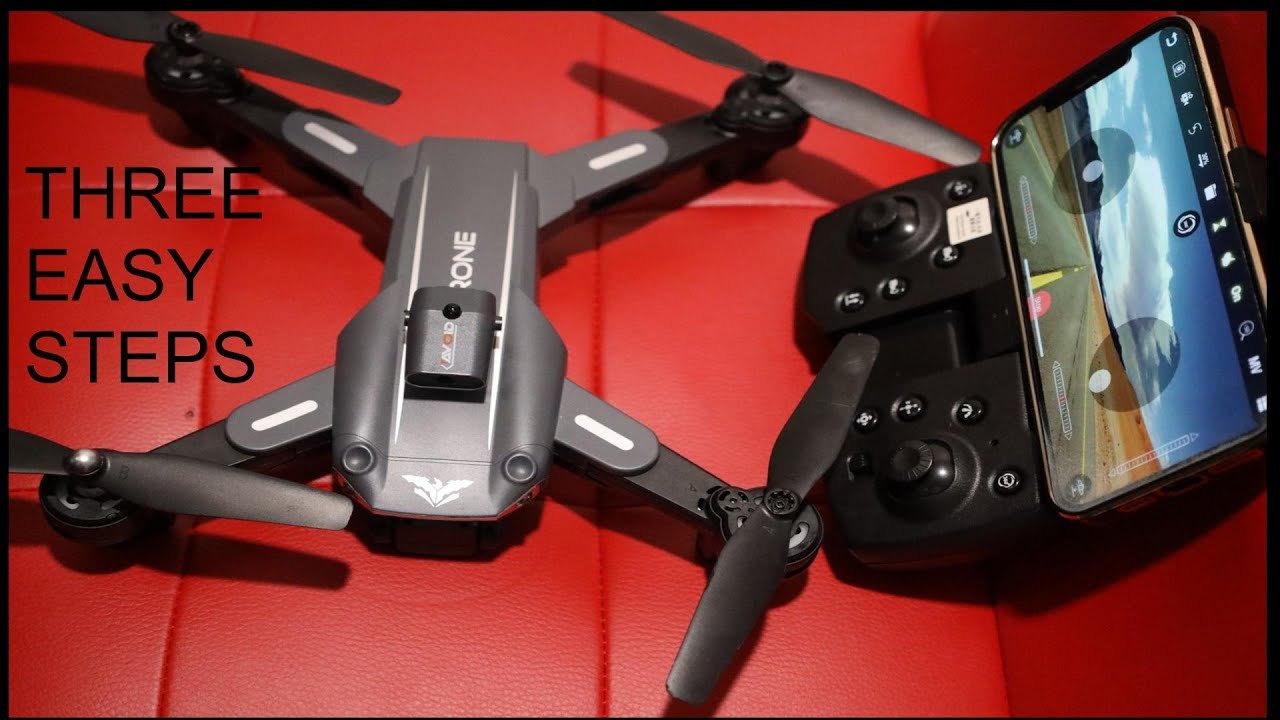
You connect a drone to your phone by installing the drone app, pairing via Wi-Fi or Bluetooth, and following the on-screen setup steps.
If you have ever tried to launch a drone and felt stuck at the “connect to phone” step, you are not alone. I have set up more drones than I can count, and the process is usually simple once you know the pattern. In this guide, I’ll walk you through how to connect a drone to your phone the right way, what can go wrong, and how to fix it fast.
Why connecting a drone to your phone matters
A phone is more than just a screen for your drone. It is often your control hub, map, camera monitor, and settings panel all in one. When the connection works, flying feels smoother, safer, and a lot more fun.
Most consumer drones use a phone app to show live video, adjust camera settings, plan flights, update firmware, or unlock smart features. Without the connection, you may still be able to fly some models, but you lose a big part of the experience. In my own testing, the difference is like driving with a windshield versus driving with a blindfold.
What you need before you start
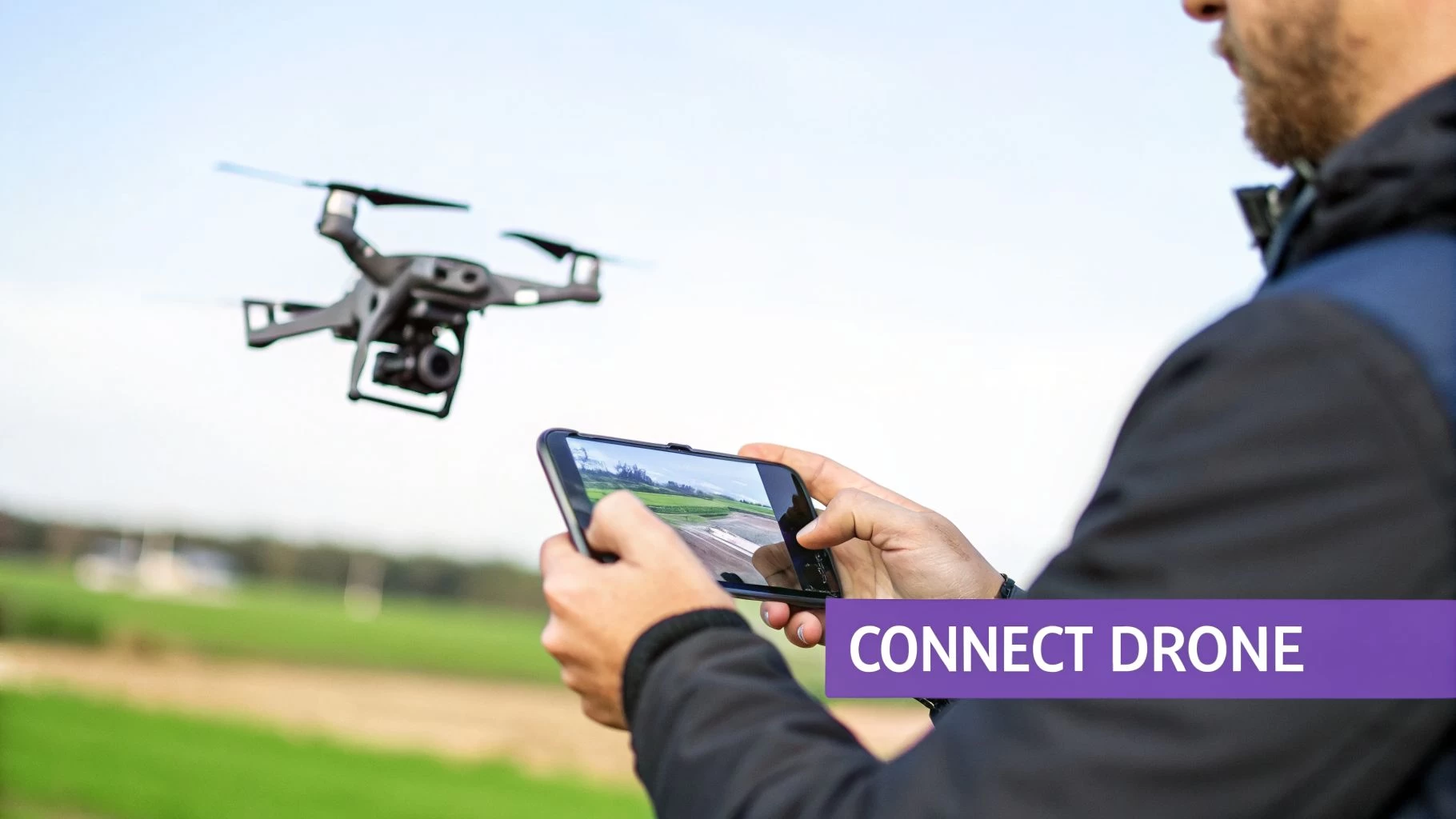
Before you try to connect a drone to your phone, it helps to get the basics ready. A little prep saves a lot of frustration later.
You usually need:
• A compatible smartphone with enough battery
• The correct drone app from the manufacturer
• A charged drone battery and remote controller, if your model uses one
• Wi-Fi or Bluetooth enabled on your phone
• The drone’s manual or quick-start guide
It also helps to know whether your drone connects through Wi-Fi, Bluetooth, or a controller with a built-in screen. Many beginner drones use Wi-Fi, while more advanced drones may use a controller-to-phone app connection. I always tell people to check the exact model first, because the setup steps can look almost the same but still fail if you use the wrong app.

How to connect a drone to your phone step by step
The exact process varies by brand, but most modern drones follow a similar path. If you treat it like setting up a new router or smart device, you will usually get there quickly.
1. Download the official drone app
Start by finding the manufacturer’s app in the App Store or Google Play Store. Use the official app whenever possible, because third-party apps may not support all flight features or camera controls.
Open the product manual or the box to confirm the app name. Some drones have similar names, and installing the wrong one is a common mistake. I have seen people waste half an hour on setup simply because they grabbed the wrong app from search results.
2. Charge the drone, controller, and phone
A weak battery can interrupt pairing and cause the app to freeze. Fully charge the drone and controller before setup, and make sure your phone has enough power for firmware updates or long test flights.
A low battery can also create unstable Wi-Fi signals. That is one reason why some drones connect once but drop out a minute later. A stable setup starts with stable power.
3. Turn on the drone and the controller
Power on the drone first, then the controller if your drone uses one. Some models require the controller to boot before the phone app can detect the drone.
Wait for the lights to stabilize. On many drones, blinking lights mean the device is still searching or not yet ready for pairing. This tiny pause matters more than people think.
4. Connect your phone to the drone’s Wi-Fi or Bluetooth
Open your phone’s Wi-Fi settings or Bluetooth settings, depending on the drone type. If the drone broadcasts its own network, select that network from the list and wait for the connection.
Some drones use Bluetooth for the first handshake, then switch to Wi-Fi for the live camera feed. Others stay on Wi-Fi the whole time. The app usually tells you what to do next, so follow the prompts carefully.
5. Open the app and complete pairing
Once your phone is connected to the drone’s signal, open the drone app. The app may ask for permissions like location, Bluetooth, storage, or camera access.
These permissions are not random. Location access is often needed for map functions and Wi-Fi-based device detection. Camera and storage permissions help with live view and saving photos or videos.
6. Calibrate and verify the connection
Before you fly, check that the app sees the drone and the camera feed works. If your drone needs compass or gyro calibration, do that before takeoff.
I like to do a short “garage test” every time. I confirm the app connects, the live view appears, and the sticks or virtual controls respond properly. It is a small habit, but it prevents a lot of embarrassing takeoff problems.
7. Test the connection in a safe open area
After setup, move to an open spot and test the connection again. If the video lags or the signal drops, the issue may be interference from nearby Wi-Fi networks, walls, or phone settings.
Many beginners assume the drone is broken when the real problem is signal clutter. A parking lot, field, or open backyard often gives a much cleaner result than a crowded indoor space.

Common connection types and how they work
Not all drones connect the same way. Understanding the connection type helps you troubleshoot faster and choose the right setup method.
Wi-Fi connection
Wi-Fi is the most common method for budget and midrange drones. Your drone creates its own network, and your phone joins it like any other Wi-Fi hotspot.
This setup is easy, but it can be limited by range and interference. In real-world use, Wi-Fi drones often work best at short distances and in open spaces.
Bluetooth connection
Bluetooth is usually used for simple setup tasks or basic control features. It is not as common for full live video on consumer drones because Bluetooth has a shorter range and lower data capacity.
If your drone uses Bluetooth, the app may still switch to Wi-Fi for camera streaming. That hybrid setup is common in newer lightweight models.
Controller-to-phone connection
Some drones connect the phone to the controller instead of directly to the drone. In this case, the controller may act as the bridge between your phone and the aircraft.
This setup often gives a more stable experience. It is also popular in advanced drones, where the controller has stronger antennas and better signal handling.

Troubleshooting when the drone will not connect
Even when you follow the steps, connection problems can still happen. That is normal. I have seen perfectly good drones fail to pair simply because one setting was off by one tap.
Try these fixes:
• Restart the drone, controller, and phone
• Delete and reinstall the drone app
• Forget the drone Wi-Fi network and reconnect
• Turn off mobile data if the app keeps switching networks
• Allow all required permissions in the app
• Move away from crowded Wi-Fi areas
• Check for firmware updates
• Use the correct app for your exact model
One of the most common mistakes is leaving mobile data on while connecting to a drone’s Wi-Fi. Some phones “helpfully” switch back to the internet if the drone network has no internet access. That can break the connection before it even starts.
If the app still does not see the drone, reset the drone’s network settings or do a factory reset if the manual allows it. When in doubt, the manual is your best friend here.

Tips for a smoother and safer connection
A good setup is about more than just pairing. It is also about making the connection reliable and safe enough for flight.
Keep these habits in mind:
• Update the app and firmware before important flights
• Use the drone in open areas with fewer signals around
• Keep your phone in airplane mode if the app still works with Wi-Fi on
• Close background apps to reduce lag
• Remove thick phone cases if they block buttons or ports
• Use a fully charged battery on both devices
• Keep your phone screen bright enough to see the live feed
One lesson I learned the hard way: do not wait until you are outdoors with only a few minutes of battery left to test a new app update. That is how simple setup tasks turn into stressful flight delays. A short prep session at home saves a lot of trouble later.
Benefits of connecting a drone to your phone
Connecting a drone to your phone unlocks much more than video viewing. It turns a basic flight into a smart, interactive experience.
Some of the biggest benefits include:
• Live camera preview for better framing
• Easier photo and video capture
• Access to flight modes and map tools
• Real-time battery and signal status
• Simple firmware updates and device settings
• More precise control for beginners
For creators, the phone connection is especially useful. It makes it easier to record smooth shots, follow a subject, and review footage right away. For hobby pilots, it adds confidence because you can see what the drone sees before you press record.
Limitations you should know about
As useful as the phone connection is, it has limits. Knowing those limits helps you avoid frustration and makes you a smarter pilot.
Common limitations include:
• Wi-Fi range can be short on entry-level drones
• Signal can drop in crowded areas
• Some apps are buggy on older phones
• Not every drone supports every phone model
• Live video may lag in hot or congested conditions
• Permissions and updates can affect performance
This is why it is smart to treat the phone as part of the flight system, not just an accessory. If the phone is outdated, overheated, or low on memory, the connection may suffer even if the drone itself is fine.
Best practices for iPhone and Android users
The setup is similar on both systems, but there are a few practical differences. Knowing them can save time.
For iPhone users
iPhone users should check app permissions carefully, especially location access and local network access. If the drone app cannot find the drone, these permissions are often the missing piece.
It also helps to disable automatic network switching features that may pull the phone away from the drone’s Wi-Fi. iOS can be smart, but that smartness sometimes gets in the way during pairing.
For Android users
Android phones can vary more by brand, which means connection behavior can differ a bit from device to device. Some phones are strict about background data, battery optimization, or Wi-Fi switching.
If the app keeps closing or disconnecting, check battery saver settings and allow the app to run without restrictions. That small change often fixes problems people blame on the drone.
Frequently Asked Questions of How to Connect a Drone to Your Phone
Why is my drone not showing up on my phone?
Your drone may not be powered on, paired correctly, or broadcasting a strong signal. Make sure you are using the right app and that Wi-Fi, Bluetooth, or permissions are set up correctly.
Do I need the internet to connect a drone to my phone?
Usually, no. Most drones create their own local Wi-Fi or Bluetooth link, so internet access is not required for pairing or flying.
Can I connect any drone to any phone?
No, not always. Phone compatibility depends on the drone model, app version, operating system, and hardware support.
Why does the connection drop after a few minutes?
This can happen because of weak battery power, interference, app issues, or the phone switching back to mobile data. Updating the app and staying in an open area often helps.
What permissions does a drone app usually need?
Most drone apps ask for location, Bluetooth, camera, and storage access. These permissions help the app detect the drone, show live video, and save photos or clips properly.
Can I fly a drone without connecting it to my phone?
Some drones can fly without a phone, especially if they use a dedicated controller. But you may lose live video, camera controls, and smart flight features.
Conclusion
Connecting a drone to your phone is usually simple once you know the right app, the right signal, and the right order. The key is to prepare first, pair carefully, and test the connection before you head into open air.
If you remember nothing else, remember this: charge everything, use the official app, and let the drone finish pairing before you rush to fly. That small bit of patience makes the whole experience smoother and safer.
Try the setup steps the next time you power on your drone, and see how much easier the process feels. If this guide helped you, explore more drone tips, keep learning, and share your setup questions in the comments.

Similar Posts





























[…] not cloud upload, so you still walk to the camera to pull files. App setup comes with the usual phone-pairing quirks you learn with other wireless gear, but once connected, clip review is […]
[…] in and bumping deer. That's the biggest advantage in scouting today. Setup involves the same phone-pairing basics you'd see with any connected […]