How To Update Smart Home Firmware: Easy 2026 Guide
Smart home firmware updates keep your devices secure, fix bugs, and improve performance.
Keeping smart home firmware current is one of the simplest ways to make your connected home safer and more reliable. From smart speakers and cameras to thermostats, locks, and plugs, I’ve seen how a small update can solve odd glitches, improve speed, and even close security gaps that users never notice until something goes wrong. If you want your smart home to run smoothly without surprise problems, understanding how to update smart home firmware is a must.

What Smart Home Firmware Is and Why It Matters
Firmware is the built-in software that controls how a device works at its core. In a smart home, firmware tells your thermostat when to respond, your camera how to connect, and your smart lock how to process commands.
Unlike the apps on your phone, firmware runs inside the device itself. That means when it has a bug or security flaw, the problem can affect how the whole device behaves. Updating smart home firmware helps fix those issues before they become bigger headaches.
A few common reasons firmware updates matter:
• Security patches close vulnerabilities that hackers can exploit
• Bug fixes stop random disconnects, freezes, or failed automations
• Performance improvements make devices faster and more stable
• New features may unlock better controls or integrations
• Compatibility updates help devices work with new hubs, apps, or voice assistants
In my experience, firmware is like the plumbing behind a wall. You rarely see it, but when it fails, everything becomes a mess. That is why smart home firmware updates should not be treated like an afterthought.
How to Update Smart Home Firmware Safely
The exact process depends on the brand, but the basic idea is the same: check for updates, connect the device properly, and let the process finish without interruption. I’ve updated dozens of smart devices over the years, and the safest approach is always the same: be patient and do not rush.
Here is a simple, reliable process to follow:
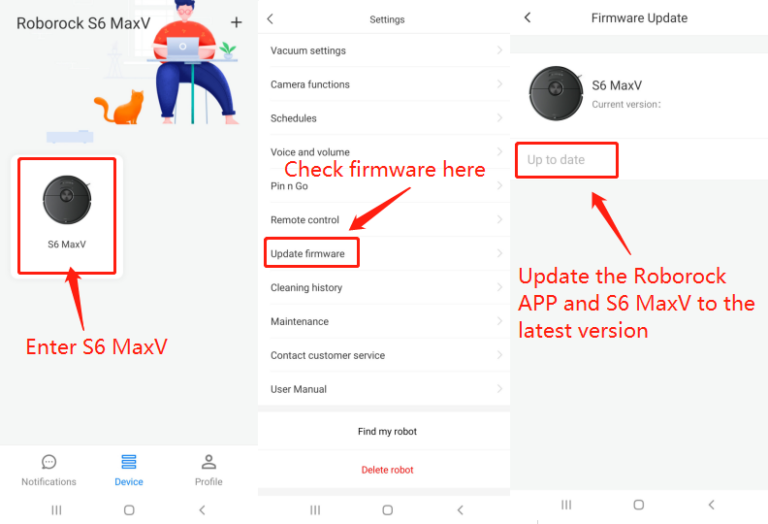
- Open the device app or control hub
Most smart home brands push firmware updates through their own app, such as a thermostat app, camera app, or smart hub platform. - Check for available updates
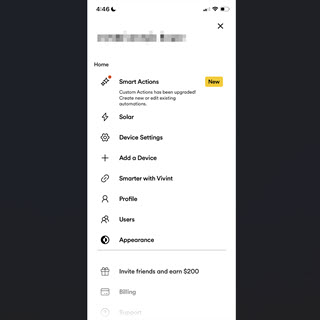
Look for a settings menu, device info page, or firmware section. Some devices update automatically, while others need manual approval. - Make sure the device has steady power
If the device is battery-powered, charge it first. If it uses a plug, avoid unplugging it during the update. - Keep the internet connection stable
Firmware files often download over Wi-Fi. A weak signal can cause failed updates or incomplete installs. - Start the update and wait
Do not close the app, press buttons, or reset the device unless the instructions tell you to. - Confirm the version after the update
Check the device settings to make sure the firmware version changed successfully.
A few smart habits can reduce risk:
• Update one device at a time when possible
• Read the release notes before installing
• Avoid updates during power outages or storms
• Restart the device after the update if the brand recommends it
One mistake I made early on was updating several devices at once during a busy evening. One camera failed to reconnect, and I had to reset it manually. Since then, I update devices one by one, especially for critical gear like locks and security cameras.

Source: homeseer.com
When You Should Update Smart Home Firmware
Not every update needs to happen the second you see it, but waiting too long can be risky. In smart homes, outdated firmware can lead to security issues, weak performance, and compatibility problems with newer apps or platforms.
You should update smart home firmware when:
• A security patch is released
• A device starts acting unstable or slow
• A new feature or integration is available
• Your app says the device is out of date
• The manufacturer recommends a critical update
For important devices like smart locks, video doorbells, and security cameras, I treat updates like seatbelts. You hope you never need the protection, but you do not want to be without it.
That said, there are times to pause:
• During a major outage in your area
• If your network is unstable
• Right before you leave home for a trip
• When the release notes mention a known issue that affects your setup
Good timing matters. A careful update is better than a rushed one.
Common Problems During Smart Home Firmware Updates
Firmware updates usually go smoothly, but problems do happen. Most of the time, the issue is not the update itself. It is weak Wi-Fi, low battery, poor app support, or an interrupted installation.
Here are the most common problems:
• Update fails to download
This often happens when the Wi-Fi signal is weak or the app server is busy.
• Device gets stuck mid-update
This can happen if power is lost or the app closes too early.
• Device disconnects after updating
Some devices need a reboot, app refresh, or hub reconnection.
• Update option does not appear
The firmware may already be current, or the brand may roll updates out slowly.
• Automation stops working
A new firmware version may change how the device talks to your smart home platform.
A few ways to avoid these issues:
• Keep your router close enough for strong signal
• Charge battery devices before starting
• Update the app first if the brand recommends it
• Read release notes for warnings
• Wait a few minutes after the update before testing controls
I’ve found that most “broken” updates are actually temporary sync problems. A restart of the device, app, or hub often fixes things faster than a full reset.
Source: bitdefender.com
Best Practices for Updating Different Smart Home Devices
Not all smart home devices behave the same way. A smart bulb, a camera, and a thermostat may all use different update methods and risk levels. Knowing the device type helps you choose the safest approach.
Smart speakers and displays
These devices often update automatically overnight. Make sure they stay plugged in and connected to Wi-Fi. If the device seems slow after an update, give it a few minutes to settle.
Smart cameras and doorbells
These are sensitive devices because they handle security. Update them when you know you can monitor the process and confirm that live view, motion alerts, and recording still work.
Smart locks
Treat these with extra caution. Update them when you are home, and always confirm that both app control and physical unlocking still work after the update.
Smart thermostats
These usually update quietly, but they can affect schedules and heating or cooling behavior. After updating, check your temperature settings and automations.
Smart plugs, bulbs, and switches
These are usually low risk, but they may need a hub or bridge to update. If the device goes offline, re-pairing through the app may be necessary.
The best rule is simple: update each device based on how critical it is to daily life. The more important the device, the more careful you should be.
How to Prepare Before You Update Smart Home Firmware
Preparation makes firmware updates much safer. Think of it like checking the weather before a road trip. A few minutes of prep can save you hours of frustration later.
Before you update, do this:
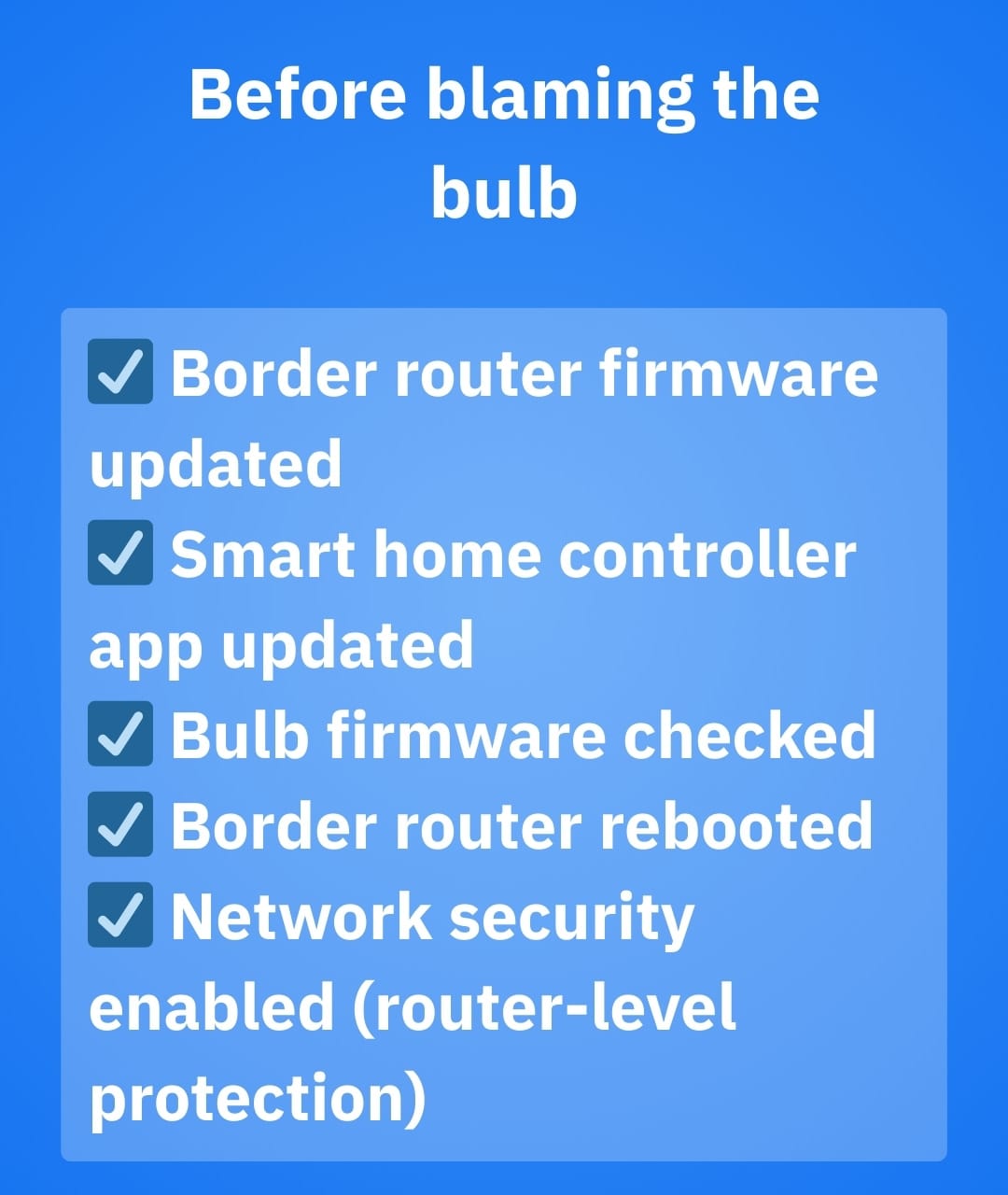
• Check that your phone app is current
• Make sure the device has enough battery or power
• Confirm your Wi-Fi is stable
• Read the update notes if they are available
• Back up settings or automations if the platform supports it
• Schedule updates when you can monitor the device
If your smart home system uses a hub or bridge, update that platform carefully too. Sometimes the hub firmware matters more than the device firmware because it controls how everything talks to each other.
I also recommend testing one important automation after every major update. For example, if your porch light should turn on when your camera detects motion, confirm that it still works. That one quick check can catch silent problems early.
Source: vivint.com
Security Benefits of Keeping Firmware Updated
One of the biggest reasons to update smart home firmware is security. Smart devices connect to your network, and anything connected to a network can become a target if it is left outdated.
Firmware updates can help:
• Patch known vulnerabilities
• Improve encryption or authentication
• Reduce exposure to remote attacks
• Fix bugs that allow unauthorized access
• Support better device verification with apps and hubs
Trusted security groups and device makers regularly warn that unpatched devices are easier to exploit. That is especially true for devices exposed to the internet, such as cameras, smart locks, and doorbells.
A smart home should feel convenient, not fragile. Updating firmware is one of the easiest ways to keep it that way.
What to Do If a Firmware Update Fails
If an update fails, do not panic. Most devices can recover with a few basic steps. The key is to avoid forcing random resets too quickly.
Try this order:
- Wait a few minutes
Some devices appear stuck but are still processing. - Check the app for status messages
The app may show whether the update is still running or failed. - Restart the device
Power-cycle the device if the brand says it is safe. - Check Wi-Fi and power
Reconnect to a stronger network or restore power. - Try the update again
Some updates succeed on the second attempt. - Contact support if needed
If the device is still unresponsive, the maker’s support team may have recovery steps.
Do not factory reset unless you must. That can erase settings, schedules, and automations. I learned that the hard way with a smart thermostat once, and rebuilding everything took much longer than the update itself.
Frequently Asked Questions of How to Update Smart Home Firmware
How often should I update smart home firmware?
You should update whenever the manufacturer releases important security fixes or stability improvements. For critical devices like cameras and smart locks, it is smart to check at least once a month if automatic updates are not enabled.
Can I update smart home firmware automatically?
Yes, many smart home devices support automatic updates through their app or hub. Automatic updates are convenient, but it is still wise to review release notes for major versions when possible.
What happens if I turn off a device during a firmware update?
Turning off a device during an update can interrupt the install and may leave the device unstable or offline. If that happens, you may need to retry the update, restart the device, or contact support.
Do I need to update every smart device in my home?
Yes, ideally you should keep all connected devices updated. Even low-cost devices like smart bulbs and plugs can create security or network issues if left on old firmware.
Will firmware updates erase my settings?
Usually, no. Most firmware updates keep your settings, routines, and connections intact, but a failed update or factory reset can remove them, so it helps to know your backup options first.
Conclusion
Updating smart home firmware is one of the easiest ways to protect your devices, improve performance, and keep your automations working well. The process is usually simple, but the best results come from good timing, stable power, and a little patience.
If you make firmware checks part of your regular home routine, your smart devices will run more smoothly and stay safer over time. Start with your most important devices, follow the steps carefully, and keep an eye on any post-update changes. If this guide helped, explore more smart home tips, subscribe for updates, or leave a comment with the device you want to update next.