How To Troubleshoot Smart Home Connectivity: Fix Fast
Smart home connectivity usually fails because of weak Wi-Fi, device conflicts, or setup errors.
A smart home should feel simple, but when lights stop responding or a camera keeps dropping offline, the whole system can feel like a tangled mess. I’ve seen this many times while helping people troubleshoot smart home connectivity, and the good news is that most problems are fixable with a clear step-by-step approach. In this guide, I’ll walk you through the real causes, the practical fixes, and the small checks that often solve the issue faster than a full reset.
Understand How Smart Home Connectivity Works
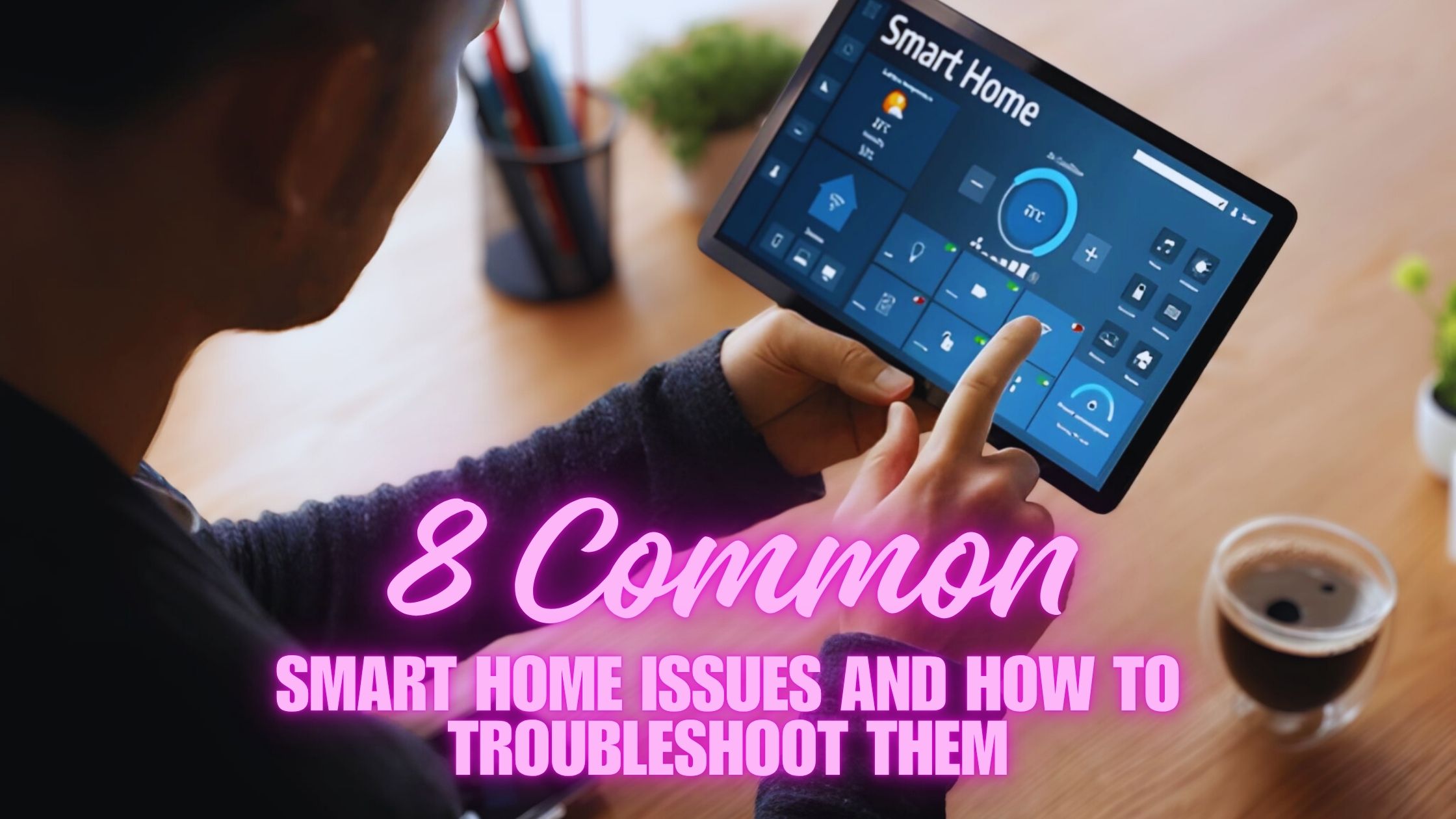
Smart home connectivity is the link between your devices, your router, and the apps or hubs that control them. Most smart devices connect through Wi-Fi, Bluetooth, Zigbee, Z-Wave, Thread, or a mix of these. When one part of that chain fails, the device can go offline, lag, or stop responding completely.
The first thing I always do is identify the connection type. A smart bulb on Wi-Fi has different trouble points than a door sensor on Zigbee. That matters because the fix for a weak wireless network is very different from the fix for a hub issue.
In simple terms, think of your smart home like a neighborhood road system. If the main road is blocked, traffic slows down everywhere. If a side street has a problem, only a few devices are affected.

Check the Basics First
Before you dive into advanced fixes, start with the obvious stuff. I’ve learned that many “serious” smart home problems turn out to be small issues like a loose plug, a dead battery, or a phone that is not on the same network.
Use this quick checklist:
- Confirm the device has power and is turned on
- Check whether your router and modem are online
- Make sure your phone is connected to the right Wi-Fi band
- Open the smart home app and look for error messages
- Restart the device, router, and hub if you use one
If a device looks offline, do not assume it is broken. In my experience, a quick power cycle solves a surprising number of cases. It is like giving the system a fresh start after getting its wires crossed.
Inspect Your Wi-Fi Network
Wi-Fi is often the biggest factor in smart home connectivity problems. Many smart devices depend on a stable 2.4 GHz or 5 GHz connection, and they can struggle when the signal is weak or the network is crowded. The closer your router is to the device, the better the chances of a stable connection.
Here are the most common Wi-Fi issues:
- Weak signal from distance or thick walls
- Network congestion from too many connected devices
- Interference from microwaves, cordless phones, or neighboring routers
- Router settings that block smart devices
- Band steering that pushes devices between 2.4 GHz and 5 GHz
For best results, place your router in a central spot and away from metal objects or appliances. If a device is far from the router, try a mesh Wi-Fi system or a range extender. Mesh networks often help because they create a wider, more even coverage area without huge dead zones.
Match the Right Band and Protocol
Not every smart device behaves the same on Wi-Fi. Many devices only support 2.4 GHz because that band reaches farther and passes through walls better. Faster 5 GHz networks can be great for phones and laptops, but some smart home gadgets cannot use them well.
If a device refuses to connect, check whether your router is combining both bands under one network name. Sometimes that causes setup problems. Creating separate names for 2.4 GHz and 5 GHz can make onboarding much easier.
It also helps to know the protocol behind the device:
- Wi-Fi works well for cameras, speakers, and plugs
- Bluetooth is common for short-range setup and some locks
- Zigbee and Z-Wave rely on a hub and use low power
- Thread is newer and often used with smart home ecosystems like Matter
Understanding the protocol saves time. I once spent nearly an hour on a “bad bulb” that was really just a Zigbee pairing issue with the hub. Once I checked the protocol path, the fix was easy.
Restart Devices in the Right Order
A restart can clear temporary bugs, stale connections, and app sync issues. But the order matters more than people think. I usually restart the router first, then the hub, then the smart device, and finally the phone or tablet running the app.
Try this sequence:
- Unplug the modem and router for 30 seconds
- Plug the modem back in and wait for full internet service
- Turn on the router and wait until it is stable
- Restart the smart home hub if you use one
- Power cycle the device that is having trouble
- Reopen the app and test the connection
This works because the network should come back before the device tries to reconnect. If everything wakes up in the wrong order, devices can miss the handshake and stay offline.
Update Firmware and Apps
Outdated firmware is a quiet troublemaker. Many smart home connectivity problems happen because the device firmware, router firmware, or mobile app is behind on updates. Manufacturers often release updates to fix bugs, improve stability, and support new features.
Check these places for updates:
- The smart home app
- The device settings inside the app
- Your router admin page or router app
- The smart home hub dashboard
I always tell people to update carefully, not blindly. Make sure the device is powered and stable before starting a firmware update. If an update fails halfway, you can end up with a bigger problem than the one you started with.
Re-Pair the Device When Needed
If basic fixes fail, remove the device and add it again. Re-pairing clears many setup glitches and forces a fresh connection to your network or hub. It is one of the most reliable ways to troubleshoot smart home connectivity when a device keeps dropping out or appears stuck.
Before re-pairing, note the device’s current settings if possible. Some devices reset their preferences during the process. I’ve seen people lose custom names, automations, and room assignments because they skipped this step.
A good re-pair workflow is:
- Remove the device from the app
- Factory reset the device only if required
- Put it into pairing mode
- Add it back as a new device
- Test basic functions before restoring automations
If the device pairs again but still drops, the issue is probably the network, not the device itself.
Review Router Settings and Security Features
Modern routers can be too smart for their own good. Features like WPA3, guest isolation, MAC filtering, parental controls, and advanced firewall rules can block smart devices without giving you a clear warning. When that happens, the device may connect once and then fail later.
Things to check in router settings:
- Wi-Fi security mode compatibility
- Guest network isolation
- Access control or MAC filtering
- DHCP settings
- IPv6 support if your ecosystem has known issues
- Firewall or DNS filtering rules
If you recently changed your router, that may explain the problem. A new router often uses different defaults, and some devices do not like those changes. I’ve had the best results with a simple setup first, then adding security features back one by one.
Fix Hub and Bridge Problems
Some smart homes use hubs or bridges to manage devices like Zigbee bulbs, motion sensors, or Z-Wave locks. If the hub fails, devices may seem disconnected even when the internet is fine. This is a common blind spot because people blame Wi-Fi when the real issue is the hub.
Check the hub for:
- Power and status lights
- Ethernet connection if it uses wired internet
- Firmware updates
- Distance from other electronics
- Signs of overload or overheating
If the hub is hidden in a cabinet or behind a TV, move it to a more open spot. Radios do not like being boxed in. A better position can improve smart home connectivity more than you would expect.
Reduce Wireless Interference
Wireless interference can make smart home devices behave like they have a mind of their own. Signals compete with one another, and low-power devices are often the first to suffer. This is especially true in apartments or homes with lots of nearby networks.
Common sources of interference include:
- Neighboring Wi-Fi networks
- Baby monitors
- Bluetooth-heavy environments
- Microwaves
- USB 3.0 devices near hubs
- Metal shelves or thick concrete walls
If your smart devices work fine in one room but fail in another, interference may be the reason. Try moving the router, the hub, or the device itself. Sometimes a few feet is enough to make a big difference.
Test Device Capacity and Network Load
A busy smart home can overload a weak network. If you have many cameras, speakers, sensors, and plugs all connected at once, your router may struggle to keep up. Even good routers have limits, and older models can fall behind quickly.
Signs of overload include:
- Delayed voice commands
- Devices going offline during peak usage
- App timeouts
- Slow loading in the smart home dashboard
To reduce load, remove unused devices, split heavy traffic across a mesh system, or upgrade to a router that supports more clients. In homes I’ve worked on, a router upgrade often fixed “random” smart home problems that were really just capacity issues.
Use Automation Carefully
Automations can hide connectivity problems because they rely on several systems working together. If a routine fails, the issue might be the device, the hub, the app, or the cloud service. That is why I test one automation at a time after I fix a connection issue.
To keep automations stable:
- Keep naming simple and consistent
- Avoid stacking too many triggers in one routine
- Test after every change
- Separate critical automations from nice-to-have ones
A helpful trick is to keep a small “test routine” for troubleshooting. If that routine works and your bigger one does not, the problem is probably logic-related rather than network-related.
Know When to Factory Reset
A factory reset should be your last resort, not your first move. It can fix stubborn issues, but it also wipes settings and often requires full setup again. I only use it after I’ve checked power, Wi-Fi, firmware, pairing, and hub settings.
Use a factory reset when:
- The device will not pair after multiple tries
- The app no longer recognizes it
- The device keeps freezing or crashing
- The manufacturer recommends it for a known issue
Before resetting, write down any settings you want to restore later. That small habit saves a lot of frustration. A reset can be useful, but it is like hitting the brakes hard, so use it with purpose.
Build a More Reliable Smart Home
Once you solve the immediate issue, it helps to prevent the next one. Smart home connectivity gets much better when you design for stability instead of just convenience. A little planning now can save a lot of late-night troubleshooting later.
Best practices for long-term reliability:
- Use a strong router with good coverage
- Keep hubs in open, central locations
- Choose devices that support your main ecosystem
- Separate critical devices from experimental ones
- Keep firmware and apps updated
- Label devices and rooms clearly
If you want a smart home that just works, simplicity is your friend. Fewer weak links mean fewer surprises. That has been true in every home I’ve seen, from small apartments to large family houses.
Frequently Asked Questions of How to Troubleshoot Smart Home Connectivity
Why do my smart home devices keep disconnecting?
Devices often disconnect because of weak Wi-Fi, interference, outdated firmware, or overloaded routers. If only one device is affected, the issue is likely local to that device or its setup.
Why do smart devices work on my phone but not in the app?
That usually means the phone has internet, but the device or cloud connection is failing. Check the router, app permissions, and whether the smart device is actually online in the control platform.
Do I need a mesh Wi-Fi system for smart home devices?
Not always, but mesh Wi-Fi can help a lot in larger homes or places with weak coverage. If devices fail far from the router, mesh often improves smart home connectivity more than a simple extender.
Why won’t my smart device connect to 5 GHz Wi-Fi?
Some smart devices only support 2.4 GHz because it has a longer range and simpler setup. Check the device specs, then try a 2.4 GHz network during pairing if the 5 GHz band fails.
Can a smart home hub cause connectivity issues?
Yes, especially for Zigbee, Z-Wave, or Thread devices that depend on it. If the hub is offline, overloaded, or poorly placed, devices may appear disconnected even when your Wi-Fi is fine.
Should I reset my smart device right away?
No, not unless the device is clearly stuck and basic checks have failed. Start with power, network, and app checks first, because many smart home connectivity issues are solved without a reset.
Conclusion
Troubleshooting smart home connectivity gets much easier when you break the problem into parts: power, network, app, hub, and device. Most failures come from a weak signal, a band mismatch, an update issue, or a pairing problem rather than a truly broken product. When you work through the system step by step, the mystery usually disappears.
The biggest lesson I’ve learned is this: smart homes work best when they are kept simple, updated, and well placed. Start with the basics, test one change at a time, and you will save yourself a lot of stress. If this guide helped, explore more smart home tips, share your own fix in the comments, or subscribe for more practical troubleshooting advice.

Similar Posts


























[…] Each model on this list needed at least a 4.1/5 aggregate rating, a legitimate hardwood-safe floor setting, and enough buyer feedback to spot genuine trends. That process eliminated a lot of flashy but mediocre options and left the six you read above. Dust buildup around smart sensors is a common cause of dropped connections, which we cover in our guide to resolving flaky device behavior. […]