How To Set Up A Smart Plug: Easy Setup Guide
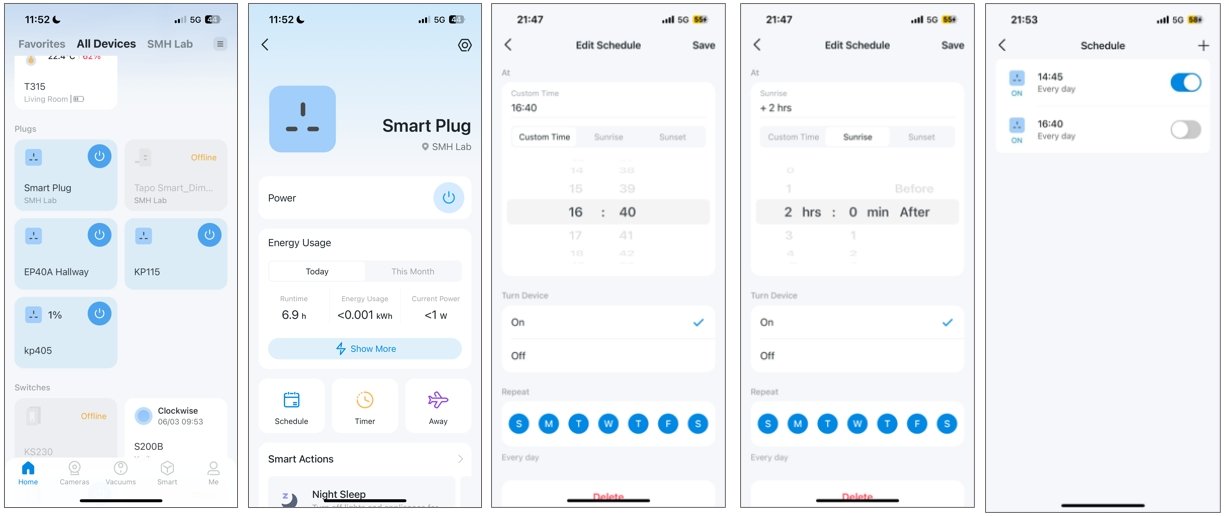
A smart plug sets up in minutes: connect power, pair it in the app, and name the device.
If you want your home to feel a little smarter without rewiring anything, learning how to set up a smart plug is a great place to start. I’ve used smart plugs for lamps, fans, coffee makers, and holiday lights, and the setup is usually simple once you know the right order. In this guide, I’ll walk you through how to set up a smart plug the right way, avoid common mistakes, and get more value from it every day.
What a smart plug does and why setup matters
A smart plug is a small device that turns a regular outlet into a connected one. You plug it into the wall, connect it to Wi-Fi through an app, and then control the device plugged into it from your phone or voice assistant.
The setup matters because a smart plug is only as useful as its connection. If it is linked to the wrong Wi-Fi band, given a confusing name, or placed in a weak signal area, it can become frustrating fast. I’ve seen people blame the plug when the real issue was poor Wi-Fi or a rushed setup.
Smart plugs are popular because they add convenience without much effort. They can help with:
- Turning lights on and off remotely
- Setting schedules for lamps or fans
- Saving energy by cutting standby power
- Making routines easier with Alexa, Google Assistant, or Siri shortcuts
What you need before you set up a smart plug
Before you begin, it helps to gather a few basics. Most setup problems happen because people skip this step and then have to start over.
You usually need:
- A smart plug that matches your home system
- A stable 2.4 GHz Wi-Fi network
- A smartphone or tablet
- The companion app from the smart plug brand
- The device you want to control, like a lamp or coffee maker
A quick warning from experience: many smart plugs do not support 5 GHz Wi-Fi during setup. If your router combines both bands under one name, you may need to split them or temporarily connect your phone to 2.4 GHz if the app asks for it.
Also check the device you want to plug in. Smart plugs are great for lamps, chargers, fans, and small appliances, but not every device is a good fit. High-power items like space heaters or air conditioners may exceed the plug’s rating.
How to set up a smart plug step by step
Setting up a smart plug is usually easy if you follow the order below. Think of it like setting a new clock on the stove: the steps are simple, but the sequence matters.
1. Plug the smart plug into an outlet
Start by inserting the smart plug directly into a wall outlet. Avoid using an extension cord or power strip unless the manufacturer says it is safe.
Most smart plugs will light up or start blinking when they are powered on. That blinking light is usually the first sign that the plug is ready to pair.
2. Download the correct app
Each brand usually has its own app. Open the app store on your phone and install the one that matches the plug.
Here are a few common examples of what to look for:
- The brand name printed on the box
- A QR code in the manual
- A setup guide that points to the app name
I always recommend checking the app name twice. A wrong app can waste time and make the setup feel broken when it is really just the wrong software.
3. Create an account or sign in
Most apps will ask you to create an account or log in. This step is important because it lets the plug work across devices and supports remote control when you are away from home.
Use a strong password and make sure your email is one you still use. If you ever need to recover the account later, this can save you a headache.
4. Add the smart plug in the app
Look for a button like “Add Device,” “+,” or “Set Up New Device.” The app will usually ask for the plug type and may auto-detect it if Bluetooth is enabled.
Then follow the prompts. The app may ask you to:
- Confirm the plug is blinking
- Choose your Wi-Fi network
- Enter the Wi-Fi password
- Wait for the plug to connect
This part is usually where people rush. My biggest lesson has been to wait for each screen to fully load and not tap ahead too fast. A calm setup almost always works better.
5. Connect to the right Wi-Fi network
Most smart plugs need a 2.4 GHz Wi-Fi connection. If your phone is on a 5 GHz band, that usually does not matter, but the plug itself often needs 2.4 GHz to work properly.
If pairing fails, try this:
- Move closer to the router
- Restart the plug
- Restart the app
- Make sure your password is correct
- Check whether your router has MAC filtering or guest network limits turned on
A weak Wi-Fi signal can cause random disconnects later, so this is worth getting right from the beginning.
6. Name the plug clearly
Once the plug is connected, name it something useful. “Lamp” is okay, but “Bedroom Lamp” is better.
Good names make voice control much easier. If you use multiple plugs, names like these help a lot:
- Kitchen Coffee Maker
- Desk Lamp
- Fan by Couch
- Holiday Lights
I learned this the hard way after naming two devices “Lamp 1” and “Lamp 2.” It worked, but not well when I was half asleep and trying to say the right command to a voice assistant.
7. Test the plug
After setup, test it right away. Turn the plug off and on from the app, and if possible, test voice control too.
Watch for:
- Delayed response
- Connection dropouts
- A device that does not turn on when expected
- Flickering or unusual behavior from the plugged-in device
If the plug responds cleanly, you are in good shape. If not, it is easier to fix small issues now than later.
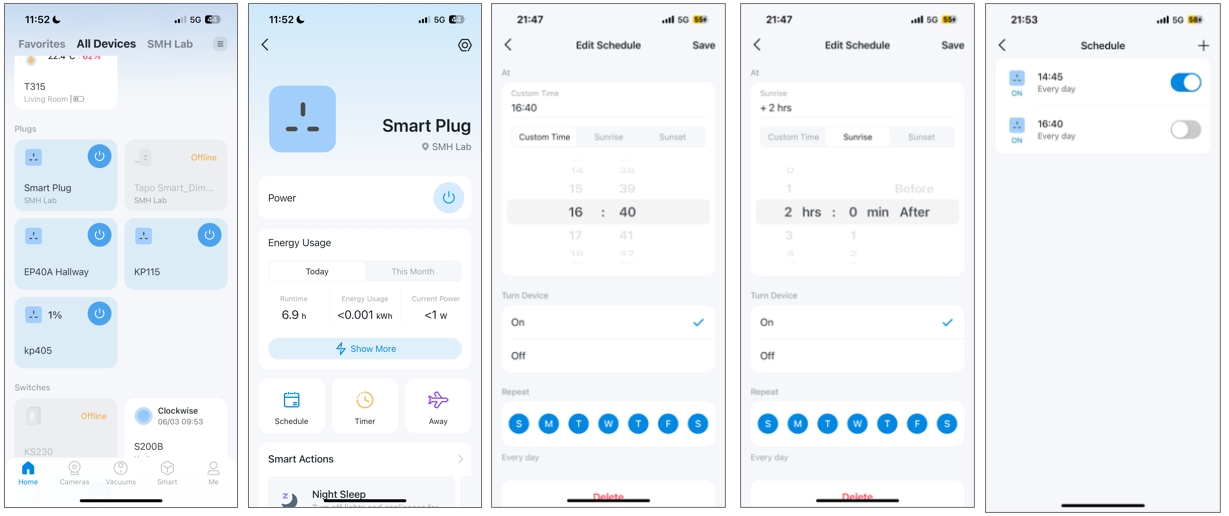
8. Set schedules or routines
Once the plug works, this is where it becomes truly useful. You can create schedules for lights, fans, and other devices.
Common examples include:
- Turning a lamp on at sunset
- Turning off a coffee maker after a set time
- Running holiday lights in the evening
- Shutting off a fan before bedtime
Schedules make smart plugs feel less like gadgets and more like helpers. They quietly remove little tasks from your day.
Best devices to use with a smart plug
Smart plugs are flexible, but they are best for simple on and off control. They work best with devices that resume safely after power is cut.
Good matches include:
- Lamps
- Fans
- Holiday lights
- Coffee makers with a physical on switch
- Small humidifiers
- Chargers
- Tabletop appliances within the power rating
Be careful with:
- Space heaters
- Air conditioners
- Microwaves
- Medical devices
- Any appliance that needs exact timing, cooling, or safety supervision
A smart plug is not a magic fix for every device. It is more like a reliable remote switch, not a full automation brain.
Common setup problems and how to fix them
Even though smart plug setup is usually easy, a few problems show up again and again. The good news is that most of them are simple to solve.
The plug will not connect to Wi-Fi
This is the most common issue. The plug may be too far from the router, on the wrong Wi-Fi band, or blocked by a password issue.
Try this:
- Move the plug closer to the router for setup
- Confirm you are using 2.4 GHz Wi-Fi
- Re-enter the Wi-Fi password slowly
- Reset the plug and start pairing again
The app cannot find the plug
Sometimes the app needs Bluetooth, location access, or local network access to discover the device. If those permissions are off, the plug may stay invisible.
Check your phone settings and allow the required permissions. If needed, close the app completely and reopen it.
The plug works in the app but not with voice control
This usually means the plug is not linked properly to Alexa, Google Home, or Apple Home. Recheck the account connection inside the voice assistant app.
You may also need to rename the device more clearly. Simple names work best for voice commands.
The plug disconnects often
Frequent dropouts usually point to weak Wi-Fi or router issues. Thick walls, distance, and crowded networks can all play a part.
Try these fixes:
- Move the plug closer to the router
- Restart the router
- Reduce network clutter if many devices are connected
- Avoid placing the plug behind large metal objects
Smart plug safety tips you should not skip
Safety is a big part of smart plug setup. A smart plug is convenient, but it still handles real electricity, so you should use it carefully.
Keep these safety tips in mind:
- Check the wattage and amperage rating
- Use only devices within the plug’s limits
- Avoid covering the plug with fabric or clutter
- Do not use damaged cords or loose outlets
- Replace old or overheating devices
If a plug feels hot, smells odd, or behaves unpredictably, stop using it and unplug it. Trust your senses. A little caution goes a long way with anything connected to power.
Tips from real-world use to make setup smoother
After testing several smart plugs over time, I’ve noticed a few habits that save time and stress.
Here are the tips I keep recommending:
- Set it up near the router first, then move it later
- Rename it right away before you forget which device is which
- Test it with a simple lamp before trying a tricky appliance
- Keep the manual or QR code handy in case you need to reset it
- Use a stable network name and password so future reconnects are easier
One mistake I made early on was setting up a plug in the final room right away, where the signal was weak. It paired, but barely. After moving it closer during setup and then placing it back, everything became much more reliable.
Why smart plugs are worth using
A smart plug is one of the easiest smart home upgrades you can buy. It costs less than many other smart devices, but it adds real convenience fast.
The biggest benefits are:
- Simple installation
- Affordable automation
- Better control over daily routines
- Easy scheduling
- Useful voice control
For many homes, it is the best first step into smart home tech. You do not need special wiring or a major setup project. You just need a little patience and the right app.
Frequently Asked Questions of How to Set Up a Smart Plug
Do I need Wi-Fi to set up a smart plug?
Yes, most smart plugs need Wi-Fi to connect to the app and work remotely. Many also need a 2.4 GHz network specifically during setup.
Can I use a smart plug without an app?
Usually no, at least not for setup and smart features. Some plugs have a manual on and off button, but the app is what enables scheduling, remote control, and voice assistant support.
Why is my smart plug blinking?
A blinking light usually means the plug is ready to pair or is in setup mode. If it keeps blinking after setup, it may have lost its Wi-Fi connection and need to be reconnected.
Can I control a smart plug when I am away from home?
Yes, if the plug is connected to Wi-Fi and the app supports remote access. That lets you turn devices on or off from another location using your phone.
Is it safe to leave a smart plug on all the time?
Yes, for many low-power devices it is safe to leave it plugged in continuously. Just make sure the device connected to it stays within the plug’s power limit and does not overheat.
Conclusion
Setting up a smart plug is one of the fastest ways to make your home feel more convenient and connected. Once you plug it in, connect it to the right Wi-Fi network, name it clearly, and test it, you can start using schedules, voice commands, and remote control with very little effort.
The real value comes from making it fit your routine. Start with one device, learn how it behaves, and then build from there. If you found this guide helpful, try one smart plug this week, explore more home automation ideas, or leave a comment with the device you want to automate first.

Similar Posts