How To Update Robot Vacuum Firmware: Easy Step-By-Step Guide
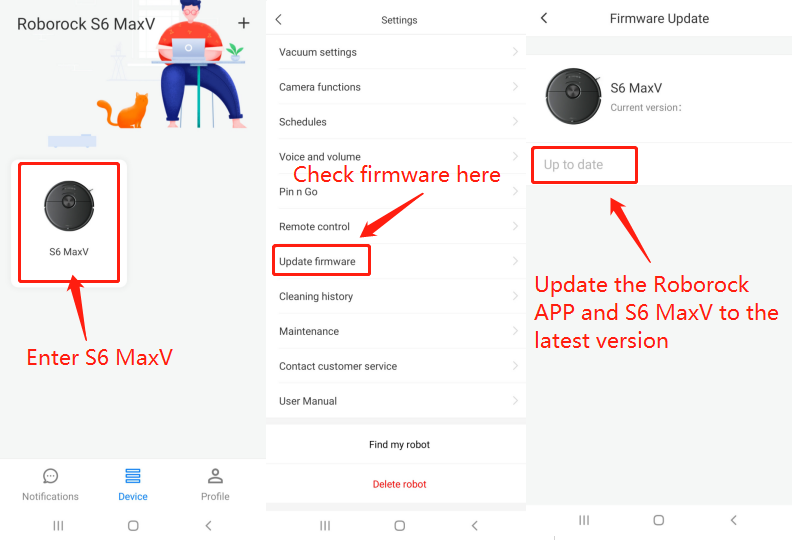
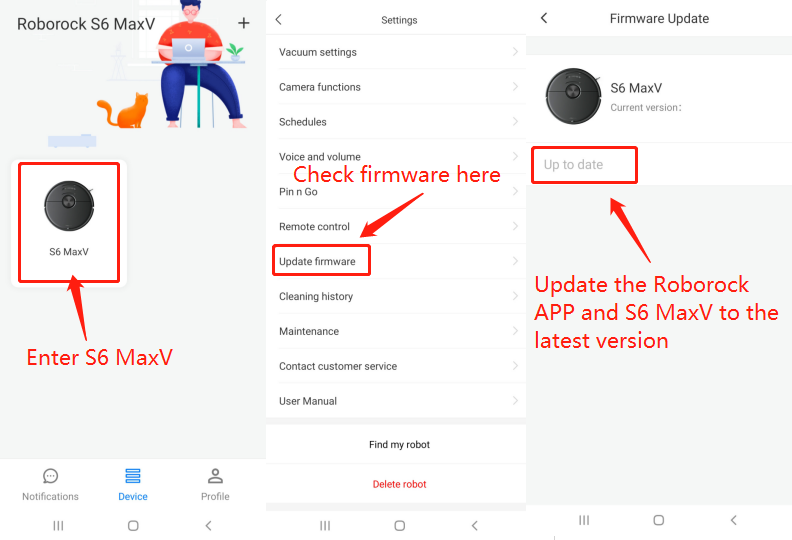
Most robot vacuums update through their app, with a charged battery and stable Wi-Fi.
Knowing how to update robot vacuum firmware can improve navigation, app support, security, and cleaning performance. This guide explains the process in clear steps, covers common errors, and shares practical lessons that help you update your device safely.
What Is Robot Vacuum Firmware?
Firmware is the built-in software that controls your robot vacuum. It manages key functions such as movement, mapping, charging, suction, brush speed, sensors, voice prompts, and app communication.
You can think of firmware as the robot’s working instructions. The app is the control panel, while the firmware is the system that tells the robot what to do.
Manufacturers release firmware updates to:
• Fix bugs and connection problems
• Improve map accuracy and obstacle detection
• Support new app features
• Improve battery and charging behavior
• Strengthen device security
• Resolve docking or cleaning errors
• Add support for new accessories or services
A firmware update is not the same as a regular app update. Updating the mobile app changes the software on your phone. Updating the robot vacuum firmware changes the software inside the vacuum.

Why Should You Update Robot Vacuum Firmware?
Learning how to update robot vacuum firmware is useful because older software can cause issues that are hard to diagnose. A robot may miss rooms, lose its map, stop responding to the app, or return to the dock too often.
Updates may also improve how the vacuum handles modern homes. For example, a newer version may help the robot recognize cords, shoes, pet bowls, or low furniture more accurately.
Still, an update is not a guaranteed cure for every problem. Worn brushes, blocked sensors, weak Wi-Fi, a damaged battery, and a full dustbin can also affect performance.
Before updating, check the release notes in the manufacturer’s app or support page. These notes often explain what changed and whether the update is required for a specific feature.
In my experience helping with smart home devices, many users update only after a problem appears. It is usually better to update during a calm period, before guests arrive or before leaving the robot to clean while you are away.

Before You Update Robot Vacuum Firmware
A few simple checks can prevent most update failures. Firmware installation is usually safe, but the robot should have enough power and a stable connection.
Use this preparation list:
• Place the robot on its charging dock.
• Charge the battery to the level recommended by the manufacturer. Many brands require the robot to be on the dock, and some require a high charge level.
• Keep the dock connected to power.
• Connect your phone to the internet.
• Make sure the robot is connected to the correct home Wi-Fi network.
• Keep the phone near the robot and router.
• Close other heavy apps on your phone.
• Do not start a cleaning cycle during the update.
• Empty the dustbin if the app requests it.
• Check that the robot’s wheels and sensors are free of debris.
You should also confirm the exact model number. Two robot vacuums from the same brand may use different firmware files. Never install a file made for another model.
If your robot is cleaning, wait until it returns to the dock. Interrupting a cleaning run is usually harmless, but beginning an update while the robot is moving can create avoidable problems.

How to Update Robot Vacuum Firmware Through the App
Most modern robot vacuums use a companion app for firmware updates. The exact menu names vary, but the general process is similar across brands.
Follow these steps:
- Open the robot vacuum’s official mobile app.
- Sign in to the account linked to your robot.
- Select the correct robot from the device list.
- Open Settings, Device Settings, About, or Product Information.
- Look for Firmware Update, Software Update, or Check for Updates.
- Tap Check for Updates.
- Read the update notes and installation instructions.
- Start the update if a new version is available.
- Keep the robot on its dock while the update runs.
- Wait until the app confirms that the installation is complete.
- Allow the robot to restart on its own.
- Test basic functions, such as docking, mapping, and starting a short clean.
The app may show a progress bar. It may also disconnect from the robot for a short time. This is often normal because the robot may restart its wireless system during installation.
Do not unplug the dock or force-close the app unless the manufacturer tells you to do so. A firmware update can take several minutes, and some devices restart more than once.
The safest answer to how to update robot vacuum firmware is simple: use the official app whenever possible. The app normally checks the model, downloads the correct file, and confirms whether the installation succeeded.

How to Update Robot Vacuum Firmware With a USB Drive
Some robot vacuums support manual updates through a USB drive. This method is less common and should only be used when the manufacturer provides official instructions.
The process may include these steps:
- Visit the manufacturer’s official support page.
- Search for your exact model number.
- Download the correct firmware package.
- Read the installation guide before opening or copying files.
- Format a compatible USB drive as instructed.
- Copy the firmware file to the required folder.
- Turn off the robot if the guide requires it.
- Insert the USB drive into the correct port.
- Turn on the robot or place it on the dock.
- Wait for the update indicator or voice prompt.
- Remove the USB drive only after the update is complete.
File names and folder locations matter. Some devices need the firmware file in the main folder. Others need a special directory. Some require a specific file system, such as FAT32.
Never download firmware from an unknown forum or file-sharing site. An incorrect or modified file could disable the robot or create a security risk.
If the support page does not clearly explain the USB process, contact the manufacturer. Guessing is not worth the risk.
How to Update Robot Vacuum Firmware When the App Shows No Update
Sometimes an update exists, but the app does not show it. This may happen because updates are released in stages, the robot is offline, or the app has not refreshed its device information.
Try these steps:
• Confirm that the robot is on its charging dock.
• Check the robot’s Wi-Fi connection in the app.
• Update the mobile app from the Apple App Store or Google Play.
• Restart the app and sign in again.
• Restart your phone.
• Restart the router if other smart devices also have connection problems.
• Check the exact model and region settings.
• Look at the manufacturer’s support page for a service notice.
• Wait a day if the update is being released in stages.
Some companies release firmware updates by region. A feature may appear first in one country and later in another. This does not always mean your robot is broken.
It is also possible that your robot already has the newest firmware. Compare the installed version with the version listed in the app or the official support documentation.
Common Robot Vacuum Firmware Update Problems
Even when you follow the right steps, an update may fail. Most problems involve power, Wi-Fi, app settings, or an incorrect file.
The firmware update is stuck
Keep the robot on the dock and wait several minutes. Do not assume it has failed just because the progress bar pauses.
If the app gives a failure message, follow the on-screen recovery steps. If no message appears after a long wait, contact support before unplugging the dock or removing the battery.
The robot will not connect to Wi-Fi
Many robot vacuums work best with a 2.4 GHz Wi-Fi network. Some newer models support both 2.4 GHz and 5 GHz networks, but compatibility varies.
Check the Wi-Fi password and move the robot closer to the router during setup. Avoid guest networks if they block communication between devices.
The app cannot find the robot
Make sure Bluetooth, local network access, and location permissions are enabled when the app requires them. On some phones, these permissions are needed during setup even though the robot uses Wi-Fi later.
You can also sign out and back in. If that does not help, restart both the robot and phone.
The robot stops responding after the update
Give the robot time to reboot. Then place it on the dock and check whether the charging light or voice prompt works.
If the robot remains unresponsive, use only the reset method listed in the manual. A factory reset may erase maps, schedules, room names, and preferences.
The robot loses its map
A firmware update can sometimes change mapping behavior or cause the app to reload the map. First, close and reopen the app.
If the map is still missing, check whether the app saved a backup or cloud copy. Do not delete the robot from your account unless support recommends it.
The update fails every time
Check the battery, Wi-Fi signal, storage space on your phone, and app version. Remove VPN connections temporarily if they interfere with the app.
Take a screenshot of the error code. Support teams can often diagnose the issue much faster when you provide the model, firmware version, phone type, and exact message.
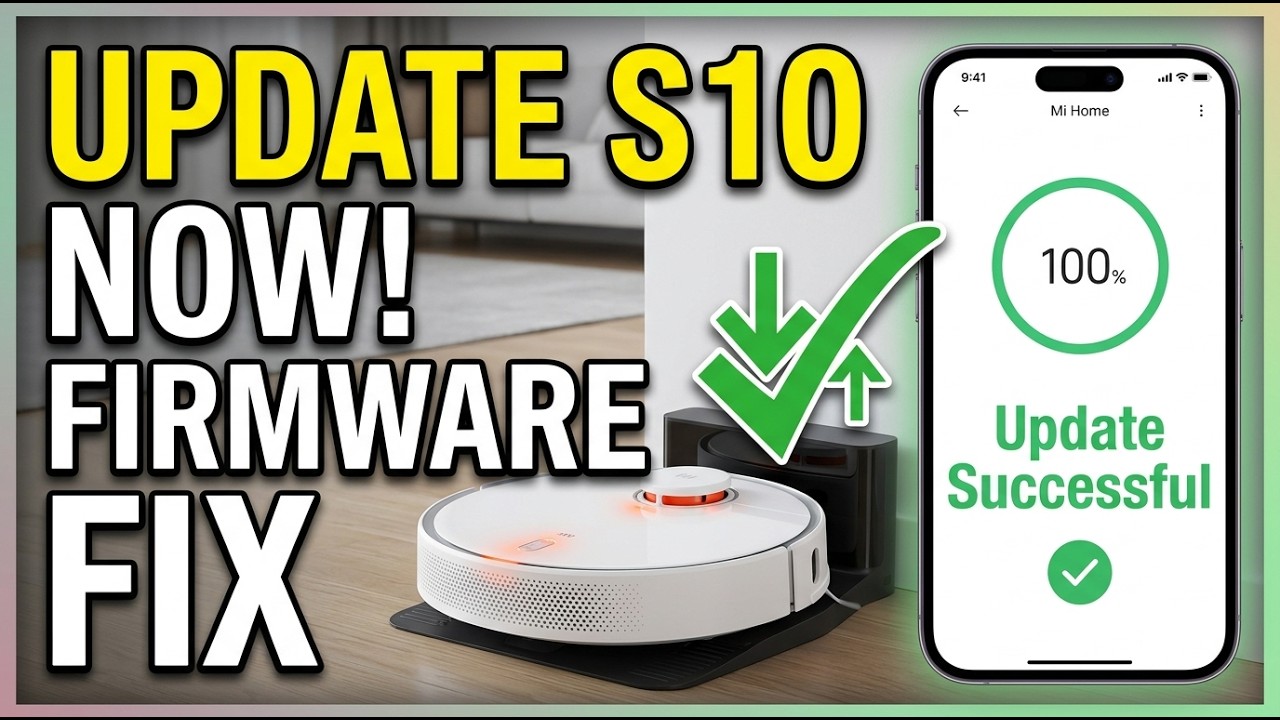
How to Check Your Robot Vacuum Firmware Version
Checking the current version helps you confirm whether the update worked. It also gives support staff useful information if something goes wrong.
Open the official app and look in one of these areas:
• Device Settings
• Product Information
• About Robot
• Firmware
• Software Version
• Device Details
Write down the version number before updating. After the installation, check it again and compare the two numbers.
You may also find the version on a label beneath the robot, inside the app’s device information page, or in a diagnostic report. The robot itself may not display the firmware version on its physical controls.
A successful update should normally show a newer version number or a confirmation message. If the number has not changed, the update may not have installed, or the manufacturer may have released a small package that does not change the visible version format.
Safety Tips for Robot Vacuum Firmware Updates
Firmware updates are usually low risk, but the robot should be treated like any other connected electronic device.
Keep these safety rules in mind:
• Use the official app or official support page.
• Confirm the exact model number.
• Use a reliable power source.
• Do not update during a power outage or unstable internet connection.
• Do not unplug the dock during installation.
• Do not remove the battery unless the manual says to do so.
• Do not install unofficial or modified firmware.
• Do not interrupt the robot while it is restarting.
• Keep children and pets away from loose cables and USB drives.
• Save important maps or settings when the app allows it.
A power interruption during installation can cause serious software problems. Some products can recover automatically, while others may need service.
Manufacturers may also change features after an update. For example, a menu may move, a map tool may look different, or a cloud feature may require a newer app. Read the release notes so the change does not come as a surprise.
What to Do After a Firmware Update
Once the update finishes, perform a short test. This helps you catch problems before the robot begins a long cleaning run.
Check these functions:
• The robot starts and stops normally.
• The robot returns to the dock.
• The app shows the correct battery level.
• The robot can create or load a map.
• Room labels and no-go zones still appear.
• The suction and brush settings work.
• Scheduling still works.
• Voice alerts and notifications function as expected.
• The robot recognizes the dock and charging contacts.
If the robot behaves differently, inspect the release notes first. A change may be intentional.
I once saw a robot appear to “lose” its navigation after an update. The real issue was a dirty sensor and a map that needed to reload. Cleaning the sensors and restarting the app solved the problem. That experience is a useful reminder: firmware is only one part of robot performance.
Benefits and Limitations of Firmware Updates
A firmware update can improve the ownership experience, but it cannot repair physical damage or replace regular maintenance.
Main benefits
• Better navigation and room coverage
• Fewer app connection errors
• Improved obstacle recognition
• New cleaning controls
• More reliable docking
• Better support for smart home platforms
• Security fixes for connected features
• Improved compatibility with newer app versions
Important limitations
• An update may not increase suction power.
• It cannot fix a worn battery.
• It cannot repair a broken wheel or motor.
• It may not solve weak Wi-Fi coverage.
• It can change the way maps or settings work.
• Some updates are available only in selected regions.
• Older models may stop receiving new firmware.
This is why the best approach to how to update robot vacuum firmware includes both software and hardware checks. Clean the robot, inspect its parts, and then update the software.
Expert Tips for a Smooth Firmware Update
A few habits make updates easier and safer over the long term.
First, keep the robot’s model number and serial number in a safe place. These details are often printed under the device or inside the app. They save time when you need support.
Second, update the mobile app before updating the robot. A very old app may not display the newest firmware tools correctly.
Third, avoid updating right before an important cleaning job. Give yourself time to test the device. This is especially useful if the robot cleans pet hair, runs on a schedule, or supports multiple floor maps.
Finally, keep the charging contacts clean. A weak connection to the dock can interrupt charging and prevent the robot from starting an update. A dry microfiber cloth is usually enough for light dust.
These small steps turn how to update robot vacuum firmware from a stressful task into normal smart home maintenance.
Frequently Asked Questions About How to Update Robot Vacuum Firmware
How often should you update robot vacuum firmware?
Check for updates every few months or whenever the manufacturer releases a notice. Install important security or compatibility updates promptly, but review the release notes first.
Can I update robot vacuum firmware without Wi-Fi?
Most app-based updates need Wi-Fi because the robot downloads the software from the manufacturer’s server. Some models support a USB update, but only follow the official instructions for your exact model.
Will a firmware update delete my robot vacuum map?
Usually, an update does not delete saved maps, but problems can occur during a failed update or app reset. Save maps and settings when the app offers a backup option.
Can I use my robot vacuum during a firmware update?
No. Keep the robot on its dock and do not start a cleaning cycle until the update is complete. Using the robot during installation may interrupt the process.
How long does a robot vacuum firmware update take?
Many updates finish within several minutes, but the time depends on the model, file size, Wi-Fi speed, and restart process. Wait for the app to confirm completion before using the robot.
What should I do if the firmware update fails?
Keep the robot on its dock, record the error message, and restart the app only if the manufacturer recommends it. Do not unplug the dock or install a random firmware file, and contact official support if the issue continues.
Conclusion
How to update robot vacuum firmware is usually a simple process: charge the robot, connect it to stable Wi-Fi, use the official app, and wait for the installation to finish. Checking the model number, reading release notes, and testing the robot afterward can prevent most problems.
Firmware updates may improve navigation, app support, security, and reliability, but they cannot replace cleaning or hardware repairs. Check your robot’s firmware today, follow the manufacturer’s steps, and share your experience or questions in the comments.

Similar Posts