Why Is Satechi Usb-C Multiport Adapter Not Detecting Hdmi: Fixes
The HDMI issue usually comes from signal, compatibility, power, or adapter setup problems.
If your Satechi USB-C Multiport Adapter is not detecting HDMI, you are not alone. This is one of the most common problems people run into with USB-C hubs, especially when the laptop, monitor, cable, or port does not support video output the way you expect. The good news is that in many cases, the fix is simple once you know where the weak link is.
I have seen this issue more than once in real setups, and the pattern is usually the same: the adapter is fine, but one small detail blocks the video signal. In this guide, I will walk you through the most likely causes, the best fixes, and the practical checks I use when troubleshooting a Satechi USB-C Multiport Adapter not detecting HDMI.

Why the Satechi USB-C Multiport Adapter may not detect HDMI
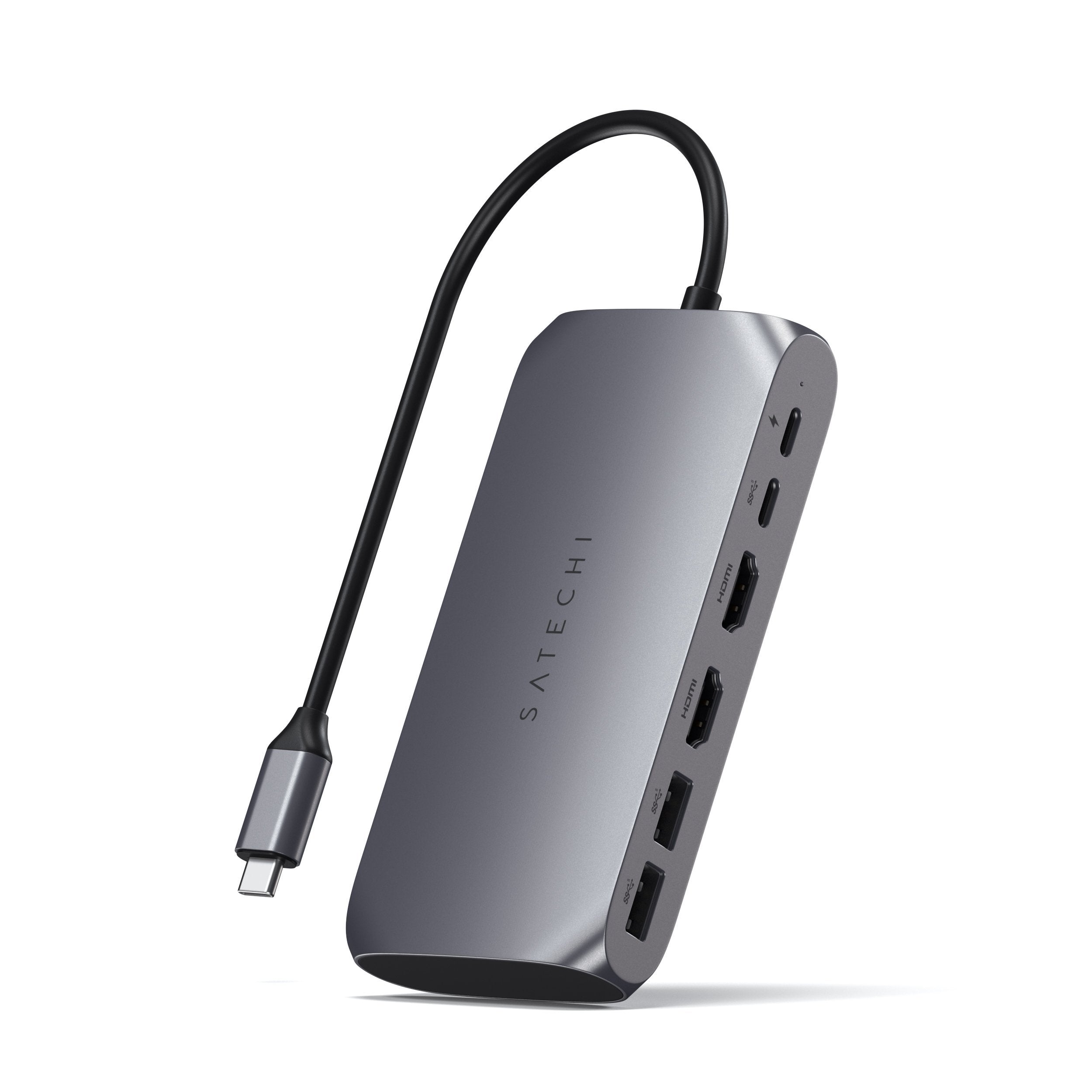
A Satechi USB-C Multiport Adapter depends on more than just a physical connection. It needs a USB-C port that supports video output, a working HDMI display path, enough power, and the right system settings.
When one of those pieces fails, the HDMI signal never reaches the monitor. That is why the problem can look random, even when the adapter worked yesterday. In my experience, the most common mistake is assuming every USB-C port can send video, when many cannot.
Here are the biggest reasons the Satechi USB-C Multiport Adapter is not detecting HDMI:
- The USB-C port on the laptop does not support DisplayPort Alt Mode
- The HDMI cable is damaged, loose, or too old
- The monitor input is set to the wrong source
- The adapter needs more power than the laptop is providing
- The display resolution or refresh rate is not supported
- macOS, Windows, or firmware settings are blocking the display
- The adapter itself is faulty or not fully seated
Check whether your USB-C port supports video output
This is the first thing I check, because it solves a lot of cases fast. Not every USB-C port can carry video, even if it charges devices and transfers data.
For HDMI output to work through a Satechi USB-C Multiport Adapter, the USB-C port usually needs DisplayPort Alt Mode support. Without that, the adapter cannot convert the signal to HDMI. A USB-C port with only charging or data support will not send video.
What to do:
- Look at your laptop manual or product page
- Check for a small display or DP symbol near the USB-C port
- Try a different USB-C port if your device has more than one
- Confirm that the port supports video, not only charging or file transfer
On some laptops, one USB-C port supports video while another does not. I have personally seen users plug into the wrong side and spend an hour blaming the adapter.
Make sure the HDMI cable and monitor are working
The next step is to isolate the display path. A weak HDMI cable or a monitor set to the wrong input can make the Satechi USB-C Multiport Adapter not detect HDMI, even if the adapter is working fine.
Try this:
- Test the HDMI cable with another device
- Use a different HDMI cable, preferably a short and known good one
- Make sure the monitor is powered on
- Select the correct HDMI input on the monitor menu
- Test the monitor with another laptop, game console, or streaming device
I once thought an adapter had failed, only to find the monitor had quietly switched back to another input after a power outage. It is a small thing, but it saves a lot of frustration.
Inspect the adapter connection and fit
A loose connection can break the video handshake. The USB-C end of the Satechi USB-C Multiport Adapter should sit firmly in the port.
Check these points:
- Unplug the adapter and reconnect it fully
- Avoid using extra USB-C extensions or couplers
- Try the adapter with the laptop on a flat surface
- See if the connection works better when the cable is not under strain
If the adapter wiggles easily, the port may be worn or the fit may be imperfect. Even a tiny gap can interrupt HDMI detection.
Check power delivery and device load
Some multiport adapters behave better when the laptop has enough power. If the system is low on battery or running several connected devices, HDMI detection may fail or flicker.
Why this happens:
- The adapter must power the HDMI output and other ports
- The laptop may limit performance when power is low
- External SSDs, hubs, and accessories can raise total power demand
Try this:
- Connect your laptop charger directly to the adapter’s USB-C PD port if available
- Remove other accessories from the hub
- Close heavy apps and restart the laptop
- Test the adapter when the laptop battery is above 50 percent
In practice, power issues can look like a video problem, but they are really a stability problem. Think of the adapter like a small traffic officer. If too much is happening at once, HDMI can get delayed or dropped.
Adjust display settings on macOS or Windows
Sometimes the Satechi USB-C Multiport Adapter is detecting HDMI, but the computer is not showing it properly. The system may need to be told to extend, mirror, or recognize the display.
On Windows:
- Press Windows key plus P and choose Extend or Duplicate
- Open Display settings and click Detect
- Update your graphics driver
- Restart the computer after changing settings
On macOS:
- Open System Settings, then Displays
- Hold Option and look for the Detect Displays button if needed
- Try mirroring the display
- Unplug and reconnect the adapter after wake from sleep
If your laptop just woke up from sleep, the HDMI signal may need a reset. I have found that a simple disconnect and reconnect often restores the handshake.
Update drivers, macOS, and firmware
Outdated software can block proper HDMI output. This is especially true on Windows laptops, where graphics drivers and USB-C controller drivers matter a lot.
Check for updates to:
- Your operating system
- Graphics drivers
- Chipset drivers
- Thunderbolt or USB-C drivers
- Any available firmware for the Satechi adapter, if supported
Why updates help:
- They improve USB-C display compatibility
- They fix handshake bugs
- They improve monitor recognition after sleep or wake
If the issue started after a system update, that can also be a clue. Sometimes a graphics driver gets corrupted, and rolling it back or reinstalling it fixes the problem.
Test for resolution and refresh rate mismatch
A monitor can fail to show a signal if the resolution or refresh rate is too high for the setup. This is common with 4K displays, older TVs, or mixed-brand cables.
For troubleshooting, start with simple settings:
- Set the monitor to 1080p at 60Hz
- Avoid unusual refresh rates at first
- Disable HDR temporarily
- Turn off variable refresh rate features during testing
I often tell people to start with the simplest possible display mode first. Once the monitor works, you can raise the resolution step by step.
Check for compatibility limits with the specific Satechi model
Not all Satechi USB-C Multiport Adapter models are identical. Some support 4K HDMI, while others have different limits depending on the host device and operating system.
Important compatibility points:
- Some adapters support 4K only at 30Hz
- Some Macs and Windows PCs handle external displays differently
- The adapter may work with one laptop but not another
- USB-C video output rules can vary by device generation
This is where product fit matters. I always recommend checking the exact model specs, especially if you are trying to drive a large monitor or dual-display setup. A mismatch here can make the Satechi USB-C Multiport Adapter not detecting HDMI look like a defect when it is really a spec limit.
Try a full reset of the connection
When the HDMI handshake gets stuck, a full reset can help. This is one of the fastest fixes I use in real troubleshooting.
Follow these steps:
- Unplug the adapter from the laptop
- Disconnect the HDMI cable from the monitor and adapter
- Turn off the monitor
- Restart the laptop
- Plug the HDMI cable back into the monitor
- Reconnect the adapter to the laptop
- Turn the monitor back on and select the correct input
This resets the sequence that creates the display connection. HDMI is a little like a formal introduction; if one side misses the handshake, no one gets introduced.
Look for overheating or hardware failure
If the adapter gets hot, disconnects often, or fails on multiple devices, hardware damage may be the cause. Heat and wear can affect USB-C hubs over time.
Signs of hardware trouble:
- HDMI works only sometimes
- The adapter gets unusually warm
- Other ports also act unstable
- The same problem happens on multiple laptops and monitors
If you have tested every basic fix and HDMI still does not work, the adapter itself may need replacement. That is frustrating, but it is better to know early than keep chasing software ghosts.
Practical troubleshooting checklist
If you want the fastest path to a fix, use this checklist in order:
- Confirm the USB-C port supports video output
- Test another HDMI cable
- Check the monitor input source
- Reconnect the adapter firmly
- Restart the laptop and monitor
- Try a different USB-C port
- Update system and graphics drivers
- Lower resolution to 1080p at 60Hz
- Remove other accessories from the adapter
- Test the adapter on another device
This sequence helps you narrow the issue without guessing. In my experience, the problem is often found in the first five steps.
How to prevent HDMI issues in the future
A little prevention goes a long way. Once your Satechi USB-C Multiport Adapter is working, you can reduce future problems with a few habits.
Good habits include:
- Use certified, high quality HDMI cables
- Keep firmware and drivers updated
- Avoid bending the USB-C cable or adapter connection
- Do not overload the adapter with too many accessories
- Store the hub in a safe place to protect the connector
Think of the adapter like a bridge. It works best when the road on both sides is clean, stable, and well maintained.
Frequently Asked Questions
Why is my Satechi USB-C Multiport Adapter not showing HDMI on my monitor?
Most often, the USB-C port does not support video output, or the HDMI cable or monitor input is the issue. It can also happen if the laptop needs a driver update or the display resolution is too high.
Does the Satechi USB-C Multiport Adapter need power to detect HDMI?
It can work bus-powered in many setups, but extra power often improves stability. If you are using several devices at once, connect charger power through the adapter if supported.
Why does HDMI work on one laptop but not another?
That usually means the two laptops have different USB-C capabilities. One may support DisplayPort Alt Mode, while the other may only support data and charging.
Can a bad HDMI cable stop the adapter from working?
Yes, absolutely. A damaged or low quality HDMI cable can prevent the monitor from detecting any signal at all.
What should I do if the adapter works after restart but fails again later?
That often points to a handshake, sleep, or driver issue. Update your system and graphics drivers, then test with a different cable and monitor input.
Conclusion
If your Satechi USB-C Multiport Adapter is not detecting HDMI, the cause is usually one of a few common issues: missing video support on the USB-C port, a bad HDMI cable, wrong display settings, low power, or a compatibility limit. The good news is that most of these are easy to test and fix without special tools.
Start with the basics, then move into software and compatibility checks. That simple, step-by-step approach saves time and helps you find the real cause instead of guessing. If this guide helped, try the checklist on your setup, then share your result or explore more troubleshooting tips to keep your workstation running smoothly.