Canon PIXMA G6020 Troubleshooting: Quick Fix Guide
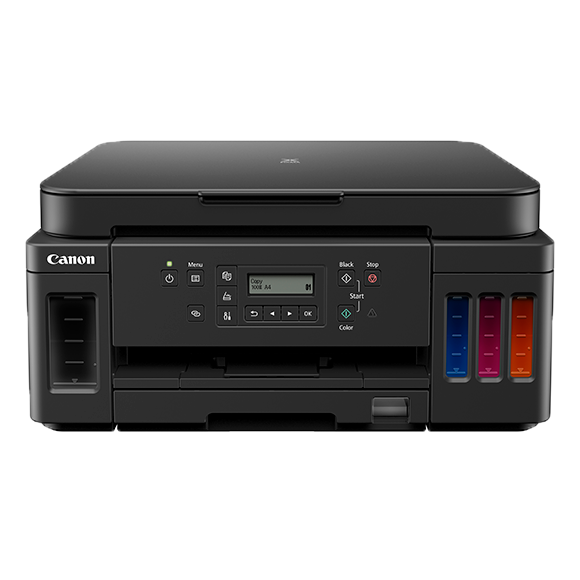
Canon PIXMA G6020 troubleshooting usually comes down to paper, ink flow, driver, or network issues.
If you own this MegaTank printer, you already know how dependable it can be when it is set up right. But like any busy printer, the Canon PIXMA G6020 can run into real-world problems that stop printing, blur output, or break the Wi-Fi connection. This guide walks you through Canon PIXMA G6020 troubleshooting with clear steps, practical fixes, and the kind of advice that helps when you just need the printer working again.
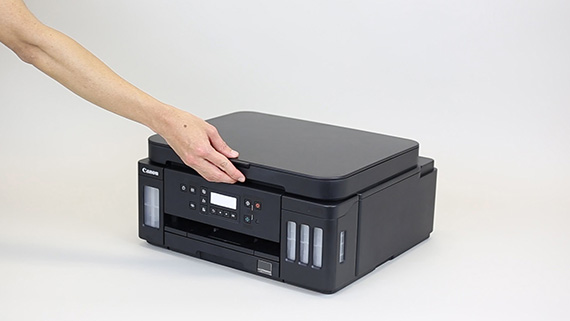
Common Canon PIXMA G6020 problems and what they usually mean
Canon PIXMA G6020 troubleshooting starts with identifying the symptom. That matters because the printer often gives clues before it fully fails. A paper jam points to a different fix than faded text, and a Wi-Fi issue is handled differently than a clogged nozzle.
From my experience, the fastest repairs come from simple pattern recognition. If the printer feeds paper but prints blank pages, I check ink flow first. If it will not print at all, I look at the connection, driver, and queue status before touching the hardware.
Common issues include:
- Paper jams or misfeeds, often caused by torn paper, curled sheets, or worn rollers
- Blank pages, usually linked to air in the ink lines, clogged nozzles, or low ink
- Streaks, missing lines, or faded color, which often point to printhead clogging or alignment problems
- Wi-Fi setup failures, often tied to router settings, weak signal, or outdated drivers
- Error codes, which can signal a jam, open cover, improper cartridge bay status, or maintenance issue
- Slow printing, often caused by high-quality settings, network delay, or driver conflicts
The good news is that most Canon PIXMA G6020 troubleshooting fixes are simple if you work step by step.
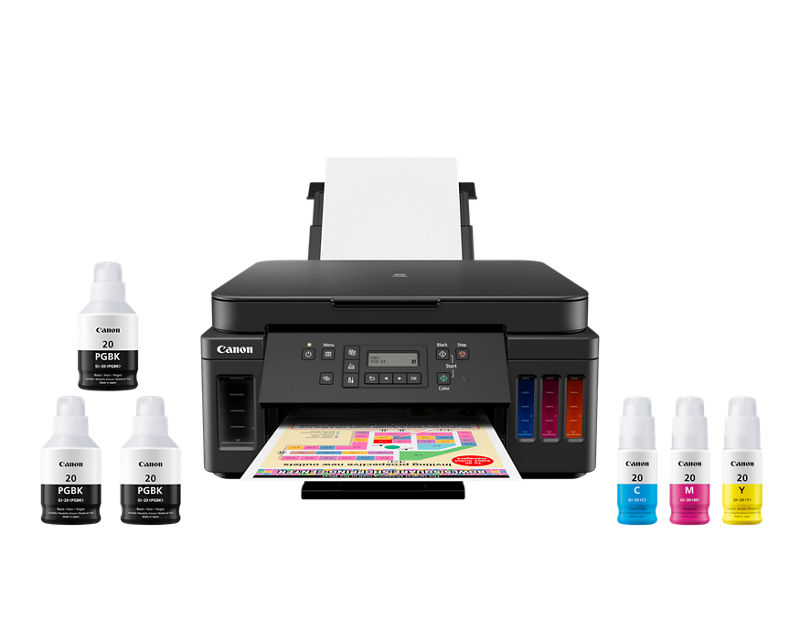
Start with the basics before opening anything
Before you take the printer apart or change settings, do the easy checks first. A surprising number of printer problems come from the little things people overlook. I have seen “dead” printers come back to life after one power cycle and a better USB or Wi-Fi connection.
Try this first:
- Turn the printer off and unplug it for 60 seconds.
- Check that the power cable is fully seated.
- Make sure the paper tray is loaded correctly.
- Confirm the ink tanks are filled above the minimum line.
- Close every cover and access door firmly.
- Restart your computer, phone, or router if you are printing over Wi-Fi.
If the printer still acts up, move to the specific issue. Canon PIXMA G6020 troubleshooting works best when you isolate the problem one layer at a time.
Fix paper jams and paper feed issues
Paper jams are one of the most common Canon PIXMA G6020 troubleshooting problems. They usually happen when paper is damp, curled, overloaded, or the wrong size for the tray. Sometimes the printer is fine, but the paper is the problem.
What to do:
- Remove all paper from the tray.
- Open the rear cover and front access area.
- Gently pull jammed paper in the direction of the paper path.
- Check for small torn bits left inside the printer.
- Fan the paper stack before reloading it.
- Reload plain, dry paper that matches the printer settings.
A mistake I made early on was assuming every jam was a hardware failure. It was not. In one case, the paper had absorbed moisture from a humid room, and the printer kept grabbing two sheets at once. Switching to a fresh ream fixed it immediately.
To prevent future jams:
- Store paper in a dry place
- Do not overfill the tray
- Use supported paper sizes and types
- Keep the feed rollers clean
- Avoid bent, wrinkled, or damaged sheets
Solve blank pages, faded prints, and missing colors
Blank pages are frustrating because the printer sounds like it is working, but nothing shows up on paper. This is a classic Canon PIXMA G6020 troubleshooting issue, especially with ink tank printers that have not been used for a while. Ink can dry in the nozzles, or air can get into the line after refilling.
Try these steps:
- Check that the ink tanks are filled to the proper level.
- Make sure the tank caps are closed correctly.
- Run a nozzle check from the printer menu or software.
- If lines are missing, run a printhead cleaning.
- If cleaning does not help, run a deep cleaning once.
- Print another nozzle check to compare results.
If you see blank pages with no visible ink at all, verify that you are using the correct print settings. Draft mode or grayscale settings can sometimes make output look weaker than expected. But if the printer is truly not putting ink on the page, clogged nozzles are the likely cause.
A helpful rule from experience: do not run repeated deep cleanings back to back. That wastes ink fast. Canon documentation and general printer maintenance best practices both support using cleaning cycles only when needed, because too much cleaning can reduce ink efficiency and may not solve the root issue.
Clean and align the printhead
Printhead issues often show up as broken lines, banding, or colors that look off. This is a very common Canon PIXMA G6020 troubleshooting step because the printhead is the heart of image quality. When nozzles clog, the output gets patchy fast.
Use printhead maintenance in this order:
- Run a nozzle check
- Use standard cleaning first
- Use deep cleaning only if the standard cleaning fails
- Run printhead alignment after cleaning
- Print a test page to confirm improvement
If alignment is off, text may look fuzzy and photos may seem slightly shifted. That is why printhead alignment matters even when the printer is not “broken.” It is a fine-tuning step, like adjusting the strings on a guitar until the notes sound right.
Practical tips:
- Clean only when you see missing lines or weak color
- Use genuine or compatible ink that matches the printer model
- Print something at least once a week to keep ink flowing
- Avoid leaving the printer idle for long periods
Fix Wi-Fi and wireless printing problems
Wireless issues are another big part of Canon PIXMA G6020 troubleshooting. The printer may show offline status, fail to reconnect, or disappear from your phone or laptop. This usually has more to do with the network than the printer itself.
Check these first:
- Make sure the printer is on the same Wi-Fi network as your device
- Restart the router and printer
– Move the printer closer to the router - Reconnect the printer through the setup menu
- Update the printer driver and Canon software
- Remove and re-add the printer on your computer
If your router uses separate 2.4 GHz and 5 GHz bands, connect the printer to the 2.4 GHz band if setup is unstable. Many home printers, including the Canon PIXMA G6020, work more reliably on 2.4 GHz because of better range and compatibility. That small detail saves a lot of time.
I have also seen printer connections fail because a laptop kept remembering an old IP address. In those cases, removing the device and adding it again fixed the issue right away.
Resolve driver, software, and spooler errors
Sometimes the printer itself is fine, but the computer is sending bad signals. That is why driver problems are a key part of Canon PIXMA G6020 troubleshooting. Outdated drivers, corrupted print jobs, and a stuck print queue can make the printer look broken when it is not.
What to try:
- Cancel all print jobs in the queue.
- Restart the print spooler on your computer if needed.
- Remove the printer from the device list.
- Reinstall the latest Canon driver and utility software.
- Reconnect the printer and print a test page.
If you are using Windows, a stuck spooler can freeze every new job behind it. On macOS, old printer profiles can also cause strange behavior. Keeping the software fresh is one of the simplest ways to avoid repeat issues.
Good habits:
- Use the current driver for your operating system
- Avoid installing multiple printer utilities that conflict
- Restart after driver updates
- Keep the print queue clear
Handle error codes and warning lights
Error codes can feel scary, but they usually point to a specific category of problem. In Canon PIXMA G6020 troubleshooting, the light pattern or code is your clue. It may indicate a paper feed issue, open cover, ink tank problem, or internal error.
When you see an error:
- Note the exact code or light pattern
- Turn the printer off and back on
- Check for paper jams or open covers
- Confirm all ink tank caps are closed
- Re-seat the printhead if the printer menu or manual calls for it
- Consult the code meaning before trying random fixes
The biggest mistake is guessing. I have watched people waste an hour on network settings when the real issue was a simple paper jam hidden near the rear path. Error codes are like a dashboard light in a car. They do not tell the whole story, but they tell you where to look first.
Improve print quality on text and photos
If your prints look dull, blurred, or uneven, the problem may not be a failure at all. Print quality tuning is part of Canon PIXMA G6020 troubleshooting because settings, paper choice, and maintenance all affect output. A printer can only do so much if the wrong paper profile is selected.
To improve results:
- Use the correct paper type in the print settings
- Match the paper size to the tray load
- Print on the recommended side of the paper
- Run nozzle check and alignment
- Lower quality settings only when speed matters more than sharpness
- Use photo paper for images, not plain copy paper
For text documents, clean lines come from healthy nozzles and correct alignment. For photos, color accuracy depends on the paper, ink, and quality settings working together. Think of it like cooking: even great ingredients need the right heat and timing.
Prevent future Canon PIXMA G6020 problems
The best Canon PIXMA G6020 troubleshooting is the kind you never have to do again. A little maintenance goes a long way. This printer is built for high ink volume, but it still needs regular use and basic care.
Preventive habits that help:
- Print at least once a week
- Keep the printer in a clean, dust-free spot
- Use the right paper and store it properly
- Check ink levels before large jobs
- Clean the exterior and feed path gently
- Update firmware and drivers when needed
A real-world lesson I learned is that printers like routine. When they sit too long, ink dries, rollers collect dust, and wireless connections get flaky. Regular use keeps the system healthier than waiting for a full breakdown.
When you may need service or replacement parts
Not every problem can be fixed at home. If you have already tried basic Canon PIXMA G6020 troubleshooting and the printer still shows the same failure, hardware damage may be involved. A worn printhead, damaged roller, or failing sensor can go beyond user-level repair.
Consider professional help if:
- The printer repeatedly jams after cleaning
- The same error code returns after restart
- The printhead will not recover after cleaning cycles
- The printer makes unusual grinding noises
- Ink leaks inside the unit
- Wi-Fi and USB both fail after software resets
At that point, service may be more cost-effective than repeated trial and error. Trust your time as much as your budget. If a machine keeps eating your day, it is fair to step back and let a technician take over.
Frequently Asked Questions about Canon PIXMA G6020 Troubleshooting
Why is my Canon PIXMA G6020 printing blank pages?
Blank pages usually mean clogged nozzles, air in the ink lines, or a print setting issue. Start with a nozzle check, then run a cleaning cycle and confirm the ink tanks are filled correctly.
How do I reset my Canon PIXMA G6020?
A basic reset usually starts by turning the printer off, unplugging it for about 60 seconds, and powering it back on. If you need a deeper reset, use the printer’s maintenance or setup menu based on the issue you are trying to fix.
Why does my Canon PIXMA G6020 keep going offline?
This often happens when the printer loses Wi-Fi signal, connects to the wrong network band, or has an old driver on the computer. Reconnecting the printer and reinstalling the driver usually solves it.
How do I fix streaks or missing lines on prints?
Run a nozzle check first, then use printhead cleaning if the test pattern shows gaps. If the issue remains, perform printhead alignment and make sure you are using the correct paper type setting.
What should I do if my Canon PIXMA G6020 keeps jamming?
Remove any jammed paper carefully, then inspect the feed path for scraps or dust. Reload clean, dry paper and avoid overfilling the tray, since poor paper condition is a common cause of repeat jams.
Can old ink cause printing problems on the Canon PIXMA G6020?
Yes, ink that sits unused for a long time can dry in the nozzles and affect print quality. Regular printing helps keep the ink system moving and reduces the chance of clogging.
Conclusion
Canon PIXMA G6020 troubleshooting gets much easier when you break the problem into small parts. Paper jams, blank pages, wireless errors, and faded prints all have common causes, and most of them can be fixed with simple steps. The key is to start with the basics, test one thing at a time, and avoid overcleaning or guessing.
If you keep your printer maintained and use it regularly, it will usually stay reliable for a long time. Try the fixes in this guide, save the steps that worked, and keep an eye on warning signs before they grow into bigger problems. If this helped, explore more printer tips, share your experience, or leave a comment with the issue you are seeing.

Similar Posts
































