Canon Pixma Tr4720 Troubleshooting: Quick Fixes Guide
Most Canon PIXMA TR4720 issues come from paper jams, Wi-Fi setup errors, or clogged print heads.
If you are dealing with Canon PIXMA TR4720 Troubleshooting, you are not alone. This printer is reliable for home and small office use, but like many all-in-one models, it can run into simple problems that stop printing, scanning, or connecting at the worst time. The good news is that most Canon PIXMA TR4720 Troubleshooting steps are easy once you know where to look, and I’ll walk you through the fixes in a clear, practical way.
Common Canon PIXMA TR4720 Troubleshooting Issues
The Canon PIXMA TR4720 is built for everyday tasks, but a few recurring problems tend to show up more often than others. In my experience, most users first notice trouble when the printer stops responding, prints blank pages, or fails to connect to Wi-Fi. These issues usually have a simple cause, and that is why Canon PIXMA TR4720 Troubleshooting often starts with the basics.
Here are the most common problem areas:
- Paper jams that stop the print job
- Ink cartridges that are low, empty, or not seated correctly
- Wi-Fi setup problems or weak signal strength
- Error messages on the printer screen
- Slow printing or no response from the computer
- Scanning issues from the Canon app or desktop software
A lot of people assume the printer is broken when it is really just out of sync with the network or loaded with paper the wrong way. That is why I always tell users to begin with the simplest checks first. It saves time and avoids making the problem worse.
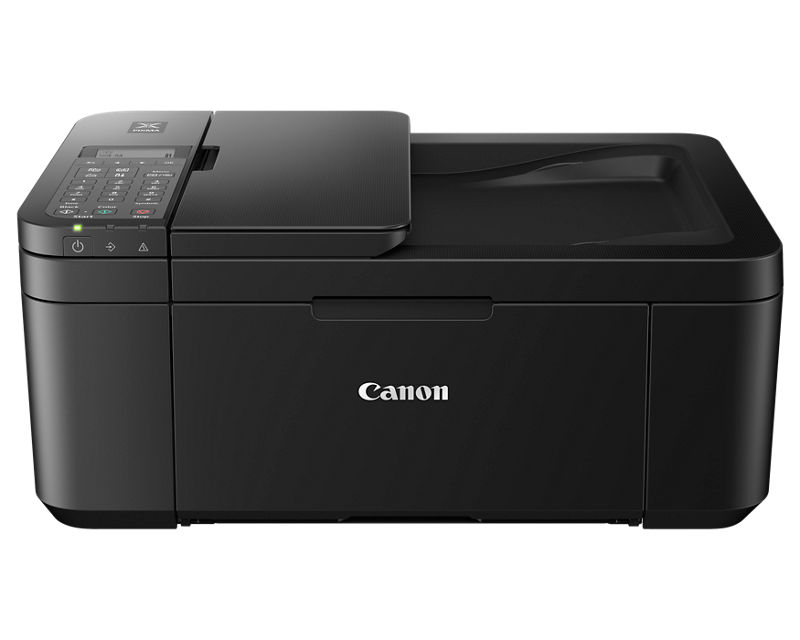
How to Fix Canon PIXMA TR4720 Not Printing
One of the most common Canon PIXMA TR4720 Troubleshooting issues is when the printer is on, but nothing comes out. This can happen because of a paused queue, a connection issue, empty ink, or a setting problem in the print dialog.
Try these steps:
- Make sure the printer is powered on and the screen is active.
- Check that paper is loaded correctly in the rear tray.
- Open the print queue on your computer and cancel stuck jobs.
- Confirm the Canon PIXMA TR4720 is selected as the default printer.
- Check ink levels and replace any empty cartridge.
- Restart both the printer and the computer.
If the printer still does not print, try printing a test page directly from the printer settings. That helps separate a computer issue from a printer issue. I have seen many cases where the printer was fine, but Windows had simply sent the job to the wrong device.
Canon PIXMA TR4720 Paper Jam Troubleshooting
Paper jams are frustrating because they feel bigger than they are. In reality, Canon PIXMA TR4720 Troubleshooting for jams is often about careful handling and using the right paper.
Follow this process:
- Turn the printer off before touching the paper path.
- Open the rear cover and front access area.
- Pull jammed paper out slowly with both hands.
- Remove any torn scraps, even tiny ones.
- Fan the paper stack before reloading it.
- Use plain, dry paper that matches the printer’s size guide.
Do not yank paper too hard. That can leave small pieces inside, and those tiny scraps are what cause repeat jams. One lesson I learned early is that a “fixed” jam is not really fixed until you inspect the rollers and paper path one more time.
Canon PIXMA TR4720 Wi-Fi Troubleshooting
Wireless problems are a huge part of Canon PIXMA TR4720 Troubleshooting because this model is often placed on a home network. If the printer disconnects often or never shows up in your device list, the problem is usually the network setup, router distance, or incorrect Wi-Fi credentials.
Try this:
- Confirm your router is online and broadcasting a 2.4 GHz signal
- Move the printer closer to the router during setup
- Re-enter the Wi-Fi password carefully
- Restart the router, printer, and computer
- Reconnect using the Canon setup process or app
- Make sure your phone or computer is on the same network
A useful tip: many home printers work better on 2.4 GHz than on 5 GHz. That small detail can save a lot of confusion. In real-world use, I have found that a weak router signal creates more “printer problems” than the printer itself.
Canon PIXMA TR4720 Ink and Cartridge Troubleshooting
If your prints look faded, streaky, or missing colors, ink is usually the first place to check. Canon PIXMA TR4720 Troubleshooting in this area often means inspecting cartridge placement, protective tape, and ink levels.
Here is what to do:
- Open the cartridge cover and confirm both cartridges are installed correctly
- Remove and reinsert them if needed
- Check for protective tape that may not have been removed
- Run a nozzle check from the printer menu
- Clean the print head if the output looks uneven
- Replace low or empty ink cartridges
Blank pages can be misleading. Sometimes the ink is not empty, but the print head is clogged or the cartridge is not making proper contact. If cleaning once does not help, give the printer a little time and run another nozzle check before repeating the process.
Canon PIXMA TR4720 Scanner Troubleshooting
The Canon PIXMA TR4720 is an all-in-one device, so scanner issues can be just as annoying as print issues. Most Canon PIXMA TR4720 Troubleshooting cases here involve software permissions, driver problems, or a bad USB or wireless link.
Check the following:
- Make sure the Canon software is installed correctly
- Confirm the scanner is selected in the app
- Test the scanner from the printer screen and from the computer
- Restart the Canon utility if it freezes
- Reinstall drivers if the scanner is not detected
- Check that the scanner lid is fully closed during scanning
If scans are blurry or cut off, check the original document placement. I have seen plenty of “scanner issues” that were really just the paper sitting slightly crooked on the glass. Small alignment mistakes can make a huge difference.
Canon PIXMA TR4720 Error Codes and Warning Lights
When the Canon PIXMA TR4720 shows an error code or flashing light, it is trying to tell you something specific. Canon PIXMA TR4720 Troubleshooting is much easier when you treat these signals as clues instead of random alarms.
Common causes include:
- Paper jams
- Empty or improperly installed ink
- An open cover or tray
- Connection errors
- A print head problem
Useful actions:
- Read the message on the screen carefully
- Check the paper path and all covers
- Reseat the ink cartridges
- Power cycle the printer
- Review the code in the printer manual or support guide
In my experience, a steady blinking light often points to a simple mechanical issue. If the printer still behaves strangely after a full restart, the error is usually tied to hardware contact or a setup problem.
Canon PIXMA TR4720 Driver and Software Troubleshooting
Drivers and software matter more than many users realize. If your printer worked before but suddenly stopped after an update, Canon PIXMA TR4720 Troubleshooting may point to a driver conflict or outdated software package.
What to do:
- Remove old printer entries from your device list
- Download the latest Canon driver package for your operating system
- Reinstall the printer using the official setup process
- Update your operating system if needed
- Restart after installation before testing again
This is one of those areas where patience pays off. I have seen printers come back to life just by reinstalling the correct driver. A clean setup is like giving the printer a fresh map after it got lost.
Preventive Maintenance for Canon PIXMA TR4720
Good habits reduce the need for constant Canon PIXMA TR4720 Troubleshooting. A printer that is used carefully and cleaned often tends to stay dependable longer.
Simple maintenance habits include:
- Print a few pages every couple of weeks
- Keep paper dry and flat
- Use the right paper type and size
- Close covers gently
- Replace ink before it runs fully dry
- Keep the printer away from dust and direct sunlight
I always tell people that printers are a bit like cars. They do not need constant attention, but they do need routine care. A little maintenance now can prevent a long troubleshooting session later.
When to Reset the Canon PIXMA TR4720
Sometimes Canon PIXMA TR4720 Troubleshooting reaches a point where a reset makes sense. If the printer keeps freezing, disconnecting, or showing the same error after basic fixes, a reset can clear software hiccups.
Before resetting, try:
- Restarting the printer
- Reconnecting Wi-Fi
- Reinstalling the driver
- Checking cartridge seating
- Confirming paper is loaded correctly
A reset is useful, but it should not be the first move unless the printer is clearly stuck. I usually save it for the end of the basic troubleshooting chain because it can erase saved settings. That said, when nothing else works, it can be the clean break the printer needs.
Frequently Asked Questions of Canon PIXMA TR4720 Troubleshooting
Why is my Canon PIXMA TR4720 not connecting to Wi-Fi?
This usually happens when the printer is out of range, the password is wrong, or the network is on 5 GHz only. The Canon PIXMA TR4720 often works best on a stable 2.4 GHz connection.
Why does my Canon PIXMA TR4720 print blank pages?
Blank pages often point to empty ink, clogged nozzles, or cartridges that are not seated correctly. Start by checking ink levels and running a nozzle check before replacing parts.
How do I clear a paper jam on the Canon PIXMA TR4720?
Turn the printer off, open the paper access areas, and remove the jammed paper slowly with both hands. Make sure no small pieces are left behind, since even tiny scraps can trigger another jam.
Why is my Canon PIXMA TR4720 scanner not working?
Scanner problems are often caused by driver issues, app problems, or a loose connection. Reinstall the Canon software, restart the printer, and make sure the scanner is selected in your computer settings.
How do I reset the Canon PIXMA TR4720?
A full reset usually involves turning the printer off, unplugging it for a short time, then setting it up again. If the issue is software-related, a reset can help clear errors and restore normal function.
Conclusion
Canon PIXMA TR4720 Troubleshooting becomes much easier when you break it down into simple checks: paper, ink, Wi-Fi, drivers, and error messages. Most problems with this printer are fixable at home without special tools, and a calm step-by-step approach usually gets things working again.
If you remember just one thing, make it this: start with the basics before assuming the printer is failing. A careful check of the paper path, cartridges, network, and software can solve most issues fast. Try the steps above, keep your printer maintained, and if the problem still lingers, look deeper into the specific error message or setup issue.