Brother MFC-L3780CDW Troubleshooting: Fix Issues Fast
Brother MFC-L3780CDW troubleshooting usually comes down to paper, network, toner, or driver issues.
If you use the Brother MFC-L3780CDW every day, you already know how dependable it can be until something small throws it off. I have seen this model behave like a steady office workhorse, then suddenly stall because of a jammed sensor, a weak Wi-Fi connection, or a driver mismatch after a system update. This guide walks through Brother MFC-L3780CDW troubleshooting in a clear, practical way so you can fix the most common problems fast and keep printing, scanning, copying, and faxing with less stress.

Common Brother MFC-L3780CDW troubleshooting checks
Before you dig into a specific error, start with the basics. In my experience, most Brother MFC-L3780CDW troubleshooting calls are solved by a simple reset of the printer, a careful check of the paper path, or a quick review of the wireless connection.
Use this short checklist first:
- Make sure the printer is powered on and the screen is responsive.
- Check that paper is loaded correctly and not curled or damp.
- Confirm that toner and drum units are seated properly.
- Restart the printer, the computer, and the router if you print over Wi-Fi.
- Remove any obvious paper scraps from the tray, rear path, or feeder.
- Verify that the correct printer is selected on your computer or phone.
These steps sound basic, but they often save time. I once spent nearly 20 minutes chasing a “printer offline” issue, only to find the USB cable had loosened behind the desk.

Why the Brother MFC-L3780CDW runs into problems
The Brother MFC-L3780CDW is a color laser all in one printer, so it has more moving parts than a simple home printer. That means more places where a small issue can cause a larger symptom. A tiny paper misfeed can trigger a jam message, and a weak wireless signal can make the machine look dead even when it is working fine.
The most common causes include:
- Paper that is too thin, too thick, or loaded unevenly
- Dust or scraps inside the paper path
- Toner cartridges that are low, improperly installed, or incompatible
- Drum or belt unit issues
- Outdated printer drivers or firmware
- Network problems on Wi-Fi or Ethernet
- Scan or fax configuration errors
Understanding the cause makes Brother MFC-L3780CDW troubleshooting much easier. Instead of guessing, you can narrow the problem one layer at a time, like checking the tires before assuming the whole car is broken.

Fixing paper jams and feeding issues
Paper jams are one of the most common Brother MFC-L3780CDW troubleshooting problems. They can happen even when you do everything right, especially if the paper stock is not ideal or the tray is overloaded.
What to check first
- Open the front cover and remove the toner and drum assembly carefully.
- Pull out jammed paper slowly so it does not tear.
- Check the rear cover and duplex path for scraps.
- Look inside the paper tray for misaligned sheets.
- Fan the paper stack before reloading it.
Best paper habits
- Use standard office paper in the recommended weight range.
- Do not mix different paper types in the same tray.
- Store paper in a dry room so it does not curl.
- Align the paper guides snugly, not too tight.
A mistake I see often is people forcing torn paper out too fast. That usually leaves a small piece behind, and that tiny scrap can cause the same jam again five minutes later. If the jam keeps returning, check the feed rollers for wear and clean them if needed.

Solving toner, drum, and print quality problems
If your pages come out faded, streaked, or blotchy, the issue may not be the file. It may be toner, drum, or transfer-related. Brother MFC-L3780CDW troubleshooting for print quality should start with the consumables because they wear out over time.
Common symptoms and likely causes
- Light print: Low toner, economy mode, or a problem with the drum
- Streaks or lines: Dirty drum, toner spill, or worn imaging parts
- Repeated marks: Damage on the drum or fuser area
- Color mismatch: Toner imbalance or incorrect print settings
What to do
- Remove each toner cartridge and shake it gently side to side.
- Reinstall the toner and drum units firmly.
- Run a test print or print quality check from the menu.
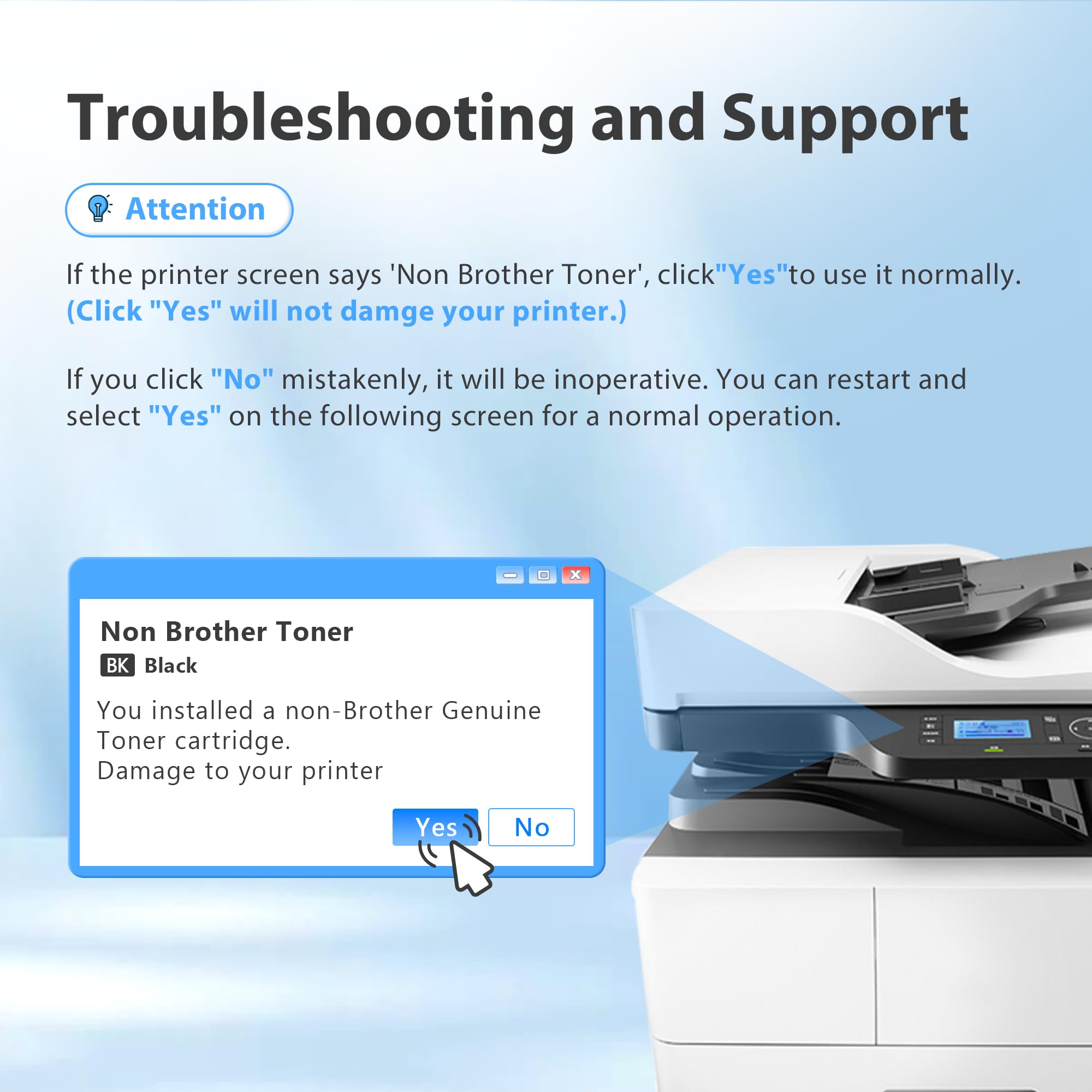
- Check that you are using genuine or compatible cartridges that match the model.
- Replace the drum unit if the machine indicates end of life or print quality stays poor.
From hands-on experience, one of the easiest mistakes is assuming a fading page means the printer is “dying.” Often, it is just a nearly empty toner cartridge or a drum that needs attention. According to common printer maintenance guidance from manufacturers, regular inspection of consumables is one of the best ways to prevent print defects and downtime.

Brother MFC-L3780CDW troubleshooting for Wi-Fi and network issues
Wireless problems can be frustrating because the printer may look fine but still not show up on your device. This is one of the most searched Brother MFC-L3780CDW troubleshooting topics because modern offices rely on stable Wi-Fi for everything.
If the printer shows offline
- Confirm the printer is connected to the correct Wi-Fi network.
- Restart the router and printer.
- Move the printer closer to the router if the signal is weak.
- Reconnect the printer using the wireless setup wizard.
- Remove and re-add the printer on your computer.
If printing is slow or drops out
- Check whether the router is using a crowded channel.
- Avoid placing the printer near microwaves, thick walls, or metal cabinets.
- Use a USB cable temporarily to isolate whether the issue is network-related.
- Make sure the printer firmware is current.
I have seen a lot of “printer offline” problems turn out to be network name confusion. The printer may still be trying to connect to an old Wi-Fi name after the router was replaced. That feels like a printer problem, but it is really a memory problem between devices.
Fixing scanning problems
Scanning issues can be sneaky because the printer may copy fine but refuse to scan. If the Brother MFC-L3780CDW is not scanning correctly, the problem is often software, driver, or destination setup rather than hardware.
Common scan problems
- The scanner is not detected by the computer
- Files scan but do not save where expected
- The scan is blank or poor quality
- The automatic document feeder misfeeds pages
Steps to try
- Confirm the scanner driver is installed correctly.
- Check that the correct scan destination is selected.
- Reboot both the computer and the printer.
- Test the flatbed scanner and the document feeder separately.
- Clean the scanner glass and feeder rollers.
If the scan comes out blank, check whether the document was placed face down on the glass or face up in the feeder. That sounds simple, but I have seen people chase software bugs for an hour when the page was simply loaded the wrong way.
Brother MFC-L3780CDW troubleshooting for fax and copy problems
Faxing is less common today, but many offices still depend on it. Copy problems can also show up when the issue is actually with the feeder, glass, or settings.
Fax issues
- Make sure the phone line is connected to the fax port, not the line port.
- Check the number format and redial settings.
- Confirm the line is active and not shared with a faulty splitter.
- Try sending a test fax to a known working number.
Copy issues
- Clean the scanner glass and white backing strip.
- Check for shadows, lines, or repeated marks.
- Try both color and black and white copy modes.
- Make sure the original is flat and properly aligned.
One lesson I learned early is that a fax issue can look like a machine issue when it is really a bad line or loose wall connection. Always test the phone line before replacing parts or changing settings.

Resetting the printer safely
A reset can solve stubborn Brother MFC-L3780CDW troubleshooting cases, but use it carefully. There is a difference between a simple power cycle and a full factory reset.
Safe reset options
- Turn the printer off, unplug it for 60 seconds, and restart it.
- Power cycle the router if the issue is network related.
- Clear stuck print jobs from the computer queue.
- Reset network settings only if Wi-Fi keeps failing.
When to avoid a full factory reset
- If you have not backed up network settings
- If the printer is still under active troubleshooting with support
- If the problem seems tied to one computer, not the printer itself
A full reset can be helpful, but it also wipes settings you may need later. I treat it like a last resort, not the first move.
Updating drivers and firmware
Outdated software can create strange behavior, especially after a Windows or macOS update. If your Brother MFC-L3780CDW worked yesterday and stopped today, drivers and firmware belong near the top of your checklist.
Why updates matter
- Drivers help your computer talk to the printer correctly
- Firmware improves stability and fixes known bugs
- New operating systems may need newer printer software
What to do
- Remove old printer entries from your device list.
- Install the latest printer and scanner drivers for your operating system.
- Check the printer menu for firmware updates.
- Restart after installation and test print again.
I have seen this fix what looked like a hardware failure. A clean driver reinstall can feel boring, but it is often the quiet hero in Brother MFC-L3780CDW troubleshooting.
Preventive maintenance that saves time later
Good maintenance prevents a lot of future stress. Think of the printer like a kitchen appliance that works best when it stays clean, fed with the right material, and updated now and then.
Helpful maintenance habits
- Clean the paper tray and feed path once in a while
- Use quality paper that meets the printer’s specifications
- Replace consumables before they are fully exhausted
- Keep the printer in a dry, dust-free space
- Check for firmware updates every few months
These small habits improve reliability and reduce downtime. They also help your printer last longer, which matters in busy homes and small offices.
When to contact support or service
Sometimes Brother MFC-L3780CDW troubleshooting reaches a point where the issue is probably hardware related. If you have already checked paper, toner, drivers, and network settings, and the printer still fails, it may need service.
Signs you may need help
- Repeated jam errors with no visible paper
- Grinding noises or unusual mechanical sounds
- Persistent print defects after replacing consumables
- Error codes that return after a reset
- Scanner or feeder parts that stop moving correctly
At that stage, support is usually the smartest next step. It saves time and prevents further damage from repeated trial and error.
Frequently Asked Questions of Brother MFC-L3780CDW Troubleshooting
Why does my Brother MFC-L3780CDW keep going offline?
It usually means the printer lost its network connection or the computer is pointing to the wrong device. Restart the printer and router, then remove and re-add the printer on your computer.
How do I clear a paper jam on the Brother MFC-L3780CDW?
Open the covers, remove the toner and drum assembly, and gently pull out any jammed paper. Check the rear path and tray for scraps before closing everything back up.
Why is my Brother MFC-L3780CDW printing faded pages?
Faded pages often mean low toner, economy mode, or a drum issue. Shake the toner cartridge gently, check print settings, and replace worn consumables if needed.
What should I do if the scanner is not working?
First, confirm that the scanner driver is installed and the correct destination is selected. Then clean the scanner glass and test both the flatbed and document feeder.
Can a firmware update fix Brother MFC-L3780CDW problems?
Yes, it can help with bugs, stability, and compatibility issues. If your printer started acting up after a software change, updating firmware and drivers is a smart step.
Conclusion
Brother MFC-L3780CDW troubleshooting gets much easier when you work from the basics outward. Start with paper, toner, connections, and drivers, then move to deeper checks like firmware, feeder parts, and network settings. Most problems are fixable without panic if you stay patient and follow a clear order.
If you use this printer often, a little maintenance now can save a lot of frustration later. Try the steps above the next time the machine misbehaves, and keep this guide handy for future reference. If you found it helpful, share it with someone who uses the same printer or leave a comment with the issue you want to solve next.