Why Is Samsung Galaxy SmartTag 2 Not Working: Fixes That Work
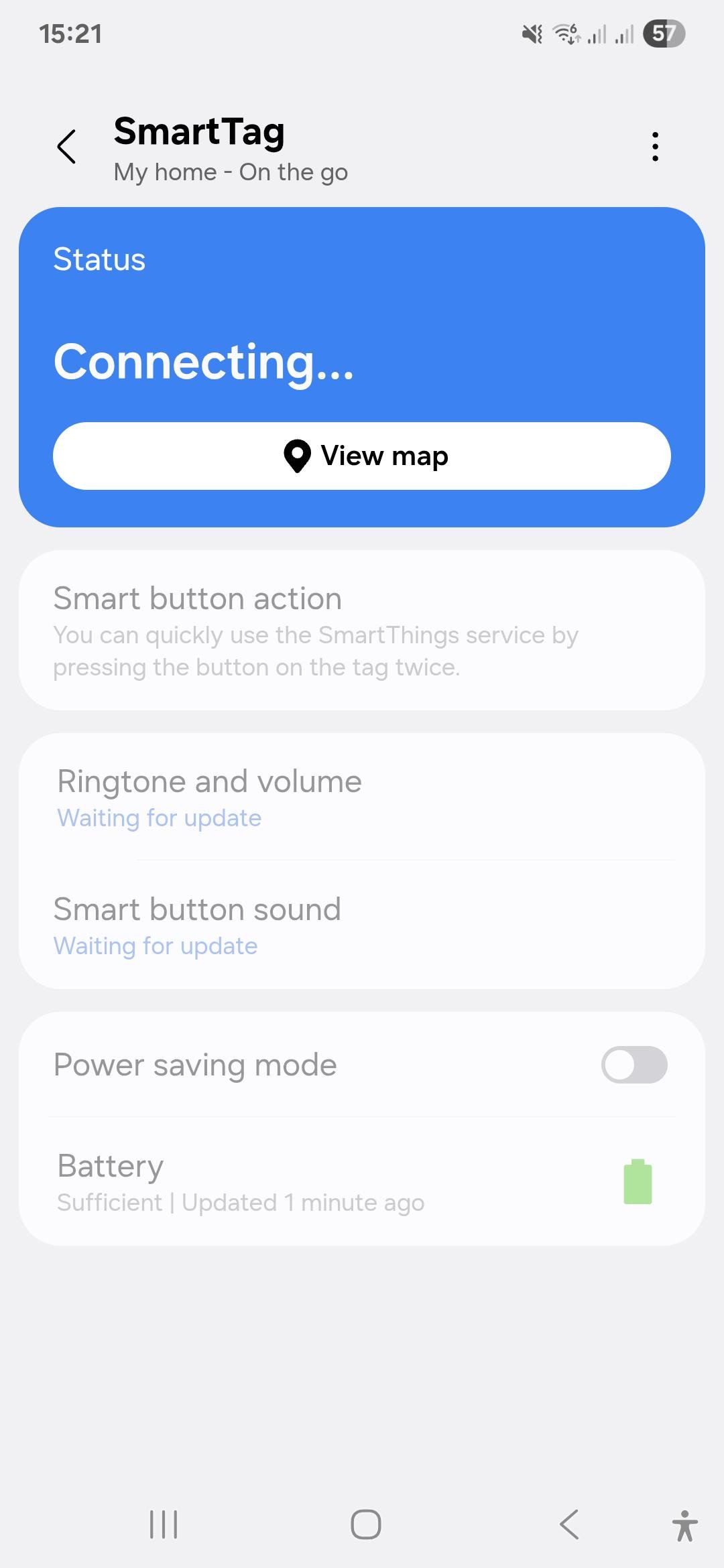
Samsung Galaxy SmartTag 2 usually stops working because of battery issues, connection limits, app settings, or location access problems.
Samsung Galaxy SmartTag 2 is a small device, but it relies on several moving parts to work well: Bluetooth, Galaxy SmartThings, phone permissions, battery power, and nearby Samsung devices. When one part fails, the whole tracking experience can feel broken. I’ve seen this happen in real use more than once, and the fix is often simpler than it looks once you know where to check first.
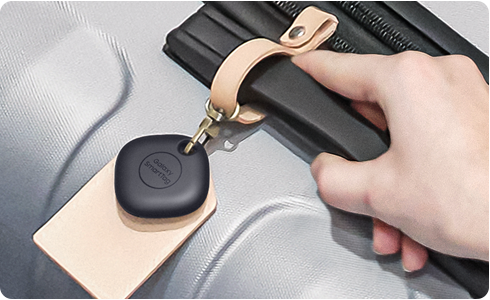
Why Samsung Galaxy SmartTag 2 Stops Working
The Samsung Galaxy SmartTag 2 is designed to help you find keys, bags, bikes, and other items through Bluetooth and Samsung’s SmartThings Find network. But if it is not working, the problem is usually not the tag alone. It is often a mix of setup, range, phone settings, or a weak battery.
From my experience, most “dead” SmartTags are actually alive but disconnected. That is frustrating, because it can feel like the tag failed when the real issue is hidden in the phone or app. The good news is that many of these problems can be fixed in a few minutes with the right checks.
Common Reasons the Samsung Galaxy SmartTag 2 Is Not Working
There are several common reasons the Samsung Galaxy SmartTag 2 may not respond or show up in the app:
• The battery is low or inserted incorrectly
• Bluetooth is turned off on your phone
• Location services are disabled
• SmartThings app permissions are missing
• The tag is out of Bluetooth range
• The tag is not linked properly to your Samsung account
• Firmware or app software is outdated
• The tag is stuck and needs a reset
• The item is in a place with poor signal or too much interference
A SmartTag 2 depends on both your phone and Samsung’s device network. If either side is misconfigured, tracking can fail. That is why the problem often feels random, even when the cause is not random at all.

Check the Battery First
Battery problems are one of the most common reasons the Samsung Galaxy SmartTag 2 is not working. If the battery is weak, the tag may disconnect, fail to ring, or stop updating location. Even if the battery is not fully dead, a low charge can make the tag act unstable.
The SmartTag 2 uses a replaceable battery, so this is one of the easiest things to test. Open the battery compartment and confirm that the battery is seated correctly. If you are unsure, replace it with a fresh, high-quality coin cell battery and test again.
A small mistake I have seen often is people assuming a brand-new battery is fine without checking the battery type or contact points. Tiny dirt spots or a slightly loose fit can cause the same symptoms as a dead battery. Think of it like a flashlight with a nearly closed cap: it has power, but the connection is not firm enough to work.
Make Sure Bluetooth and Location Are On
Samsung Galaxy SmartTag 2 depends on Bluetooth to connect to your phone. If Bluetooth is off, the tag cannot talk to the SmartThings app directly. Location services also matter because Samsung uses them to improve tag detection and map accuracy.
Check these settings on your phone:
• Bluetooth is turned on
• Location is turned on
• SmartThings app has permission to use location
• Nearby devices permission is allowed if your phone asks for it
If you are indoors, try moving closer to a window or going outside for a test. Bluetooth range is limited, and walls can block signals more than people expect. In practical terms, a SmartTag 2 is not a long-range GPS tracker; it works best when the environment supports short-range wireless communication.
Confirm SmartThings App Permissions
The SmartThings app needs the right permissions to manage the Samsung Galaxy SmartTag 2. If permissions are denied, the tag may not register, update, or ring properly. This issue is very common after app updates or phone resets.
Review these permissions in your phone settings:
• Location permission
• Nearby devices permission
• Bluetooth permission
• Notification permission
• Background activity or battery optimization permission
I once helped troubleshoot a SmartTag 2 that looked broken, but the issue was simply that Android had restricted the SmartThings app in the background. Once background access was allowed, the tag started updating again. That is a good reminder that modern phones often save battery by limiting apps, and tracking devices suffer when that happens.
Check Whether the SmartTag 2 Is Properly Paired
If the Samsung Galaxy SmartTag 2 was not paired correctly, it may seem like it is not working at all. Sometimes the tag is added to the wrong Samsung account or the pairing process was interrupted before it finished. In that case, the app may show errors or fail to locate the device.
Try these steps:
- Open SmartThings
- Check if the tag appears in your device list
- Remove the tag if it is listed but not responding
- Reset the SmartTag 2
- Pair it again using the SmartThings app
Pairing issues are especially common if the tag has been used before, borrowed, or connected to another phone. SmartTags are account-linked devices, so they do not always behave like simple Bluetooth accessories. If the tag was tied to another Samsung account, it may need to be cleared before reuse.
Reset the Samsung Galaxy SmartTag 2
Sometimes the fastest fix is a reset. If the Samsung Galaxy SmartTag 2 is frozen, not showing in SmartThings, or refusing to ring, a reset can clear the problem. This is often worth trying before replacing the battery or assuming the tag is defective.
A reset can help when:
• The tag is stuck in a bad connection state
• The app cannot find the tag even nearby
• The ring feature does not work
• The tag was previously paired to another device
After resetting, set the tag up again from scratch. That fresh start often solves glitches caused by failed updates or pairing bugs. Like rebooting a phone, it does not fix every issue, but it fixes a surprising number of them.
Stay Within Bluetooth Range
A Samsung Galaxy SmartTag 2 is not meant to work like a full GPS tracker on its own. It needs Bluetooth contact with your phone or another Samsung device in the network. If the tag is too far away, it may not appear to work even though it is still powered on.
Things that reduce range include:
• Thick walls
• Metal objects
• Cars and luggage compartments
• Crowded wireless environments
• Being inside drawers, bags, or under cushions
If the tag works when you stand nearby but not at a distance, the problem may simply be range. That is normal behavior for Bluetooth trackers. I always tell people to test SmartTags in open space first, because the real world can shrink range much more than the specs suggest.

Understand How SmartThings Find Works
Some users expect the Samsung Galaxy SmartTag 2 to update location instantly everywhere. That is not how the system works. It uses nearby Samsung Galaxy devices to detect the tag and help report its location through the SmartThings Find network.
This means:
• Location updates can be delayed
• Rural or low-traffic areas may have fewer detection points
• Dense urban areas often work better
• The tag may appear offline until another device passes by
If you live in a place with fewer Samsung devices nearby, the tag may seem unreliable. That does not always mean the tag is broken. It may simply mean the network has fewer chances to detect it.
Update the SmartThings App and Phone Software
Old app versions can cause syncing problems, connection bugs, or missing features. The Samsung Galaxy SmartTag 2 works best when SmartThings and your phone software are current. Updates often include fixes for Bluetooth, battery use, and location handling.
Make sure to:
• Update the SmartThings app from the app store
• Update your Samsung phone’s software
• Restart the phone after updating
• Recheck permissions after major updates
I have seen cases where a tag started failing right after an Android update because background permissions were reset. That is easy to miss. When tech suddenly stops behaving, software compatibility is one of the first things I check.
Check for Interference and Environmental Problems
Wireless devices can be affected by signal interference. The Samsung Galaxy SmartTag 2 may struggle in places where Bluetooth is crowded or blocked. This is common in apartments, airports, offices, garages, and busy homes with many connected devices.
Possible sources of interference include:
• Wi-Fi routers
• Other Bluetooth devices
• Microwaves
• Metal shelves
• Thick concrete walls
• Electrical equipment
If the tag works in one room but not another, interference is likely part of the problem. Try moving the tag and phone into a more open area. This simple test can reveal whether the issue is the tag itself or the environment around it.
Make Sure the Tag Is Not Damaged
Physical damage can also make the Samsung Galaxy SmartTag 2 stop working. Drops, water exposure, cracked shells, or damaged battery contacts can break the internal connection. Even if the outside looks fine, the inside may not be.
Check for these signs:
• Cracked housing
• Loose battery cover
• Corrosion around the battery area
• Button not clicking properly
• Tag overheating or behaving erratically
If the tag has been exposed to moisture, remove the battery and let it dry fully before testing again. However, if the internal components were damaged, drying may not be enough. In that case, replacement may be the most realistic option.
When the Tag Shows as Offline
An offline SmartTag 2 does not always mean it is broken. It may simply be out of range, asleep, or unable to find another Samsung device nearby. The app may still show the last known location, which can be helpful even when live tracking is unavailable.
If your SmartTag 2 shows offline, try this:
• Move closer to the last known location
• Open SmartThings and refresh the device list
• Test the ring feature if nearby
• Check if Bluetooth and location are still on
• Replace the battery if the tag has not been checked in a while
Sometimes the issue is only temporary. If the tag comes back online later, the system may have simply lost a short connection window. That is common with Bluetooth trackers and not always a sign of failure.
How to Fix a Samsung Galaxy SmartTag 2 Not Working
Here is a practical step-by-step fix order that I recommend:
- Replace the battery with a fresh one
- Turn Bluetooth and Location on
- Check SmartThings permissions
- Update SmartThings and your phone software
- Restart your phone
- Reset and re-pair the SmartTag 2
- Move to a more open area and test again
- Remove and re-add the tag if needed
This order saves time because it starts with the easiest fixes first. In real troubleshooting, that matters a lot. There is no reason to jump straight to a factory reset if the battery is the real issue.
How to Prevent SmartTag 2 Problems in the Future
A little maintenance goes a long way. The Samsung Galaxy SmartTag 2 usually works best when it is set up carefully and checked now and then. Most problems happen because the tag is ignored until the day it is urgently needed.
Good habits include:
• Replacing the battery before it gets too weak
• Keeping SmartThings updated
• Checking permissions after phone updates
• Testing the tag once a month
• Keeping the tag away from moisture and heavy impact
This is one of those devices that rewards routine care. Like keeping a spare umbrella by the door, it is much less useful if you only think about it when you are already in trouble.
Frequently Asked Questions of Why Is Samsung Galaxy SmartTag 2 Not Working?
Why is my Samsung Galaxy SmartTag 2 not connecting to my phone?
The most common reasons are Bluetooth being off, missing permissions, or a weak battery. If the tag still does not connect, reset it and pair it again in SmartThings.
Why does my SmartTag 2 show offline?
It may be out of Bluetooth range or unable to find a nearby Samsung device to report its location. Offline does not always mean broken, especially in low-traffic areas.
Why is my SmartTag 2 not ringing?
This usually happens when the battery is low, the tag is disconnected, or the app does not have the right permissions. Try replacing the battery and testing again nearby.
Can a SmartTag 2 work without Samsung phones nearby?
It works best with the SmartThings Find network, which relies on nearby Samsung Galaxy devices. Without them, location updates may be delayed or unavailable.
How do I reset my Samsung Galaxy SmartTag 2?
A reset clears connection problems and helps when the tag will not pair or ring. After resetting, add it again through the SmartThings app to rebuild the connection.
Does a SmartTag 2 need GPS?
No, it does not use built-in GPS like a full tracker. It uses Bluetooth and Samsung’s device network to estimate and update location.
Conclusion
When the Samsung Galaxy SmartTag 2 is not working, the cause is usually something simple like a weak battery, missing permissions, Bluetooth issues, or a pairing problem. In many cases, the tag is not truly broken at all. It just needs the right settings, a fresh battery, or a clean reset to come back to life.
The smartest approach is to check the basics first and work step by step. That saves time and avoids unnecessary frustration. If your SmartTag 2 still gives you trouble after trying these fixes, it may be time to test another battery, re-pair the device, or contact support for deeper help.
If this guide helped, try the troubleshooting steps now and see which one fixes your tag. You can also leave a comment with your issue or explore more SmartThings tips to get the most out of your Samsung setup.

Similar Posts
































