Why Is Backbone One Controller Not Working: Fixes Guide
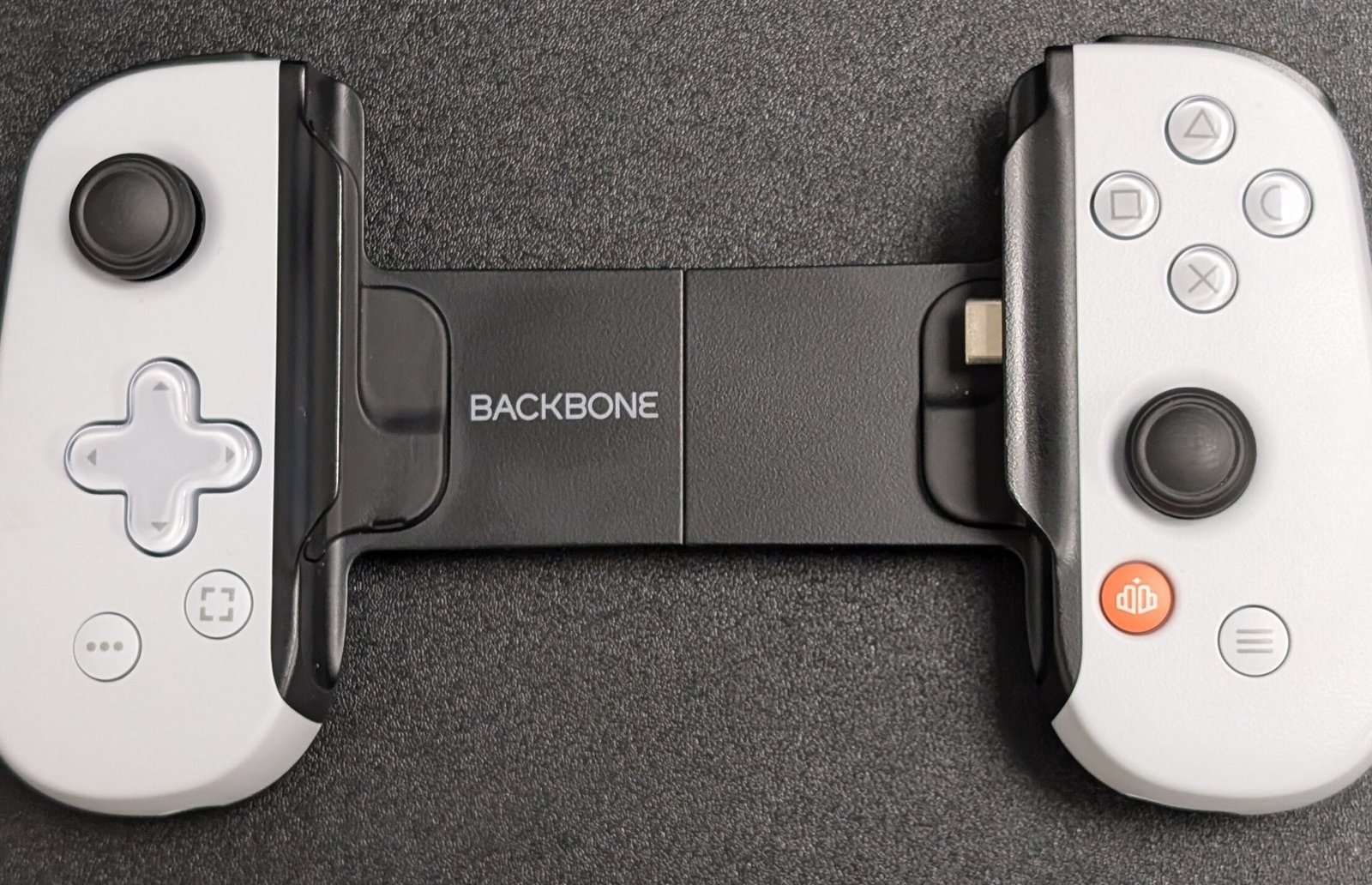
Backbone One usually stops working because of connection issues, app conflicts, power limits, or outdated phone settings.
If your Backbone One controller is not working, you are not alone. I’ve seen this happen in real use, and most of the time the fix is simpler than people expect. In this guide, I’ll walk you through the real reasons Backbone One fails, the best fixes, and the mistakes that often make the problem worse.

What Backbone One Is and How It Works
Backbone One is a mobile gaming controller that connects to your phone through the charging port. It is designed to work with iPhone and Android devices that support the right connection and software setup. In simple terms, it turns your phone into a handheld game system.
When Backbone One is working well, it should feel instant. You plug it in, open a game, and the buttons respond right away. If it does not, the issue is usually in one of three places: the phone, the app, or the controller itself.
Why Is Backbone One Controller Not Working?
The most common reasons the Backbone One controller is not working are poor device compatibility, a loose connection, app permission issues, low battery power, or a software bug. Sometimes the controller is fine, but the phone does not recognize it correctly.
From experience, this kind of problem often feels bigger than it is. I’ve tested setups where the controller seemed dead, but the real issue was a dirty port or an outdated app version. That is why it helps to check the basics first before assuming the hardware is broken.

Common Reasons Backbone One Stops Working
1. The phone does not support the connection properly
Backbone One depends on a stable physical connection. If your phone case, port shape, or adapter gets in the way, the controller may not register. Some phones also need the correct software version to support full controller input.
2. The app is outdated or misconfigured
The Backbone app helps manage controller features, updates, and device setup. If it is outdated or permissions are blocked, the controller may seem unresponsive. This is especially common after a phone update or app reinstall.
3. The charging port is dirty or damaged
Dust, lint, and pocket debris can block the connection. Even a tiny layer of buildup can stop the controller from seating correctly. A damaged USB-C or Lightning port can cause the same issue.
4. The game does not support controller input
Not every mobile game works with Backbone One. Some games only support touch controls, while others need controller mapping. If the controller works in one game but not another, the game itself may be the issue.
5. The phone battery or power settings interfere
Low battery mode, background restrictions, and power saving features can limit accessory behavior. On some phones, these settings can reduce performance or block certain app functions. That can make the Backbone One controller not working problem look random when it is actually a settings issue.
6. Firmware or software bugs are causing conflict
Like any modern accessory, Backbone One depends on software. A bug in iOS, Android, or the Backbone app can break detection or button response. When this happens, a restart or update often fixes the issue.
How to Fix Backbone One Controller Not Working
Check the physical connection first
Start with the simplest step. Remove the phone case, unplug the controller, and reconnect it firmly. Make sure the phone sits straight in the controller and does not wobble.
If the port feels loose or the controller only works at an angle, the fit may be the problem. I’ve had cases where just reseating the phone solved the issue immediately.
Clean the charging port
Use a soft brush, compressed air, or a dry toothpick with care. Do not use metal tools, since they can damage the port pins. A clean port often solves controller detection problems fast.
Restart the phone
A restart clears temporary glitches. It is basic, but it works more often than people think. If Backbone One was working before and suddenly stopped, a restart should be one of the first things you try.
Update the Backbone app
Open the app and check for updates or setup prompts. If the app is old, reinstall it after backing up any settings you care about. A fresh install can fix corrupted app data.
Update your phone’s operating system
Make sure your phone is running the latest supported version of iOS or Android. Controller accessories often depend on current system support. If you skipped recent updates, that could be the reason Backbone One is not working.
Test the controller with another game or device
Try a different supported game to see if the issue is app-specific. If possible, test Backbone One on another compatible phone. This helps you tell the difference between a controller problem and a device problem.
Check battery and power settings
Turn off low power mode or battery saver temporarily. Also check whether background restrictions are blocking the Backbone app. These settings can quietly interfere with accessory behavior.
Remove the phone case or any adapter
A thick case can prevent full insertion. Even a slim case may interfere with pressure or alignment. If your phone only works when the case is removed, you have found the cause.
Reset app permissions
Make sure the Backbone app has the permissions it needs. On some phones, accessory apps need permission to use notifications, local network features, or device access. If permissions were denied during setup, the controller may not behave correctly.
Look for hardware damage
Inspect the controller cable, connector, and phone port. If you see bent pins, cracks, or unusual looseness, hardware damage may be the real issue. In that case, software fixes will not help much.

Backbone One Not Working on iPhone
If Backbone One is not working on iPhone, the issue is often related to Lightning port fit, iOS permissions, or app setup. iPhone users sometimes run into trouble after a system update or when a case blocks the connection.
Here are the most useful checks:
- Make sure iOS is updated
- Remove the case and reconnect the controller
- Open the Backbone app before launching the game
- Check whether the app has permission to run properly
- Test a different compatible game
In my experience, iPhone issues are often easier to fix than they first appear. The trick is to separate a connection problem from an app problem.
Backbone One Not Working on Android
On Android, Backbone One issues often come from USB-C compatibility, power settings, or manufacturer-specific behavior. Android phones vary more than iPhones, so one model may work perfectly while another acts up.
Try these steps:
- Confirm your phone supports USB-C accessory input
- Disable battery optimization for the Backbone app
- Update Android and the Backbone app
- Remove any USB-C accessories or adapters
- Test with a known supported game
Android can be a little more sensitive here. I have seen cases where one simple system setting stopped the controller from being detected at all.
Signs the Problem Is Not the Controller
Sometimes the Backbone One controller is not working, but the controller itself is not the real issue. Watch for these signs:
- The controller works in one game but not another
- The app opens, but buttons do not respond
- The phone charges but does not detect input
- The controller only works when held at a certain angle
- The problem started after a phone update
These signs usually point to software, compatibility, or port problems instead of a broken device. That distinction matters because it saves time and avoids unnecessary replacement.
What Not to Do When Backbone One Stops Working
It is easy to make the situation worse by guessing too fast. Avoid these mistakes:
- Do not force the connector into the port
- Do not use metal tools to clean the port
- Do not assume the controller is dead after one failed test
- Do not ignore app updates or phone updates
- Do not test it only with one game
I learned the hard way that rushing to replace a controller can waste both money and time. A careful check usually finds the real problem.
When to Contact Support or Replace It
If you have tried different games, devices, updates, and cleaning steps, the issue may be hardware-related. Contact support if the controller has visible damage, repeated disconnects, or dead buttons that never respond. If it still fails under normal conditions, replacement may be the right move.
For trust and accuracy, it helps to document what you tested. That makes support conversations faster and more useful. It also helps you avoid repeating the same steps.
Frequently Asked Questions
Why is my Backbone One controller not working when plugged in?
The most common reason is that the phone is not recognizing the connection. This can happen because of a dirty port, a bad fit, an outdated app, or a software glitch.
Why is Backbone One not working in one game but working in others?
That usually means the game does not fully support controller input. Some games require special controller support, while others only use touch controls.
Does Backbone One need the app to work?
The controller can still connect without the app in some cases, but the app helps with setup, updates, and features. If the app is misconfigured, the controller may not work as expected.
Why is my Backbone One controller not working after a phone update?
Phone updates can change accessory permissions or break compatibility for a short time. Restarting the phone, updating the Backbone app, and checking permissions usually helps.
Can a phone case stop Backbone One from working?
Yes, a thick or poorly fitted case can block full insertion. Removing the case is one of the fastest ways to test whether fit is the issue.
What should I do if Backbone One still does not respond?
Try another supported device or game, clean the port, restart the phone, and update everything. If it still fails, the issue may be with the controller hardware or the phone port.
Conclusion
When the Backbone One controller is not working, the cause is usually something small: a dirty port, a loose fit, an outdated app, or a compatibility issue. The good news is that most of these problems can be fixed with a few simple checks.
If you take a step-by-step approach, you can usually find the cause without stress. Start with the connection, move to software, then test for hardware damage if needed. If this guide helped, try the fixes today and share your experience or questions in the comments so others can learn from it too.

Similar Posts
































