Ricoh SP C261SFNw Troubleshooting: Quick Fix Guide
Ricoh SP C261SFNw troubleshooting starts with checking error codes, paper flow, connections, drivers, and toner.
The Ricoh SP C261SFNw is a capable color multifunction printer, but small issues can stop printing, scanning, copying, or faxing. This Ricoh SP C261SFNw troubleshooting guide explains the most common causes and gives safe, practical steps to restore normal operation.

Start With These Basic Ricoh SP C261SFNw Troubleshooting Steps
Before changing settings, check the simple things first. Many printer faults come from a loose cable, an open cover, a paper tray that is not seated correctly, or a device that needs a restart.
Use this quick order:
- Check the printer display for an error message or code.
- Make sure the power cable is firmly connected.
- Confirm that the printer is turned on and ready.
- Check the paper tray and remove damaged or curled paper.
- Open and close every cover firmly.
- Check toner levels and install the correct Ricoh toner.
- Restart the printer, computer, router, or mobile device.
- Send a small test print.
A restart can clear a temporary memory or communication fault. Turn the printer off, wait about 30 seconds, and turn it back on. Do not unplug the printer while it is processing a job unless it is completely frozen.
In my experience with office printers, users often skip the display message and begin changing network or driver settings. That can make a small paper or cover problem harder to diagnose. Always treat the printer’s message as your first clue.
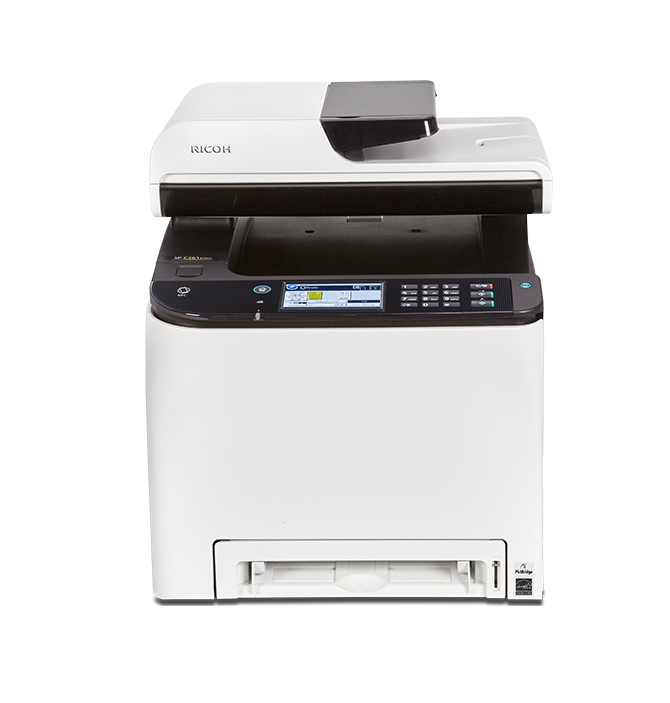
Ricoh SP C261SFNw Error Messages and Warning Lights
The control panel message usually tells you which area needs attention. The exact wording can vary by firmware version, but most messages fit into a few groups.
Paper and cover errors
A paper message does not always mean the tray is empty. The printer may detect paper in the wrong position, a jammed sheet, or a tray size that does not match the print job.
Try these steps:
- Remove the paper tray.
- Check the tray guides and adjust them to fit the paper.
- Take out the paper stack and fan it gently.
- Remove any torn pieces from the paper path.
- Reload the paper below the maximum line.
- Reinstall the tray until it clicks into place.
- Close all covers firmly.
Look inside the rear access area and near the output path. Use both hands to pull jammed paper slowly in the direction of paper travel. A torn corner left inside the printer may cause repeated jams.
Toner and cartridge errors
A toner message may indicate low toner, an empty cartridge, an incorrectly fitted cartridge, or a cartridge that the printer cannot identify. Remove and reseat the cartridge if the display says it is missing.
Use toner made for the correct Ricoh model and region. Avoid shaking a cartridge aggressively, as loose toner can spread inside the machine. If print quality is poor after replacement, print a few test pages and run the printer’s color or image adjustment process if available.
Service or hardware messages
A service message may point to a fuser, transfer unit, sensor, fan, or other internal part. Turn the printer off and allow it to cool before opening areas near the fuser.
Do not remove internal parts unless the service procedure specifically allows it. The fuser can become very hot, and forced removal can damage sensors or rollers. If the same service message returns after a restart, contact an authorized Ricoh technician.

Ricoh SP C261SFNw Not Printing
When the Ricoh SP C261SFNw receives a job but does not print, the problem may be the print queue, wrong printer selection, offline status, or a network connection.
First, check the computer’s printer list. Make sure the Ricoh SP C261SFNw is selected as the default printer and does not show “Offline,” “Paused,” or “Error.” Open the print queue and cancel old jobs that may be blocking newer ones.
Next, print a configuration or status page from the printer panel. This helps show whether the printer itself can print. If the status page prints, the hardware is likely working and the issue may be on the computer or network.
Try these steps:
• Restart the print spooler on a Windows computer.
• Remove duplicate Ricoh printer entries from the computer.
• Reinstall the current Ricoh printer driver.
• Confirm that the selected paper size matches the document.
• Check whether the job is set to monochrome, manual feed, or another unexpected option.
• Print from a second computer or mobile device.
A common mistake is installing a generic driver that supports basic printing but not the printer’s full features. The correct driver can improve color control, duplex settings, paper selection, and communication with the device.

Ricoh SP C261SFNw Wi-Fi and Network Problems
Wireless printing can fail even when the printer appears connected. A router change, new Wi-Fi password, weak signal, or IP address change may interrupt communication.
Begin by checking the printer’s network status page. Note its IP address, wireless name, and connection status. Then compare the network name with the one used by your computer or phone.
For reliable Ricoh SP C261SFNw troubleshooting, check the following:
• Connect the printer and computer to the same network.
• Avoid guest Wi-Fi networks that block device-to-device traffic.
• Restart the router and printer.
• Move the printer closer to the wireless access point for testing.
• Check whether the router uses a band or security mode the printer supports.
• Add the printer again by its current IP address if the address changed.
• Temporarily test with a USB connection, if supported.
A printer can show a wireless icon while still being unreachable from a computer. The icon confirms a wireless link, not always full network communication. If printing works by USB but not Wi-Fi, focus on the router, IP address, firewall, or driver port.
For offices, a fixed address or DHCP reservation can reduce repeated connection problems. Ask the network administrator before changing business network settings.

Ricoh SP C261SFNw Scanning and Copying Problems
If printing works but scanning fails, the issue may involve the scan driver, scan destination, network permissions, or the automatic document feeder. Copying problems are more often linked to the scanner glass, document placement, or internal sensors.
For a scan that does not start, check that:
- The original is placed correctly on the glass or feeder.
- The feeder cover is fully closed.
- The computer has the correct scan software or driver.
- The printer and computer are on the same network.
- The selected scan destination is still available.
- Security software is not blocking scan communication.
If copies contain dark lines, streaks, or repeated marks, clean the scanner glass with a soft, lint-free cloth. Also clean the narrow glass strip used by the document feeder. A tiny mark on this strip can create a line down every scanned page.
Do not spray cleaner directly onto the glass or control panel. Apply a small amount to the cloth instead. Let the glass dry before copying again.
If scanning to email fails, check the email server, port, encryption, account password, and date and time settings. Modern email services may reject older authentication methods, so this problem may require help from an IT administrator.

Ricoh SP C261SFNw Print Quality Issues
Poor print quality can appear as faded colors, black lines, spots, ghost images, uneven areas, or incorrect color. The cause may be toner, paper, humidity, a dirty optical path, or a worn internal component.
Faded or uneven prints
Check toner levels first. Make sure the paper is dry and designed for color laser printing. Paper stored in a damp room may produce weak or uneven results.
Use the printer’s cleaning, calibration, or color adjustment function if the menu provides one. Print several test pages after the adjustment. A single poor page may be caused by a temporary toner distribution issue, while repeated defects suggest a deeper problem.
Lines, dots, and repeated marks
Inspect the scanner glass if the defect appears on copies and scans. If the defect appears only on printed documents, check the paper path and toner cartridges.
Repeated marks at regular intervals often point to a roller, drum, transfer component, or fuser. Avoid touching imaging surfaces with your fingers. Oils from skin can worsen defects.
Wrong colors
Confirm that the document is not set to grayscale or draft mode. Check the color profile and application settings. If one color is missing, reseat the related cartridge and print a color test page.
Color matching also depends on the paper type and lighting. A printed color may not look identical to an image on a monitor because screens use light while paper reflects light.
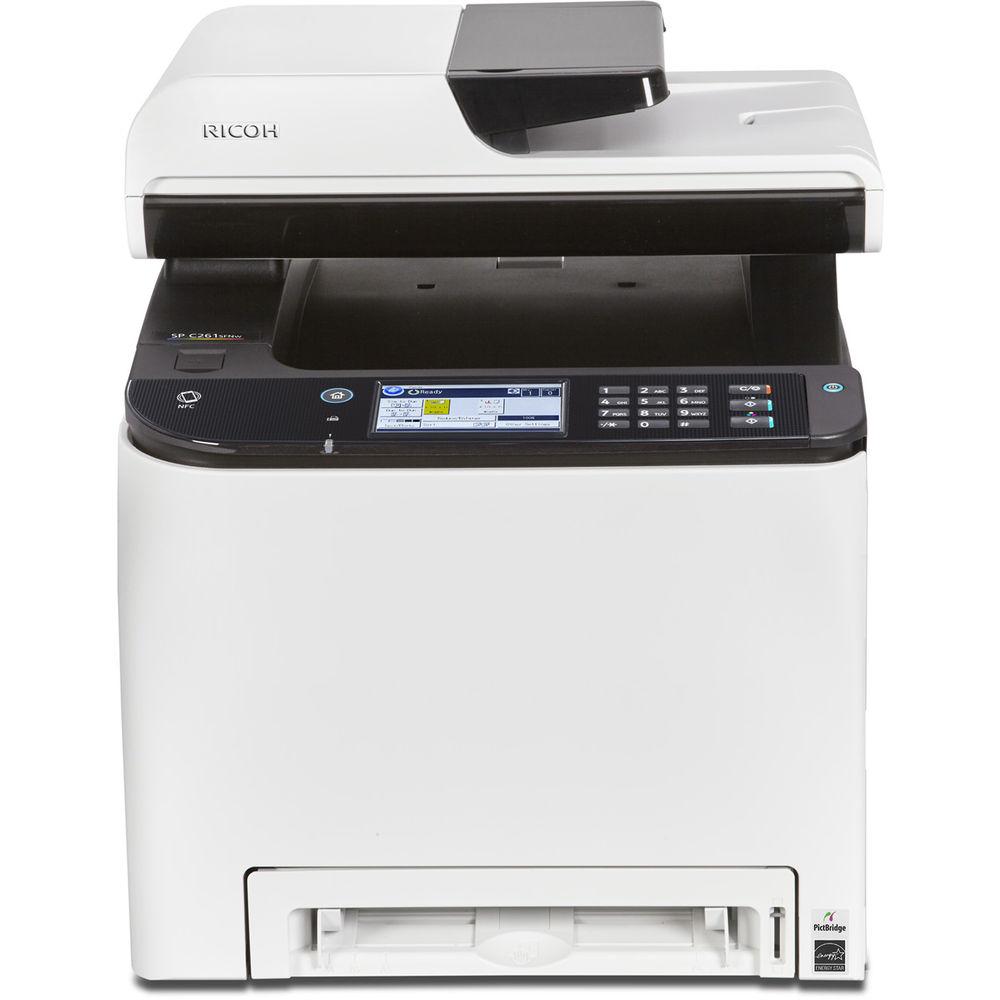
Ricoh SP C261SFNw Paper Jams and Feeding Errors
Paper jams are among the most common reasons people search for Ricoh SP C261SFNw troubleshooting help. The best solution is not simply pulling out the visible sheet. You must find the full paper path and remove every fragment.
Follow this process:
- Read the display message.
- Open only the covers named by the message.
- Remove paper slowly and evenly.
- Check behind the tray and inside the rear cover.
- Look for small torn pieces near rollers.
- Close each cover completely.
- Reload fresh, flat paper.
- Confirm the paper size and type in the printer menu.
Do not overload the tray. Keep the stack below the marked limit and adjust the guides so they touch the paper without squeezing it. Mixing paper sizes or types can also cause feed errors.
If jams happen only during duplex printing, inspect the duplex path and use paper approved for two-sided laser printing. Thick stock, labels, envelopes, and damp paper may need special tray settings.
A useful lesson from repeated service calls is that a jam is often a symptom, not the root cause. Worn rollers, poor paper storage, or incorrect tray settings can cause the same jam again after the visible sheet is removed.
Ricoh SP C261SFNw Fax and Mobile Printing Issues
The fax function depends on both printer settings and the telephone line. Confirm the fax number, dialing rules, line connection, and document placement. If outgoing faxes fail, check whether the line requires a pause, outside-line code, or different dialing method.
For mobile printing, make sure the phone and printer use the same local network. Update the mobile printing app and confirm that the printer is not in sleep mode or offline.
If a mobile device cannot find the Ricoh SP C261SFNw, restart both devices and check wireless isolation settings on the router. Some guest networks intentionally prevent phones from discovering local printers.
Security settings can also affect mobile printing. Keep the printer firmware and mobile operating system current when updates are available from the manufacturer. Before updating firmware, read the instructions and do not interrupt power during the process.
Driver, Firmware, and Software Troubleshooting
The printer driver controls how the computer communicates with the Ricoh SP C261SFNw. A damaged driver, incorrect port, or old operating system update can cause missing features or failed print jobs.
Use the manufacturer’s support page to select the exact operating system and printer model. Remove the old printer entry before installing a fresh driver if the existing installation is damaged.
Check these settings after installation:
• Printer name and model
• IP address or USB port
• Paper size
• Color or black-and-white mode
• Duplex settings
• Default tray
• Print resolution
Firmware can correct bugs and improve compatibility, but it should be installed with care. Record current network settings first. Do not update firmware over an unstable wireless connection if a safer method is available.
If the printer worked before a computer update, check whether the update changed the driver or network port. Testing with a basic document, such as a one-page text file, helps separate software problems from application problems.
Safe Cleaning and Maintenance
Regular care can prevent many Ricoh SP C261SFNw problems. Keep the printer on a level surface with space around vents and covers. Remove dust from the outside with a dry or slightly damp cloth.
Good maintenance includes:
• Store paper in a cool, dry place.
• Use paper that matches the printer specifications.
• Clean the scanner glass when copies show marks.
• Remove toner spills with care and avoid spreading toner.
• Keep vents clear.
• Replace consumables before they become completely depleted when the printer advises it.
• Avoid opening internal areas that are marked for service only.
Laser printers use heat and moving parts. Unplug the printer before cleaning areas that are not designed for user access. Never use a vacuum made for household dust on loose toner unless it is rated for toner use.
A service call is the right choice when there is smoke, a burning smell, repeated electrical shutdown, exposed wiring, or a persistent internal error. Safety matters more than saving a few minutes.
When to Contact Ricoh Support
You can solve many Ricoh SP C261SFNw issues with paper checks, driver repair, network testing, and careful cleaning. Contact support when the fault returns after these steps or when the display shows a service-level error.
Before calling, collect:
- The exact error message or code.
- The printer serial number.
- The operating system and driver version.
- Whether the issue affects printing, scanning, copying, or faxing.
- The steps that already solved or failed to solve the problem.
- A sample page showing the defect, if safe to produce.
This information helps a technician avoid repeating basic checks. It also helps identify patterns, such as a jam that occurs only with thick paper or a network fault that began after a router replacement.
Do not reset network settings as a first step if the printer is used by several people. A reset may remove saved Wi-Fi details and create more work for everyone.
Frequently Asked Questions About Ricoh SP C261SFNw Troubleshooting
Why is my Ricoh SP C261SFNw not printing?
Check the printer display, paper, toner, print queue, and online status first. If a configuration page prints but computer documents do not, reinstall the correct driver or repair the printer connection.
How do I clear a paper jam on the Ricoh SP C261SFNw?
Follow the display instructions, open the listed covers, and remove paper slowly in the direction of travel. Check for small torn pieces, then reload flat paper and close every cover firmly.
Why is the Ricoh SP C261SFNw offline?
The printer may have lost its wireless connection, received a new IP address, or be connected to a different network than the computer. Restart the printer and router, then add the printer again using its current network address.
Why does my Ricoh SP C261SFNw print faded pages?
Low toner, damp paper, an incorrect paper setting, or a calibration issue can cause faded output. Check the toner, use dry laser paper, and run the printer’s available cleaning or color adjustment process.
How can I fix scanning problems on the Ricoh SP C261SFNw?
Confirm that the scan driver or software is installed and that both devices share the same network. Clean the scanner glass and check scan destination, firewall, and email settings if network scanning still fails.
Should I use third-party toner in the Ricoh SP C261SFNw?
Third-party toner may cost less, but quality and compatibility can vary. Incorrect or poor-quality cartridges may cause color defects, recognition errors, leaks, or service complications, so use supplies that clearly match the printer model.
When should I call a Ricoh technician?
Call a technician for repeated service codes, burning smells, electrical faults, damaged internal parts, or problems that remain after basic checks. Avoid forcing covers, rollers, cartridges, or fuser components.
Conclusion
Effective Ricoh SP C261SFNw troubleshooting starts with the printer’s message and follows a clear path: check paper, toner, covers, connections, drivers, and network settings. Most everyday faults are simple to isolate when you test one cause at a time.
Keep the printer clean, use suitable paper, save its network details, and record recurring errors. If your Ricoh SP C261SFNw still fails after these steps, use the error code and test results when contacting Ricoh support. Apply the checklist today, and share your own solution or question in the comments.