Rollo X1040 Troubleshooting: Easy Fixes For Common Issues
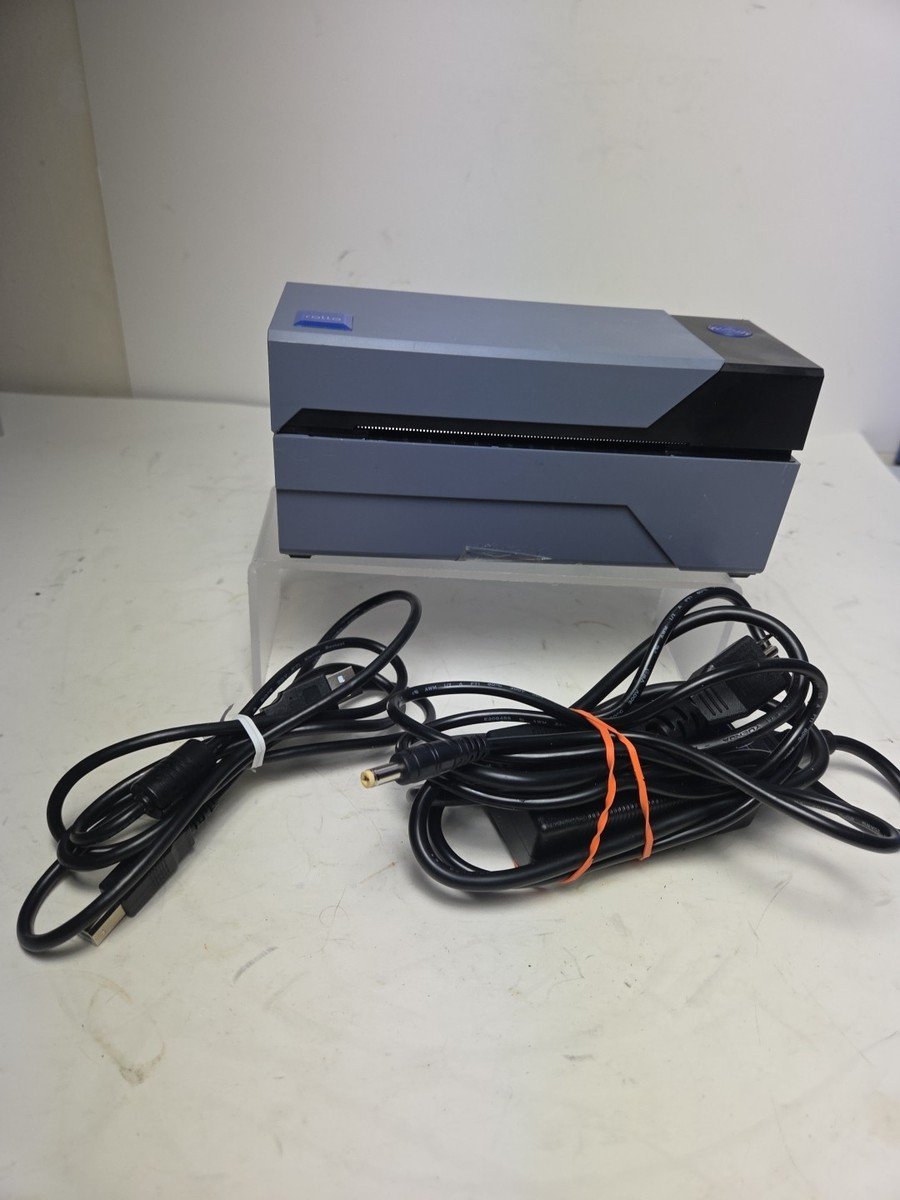
Most Rollo X1040 problems come from power, Wi-Fi, driver, paper, or print-size settings.
Rollo X1040 troubleshooting is usually simple when you check the printer in the right order. This guide explains the most common faults, safe fixes, setup checks, and practical lessons that help restore clear labels without wasting paper or time.
Rollo X1040 Troubleshooting: Start With the Basics
Before changing drivers or resetting your network, check the simple causes. Many Rollo X1040 issues come from a loose cable, a wrong paper size, or a roll that is not loaded straight.
Use this quick checklist:
- Turn the Rollo X1040 off.
- Unplug the power cable for 30 seconds.
- Check that the power adapter is firmly connected.
- Remove any loose or damaged labels.
- Reload the thermal label roll.
- Confirm that the labels match the printer settings.
- Turn the printer on and wait for it to become ready.
- Send one test print.
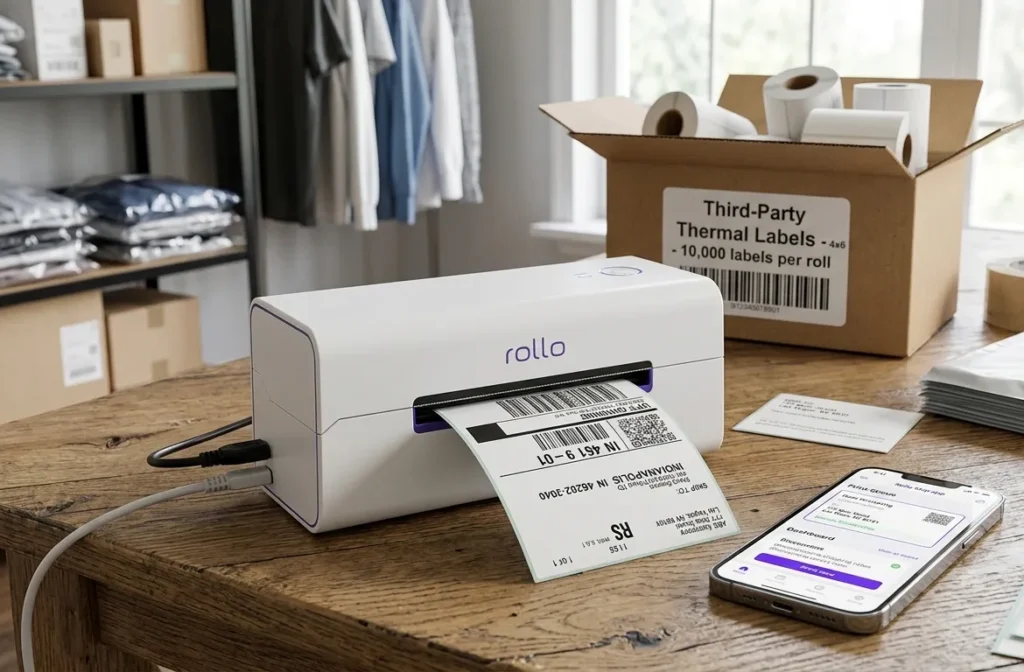
The Rollo X1040 is a direct thermal printer. It does not use ink or toner. It creates an image by heating special thermal paper. This means regular paper will not work, and poor-quality labels may cause fading, blank prints, or weak text.
A useful first test is the self-test or configuration label. The exact button process may vary by firmware and setup, so check the current Rollo instructions for your model. If the test label prints clearly, the hardware is likely fine, and the issue may be in your computer, phone, app, or print settings.

Rollo X1040 Is Not Turning On
If the printer shows no light or response, begin with the power path. Do not assume the printer has failed until you test each connection.
Check these points:
• Use the original or correct-rated power adapter.
• Connect the adapter directly to a wall outlet.
• Try a different outlet that you know works.
• Inspect the cable for cuts, bent pins, or loose ends.
• Make sure the power plug is fully inserted into the printer.
Avoid using an unknown adapter. A charger may fit the socket but still provide the wrong voltage or current. That can stop the printer from starting and may damage its internal parts.
If the printer turns on and then shuts down, overheating or an internal fault may be involved. Remove the label roll and let the unit cool for several minutes. If it still fails with the correct adapter and no paper installed, contact Rollo support rather than opening the printer.
In practical troubleshooting, power problems are easy to overlook. I have seen users spend time reinstalling software when the real problem was a loose adapter behind a desk. Always prove that the printer has stable power before moving to software fixes.

Rollo X1040 Will Not Connect to Wi-Fi
A wireless connection problem can make the Rollo X1040 appear offline even when the printer is working. The printer and the device sending the job must be on a compatible network.
Try the following steps:
- Restart the Rollo X1040.
- Restart your router.
- Restart the phone, tablet, or computer.
- Move the printer closer to the router.
- Check that your device is on the same Wi-Fi network.
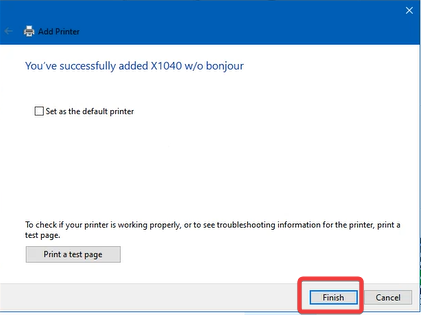
- Remove and add the printer again in the Rollo app or operating system.
- Install the latest available printer app or software.
Many wireless devices work best on a 2.4 GHz network. Some routers combine 2.4 GHz and 5 GHz bands under one network name. If setup fails, temporarily connect your phone or computer to the 2.4 GHz band, if your router allows it.
Public, guest, and hotel networks can block device-to-device communication. The printer may connect to the internet but remain invisible to your phone. A private home network is usually easier to set up.
Do not press reset buttons repeatedly without knowing what they do. A network reset can erase saved settings and create more work. First, confirm the Wi-Fi name, password, and network band.
Rollo X1040 Prints Blank Labels
Blank labels usually point to the wrong label type, incorrect roll placement, or a dirty sensor. Since the Rollo X1040 uses heat, the printable side must face the thermal print head.
Try this process:
• Remove the roll and inspect it.
• Confirm that it is direct thermal media.
• Place the roll so the label surface faces the correct direction.
• Center the labels in the paper path.
• Close the cover firmly.
• Run label calibration.
A simple surface test can help identify thermal paper. Scratch the label lightly with a fingernail. Genuine direct thermal media often shows a dark mark. Do this only on a spare label, since the mark can damage the label.
Blank printing can also happen when the driver sends a format that the printer cannot read. Reinstall the correct Rollo software or driver, then select the Rollo X1040 as the active printer. Avoid generic thermal printer drivers when the Rollo software is available.
If a self-test also produces a blank label, the issue may involve the print head, sensor, or wrong media. Clean the print head only with a suitable cleaning wipe and follow the manufacturer’s instructions. Never scrape the print head with a blade or hard object.
Rollo X1040 Prints Faint, Light, or Uneven Labels
Faint labels are often caused by poor media, low print density, or a dirty print head. Thermal labels can also fade when stored in heat, sunlight, or high humidity.
Use these fixes:
- Test a fresh roll of known-good direct thermal labels.
- Clean the print head after turning off the printer.
- Increase print density slightly in the printer settings.
- Reduce print speed if the software provides that option.
- Make sure the label surface is clean and dry.
- Check for a worn or damaged print head.
Do not set print density to the highest level right away. Excess heat can darken the background, create rough edges, and shorten print-head life. Increase it one step at a time and test again.
Uneven printing down one side may mean the labels are not centered or the cover is not applying equal pressure. Reload the roll and ensure that the guides are snug without squeezing the labels.
A faint label is not always a printer fault. Some inexpensive labels have a coating that reacts poorly to heat. Testing a second label brand is a useful way to separate a media problem from a hardware problem.

Rollo X1040 Prints Too Small, Too Large, or Cut Off
Incorrect label size is one of the most common Rollo X1040 troubleshooting issues. A 4 × 6 shipping label must be set to the same size in the shipping platform, printer driver, browser, and document.
Check these settings:
• Choose the correct paper size, such as 4 × 6 inches.
• Set the correct orientation.
• Turn off “Fit to Page” when exact sizing is required.
• Use “Actual Size” or 100% scale when available.
• Select the Rollo X1040, not a standard office printer.
• Confirm that the PDF itself has the correct page size.
When a label is cut off, the document may be larger than the physical label. When a label has large white borders, a scaling option may be shrinking the content. These are software layout problems, not usually printer defects.
For shipping labels, print from the carrier or marketplace’s recommended label format. Avoid taking a screenshot and stretching it into a new document. Screenshots can change the size and reduce barcode quality.
Always scan a barcode after changing the size. A label may look clear to your eyes but still fail at a shipping counter if the barcode has been stretched or compressed.

Rollo X1040 Feeds Multiple Labels or Skips Labels
The printer uses gaps, marks, or label sensors to detect where one label ends. If the sensor cannot detect the media correctly, the printer may skip labels or feed several at once.
To correct feed errors:
- Remove the roll.
- Check for torn labels or adhesive residue.
- Load the roll with the labels aligned.
- Keep the roll centered.
- Close the cover completely.
- Run the automatic calibration process.
- Print a test label.
Calibration is especially important when switching between label sizes. A printer calibrated for 4 × 6 labels may behave badly with smaller labels until it learns the new gap or mark pattern.
Fan or separate a stack of labels before loading it. Labels that cling together can feed as one thick sheet. Store unused labels flat and away from heat.
If the printer feeds continuously, stop the print job and power off the unit. Continuous feeding can waste a full roll quickly. Recalibrate before sending another large batch.

Rollo X1040 Shows an Offline or Error Status
An offline message does not always mean the printer is disconnected. The operating system may have paused the queue, selected the wrong printer, or lost the wireless connection.
Try these steps:
• Open the printer settings on your computer.
• Confirm that the Rollo X1040 is the selected device.
• Clear stuck jobs from the print queue.
• Remove any paused or offline status.
• Restart the print service or computer.
• Delete and reinstall the printer if the error continues.
On Windows, check the printer queue and make sure “Pause Printing” and “Use Printer Offline” are not active. On macOS, remove the printer from system settings and add it again if the queue appears damaged.
On a phone or tablet, check the Rollo app permissions. The app may need local network access, Bluetooth access, or permission to find nearby devices, depending on the connection method.
Print one small test label before sending a batch. This habit prevents a connection error from producing dozens of duplicate or incomplete labels.
Rollo X1040 USB and Driver Problems
A USB connection should be direct and stable. If the Rollo X1040 works on one computer but not another, the printer is probably fine and the issue is related to the port, driver, or operating system.
Follow this order:
- Disconnect the USB cable.
- Restart the computer.
- Connect the printer directly to the computer.
- Avoid hubs and docking stations during testing.
- Install the current Rollo software or driver.
- Select the correct printer in the print dialog.
- Print a test page.
Some USB cables provide power but do not carry reliable data. Use a known-good data cable if the printer is not detected. Also test another USB port.
Old drivers can create duplicate printer names. Remove unused copies, such as “Rollo X1040 Copy 1,” and keep the active installation. Duplicate queues can send a job to a disconnected device.
After a major operating system update, printer permissions and drivers may need to be refreshed. Download software from the official Rollo support channel, not from an unknown driver website.

Rollo X1040 Prints With Lines, Smears, or Repeated Marks
Lines often appear when dust, adhesive, or label coating touches the thermal print head. Repeated marks in the same place can also indicate a damaged roller or print head.
Turn off and unplug the printer before cleaning. Let the print head cool, then use the cleaning method recommended for thermal printers. Do not use water inside the printer, and do not touch the print head with sharp tools.
Inspect the labels for:
• Loose adhesive.
• Wrinkled edges.
• Dust or debris.
• Uneven coating.
• Labels that have been exposed to heat.
If the mark appears at the same position on every label, try a new roll. If the issue remains, the printer may need professional service. Replacing internal parts without the correct instructions can cause more damage.
One lesson worth remembering is that cleaning too aggressively is worse than cleaning too rarely. Gentle, regular cleaning is safer than pressing hard against a delicate print head.
How to Reset and Recalibrate the Rollo X1040
A reset can help when saved network or printer settings become confused. However, reset procedures can vary by model version and firmware. Use the current instructions for the Rollo X1040 before holding any button for an extended time.
Before resetting, record:
• The Wi-Fi network name.
• The printer name shown in your device.
• Your label size.
• Any custom density or speed settings.
• The software or app used for printing.
After a reset, add the printer again, load the labels, and run calibration. Send one test label before restoring advanced settings.
Calibration teaches the printer where each label starts and ends. It is not the same as changing the page size. You may need both: correct software dimensions and correct physical-media calibration.
Preventive Tips for Reliable Rollo X1040 Printing
Good maintenance reduces most printing problems. Treat the printer like a small tool that needs a clean path, stable power, and correct instructions.
Use these habits:
• Keep the printer on a level, clean surface.
• Store labels in a cool, dry place.
• Keep dust away from the paper path.
• Use compatible direct thermal labels.
• Clean the print head as recommended.
• Update the printer app and driver when needed.
• Test a label before a large shipping run.
• Keep a spare roll from a trusted supplier.
Avoid overloading the paper path. Do not force a roll into place, and do not pull labels backward while the printer is feeding. These actions can disturb the sensor or leave adhesive inside the machine.
For a small business, create a one-page setup checklist. Include the label size, connection type, driver name, and calibration steps. This saves time when another employee uses the printer or when a computer is replaced.
When to Contact Rollo Support
Contact support when basic checks do not solve the issue or when the printer shows signs of hardware failure. Provide clear details so the support team can identify the cause faster.
Include:
• The exact Rollo model, such as X1040.
• Your operating system or mobile device.
• Your connection type.
• The label size and media type.
• A photo of the printed problem.
• Whether a self-test prints correctly.
• The steps you already tried.
Stop using the printer if you smell burning, see smoke, or notice a damaged power cable. Unplug it and seek professional help. Do not open the case while the printer is connected to power.
A warranty claim may be appropriate when the printer remains blank with compatible media, fails to power on with the correct adapter, or produces the same hardware defect after software and calibration checks.
Frequently Asked Questions of Rollo X1040 Troubleshooting
Why is my Rollo X1040 not printing?
Check power, label direction, printer selection, and the print queue first. Then confirm that you are using direct thermal labels and the correct Rollo driver or app.
How do I fix blank labels on the Rollo X1040?
Reload compatible thermal labels with the printable side facing the print head. If blank labels continue, clean the print head, run calibration, and test a fresh roll.
Why does my Rollo X1040 keep feeding labels?
The label sensor may need calibration, or the media may have an unusual gap or mark. Stop the job, reload the roll, and run the model’s calibration process.
Why is my Rollo X1040 printing the wrong size?
The paper size may differ between the document, shipping website, driver, and printer settings. Select the exact label dimensions and use 100% or Actual Size instead of Fit to Page.
Can the Rollo X1040 print without ink?
Yes. The Rollo X1040 uses direct thermal printing, so it does not need ink or toner. It requires compatible heat-sensitive labels.
Why does my Rollo X1040 keep going offline?
The printer may be on a different Wi-Fi network, the queue may be paused, or the app may lack local network permission. Restart both devices, confirm the network, and remove and add the printer again if needed.
When should I replace my Rollo X1040?
Consider service or replacement when the printer will not power on with the correct adapter, fails every self-test, or has permanent print-head damage. Try compatible media, cleaning, calibration, and driver checks first.
Conclusion
Most Rollo X1040 troubleshooting starts with four areas: power, labels, connection, and print settings. Check them in that order, then move to calibration, cleaning, driver repair, or support if the basic fixes fail.
The best way to avoid repeat problems is to use quality thermal labels, confirm the 4 × 6 layout, keep the print path clean, and run a test label before a large batch. Save this guide for your next printer issue, and explore the latest Rollo support resources when you need model-specific instructions.

Similar Posts