Kyocera ECOSYS P5026cdw Troubleshooting: Quick Fixes
Most Kyocera ECOSYS P5026cdw problems come from paper paths, toner settings, network issues, or outdated drivers.
The Kyocera ECOSYS P5026cdw is a fast color laser printer, but even a reliable office printer can show errors, print faint pages, or stop connecting. This Kyocera ECOSYS P5026cdw troubleshooting guide explains the most common faults, safe fixes, and service checks in simple steps. It also covers print quality, paper jams, wireless and wired networks, toner, drivers, and error messages.
Start With Basic Kyocera ECOSYS P5026cdw Troubleshooting
Begin with the simplest checks. Many printer faults are caused by a loose cable, a wrong paper size, or a device that needs a clean restart.
Follow these steps:
- Turn off the printer with the power button.
- Unplug it for about one minute.
- Check the power cord and wall outlet.
- Remove any loose paper from the tray.
- Turn the printer back on.
- Wait until the display shows the ready state.
- Send a small test print.
A full restart can clear a temporary controller or communication fault. It also lets the printer reload its paper, toner, and network settings.
Check the printer display before sending another job. If it shows “Ready,” the printer itself may be fine. The problem may instead be in the computer, print queue, driver, or network.
When I work through Kyocera ECOSYS P5026cdw troubleshooting, I check the printer display first. This simple habit prevents wasted time because the display often points to the exact area that needs attention.
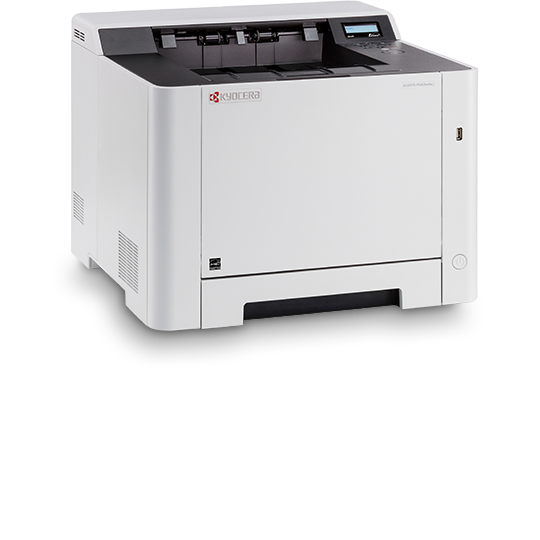
Kyocera ECOSYS P5026cdw Troubleshooting for Paper Jams
Paper jams are among the most common issues with color laser printers. A small torn piece of paper can act like a doorstop inside the machine.
Open the printer only where the display or user guide directs you. Remove paper slowly and in the direction of normal paper movement. Pulling too hard can damage rollers or leave scraps behind.
Check these areas:
• Main paper tray
• Manual feed tray
• Rear cover
• Duplex unit
• Fuser area
• Output path
Use a flashlight if needed, but do not touch hot parts. The fuser can remain hot after printing, so allow the printer time to cool before reaching inside.
Paper quality also matters. Use clean, dry paper that matches the tray setting. Curled, damp, bent, or mixed paper can cause repeated jams.
For better results:
• Fan a new paper stack before loading it.
• Do not fill the tray above its limit mark.
• Adjust the paper guides so they touch the stack lightly.
• Set the correct paper size and type in the printer menu.
• Store paper in a dry room away from heat and moisture.
If the same jam returns after the path is clear, inspect the rollers for dust or wear. Repeated jams in one location may require a trained technician.
A useful Kyocera ECOSYS P5026cdw troubleshooting lesson is to look for the paper’s path, not just the visible jam. The cause may be a tiny paper strip hidden near a sensor.

Fixing Print Quality Problems
Poor print quality can appear as light text, dark bands, spots, streaks, or wrong colors. First, print an internal status or quality page if the control panel offers that option. This helps separate a printer problem from a computer file problem.
Faded or Light Prints
Faded pages may point to low toner, an incorrect media setting, or a toner cartridge that is not seated correctly.
Try these steps:
- Remove and gently shake the affected toner cartridge from side to side.
- Reinstall it firmly.
- Confirm that the cartridge matches the printer model.
- Check toner levels on the printer display or web interface.
- Select the correct paper type in the print settings.
- Print another test page.
Do not shake a cartridge hard. Excess movement can spread toner inside the printer.
Lines, Spots, or Repeating Marks
Vertical lines may come from a dirty imaging area, transfer unit, or laser path. Repeating marks at regular distances often suggest a roller or drum-related issue.
Clean only the parts that the user guide identifies as user-serviceable. Avoid touching imaging surfaces with your fingers. Oils from skin can create new marks.
If every page has the same repeated mark, record the distance between marks and contact service support. That pattern can help identify the affected roller.
Incorrect or Missing Colors
If one color is missing, check that color’s toner cartridge first. A cartridge may be empty, blocked, damaged, or poorly seated.
Also check the document itself. A file may use a color profile or object that does not print as expected. Print a printer-generated color page to see whether the issue appears outside the original file.
These print-quality steps are central to Kyocera ECOSYS P5026cdw troubleshooting because they help identify whether the problem is toner, paper, hardware, or software.
Toner and Cartridge Troubleshooting
The ECOSYS P5026cdw uses separate toner colors. This design can reduce waste because you replace only the color that is empty.
Use the printer’s toner information to check each color. A low-toner warning does not always mean the cartridge is fully empty, but print quality may change as the supply runs down.
Common cartridge problems include:
• Toner not recognized
• Low toner warning after replacement
• One color missing
• Loose cartridge
• Toner leakage
• Incorrect replacement cartridge
Before installing a new cartridge, confirm the model and color. Remove all shipping seals and protective packaging. A cartridge with a seal still attached may fit but fail to supply toner.
Never use a vacuum cleaner that is not designed for toner. Fine toner particles can damage a normal household vacuum and may spread into the air.
If toner spills, avoid rubbing it into fabric. Use cool water on washable cloth and follow the cartridge maker’s safety guidance. Keep toner away from children and pets.
One mistake I often see in Kyocera ECOSYS P5026cdw troubleshooting is replacing every cartridge at once. Replace only the affected cartridge unless the printer gives a clear reason to change more.
Solving Connection and Network Problems
The printer may show “offline” even when it is powered on. This usually means the computer cannot reach the printer, or the print queue has stopped.
For a USB connection:
• Reseat the USB cable at both ends.
• Try a different USB port.
• Avoid loose hubs during testing.
• Remove old duplicate printer entries.
• Install the correct driver for the operating system.
For an Ethernet connection:
• Check the network cable.
• Look for link lights on the printer or network switch.
• Confirm that the printer has an IP address.
• Print a network status page if available.
• Make sure the computer is on the same network.
A changing IP address can cause a printer to disappear from computers. A reserved address from the network administrator can help in managed offices. Do not change network settings unless you understand the local network plan.
For a wireless connection, check signal strength and security settings. Thick walls, crowded Wi-Fi channels, and network isolation can block printer discovery.
Restart the printer and computer after correcting the connection. Then remove and add the printer again if the operating system still lists it as offline.
A strong Kyocera ECOSYS P5026cdw troubleshooting process tests the connection with a status page or web browser before changing drivers. This shows whether the network can reach the printer.

Driver, Queue, and Print Job Errors
A stuck print job can make every later document wait. Open the computer’s printer queue and cancel old jobs. If a job will not clear, restart the print spooler or restart the computer.
Install the printer driver that matches your operating system and connection type. A generic driver may print basic pages but miss color, duplex, paper tray, or finishing options.
Check these settings:
• Correct printer name
• Correct IP address or USB port
• Correct paper size
• Color or black-and-white mode
• Duplex setting
• Manual feed selection
• Default paper tray
• Printer status set to online
If only one application fails, print from another program. For example, test a plain text file or a system test page. If the test page works, repair or update the original application.
Large graphics and complex PDF files can also fail due to memory or rendering limits. Try printing a lower-resolution copy or use the application’s “print as image” option when available.
Driver checks are an important part of Kyocera ECOSYS P5026cdw troubleshooting. The printer may be healthy while the computer sends an invalid or incomplete job.
Duplex, Paper Size, and Color Settings
Wrong settings can look like printer faults. A document may print on one side because duplex printing is disabled in the driver. It may also pull paper from the wrong tray because the selected size does not match the loaded paper.
Before printing, check:
- Paper size, such as Letter or Legal.
- Paper type, such as plain, thick, or recycled.
- Color mode.
- Orientation.
- Duplex or two-sided printing.
- Scaling and margins.
- Selected paper tray.
If the printer displays a paper mismatch message, do not keep pressing print without checking the tray. Confirm that the driver and printer menu use the same size and type.
Thick media may need a different feed path or setting. Envelopes, labels, and specialty paper should meet the printer’s supported specifications. Poor media can cause jams, poor fusing, or curled output.
This part of Kyocera ECOSYS P5026cdw troubleshooting often solves complaints that seem serious but are caused by a single wrong setting.

Error Messages and Safety Checks
Read the full message on the display. Write down any code before restarting the printer. A code that returns after a restart gives service staff useful information.
Safe actions include:
• Check for visible paper.
• Close every cover firmly.
• Confirm that the toner cartridges are seated.
• Remove an obvious obstruction.
• Restart the printer once.
• Record the error code and timing.
Do not bypass safety switches or force covers closed. Do not touch the fuser, high-voltage parts, or internal electrical components. Unplug the printer before cleaning or inspecting areas that the manual marks as unsafe.
Some errors need a trained technician. This is especially true when the printer shows a persistent fuser, motor, scanner, power, or internal communication error.
Never repeatedly reset an error without finding its cause. A reset may hide a warning for a short time while the underlying fault continues.
Good Kyocera ECOSYS P5026cdw troubleshooting includes knowing when to stop. Safe diagnosis is more important than getting one more page printed.
Cleaning and Preventive Maintenance
Regular care can prevent many print and feed problems. Keep the printer on a level surface with enough space for ventilation and access.
Use a soft, lint-free cloth for the outside. Follow the official maintenance instructions for internal cleaning. Do not spray cleaner into the printer.
A simple maintenance plan includes:
• Keep paper dry and covered.
• Remove dust near vents.
• Clean accessible feed areas as directed.
• Replace toner with the correct part.
• Keep firmware and drivers current when approved for your setup.
• Avoid overloading the paper tray.
• Record repeated errors and paper jams.
Do not use compressed air inside the printer unless the service instructions allow it. Air can push toner and dust deeper into sensors and optical parts.
In office use, a small log is helpful. Record the date, error, paper type, toner color, and action taken. This can reveal patterns and reduce repeat service calls.
Preventive care makes Kyocera ECOSYS P5026cdw troubleshooting faster because you already know the printer’s recent history.
When to Contact a Technician
Contact a qualified technician when a problem remains after basic checks or when the same error keeps returning.
Professional service is wise when:
• The printer smells like burning plastic.
• It makes grinding or sharp clicking sounds.
• Paper jams occur in the same internal area.
• Pages show severe repeating marks.
• The fuser or motor error returns.
• The printer shuts down unexpectedly.
• Toner leaks inside the machine.
• The device cannot complete startup.
Have the model number, serial number, error code, and recent repair details ready. Tell the technician whether the problem affects black, color, duplex, or all print jobs.
Avoid opening sealed service areas unless you are trained. Laser printers contain high-temperature and high-voltage components. A repair attempt can create a safety risk and may affect service coverage.
The best Kyocera ECOSYS P5026cdw troubleshooting approach combines simple user checks with timely professional help.
Frequently Asked Questions About Kyocera ECOSYS P5026cdw Troubleshooting
Why is my Kyocera ECOSYS P5026cdw offline?
Check the USB or Ethernet cable, printer IP address, and computer print queue. Restart both devices, then remove and add the printer again if the computer still shows it as offline.
How do I clear a paper jam on the Kyocera ECOSYS P5026cdw?
Follow the display instructions and inspect the tray, rear cover, duplex path, and output area. Remove paper gently, check for small scraps, and let the fuser cool before touching nearby parts.
Why is the Kyocera ECOSYS P5026cdw printing faded pages?
Check toner levels, cartridge seating, paper type, and print density settings. If the printer’s own test page is also faint, the issue may involve toner delivery or an internal imaging component.
Why does my Kyocera ECOSYS P5026cdw print the wrong colors?
Check the color toner cartridges and print a built-in color test page. If one color is missing on the test page, reseat or replace that color cartridge with the correct model.
How do I fix a Kyocera ECOSYS P5026cdw that will not print?
Clear stuck jobs, confirm that the correct driver and printer port are selected, and check paper and toner warnings. Test from another application to determine whether the issue is with the printer or the original file.
Should I reset the Kyocera ECOSYS P5026cdw?
A restart is safe for many temporary faults, but a factory reset should be avoided unless you have recorded the network and printer settings. Resetting can remove important configuration details and may not fix a hardware problem.
Conclusion
Kyocera ECOSYS P5026cdw troubleshooting is easier when you work from simple checks to deeper tests. Start with power, paper, toner, cables, printer settings, and the display message. Then check drivers, queues, network access, and print quality patterns.
Keep paper dry, use the correct supplies, and record repeated errors. Stop and seek professional help for heat, power, motor, fuser, or internal hardware faults. Apply these steps the next time your printer fails, and explore the official user and service resources for model-specific guidance.