Kyocera ECOSYS P2040dw Troubleshooting: Quick Fix Guide

Most Kyocera ECOSYS P2040dw problems come from paper paths, drivers, network settings, or low supplies.
Kyocera ECOSYS P2040dw troubleshooting is often simple when you follow a clear order. This compact monochrome laser printer is built for steady office work, but paper dust, old drivers, weak Wi-Fi, and worn parts can still cause trouble. This guide explains the most common faults, safe fixes, and signs that you need service.
Start with basic Kyocera ECOSYS P2040dw troubleshooting
Before changing settings, check the simple causes. Many printer faults begin with a loose cable, a poor paper stack, or a device that needs a full restart.
Follow these steps:
- Turn off the printer with the power button.
- Unplug it for about 60 seconds.
- Check the power cord and wall outlet.
- Remove loose paper from the tray.
- Reload fresh paper below the tray limit.
- Turn the printer on again.
- Check the printer display for an error code.
- Print a status page or configuration page.
A full restart clears temporary memory and may restore a stalled print job. It does not erase your network settings or printer preferences.
Also check whether the printer is set as the default device. On Windows, open Settings, choose Bluetooth & devices, select Printers & scanners, and confirm the Kyocera ECOSYS P2040dw is selected. On macOS, check Printers & Scanners in System Settings.
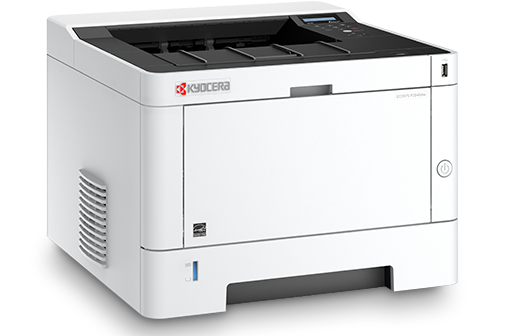
Kyocera ECOSYS P2040dw not turning on
If the printer shows no lights or sounds, begin with the power path. Do not open the printer until it is unplugged and cool.
Check the following:
• Test the outlet with another device.
• Push the power cord firmly into the printer and wall outlet.
• Avoid a damaged extension cord or overloaded power strip.
• Check for a tripped breaker.
• Look for signs of heat, smoke, or a burnt smell.
If the outlet works but the printer remains dead, the power supply or main control board may have failed. This is not a good DIY repair. Laser printers contain high-voltage parts, even after the machine stops printing.
If the printer starts but freezes during startup, disconnect the network cable and remove pending print jobs from every connected computer. A corrupted job can sometimes keep the device busy.
In my printer support work, I have seen users replace toner when the real issue was a loose power cable. Always confirm basic power first. It takes less than a minute and prevents wasted money.
Kyocera ECOSYS P2040dw offline or not responding
An offline message usually means the computer cannot reach the printer. The printer may still be powered on and ready.
Try this process:
- Confirm that the printer display shows Ready.
- Check whether the Ethernet cable is secure.
- If you use Wi-Fi, confirm that the printer and computer use the same network.
- Restart the printer, router, and computer.
- Remove duplicate printer entries from the computer.
- Set the correct printer as the default.
- Clear paused or stuck jobs.
A network printer can appear offline after a router restart. The printer may receive a new IP address, while the computer still searches for the old one. Printing a network status page can show the current address.
If the printer uses a USB connection, connect it directly to the computer for testing. Avoid a USB hub during diagnosis. If direct USB printing works, the issue is likely related to the network, port, or print server.
For Kyocera ECOSYS P2040dw troubleshooting, checking the connection before reinstalling the driver is a major time saver.
Fix Kyocera ECOSYS P2040dw Wi-Fi and network problems
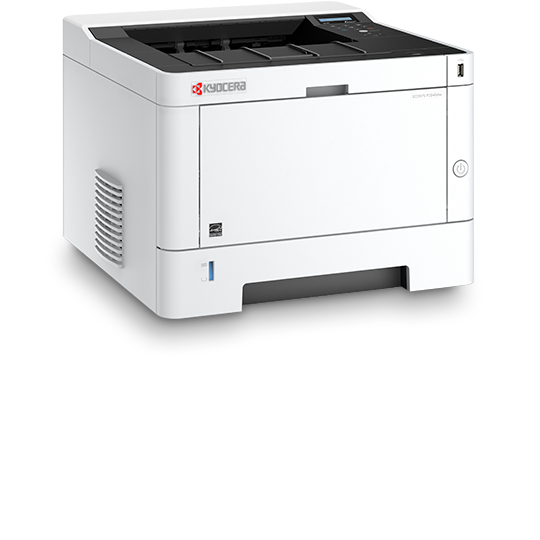
The ECOSYS P2040dw can print over a network, but wireless problems may come from signal strength, security settings, or a changed IP address.
Check the printer’s network details
Print a configuration or network status page. Look for:
• IP address
• Connection status
• Network name or SSID
• Firmware information
• TCP/IP settings
Enter the printer’s IP address in a web browser on a computer connected to the same network. If the page opens, the network connection is active. If it does not open, check the router, cable, or wireless setup.
Use a stable IP address
A changing IP address can cause repeated offline errors. A reserved address in the router is often better than manually entering a random fixed address on the printer. Ask your network administrator before changing business network settings.
Check security and signal issues
Some office routers separate wireless devices from wired devices. This setting can stop the computer from finding the printer. Guest networks can create the same problem.
Keep the printer away from thick walls, large metal cabinets, and devices that create radio interference. If Wi-Fi remains unreliable, Ethernet is often the better choice for a fixed office printer.
Avoid guessing passwords or advanced wireless settings. Write down the original values before making changes. This makes recovery easier if the new setup fails.
Kyocera ECOSYS P2040dw driver and print queue fixes
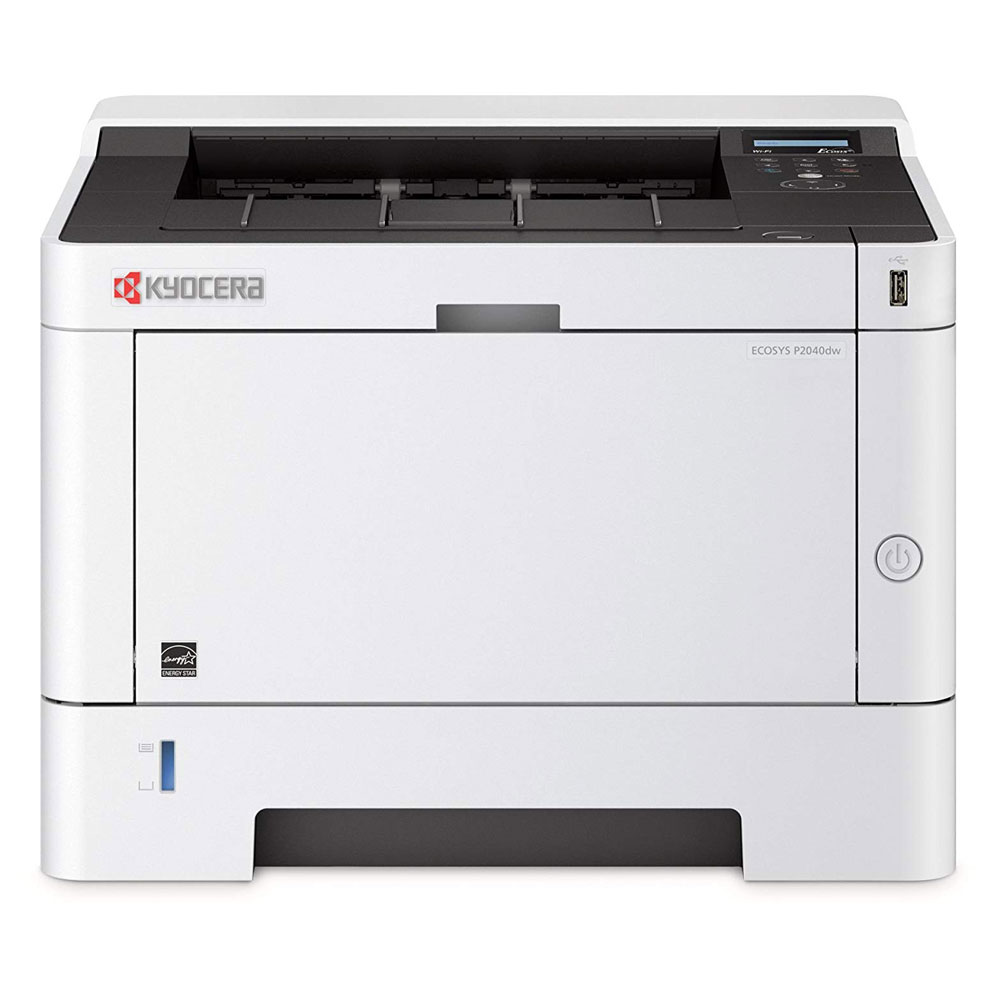
A wrong or damaged driver can cause blank pages, wrong paper sizes, slow printing, or jobs that never leave the queue. Driver problems often appear after a Windows or macOS update.
Use the current driver made for your operating system and printer model. Download it from the official Kyocera support page or your organization’s approved software source. Avoid random driver websites.
Reinstall the printer correctly
- Cancel all pending print jobs.
- Remove the old printer from the computer.
- Restart the computer.
- Install the correct Kyocera driver.
- Add the printer using the correct USB or network method.
- Print a test page.
On Windows, the correct TCP/IP port matters. A generic or old port may point to the wrong IP address. On macOS, AirPrint may work for basic jobs, but the manufacturer’s driver can provide more control over paper, duplex printing, and finishing options.
Check the print preferences too. Make sure the selected paper size matches the paper in the tray. A mismatch can cause repeated prompts or a printer that appears stuck.
A useful troubleshooting habit is to print a test page from the printer itself. If that page works, the hardware is likely fine and the computer, driver, or document is the problem.
Kyocera ECOSYS P2040dw paper jam troubleshooting
Paper jams are among the most common Kyocera ECOSYS P2040dw troubleshooting issues. A small torn piece of paper can act like a pebble in a shoe. The printer may continue to report a jam until every piece is removed.
Remove a jam safely
- Read the location shown on the printer display.
- Open only the needed cover.
- Pull paper slowly in the direction of normal travel.
- Remove torn pieces with care.
- Close each cover firmly.
- Reload paper and press the required button.
Never pull hard on paper that is stuck near the fuser. The fuser becomes very hot. Turn the printer off and allow it to cool before reaching into that area.
Prevent repeat jams
• Use clean, dry paper made for laser printers.
• Store paper flat in its sealed package.
• Fan the stack before loading it.
• Adjust the tray guides so they touch the paper without squeezing it.
• Do not mix paper sizes or types in one tray.
• Keep the stack below the maximum fill line.
• Avoid curled, damp, folded, or damaged sheets.
If jams happen with one tray only, inspect that tray for broken guides or worn feed rollers. If jams happen in several areas, paper quality, rollers, or the fuser may need attention.
One mistake I often see is reusing paper that already passed through a printer. Curl and heat can change its shape. Fresh paper is a small cost compared with repeated jams and lost work.
Fix slow printing and stuck print jobs
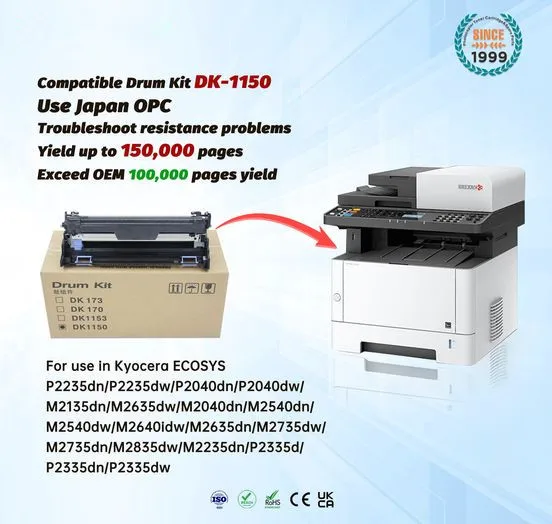
A large document, high-resolution image, or complex PDF can take longer to process. The printer may look frozen while the computer prepares the job.
First, check the computer’s print queue. Delete old jobs, then send a one-page text document. If the test page prints quickly, the original document may be too complex or damaged.
Other causes include:
• Printing through a slow wireless connection
• Using a shared print server
• Sending many copies at once
• Selecting high-quality image settings
• Installing an old driver
• Printing from a low-memory computer
Restarting the Print Spooler service on Windows can clear a stuck queue. On macOS, removing and re-adding the printer can do the same job.
Do not repeatedly press Print while waiting. This can create many duplicate jobs. Send one test page and watch the queue.
Kyocera ECOSYS P2040dw poor print quality
Poor print quality may appear as light text, dark bands, gray backgrounds, spots, lines, or repeated marks. The pattern can help identify the cause.
Light or faded printing
Check the toner level and toner installation. Make sure the toner cartridge is the correct model for the printer and is seated properly.
Light printing can also result from:
• Low-quality or damp paper
• An incorrect print density setting
• A worn imaging component
• A cold or unsuitable printer location
Do not shake a toner cartridge aggressively. If the cartridge is nearly empty, replace it with a genuine or verified compatible product that matches the printer model.
Black lines or repeated marks
Vertical lines may come from dirt or damage in the imaging path. Repeated marks at regular distances often point to a roller or drum-related issue.
Use only the cleaning method described in the printer guide. Do not touch the drum surface with your fingers. Finger oils can damage print quality.
Gray background or dirty pages
A gray background may indicate incorrect toner, paper moisture, an imaging problem, or a setting that is too dark. Print an internal status page to compare it with a document from the computer.
If the internal page is also poor, focus on the printer and supplies. If only computer documents look wrong, check the driver and application settings.
Blank pages
Blank pages can result from an empty or badly seated cartridge, a damaged document, or a driver problem. Print an internal page first. This simple test separates printer hardware problems from software problems.
Kyocera ECOSYS P2040dw toner and cartridge problems
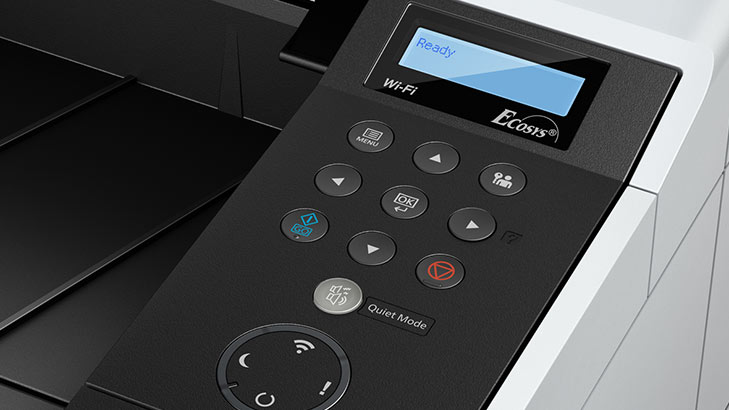
The printer may show a toner warning before the cartridge is fully empty. This warning helps prevent unexpected downtime, but it does not always mean the printer has stopped working.
Confirm that:
• The cartridge model matches the printer.
• All protective packing materials are removed.
• The cartridge is seated correctly.
• The cover closes fully.
• The toner setting matches the installed cartridge.
A compatible cartridge may reduce costs, but quality can vary between suppliers. Poor toner can cause background haze, weak text, streaks, and extra cleaning. For important office work, use supplies from a trusted source.
Never dispose of toner in a fire. Toner is a fine powder, and the cartridge should be handled according to local recycling rules.
If the printer repeatedly reports toner errors with a new, correct cartridge, the sensor or cartridge recognition system may need professional service.
Duplex printing and paper size errors
The ECOSYS P2040dw supports automatic two-sided printing when the correct driver and paper settings are used. Duplex problems often come from a mismatch between the document and tray settings.
Check these options:
• Paper size, such as Letter or A4
• Paper type
• Portrait or landscape direction
• Short-edge or long-edge binding
• Duplex setting in the application
• Driver preference and printer panel setting
For US offices, Letter paper is common. If the driver is set to A4, the printer may pause or produce poor page alignment. Select the actual paper loaded in the tray.
Some thick, coated, or special media may not be suitable for automatic duplex printing. Read the paper guidance for the printer before using specialty stock.
Print two pages as a test. If the first side prints correctly but the second side jams, inspect the paper type, curl, and duplex path.
Error codes and warning messages
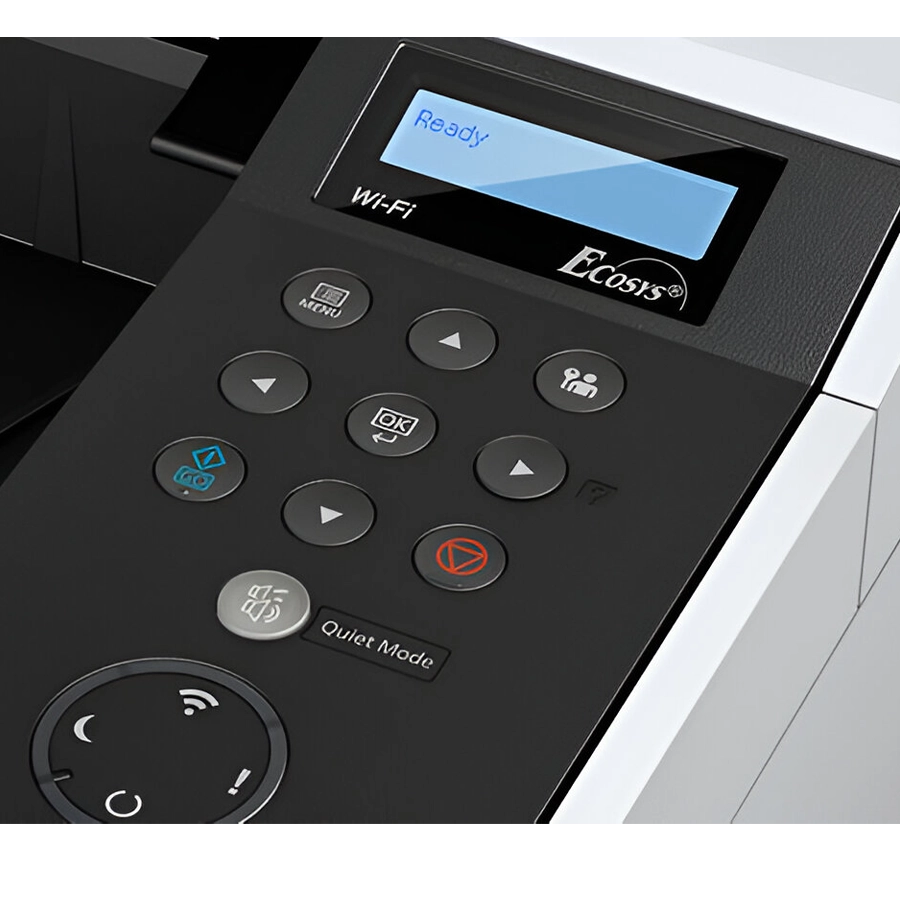
The printer display may show a paper, cover, toner, or service warning. The exact meaning depends on the message or code.
Use this method:
- Record the complete message.
- Note what happened before it appeared.
- Check the indicated cover, tray, or cartridge.
- Remove paper only as instructed.
- Restart the printer after the cause is corrected.
- Search the official user guide for the exact code.
Do not ignore a recurring service message. A single temporary warning may clear after a restart, but repeated codes can indicate a failing sensor, motor, fuser, or controller.
Take a photo of the display before clearing the message. This gives a technician useful information and prevents guesswork.
If the printer makes grinding, clicking, or scraping sounds, stop using it. Strange sounds can signal a damaged gear or foreign object. Continued use may turn a small repair into a major one.
Cleaning and preventive maintenance
Regular care can prevent many Kyocera ECOSYS P2040dw troubleshooting problems. Keep the printer in a clean, dry place with enough space around vents and covers.
Basic care includes:
• Wipe the outside with a soft, dry cloth.
• Remove loose paper dust from accessible areas.
• Keep the paper tray clean and dry.
• Avoid household sprays inside the printer.
• Do not use compressed air unless the service instructions allow it.
• Replace supplies before print quality becomes unusable.
• Keep the printer away from direct heat and moisture.
A maintenance schedule depends on print volume and environment. A busy office may need more frequent cleaning than a home office. Paper dust, labels, and low-quality media can increase wear.
Firmware updates may improve compatibility or fix known issues. Follow the official update instructions and do not turn off the printer during an update.

When to contact a printer technician
You can solve many connection, paper, driver, and toner problems at home or in the office. Professional service is safer when the fault involves power, heat, internal wiring, or repeated mechanical errors.
Contact a technician when:
• The printer will not power on after outlet testing.
• A service code returns after a restart.
• The fuser area is damaged or unusually hot.
• The printer makes loud mechanical sounds.
• Paper jams continue after cleaning and correct loading.
• Print quality remains poor with a new, correct cartridge.
• The network card or control panel stops responding.
Before requesting help, collect:
• The printer model and serial number
• The exact error message
• The number of printed pages, if available
• The type and size of paper
• The cartridge model
• Steps already taken
This information shortens the repair process. It also helps prevent a technician from repeating tests you have already completed.
A reliable Kyocera ECOSYS P2040dw troubleshooting workflow
A good workflow follows the path from simple causes to complex ones. Think of it as checking a door before replacing the house.
- Check power and display messages.
- Check paper, covers, and tray guides.
- Print an internal status page.
- Test with a one-page document.
- Check the USB or network connection.
- Clear the print queue.
- Update or reinstall the driver.
- Check toner and print quality.
- Inspect for repeated mechanical faults.
- Contact service when the problem involves internal parts.
This order saves time because it separates hardware, supplies, documents, and network causes. It also reduces unnecessary resets that can erase useful settings.
For example, if an internal status page is clear but a PDF is blank, replacing toner is unlikely to help. The better next step is checking the PDF, application, and driver.
Frequently Asked Questions About Kyocera ECOSYS P2040dw Troubleshooting
Why is my Kyocera ECOSYS P2040dw offline?
The printer may be using a changed IP address, a loose network cable, or a paused print queue. Restart the printer and router, confirm the connection, clear pending jobs, and verify the printer port.
How do I clear a paper jam on the Kyocera ECOSYS P2040dw?
Open the cover shown on the display and remove the sheet slowly in the normal paper path direction. Check for small torn pieces, let the fuser cool before reaching near it, and reload clean paper.
Why is my Kyocera ECOSYS P2040dw printing blank pages?
Check that the toner cartridge is correct, unpacked, and seated properly. Then print an internal status page; if it prints normally, the computer driver or document is the likely cause.
How do I reset my Kyocera ECOSYS P2040dw?
Start with a normal power cycle by turning the printer off, unplugging it briefly, and reconnecting it. Use a factory reset only when necessary, because it can remove network and custom settings.
Why is the print quality faint or streaky?
Low toner, damp paper, a dirty print path, or a worn imaging part may cause faint or streaky pages. Test with fresh laser paper and a correct cartridge before arranging service.
Why does my Kyocera printer show a toner warning after replacement?
The cartridge may be incorrect, poorly seated, or still covered by packing material. Remove and reinstall it carefully, then confirm that the replacement matches the printer model.
How can I stop Kyocera ECOSYS P2040dw print jobs from getting stuck?
Cancel all jobs in the print queue and restart the computer and printer. If the problem returns, reinstall the correct driver and verify that the selected USB or TCP/IP port points to the printer.
Conclusion
Kyocera ECOSYS P2040dw troubleshooting becomes much easier when you test one cause at a time. Start with power, paper, covers, toner, and the internal test page. Then move to the driver, print queue, USB connection, or network settings.
Use fresh paper, keep the printer clean, and record error messages before clearing them. Avoid opening high-voltage or hot areas unless the official instructions clearly allow it. Follow this process today, and share your experience or questions in the comments for more practical printer help.

Similar Posts