Canon Imageclass Mf656Cdw Troubleshooting: Quick Fixes
Most Canon imageCLASS MF656Cdw issues come from paper jams, connection glitches, or settings errors.
If you have a Canon imageCLASS MF656Cdw and it keeps acting up, you are not alone. I have seen this model run smoothly for long stretches, then suddenly slow down because of a jam, a network hiccup, or a simple setup mistake. The good news is that most Canon imageCLASS MF656Cdw troubleshooting steps are easy once you know where to look, and a calm, step-by-step fix usually saves time and stress.
Common Canon imageCLASS MF656Cdw problems and what they usually mean
The Canon imageCLASS MF656Cdw is a solid color laser all in one printer, but like any office device, it can develop small issues over time. Most problems point to one of a few root causes: paper handling, toner, driver settings, Wi Fi, or firmware. Once you understand the pattern, Canon imageCLASS MF656Cdw troubleshooting becomes much easier.
Some of the most common symptoms include:
• Paper jam messages even when the paper path looks clear
• Streaks, faded print, or uneven color
• The printer is offline or not found on the network
• Slow printing or jobs stuck in the queue
• Scan to email or scan to folder not working
• Repeated error codes on the control panel
In my experience, people often jump straight to replacing parts when the real issue is simpler. I once spent nearly an hour checking toner before realizing the paper size setting did not match the tray. That kind of mismatch is tiny, but it can stop the whole machine.
Start with the basics before you dig deeper
Good Canon imageCLASS MF656Cdw troubleshooting starts with the simple checks. These quick steps solve a surprising number of problems and prevent wasted effort. Think of it like checking the lights before replacing the battery in a car.
Try this first:
• Turn the printer off, wait 30 seconds, and power it back on
• Check the display for any error message or code
• Make sure the paper is loaded correctly and not overfilled
• Confirm the toner cartridges are seated properly
• Remove any visible paper scraps from the tray or rear cover
• Test with a different print job or document
If the printer is frozen, a restart often clears the temporary glitch. If the issue returns right away, that usually means the problem is deeper, such as a jam sensor, network setting, or print driver conflict.
Fix paper jams and feeding issues
Paper jams are among the most common Canon imageCLASS MF656Cdw troubleshooting problems. Even a tiny torn corner can trigger repeated jam alerts. The MF656Cdw is sensitive to paper condition, tray setup, and loaded media size.
Follow these steps:
- Turn the printer off and unplug it if needed for safety.
- Open the front cover, rear cover, and paper trays one at a time.
- Gently remove jammed paper using both hands. Pull slowly and straight.
- Check for small scraps near rollers, guides, and the fuser area.
- Reload clean, dry paper and adjust the guides snugly.
- Make sure the paper type in the printer menu matches the paper you loaded.
Helpful tips:
• Do not use wrinkled, damp, or curled paper
• Fan the paper stack before loading it
• Do not exceed the tray capacity
• Store paper in a dry place
I have seen many jam problems come from paper that looked fine but had curled edges from humidity. Laser printers are a little like picky cooks. Give them bad ingredients, and they complain fast.
Solve print quality issues like streaks, fading, or color shifts
When output looks dull or messy, Canon imageCLASS MF656Cdwtroubleshooting usually leads to toner, drum, or print settings. Since this is a color laser printer, image quality can change if the toner is low, shaken, damaged, or not aligned with the right print mode.
Check for these signs:
• Light or faded pages may mean low toner or toner distribution issues
• Vertical lines can point to a dirty drum path or roller issue
• Blotches or smears may come from paper dust or internal contamination
• Washed out colors can happen if the driver is set to draft mode
What to do:
• Remove the toner cartridges and gently reinstall them
• Run the printer’s cleaning or calibration function if available
• Check toner status from the control panel or software
• Print a test page to compare black and color output
• Use the correct paper type setting for plain, thick, or glossy paper
A mistake I learned early on is not trusting draft settings. Many users think the printer is broken when the job is simply set to a low quality mode. If the print quality is poor only in one app, the issue may be in that app’s print settings, not the printer itself.
Resolve Wi Fi and network connection problems
Network issues are a big part of Canon imageCLASS MF656Cdw troubleshooting, especially in busy homes and small offices. The printer may show offline, fail to connect after a router change, or drop from the network after sleep mode. That is often a sign of IP changes, weak signal, or a driver mismatch.
Try these fixes:
• Confirm the printer is connected to the correct Wi Fi network
• Move the printer closer to the router for testing
• Restart the router, printer, and computer in that order
• Print the network settings page to check the IP address
• Re-add the printer on your computer if it shows offline
• Update the wireless setup if the router password changed
If the printer keeps disappearing from the network, assigning a stable IP address can help. This makes the printer easier for computers to find. In office settings, that small change can save a lot of frustration.
Also check for:
• Guest network use, which may block printer access
• Band issues if the router splits 2.4 GHz and 5 GHz names
• Firewall or antivirus rules on the computer
• Conflicting old printer drivers from previous installs
Fix driver and software problems on Windows and Mac
Sometimes the printer is fine, but the computer is the problem. That is a common part of Canon imageCLASS MF656Cdw troubleshooting. Bad drivers, old printer software, or a broken print queue can make the device look faulty when it is not.
Useful steps include:
• Remove the printer from your device list
• Restart the computer
• Install the latest Canon printer driver and utility package
• Clear the print queue if jobs are stuck
• Re-add the printer using the correct network address or USB connection
On Windows, the print spooler can also cause trouble. If print jobs freeze, restarting the spooler service may help. On Mac, removing and adding the printer again often refreshes the connection faster than people expect.
A practical tip: use the driver made for your exact operating system version. I have seen users install a generic driver that prints, but not well. That can cause missing options, poor color control, or scanning problems later.
Troubleshoot scanning problems
Scan issues are another frequent topic in Canon imageCLASS MF656Cdw troubleshooting. The printer may print fine but fail when scanning to a computer, folder, or email. Since scanning depends on both hardware and software, the fix is often outside the printer itself.
Check the following:
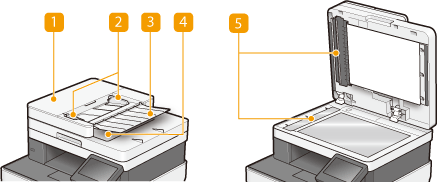
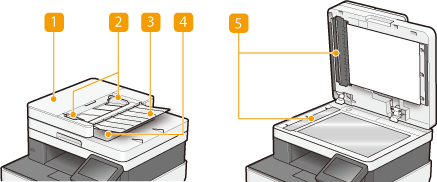
• Make sure the scanner lid is fully closed
• Confirm the destination computer is on and connected
• Verify scan software is installed and updated
• Check firewall permissions for scan features
• Test scanning from the printer control panel and from the computer
If scan to email fails, review the SMTP settings, login details, and server rules. If scan to folder fails, check the folder path, permissions, and shared network access. These steps are simple, but they solve a lot of real problems.
When I troubleshoot scanning, I like to separate the issue into two parts:
• Can the printer scan at all?
• Can it send the file to the chosen destination?
That split saves time. If the scan works locally but not to email, the printer is not the main issue. The email settings are.
Handle toner, cartridge, and supply alerts
Supply warnings can be confusing during Canon imageCLASS MF656Cdw troubleshooting. Sometimes the printer reports low toner when output still looks fine. Other times the cartridge is installed correctly, but the machine still refuses to print because it does not detect the supply properly.
Try this:
• Remove and reseat the affected toner cartridge
• Check for packaging tabs or protective seals left behind
• Make sure you are using the correct Canon-compatible cartridge model
• Inspect the cartridge for damage or leakage
• Restart the printer after reinstalling the supply
Keep in mind that toner sensors are not perfect. A cartridge can still print for a while after a low warning appears. That said, if the print is fading or uneven, replacement is usually the right move.
Be cautious with third-party supplies. Some work well, but some create detection issues or inconsistent results. If reliability matters more than short-term savings, original or high-quality compatible supplies are usually safer.
Check error codes and use the display messages
Error codes are useful because they point you in the right direction. In Canon imageCLASS MF656Cdw troubleshooting, the code on the screen is often more helpful than the symptom itself. It can indicate a jam location, supply issue, cover error, or service-related fault.
When you see an error code:
• Write it down exactly as shown
• Check whether the printer mentions a tray, cover, or cartridge
• Power cycle the printer after clearing the issue
• Recheck any area named in the message
• If the code returns, look for a recurring mechanical or firmware problem
Do not ignore repeated error messages. One code may look minor, but if it comes back every day, something is still wrong. A sensor may be dirty, a door may not be closing fully, or a component may need service.
Prevent future problems with simple maintenance
The best Canon imageCLASS MF656Cdw troubleshooting is the kind you do before problems grow. Routine care keeps the printer steady and lowers the chance of jams, poor print quality, and connection trouble. A little maintenance goes a long way.
Good habits include:
• Use clean, dry, high-quality paper
• Keep the printer in a dust-free area
• Update firmware when Canon releases important fixes
• Restart the printer once in a while, especially after network changes
• Avoid mixing paper types in the same tray
• Clean the outside and paper path area regularly
From experience, most “mystery” printer problems are really maintenance problems in disguise. Dust, old settings, and paper storage habits often matter more than people think. Treat the printer like office equipment that needs care, not a magic box that should never need attention.
When to reset the printer
A reset can help when Canon imageCLASS MF656Cdw troubleshooting points to settings corruption or a stubborn network issue. It is not the first thing I recommend, but it can be useful when normal steps fail. A reset may clear saved wireless settings, custom preferences, or temporary errors.
Use a reset when:
• The printer keeps showing the same odd error after restarts
• Network settings are tangled after a router change
• The printer behaves differently from one device to another
• You have already tried driver updates and basic checks
Before resetting, write down:
• Wi Fi name and password
• Static IP settings, if used
• Scan to email or folder details
• Tray and paper preferences
A reset is a bit like starting with a clean desk. It helps, but only if you remember where everything belongs afterward.
Frequently Asked Questions of Canon imageCLASS MF656Cdw Troubleshooting
Why is my Canon imageCLASS MF656Cdw offline even though it is connected to Wi Fi?
This usually happens when the printer’s IP address changes or the computer is using an old printer entry. Remove the printer from your device, then add it again using the current network address.
How do I clear a paper jam on the Canon imageCLASS MF656Cdw?
Turn the printer off and open the covers and trays carefully. Remove the paper slowly in the direction of the paper path, then check for torn scraps before restarting the printer.
Why is my print faded or streaky?
Faded or streaky output often points to low toner, dirty rollers, or the wrong print quality setting. Reinstall the toner, print a test page, and make sure the driver is not set to draft mode.
Why won’t my Canon imageCLASS MF656Cdw scan to email?
Scan to email problems usually come from SMTP settings, login issues, or firewall blocks. Check the email server details, confirm the password, and make sure network access is allowed.
Should I use third-party toner in the MF656Cdw?
Some third-party toner cartridges work fine, but others can cause detection or quality issues. If you want the most stable results, use original or trusted compatible supplies.
How often should I update the printer firmware?
Check for firmware updates whenever Canon releases a major fix or when you notice repeated bugs. Updates can improve stability, security, and compatibility with newer networks or devices.
Conclusion
Canon imageCLASS MF656Cdw troubleshooting becomes much easier when you work step by step and start with the basics. Most issues come down to paper handling, toner, network settings, drivers, or scan setup, and each one has a clear path to a fix. The more you understand how the printer behaves, the faster you can get it back to normal.
If your MF656Cdw is acting up right now, start with the simple checks, then move to the deeper fixes only if needed. That approach saves time, reduces guesswork, and usually gets better results than randomly trying everything at once. If this guide helped, keep it handy, share it with someone who needs it, or leave a comment with the problem you are trying to solve.

Similar Posts