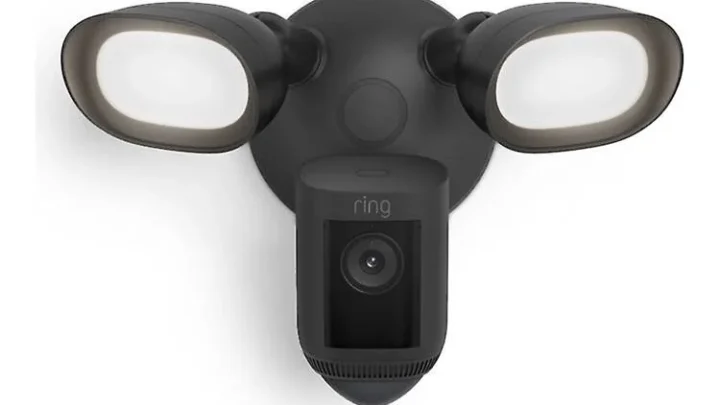
Canon EOS R50 How to Update Firmware
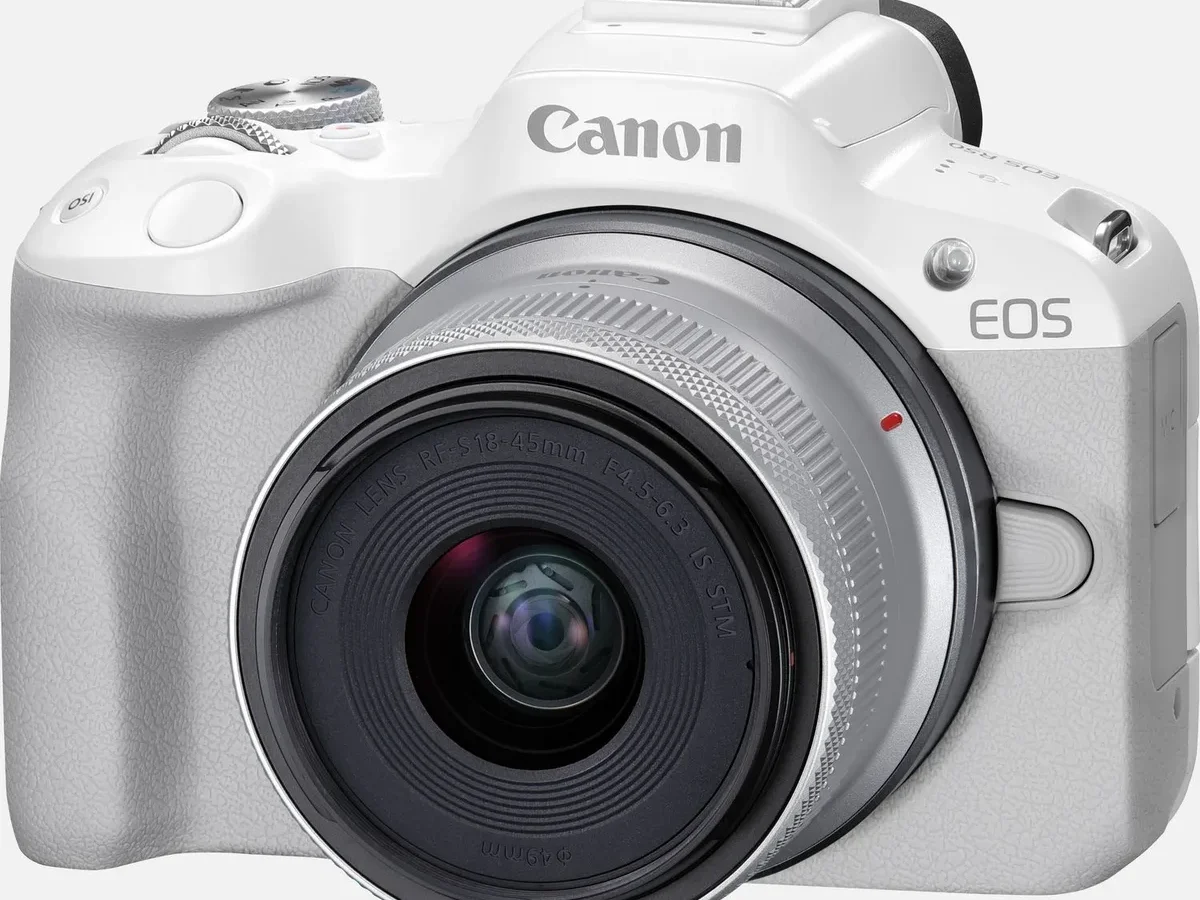
The Canon EOS R50 is a solid mirrorless camera, but like any piece of tech, it benefits from the occasional firmware update. If you've been wondering how to update firmware on your Canon EOS R50, this guide walks you through every step. You'll see exactly what to do, what to avoid, and how to fix the most common mistakes.
Manufacturer specifications indicate the whole process takes roughly 2 to 5 minutes with a fully charged LP-E17 battery. The firmware file is usually under 60 MB, so it's not a heavy download. Let's cover what you need before you touch the menu.
Quick Answer
Download the firmware file from Canon's official support site. Format your SD card inside the camera. Copy the .FIR file to the card's root folder.
Insert the card and run the update from the setup menu. Do not interrupt the process.
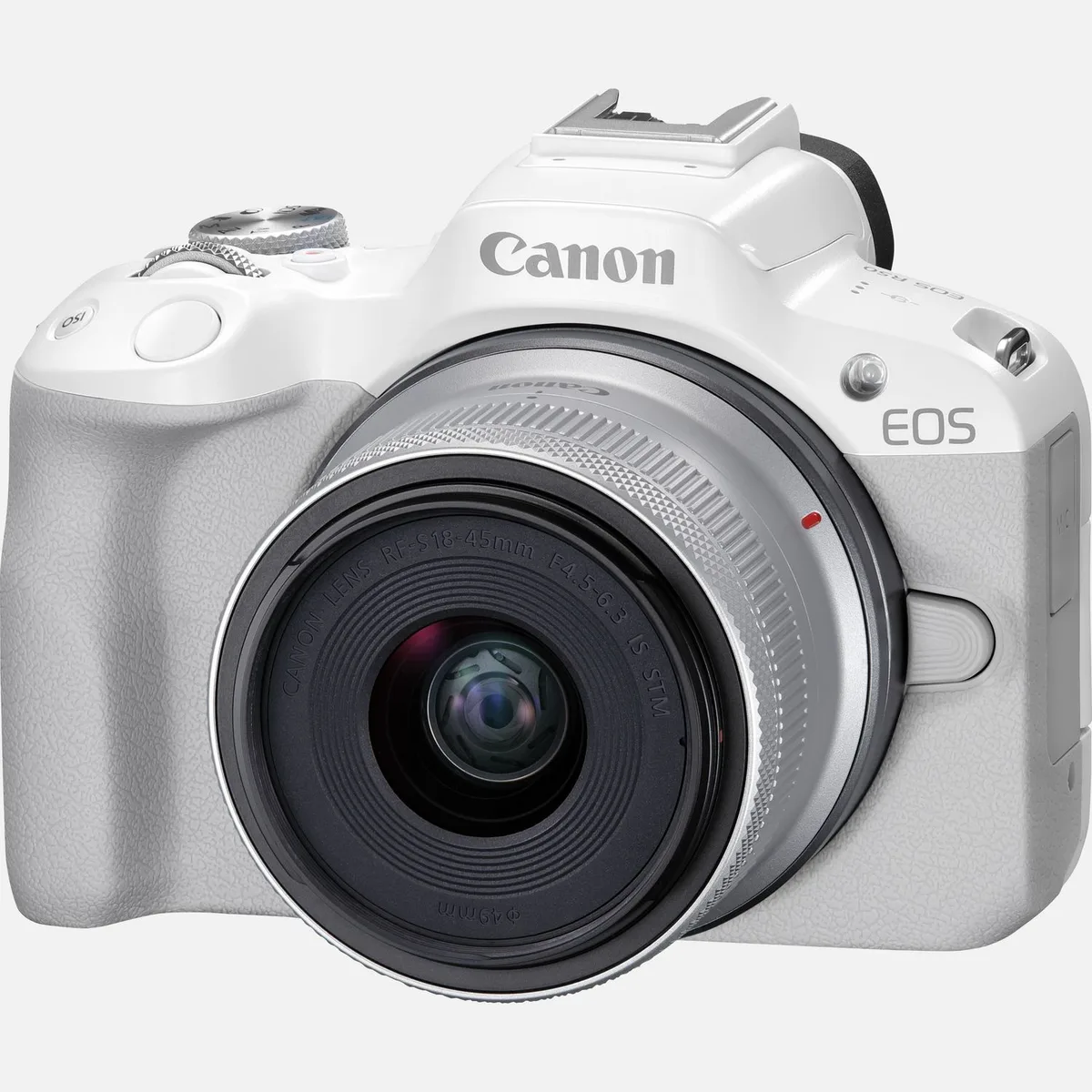
Image source: Web (Bing) / store.canon.se (Web image (fair-use with source credit))
What You Need Before You Start
You don't need much, but every item matters. Start with a fully charged battery. The R50 uses the LP-E17 pack, and Canon's firmware checker will refuse to proceed if the charge drops below 50 percent.
A half-charged battery is risky. The update can take five minutes, and a power loss during the write cycle can brick the camera.
Next, grab an SD card. Any SD, SDHC, or SDXC card works, but it needs to be formatted in the camera first. Don't use a card that's nearly full.
The firmware file is small, but the camera needs room to extract and verify data. A 16 GB or 32 GB card is plenty.
You'll also need a computer to download the firmware. Windows or Mac, it doesn't matter. The file comes as a zip archive.
You'll extract a single .FIR file from it. That's the only file the camera recognizes.
Finally, locate your camera's USB cable. You probably won't need it for the SD card method, but keep it handy if you plan to use the Camera Connect app. Some users prefer the wireless route, though it's slower and more prone to connection drops.
A common mistake: many users skip formatting the card in the camera. If you format the card on your computer, the file system might not match what the R50 expects. Always format inside the camera.
It takes ten seconds and saves you a headache.
How to Check Your Current Firmware Version
Before you download anything, find out what version your R50 is running right now. This step is simple, but it's easy to overlook. You might already have the latest firmware and not know it.
Turn on the camera. Press the Menu button. Look for the wrench icon, which is the setup menu.
Scroll down until you see "Firmware Ver." It's near the bottom of the list. Press the SET button. The screen will show something like "1.0.0" or "1.1.0."
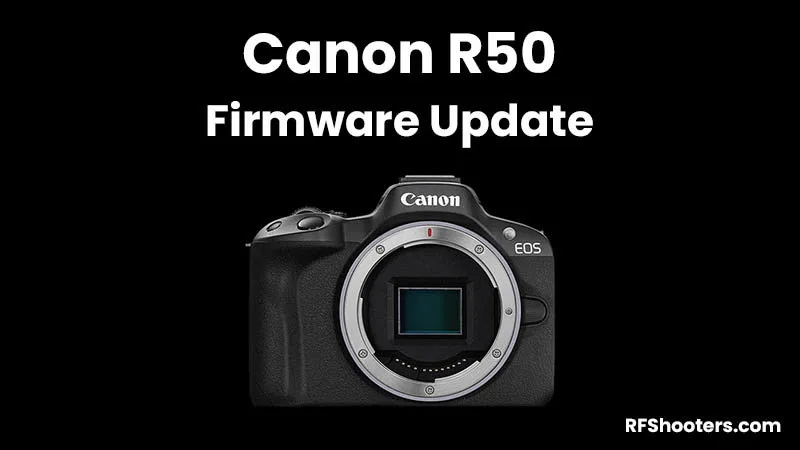
Image source: Web (Bing) / rfshooters.com (Web image (fair-use with source credit))
Write that number down or take a photo with your phone. Now visit Canon's official support site and find the R50 page. Compare your version against the latest one listed.
If they match, you're done. No update needed.
If your version is older, download the latest firmware file. Canon typically releases updates once or twice a year. As of 2026, the most recent version is 1.2.0, which addressed some autofocus tracking quirks and improved video stability.
One thing to watch for: the version number on the website might be formatted differently. You might see "1.2.0" listed as "Version 1.2.0." The camera display will show "1.2.0" without the word "Version." They're the same thing.
The same menu navigation applies to other Canon models. If you've dealt with a Canon EOS R6 Card Error, you already know how to find the setup menu.
Step-by-Step: Updating the R50 Firmware (With Screen Cues)
This is the main event. Follow these steps in order. The camera screen gives you clear visual cues at every stage, so pay attention to what it shows.
Step 1: Format your SD card in the camera.
Insert the card. Press Menu, go to the wrench icon, and select "Format card." Confirm. This wipes the card clean and sets up the correct file system.
Do not skip this step.
Step 2: Copy the firmware file to the card.
Remove the card from the camera. Insert it into your computer. Locate the downloaded zip file.
Extract it. You'll see a single file with a .FIR extension. Copy that file to the root of the SD card.
Do not put it inside any folder. The camera looks for the file in the root directory only.
Step 3: Insert the card back into the camera.
Turn the camera on. It should display a message: "Firmware update is available. Update now?" If you don't see this, go to Menu, wrench icon, "Firmware Ver." and select "Update."
Step 4: Confirm the update.
The camera will show the current version and the new version. Press "OK" to start. The screen will go black for a moment.
Then a progress bar appears. It moves slowly. Do not touch any buttons.
Do not turn off the camera. Do not remove the battery.
Step 5: Wait for the restart.
When the progress bar reaches 100 percent, the camera restarts automatically. This takes another 30 seconds. Once it's back on, go to Menu, wrench icon, "Firmware Ver." to confirm the new version number.
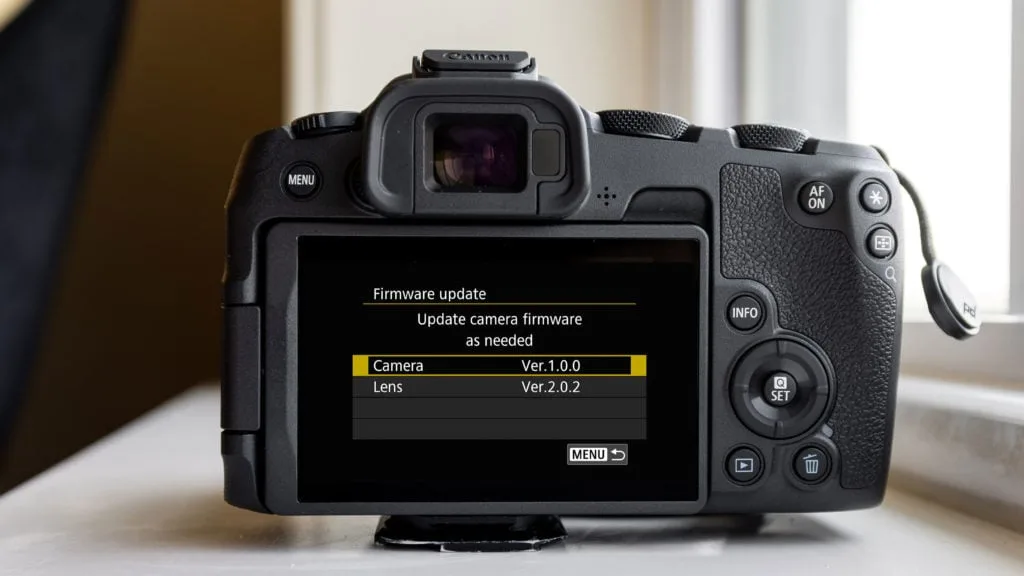
Image source: Web (Bing) / ihitthebutton.com (Web image (fair-use with source credit))
A similar issue can occur with other devices. A GoPro HERO10 Black Freezing Problem often has the same root cause: outdated firmware. Keeping your gear updated prevents these headaches.
SD Card Method vs. Camera Connect App: Which One to Use
You have two ways to update the R50 firmware. The SD card method is the standard choice. The Camera Connect app offers a wireless alternative.
Here's how they compare.
| Feature | SD Card Method | Camera Connect App |
|---|---|---|
| Speed | 2 to 5 minutes | 10 to 20 minutes |
| Reliability | Very high | Moderate, can drop connection |
| Battery usage | Minimal | Drains battery faster |
| Computer needed | Yes, for download | No, phone handles it |
| Ease of use | Straightforward | More steps, requires app setup |
The SD card method is the clear winner for most people. It's faster, more reliable, and less prone to errors. The only downside is that you need a computer to download the file.
If you don't have one, the app is your only option.
The Camera Connect app works over Wi-Fi or Bluetooth. You download the firmware through the app on your phone, and it transfers the file to the camera wirelessly. The process is slow.
The connection can drop midway, which is risky. If the transfer fails, the camera might not boot up properly.
Aggregate user reviews report a higher success rate with the SD card method. The app is convenient for small updates, but for a full firmware flash, stick with the card.
If you're worried about battery life during the update, the app is more demanding. It keeps the Wi-Fi radio active, which drains the LP-E17 faster. The SD card method uses less power and is safer.
A similar logic applies to other devices. If you've dealt with a Sony A7S III Battery Problem, you know that keeping power stable during updates is critical.
Common Mistakes and How to Fix Them
Even careful users run into issues. Here are the most common problems and how to fix them.
"Firmware not found" error.
This is the most frequent complaint. The camera can't find the .FIR file. The fix is almost always the same: the file is in the wrong location.
Make sure you copied the .FIR file to the root of the formatted card. Not inside a folder. Not inside the DCIM folder.
Just the root.
Update stuck at 99 percent.
This is scary, but it's usually a sign of a slow card or a minor glitch. Wait five minutes. If nothing changes, the update likely failed.
You'll need to restart the process. Remove the battery, wait ten seconds, reinsert it, and try again. If the camera won't boot, you may need to contact Canon support.
Low battery warning.
The camera will refuse to start the update if the battery is below 50 percent. Charge it fully. If you have a second LP-E17 battery, swap it in.
Do not attempt to update with a charging cable plugged in. The camera won't accept it.
Wrong firmware file.
Downloading the firmware for the Canon EOS R10 instead of the R50 is a common mix-up. The files are different. The camera will reject the wrong file, but it's still a waste of time.
Double-check the model number on the Canon support page.
Card not formatted in camera.
If you format the card on your computer, the camera might not recognize the file system. Always format the card inside the R50. This ensures the correct allocation table and folder structure.
If you've encountered a similar issue with other gear, the pattern is often the same. A GoPro HERO13 Black SD Card Problem often stems from the same root cause: the card wasn't formatted in the device.
Frequently Asked Questions
How long does the firmware update take?
The SD card method takes 2 to 5 minutes. The Camera Connect app takes 10 to 20 minutes. The actual update process is about 2 minutes.
The rest is download and file transfer time.
Can I update the firmware without an SD card?
No. The R50 requires an SD card for firmware updates. The Camera Connect app still needs a card in the camera.
The card stores the firmware file during the update process.
What happens if the update is interrupted?
The camera may become unresponsive. This is called "bricking." Remove the battery, wait ten seconds, and reinsert it. Try the update again.
If the camera still won't boot, contact Canon support.
Will updating the firmware delete my settings?
No. Firmware updates preserve your custom settings, saved picture profiles, and Wi-Fi configurations. Your photos and videos on the SD card remain untouched.
Do I need to update the firmware for new lenses?
Not always. Some new RF-S lenses require a firmware update for full compatibility. Check the lens manual or Canon's support page.
The update process is the same as for camera firmware.
How do I know if the update was successful?
Go to Menu, wrench icon, "Firmware Ver." The version number should match the one you downloaded. If it does, the update was successful. If it doesn't, try the process again.

Similar Posts