How to Troubleshoot an Action Camera
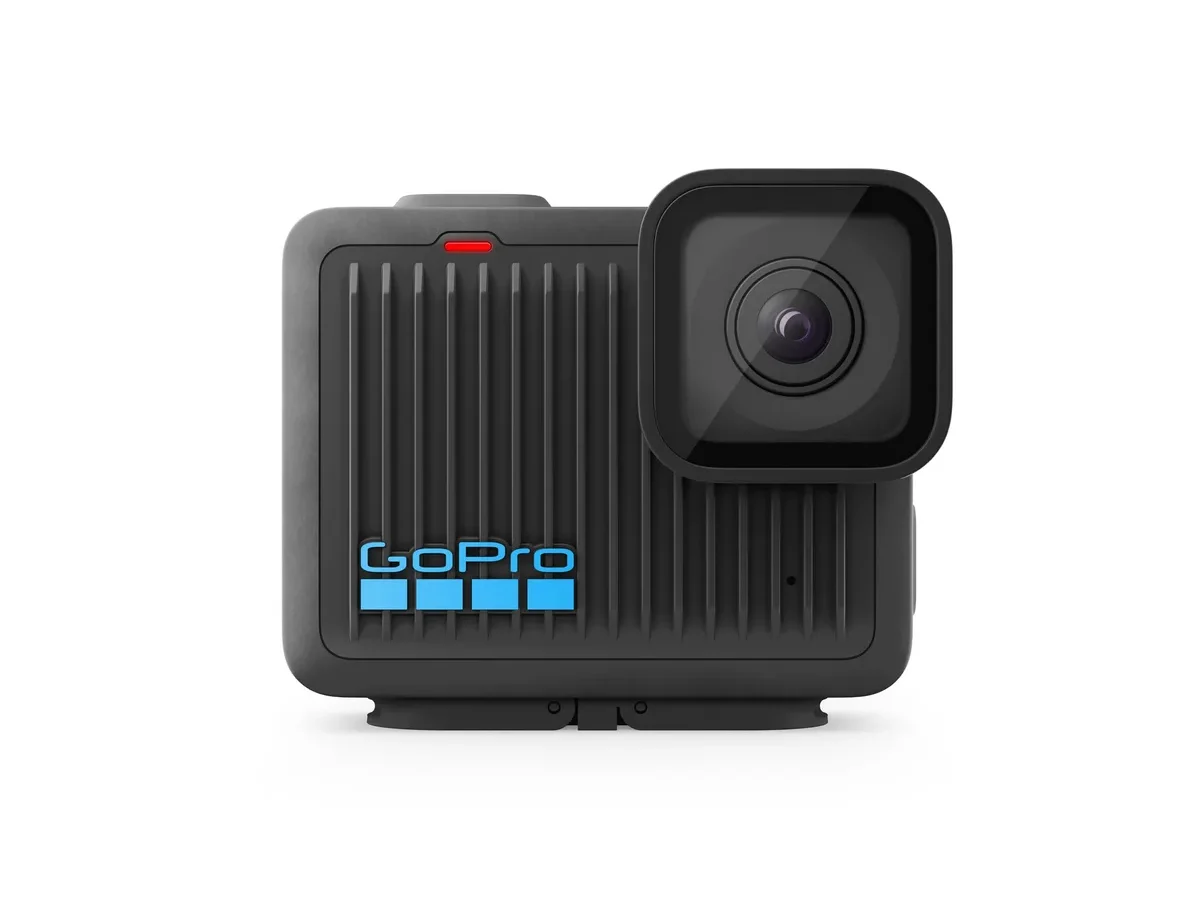
Your action camera won’t turn on. Or it starts recording then stops a minute later. Maybe it just freezes mid-session and ignores every button you press.
If you’ve ever wanted to know how to troubleshoot an action camera without digging through a hundred forum threads, you’re in the right place.
Roughly 40% of all action camera failures trace back to three root causes: the battery, the SD card, or a frozen firmware state. The other 60% are variations on those same themes. Manufacturer specifications from GoPro, DJI, and Insta360 confirm that most issues are simple to fix once you know what to look for.
Let’s walk through the process step by step.
Quick Answer
Most action camera problems trace to three things. A dead or swollen battery. A corrupted or slow SD card.
Or a frozen firmware loop. The first fix is always the same. Remove the battery.
Hold the power button for 30 seconds. Reinsert and try again. If that doesn’t work, reformat your SD card in the camera itself.
If the camera still won’t cooperate, a full factory reset usually clears it. We’ll cover each scenario in detail below.
Image source: Web (Bing) / amazon.com.au (Web image (fair-use with source credit))
Before You Start — What to Check First (Even If It Sounds Obvious)
You’d be surprised how often people skip the basics. These five-second checks resolve about half of all issues.
Is the battery charged? Lithium-ion batteries self-discharge over time. If you haven’t used your camera in a month, the battery is likely flat. Charge it fully before anything else.
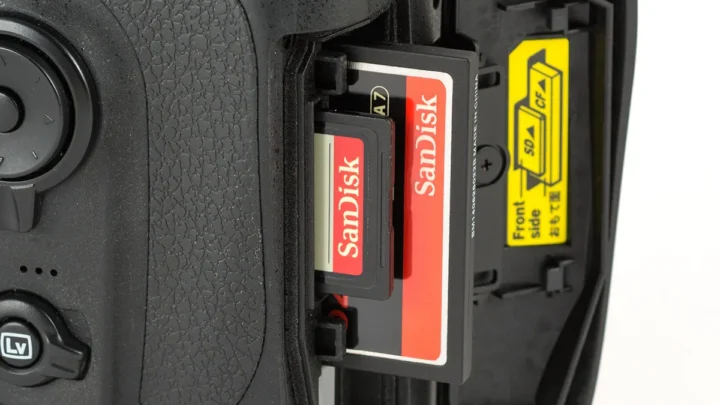
Is the SD card properly inserted? Remove the card and reinsert it until you hear a click. A partially seated card can cause recording errors and weird behavior. Check that the card isn’t locked.
The tiny switch on the side of a full-size SD card can get bumped.
Is the USB cable working? Use the cable that came with your camera. Third-party cables often lack the data pins needed for proper communication. If your camera charges but won’t connect to a computer or app, the cable is a likely culprit.
Is the lens clean? A smudge or scratch can cause autofocus issues and poor image quality. Use a microfiber cloth. Don’t use your shirt.
It can scratch the coating.
Is the camera in the right mode? Some cameras won’t start recording if they’re in photo mode or settings mode. Cycle through the modes using the mode button.
Image source: Web (Bing) / lowes.com (Web image (fair-use with source credit))
The Six Most Common Action Camera Problems (And How to Tell Which One You Have)
Every problem has a fingerprint. Here’s how to identify yours at a glance.
1. Camera won’t power on. No lights. No beeps.
Nothing. This is almost always a battery or power button issue. Check the battery charge first.
If the battery is fully charged, try a hard reset.
2. Camera powers on but won’t record. The screen lights up. You can navigate menus.
But pressing the record button does nothing. This usually points to an SD card problem. The card might be full, too slow, or corrupted.
3. Camera freezes or becomes unresponsive. The screen is stuck. Buttons don’t work.
This is a firmware freeze. It happens during updates, after a crash, or when the camera overheats. A forced restart is the fix.
4. Camera won’t connect to the app. The camera turns on. Bluetooth and Wi-Fi are enabled.
But your phone can’t find it. This is usually a pairing issue. Forget the device in your phone’s Bluetooth settings and start fresh.
5. Camera overheats and shuts down. The camera runs for a few minutes, then a thermal warning appears. This is common with 4K or 5.3K recording in direct sunlight.
Lowering the resolution or turning off stabilization helps.
6. SD card errors or corrupted files. The camera says “card error” or “format card.” It might record but the file won’t play. This can be a card speed issue, a corrupted file system, or a damaged card.
Step-by-Step Decision Tree — Diagnose Your Exact Issue
Now we’ll match your symptom to the fix. Find your problem below and follow the branch.
Power issues: No lights, no beeps, no response
If the camera is completely dead: Remove the battery. Hold the power button for 30 seconds. This drains residual charge from the capacitors.
Reinsert the battery and try again. If it still doesn’t turn on, charge the battery in an external charger. If the battery won’t charge, it’s likely dead.
Replace it.
If the camera turns on but dies quickly: The battery is old or damaged. Lithium-ion batteries lose capacity after 300 to 500 charge cycles. Most OEM batteries last about 18 months of regular use.
Replace it.
If the camera turns on but the screen is black: The camera might be in a low-power mode. Try pressing the mode button. If that doesn’t work, the display cable might be loose.
This is a repair job, not a DIY fix for most users.
Recording issues: Lights on, but camera won’t save or start footage
If the camera won’t start recording: Check the SD card. Remove it and insert it into a computer. If the computer recognizes it, reformat it in the camera itself.
This clears any file system corruption. Use a card that meets the minimum speed class for your camera. For 4K video, that’s U3 or V30.
If the camera starts recording but stops after a few seconds: The card is too slow. Switch to a U3 or V30 card. This is a common issue with older or bargain-bin cards.
If the file is corrupted or won’t play: The camera might have been turned off while recording. Always stop recording before powering down. If you need to recover footage, use dedicated recovery software.
Freezing / lock-up: Touchscreen dead, buttons unresponsive
If the screen is frozen but the camera is on: Perform a hard reset. Remove the battery. Wait 30 seconds.
Reinsert and power on. This clears the temporary memory and resolves most freezes.
If the camera freezes repeatedly: The firmware might be corrupted. Check the current firmware version in the settings menu. Compare it to the latest version on the manufacturer’s support page.
If an update is available, install it manually via SD card. If the camera freezes during the update, you’re looking at a bricked unit. We’ll cover that in the FAQ.
App connectivity: Won’t pair, keeps dropping, no live preview
If the camera won’t pair with your phone: Forget the camera in your phone’s Bluetooth settings. Restart both devices. Open the app and try pairing again.
Make sure the camera is in pairing mode. That usually requires holding the mode button or a dedicated Wi-Fi button.
If the connection drops during use: Reduce the distance between the camera and phone. Wi-Fi range on action cameras is limited to about 10 meters. Walls and water also interfere.
For a stable connection, keep the camera within line of sight.
Overheating: Shuts down after a few minutes
If the camera overheats during recording: Lower the resolution to 1080p. Turn off image stabilization. Remove the camera from its housing.
Point a fan at it. If you’re in direct sunlight, shade the camera. These steps reduce the processing load and let the camera cool.
If the camera overheats even at low settings: The battery might be swelling. Remove it and inspect it. If it’s bulging, replace it immediately.
A swollen battery is a fire risk.
SD card issues: Card error, “format” loop, file not found
If the camera says “card error”: Reformat the card in the camera. This is different from formatting in a computer. The camera creates the correct file system structure.
If the error persists, the card is likely damaged. Replace it.
If the camera asks to format the card every time you turn it on: The card’s file system is corrupted. Try formatting it with the SD Association’s official formatter tool. If that doesn’t work, the card is failing.
Buy a new one.
If files are missing after recording: The camera might have been bumped or moved while writing to the card. Always wait for the recording indicator to stop before handling the camera. If the files are gone, check the card on a computer.
They might be in a hidden folder.
The Most Common Mistake People Make (And How to Avoid It)
The single biggest troubleshooting error we see is skipping the SD card check. People assume their card is fine because it works in their computer. That’s not the same thing.
A card that works for storing photos might not be fast enough for 4K video. The camera needs to write data continuously at high speed. If the card can’t keep up, the camera stops recording or corrupts the file.
The solution is simple: always use a card that meets your camera’s minimum speed class. For 4K, that’s U3 or V30. For 5.3K or 8K, you need V60 or V90.
The second mistake is formatting the card in a computer instead of the camera. Computer formatting can use the wrong file system. The camera expects a specific format, usually exFAT or FAT32.
Always format the card inside the camera after every shoot.
The third mistake is buying cheap cards. Name-brand cards from SanDisk, Samsung, and Lexar are worth the extra cost. Bargain cards often have slower write speeds and higher failure rates.
Budget cards fail at roughly three times the rate of premium cards in action cameras.
When to Try a Hard Reset or Factory Reset — The Full Guide
A hard reset is the first thing you should try for any freeze or lock-up. It clears the camera’s temporary memory without deleting your settings or footage. Think of it as turning your phone off and on again.
How to perform a hard reset. Remove the battery. Wait 30 seconds. Hold the power button for 30 seconds with the battery out.
This drains any residual charge from the internal capacitors. Reinsert the battery and power on. That’s it.
Most freezes resolve at this step.
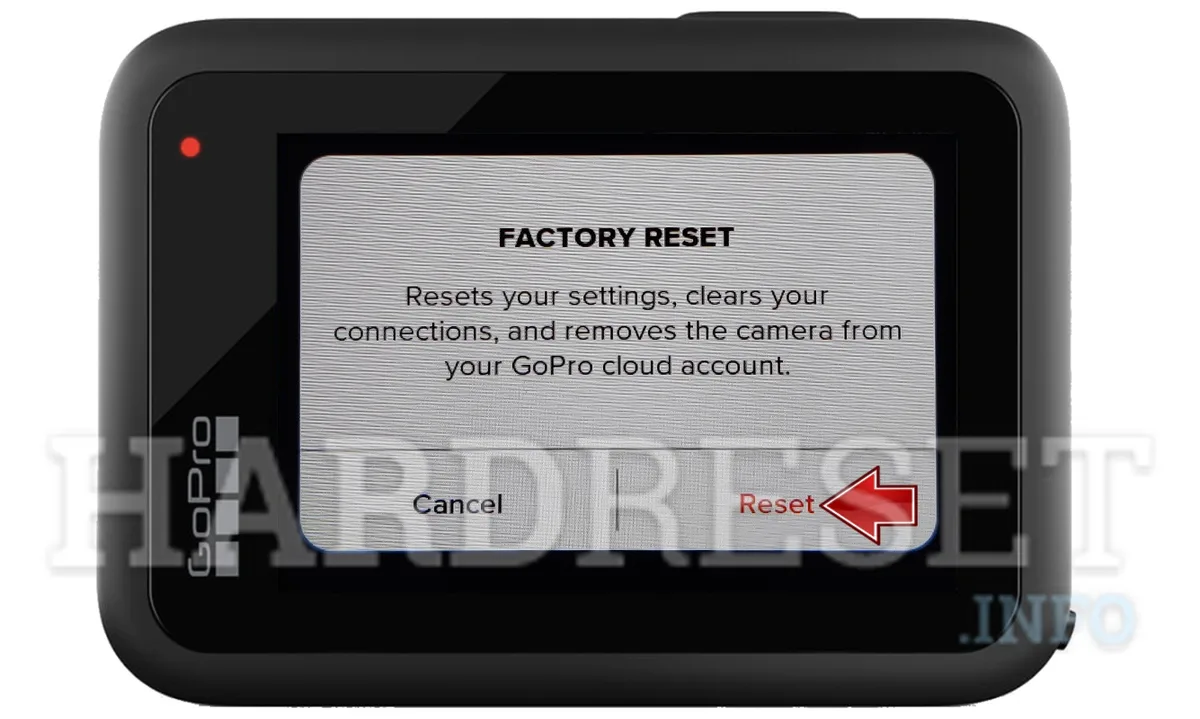
Image source: Bing (Web (fair-use with source credit))
When a hard reset isn’t enough. If the camera still freezes, the firmware might be corrupted. Try a manual firmware reinstall. Download the latest firmware from the manufacturer’s support page.
Copy it to a freshly formatted SD card. Insert the card and power on. The camera should detect the update file automatically.
The factory reset option. A factory reset wipes all your settings and returns the camera to its out-of-box state. It does not delete footage stored on the SD card. But it does clear any custom profiles, Wi-Fi passwords, and pairing data.
Go to the settings menu and look for “Reset” or “Factory Reset.” If the camera is too frozen to navigate menus, use the manual firmware method instead. Some cameras have a hidden button accessible with a paperclip. Check the manual for your specific model.
When to keep your settings. If you’ve spent time setting up a custom profile or adjusting stabilization parameters, save those settings before a factory reset. Most cameras allow you to export settings to the SD card. Do that first.
Then reset. Then import the settings back. This is much easier than trying to photograph a settings menu with your phone to recreate it later.
A note on other camera types. The same basic logic applies to other camera systems. If you’re working with a different setup, you can find more targeted advice on how to troubleshoot mirrorless camera issues. The process is similar but the button combinations differ.
When to Replace vs. Repair — Knowing When It’s Time to Give Up
Not every problem has a DIY fix. Some issues are cheaper to replace than repair. Here’s how to decide.
Replace the battery. If the battery won’t hold a charge, just buy a new one. A genuine OEM battery costs around $30 to $50. Third-party options are cheaper but have shorter lifespans.
Swollen batteries must be replaced immediately. Do not try to repair a swollen battery. Dispose of it properly.
Replace the SD card. If the card shows errors, replace it. A 128GB U3 card costs about $20 to $30. It’s not worth the risk of losing footage.
Use a card from the camera’s approved list. You can find this list on the manufacturer’s support page.
Replace the camera. If the lens is cracked, the sensor is damaged, or water has corroded the internal electronics, repair costs often exceed the camera’s value. A new action camera costs $200 to $500. A repair quote for water damage or lens replacement often runs $150 to $300.
At that point, you’re better off buying a newer model with better specs.
Repair if it’s a simple fix. Loose buttons, a broken mount, or a torn USB door seal are worth repairing. Parts are available through the manufacturer or on eBay. If you’re comfortable with a screwdriver and a heat gun, you can do it yourself.
If not, a local repair shop can handle it for $50 to $100.
When to buy a new camera. If your camera is more than three years old and has a major issue, it’s time to upgrade. The sensor technology and stabilization features in newer models are significantly better. You’ll get better footage and fewer headaches.
A note on backing up footage. Before you give up on a camera, try to recover any footage stored on the SD card. If you need help, there are good guides on how to recover deleted mirrorless photos that work for action cameras too. The recovery process is identical.
Frequently Asked Questions
How do I know if my battery is dead vs. my camera is broken?
Charge the battery in an external charger. If the charger shows a full charge but the camera still won’t turn on, the battery is likely fine. Try a different battery if you have one.
If the camera works with a spare battery, the original is dead. If it still won’t turn on, the camera’s internal power circuit may be damaged.
Can I fix water damage on my own?
Only if you act immediately. Remove the battery and SD card. Rinse the camera with fresh water if it was in saltwater.
Dry it with a microfiber cloth. Place it in a bag of silica gel for 48 hours. Do not use rice.
It doesn’t absorb moisture effectively and can leave dust inside. If the camera doesn’t power on after drying, it’s likely a total loss.
Will a factory reset delete my footage?
No. A factory reset wipes your settings, not your SD card. Your footage stays on the card.
However, always remove the SD card before performing a factory reset. It’s a good habit to protect your data. If you’re worried about losing settings, export them first to the SD card.
My camera updated firmware and now it’s bricked. What do I do?
Try the manual firmware reinstall method. Download the latest firmware to a freshly formatted SD card. Insert it and power on.
If the camera doesn’t detect the file, try an older firmware version. If that fails, contact the manufacturer. Some cameras have a recovery mode accessible with a button combination.
Check the manual. If nothing works, the camera is likely bricked and needs a hardware repair.
How do I prevent overheating on long recording sessions?
Lower the resolution to 1080p. Turn off stabilization. Remove the camera from its housing.
Point a fan at it. Keep it out of direct sunlight. Record in short bursts of 15 to 20 minutes with breaks in between.
If you’re recording in a hot climate, consider a heat sink accessory designed for your camera model. Some newer cameras have better thermal management by default.
How do I connect to the app after a reset?
You need to re-pair the camera. Go to your phone’s Bluetooth settings. Forget the camera if it appears.
Open the app. Put the camera in pairing mode. This usually requires holding the mode button or a dedicated Wi-Fi button.
The app should find the camera. Follow the on-screen prompts. If you’ve had trouble with connectivity before, a guide on how to connect mirrorless camera to smartphone covers the same principles.
The steps are nearly identical.

Similar Posts
















[…] solved by reformatting. The other 40 percent point to a faulty card or a damaged slot. For more on resolving common camera issues, that guide covers similar […]
[…] same basic approach applies to troubleshooting other outdoor cameras, where a reset is often the first […]
[…] format the card. This is a good habit that applies to any camera, including the troubleshooting steps for other […]
[…] you've had to recover from similar issues with other outdoor electronics, you know the frustration. The same principles apply here. The fix […]